> ## Documentation Index
> Fetch the complete documentation index at: https://doc.lucidworks.com/llms.txt
> Use this file to discover all available pages before exploring further.
# Fusion Apps
export const LwTemplate = ({title = "Key questions to get you started", icon = "sparkles", cta = "Powered by Agent Studio", linkHref = "https://lucidworks.com/demo/?utm_source=docs&utm_medium=referral&utm_campaign=docs_cta_ai"}) => {
const [isLoaded, setIsLoaded] = useState(false);
useEffect(() => {
const timer = setTimeout(() => {
setIsLoaded(true);
}, 500);
return () => clearTimeout(timer);
}, []);
return
{isLoaded && `
}} />}
Powered by Lucidworks Agent Studio
;
};
export const InlineImage = ({src, alt = '', height = '2em'}) => {
return ;
};
[localhost link]: http://localhost:3000/docs/5/fusion/intro/ui-tour/fusion-apps
[mintlify link]: https://doc.lucidworks.com/docs/5/fusion/intro/ui-tour/fusion-apps
[old doc.lw link]: https://doc.lucidworks.com/fusion/5.9/179
*Fusion apps* provide tailored search functionality to specific groups of users.
An app is a named set of linked *objects*, including collections, datasources, index and query pipelines, index and query profiles, parsers, and more.
You can define security on a per-app basis using [roles](/docs/5/fusion/operations/security/access-control/roles) and
[security realms](/docs/5/fusion/operations/security/access-control/security-realms).
The **Create App** modal can be accessed by clicking Create App. When naming an app, the name must start with a letter and can include letters, numbers, dashes (`-`), or underscores (`_`), with a maximum length of 128 characters.
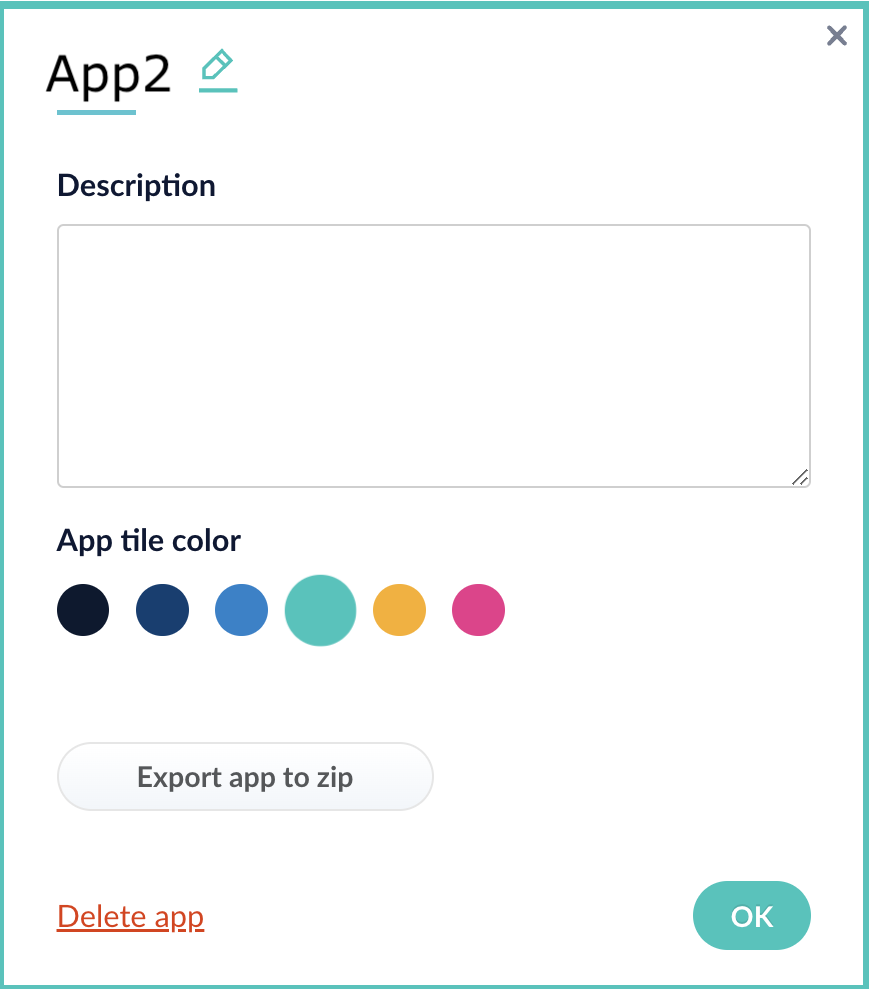
**To edit an app, access the **Edit App** modal by clicking on the settings cog icon on the app tile. Click on the pencil icon by the app name in the modal to edit the app name.**
Generally, you will create multiple apps for different purposes. You can view all of your apps in the launcher when you log in to the Fusion UI:
To enter the Fusion workspace for any app, click the app name.
In the Fusion workspace, you can hover over to switch to another app, create a new app, or return to the launcher:
The course for **Fusion Applications and Collections** focuses on the features of Fusion apps and collections and best practices when working with them.
## Learn more
You can create, modify, and delete apps in the Fusion UI or with the Apps API.
## Manage apps in the Fusion UI
### Create an app
Fusion prompts you to create an app the first time you log in. You can create additional apps at anytime from Fusion’s home page.
1. Log into Fusion and navigate to the home screen.
2. Click **Create new app**.
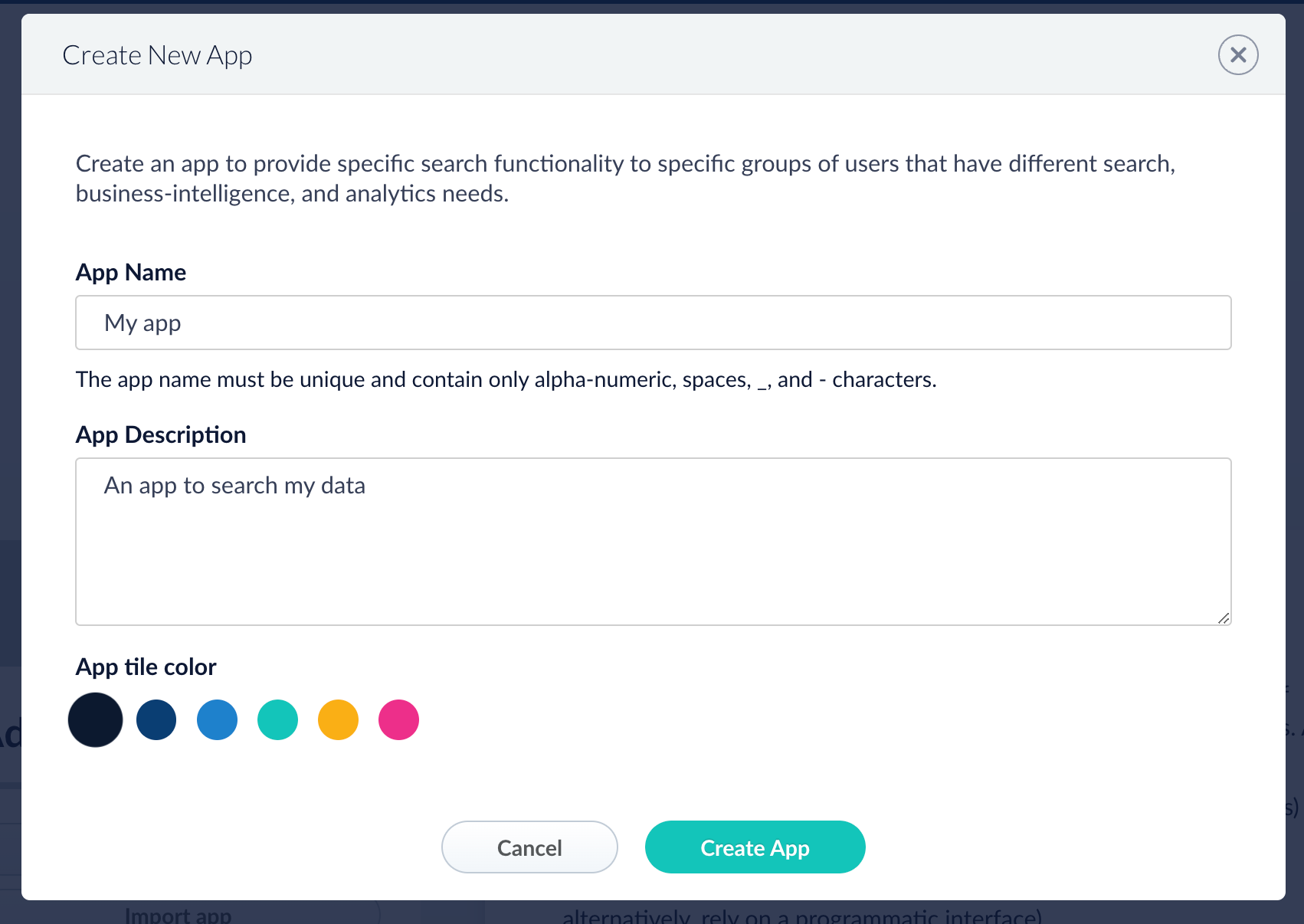
3. Enter a **Name**, **Description**, and select an **App tile color**.
4. Click **Create App**.
### Modify or delete an app
1. Log into Fusion and navigate to the home screen.
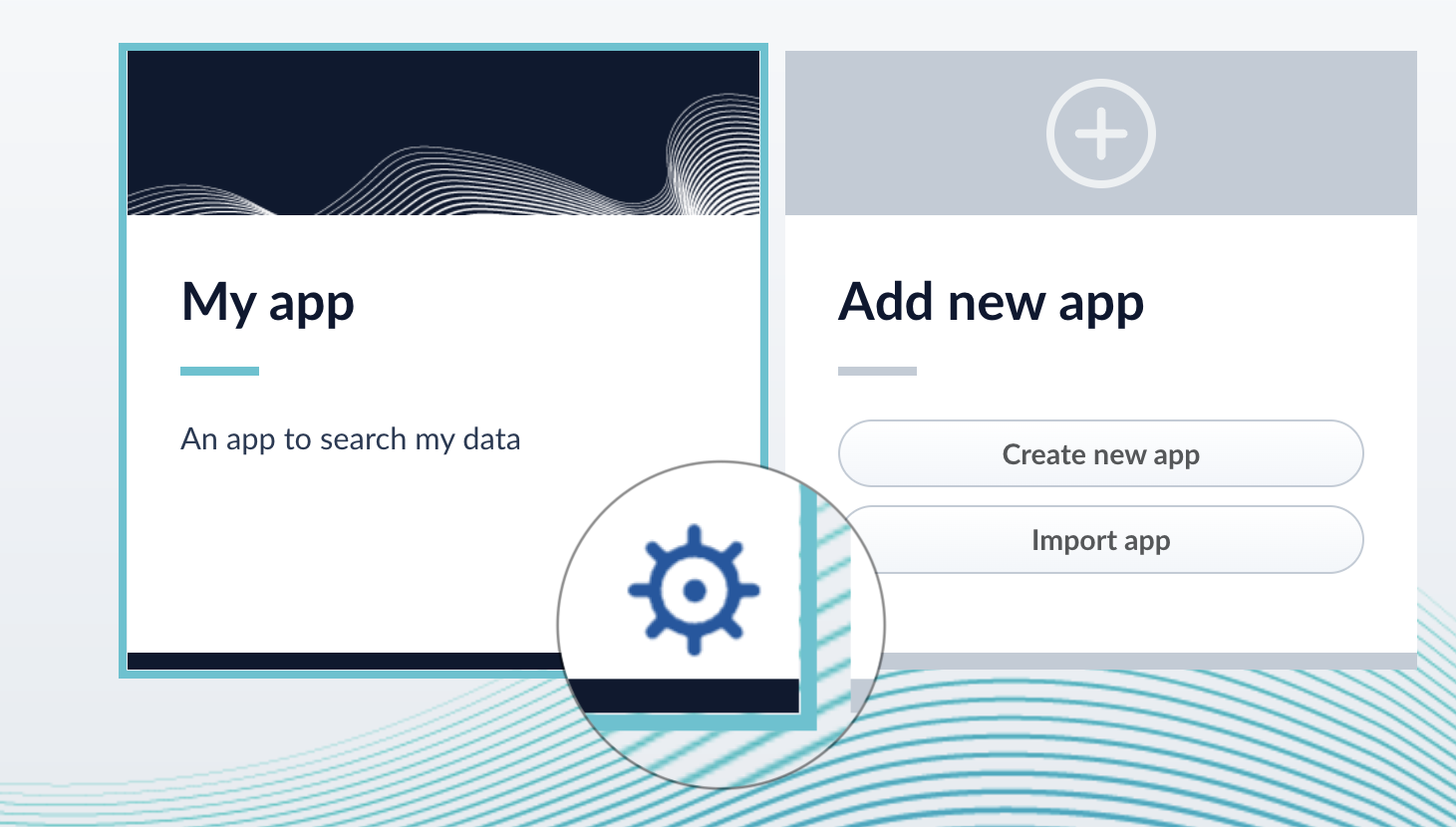
2. Click the **Configure** icon on the app you want to modify or delete.
3. To modify the app, click the edit icon .
1. Edit the **Name** or **Description**.
2. Click **OK**.
4. To delete the app, click **Delete app**.
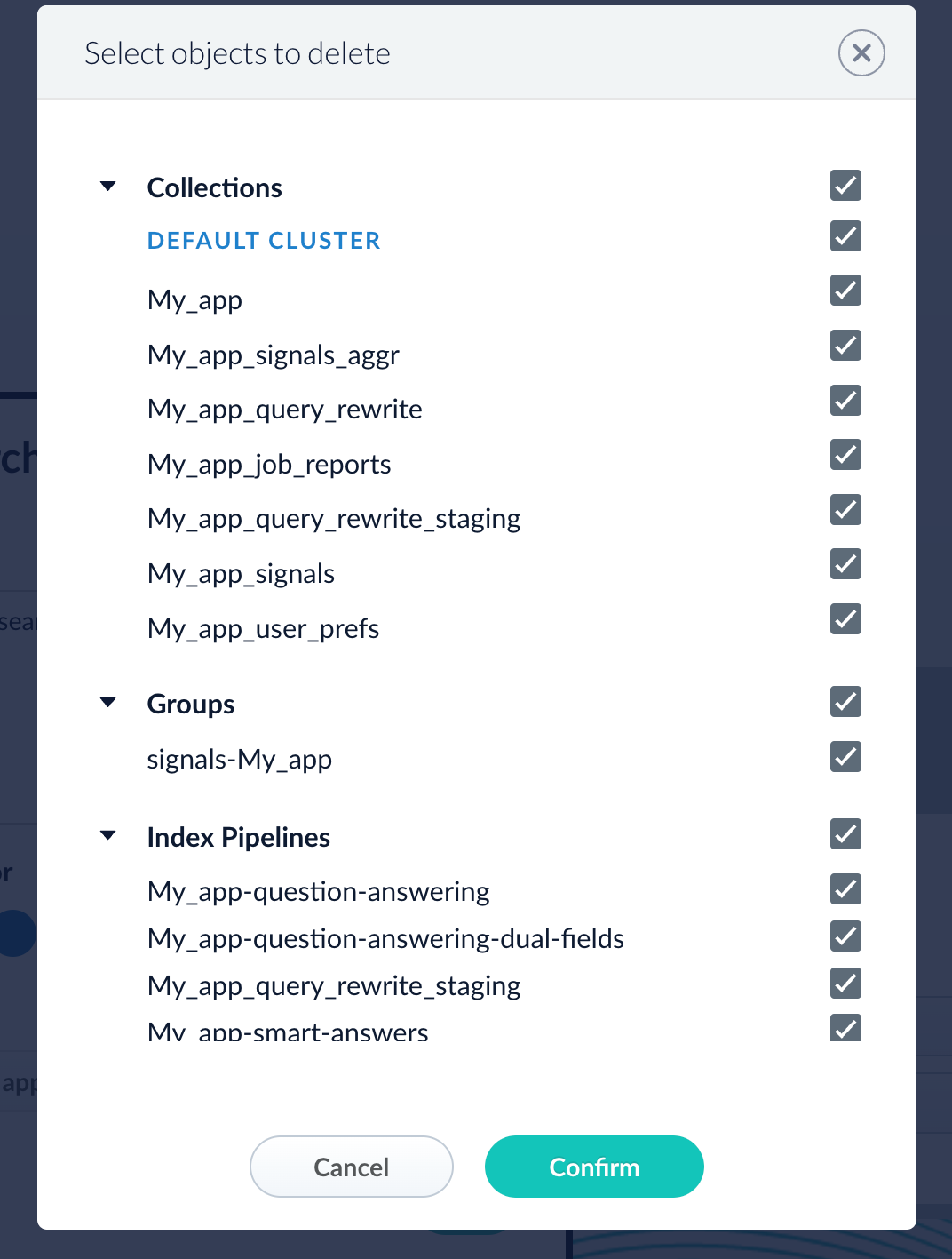
1. A dialog box appears where you can choose which associated objects to delete or retain. Only objects not associated with other objects are displayed. All objects are selected by default.
2. Click **Confirm**.
## Manage apps with the Apps API
### Create an app
```bash wrap theme={"dark"}
curl -u USERNAME:PASSWORD -X POST -H 'Content-type: application/json' -d '{"id": "MyNewApp", "name":"My new app", "description":"A really really great new app"}' https://FUSION_HOST/api/apps
```
### Delete an app
Run the following command, replacing `{id}` with the name of your app. This operation take about a minute to complete.
```bash theme={"dark"}
curl -u USERNAME:PASSWORD -X DELETE https://FUSION_HOST/api/apps/{id}
```
To export a Fusion app, you can use either the Fusion UI or the Objects API.
To upgrade from one Fusion version to a 5.x version, see Fusion 5 Upgrades to migrate objects.
## Export an app with the Fusion UI
1. How to export an app with the Fusion UI
2. Navigate to the launcher.
3. Hover over the app you want to export and click the Configure icon:
4. In the app config window, click **Export app to zip**:
See import for information to import the downloaded zip file into other instances of Fusion 5.x.
## Export an app with the Objects API
The examples below show how to export one or more apps:
**Export all apps**
```bash wrap theme={"dark"}
curl -u USERNAME:PASSWORD http://localhost:6764/api/objects/export?type=app > all-apps.zip
```
**Get all app IDs, then export one app by ID**
```bash expandable theme={"dark"}
> curl -u USERNAME:PASSWORD http://localhost:6764/api/apps
[ {
"id" : "movies",
"name" : "Movies",
"description" : "Search the movielens database.",
"dataUri" : "/App-Tile-01-460x160.png",
"properties" : {
"headerImageName" : "headerImage1",
"tileColor" : "apps-darkblue",
"previousCollectionId" : "movies"
}
}, {
"id" : "tech-pubs",
"name" : "TechPubs",
"description" : "Search the documentation.",
"dataUri" : "/App-Tile-02-460x160.png",
"properties" : {
"headerImageName" : "headerImage2",
"tileColor" : "apps-darkblue",
"previousCollectionId" : "tech-pubs"
}
} ]
> curl -u USERNAME:PASSWORD http://localhost:6764/api/objects/export?app.ids=tech-pubs > techpubs.zip
```
When you export an app that includes objects that are shared with other apps, then all apps linked to that object are also exported.
**Export two apps by ID**
```bash wrap theme={"dark"}
curl -u USERNAME:PASSWORD http://localhost:6764/api/objects/export?app.ids=tech-pubs,movies > two-apps.zip
```
For the `app` object type, the `deep` parameter is not used. Linked objects are always included when exporting apps.
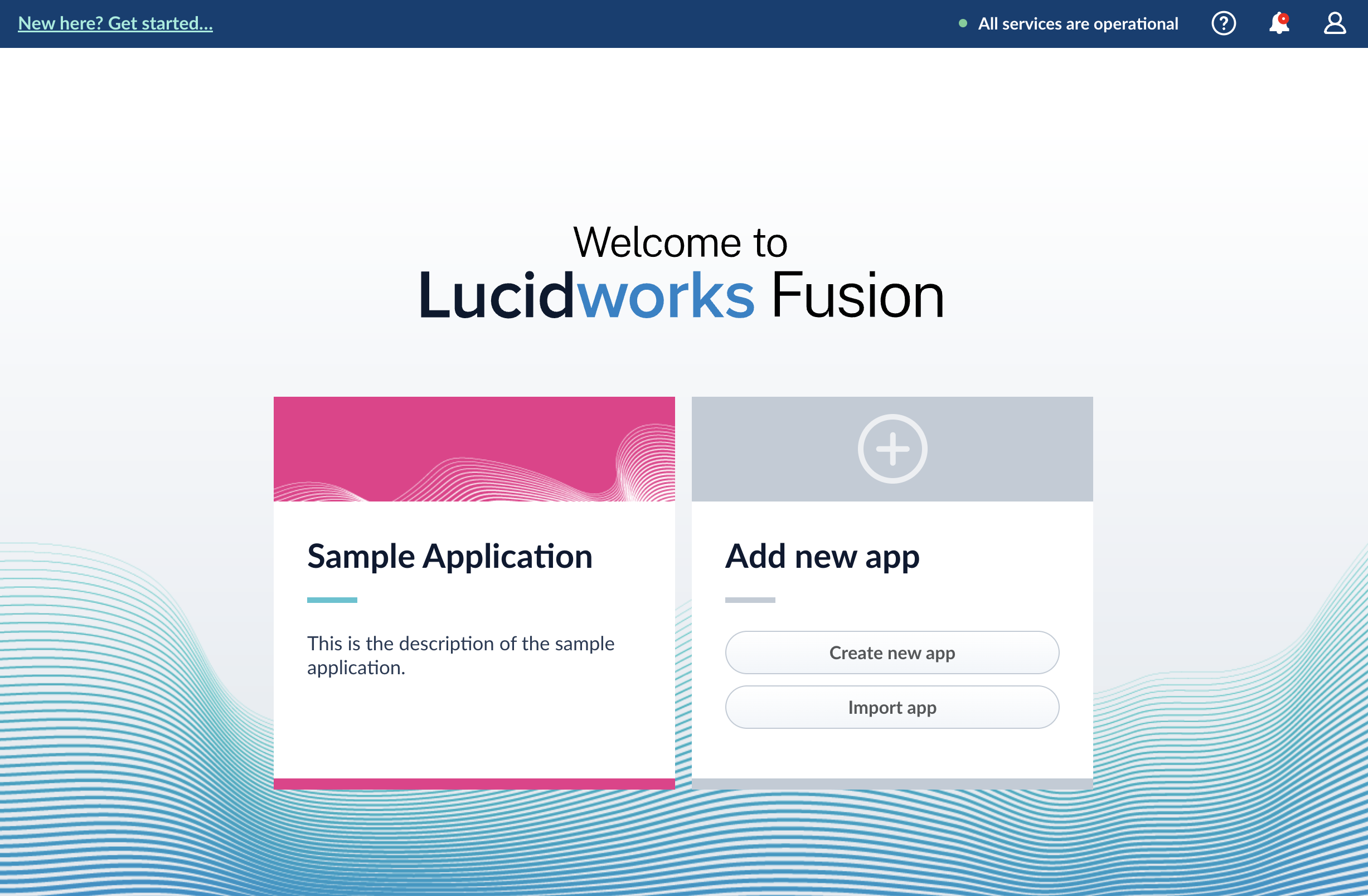 To enter the Fusion workspace for any app, click the app name.
In the Fusion workspace, you can hover over
To enter the Fusion workspace for any app, click the app name.
In the Fusion workspace, you can hover over 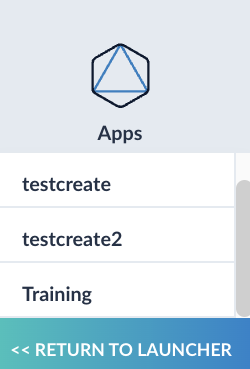
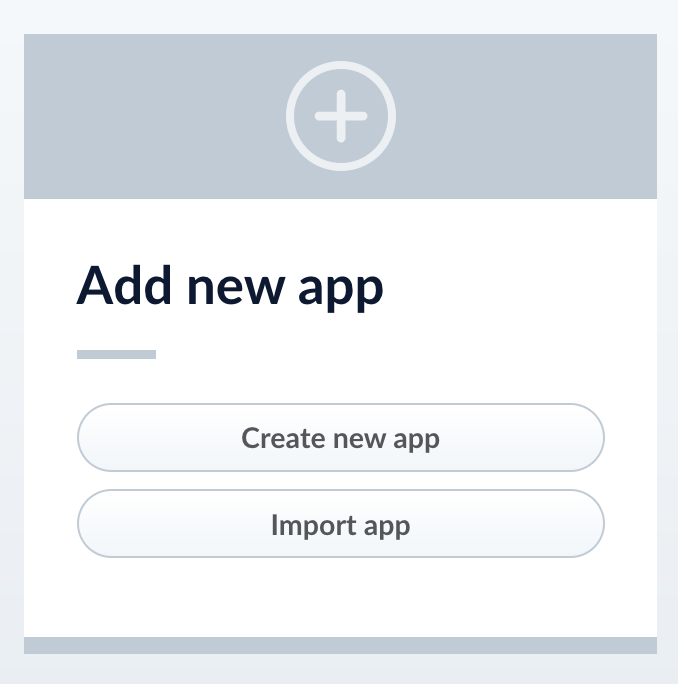 3. Enter a **Name**, **Description**, and select an **App tile color**.
 4. Click **Create App**.
### Modify or delete an app
1. Log into Fusion and navigate to the home screen.
2. Click the **Configure** icon on the app you want to modify or delete.
4. Click **Create App**.
### Modify or delete an app
1. Log into Fusion and navigate to the home screen.
2. Click the **Configure** icon on the app you want to modify or delete.
 3. To modify the app, click the edit icon
  .
.
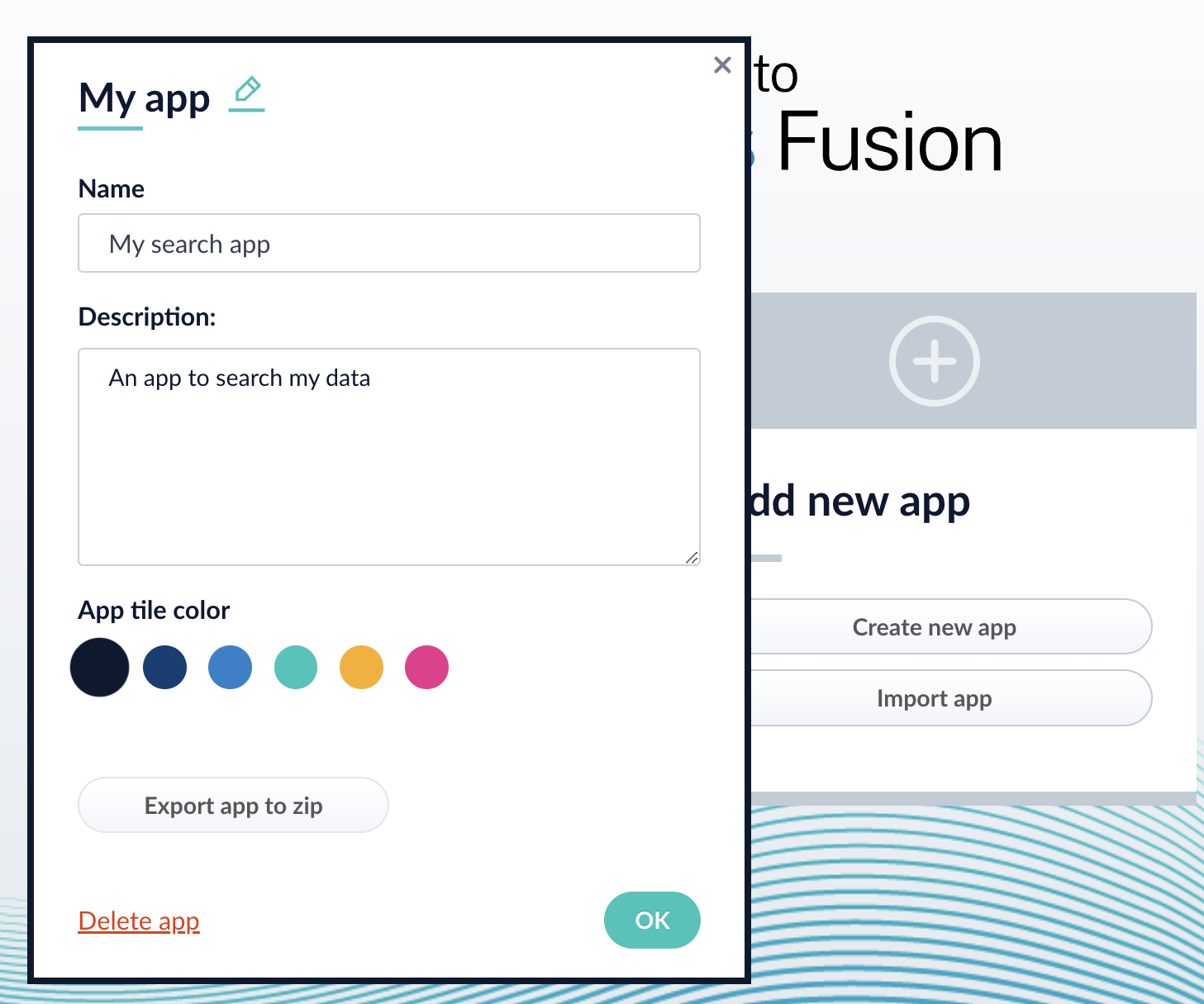 1. Edit the **Name** or **Description**.
2. Click **OK**.
4. To delete the app, click **Delete app**.
1. A dialog box appears where you can choose which associated objects to delete or retain. Only objects not associated with other objects are displayed. All objects are selected by default.
2. Click **Confirm**.
1. Edit the **Name** or **Description**.
2. Click **OK**.
4. To delete the app, click **Delete app**.
1. A dialog box appears where you can choose which associated objects to delete or retain. Only objects not associated with other objects are displayed. All objects are selected by default.
2. Click **Confirm**.
 ## Manage apps with the Apps API
### Create an app
```bash wrap theme={"dark"}
curl -u USERNAME:PASSWORD -X POST -H 'Content-type: application/json' -d '{"id": "MyNewApp", "name":"My new app", "description":"A really really great new app"}' https://FUSION_HOST/api/apps
```
### Delete an app
Run the following command, replacing `{id}` with the name of your app. This operation take about a minute to complete.
```bash theme={"dark"}
curl -u USERNAME:PASSWORD -X DELETE https://FUSION_HOST/api/apps/{id}
```
## Manage apps with the Apps API
### Create an app
```bash wrap theme={"dark"}
curl -u USERNAME:PASSWORD -X POST -H 'Content-type: application/json' -d '{"id": "MyNewApp", "name":"My new app", "description":"A really really great new app"}' https://FUSION_HOST/api/apps
```
### Delete an app
Run the following command, replacing `{id}` with the name of your app. This operation take about a minute to complete.
```bash theme={"dark"}
curl -u USERNAME:PASSWORD -X DELETE https://FUSION_HOST/api/apps/{id}
```
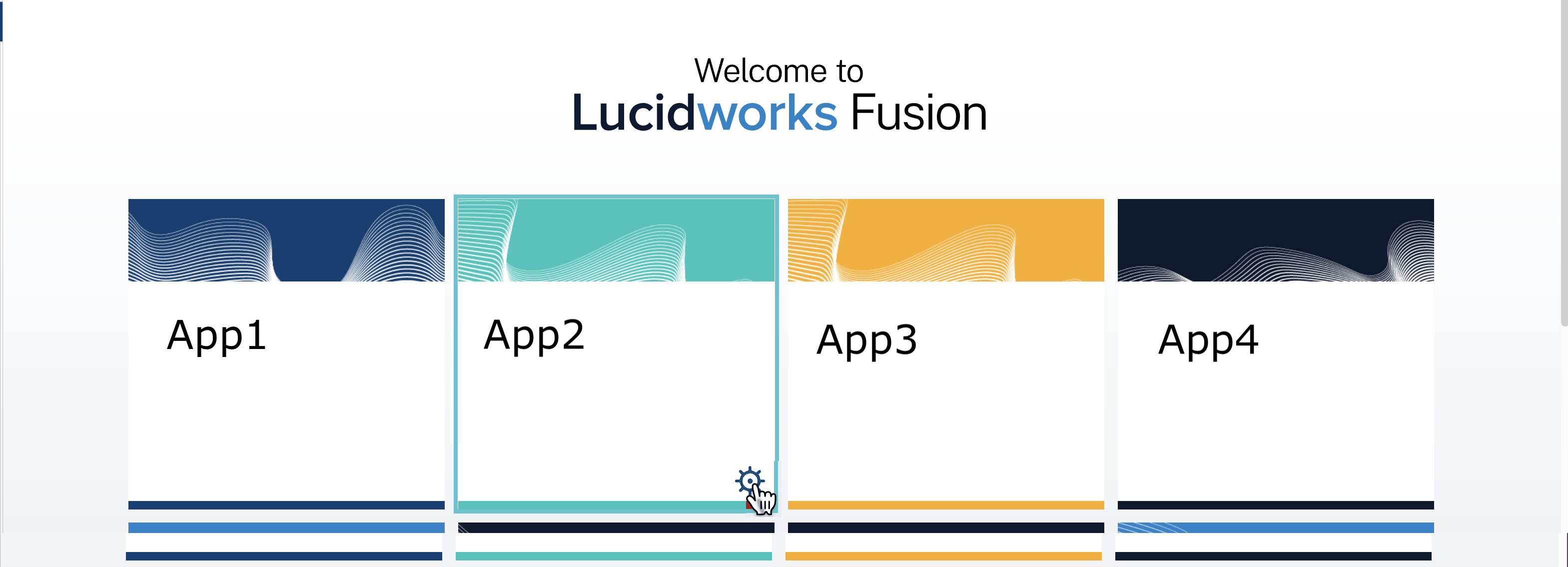 4. In the app config window, click **Export app to zip**:
 See import for information to import the downloaded zip file into other instances of Fusion 5.x.
## Export an app with the Objects API
The examples below show how to export one or more apps:
**Export all apps**
```bash wrap theme={"dark"}
curl -u USERNAME:PASSWORD http://localhost:6764/api/objects/export?type=app > all-apps.zip
```
**Get all app IDs, then export one app by ID**
```bash expandable theme={"dark"}
> curl -u USERNAME:PASSWORD http://localhost:6764/api/apps
[ {
"id" : "movies",
"name" : "Movies",
"description" : "Search the movielens database.",
"dataUri" : "/App-Tile-01-460x160.png",
"properties" : {
"headerImageName" : "headerImage1",
"tileColor" : "apps-darkblue",
"previousCollectionId" : "movies"
}
}, {
"id" : "tech-pubs",
"name" : "TechPubs",
"description" : "Search the documentation.",
"dataUri" : "/App-Tile-02-460x160.png",
"properties" : {
"headerImageName" : "headerImage2",
"tileColor" : "apps-darkblue",
"previousCollectionId" : "tech-pubs"
}
} ]
> curl -u USERNAME:PASSWORD http://localhost:6764/api/objects/export?app.ids=tech-pubs > techpubs.zip
```
See import for information to import the downloaded zip file into other instances of Fusion 5.x.
## Export an app with the Objects API
The examples below show how to export one or more apps:
**Export all apps**
```bash wrap theme={"dark"}
curl -u USERNAME:PASSWORD http://localhost:6764/api/objects/export?type=app > all-apps.zip
```
**Get all app IDs, then export one app by ID**
```bash expandable theme={"dark"}
> curl -u USERNAME:PASSWORD http://localhost:6764/api/apps
[ {
"id" : "movies",
"name" : "Movies",
"description" : "Search the movielens database.",
"dataUri" : "/App-Tile-01-460x160.png",
"properties" : {
"headerImageName" : "headerImage1",
"tileColor" : "apps-darkblue",
"previousCollectionId" : "movies"
}
}, {
"id" : "tech-pubs",
"name" : "TechPubs",
"description" : "Search the documentation.",
"dataUri" : "/App-Tile-02-460x160.png",
"properties" : {
"headerImageName" : "headerImage2",
"tileColor" : "apps-darkblue",
"previousCollectionId" : "tech-pubs"
}
} ]
> curl -u USERNAME:PASSWORD http://localhost:6764/api/objects/export?app.ids=tech-pubs > techpubs.zip
```