> ## Documentation Index
> Fetch the complete documentation index at: https://doc.lucidworks.com/llms.txt
> Use this file to discover all available pages before exploring further.
# Signals
export const LwTemplate = ({title = "Key questions to get you started", icon = "sparkles", cta = "Powered by Agent Studio", linkHref = "https://lucidworks.com/demo/?utm_source=docs&utm_medium=referral&utm_campaign=docs_cta_ai"}) => {
const [isLoaded, setIsLoaded] = useState(false);
useEffect(() => {
const timer = setTimeout(() => {
setIsLoaded(true);
}, 500);
return () => clearTimeout(timer);
}, []);
return
{isLoaded && `
}} />}
Powered by Lucidworks Agent Studio
;
};
[localhost link]: http://localhost:3000/docs/5/fusion/getting-data-out/query-enhancement/signals/overview
[mintlify link]: https://doc.lucidworks.com/docs/5/fusion/getting-data-out/query-enhancement/signals/overview
[old doc.lw link]: https://doc.lucidworks.com/fusion/5.9/469
A *signal* is a recorded event related to one or more documents in a collection. Signals can record any kind of event that is useful to your organization. Click signals are the most common type of signals as this is the most common action a user takes with an item. In addition, other signal types can be defined, such as "addToCart", "purchase", and so on.
Using a sufficiently large collection of signals, Fusion can automatically generate [recommendations](/docs/5/fusion/getting-data-out/query-enhancement/recommendations/recommendation-methods) such as these:
* Based on the user’s search query, which items are most likely to interest them?
* Based on the user’s similarity to other users, which additional items are likely to interest them?
Signals are indexed in a secondary collection which is linked to the primary collection by the naming convention `_signals`. So, if your main collection is named `products`, the associated signals collection is named `products_signals`. The signals collection is created automatically when signals are enabled for the primary collection. Signals are enabled by default whenever a new collection is created.
Signals are indexed just like ordinary documents. The signals collection can be searched like any other collection, for example by using the [Query Workbench](/docs/5/fusion/intro/ui-tour/query-workbench) with the signals collection selected.
[App Insights](/docs/5/fusion/getting-data-out/data-analytics/app-insights/overview) provides visualizations and reports with which to analyze your signals. App Insights mainly uses raw signals, but also uses some [*aggregated*](/docs/5/fusion/reference/config-ref/jobs/aggregations/overview) signals. Currently only the signal types Request, Response and Click are supported within the App Insights dashboards.
See [signals types and structure](/docs/5/fusion/getting-data-out/query-enhancement/signals/types-and-structures) for more information.
## The cold start problem
The "cold start" problem means it is hard to personalize the search experience when insufficient signals have been aggregated. For example, it is hard to offer recommendations to users who have never visited before, or for queries that have never been issued before, or for items that have been recently introduced into the system.
Fusion provides solutions for this problem using its query pipelines. A query pipeline that includes stages for blocking, boosting, or recommending based on signals can also include stages that provide fallbacks. In the case where there is not enough data to provide specialized blocking, boosting, or recommendations, the pipeline can return a simpler set of search results using Solr’s normal relevancy calculation.
A common solution to the cold start problem is to sort or boost on a certain field to provide pseudo-recommendations when more specific recommendations are not available. For example, you can sort on the `sales_rank` field to recommend the most popular products, or boost on the `date_added` field to recommend the newest items.
## Indexing or importing Signals
Normally, signals are indexed as streaming data during the natural activity of users. See [Indexing Signals](/docs/5/fusion/getting-data-in/indexing/indexing-signals/overview) for details.
For more information, see [Parallel Bulk Loader](/docs/5/fusion/reference/config-ref/jobs/parallel-bulk-loader).
## Learn more
The course for **Fusion Signals** focuses on how Fusion utilizes signal information to boost search relevance.
1. In the Fusion UI, select your signals collection.
2. Open the Query Workbench by navigating to **Query** > **Query Workbench**.
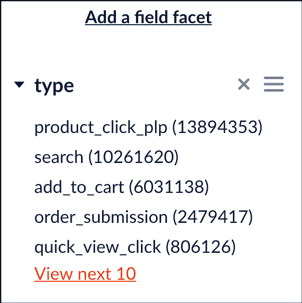
3. Click **Add a field facet**.
4. Select the `type` field.\
The list of signal types appears in the facet panel: