> ## Documentation Index
> Fetch the complete documentation index at: https://doc.lucidworks.com/llms.txt
> Use this file to discover all available pages before exploring further.
# Trending Items and Queries
export const LwTemplate = ({title = "Key questions to get you started", icon = "sparkles", cta = "Powered by Agent Studio", linkHref = "https://lucidworks.com/demo/?utm_source=docs&utm_medium=referral&utm_campaign=docs_cta_ai"}) => {
const [isLoaded, setIsLoaded] = useState(false);
useEffect(() => {
const timer = setTimeout(() => {
setIsLoaded(true);
}, 500);
return () => clearTimeout(timer);
}, []);
return
{isLoaded && `
}} />}
Powered by Lucidworks Agent Studio
;
};
[localhost link]: http://localhost:3000/docs/5/fusion/getting-data-out/query-enhancement/recommendations/trending-items
[mintlify link]: https://doc.lucidworks.com/docs/5/fusion/getting-data-out/query-enhancement/recommendations/trending-items
[old doc.lw link]: https://doc.lucidworks.com/fusion/5.9/crfvw5
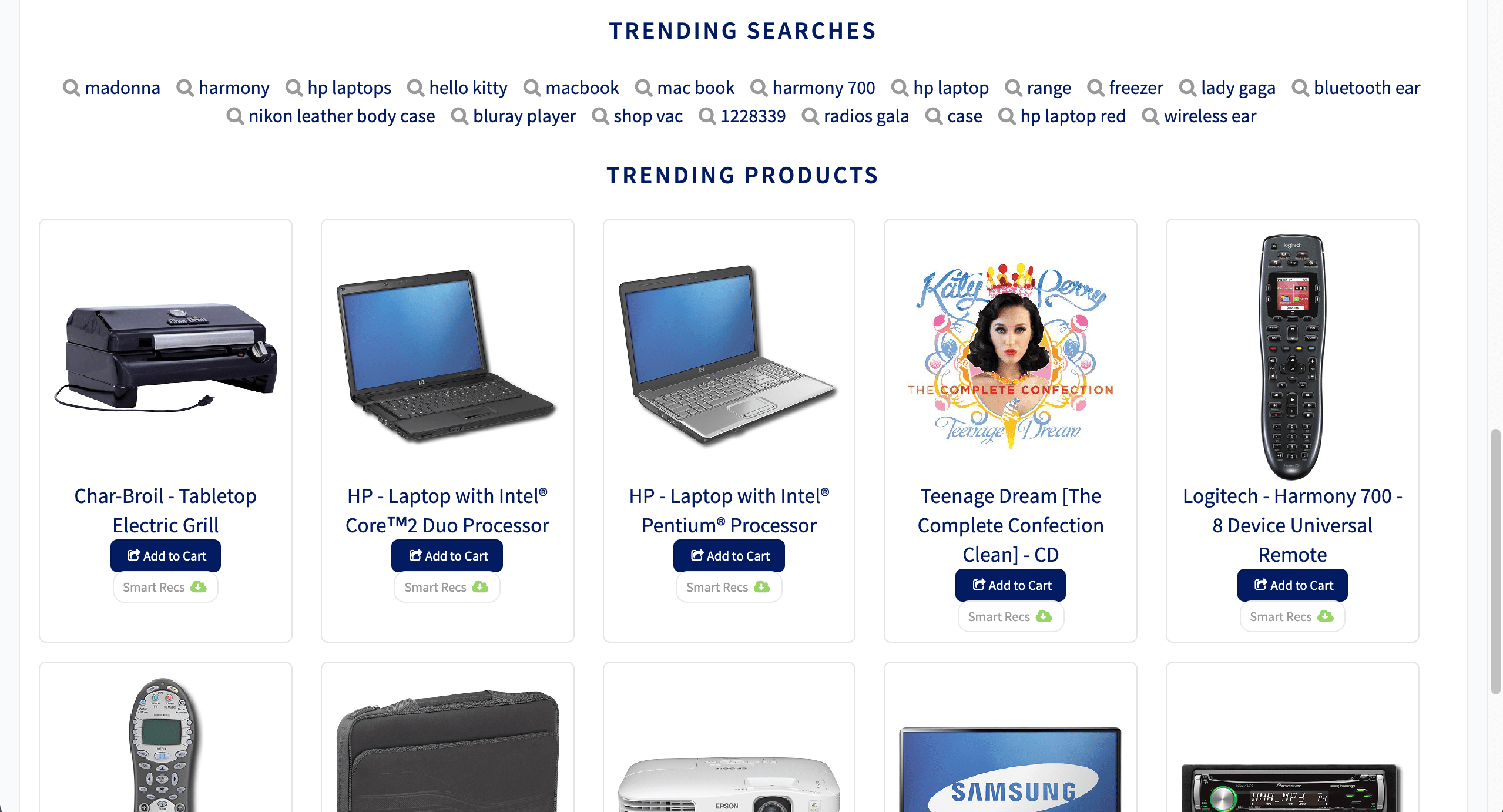
The [Trending Recommender job](/docs/5/fusion/reference/config-ref/jobs/trending-recommender) analyzes signals to measure customer engagement over time. Use this job to identify spikes in popularity for specific items or queries, then display those items to your users or analyze the trends for business purposes. You can configure any time window, such as daily, weekly, or monthly.
For detailed steps to configure this job, see **Identify Trending Items or Queries**.
The Trending Recommender job analyzes signals to measure customer engagement over time. Use this job to identify spikes in popularity for specific items or queries, then display those items to your users or analyze the trends for business purposes. You can configure any time window, such as daily, weekly, or monthly.
For complete details about the job’s configuration options, see [Trending Recommender Jobs](/docs/5/fusion/reference/config-ref/jobs/trending-recommender).
**How to identify trending items or queries**
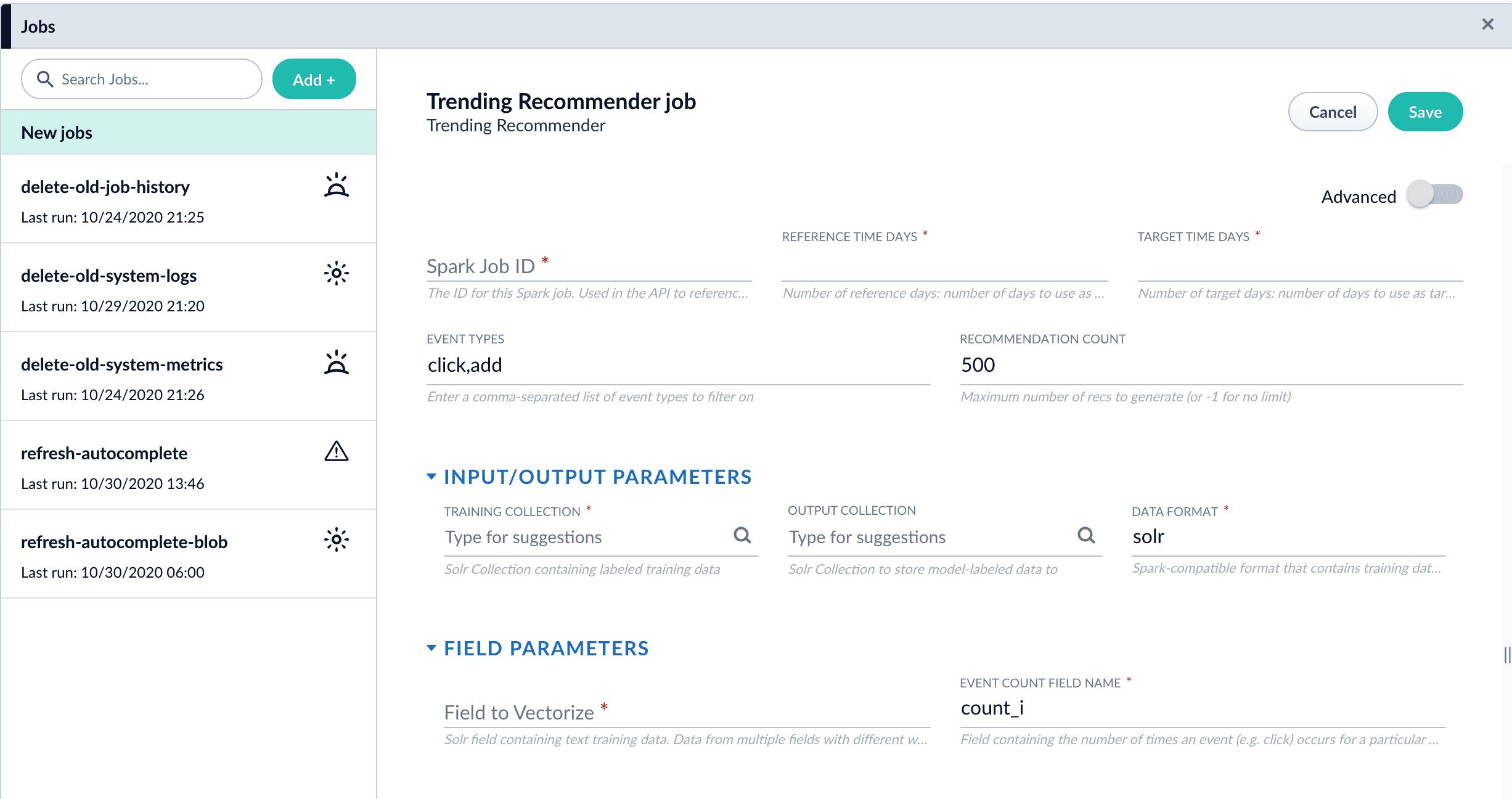
1. Navigate to **Collections** > **Jobs** > **Add +** > **Trending Recommender**.
2. Configure the job:
1. Enter an ID for this job.
2. In the **Reference Time Days** field, enter the number of days to use as a *baseline* for identifying trends, starting from today.\
For example, enter 21 days to analyze three weeks of signals data to use as a baseline.
3. In the **Target Time Days** field, enter the number of days to use as a *target* for identifying trends, starting from today.\
For example, enter 7 days to get documents or products whose popularity has spiked in the past week.
**Reference Time Days** and **Target Time Days** do not overlap. For example, with the values suggested above, a total of 28 days of signals are analyzed, and the first 21 days are compared to the last 7 days.
4. If you want to identify trending queries instead of trending items, change the value of the **Document ID Field** from `doc_id_s` to `query_s`.
This field must be present in your signals. See the required signals fields in the [Trending Recommender Jobs](/docs/5/fusion/reference/config-ref/jobs/trending-recommender) reference topic.
5. In the **Training Collection** field, enter the Solr collection or cloud path where signals are stored (the `COLLECTION_NAME_signals` collection by default).
6. In the **Output Collection** field, enter the Solr collection or cloud path where trend analysis data will be stored.
7. If you are using a format other than `solr`, enter it in the **Data Format** field.
8. In the **Solr Fields to Read** field, enter one or more field names containing text training data.
You can enter multiple field names with weights, as in `field1:weight1,field2:weight2...`.
9. In the **Event Count Field Name** field, enter the name of the event count field in your training data, usually `count_i`.
3. Click **Save**.
4. Click **Run** > **Start** to run the job.
The job outputs documents similar to this example:
```json theme={"dark"}
{
"doc_id":250,
"ref_hits":1,
"ref_rank":1,
"trgt_hits":1,
"trgt_rank":1,
"vol_diff":0.5,
"average_weekly_vol":0.5,
"hit_vol_ratio":2.0,
"combine_score":1.0,
"vol_diff_ratio":1.0,
"ref_wt_vol_diff_ratio":1.0,
"vol_diff_wt_vol_diff_ratio":0.5,
"log_diff_wt_ratio":1.3068528194400546,
"trend-type":"prds_weekly",
"id":"284f930d-d750-49a2-90ac-be4692bddda9",
"_version_":1682995654191742976
}
```
5. Configure a query pipeline to retrieve trending items from the job’s output collection for display or further analysis. For information about pipelines created when recommendations are enabled, see [enable recommendations](/docs/5/fusion/getting-data-out/query-enhancement/recommendations/getting-started).
Search on the `log_diff_wt_ratio` field to find the top trending items in the output collection.
 2. Configure the job:
1. Enter an ID for this job.
2. In the **Reference Time Days** field, enter the number of days to use as a *baseline* for identifying trends, starting from today.\
For example, enter 21 days to analyze three weeks of signals data to use as a baseline.
3. In the **Target Time Days** field, enter the number of days to use as a *target* for identifying trends, starting from today.\
For example, enter 7 days to get documents or products whose popularity has spiked in the past week.
2. Configure the job:
1. Enter an ID for this job.
2. In the **Reference Time Days** field, enter the number of days to use as a *baseline* for identifying trends, starting from today.\
For example, enter 21 days to analyze three weeks of signals data to use as a baseline.
3. In the **Target Time Days** field, enter the number of days to use as a *target* for identifying trends, starting from today.\
For example, enter 7 days to get documents or products whose popularity has spiked in the past week.