> ## Documentation Index
> Fetch the complete documentation index at: https://doc.lucidworks.com/llms.txt
> Use this file to discover all available pages before exploring further.
# Items-For-Item Recommendations
export const LwTemplate = ({title = "Key questions to get you started", icon = "sparkles", cta = "Powered by Agent Studio", linkHref = "https://lucidworks.com/demo/?utm_source=docs&utm_medium=referral&utm_campaign=docs_cta_ai"}) => {
const [isLoaded, setIsLoaded] = useState(false);
useEffect(() => {
const timer = setTimeout(() => {
setIsLoaded(true);
}, 500);
return () => clearTimeout(timer);
}, []);
return
{isLoaded && `
}} />}
Powered by Lucidworks Agent Studio
;
};
[localhost link]: http://localhost:3000/docs/5/fusion/getting-data-out/query-enhancement/recommendations/items-for-item
[mintlify link]: https://doc.lucidworks.com/docs/5/fusion/getting-data-out/query-enhancement/recommendations/items-for-item
[old doc.lw link]: https://doc.lucidworks.com/fusion/5.9/476
Items-for-item recommendations present items that are similar to a specified item. For example, when the user is viewing a BMX bicycle, Fusion can recommend other BMX bicycles. Similarity can be based on different criteria, such as click patterns, people who bought this also bought that, percentage match of document tags, and so on.
## Collaborative items-for-item recommendations
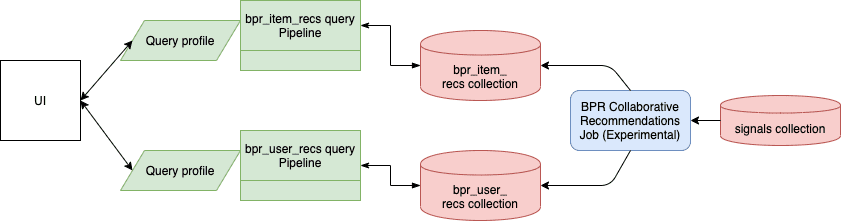
If you have enabled signals and recommendations for a collection, then the default `COLLECTION_NAME_bpr_item_recs`, a [BPR Recommender](/docs/5/fusion/reference/config-ref/jobs/bpr-recommender) job is already created and configured to produce items-for-item recommendations (as well as [items-for-user recommendations](/docs/5/fusion/getting-data-out/query-enhancement/recommendations/items-for-user)).
This is the recommended job type, and produces better results with a short runtime. Download the APPName\_item\_item\_rec\_pipelines\_bpr.json file and **Migrate Fusion Objects** to create the query pipeline that consumes this job’s output. See **Fetch Items-for-Item Recommendations (Collaborative/BPR Method)** for details.
You can use the Fusion UI and the [Objects API](/api-reference/objects/get-objects-service-status) to migrate collections and related objects, including your searchable data, configuration data, pipelines, aggregations, and other objects on which your collections depend. You can also migrate entire apps.
To upgrade from one Fusion version to a 5.x version, see Fusion 5 Upgrades to migrate objects.
You might need to migrate objects in the following circumstances:
* When migrating data from development environments into testing and production environments
* To back up data, so you can restore it after an incident of data loss
* When the migrator script was not able to migrate an object automatically
When you export and import objects to migrate them, make sure you that any data gets to where it is going before deleting the sources.
## Migration approaches
Several approaches are available for migrating Fusion objects. This table summarizes the approaches.
| | Export an app | Import an app | Export an object | Import an object | Add an object to an app |
| --------------------------------- | -------------------------- | ------------------------------------------------------------------ | -------------------------- | ------------------------- | ----------------------- |
| **Fusion UI** | App configuration | Launcher (entire app) App configuration (combine apps) | - | - | Object Explorer |
| **Objects API** (endpoints) | GET from `export` endpoint | POST to `import` endpoint | GET from `export` endpoint | POST to `import` endpoint | - |
For more information about using the Objects API to export and import objects, see [Objects API](/api-reference/objects/get-objects-service-status).
The remainder of this topic describes approaches in the Fusion UI.
Use the parts of the Fusion UI indicated in the table to export and import apps and specific objects. Exporting creates a zip file. To import, you select a data file and possibly a variable file.
The approach with Object Explorer differs. With Object Explorer, you can add objects from other apps (or that are not linked to any apps) to the currently open app.
## Export an app with the Fusion UI
**How to export an app with the Fusion UI**
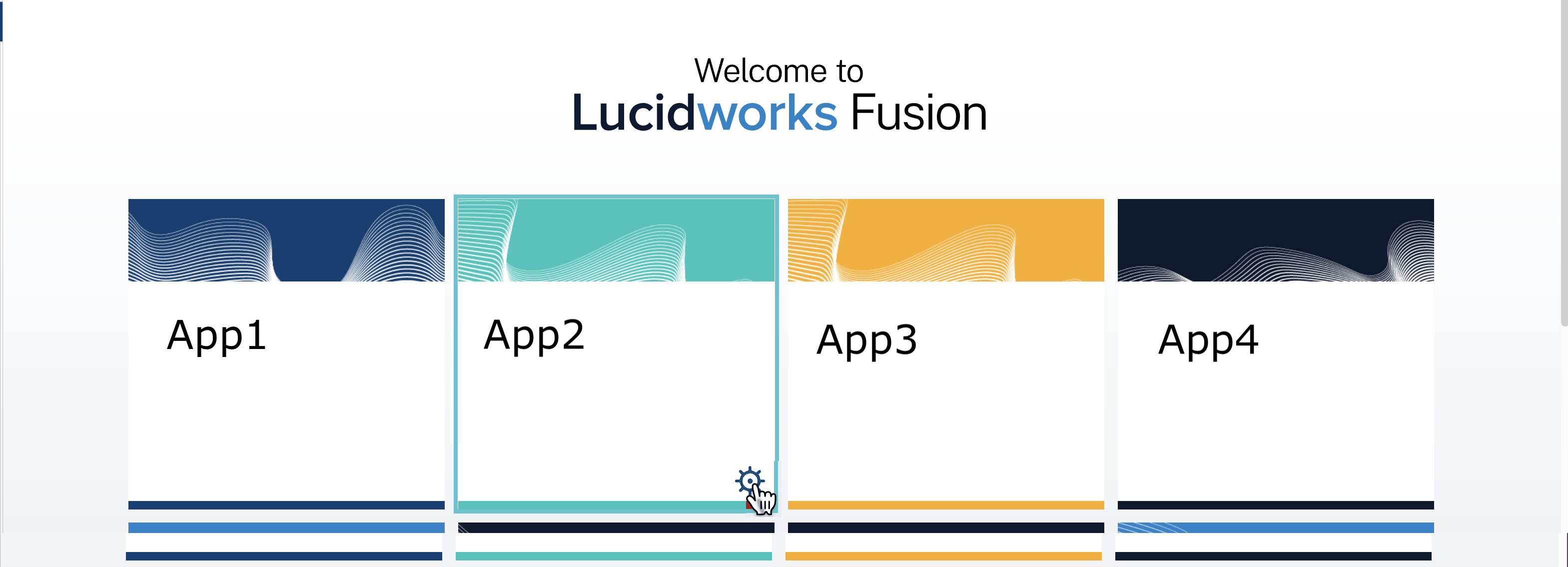
1. Navigate to the launcher.
2. Hover over the app you want to export and click the Configure icon:
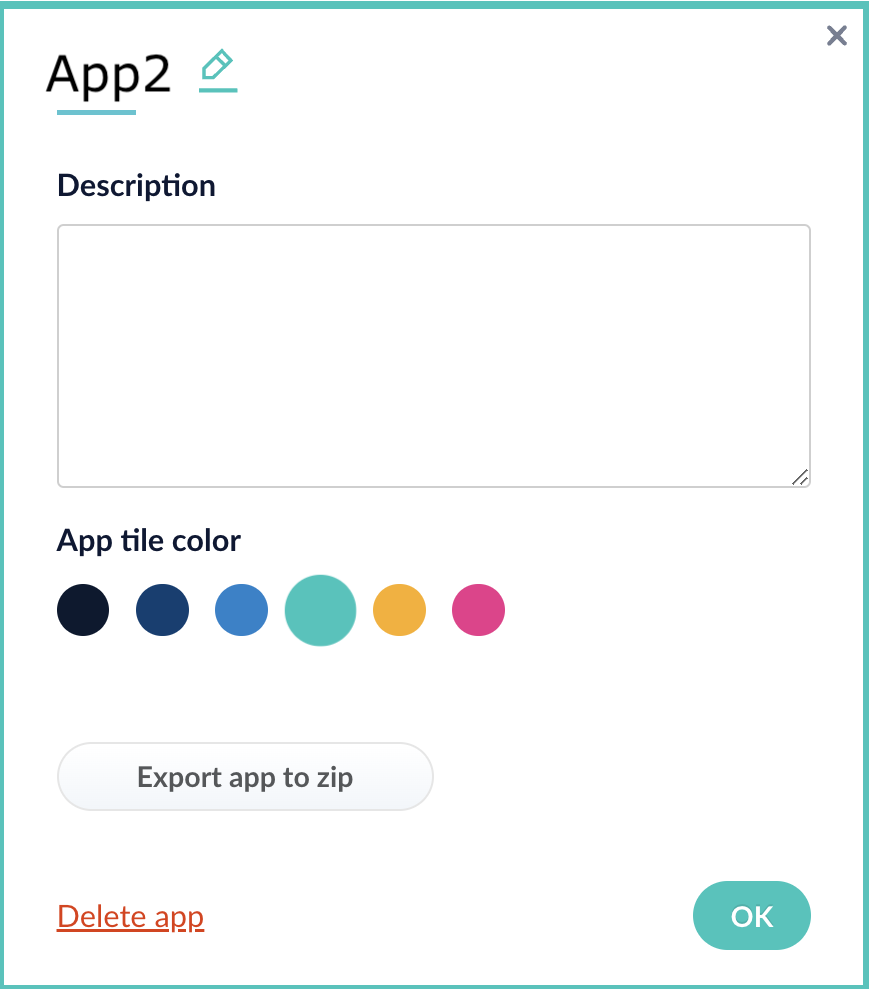
3. In the app config window, click **Export app to zip**:
See import for information to import the downloaded zip file into other instances of Fusion 5.x.
## Import an app with the Fusion UI
**How to import an app with the Fusion UI**
1. Navigate to the launcher.
2. Click **Import app**.
3. Under **Data File**, click **Choose File** and select the zip file containing the app you want to import.
4. If your app has [usernames and passwords](/api-reference/objects/list-imported-variables) in a separate file, select it under **Variables File**.
If the Variables File is needed, it *must* be a separate file that is not in a .zip file. It is a .json map of variables to values. The following is an example:
```json theme={"dark"}
{
"secret.dataSources.Inventory_BR_S3_DS.password":"SOMETHING",
"secret.dataSources.LLM_A_BR_S3_DS.password":"FmJSaDE9Tj5REDACTED",
"secret.dataSources.LLM_BR_Inventory_S3_DS.password":"FmJSaDE9Tj5GzIVvethAC4Huh",
"secret.dataSources.LLM_BR_Load_S3_DS.password":"FmJSaDE9Tj5GzIVvethAC4"
}
```
5. You can sometimes edit parameter values to use the new values in the imported app. If this is the case, Fusion displays a dialog box that lets you edit the parameter values.
Make desired changes, and then click **Import**.
## Copy an app
To copy an app from one deployment to a different one, [export the app](#export-an-app-with-the-fusion-ui) on the source deployment, and then [import the app](#import-an-app-with-the-fusion-ui) on the target deployment.
## Import objects into an app
You can import objects into the currently open app.
**How to import objects into an open app**
1. In the Fusion launcher, click the app into which you want to import objects.
The Fusion workspace appears.
2. Click **System > Import Fusion Objects**.
The Import Fusion Objects window opens.
3. Select the data file from your local filesystem.
If you are importing [usernames and passwords](/api-reference/objects/import-objects) in a separate file, select it under **Variables File**.
4. Click **Import**.
If there are conflicts, Fusion prompts you to specify an import policy:
* Click **Overwrite** to overwrite the objects on the target system with the ones in the import file.
* Click **Merge** to skip all conflicting objects and import only the non-conflicting objects.
* Click **Start Over** to abort the import.
Fusion confirms that the import was successful:
5. Click **Close** to close the Import Fusion Objects window.
## Add an object to an app
You can add objects present in other apps (or in no apps) to the open app. Some objects are linked to other apps. You can also add those directly to an app.
* **Add an object to an app** – While in the Fusion workspace for the app to which you want to add an object, open Object Explorer and click **In Any App**. Search for or browse to the object you want to add. Hover over the object, click the App icon, and then click **Add to this app**.
* **Add an object to an app directly** – In cases when an object is linked to an app, but is not linked directly to the app (it is linked via some dependency), you can add the object to an app directly.
While in the Fusion workspace for the app to which you want to add an object directly, open Object Explorer and click **In Any App**. Search for or browse to the object you want to add. Hover over the object, click the App icon, and then click **Add to this app directly**.
In Fusion, you can download and import a query pipeline that works out of the box with the default [BPR Recommender](/docs/5/fusion/reference/config-ref/jobs/bpr-recommender) job.
There are two separate pipelines attached below which work in different ways to query and return recommendations.
**Query for recommendations only**
1. Download the `APPName_item_item_rec_pipelines_bpr.json` file.
2. Rename the file to replace `APPName` with the name of your Fusion app, such as `ProductCatalog_item_item_rec_pipelines_bpr.json`.
3. Open the JSON file, replace all instances of `APPName` with the name of your Fusion app, such as `ProductCatalog`, and save it.
4. Import the JSON file into your Fusion instance using the Query Pipelines REST API:
```
curl -u USERNAME:PASSWORD /api/query-pipelines -XPOST -H 'content-type:application/json' -d@
```
5. In the Fusion UI, navigate to **Query** > **Query Pipelines** to verify that the new pipeline is available.
This pipeline should be used to query the collection where the recommendations are stored. It makes a query against the `itemId` field and only returns the recommended `itemId` values. To get the actual items, you need to make a second query to the respective catalog collection with the returned `itemId` values.
No additional configuration is needed to use this pipeline with the default BPR job configuration.
**Boost recommended products from catalog**
1. Download the `APPName_items_for_item_bpr_boost.json` file
2. Rename the file to replace `APPName` with the name of your Fusion app, such as `ProductCatalog_item_item_rec_pipelines_bpr.json`.
3. Open the JSON file, replace all instances of `APPName` with the name of your Fusion app, such as `ProductCatalog`.
4. Fill in the `collection` name field in the first `Recommend Items for Item` stage and save the file.
5\. Import the JSON file into your Fusion instance using the Query Pipelines REST API:
```
curl -u USERNAME:PASSWORD /api/query-pipelines -XPOST -H 'content-type:application/json' -d@
```
5. In the Fusion UI, navigate to **Query** > **Query Pipelines** to verify that the new pipeline is available.
This pipeline queries the recommendations collection and then makes a subsequent query to the actual catalog collection boosting the recommended items and returning the actual items from the catalog. This pipeline will therefore also return recommendations even if none were generated/available.This pipeline expects a request parameter called `id=` to be appended to the request in order to work. An example query URL to this pipeline would look like `https://example-recs-fusion.com/api/query-pipelines/APPName_items_for_item_bpr_boost/collections/catalog/select?q=**:**&id=SomeItemId`If the pipeline does not appear in the **Query Pipelines** panel, you may need to attach it to your app like this: Go to **System** > **Object Explorer**, click the **In No Apps** filter, hover over the pipeline, click the icon, and select **Add to this app**.
No additional configuration is needed to use this pipeline with the default BPR job configuration.
**See also**
* [Items-For-Item Recommendations](/docs/5/fusion/getting-data-out/query-enhancement/recommendations/items-for-item)
* [Getting Started with Recommendations and Boosting](/docs/5/fusion/getting-data-out/query-enhancement/recommendations/getting-started)
If you want to use different parameters for items-for-item recommendations and [items-for-user recommendations](/docs/5/fusion/getting-data-out/query-enhancement/recommendations/items-for-user), simply create separate jobs for each, where one job configuration includes an output collection for items-for-item recommendations only and the other includes an output collection for items-for-user recommendations only.
## Content-based items-for-item recommendations
The [Content-Based Recommender](/docs/5/fusion/reference/config-ref/jobs/content-based-recommender) job computes item similarities based on their content, such as product descriptions. This is a useful option when you do not have enough signals for accurate results using the collaborative method described above. Download the APPName\_item\_item\_rec\_pipelines\_content.json file and **Migrate Fusion Objects** to create the query pipeline that consumes this job’s output.
You can use the Fusion UI and the [Objects API](/api-reference/objects/get-objects-service-status) to migrate collections and related objects, including your searchable data, configuration data, pipelines, aggregations, and other objects on which your collections depend. You can also migrate entire apps.
To upgrade from one Fusion version to a 5.x version, see Fusion 5 Upgrades to migrate objects.
You might need to migrate objects in the following circumstances:
* When migrating data from development environments into testing and production environments
* To back up data, so you can restore it after an incident of data loss
* When the migrator script was not able to migrate an object automatically
When you export and import objects to migrate them, make sure you that any data gets to where it is going before deleting the sources.
## Migration approaches
Several approaches are available for migrating Fusion objects. This table summarizes the approaches.
| | Export an app | Import an app | Export an object | Import an object | Add an object to an app |
| --------------------------------- | -------------------------- | ------------------------------------------------------------------ | -------------------------- | ------------------------- | ----------------------- |
| **Fusion UI** | App configuration | Launcher (entire app) App configuration (combine apps) | - | - | Object Explorer |
| **Objects API** (endpoints) | GET from `export` endpoint | POST to `import` endpoint | GET from `export` endpoint | POST to `import` endpoint | - |
For more information about using the Objects API to export and import objects, see [Objects API](/api-reference/objects/get-objects-service-status).
The remainder of this topic describes approaches in the Fusion UI.
Use the parts of the Fusion UI indicated in the table to export and import apps and specific objects. Exporting creates a zip file. To import, you select a data file and possibly a variable file.
The approach with Object Explorer differs. With Object Explorer, you can add objects from other apps (or that are not linked to any apps) to the currently open app.
## Export an app with the Fusion UI
**How to export an app with the Fusion UI**
1. Navigate to the launcher.
2. Hover over the app you want to export and click the Configure icon:
3. In the app config window, click **Export app to zip**:
See import for information to import the downloaded zip file into other instances of Fusion 5.x.
## Import an app with the Fusion UI
**How to import an app with the Fusion UI**
1. Navigate to the launcher.
2. Click **Import app**.
3. Under **Data File**, click **Choose File** and select the zip file containing the app you want to import.
4. If your app has [usernames and passwords](/api-reference/objects/list-imported-variables) in a separate file, select it under **Variables File**.
If the Variables File is needed, it *must* be a separate file that is not in a .zip file. It is a .json map of variables to values. The following is an example:
```json theme={"dark"}
{
"secret.dataSources.Inventory_BR_S3_DS.password":"SOMETHING",
"secret.dataSources.LLM_A_BR_S3_DS.password":"FmJSaDE9Tj5REDACTED",
"secret.dataSources.LLM_BR_Inventory_S3_DS.password":"FmJSaDE9Tj5GzIVvethAC4Huh",
"secret.dataSources.LLM_BR_Load_S3_DS.password":"FmJSaDE9Tj5GzIVvethAC4"
}
```
5. You can sometimes edit parameter values to use the new values in the imported app. If this is the case, Fusion displays a dialog box that lets you edit the parameter values.
Make desired changes, and then click **Import**.
## Copy an app
To copy an app from one deployment to a different one, [export the app](#export-an-app-with-the-fusion-ui) on the source deployment, and then [import the app](#import-an-app-with-the-fusion-ui) on the target deployment.
## Import objects into an app
You can import objects into the currently open app.
**How to import objects into an open app**
1. In the Fusion launcher, click the app into which you want to import objects.
The Fusion workspace appears.
2. Click **System > Import Fusion Objects**.
The Import Fusion Objects window opens.
3. Select the data file from your local filesystem.
If you are importing [usernames and passwords](/api-reference/objects/import-objects) in a separate file, select it under **Variables File**.
4. Click **Import**.
If there are conflicts, Fusion prompts you to specify an import policy:
* Click **Overwrite** to overwrite the objects on the target system with the ones in the import file.
* Click **Merge** to skip all conflicting objects and import only the non-conflicting objects.
* Click **Start Over** to abort the import.
Fusion confirms that the import was successful:
5. Click **Close** to close the Import Fusion Objects window.
## Add an object to an app
You can add objects present in other apps (or in no apps) to the open app. Some objects are linked to other apps. You can also add those directly to an app.
* **Add an object to an app** – While in the Fusion workspace for the app to which you want to add an object, open Object Explorer and click **In Any App**. Search for or browse to the object you want to add. Hover over the object, click the App icon, and then click **Add to this app**.
* **Add an object to an app directly** – In cases when an object is linked to an app, but is not linked directly to the app (it is linked via some dependency), you can add the object to an app directly.
While in the Fusion workspace for the app to which you want to add an object directly, open Object Explorer and click **In Any App**. Search for or browse to the object you want to add. Hover over the object, click the App icon, and then click **Add to this app directly**.
Once you have run the recommender job, see **Fetch Items-for-Item Recommendations (Content-Based Method)**.
In Fusion, you can download and import a query pipeline that works out of the box to fetch the items-for-item recommendations generated by the default [Content-Based Recommender](/docs/5/fusion/reference/config-ref/jobs/content-based-recommender) job.
There are two separate pipelines attached below which work in different ways to query and return recommendations.
**Query for recommendations only**
1. Download the `APPName_item_item_rec_pipelines_content.json` file.
2. Rename the file to replace `APPName` with the name of your Fusion app, such as `ProductCatalog_item_item_rec_pipelines_bpr.json`.
3. Open the JSON file, replace all instances of `APPName` with the name of your Fusion app, such as `ProductCatalog`, and save it.
4. Import the JSON file into your Fusion instance using the Query Pipelines REST API:
```
curl -u USERNAME:PASSWORD /api/query-pipelines -XPOST -H 'content-type:application/json' -d@
```
5. In the Fusion UI, navigate to **Query** > **Query Pipelines** to verify that the new pipeline is available.
This pipeline should be used to query the collection where the recommendations are stored. It makes a query against the `itemId` field and returns the recommended `itemId` values. To get the actual items, you need to make a second query to the respective catalog collection with the returned `itemId` values.
No additional configuration is needed to use this pipeline with the default BPR job configuration.
**Boost recommended products from catalog**
1. Download the `APPName_content_boost.json` file
2. Rename the file to replace `APPName` with the name of your Fusion app, such as `ProductCatalog_item_item_rec_pipelines_bpr.json`.
3. Open the JSON file, replace all instances of `APPName` with the name of your Fusion app, such as `ProductCatalog`.
4. Fill in the `collection` name field in the first `Recommend Items for Item` stage and save the file.
5. Import the JSON file into your Fusion instance using the Query Pipelines REST API:
```
curl -u USERNAME:PASSWORD /api/query-pipelines -XPOST -H 'content-type:application/json' -d@
```
6. In the Fusion UI, navigate to **Query** > **Query Pipelines** to verify that the new pipeline is available.
This pipeline queries the recommendations collection and then makes a subsequent query to the actual catalog collection boosting the recommended items and returning the actual items from the catalog. This pipeline will therefore also return recommendations even if none were generated/available.This pipeline expects a request parameter called `id=itemId` to be appended to the request in order to work. An example query URL to this pipeline would look like `https://example-recs-fusion.com/api/query-pipelines/APPName_items_for_user_bpr_boost/collections/catalog/select?q=**:**&id=SomeItemId`If the pipeline does not appear in the **Query Pipelines** panel, you may need to attach it to your app like this: Go to **System** > **Object Explorer**, click the **In No Apps** filter, hover over the pipeline, click the icon, and select **Add to this app**.
**See also**
* [Items-For-Item Recommendations](/docs/5/fusion/getting-data-out/query-enhancement/recommendations/items-for-item)
* [Content-Based Recommender job](/docs/5/fusion/reference/config-ref/jobs/content-based-recommender)
* [Getting Started with Recommendations and Boosting](/docs/5/fusion/getting-data-out/query-enhancement/recommendations/getting-started)
 3. In the app config window, click **Export app to zip**:
 See import for information to import the downloaded zip file into other instances of Fusion 5.x.
## Import an app with the Fusion UI
**How to import an app with the Fusion UI**
1. Navigate to the launcher.
2. Click **Import app**.
See import for information to import the downloaded zip file into other instances of Fusion 5.x.
## Import an app with the Fusion UI
**How to import an app with the Fusion UI**
1. Navigate to the launcher.
2. Click **Import app**.
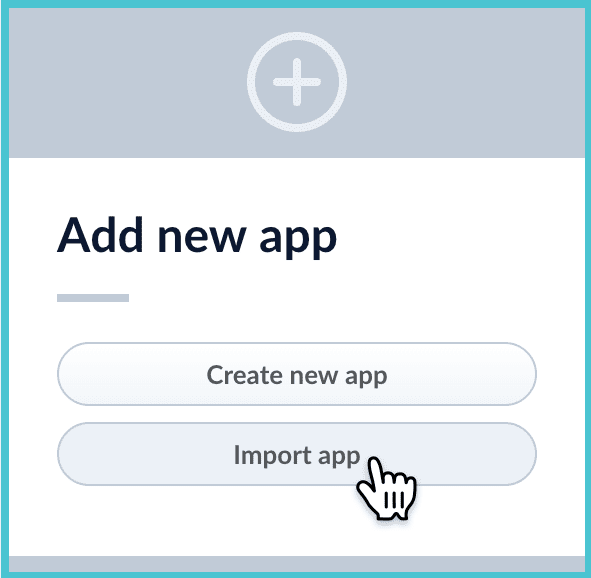 3. Under **Data File**, click **Choose File** and select the zip file containing the app you want to import.
4. If your app has [usernames and passwords](/api-reference/objects/list-imported-variables) in a separate file, select it under **Variables File**.
If the Variables File is needed, it *must* be a separate file that is not in a .zip file. It is a .json map of variables to values. The following is an example:
```json theme={"dark"}
{
"secret.dataSources.Inventory_BR_S3_DS.password":"SOMETHING",
"secret.dataSources.LLM_A_BR_S3_DS.password":"FmJSaDE9Tj5REDACTED",
"secret.dataSources.LLM_BR_Inventory_S3_DS.password":"FmJSaDE9Tj5GzIVvethAC4Huh",
"secret.dataSources.LLM_BR_Load_S3_DS.password":"FmJSaDE9Tj5GzIVvethAC4"
}
```
5. You can sometimes edit parameter values to use the new values in the imported app. If this is the case, Fusion displays a dialog box that lets you edit the parameter values.
3. Under **Data File**, click **Choose File** and select the zip file containing the app you want to import.
4. If your app has [usernames and passwords](/api-reference/objects/list-imported-variables) in a separate file, select it under **Variables File**.
If the Variables File is needed, it *must* be a separate file that is not in a .zip file. It is a .json map of variables to values. The following is an example:
```json theme={"dark"}
{
"secret.dataSources.Inventory_BR_S3_DS.password":"SOMETHING",
"secret.dataSources.LLM_A_BR_S3_DS.password":"FmJSaDE9Tj5REDACTED",
"secret.dataSources.LLM_BR_Inventory_S3_DS.password":"FmJSaDE9Tj5GzIVvethAC4Huh",
"secret.dataSources.LLM_BR_Load_S3_DS.password":"FmJSaDE9Tj5GzIVvethAC4"
}
```
5. You can sometimes edit parameter values to use the new values in the imported app. If this is the case, Fusion displays a dialog box that lets you edit the parameter values.
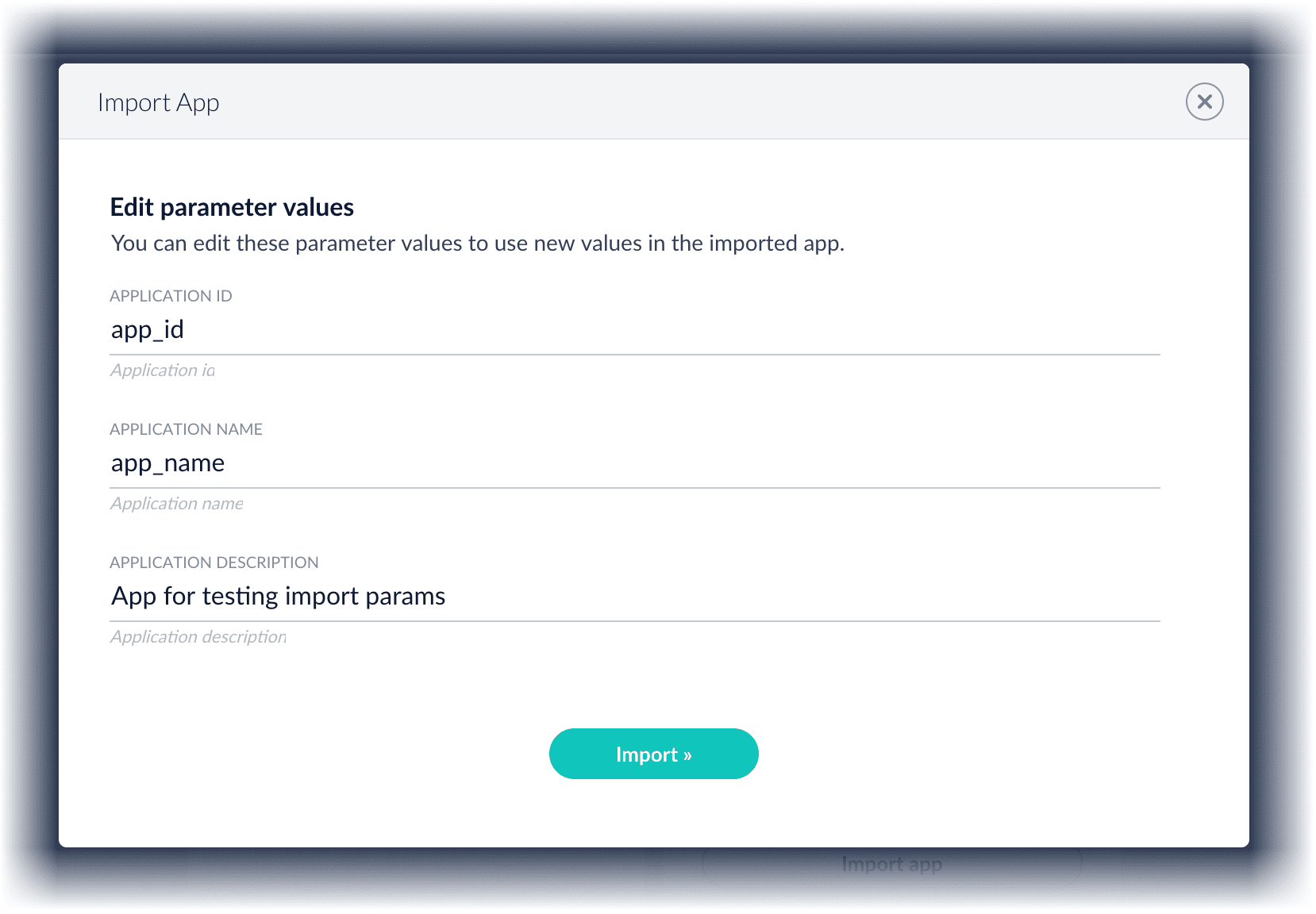 Make desired changes, and then click **Import**.
## Copy an app
To copy an app from one deployment to a different one, [export the app](#export-an-app-with-the-fusion-ui) on the source deployment, and then [import the app](#import-an-app-with-the-fusion-ui) on the target deployment.
## Import objects into an app
You can import objects into the currently open app.
**How to import objects into an open app**
1. In the Fusion launcher, click the app into which you want to import objects.
The Fusion workspace appears.
2. Click **System > Import Fusion Objects**.
The Import Fusion Objects window opens.
Make desired changes, and then click **Import**.
## Copy an app
To copy an app from one deployment to a different one, [export the app](#export-an-app-with-the-fusion-ui) on the source deployment, and then [import the app](#import-an-app-with-the-fusion-ui) on the target deployment.
## Import objects into an app
You can import objects into the currently open app.
**How to import objects into an open app**
1. In the Fusion launcher, click the app into which you want to import objects.
The Fusion workspace appears.
2. Click **System > Import Fusion Objects**.
The Import Fusion Objects window opens.
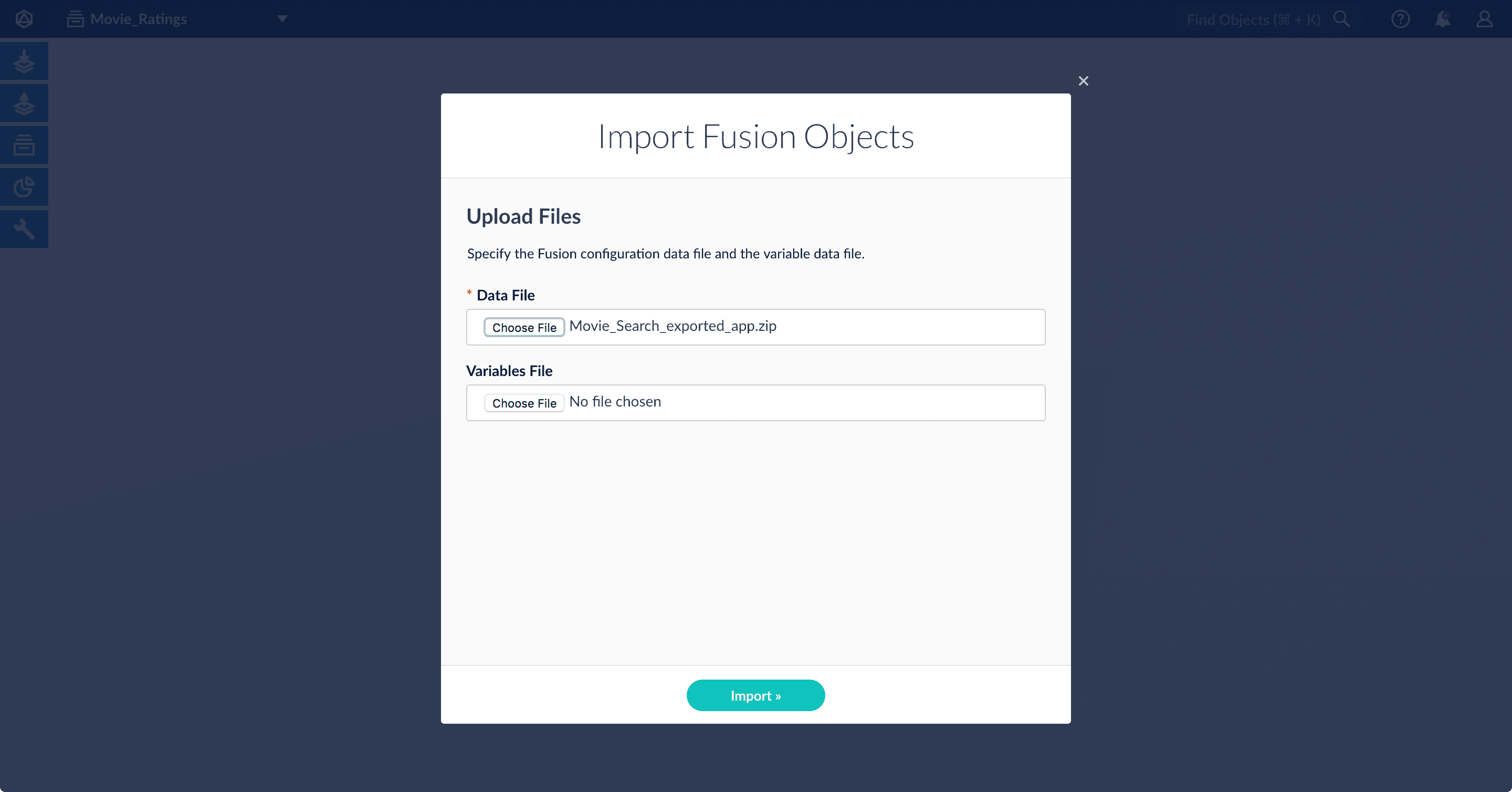 3. Select the data file from your local filesystem.
If you are importing [usernames and passwords](/api-reference/objects/import-objects) in a separate file, select it under **Variables File**.
4. Click **Import**.
If there are conflicts, Fusion prompts you to specify an import policy:
3. Select the data file from your local filesystem.
If you are importing [usernames and passwords](/api-reference/objects/import-objects) in a separate file, select it under **Variables File**.
4. Click **Import**.
If there are conflicts, Fusion prompts you to specify an import policy:
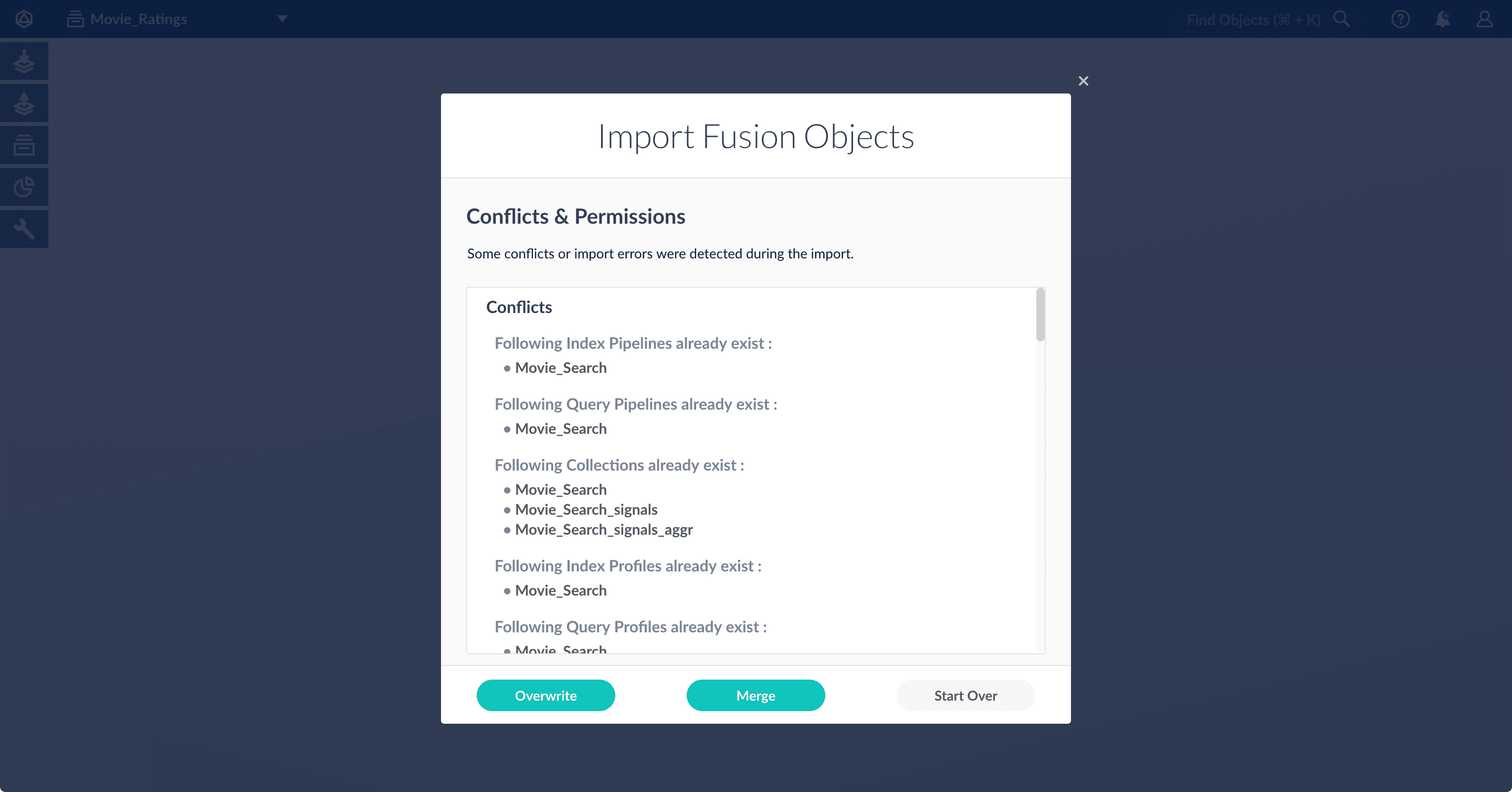 * Click **Overwrite** to overwrite the objects on the target system with the ones in the import file.
* Click **Merge** to skip all conflicting objects and import only the non-conflicting objects.
* Click **Start Over** to abort the import.
Fusion confirms that the import was successful:
* Click **Overwrite** to overwrite the objects on the target system with the ones in the import file.
* Click **Merge** to skip all conflicting objects and import only the non-conflicting objects.
* Click **Start Over** to abort the import.
Fusion confirms that the import was successful:
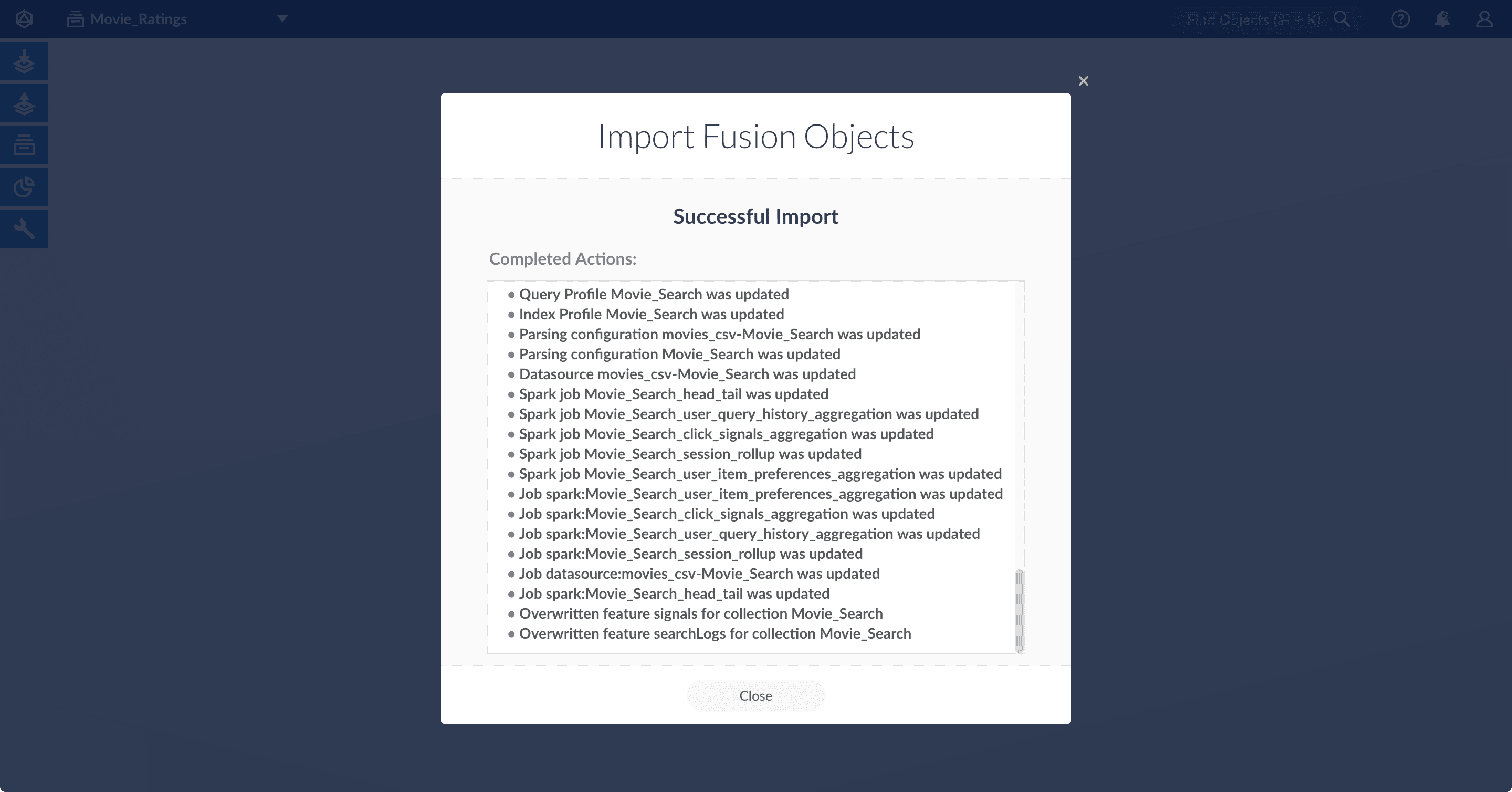 5. Click **Close** to close the Import Fusion Objects window.
## Add an object to an app
You can add objects present in other apps (or in no apps) to the open app. Some objects are linked to other apps. You can also add those directly to an app.
* **Add an object to an app** – While in the Fusion workspace for the app to which you want to add an object, open Object Explorer and click **In Any App**. Search for or browse to the object you want to add. Hover over the object, click the App
5. Click **Close** to close the Import Fusion Objects window.
## Add an object to an app
You can add objects present in other apps (or in no apps) to the open app. Some objects are linked to other apps. You can also add those directly to an app.
* **Add an object to an app** – While in the Fusion workspace for the app to which you want to add an object, open Object Explorer and click **In Any App**. Search for or browse to the object you want to add. Hover over the object, click the App  icon, and then click **Add to this app**.
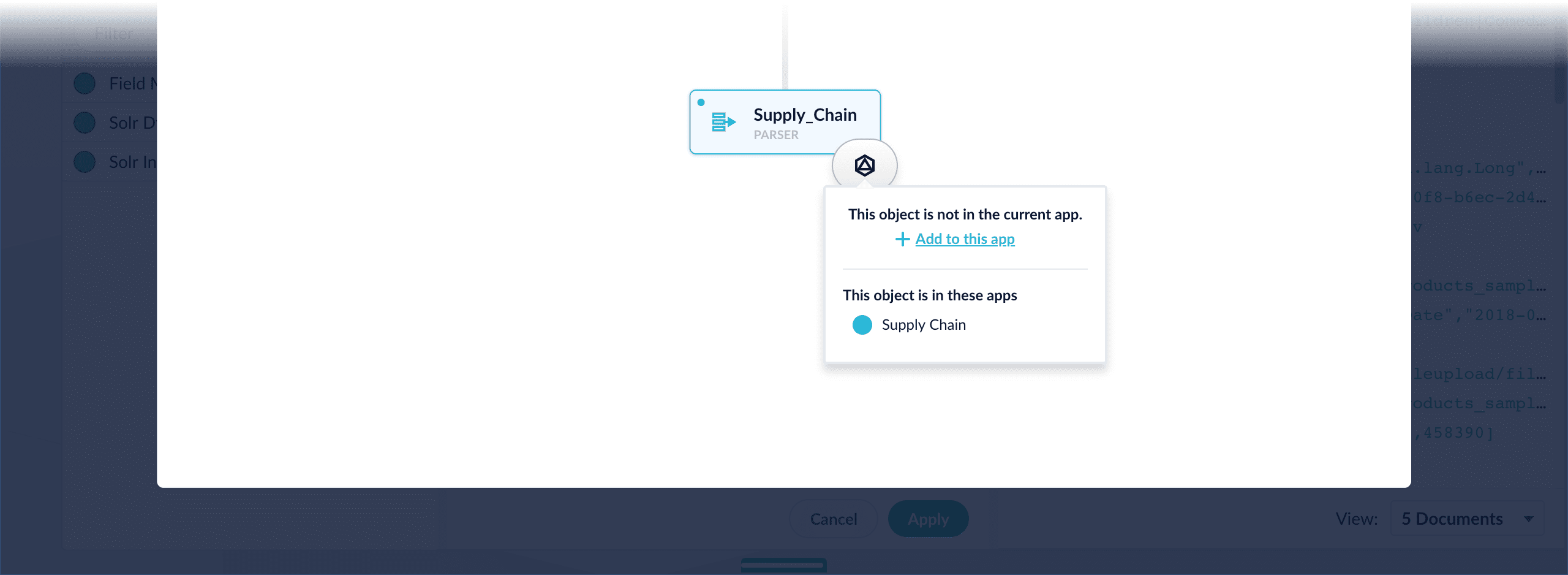 * **Add an object to an app directly** – In cases when an object is linked to an app, but is not linked directly to the app (it is linked via some dependency), you can add the object to an app directly.
While in the Fusion workspace for the app to which you want to add an object directly, open Object Explorer and click **In Any App**. Search for or browse to the object you want to add. Hover over the object, click the App
* **Add an object to an app directly** – In cases when an object is linked to an app, but is not linked directly to the app (it is linked via some dependency), you can add the object to an app directly.
While in the Fusion workspace for the app to which you want to add an object directly, open Object Explorer and click **In Any App**. Search for or browse to the object you want to add. Hover over the object, click the App 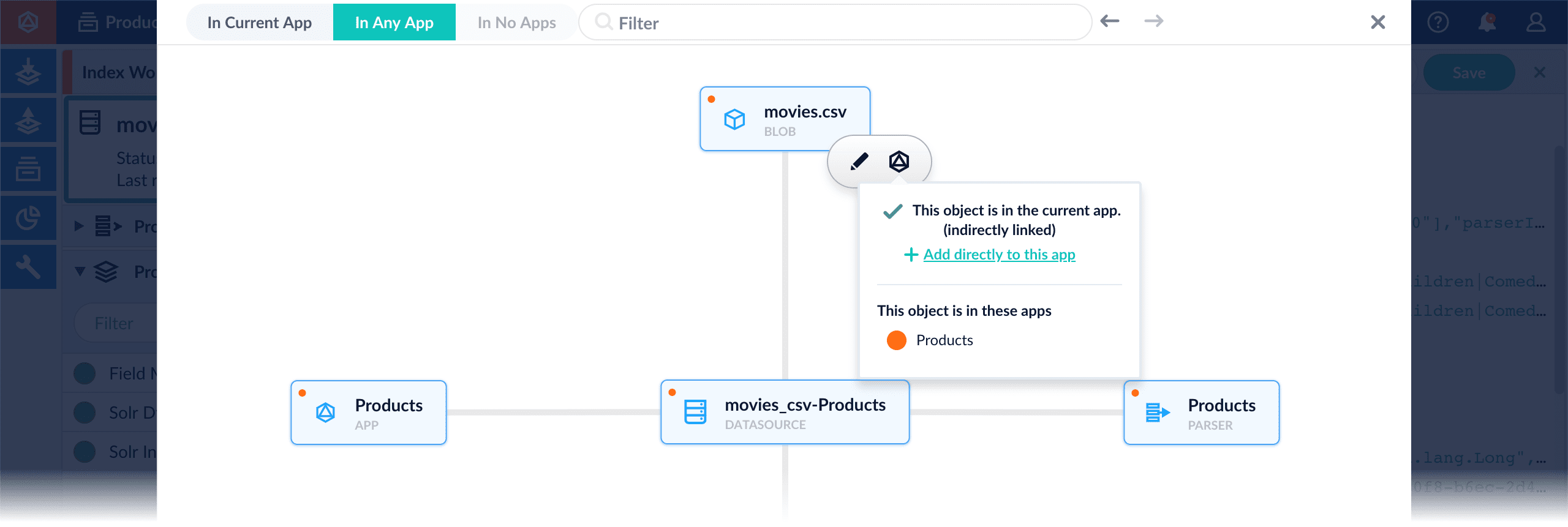
 Once you have run the recommender job, see **Fetch Items-for-Item Recommendations (Content-Based Method)**.