> ## Documentation Index
> Fetch the complete documentation index at: https://doc.lucidworks.com/llms.txt
> Use this file to discover all available pages before exploring further.
# Query Rewriting
export const InlineImage = ({src, alt = '', height = '2em'}) => {
return ;
};
export const LwTemplate = ({title = "Key questions to get you started", icon = "sparkles", cta = "Powered by Agent Studio", linkHref = "https://lucidworks.com/demo/?utm_source=docs&utm_medium=referral&utm_campaign=docs_cta_ai"}) => {
const [isLoaded, setIsLoaded] = useState(false);
useEffect(() => {
const timer = setTimeout(() => {
setIsLoaded(true);
}, 500);
return () => clearTimeout(timer);
}, []);
return
{isLoaded && `
}} />}
Powered by Lucidworks Agent Studio
;
};
[localhost link]: http://localhost:3000/docs/5/fusion/getting-data-out/query-enhancement/query-rewriting
[mintlify link]: https://doc.lucidworks.com/docs/5/fusion/getting-data-out/query-enhancement/query-rewriting
[old doc.lw link]: https://doc.lucidworks.com/fusion/5.9/489
Query rewriting is a strategy for improving relevancy using AI-generated data. Many of Fusion’s features can be used to rewrite incoming queries prior to submitting them to Fusion’s Solr core. These rewrites produce more relevant search results with higher conversion rates.
For example, when spelling corrections are used for query rewriting, a misspelled query can return the same search results as a correctly-spelled query, instead of returning irrelevant results or no results. Spelling corrections are one of several available [query rewriting strategies](#query-rewriting-strategies). Apply all available strategies for best results.
**See also the [Query Rewriting API](/api-reference/query-rewrite-api/get-the-query-rewrite-status).**
Fusion can also rewrite Solr’s responses before returning them to the search application; see [Response Rewriting](/docs/5/fusion/getting-data-out/query-enhancement/response-rewriting).
## Query rewriting strategies
Fusion provides a variety of query rewriting strategies to improve relevancy:
* [Business rules](#business-rules)
* [Underperforming query rewriting](#underperforming-query-rewriting)
* [Misspelling detection](#misspelling-detection)
* [Phrase detection](#phrase-detection)
* [Synonym detection](#synonym-detection)
* [Remove Words](#remove-words)
With the exception of business rules, which are always manually created, these strategies correspond to certain [Spark jobs](#spark-jobs-for-query-rewriting). Lucidworks recommends configuring and scheduling all of these jobs for best results. You can also train the jobs by manually adding documents to their output. Manually-added documents are used for machine learning and are never overwritten by new job output.
In Fusion 5.9.10 and higher, [Neural Hybrid Search](/docs/5/fusion/hybrid-search/overview) provides superior relevance over Fusion's query rewriting Spark jobs.
Query rewriting strategies are applied in the following order:
1. **Business rules** - If a query triggers a business rule, then the business rule overrides any query rewriting strategies that conflict with it.
2. **Query rewrites**
1. **Underperforming query rewriting** - If a query triggers an underperforming query rewrite, then this strategy overrides all subsequent query rewriting strategies.
2. **Remove words** - To help increase the number of results returned, Remove Words query rewrites removes words from the users' search.
3. **Synonym detection**
4. **Misspelling detection *and* phrase detection** - The query rewriting results from both of these strategies are applied together. To use only the strategy with the longest surface form, you can configure the Text Tagger query stage with **Overlapping Tag Policy** set to "LONGEST\_DOMINANT\_RIGHT".
### Business rules
Business rules are manually-created formulas for rewriting queries. This is the most versatile strategy for creating custom query rewrites. It supports a variety of conditions and actions to address a wide range of use cases. When you need a very specific query rewrite, this is the best strategy.
Business rules are applied in the [Apply Rules stage](/docs/5/fusion/reference/config-ref/pipeline-stages/query-stages/query-rules-query-stage) of the query pipeline.
See [Business Rules](/docs/5/fusion/getting-data-out/query-enhancement/business-rules/overview) to learn how to create, edit, and publish business rules.
### Underperforming query rewriting
Head/tail analysis is:
* Also known as the Underperforming Query Rewriting feature
* Uses signals data to identify underperforming queries
* Suggests improved queries that could produce better conversion rates
When an incoming query contains a matching underperforming query, the original query is replaced by an improved query.
These improvements can be:
* Suggested by the [Head/Tail Analysis Spark job](/docs/5/fusion/reference/config-ref/jobs/head-tail-analysis) operating on your signals data
This job is deprecated in Fusion 5.9.15 and will be removed in a future release.
Lucidworks recommends using [Neural Hybrid Search](/docs/5/fusion/hybrid-search/overview), which achieves superior relevance compared to legacy machine learning methods.
* Created manually using the [Rules Editor](/docs/5/fusion/getting-data-out/query-enhancement/rules-editor) or underlying API
Query improvements are applied in the [Text Tagger stage](/docs/5/fusion/reference/config-ref/pipeline-stages/query-stages/text-tagger-query-stage) of the query pipeline.
See [Head/Tail Analysis (Underperforming Query Rewriting)](/docs/5/fusion/getting-data-out/query-enhancement/underperforming-queries) to learn how to review, edit, create, and publish query improvements.
### Misspelling detection
The Misspelling Detection feature maps misspellings to their corrected spellings. When Fusion receives a query containing a known misspelling, it rewrites the query using the corrected spelling in order to return relevant results instead of an empty or irrelevant results set.
The Misspelling Detection job is deprecated in Fusion 5.9.15 and will be removed in a future release.
Lucidworks recommends using [Neural Hybrid Search](/docs/5/fusion/hybrid-search/overview), which achieves superior relevance compared to legacy machine learning methods.
Spelling corrections are applied in the [Text Tagger stage](/docs/5/fusion/reference/config-ref/pipeline-stages/query-stages/text-tagger-query-stage) of the query pipeline.
Misspelled terms are completely replaced by their corrected terms. If you want to expand the query to include all alternative terms, set the synonyms to bi-directional. See [Synonym Detection](/docs/5/fusion/reference/config-ref/jobs/synonym-detection) for more information.
See:
* [Misspelling Detection](/docs/5/fusion/getting-data-out/query-enhancement/misspelling-detection) for general information
* **Use Misspelling Detection** for information about how to review, edit, create, and publish spelling corrections
The course for **Query Analytics** focuses on how Fusion provides query analytics to detect and improve underperforming queries.
{/* // tag::review[] */}
## Reviewing auto-generated spelling corrections
Spelling corrections that are automatically generated by the [Token and Phrase Spell Correction job](/docs/5/fusion/reference/config-ref/jobs/token-and-phrase-spell-correction) are assigned one of the following status values:
* **Auto**
There are three values for confidence level:
| Value | Confidence | Label |
| ----- | ----------------- | ------- |
| 0 | low confidence | Pending |
| 0.5 | median confidence | Auto |
| 1 | high confidence | Auto |
No action is required on these results, but you can edit them if you wish.
* **Pending**
The confidence level is ambiguous, and the result must be reviewed by a user before it can be deployed. It will only be moved from the `_query_rewrite_staging` collection to the `_query_rewrite` collection when its status has changed to "Approved" *and* it has been published.
1. Navigate to **Relevance** > **Rules** > **Rewrite**.
2. Select **Misspelling** tab. The application displays the **Misspelling Detection** screen.
Notice the **Status** facet on the left. Click **Pending** to view only the items that need review.
3. Click the icon next to the spelling correction.
4. In the **Status** column, select either "Approved" or "Denied".
Optionally, you can also edit the spelling correction itself.
{/* // end::review[] */}
{/* // tag::add-new[] */}
## Adding new spelling corrections
You can manually add spelling corrections in addition to any generated by the Fusion 5.x.x [Token and Phrase Spell Correction job](/docs/5/fusion/reference/config-ref/jobs/token-and-phrase-spell-correction) release.
1. Navigate to **Relevance** > **Rules** > **Rewrite**.
2. Select **Misspelling** tab. The application displays the **Misspelling Detection** screen.
3. At the bottom of the rules list, click the icon.
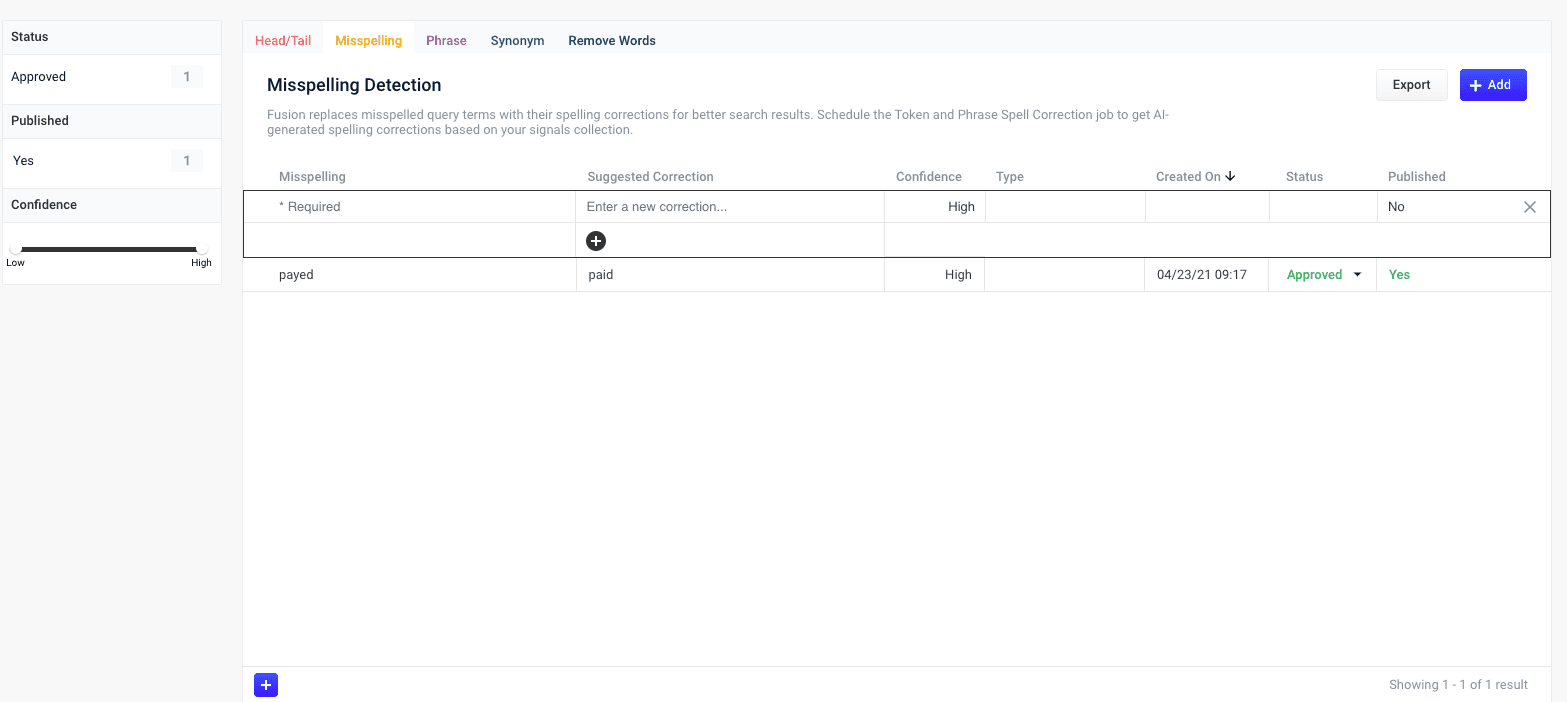
A new spelling correction appears at the top of the list:
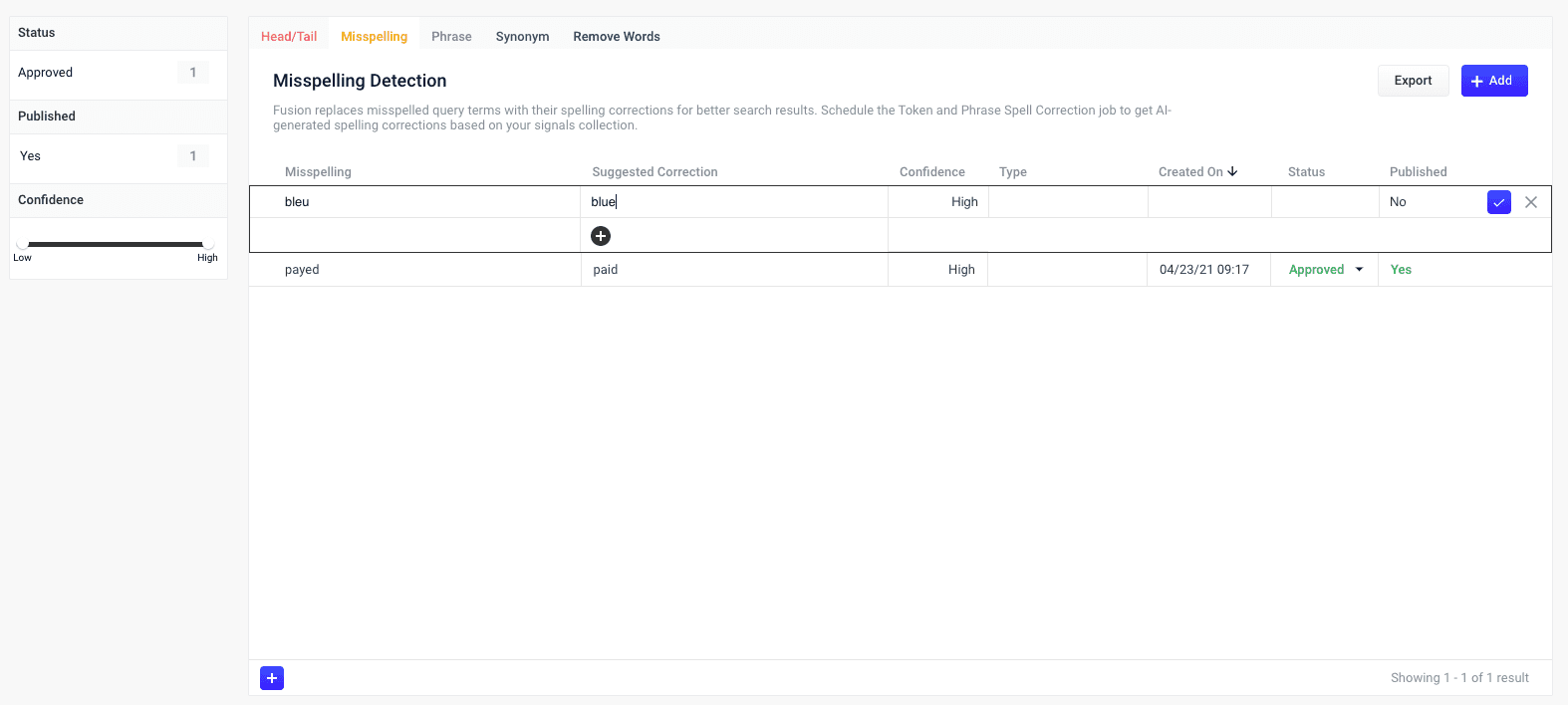
4. Enter the misspelled word or phrase.
5. Enter one or more spelling corrections.
It is not necessary to set a confidence value.
6. Select the spelling correction’s status, depending on whether you want to deploy it the next time you publish your changes ("Approved") or save it for further review ("Pending").
7. Click the check mark to save the new spelling correction:
{/* // end::add-new[] */}
{/* // tag::publish[] */}
## Publishing your changes
**How to publish updated spelling corrections**
1. In the **Misspelling Detection** screen, click the **PUBLISH** button.
Fusion prompts you to confirm that you want to publish your changes.
2. Click **PUBLISH**.
You can un-publish a query rewrite by changing its status to "denied", then clicking **PUBLISH**.
{/* // end::publish[] */}
## Tuning the misspelling detection job
The default configuration for the [Token and Phrase Spell Correction job](/docs/5/fusion/reference/config-ref/jobs/token-and-phrase-spell-correction), respectively, is designed for high accuracy and works well with most signal datasets, depending on the volume and quality of the signals. If you are seeing too few results, or too many inaccurate results, then you can try tuning the job to achieve better results.
To modify job configurations, you must be a Fusion user with one of the following roles or permissions that include access to job configurations:
* [admin](/docs/5/fusion/operations/security/access-control/roles)
* [developer](/docs/5/fusion/operations/security/access-control/roles)
* [permissions](/docs/5/fusion/operations/security/access-control/permissions)
## Query rewrite jobs post-processing cleanup
To perform more extensive cleanup of query rewrites, complete the procedures in Query Rewrite Jobs Post-processing Cleanup.
### Phrase detection
Phrase detection identifies phrases in your signals so that results with matching phrases can be boosted. This helps compensate for queries where phrases are not distinguished with quotation marks. For example, the query `ipad case` is rewritten as `“ipad case”~10^2`, meaning if `ipad` and `case` appear **within 10** terms (whitespace-delimited tokens) of each other, then boost the result by a factor of **2**.
The Phrase Detection job is deprecated in Fusion 5.9.15 and will be removed in a future release.
Lucidworks recommends using [Neural Hybrid Search](/docs/5/fusion/hybrid-search/overview), which achieves superior relevance compared to legacy machine learning methods.
Phrases are applied in the [Text Tagger stage](/docs/5/fusion/reference/config-ref/pipeline-stages/query-stages/text-tagger-query-stage) of the query pipeline.
See:
* [Phrase Detection](/docs/5/fusion/getting-data-out/query-enhancement/phrase-detection) for general information
* **Use Phrase Detection** for information about how to review, edit, create, and publish spelling corrections
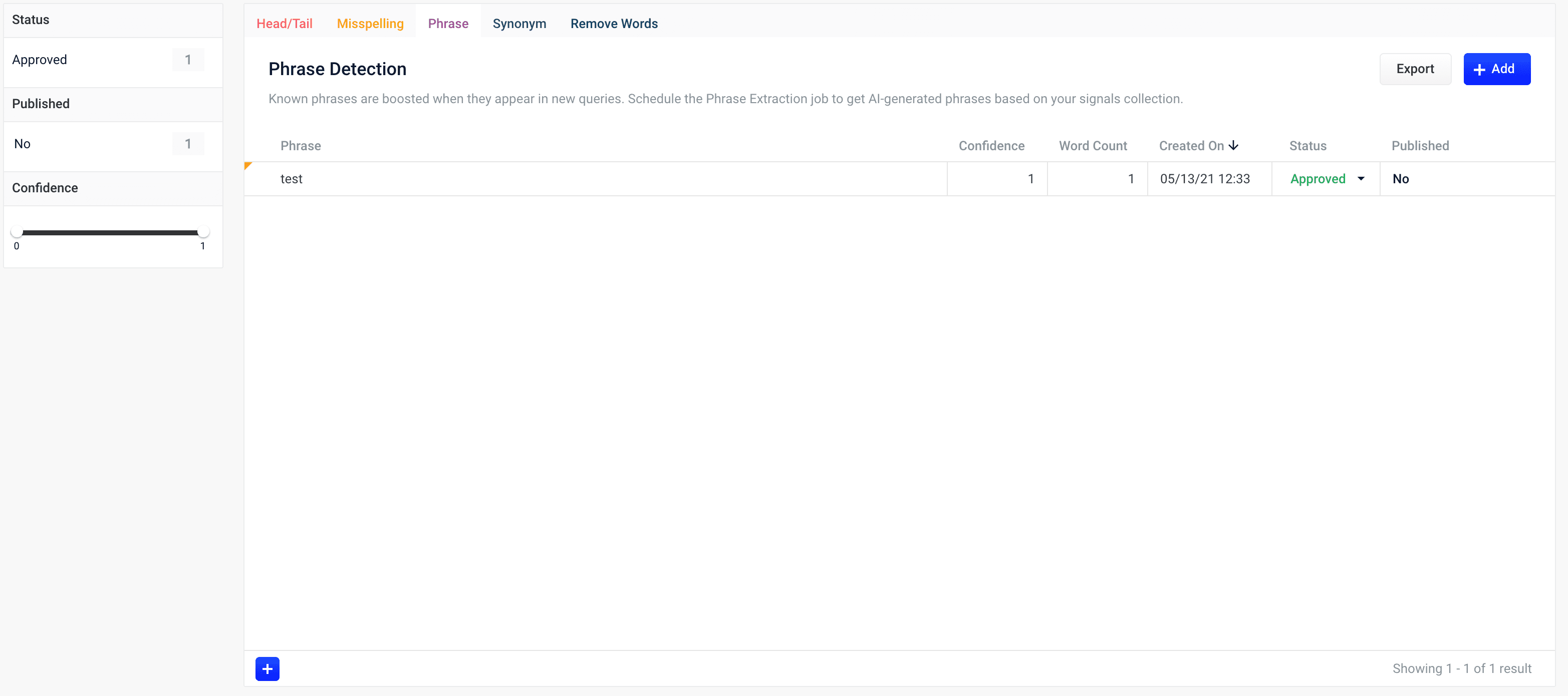
The [Phrase Extraction job](/docs/5/fusion/reference/config-ref/jobs/phrase-extraction) automatically creates phrases based on your AI-generated data. When you navigate to **Relevance** > **Rules** > **Rewrite** and select the **Phrase** tab, the application displays the **Phrase Detection** screen.
When you manually add new phrases, subsequent job runs use those documents as input for machine learning to improve the job’s output. Unlike job-generated documents, manually-added query rewriting documents are never overwritten by new job output.
The course for **Query Analytics** focuses on how Fusion provides query analytics to detect and improve underperforming queries.
{/* // tag::review[] */}
## Reviewing auto-generated phrases
Phrases that are automatically generated by the [Phrase Extraction job](/docs/5/fusion/reference/config-ref/jobs/phrase-extraction) are assigned one of the following status values:
* **Auto**
These results have a confidence level as a threshold to automatically deploy them to the `_query_rewrite` collection. This threshold can be specified in the configuration parameter **Minimum Likelihood Score** (default value 0.1).
No action is required on these results, but you can edit them if you wish.
* **Pending**
The confidence level is ambiguous, and the result must be reviewed by a user before it can be deployed. It will only be moved from the `_query_rewrite_staging` collection to the `_query_rewrite` collection when its status has changed to "Approved" *and* it has been published.
### How to review a pending phrase result
1. Navigate to **Relevance** > **Rules** > **Rewrite**.
2. Select **Phrase** tab. The application displays the **Phrase Detection** screen.
Notice the **Status** facet on the left. Click **Pending** to view only the items that need review.
{/* // Currently this facet does not work (in the qrw-demo app). */}
3. Click the icon next to the phrase.
4. In the **Status** column, select either "Approved" or "Denied".
Optionally, you can also edit the phrase itself.
Although the Confidence field is also editable, changing its value makes no difference.
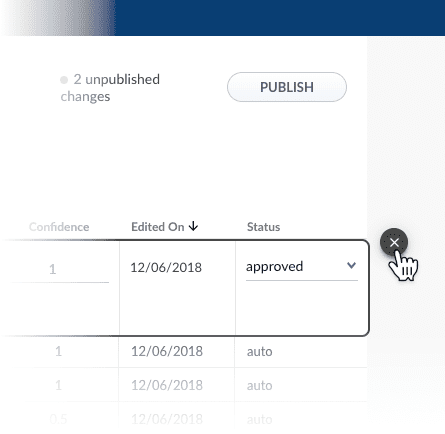
5. Click the **Close** icon next to the updated phrase:
Approving a phrase does not automatically deploy it to the `_query_rewrite` collection. When you have finished your review, you must click **Publish** to deploy your changes.
{/* // end::review[] */}
{/* // tag::add-new[] */}
## Adding new phrases
You can manually add phrases in addition to any generated by the [Phrase Extraction job](/docs/5/fusion/reference/config-ref/jobs/phrase-extraction).
### How to add a phrase
1. Navigate to **Relevance** > **Rules** > **Rewrite**.
2. Select **Phrase** tab. The application displays the **Phrase Detection** screen.
3. At the bottom of the rules list, click the icon. A new phrase appears at the top of the list.
4. Enter the phrase.
It is not necessary to set a confidence value.
5. Select the phrase’s status, depending on whether you want to deploy it the next time you publish your changes ("Approved") or save it for further review ("Pending").
6. Click the check mark to save the new phrase.
{/* // end::add-new[] */}
{/* // tag::publish[] */}
## Publishing your changes
### How to publish updated phrases
1. In the **Phrase Detection** screen, click the **PUBLISH** button.
Fusion prompts you to confirm that you want to publish your changes.
2. Click **PUBLISH**.
{/* // Currently this does not update the count of unpublished changes. */}
You can un-publish a query rewrite by changing its status to "denied", then clicking **PUBLISH**.
{/* // I am assuming this is the case. */}
{/* // end::publish[] */}
### Synonym detection
The Synonym Detection feature generates pairs of synonyms and pairs of similar queries. Two words are considered potential synonyms when they are used in a similar context in similar queries. A query that contains a matching term is expanded to include all of its synonyms, with the original term boosted by a factor of two.
Synonyms are applied in the [Text Tagger stage](/docs/5/fusion/reference/config-ref/pipeline-stages/query-stages/text-tagger-query-stage) of the query pipeline.
The Synonym Detection job is deprecated in Fusion 5.9.15 and will be removed in a future release.
Lucidworks recommends using [Neural Hybrid Search](/docs/5/fusion/hybrid-search/overview), which achieves superior relevance compared to legacy machine learning methods.
See:
* [Synonym Detection](/docs/5/fusion/reference/config-ref/jobs/synonym-detection) for general information
* **Use Synonym Detection** for information about how to review, edit, create, and publish synonym corrections
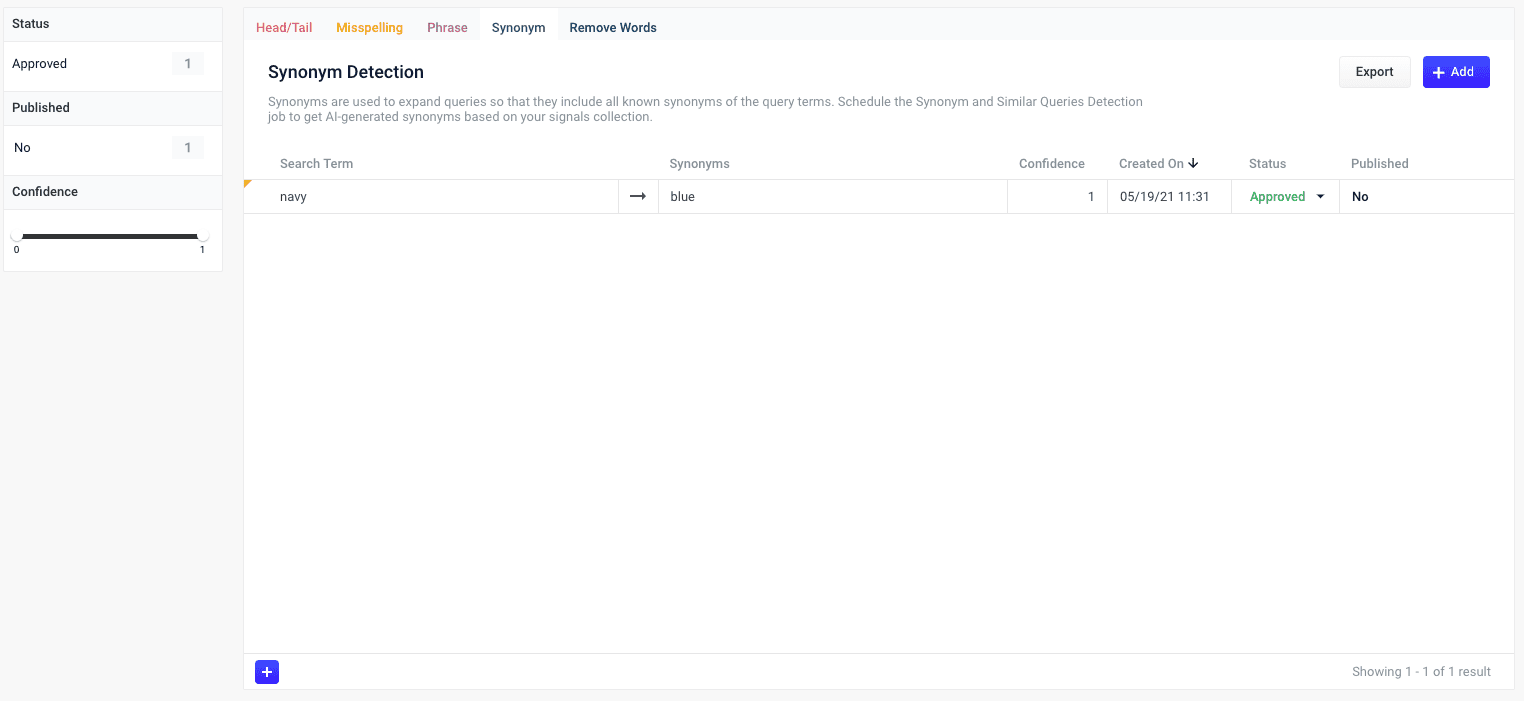
Based on the release, synonyms are automatically created based on your AI-generated data. When you navigate to **Relevance** > **Rules** > **Rewrite** and select the **Synonym** tab, the application displays the **Synonym Detection** screen. For more information, see:
When you manually add new synonym pairs, subsequent job runs use those documents as input for machine learning to improve the job’s output. Unlike job-generated documents, manually-added query rewriting documents are never overwritten by new job output.
The course for **Query Analytics** focuses on how Fusion provides query analytics to detect and improve underperforming queries.
{/* // tag::review[] */}
## Reviewing auto-generated synonym pairs
Synonyms that are automatically generated by the [Fusion 5.2.x and later Synonym Detection job](/docs/5/fusion/reference/config-ref/jobs/synonym-detection) are assigned the following status value:
* **Pending**
The confidence level is ambiguous, and the result must be reviewed by a user before it can be deployed. It will only be moved from the `_query_rewrite_staging` collection to the `_query_rewrite` collection when its status has changed to "Approved" *and* it has been published.
By default, all results from a synonym job are set to "Pending", since there are usually a limited number of synonyms, and synonym expansion can have high impact on relevancy.
### How to review a pending synonym pair result
1. Navigate to **Relevance** > **Rules** > **Rewrite**.
2. Select **Synonym** tab. The application displays the **Synonym Detection** screen.
Notice the **Status** facet on the left. Click **Pending** to view only the items that need review.
3. Click the icon next to the synonym pair.
4. In the **Status** column, select either "Approved" or "Denied".
Where alternative synonyms were detected, you can click **Suggestions** to view and select them as replacements for the displayed synonym pair.
Although the Confidence field is also editable, changing its value makes no difference.
5. Click the **Close** icon next to the updated synonym pair:
Approving a synonym pair does not automatically deploy it to the `_query_rewrite` collection. When you have finished your review, you must click **Publish** to deploy your changes.
{/* // end::review[] */}
{/* // tag::add-new[] */}
## Adding new synonym pairs
You can manually add synonym pairs in addition to any generated by your Fusion release:
* [Fusion 5.2.x and later Synonym Detection job](/docs/5/fusion/reference/config-ref/jobs/synonym-detection)
### How to add a synonym pair
1. Navigate to **Relevance** > **Rules** > **Rewrite**.
2. Select **Synonym** tab. The application displays the **Synonym Detection** screen.
3. At the bottom of the rules list, click the icon. A new synonym pair appears at the top of the list.
4. Enter the query term.
It is not necessary to set a confidence value.
5. Select the synonym pair’s status, depending on whether you want to deploy it the next time you publish your changes ("Approved") or save it for further review ("Pending").
6. Click the check mark to save the new synonym pair.
{/* // end::add-new[] */}
{/* // tag::publish[] */}
## Publishing your changes
### How to publish updated synonym pairs
1. In the **Synonym Detection** screen, click the **PUBLISH** button.
Fusion prompts you to confirm that you want to publish your changes.
2. Click **PUBLISH**.
{/* // Currently this does not update the count of unpublished changes. */}
You can un-publish a query rewrite by changing its status to "denied", then clicking **PUBLISH**.
{/* // I am assuming this is the case. */}
{/* // end::publish[] */}
### Remove words
Use a Remove Words query rewrite to remove particular phrases from queries. Unlike other rewrites, Remove Words rules are entered manually and aren’t generated by a job.
You can create a Remove Words query rewrite to remove words from a query. This query rewrite is helpful when a word in the search query does not add value to the search results.
For example, you can rewrite a search query for `case study examples` to remove `examples` and then display results for `case study`.
See [Remove Words](/docs/5/fusion/getting-data-out/query-enhancement/remove-words) to learn how to remove words from your users' searches.
## Rules Editor
The Rules Editor allows you to view, edit, create, approve, enable, and publish rules powered by Fusion. Access the Rules Editor from the Fusion UI by navigating to **Relevance** > **Rules**:
Read more about the [Rules Editor](/docs/5/fusion/getting-data-out/query-enhancement/rules-editor).
## Query rewrite collections
For detailed information about query rewriting, see:
* **Manage Collections in the Fusion UI**
* [Collections](/docs/5/fusion/getting-data-in/indexing/collections/overview)
Collections can be created or removed using the Fusion UI or the REST API.
For information about using the REST API to manage collections, see [Collections API](/api-reference/collections/get-collections-service-status) in the REST API Reference:
## Creating a Collection
When you create an app, by default Fusion Server creates a collection and associated objects.
To create a new collection in the Fusion UI:
1. From within an app, click **Collections > Collections Manager**.
2. At the upper right of the panel, click **New**.
3. Enter a **Collection name**. This name cannot be changed later.
4. To create the collection in the default Solr cluster and with other default settings, click **Save Collection**.
## Creating a Collection with Advanced Options
To access advanced options for creating a collection in the Fusion UI:
1. From within an app, click **Collections > Collections Manager**.
2. At the upper right of the panel, click **New**.
3. Enter a **Collection name**. This name cannot be changed later.
4. Click **Advanced**.
5. Configure advanced options. The options are described below.
6. Click **Save Collection**.
### Solr Cluster
By default, a new collection is associated with the Solr instance that is associated with the `default` Solr cluster.
If Fusion has multiple Solr clusters, choose from the list which cluster you want to associate your collection with.
The cluster must exist first.
### Solr Cluster Layout
The next section lets you define a **Replication Factor** and **Number of Shards**.
Define these options only if you are creating a new collection in the Solr cluster.
If you are linking Fusion to an existing Solr collection, you can skip these settings.
### Solr Collection Import
Import a Solr collection to associate the new Fusion collection with an existing Solr collection.
Enter a **Solr Collection Name** to associate the collection with an existing Solr collection.
Then, enter a **Solr Config Set** to tell ZooKeeper to use the configurations from an existing collection in Solr when creating this collection.
### Time Series Partitioning
Available in 4.x only.
You can map a Fusion collection to multiple Solr collections, known here as partitions, where each partition contains data from a specific time range.
To configure time-based partitioning, under **Time Series Partitioning** click **Enable**.
See [Time-Based Partitioning](/docs/4/fusion-server/concepts/indexing/collections/time-based-partitioning) for more information.
## Configuring Collections
The Collections menu lets you configure your existing collection, including datasources, fields, jobs, stopwords, and synonyms.
In the Fusion UI, from any app, the Collections icon displays on the left side of the screen.
Some tasks related to managing a collection are available in other menus:
* Configure a profile in **Indexing > Indexing Profiles** or **Querying > Query Profiles**.
* View reports about your collection’s activity in **Analytics > Dashboards**.
### Collections Manager
The Collections Manager page displays details about the collection, such as how many datasources are configured, how many documents are in the index, and how much disk space the index consumes.
This page also lets you [create a new collection](#creating-a-collection), disable search logs or signals, enable recommendations, issue a commit command to Solr, or clear a collection.
#### Disable search logs
When you first create a collection, the search logs are created by default. The search logs populate the panels in **Analytics > Dashboards**.
1. Hover over your collection name until the gear icon appears at the end of the line.
2. Click the gear icon.
3. Click **Disable Search Logs**.
4. On the confirmation screen, click **Disable Search Logs**.
Note that if you disable search logs, you cannot see any data for this collection in **Analytics > Dashboards**.
See Dashboards:
* **Fusion 5.x.** [Dashboards](/docs/5/fusion/operations/monitoring-and-reporting/banana-dashboards/overview)
* **Fusion 4.x.** [Dashboards](/docs/4/fusion-server/concepts/dashboards/overview)
#### Disable signals
When you first create a collection, the signals and aggregated signals collections are created by default.
1. Hover over your collection name until the gear icon appears at the end of the line.
2. Click the gear icon.
3. Click **Disable Signals**.
4. On the confirmation screen, click **Disable Signals**.
#### Hard commit a collection
1. Hover over your collection name until the gear icon appears at the end of the line.
2. Click the gear icon.
3. Click **Hard Commit Collection**.
4. On the confirmation screen, click **Hard Commit Collection**.
Read internal details about how Solr processes commits on [our blog](https://lucidworks.com/post/understanding-transaction-logs-softcommit-and-commit-in-sorlcloud/).
### Datasources
To access the Datasources page, click **Indexing > Datasources**. By default, there are no datasources configured right after installation.
To add a new datasource, click **New** at the upper right of the panel.
See the [Connectors and Datasources Reference](/docs/fusion-connectors/connectors/overview) for details on how to configure a datasource. Options vary depending on the repository you would like to index.
After you configure a datasource, it appears in a list on this screen. Click the name of a datasource to edit its properties. Click **Start** to start the datasource. Click **Stop** to stop the datasource before it completes.
To the right, view information on the last completed job, including the date and time started and stopped, and the number of documents found as new, skipped, or failed.
When you stop a datasource, Fusion attempts to safely close connector threads, finishing processing documents through the pipeline and indexing documents to Solr. Some connectors take longer to complete these processes than others, so might stay in a "stopping" state for several minutes.
To stop a datasource immediately, choose **Abort** instead of **Stop**.
There is also a [REST API for datasources](/api-reference/datasource-configuration-v2-api/list-all-v2-datasources).
### Stopwords
The Stopwords page lets you edit a stopwords list for your collection.
To add or delete stop words:
1. Click the name of the text file you wish to edit.
2. Add a new word on a new line.
3. When you are done with your changes, click **Save**.
To import a stop words list:
1. Click **System > Import Fusion Objects**.
2. Choose the file to upload.
3. Click **Import >>**.
Read more about stopwords:
* **Fusion 5.x.** [stopwords](/docs/5/fusion/getting-data-out/query-enhancement/stopwords-files)
* **Fusion 4.x.** [stopwords](/docs/4/fusion-server/concepts/querying/apps/stopwords-files)
### Synonyms
Fusion has the same synonym functionality that Solr supports. This includes a list of words that are synonyms (where the synonym list expands on the terms entered by the user), as well as a full mapping of words, where a word is substituted for what the user has entered (that is, the term the user has entered is replaced by a term in the synonym list).
See more about synonyms:
* **Fusion 5.x.** [synonyms](/docs/5/fusion/getting-data-out/query-enhancement/synonyms/overview)
* **Fusion 4.x.** [synonyms](/docs/4/fusion-server/concepts/querying/apps/synonyms-files)
You can edit the synonyms list for your collection.
To access the Synonyms page in the Fusion UI, in any app, click **Collections > Synonyms**.
Filter the list of synonym definitions by typing in the **Filter...** box.
To import a synonyms list:
1. From the Synonyms page, click **Import and Save**. A dialog box opens.
2. Choose the file to import.
To edit a synonyms list:
* Enter new synonym definitions one per line.
* To enter a string of terms that expand on the terms the user entered, enter the terms separated by commas, like `Television, TV`.
* To enter a term that should be mapped to another term, enter the terms separated by an equal sign then a right angle bracket, `=>`, like `i-pod=>ipod`.
* Remove a line by clicking the **x** at the end of the line.
* Once you are finished with edits, click **Save**.
To export the synonyms list, click **Export**. This downloads the list to your computer using your browser download capability.
### Profiles
Profiles allow you to create an alias for an index or query pipeline.
This allows you to send documents or queries to a consistent endpoint and change the underlying pipeline or collection as needed.
Read about profiles in Index Profiles and Query Profiles:
* **Fusion 5.x.**
* [Index Profiles](/docs/4/fusion-server/concepts/indexing/datasources/index-profiles)
* [Query Profiles](/docs/4/fusion-server/concepts/querying/pipelines/query-profiles)
* **Fusion 4.x.**
* [Index Profiles](/docs/4/fusion-server/concepts/indexing/datasources/index-profiles)
* [Query Profiles](/docs/4/fusion-server/concepts/querying/pipelines/query-profiles)
To access the Solr Config page, from any app, click **System > Solr Config**.
## Learn more
The quick learning for **Collections Menu Tour** focuses on the Collections Menu features and functionality along with a brief description of each screen available in the menu.
For each app, two [auxiliary collections](/docs/5/fusion/getting-data-in/indexing/collections/overview) are dedicated to documents used for query rewriting:
* `COLLECTION_NAME_query_rewrite_staging`\
[Certain Spark jobs](#spark-jobs-for-query-rewriting) send their output to this collection. [Rules](#business-rules) are also written to this collection initially\
Some of the content in this collection requires manual review before it can be migrated to the `COLLECTION_NAME_query_rewrite`, where query pipelines can read it. See below for details.
* `COLLECTION_NAME_query_rewrite`
This collection is optimized for high-volume traffic. Query pipelines can read from this collection to find rules, synonyms, spelling corrections, and more with which to rewrite queries and responses.
Each app contains exactly one of each of these collections, associated with the app’s default collection. They are not created again for additional collections created within the same app.
Documents move from `COLLECTION_NAME_query_rewrite_staging` to the `COLLECTION_NAME_query_rewrite` collection only when they are approved (either automatically on the basis of their confidence scores or manually by a human reviewer) *and* a Fusion user clicks **Publish**. The `review` field value indicates whether a document will be published when the user clicks **Publish**:
| | |
| ----------------- | ----------------------------------------------------------------------------------------------------------------- |
| `review=auto` | A job-generated document has a sufficiently high confidence score and is automatically approved for publication. |
| `review=pending` | A job-generated document has an ambiguous confidence score and must be reviewed by a Fusion user. |
| `review=approved` | A Fusion user has reviewed the document and approved it for publication. |
| `review=denied` | A job-generated document has a low confidence score, or a Fusion user has reviewed and denied it for publication. |
In the query rewriting UI, the value of the `review` field appears in the **Status** column.
You can review and approve or deny documents using the query rewriting UI. You can also change a document’s status to "pending" to save it for later review.
## Rules Simulator query profile
**Important**
Rules Simulator is only available for Fusion 5.x.x organizations that do *not* have a valid Predictive Merchandiser or Experience Optimizer license.
The [Rules Simulator](/docs/4/fusion-ai/concepts/query-rewriting/simulator) allows product owners to experiment with rules and other query rewrites in the `COLLECTION_NAME_query_rewrite_staging` collection before deploying them to the `COLLECTION_NAME_query_rewrite` collection.
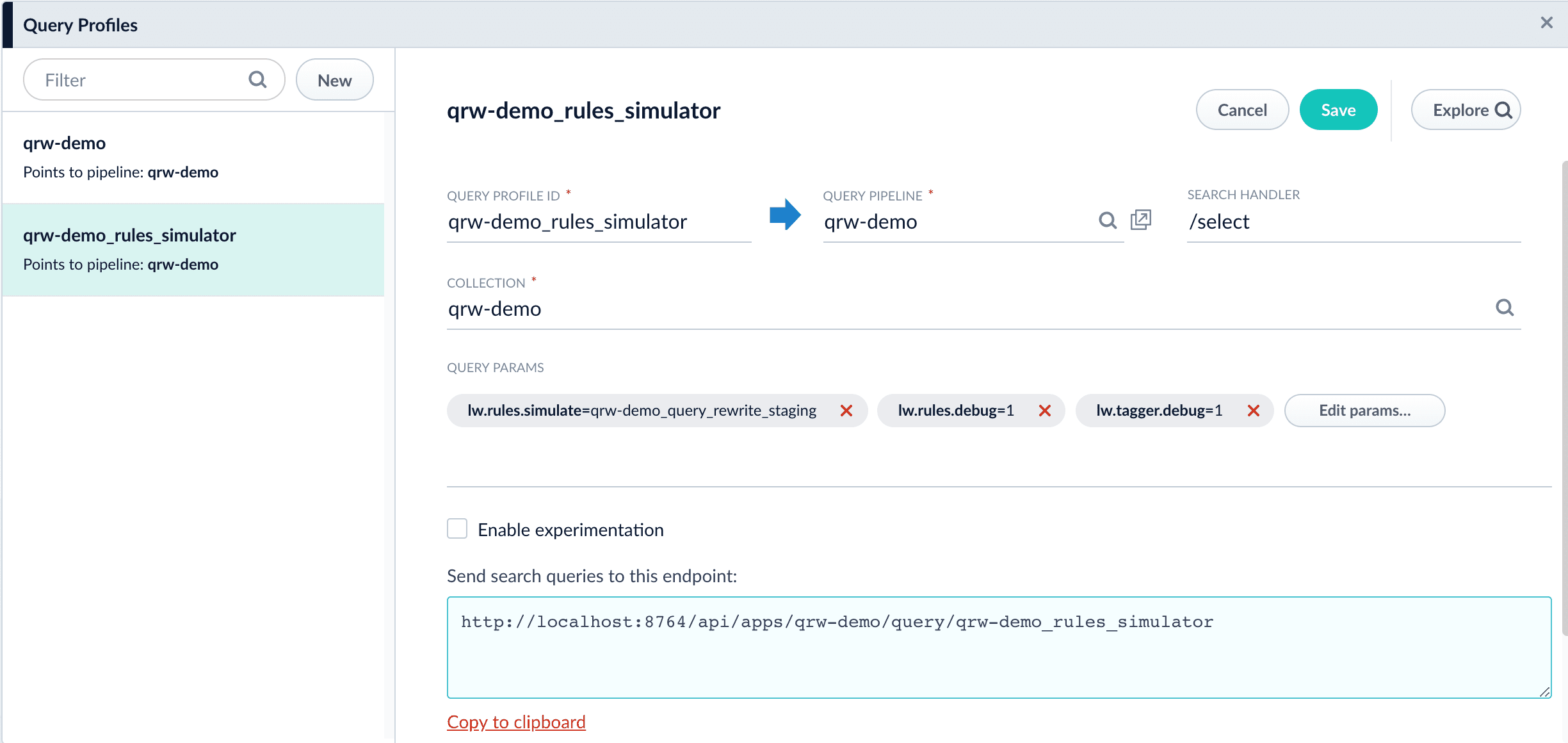
Each app has a `COLLECTION_NAME_rules_simulator` query profile, configured to use the `COLLECTION_NAME_query_rewrite_staging` collection for query rewrites instead of the `COLLECTION_NAME_query_rewrite` collection. This profile is created automatically whenever a new app is created.
See **Configure the Rules Simulator Query Profile** for more information about configuration.
Each app has a `_rules_simulator` query profile, configured to use the `_query_rewrite_staging` collection for [query rewrites](/docs/4/fusion-ai/concepts/query-rewriting/overview) instead of the `_query_rewrite` collection. This profile is created automatically whenever a new app is created.
By default, this query profile points to your default query pipeline and collection. You can configure it to point to any pipeline or collection, for example when testing a new pipeline before it has been deployed.
**How to change the query pipeline, collection, and query parameters used by the `_rules_simulator` query profile**
1. Open the Fusion UI.
2. Navigate to **Querying** > **Query Profiles**.
3. Select the `_rules_simulator` query profile for your app.
For example, if your app is called "Demo" then the name of the query profile is `Demo_rules_simulator`.
4. Modify the configuration as desired.
5. Click **Save**.
## Query pipeline stages for query rewriting
These query rewriting stages are part of any default query pipeline:
* [Apply Rules query stage](/docs/5/fusion/reference/config-ref/pipeline-stages/query-stages/query-rules-query-stage)\
This stage looks up rules that have been deployed to the [`COLLECTION_NAME_query_rewrite` collection](/docs/5/fusion/getting-data-out/query-enhancement/query-rewriting) and matches them against the query. Matching rules that perform [query rewriting](/docs/5/fusion/getting-data-out/query-enhancement/query-rewriting) are applied at this stage, while matching rules that perform [response rewriting](/docs/5/fusion/getting-data-out/query-enhancement/response-rewriting) are applied by the [Modify Response with Rules](/docs/5/fusion/reference/config-ref/pipeline-stages/query-stages/rules-augment-response-query-stage) stage later in the pipeline.
To trigger a rule that contains a tag, specify the tagname in the request URL of the user search app. See [Easily define triggers in tags](/docs/5/fusion/getting-data-out/query-enhancement/business-rules/general-config) for more information.
* [Text Tagger query pipeline stage](/docs/5/fusion/reference/config-ref/pipeline-stages/query-stages/text-tagger-query-stage)
This stage uses the [SolrTextTagger](https://solr.apache.org/guide/solr/latest/query-guide/tagger-handler.html) handler to identify known entities in the query by searching the [`COLLECTION_NAME_query_rewrite` collection](/docs/5/fusion/getting-data-in/indexing/collections/overview).
For Fusion 5.x.x organizations that do *not* have a Predictive Merchandiser license, the Solr Text Tagger handler also searches the `COLLECTION_NAME_query_rewrite_staging` collection in the case of the Fusion query rewriting [Simulator](/docs/4/fusion-ai/concepts/query-rewriting/simulator)).
The purpose of the search is to perform query rewriting using matches from the following items:
* [Spelling corrections](/docs/5/fusion/getting-data-out/query-enhancement/misspelling-detection)
* [Phrase boosts](/docs/5/fusion/getting-data-out/query-enhancement/phrase-detection)
* [Head/Tail Analysis (Underperforming query improvements)](/docs/5/fusion/getting-data-out/query-enhancement/underperforming-queries)
* [Synonym Detection](/docs/5/fusion/reference/config-ref/jobs/synonym-detection)
## Spark jobs for query rewriting
This section describes how Spark jobs support query rewriting. These jobs read from the signals collection and write their output to the `COLLECTION_NAME_query_rewrite_staging` collection. High-confidence results are automatically migrated from there to the `COLLECTION_NAME_query_rewrite` collection, while ambiguous results remain in the staging collection until they are reviewed and approved. You can review job results in the Query Rewriting UI.
* [Daily query rewriting jobs](#daily-query-rewriting-jobs) are created and scheduled automatically when you create a new app.
* [Additional query rewriting jobs](#additional-query-rewriting-jobs) can be created manually.
For best relevancy, enable all of these jobs.
### Daily query rewriting jobs
When a new app is created, the jobs below are also created and scheduled to run daily, beginning 15 minutes after app creation, in the following order:
1. [Token and Phrase Spell Correction job](/docs/5/fusion/reference/config-ref/jobs/token-and-phrase-spell-correction)\
Detect misspellings in queries or documents using the numbers of occurrences of words and phrases.
2. [Phrase Extraction job](/docs/5/fusion/reference/config-ref/jobs/phrase-extraction)\
Identify multi-word phrases in signals.
3. [Synonym Detection](/docs/5/fusion/reference/config-ref/jobs/synonym-detection)\
Use this job to generate pairs of synonyms and pairs of similar queries. Two words are considered potential synonyms when they are used in a similar context in similar queries.
#### Process flow
The first and second jobs can provide input to improve the Synonym job’s output:
* Token and Phrase Spell Correction job results can be used to avoid finding mainly misspellings, or mixing synonyms with misspellings.
* Phrase Extraction job results can be used to find pairs of synonyms with multiple tokens, such as "lithium ion"/"ion battery".
The Phrase Extraction and Synonym Detection jobs are triggered by the success of the previous job: the phrase detection job runs only if the spell correction job succeeds, and the synonym job runs only if the phrase detection job succeeds.
### Additional query rewriting jobs
These jobs also produce results that are used for query rewriting, but must be created manually:
* [Head/Tail Analysis job](/docs/5/fusion/reference/config-ref/jobs/head-tail-analysis)\
Perform head/tail analysis of queries from collections of raw or aggregated signals, to identify underperforming queries and the reasons. This information is valuable for improving overall conversions, Solr configurations, auto-suggest, product catalogs, and SEO/SEM strategies, in order to improve conversion rates.
* [Ground Truth job](/docs/5/fusion/reference/config-ref/jobs/ground-truth)\
Ground truth or gold standard datasets are used in the ground truth jobs and query relevance metrics to define a specific set of documents.
Ground truth jobs estimate ground truth queries using click signals and query signals, with document relevance per query determined using a click/skip formula.
Use this job along with the [Ranking Metrics job](/docs/5/fusion/reference/config-ref/jobs/ranking-metrics) to calculate relevance metrics, such as Normalized Discounted Cumulative Gain (nDCG).
To create a ground truth job, sign in to Fusion and click **Collections > Jobs**. Then click **Add+** and in the Experiment Evaluation Jobs section, select **Ground Truth**. You can enter basic and advanced parameters to configure the job. If the field has a default value, it is populated when you click to add the job.
## Basic parameters
To enter advanced parameters in the UI, click **Advanced**. Those parameters are described in [the advanced parameters section](#advanced-parameters).
* **Spark job ID.** The unique ID for the Spark job that references this job in the API. This is the `id` field in the configuration file. Required field.
* **Input/Output Parameters.** This section includes the **Signals collection** field, which is the Solr collection that contains click signals and its associated search log identifier. This is the `signalsCollection` field in the configuration file. Required field.
## Advanced parameters
If you click the **Advanced** toggle, the following optional fields are displayed in the UI.
* **Spark Settings.** This section lets you enter `parameter name:parameter value` options to use in this job. This is the `sparkConfig` field in the configuration file.
* **Additional Options.** This section includes the following options:
* **Search logs pipeline.** The pipeline ID associated with search log entries. This is the `searchLogsPipeline` field in the configuration file.
* **Join key (query signals).** The common key that joins the query signals in the signals collection. This is the `joinKeySignals` field in the configuration file.
* **Join key (click signals).** The common key that joins the click signals in the signals collection. This is the `joinKeySignals` field in the configuration file.
* **Search logs and options.** This section lets you enter `property name:property value` options to when loading the search logs collection. This is the `searchLogsAddOpts` field in the configuration file.
* **Additional signals options.** This section lets you enter `property name:property value` options when loading the signals collection. This is the `signalsAddOpts` field in the configuration file.
* **Filter queries.** The `array[string]` filter query to apply when selecting top queries from the query signals in the signals collection. This is the `filterQueries` field in the configuration file.
* **Top queries limit.** The total number of queries to select for ground truth calculations when this job is run. This is the `topQueriesLimit` field in the configuration file.
For more information, see [Ground truth query rewrite API configurations](/api-reference/experiments-api/get-ground-truth-results).
### "rules" role for query rewriting users
The "rules" [role](/docs/5/fusion/operations/security/access-control/roles) provides permissions to access query rewriting features for all Fusion apps. A Fusion admin can create a user account with this role to give a business user access to the Query Rewriting UI.
## Query rewrite jobs post-processing cleanup
To perform more extensive cleanup of query rewrites, complete the procedures in **Query Rewrite Jobs Post-processing Cleanup**.
The Synonym Detection job uses the output of the Misspelling Detection job and Phrase Extraction job. Therefore, post processing *must* occur in the order specified in this topic for the [Synonym detection job cleanup](#synonym-detection-job-cleanup), [Phrase extraction job cleanup](#phrase-extraction-job-cleanup), and [Misspelling detection job cleanup](#misspelling-detection-job-cleanup) procedures. The [Head-Tail Analysis job cleanup](#head-tail-analysis-job-cleanup) can occur in any order.
## Synonym detection job cleanup
Use this job to remove low confidence synonyms.
### Prerequisites
Complete this:
* **AFTER** the Misspelling Detection and Phrase Extraction jobs have successfully completed.
* **BEFORE** removing low confidence synonym suggestions generated in the *post processing* phrase extraction cleanup and misspelling detection cleanup procedures detailed later in this topic.
### Remove low confidence synonym suggestions
Use either a [Synonym cleanup method 1 - API call](#synonym-cleanup-method-1-api-call) or the [Synonym cleanup method 2 - Fusion Admin UI](#synonym-cleanup-method-2-fusion-admin-ui) to remove low confidence synonym suggestions.
#### Synonym cleanup method 1 - API call
1. Open the `delete_lowConf_synonyms.json` file.
```json theme={"dark"}
{
"type" : "rest-call",
"id" : "DC_Large_QR_DELETE_LOW_CONFIDENCE_SYNONYMS",
"callParams" : {
"uri" : "solr://DC_Large_query_rewrite_staging/update",
"method" : "post",
"queryParams" : {
"wt" : "json"
},
"headers" : { },
"entity" : "type:synonym AND confidence:[0 TO 0.0005]"
},
"type" : "rest-call",
"type" : "rest-call"
}
```
**REQUEST ENTITY** specifies the threshold for low confidence synonyms. Edit the upper range from 0.0005 to increase or decrease the threshold based on your data.
2. Enter `` in the **uri** field. An example URI value for an app called `DC_Large` would be `DC_Large_query_rewrite_staging/update`.
3. Change the `id` field if applicable.
4. Specify the **upper confidence level** in the **entity** field.
The **entity** field specifies the threshold for low confidence synonyms. Edit the upper range to increase or decrease the threshold based on your data.
#### Synonym cleanup method 2 - Fusion Admin UI
1. Log in to Fusion and select **Collections > Jobs**.
2. Select **Add+ > Custom and Other Jobs > REST Call**.
3. Enter **delete-low-confidence-synonyms** in the **ID** field.
4. Enter `` in the **ENDPOINT URI** field. An example URI value for an app called `DC_Large` would be `DC_Large_query_rewrite_staging/update`.
5. Enter **POST** in the **CALL METHOD** field.
6. In the **QUERY PARAMETERS** section, select **+** to add a property.
7. Enter **wt** in the **Property Name** field.
8. Enter **json** in the **Property Value** field.
9. In the **REQUEST PROTOCOL HEADERS** section, select **+** to add a property.
10. Enter the following as a **REQUEST ENTITY (AS STRING)**
`type:synonym AND confidence: [0 TO 0.0005]`
**REQUEST ENTITY** specifies the threshold for low confidence synonyms. Edit the upper range from 0.0005 to increase or decrease the threshold based on your data.
### Delete all synonym suggestions
To delete *all* of the synonym suggestions, enter the following in the **REQUEST ENTITY** section:
`type:synonym`
This entry may be helpful when tuning the synonym detection job and testing different configuration parameters.
## Phrase extraction job cleanup
Use this job to remove low confidence phrase suggestions.
### Prerequisites
Complete this:
* **AFTER** you complete [Synonym detection job cleanup](#synonym-detection-job-cleanup)
### Remove low confidence phrase suggestions
Use either a [Phrase cleanup method 1 - API call](#phrase-cleanup-method-1-api-call) or the [Phrase cleanup method 2 - Fusion Admin UI](#phrase-cleanup-method-2-fusion-admin-ui) to remove low confidence phrase suggestions.
#### Phrase cleanup method 1 - API call
1. Open the `delete_lowConf_phrases.json` file.
```json theme={"dark"}
{
"type" : "rest-call",
"id" : "DC_Large_QR_DELETE_LOW_CONFIDENCE_PHRASES",
"callParams" : {
"uri" : "solr://DC_Large_query_rewrite_staging/update",
"method" : "post",
"queryParams" : {
"wt" : "json"
},
"headers" : { },
"entity" : " type:phrase AND confidence:[0 TO ]"
},
"type" : "rest-call",
"type" : "rest-call"
}
```
2. Enter `` in the **uri** field. An example URI value for an app called `DC_Large` would be `DC_Large_query_rewrite_staging/update`.
3. Change the **id** field if applicable.
4. Specify the **upper confidence level** in the **entity** field.
The **entity** field specifies the threshold for low confidence phrases. Edit the upper range to increase or decrease the threshold based on your data.
#### Phrase cleanup method 2 - Fusion Admin UI
1. Log in to Fusion and select **Collections > Jobs**.
2. Select **Add+ > Custom and Other Jobs > REST Call**.
3. Enter **remove-low-confidence-phrases** in the **ID** field.
4. Enter `` in the **ENDPOINT URI** field. An example URI value for an app called `DC_Large` would be `DC_Large_query_rewrite_staging/update`.
5. Enter **POST** in the **CALL METHOD** field.
6. In the **QUERY PARAMETERS** section, select **+** to add a property.
7. Enter **wt** in the **Property Name** field.
8. Enter **json** in the **Property Value** field.
9. In the **REQUEST PROTOCOL HEADERS** section, select **+** to add a property.
10. Enter the following as a **REQUEST ENTITY (AS STRING)**
`type:phrase AND confidence: [0 TO ]`
**REQUEST ENTITY** specifies the threshold for low confidence phrases. Edit the upper range to increase or decrease the threshold based on your data.
### Delete all phrase suggestions
To delete *all* of the phrase suggestions, enter the following in the **REQUEST ENTITY** section:
`type:phrase`
This entry may be helpful when tuning the phrase extraction job and testing different configuration parameters.
## Misspelling detection job cleanup
Use this job to remove low confidence spellings (also referred to as misspellings).
### Prerequisites
Complete this:
* **AFTER** you complete [Synonym detection job cleanup](#synonym-detection-job-cleanup) and [Phrase extraction job cleanup](#phrase-extraction-job-cleanup)
### Remove misspelling suggestions
Use either a [Misspelling cleanup method 1 - API call](#misspelling-cleanup-method-1-api-call) or the [Misspelling cleanup method 2 - Fusion Admin UI](#misspelling-cleanup-method-2-fusion-admin-ui) to remove misspelling suggestions.
#### Misspelling cleanup method 1 - API call
1. Open the `delete_lowConf_misspellings.json` file.
```json theme={"dark"}
{
"type" : "rest-call",
"id" : "DC_Large_QR_DELETE_LOW_CONFIDENCE_MISSPELLINGS",
"callParams" : {
"uri" : "solr://DC_Large_query_rewrite_staging",
"method" : "post",
"queryParams" : {
"wt" : "json"
},
"headers" : { },
"entity" : "type:spell AND confidence:[0 TO 0.5]"
},
"type" : "rest-call",
"type" : "rest-call"
}
```
2. Enter `` in the **uri** field. An example URI value for an app called `DC_Large` would be `DC_Large_query_rewrite_staging/update`.
3. Change the **id** field if applicable.
4. Specify the **upper confidence level** in the **entity** field.
The **entity** field specifies the threshold for low confidence spellings. Edit the upper range to increase or decrease the threshold based on your data.
#### Misspelling cleanup method 2 - Fusion Admin UI
1. Log in to Fusion and select **Collections > Jobs**.
2. Select **Add+ > Custom and Other Jobs > REST Call**.
3. Enter **remove-low-confidence-spellings** in the **ID** field.
4. Enter `` in the **ENDPOINT URI** field. An example URI value for an app called `DC_Large` would be `DC_Large_query_rewrite_staging/update`.
5. Enter **POST** in the **CALL METHOD** field.
6. In the **QUERY PARAMETERS** section, select **+** to add a property.
7. Enter **wt** in the **Property Name** field.
8. Enter **json** in the **Property Value** field.
9. In the **REQUEST PROTOCOL HEADERS** section, select **+** to add a property.
10. Enter the following as a **REQUEST ENTITY (AS STRING)**
`type:spell AND confidence: [0 TO 0.5]`
**REQUEST ENTITY** specifies the threshold for low confidence spellings. Edit the upper range from 0.5 to increase or decrease the threshold based on your data.
### Delete all misspelling suggestions
To delete *all* of the misspelling suggestions, enter the following in the **REQUEST ENTITY** section:
`type:spell`
This entry may be helpful when tuning the misspelling detection job and testing different configuration parameters.
## Head-tail analysis job cleanup
The head-tail analysis job puts tail queries into one of multiple reason categories. For example, a tail query that includes a number might be assigned to the 'numbers' reason category. If the output in a particular category is not useful, you can remove it from the results. The examples in this section remove the numbers category.
### Prerequisites
The head-tail analysis job cleanup does *not* have to occur in a specific order.
### Remove head-tail analysis query suggestions
Use either a [Head-tail analysis cleanup method 1 - API call](#head-tail-analysis-cleanup-method-1-api-call) or the [Head-tail analysis cleanup method 2 - Fusion Admin UI](#head-tail-analysis-cleanup-method-2-fusion-admin-ui) to remove query category suggestions.
#### Head-tail analysis cleanup method 1 - API call
1. Open the `delete_lowConf_headTail.json` file.
```json theme={"dark"}
{
"type" : "rest-call",
"id" : "DC_Large_QR_HEAD_TAIL_CLEANUP",
"callParams" : {
"uri" : "solr://DC_Large_query_rewrite_staging/update",
"method" : "post",
"queryParams" : {
"wt" : "json"
},
"headers" : { },
"entity" : "reason_code_s:(\"number\" \"number spelling\" \"number rare-term\" \"question number other-specific\" \"number others\" \"number other-specific\" \"number other-extra\" \"product number other-specific\" \"product number other-extra\" \"product number spelling\" \"product number others\" \"product number rare-term\" \"product question number\" \"product number re-wording\" \"question number other-extra\" \"number re-wording\")"
},
"type" : "rest-call",
"type" : "rest-call"
}
```
2. Enter `` in the **uri** field. An example URI value for an app called `DC_Large` would be `DC_Large_query_rewrite_staging/update`.
3. Change the **id** field if applicable.
#### Head-tail analysis cleanup method 2 - Fusion Admin UI
1. Log in to Fusion and select **Collections > Jobs**.
2. Select **Add+ > Custom and Other Jobs > REST Call**.
3. Enter **remove-low-confidence-head-tail** in the **ID** field.
4. Enter `` in the **ENDPOINT URI** field. An example URI value for an app called `DC_Large` would be `DC_Large_query_rewrite_staging/update`.
5. Enter **POST** in the **CALL METHOD** field.
6. In the **QUERY PARAMETERS** section, select **+** to add a property.
7. Enter **wt** in the **Property Name** field.
8. Enter **json** in the **Property Value** field.
9. In the **REQUEST PROTOCOL HEADERS** section, select **+** to add a property.
10. Enter the following as a **REQUEST ENTITY (AS STRING)**
```
reason_code_s:("number" "number spelling" "number rare-term" "question number other-specific" "number others" "number other-specific" "number other-extra" "product number other-specific" "product number other-extra" "product number spelling" "product number others" "product number rare-term" "product question number" "product number re-wording" "question number other-extra" "number re-wording")
```
### Delete all head-tail suggestions
To delete *all* of the head-tail suggestions, enter the following in the **REQUEST ENTITY** section:
`type:tail`
This entry may be helpful when tuning the head-tail job and testing different configuration parameters.
## Learn more
1. In the Fusion UI, navigate to **Relevance** > **Query Rewriting**.
2. Under **Business Rules**, click **View**.
3. Hover over the rule you want to edit.
4. Click the icon next to the rule.
## Publishing your changes
**How to publish updated business rules**
1. In the **Business Rules** screen, click the **PUBLISH** button.
Fusion prompts you to confirm that you want to publish your changes.
2. Click **PUBLISH**.
You can un-publish a query rewrite by changing its status to "denied", then clicking **PUBLISH**.For **My Custom Rules** to show in the UI, you must first create a `custom_rule_type` via the Query Rewrite API.
1. Navigate to **Relevance** > **Query Rewriting**.
2. Under **Business Rules**, click **View**.
3. Click the icon.
The **New Rule** window appears.
4. Enter the general parameters and conditions for this custom rule.
5. Under **Action**, select **My Custom Rule**.
6. Select the query pipeline to use when this rule is triggered.
7. Enter a name for this custom rule type.
8. Optionally, you can click **Add** under **Return Parameter Policy Override** to override the value of a parameter returned from the specified pipeline:
1. Enter the name of the parameter.
2. Enter the desired value.
3. Select one of the following policies:
* **Replace** the returned value with the specified value.
* **Append** the specified value to the returned value.
* **Remove** the specified parameter from the set of returned parameters.
* **Default**
4. Enter a value for **From Custom Rule**.
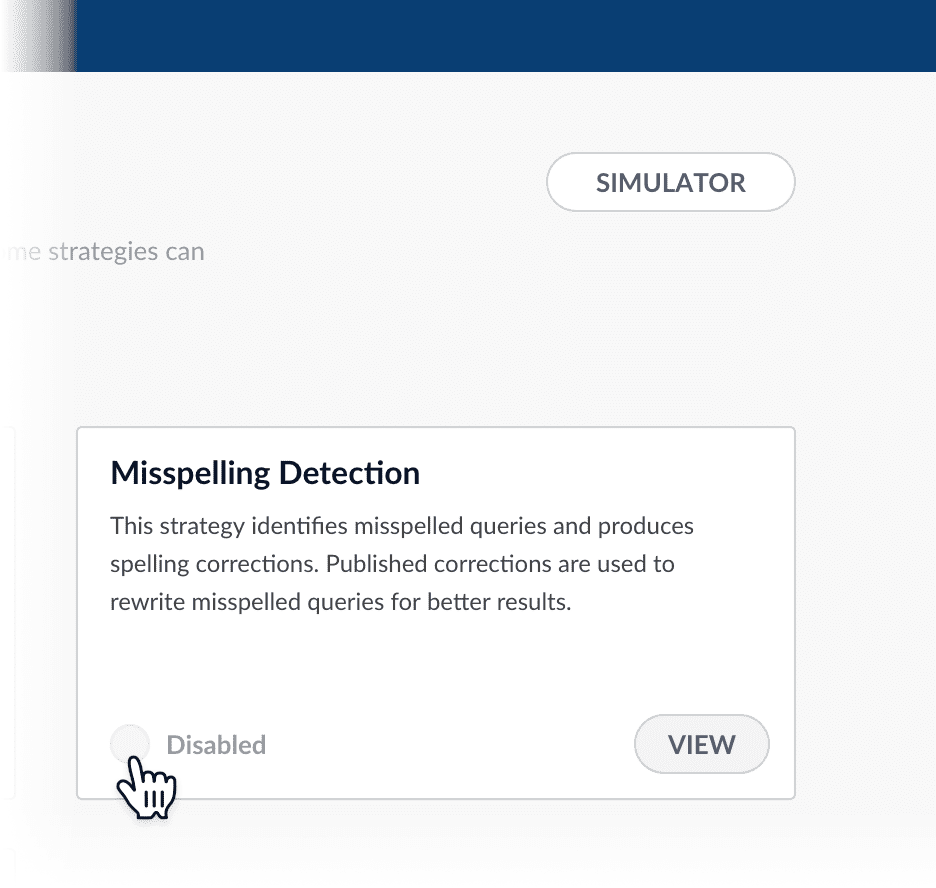
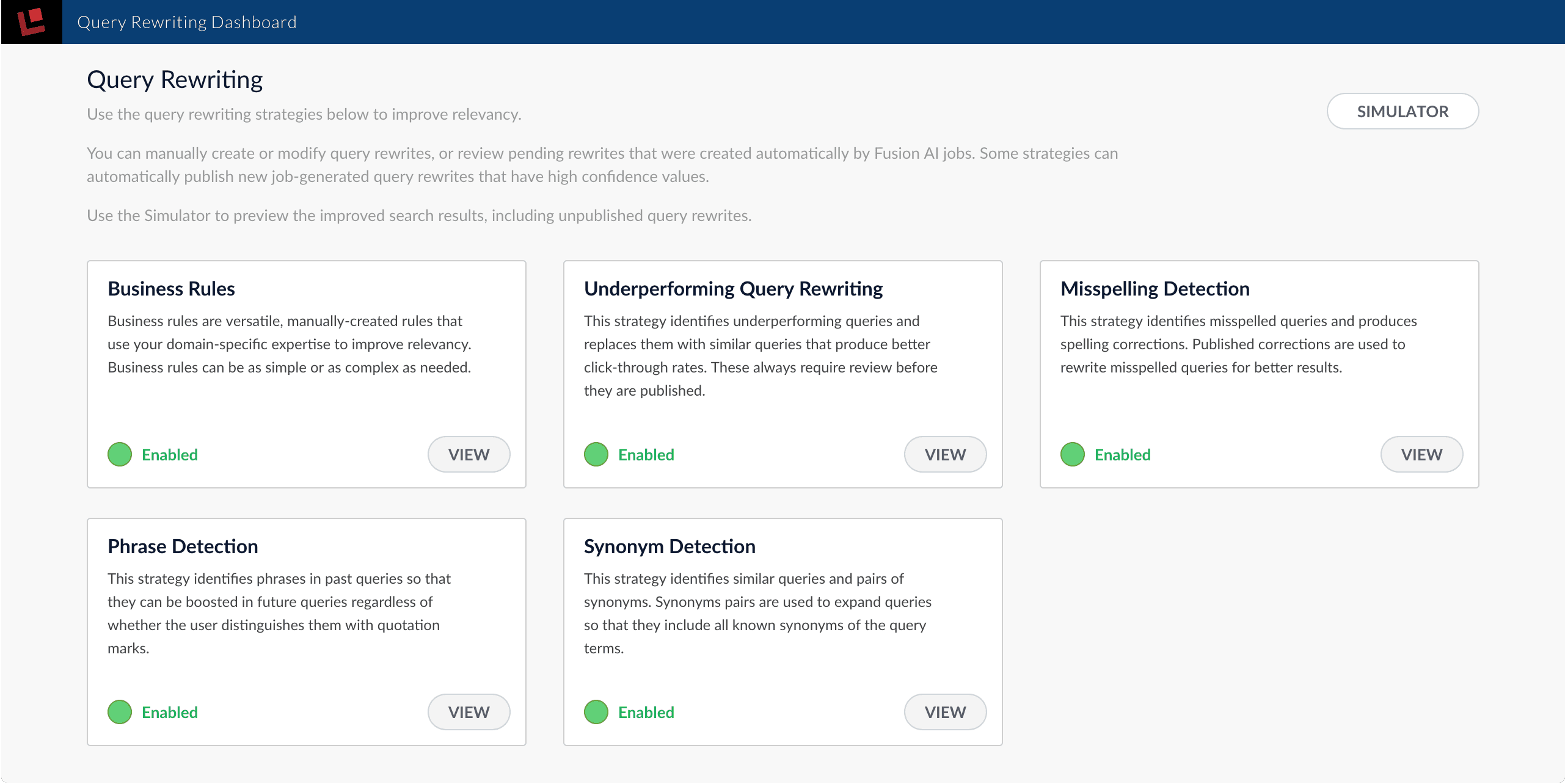
By default, all query rewriting strategies are enabled, and all of the data in the `_query_rewrite_staging` collection is applied in the Simulator. To see how relevancy is affected by individual strategies, you can selectively enable or disable strategies in the query rewriting dashboard.
**How to enable or disable query rewriting strategies**
1. From the Simulator, click **Query Rewriting Dashboard**.\
The query rewriting dashboard appears:
2. Click **Enabled** to disable an active strategy, or click **Disabled** to enable an inactive strategy.
3. Click **Simulator** to return to the Simulator and see how your changes affect search results.
 4. Enter the misspelled word or phrase.
5. Enter one or more spelling corrections.
4. Enter the misspelled word or phrase.
5. Enter one or more spelling corrections.
 {/* // end::add-new[] */}
{/* // tag::publish[] */}
## Publishing your changes
**How to publish updated spelling corrections**
1. In the **Misspelling Detection** screen, click the **PUBLISH** button.
Fusion prompts you to confirm that you want to publish your changes.
2. Click **PUBLISH**.
{/* // end::add-new[] */}
{/* // tag::publish[] */}
## Publishing your changes
**How to publish updated spelling corrections**
1. In the **Misspelling Detection** screen, click the **PUBLISH** button.
Fusion prompts you to confirm that you want to publish your changes.
2. Click **PUBLISH**.
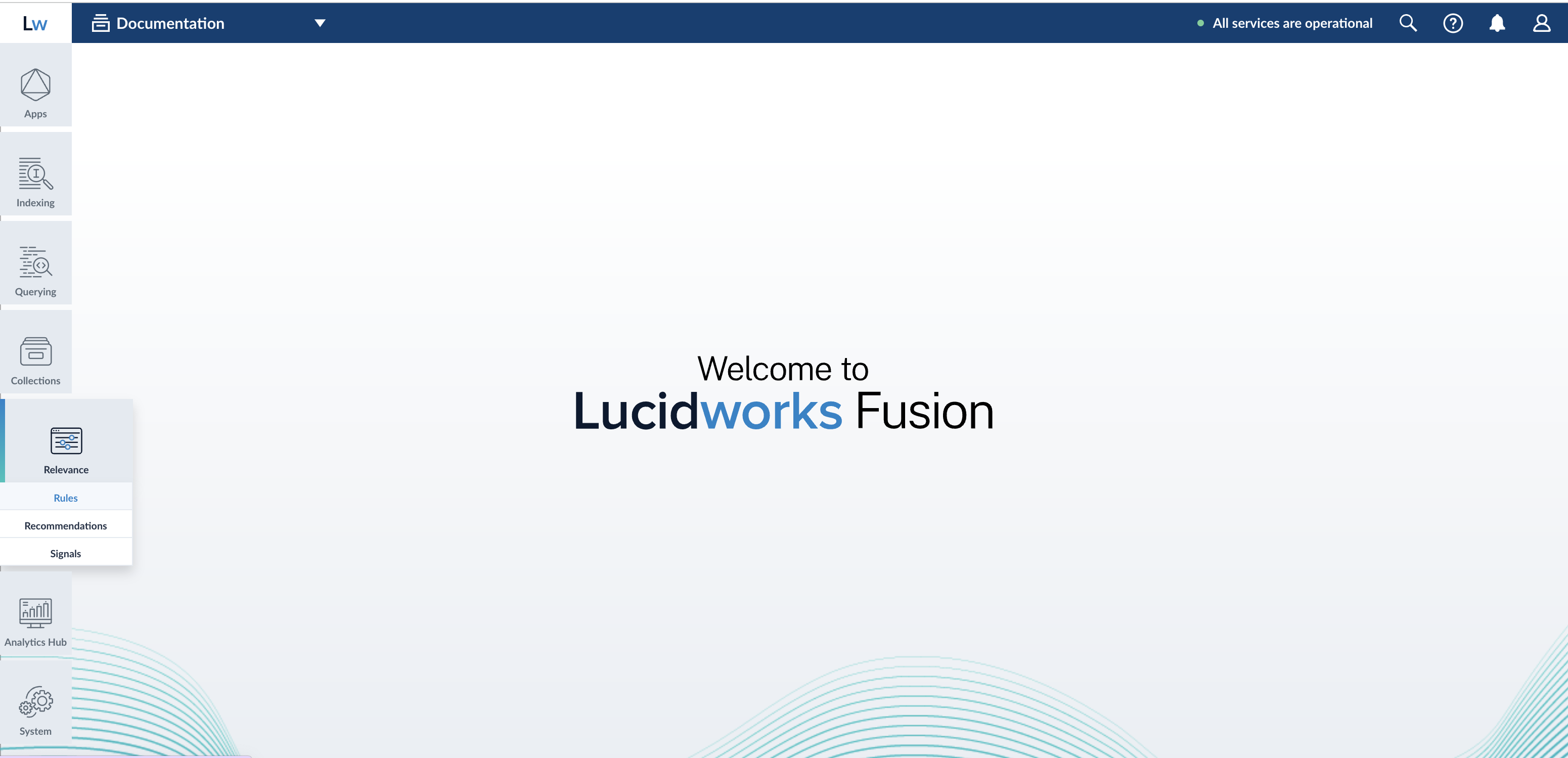 Read more about the [Rules Editor](/docs/5/fusion/getting-data-out/query-enhancement/rules-editor).
## Query rewrite collections
Read more about the [Rules Editor](/docs/5/fusion/getting-data-out/query-enhancement/rules-editor).
## Query rewrite collections
 4. Modify the configuration as desired.
5. Click **Save**.
4. Modify the configuration as desired.
5. Click **Save**.
 icon next to the rule.
## Publishing your changes
**How to publish updated business rules**
1. In the **Business Rules** screen, click the **PUBLISH** button.
Fusion prompts you to confirm that you want to publish your changes.
2. Click **PUBLISH**.
icon next to the rule.
## Publishing your changes
**How to publish updated business rules**
1. In the **Business Rules** screen, click the **PUBLISH** button.
Fusion prompts you to confirm that you want to publish your changes.
2. Click **PUBLISH**.
 icon.
The **New Rule** window appears.
4. Enter the general parameters and conditions for this custom rule.
5. Under **Action**, select **My Custom Rule**.
6. Select the query pipeline to use when this rule is triggered.
7. Enter a name for this custom rule type.
8. Optionally, you can click **Add** under **Return Parameter Policy Override** to override the value of a parameter returned from the specified pipeline:
1. Enter the name of the parameter.
2. Enter the desired value.
3. Select one of the following policies:
* **Replace** the returned value with the specified value.
* **Append** the specified value to the returned value.
* **Remove** the specified parameter from the set of returned parameters.
* **Default**
4. Enter a value for **From Custom Rule**.
icon.
The **New Rule** window appears.
4. Enter the general parameters and conditions for this custom rule.
5. Under **Action**, select **My Custom Rule**.
6. Select the query pipeline to use when this rule is triggered.
7. Enter a name for this custom rule type.
8. Optionally, you can click **Add** under **Return Parameter Policy Override** to override the value of a parameter returned from the specified pipeline:
1. Enter the name of the parameter.
2. Enter the desired value.
3. Select one of the following policies:
* **Replace** the returned value with the specified value.
* **Append** the specified value to the returned value.
* **Remove** the specified parameter from the set of returned parameters.
* **Default**
4. Enter a value for **From Custom Rule**.
 From the Simulator, click **Query Rewriting Dashboard**.\
The query rewriting dashboard appears:
From the Simulator, click **Query Rewriting Dashboard**.\
The query rewriting dashboard appears:
 2. Click **Enabled** to disable an active strategy, or click **Disabled** to enable an inactive strategy.
3. Click **Simulator** to return to the Simulator and see how your changes affect search results.
2. Click **Enabled** to disable an active strategy, or click **Disabled** to enable an inactive strategy.
3. Click **Simulator** to return to the Simulator and see how your changes affect search results.