> ## Documentation Index
> Fetch the complete documentation index at: https://doc.lucidworks.com/llms.txt
> Use this file to discover all available pages before exploring further.
# Misspelling Detection
export const LwTemplate = ({title = "Key questions to get you started", icon = "sparkles", cta = "Powered by Agent Studio", linkHref = "https://lucidworks.com/demo/?utm_source=docs&utm_medium=referral&utm_campaign=docs_cta_ai"}) => {
const [isLoaded, setIsLoaded] = useState(false);
useEffect(() => {
const timer = setTimeout(() => {
setIsLoaded(true);
}, 500);
return () => clearTimeout(timer);
}, []);
return
{isLoaded && `
}} />}
Powered by Lucidworks Agent Studio
;
};
export const InlineImage = ({src, alt = '', height = '2em'}) => {
return ;
};
[localhost link]: http://localhost:3000/docs/5/fusion/getting-data-out/query-enhancement/misspelling-detection
[mintlify link]: https://doc.lucidworks.com/docs/5/fusion/getting-data-out/query-enhancement/misspelling-detection
[old doc.lw link]: https://doc.lucidworks.com/fusion/5.9/488
The Misspelling Detection feature maps misspellings to their corrected spellings. When Fusion receives a query containing a known misspelling, it rewrites the query using the corrected spelling in order to return relevant results instead of an empty or irrelevant results set.
This feature is deprecated in Fusion 5.9.15 and will be removed in a future release.
Lucidworks recommends migrating to [Neural Hybrid Search](/docs/5/fusion/hybrid-search/overview), which achieves superior relevance compared to legacy machine learning methods.
Spelling corrections are applied in the [Text Tagger stage](/docs/5/fusion/reference/config-ref/pipeline-stages/query-stages/text-tagger-query-stage) of the query pipeline.
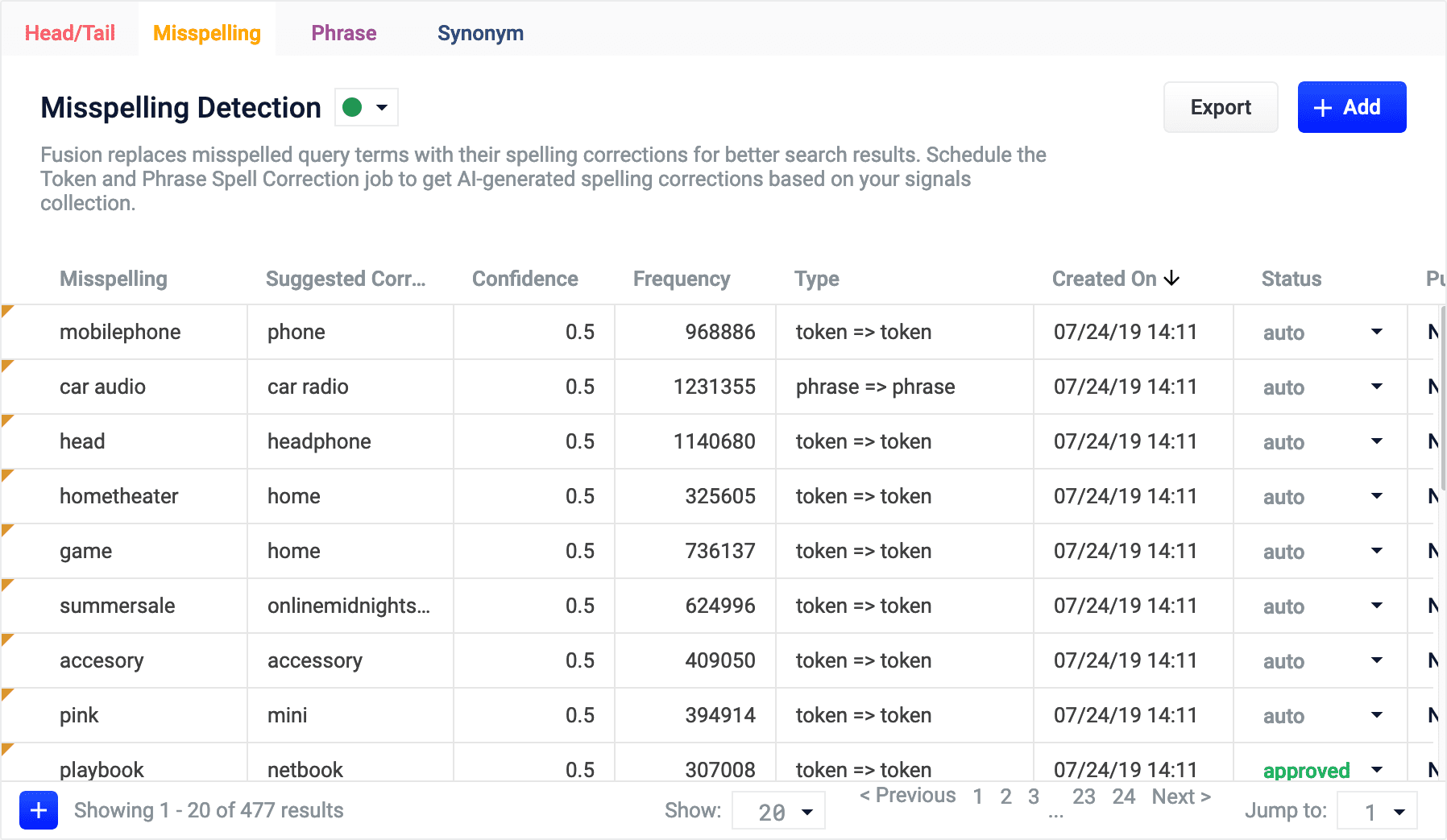
The [Token and Phrase Spell Correction job](/docs/5/fusion/reference/config-ref/jobs/token-and-phrase-spell-correction) automatically creates spelling corrections based on your AI-generated data. When you navigate to **Relevance** > **Rules** > **Rewrite** and select the **Misspelling** tab, the application displays the **Misspelling Detection** screen.
You can:
* **Use Misspelling Detection** the output from the job
* **Use Misspelling Detection**
* **Use Misspelling Detection** from the `_query_rewrite_staging` collection
The course for **Query Analytics** focuses on how Fusion provides query analytics to detect and improve underperforming queries.
{/* // tag::review[] */}
## Reviewing auto-generated spelling corrections
Spelling corrections that are automatically generated by the [Token and Phrase Spell Correction job](/docs/5/fusion/reference/config-ref/jobs/token-and-phrase-spell-correction) are assigned one of the following status values:
* **Auto**
There are three values for confidence level:
| Value | Confidence | Label |
| ----- | ----------------- | ------- |
| 0 | low confidence | Pending |
| 0.5 | median confidence | Auto |
| 1 | high confidence | Auto |
No action is required on these results, but you can edit them if you wish.
* **Pending**
The confidence level is ambiguous, and the result must be reviewed by a user before it can be deployed. It will only be moved from the `_query_rewrite_staging` collection to the `_query_rewrite` collection when its status has changed to "Approved" *and* it has been published.
1. Navigate to **Relevance** > **Rules** > **Rewrite**.
2. Select **Misspelling** tab. The application displays the **Misspelling Detection** screen.
Notice the **Status** facet on the left. Click **Pending** to view only the items that need review.
3. Click the icon next to the spelling correction.
4. In the **Status** column, select either "Approved" or "Denied".
Optionally, you can also edit the spelling correction itself.
{/* // end::review[] */}
{/* // tag::add-new[] */}
## Adding new spelling corrections
You can manually add spelling corrections in addition to any generated by the Fusion 5.x.x [Token and Phrase Spell Correction job](/docs/5/fusion/reference/config-ref/jobs/token-and-phrase-spell-correction) release.
1. Navigate to **Relevance** > **Rules** > **Rewrite**.
2. Select **Misspelling** tab. The application displays the **Misspelling Detection** screen.
3. At the bottom of the rules list, click the icon.
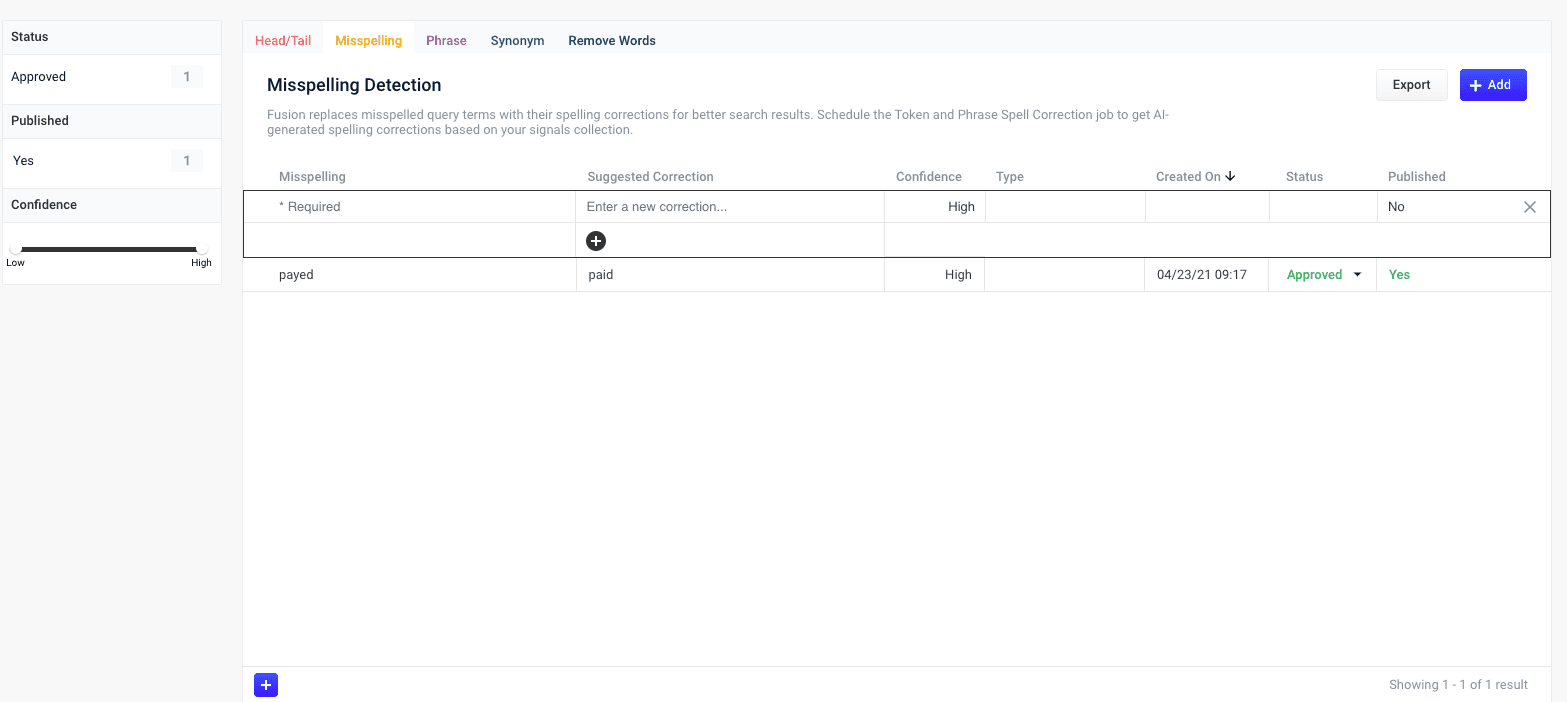
A new spelling correction appears at the top of the list:
4. Enter the misspelled word or phrase.
5. Enter one or more spelling corrections.
It is not necessary to set a confidence value.
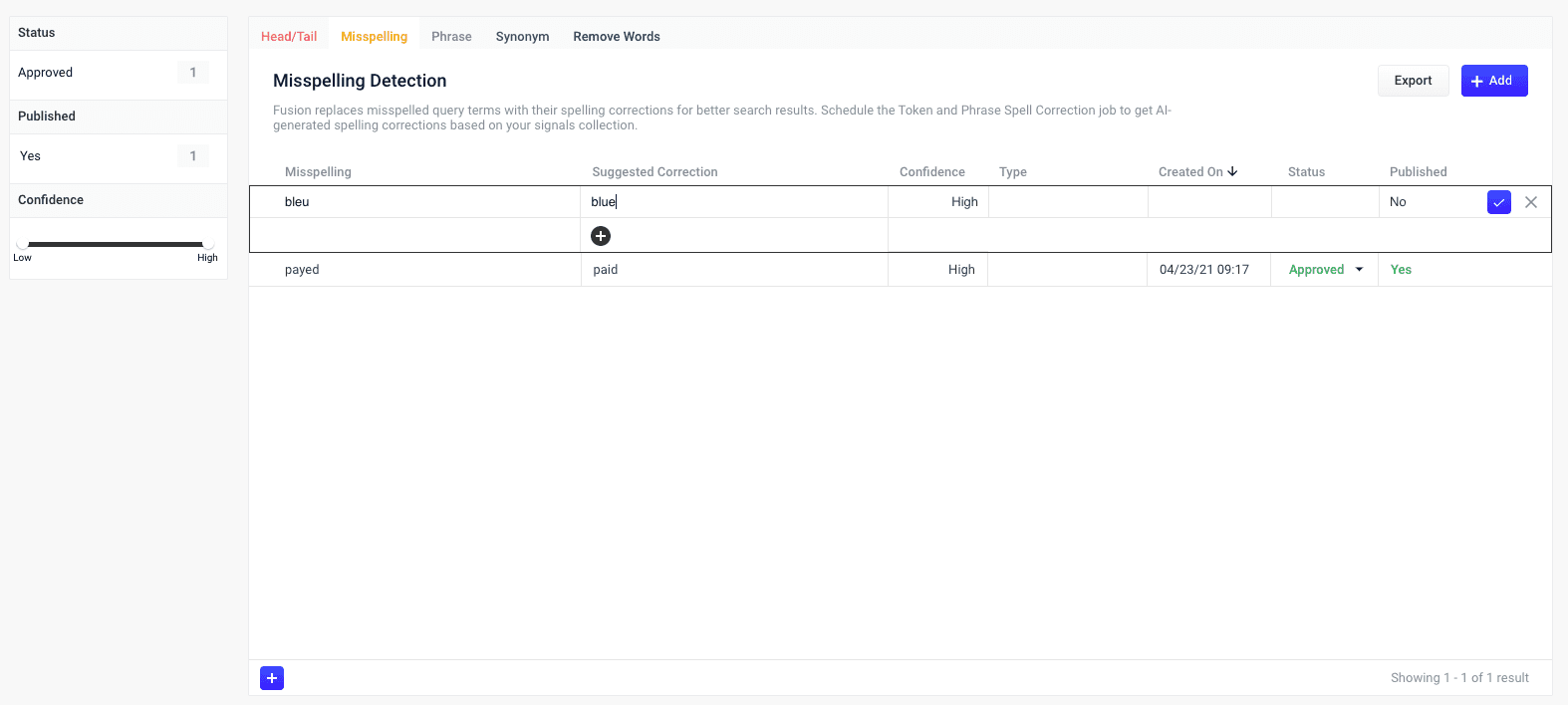
6. Select the spelling correction’s status, depending on whether you want to deploy it the next time you publish your changes ("Approved") or save it for further review ("Pending").
7. Click the check mark to save the new spelling correction:
{/* // end::add-new[] */}
{/* // tag::publish[] */}
## Publishing your changes
**How to publish updated spelling corrections**
1. In the **Misspelling Detection** screen, click the **PUBLISH** button.
Fusion prompts you to confirm that you want to publish your changes.
2. Click **PUBLISH**.
You can un-publish a query rewrite by changing its status to "denied", then clicking **PUBLISH**.
{/* // end::publish[] */}
## Tuning the misspelling detection job
The default configuration for the [Token and Phrase Spell Correction job](/docs/5/fusion/reference/config-ref/jobs/token-and-phrase-spell-correction), respectively, is designed for high accuracy and works well with most signal datasets, depending on the volume and quality of the signals. If you are seeing too few results, or too many inaccurate results, then you can try tuning the job to achieve better results.
To modify job configurations, you must be a Fusion user with one of the following roles or permissions that include access to job configurations:
* [admin](/docs/5/fusion/operations/security/access-control/roles)
* [developer](/docs/5/fusion/operations/security/access-control/roles)
* [permissions](/docs/5/fusion/operations/security/access-control/permissions)
## Query rewrite jobs post-processing cleanup
To perform more extensive cleanup of query rewrites, complete the procedures in Query Rewrite Jobs Post-processing Cleanup.
**LucidAcademy**
Lucidworks offers free training to help you get started.
The **Course** for **Query Analytics** focuses on how Fusion provides query analytics to detect and improve underperforming queries:
Visit the [LucidAcademy](https://academy.lucidworks.com) to see the full training catalog.
{/* // tag::review[] */}
## Reviewing auto-generated spelling corrections
Spelling corrections that are automatically generated by the [Token and Phrase Spell Correction job](/docs/5/fusion/reference/config-ref/jobs/token-and-phrase-spell-correction) are assigned one of the following status values:
* **Auto**
There are three values for confidence level:
| Value | Confidence | Label |
| ----- | ----------------- | ------- |
| 0 | low confidence | Pending |
| 0.5 | median confidence | Auto |
| 1 | high confidence | Auto |
No action is required on these results, but you can edit them if you wish.
* **Pending**
The confidence level is ambiguous, and the result must be reviewed by a user before it can be deployed. It will only be moved from the `_query_rewrite_staging` collection to the `_query_rewrite` collection when its status has changed to "Approved" *and* it has been published.
1. Navigate to **Relevance** > **Rules** > **Rewrite**.
2. Select **Misspelling** tab. The application displays the **Misspelling Detection** screen.
Notice the **Status** facet on the left. Click **Pending** to view only the items that need review.
3. Click the icon next to the spelling correction.
4. In the **Status** column, select either "Approved" or "Denied".
Optionally, you can also edit the spelling correction itself.
{/* // end::review[] */}
{/* // tag::add-new[] */}
## Adding new spelling corrections
You can manually add spelling corrections in addition to any generated by the Fusion 5.x.x [Token and Phrase Spell Correction job](/docs/5/fusion/reference/config-ref/jobs/token-and-phrase-spell-correction) release.
1. Navigate to **Relevance** > **Rules** > **Rewrite**.
2. Select **Misspelling** tab. The application displays the **Misspelling Detection** screen.
3. At the bottom of the rules list, click the icon.
A new spelling correction appears at the top of the list:
4. Enter the misspelled word or phrase.
5. Enter one or more spelling corrections.
It is not necessary to set a confidence value.
6. Select the spelling correction’s status, depending on whether you want to deploy it the next time you publish your changes ("Approved") or save it for further review ("Pending").
7. Click the check mark to save the new spelling correction:
{/* // end::add-new[] */}
{/* // tag::publish[] */}
## Publishing your changes
**How to publish updated spelling corrections**
1. In the **Misspelling Detection** screen, click the **PUBLISH** button.
Fusion prompts you to confirm that you want to publish your changes.
2. Click **PUBLISH**.
You can un-publish a query rewrite by changing its status to "denied", then clicking **PUBLISH**.
{/* // end::publish[] */}
## Tuning the misspelling detection job
The default configuration for the [Token and Phrase Spell Correction job](/docs/5/fusion/reference/config-ref/jobs/token-and-phrase-spell-correction), respectively, is designed for high accuracy and works well with most signal datasets, depending on the volume and quality of the signals. If you are seeing too few results, or too many inaccurate results, then you can try tuning the job to achieve better results.
To modify job configurations, you must be a Fusion user with one of the following roles or permissions that include access to job configurations:
* [admin](/docs/5/fusion/operations/security/access-control/roles)
* [developer](/docs/5/fusion/operations/security/access-control/roles)
* [permissions](/docs/5/fusion/operations/security/access-control/permissions)
## Query rewrite jobs post-processing cleanup
To perform more extensive cleanup of query rewrites, complete the procedures in Query Rewrite Jobs Post-processing Cleanup.
**LucidAcademy**
Lucidworks offers free training to help you get started.
The **Course** for **Query Analytics** focuses on how Fusion provides query analytics to detect and improve underperforming queries:
Visit the [LucidAcademy](https://academy.lucidworks.com) to see the full training catalog.
{/* // tag::review[] */}
## Reviewing auto-generated spelling corrections
Spelling corrections that are automatically generated by the [Token and Phrase Spell Correction job](/docs/5/fusion/reference/config-ref/jobs/token-and-phrase-spell-correction) are assigned one of the following status values:
* **Auto**
There are three values for confidence level:
| Value | Confidence | Label |
| ----- | ----------------- | ------- |
| 0 | low confidence | Pending |
| 0.5 | median confidence | Auto |
| 1 | high confidence | Auto |
No action is required on these results, but you can edit them if you wish.
* **Pending**
The confidence level is ambiguous, and the result must be reviewed by a user before it can be deployed. It will only be moved from the `_query_rewrite_staging` collection to the `_query_rewrite` collection when its status has changed to "Approved" *and* it has been published.
1. Navigate to **Relevance** > **Rules** > **Rewrite**.
2. Select **Misspelling** tab. The application displays the **Misspelling Detection** screen.
Notice the **Status** facet on the left. Click **Pending** to view only the items that need review.
3. Click the icon next to the spelling correction.
4. In the **Status** column, select either "Approved" or "Denied".
Optionally, you can also edit the spelling correction itself.
{/* // end::review[] */}
{/* // tag::add-new[] */}
## Adding new spelling corrections
You can manually add spelling corrections in addition to any generated by the Fusion 5.x.x [Token and Phrase Spell Correction job](/docs/5/fusion/reference/config-ref/jobs/token-and-phrase-spell-correction) release.
1. Navigate to **Relevance** > **Rules** > **Rewrite**.
2. Select **Misspelling** tab. The application displays the **Misspelling Detection** screen.
3. At the bottom of the rules list, click the icon.
A new spelling correction appears at the top of the list:
4. Enter the misspelled word or phrase.
5. Enter one or more spelling corrections.
It is not necessary to set a confidence value.
6. Select the spelling correction’s status, depending on whether you want to deploy it the next time you publish your changes ("Approved") or save it for further review ("Pending").
7. Click the check mark to save the new spelling correction:
{/* // end::add-new[] */}
{/* // tag::publish[] */}
## Publishing your changes
**How to publish updated spelling corrections**
1. In the **Misspelling Detection** screen, click the **PUBLISH** button.
Fusion prompts you to confirm that you want to publish your changes.
2. Click **PUBLISH**.
You can un-publish a query rewrite by changing its status to "denied", then clicking **PUBLISH**.
{/* // end::publish[] */}
## Tuning the misspelling detection job
The default configuration for the [Token and Phrase Spell Correction job](/docs/5/fusion/reference/config-ref/jobs/token-and-phrase-spell-correction), respectively, is designed for high accuracy and works well with most signal datasets, depending on the volume and quality of the signals. If you are seeing too few results, or too many inaccurate results, then you can try tuning the job to achieve better results.
To modify job configurations, you must be a Fusion user with one of the following roles or permissions that include access to job configurations:
* [admin](/docs/5/fusion/operations/security/access-control/roles)
* [developer](/docs/5/fusion/operations/security/access-control/roles)
* [permissions](/docs/5/fusion/operations/security/access-control/permissions)
## Query rewrite jobs post-processing cleanup
To perform more extensive cleanup of query rewrites, complete the procedures in Query Rewrite Jobs Post-processing Cleanup.
When you manually add new spelling corrections, subsequent job runs use those documents as input for machine learning to improve the job’s output. Unlike job-generated documents, manually-added query rewriting documents are never overwritten by new job output.
Misspelled terms are completely replaced by their corrected terms. If you want to expand the query to include all alternative terms, set the synonyms to bi-directional. See [Synonym Detection](/docs/5/fusion/reference/config-ref/jobs/synonym-detection) for more information.
To learn how to use misspelling detection in the [Rules Editor](/docs/5/fusion/getting-data-out/query-enhancement/rules-editor), see **Use Query Rewrites in the Rules Editor**.
This article describes how to use the Rewrites screen in the [Rules Editor](/docs/5/fusion/getting-data-out/query-enhancement/rules-editor).
## Query rewrite rule types
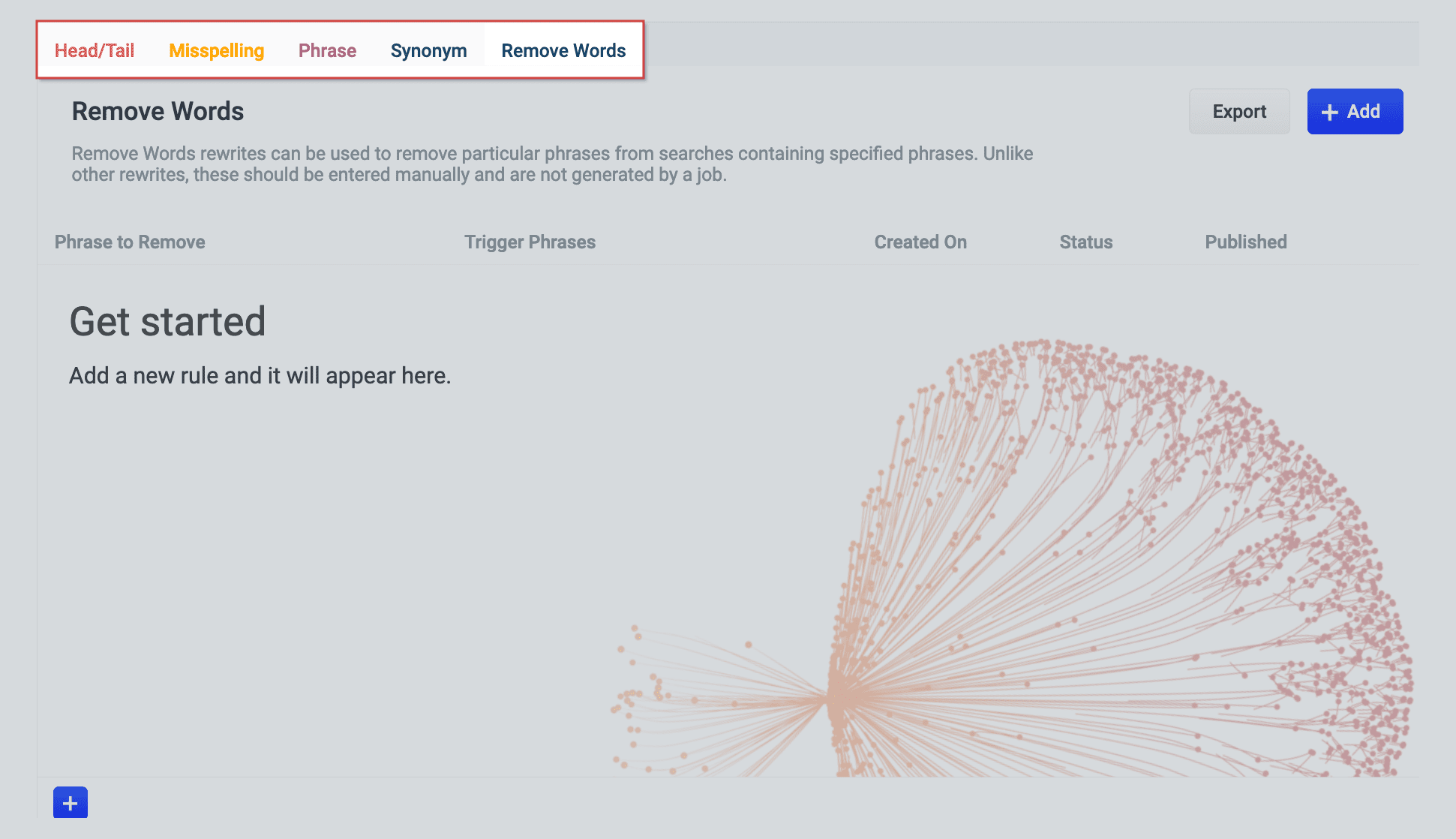
* **Head/Tail.** Replace underperforming queries with queries that produce higher click-through rates. Query improvements always require review before they are published. Schedule the Head/Tail Analysis job to get AI-generated query improvements based on your signals collection. \
\
Manually created Head/Tail rewrites must provide an "Improved Query" in a format appropriate to the type of request the rewrite will be applied to. For Legacy requests, this means a valid Solr query fit for use as the `q` parameter. For DSL requests this means a JSON string representing the main DSL query. \
\
For more information, see:
* [Underperforming Query Rewriting](/docs/5/fusion/getting-data-out/query-enhancement/underperforming-queries)
* [Head/Tail Analysis Jobs](/docs/5/fusion/reference/config-ref/jobs/head-tail-analysis)
* **Misspelling.** Fusion replaces misspelled query terms with their spelling corrections for better search results. Schedule the Token and Phrase Spell Correction job to get AI-generated spelling corrections based on your signals collection. For more information, see [Misspelling Detection](/docs/5/fusion/getting-data-out/query-enhancement/misspelling-detection).
* **Phrase.** Known phrases are boosted when they appear in new queries. Schedule the Phrase Extraction job to get AI-generated phrases based on your signals collection.
For more information, see [Phrase Detection](/docs/5/fusion/getting-data-out/query-enhancement/phrase-detection).
* **Synonym.** Synonyms are used to expand queries so that they include all known synonyms of the query terms. To retrieve AI-generated synonyms based on your signals collection, schedule the [Synonym Detection job](/docs/5/fusion/reference/config-ref/jobs/synonym-detection).
* **Remove Words** - Remove particular phrases from queries. Unlike other rewrites, these should be entered manually and are not generated by a job. For more information, see [Remove Words](/docs/5/fusion/getting-data-out/query-enhancement/remove-words).
## Facets
### Facet menu
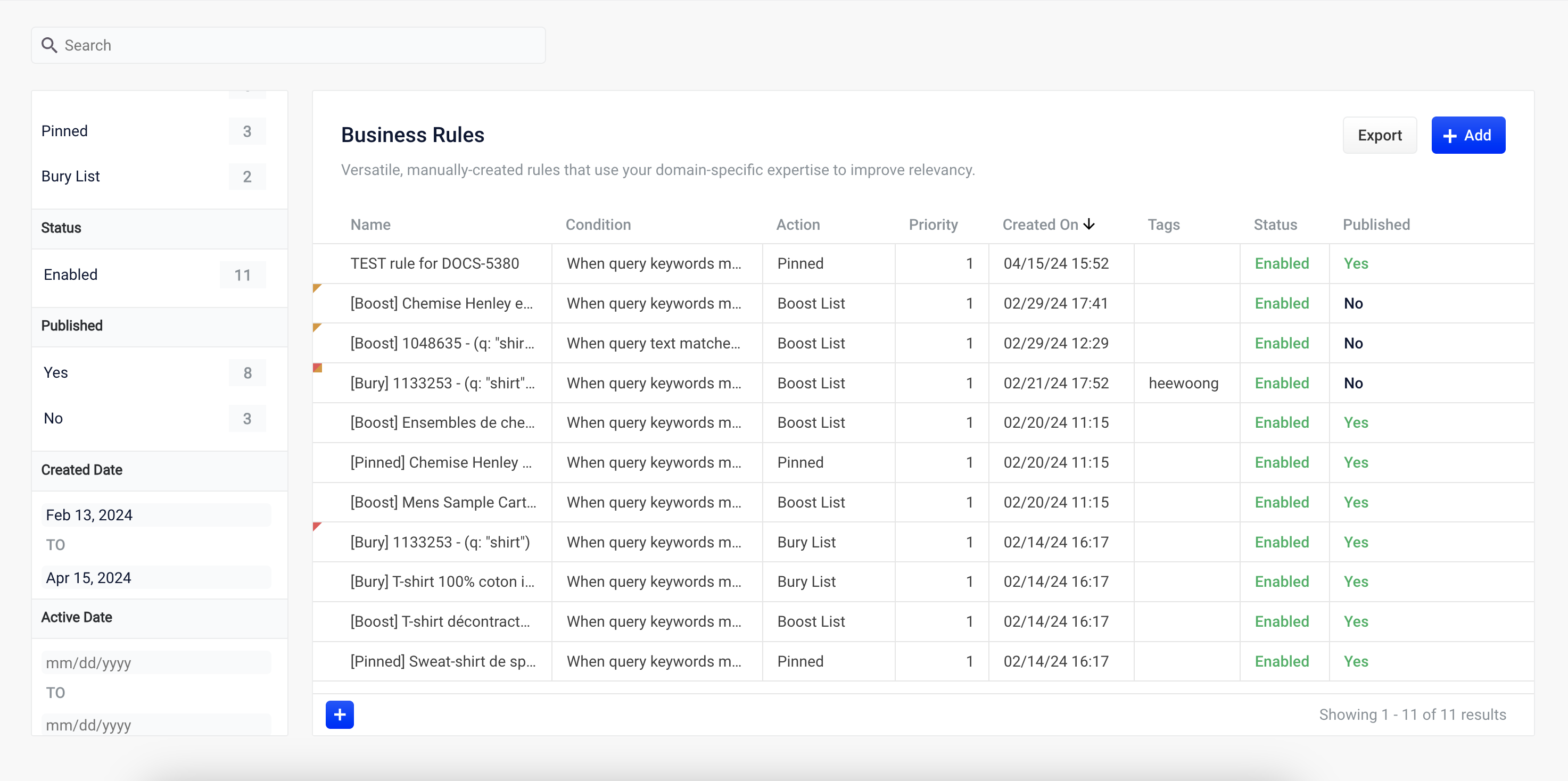
To facet the rules list by **Status** or **Published**, click one of the facet items within the facet categories.
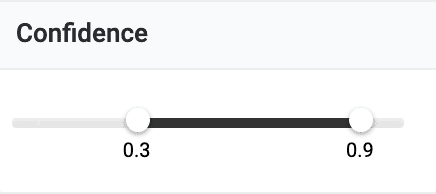
To facet the rules by **Confidence**, click and drag either slider to set the range of confidence you would like to see:
Faceting rules by confidence is not available for Head/Tail rewrites.
### Search
Enter a term in the search bar to quickly facet your query rewrite rules.
## Rules
Begin by selecting one of the query rewrite rule types you will create.
### Create a rule
1. Click **+Add**.
2. In the new table row, complete the required fields, and additional fields as needed.
3. Click the checkmark to save, or close to cancel the changes.
### Edit a rule
1. Hold the pointer over the rule to edit.
2. Click the pencil icon.
3. Enter desired changes and click the checkmark to save, or close to cancel the changes.
### Approve/deny rules
{/* // New or altered rules will need to be approved by a user with the appropriate permissions before the rule can be enabled. */}
1. Hold the pointer over a rule.
2. Select the checkbox that displays for that rule.
3. To modify multiple rules, hold the pointer over each rule and select its corresponding checkbox.
4. Click **Approve** or **Deny** as needed.
{/*
This is not an explicit option in the rewrite screen. Is this implicit by approval/denial?
### Enable/disable a rule
1. Hold the pointer over a rule.
2. Select the checkbox that displays for that rule.
3. To modify multiple rules, hold the pointer over each rule and select its corresponding checkbox.
4. Click **Enable** or **Disable** as needed.
*/}
### Publish a rule
1. Hold the pointer over a rule.
2. Select the checkbox that displays for that rule.
3. To publish multiple rules, hold the pointer over each rule and select its corresponding checkbox.
4. Click **Publish Selected** to publish the selected rules.
#### Publish an individual rule
1. Hold the pointer over a rule.
2. Click the button.
3. To confirm, click **Publish**.
### Delete rules
#### Delete a single rule
1. Hold the pointer over a rule.
2. Click the trash can.
3. To confirm, click **Delete**.
#### Delete multiple rules
1. Hold the pointer over a rule.
2. Select the checkbox that displays for that rule.
3. To delete multiple rules, hold the pointer over each rule and select its corresponding checkbox.
4. Click **Delete**.
5. To confirm, click **Delete** again.
### Sort rules
1. Hold the pointer over column titles. A icon displays for some titles to indicate the rules list can be sorted by that column.
2. Click the title column to sort the rules.
The column that is currently sorting the rules list is indicated by an or icon.
### Export rules
To export the rules list, click **Export**. This generates a `.csv` file that contains your rules.
## Columns
### Customize columns
To customize columns:
1. Hold the pointer over the row of column titles.
2. Click the button.
3. In the Customize Columns to Display screen, select the checkboxes for the columns you want to display. Clear the checkboxes for columns you do not want to display.
4. Click **Save**. To exit without saving your changes, click **Cancel**.
The course for **Query Analytics** focuses on how Fusion provides query analytics to detect and improve underperforming queries.
 4. Enter the misspelled word or phrase.
5. Enter one or more spelling corrections.
4. Enter the misspelled word or phrase.
5. Enter one or more spelling corrections.
 {/* // end::add-new[] */}
{/* // tag::publish[] */}
## Publishing your changes
**How to publish updated spelling corrections**
1. In the **Misspelling Detection** screen, click the **PUBLISH** button.
Fusion prompts you to confirm that you want to publish your changes.
2. Click **PUBLISH**.
{/* // end::add-new[] */}
{/* // tag::publish[] */}
## Publishing your changes
**How to publish updated spelling corrections**
1. In the **Misspelling Detection** screen, click the **PUBLISH** button.
Fusion prompts you to confirm that you want to publish your changes.
2. Click **PUBLISH**.


 To learn how to use misspelling detection in the [Rules Editor](/docs/5/fusion/getting-data-out/query-enhancement/rules-editor), see **Use Query Rewrites in the Rules Editor**.
 To facet the rules list by **Status** or **Published**, click one of the facet items within the facet categories.
To facet the rules by **Confidence**, click and drag either slider to set the range of confidence you would like to see:
To facet the rules list by **Status** or **Published**, click one of the facet items within the facet categories.
To facet the rules by **Confidence**, click and drag either slider to set the range of confidence you would like to see:
 ### Create a rule
1. Click **+Add**.
2. In the new table row, complete the required fields, and additional fields as needed.
3. Click the checkmark to save, or close to cancel the changes.
### Edit a rule
1. Hold the pointer over the rule to edit.
2. Click the pencil icon.
3. Enter desired changes and click the checkmark to save, or close to cancel the changes.
### Approve/deny rules
{/* // New or altered rules will need to be approved by a user with the appropriate permissions before the rule can be enabled. */}
1. Hold the pointer over a rule.
2. Select the checkbox that displays for that rule.
3. To modify multiple rules, hold the pointer over each rule and select its corresponding checkbox.
4. Click **Approve** or **Deny** as needed.
{/*
This is not an explicit option in the rewrite screen. Is this implicit by approval/denial?
### Enable/disable a rule
1. Hold the pointer over a rule.
2. Select the checkbox that displays for that rule.
3. To modify multiple rules, hold the pointer over each rule and select its corresponding checkbox.
4. Click **Enable** or **Disable** as needed.
*/}
### Publish a rule
1. Hold the pointer over a rule.
2. Select the checkbox that displays for that rule.
3. To publish multiple rules, hold the pointer over each rule and select its corresponding checkbox.
4. Click **Publish Selected** to publish the selected rules.
#### Publish an individual rule
1. Hold the pointer over a rule.
2. Click the
### Create a rule
1. Click **+Add**.
2. In the new table row, complete the required fields, and additional fields as needed.
3. Click the checkmark to save, or close to cancel the changes.
### Edit a rule
1. Hold the pointer over the rule to edit.
2. Click the pencil icon.
3. Enter desired changes and click the checkmark to save, or close to cancel the changes.
### Approve/deny rules
{/* // New or altered rules will need to be approved by a user with the appropriate permissions before the rule can be enabled. */}
1. Hold the pointer over a rule.
2. Select the checkbox that displays for that rule.
3. To modify multiple rules, hold the pointer over each rule and select its corresponding checkbox.
4. Click **Approve** or **Deny** as needed.
{/*
This is not an explicit option in the rewrite screen. Is this implicit by approval/denial?
### Enable/disable a rule
1. Hold the pointer over a rule.
2. Select the checkbox that displays for that rule.
3. To modify multiple rules, hold the pointer over each rule and select its corresponding checkbox.
4. Click **Enable** or **Disable** as needed.
*/}
### Publish a rule
1. Hold the pointer over a rule.
2. Select the checkbox that displays for that rule.
3. To publish multiple rules, hold the pointer over each rule and select its corresponding checkbox.
4. Click **Publish Selected** to publish the selected rules.
#### Publish an individual rule
1. Hold the pointer over a rule.
2. Click the 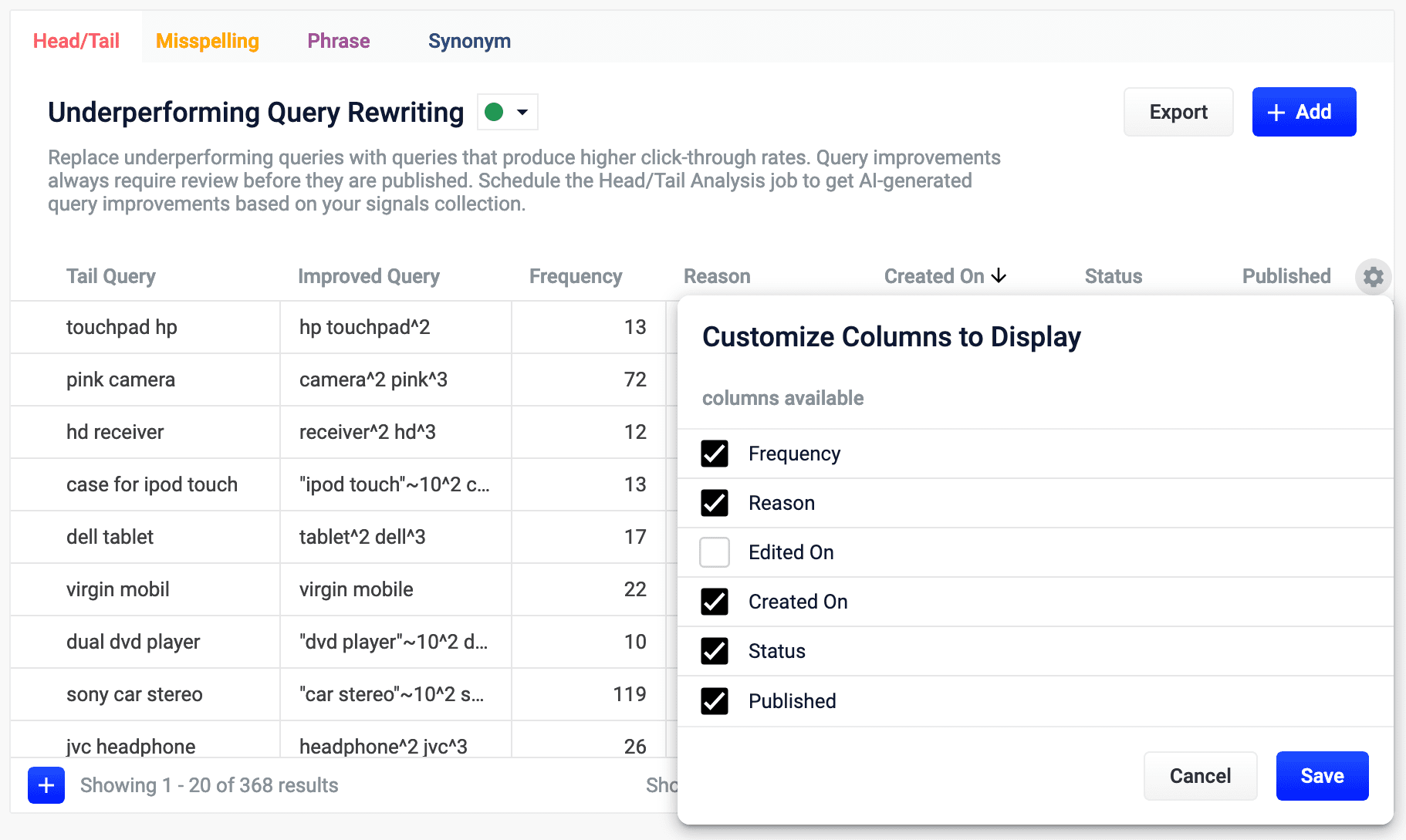 3. In the Customize Columns to Display screen, select the checkboxes for the columns you want to display. Clear the checkboxes for columns you do not want to display.
4. Click **Save**. To exit without saving your changes, click **Cancel**.
3. In the Customize Columns to Display screen, select the checkboxes for the columns you want to display. Clear the checkboxes for columns you do not want to display.
4. Click **Save**. To exit without saving your changes, click **Cancel**.