> ## Documentation Index
> Fetch the complete documentation index at: https://doc.lucidworks.com/llms.txt
> Use this file to discover all available pages before exploring further.
# Actions
export const LwTemplate = ({title = "Key questions to get you started", icon = "sparkles", cta = "Powered by Agent Studio", linkHref = "https://lucidworks.com/demo/?utm_source=docs&utm_medium=referral&utm_campaign=docs_cta_ai"}) => {
const [isLoaded, setIsLoaded] = useState(false);
useEffect(() => {
const timer = setTimeout(() => {
setIsLoaded(true);
}, 500);
return () => clearTimeout(timer);
}, []);
return
{isLoaded && `
}} />}
Powered by Lucidworks Agent Studio
;
};
[localhost link]: http://localhost:3000/docs/5/fusion/getting-data-out/query-enhancement/business-rules/actions
[mintlify link]: https://doc.lucidworks.com/docs/5/fusion/getting-data-out/query-enhancement/business-rules/actions
[old doc.lw link]: https://doc.lucidworks.com/fusion/5.9/8836
Business rule actions define what actions are taken when a rule fires.
Some rule actions are only available to specific version of Fusion.
## Configuration options
### Banner action
The Banner action returns an image outside of the search results that can be displayed in the frontend.
For example, an e-commerce website may display a banner to promote a sale or new product release.
| Required | Parameter | Description | Example |
| -------- | --------------- | ---------------------------------------------------------------------------------------------------------------------- | ----------------------------------------------- |
| ✅ | **Banner URL** | The URL of the desired banner image. | `https://example-site.com/assets/promotion.png` |
| | **Banner zone** | An arbitrary value used by the frontend, generally to instruct the search application where to place the banner image. | `TOP` |
### Block list
The Block List action blocks the associated values from appearing in the search results.
For example, a workplace may block documents that the user does not have permission to view.
| Required | Parameter | Description | Example |
| -------- | ---------------- | --------------------------------------------------------------------------------------------------------------------------- | ---------------- |
| ✅ | **Field name** | The name of the field that the rule action applies to. The documents in the datasource determine what fields are available. | `title` |
| ✅ | **Field values** | The values of the field that the rule action applies to. The field determines what field values are available. | `Voyager Jacket` |
### Boost attributes
The Boost Attributes action boosts documents with specific attributes in a search. Boosts can be additive or multiplicative.
For example, an e-commerce website may boost the laptop manufacturer’s name if the search query contains a manufacturer.
| Required | Parameter | Description | Example |
| -------- | --------------- | ----------------------------------------------------------------------------------------------------------------------------------------------------------------------------------------------------------- | ----------------------------------------------------------------------------- |
| ✅ | **Boost param** | ● `bq`. An additive boost that is added to the main query’s score. ● `boost`. A multiplicative boost based on document scores. This boost increases or decreases the score by a relative amount. | `boost` |
| ✅ | **Boost query** | The query that the boost will apply to. | `bq`: `category_s:"Small Business"^5` `boost`: `category_s:"Small Business"` |
### Boost list
The Boost List action boosts documents with a large multiplicative boost so the documents appear at the top of the results. Larger boosts can override this action.
For example, an e-commerce website may boost new or seasonal items.
| Required | Parameter | Description | Example |
| -------- | ---------------- | --------------------------------------------------------------------------------------------------------------------------- | ---------------- |
| ✅ | **Field name** | The name of the field that the rule action applies to. The documents in the datasource determine what fields are available. | `title` |
| ✅ | **Field values** | The values of the field that the rule action applies to. The field determines what field values are available. | `Voyager Jacket` |
### Bury list
The Bury List action buries documents with the selected values. This action minimizes certain documents without blocking them.
For example, a workplace may bury out-of-date documents.
| Required | Parameter | Description | Example |
| -------- | ---------------- | --------------------------------------------------------------------------------------------------------------------------- | ---------------- |
| ✅ | **Field name** | The name of the field that the rule action applies to. The documents in the datasource determine what fields are available. | `title` |
| ✅ | **Field values** | The values of the field that the rule action applies to. The field determines what field values are available. | `Voyager Jacket` |
### Filter list
The Filter List action applies [filter queries](https://solr.apache.org/guide/common-query-parameters.html) (`fq`) to the query and changes the results so a pre-selected set of content displays.
For example, an e-commerce website may display only movies rated G or PG when a user searches for children’s movies.
| Required | Parameter | Description | Example |
| -------- | ---------------- | --------------------------------------------------------------------------------------------------------------------------- | ---------------- |
| ✅ | **Field name** | The name of the field that the rule action applies to. The documents in the datasource determine what fields are available. | `title` |
| ✅ | **Field values** | The values of the field that the rule action applies to. The field determines what field values are available. | `Voyager Jacket` |
### Ingroup actions
Ingroup actions perform a specific action within a [product group](/docs/5/fusion/getting-data-out/curating-your-search-experience/predictive-merchandiser/product-grouping). You can boost, bury, or pin specific items within a group.
Ingroup actions require a grouping field to perform the action within.
#### Ingroup boost list
The Ingroup Boost List action boosts an item within a product group. This action does not boost the product group.
| Required | Parameter | Description | Example |
| -------- | ------------------ | ----------------------------------------------------------------------------------------------------------------------------------------------- | ------------------ |
| ✅ | **Field name** | The name of the field that the rule action applies to. The documents in the datasource determine what fields are available. | `title` |
| ✅ | **Field values** | The values of the field that the rule action applies to. The field determines what field values are available. | `Voyager Jacket` |
| ✅ | **Grouping field** | The name of the group field that the rule action applies to. This group field *must* have a `group-field` parameter or the rule does not apply. | `color_group_name` |
#### Ingroup bury list
The Ingroup Bury List action buries an item within a product group. This action does not bury the product group.
| Required | Parameter | Description | Example |
| -------- | ------------------ | ----------------------------------------------------------------------------------------------------------------------------------------------- | ------------------ |
| ✅ | **Field name** | The name of the field that the rule action applies to. The documents in the datasource determine what fields are available. | `title` |
| ✅ | **Field values** | The values of the field that the rule action applies to. The field determines what field values are available. | `Voyager Jacket` |
| ✅ | **Grouping field** | The name of the group field that the rule action applies to. This group field *must* have a `group-field` parameter or the rule does not apply. | `color_group_name` |
#### Ingroup pinned
The Ingroup Pinned action sticks a document to a specific location within a product group. This ensures that users view a result in a specified place. This action does not pin the product group.
| Required | Parameter | Description | Example |
| -------- | ------------------------------------- | --------------------------------------------------------------------------------------------------------------------------------------------------------------- | -------------------- |
| ✅ | **Field name** | The name of the field that the rule action applies to. The documents in the datasource determine what fields are available. | `title` |
| ✅ | **Field values** | The values of the field that the rule action applies to. The field determines what field values are available. | `Voyager Jacket` |
| ✅ | **Grouping field** | The name of the group field that the rule action applies to. This group field *must* have a `group-field` parameter or the rule does not apply. | `color_group_name` |
| ✅ | **Pin within a specific group value** | The values of the grouping field that the rule action applies to. The field determines what field values are available. Only a single group value is supported. | `red` |
| ✅ | **Pinned documents** | The individual documents that the rule action applies to. | `Summit Pants (red)` |
### Pinned
The Pinned action sticks a document to a specific location within the search results. This ensures that users view a result in a specified place.
For example, a workplace may pin documents answering frequently asked questions.
| Required | Parameter | Description | Example |
| -------- | -------------------- | ------------------------------------------------------------------------------------------------------------------------------------------------------------------------------------------------------------------------------------------------------------------------------------------------------------------------------------------------- | ------------------------------- |
| ✅ | **Field name** | The name of the field that the rule action applies to. The documents in the datasource determine what fields are available. | `id` |
| ✅ | **Pinned documents** | Individual documents to pin. Specify the following: ● Value. The values of the field that the rule action applies to. The field determines what field values are available. ● Position. Position within the results where the document is pinned, with `1` being the 1st result. Each position is available to only a single document. | Value: `1000026` Position: `4` |
### Redirect
The Redirect action displays a message at the top of the search results that the frontend can utilize to redirect a user to a specific URL. This action guides users to the desired URL when the search query isn’t included in the collection.
For example, a workplace may create a redirect action that displays a link to the internal help desk when an employee searches for "computer broken".
| Required | Parameter | Description | Example |
| -------- | ------------ | --------------------------------------- | -------------------------------- |
| ✅ | **Redirect** | The URL that the user will redirect to. | `https://www.activate-conf.com/` |
### Response value
The Response Value action sends an arbitrary value to the frontend or pipeline, which the frontend of pipeline can use to perform another action. The Response Value action can be combined with other actions within the same rule.
For example, an e-commerce website may use the response value action to display an advertisement.
| Required | Parameter | Description | Example |
| -------- | --------------- | ------------------------------------------------------------- | ------------ |
| ✅ | **Field name** | The name of the field that the response value is found under. | `ad-code` |
| ✅ | **Field value** | The response value that is included in the results response. | `AD_CODE_99` |
### Set facets
The Set Facets action customizes the facets returned in the query response. These facets are different from the facets set in the Query Workbench.
For example, an e-commerce website may display different facets on the homepage, the primary search page, and category pages.
| Required | Parameter | Description | Example |
| -------- | --------------- | -------------------------------------------------------------------------------------------------------------------------------------------------------------------------------------------------------------------------------------------------------------------------------------------------------------------------------------------------------------------------------------------------------------------------------------------------------------------------- | ------- |
| ✅ | **Position** | Position of the facet field in the list of facets, with `1` being the top of the list. Each position is available to only a single facet. | `3` |
| ✅ | **Facet field** | The name of the facet field. | `Color` |
| ✅ | **Facet type** | The type of facet: `field` - A field found in the datasource. `range` - An accepted range for the facet field to exist within. Specify the following: • Range start—the lower bounds of the facet range. For example, `0`. • Range end—the upper bounds of the facet range. For example, `50`. • Range gap—the increment amount dividing the range. For a facet range of `1-50` and a range gap of `20`, 3 facets are available: `0-20`, `20-40`, `40-60`. | `field` |
**Advanced options for `field` facet types**
| Parameter | Description | Example |
| ------------------- | ----------------------------------------------------------------------------------------------------------------------------------------------------------------------------------------------------- | -------- |
| **Select type** | Determines whether the user can select a single facet or multiple facets. | `multi` |
| **Facet sort** | Sort order of the individual facets within the facet field: • `count`—Facets are sorted by the number of documents in descending order. • `index`—Facets are sorted in alphanumeric order. | `count` |
| **Min count** | Sets a minimum requirement for the number of documents in the facet to display. | `10` |
| **Boost values** | Boost individual facets in the order added, overriding the default **Facet sort**. For example, boost `tshirt` and `shorts` over `hoodie` during summer. | `tshirt` |
| **Bury values** | Bury individual facets with the facet field in the order added. | `hoodie` |
| **Suppress values** | Prevent individual facets from appearing within the facet field. | `coat` |
**Advanced options for `range` facet types**
| Parameter | Description | Example |
| --------------- | ----------------------------------------------------------------------------------------------------------------------------------------------------------------------------------------------------- | ------- |
| **Select type** | Determines whether the user can select a single facet or multiple facets. | `multi` |
| **Facet sort** | Sort order of the individual facets within the facet field: • `count`—Facets are sorted by the number of documents in descending order. • `index`—Facets are sorted in alphanumeric order. | `count` |
| **Min count** | Sets a minimum requirement for the number of documents in the facet to display. | `10` |
### Set Params
The Set Params action sets a [parameter name and value](https://solr.apache.org/guide/common-query-parameters.html) to a search query.
For example, a workplace may use the name and value to display only specific filetypes in the results.
| Required | Parameter | Description | Example |
| -------- | ------------------- | -------------------------------------------------------------------------------------------------------------------------------------------------------------------------------------------------------------------------------------------------------------------------------------------------------------------------------------------------------------------------------------------------------------------------------------------------------------------------------------------------------- | ---------------- |
| ✅ | **Parameter name** | The name of the [query parameter](https://wiki.apache.org/solr/QueryParametersIndex). | `fl` |
| ✅ | **Parameter value** | The value of the query parameter. | `discountAmount` |
| ✅ | **Update policy** | The manner in which the parameter affects the results response: ● `append`. Add the parameter to the default parameters in the results response. ● `default`. Add the parameter to the default parameters in the results response if it is not already included in the request or the default specification in the Solr config file solrconfig.xml. ● `remove`. Remove the parameter from the results response. ● `replace`. Replace the default parameter in the results response. | `append` |
### JSON Blob
The JSON Blob action returns an [arbitrary JSON blob](/docs/5/fusion/getting-data-out/query-enhancement/business-rules/overview) to your frontend when a business rule fires. The JSON blob displays outside of the search results.
| Required | Parameter | Description | Example |
| -------- | ------------- | ------------------------------------------------------------------------------------------------------------------------------------------------------------------------------------------------------------------------------------------- | ------------------------------------------------------------- |
| ✅ | **Blob Type** | An arbitrary value used by the frontend, generally to indicate what kind of data the JSON blob contains. | `default` |
| ✅ | **JSON Blob** | An arbitrary JSON value used by the frontend. When the rule is triggered, the JSON is sent with the results response. This behaves similarly to the **Banner** rule, given that it returns the JSON object *outside* of the search results. | `{"parameter1":"value", "parameter2":["value_a", "value_b"]}` |
## Additional configuration options
* **Set response values.** Combine **Response Value** rules with other rules for purposes as [described above](#response-value).
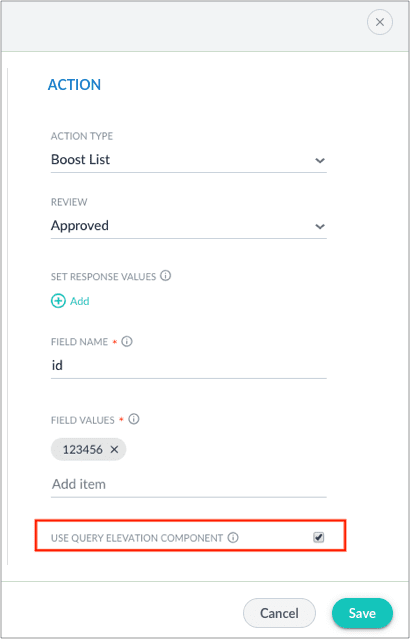
* **Use Query Elevation Component (QEC).** Apply the rule action to configure the top results regardless of the document’s score. However, enabling QEC does not boost the document’s score. The QEC only supports elevation through the `id` field. If QEC is enabled but is not configured correctly in Solr, the rule does not fire.\
To use the Query Elevation Component, you must first **Use the Query Elevation Component**. Note that query elevation *does not boost scores*.
Fusion currently supports the use of the Query Elevation Component (QEC) with boost lists and filter lists. You must configure Solr in order to enable the QEC option.
Although it will not be accessed for the elevation process, Fusion requires an independent `elevate.xml` file for the use of built-in rule actions with QEC due to a known [issue in Solr](https://issues.apache.org/jira/browse/SOLR-14970).
1. Create an XML file named `elevate.xml` in the same directory as the `solrconfig.xml` file.
2. Use the following as the contents of the `elevate.xml` file:
```xml theme={"dark"}
```
3. In the `solrconfig.xml` file, add the following in the elevator search Component (`searchComponent name="elevator"`). Before adding, check to see if the `searchComponent` already exists within the file.
```xml theme={"dark"}
elevate.xml
```
4. Add `elevator` as a 'last component' part of the select handler in the `solrconfig.xml` file. If a `last-components` array is not already defined, create it at the end of the select handler’s configuration. If one is already defined, add `elevator`.
```xml theme={"dark"}
elevator
```
5. When you create a new business rule, check the **USE QUERY ELEVATION COMPONENT** checkbox to use elevation.
The Query Elevation Component only elevates documents within the [query rewriting rules engine](/docs/4/fusion-ai/concepts/query-rewriting/overview) by the document `id` field. Ensure `id` is entered in the "FIELD NAME" option.
The chart below shows additional configuration support for each business rule action:
| Action | Response value | Query Elevation Component |
| ---------------------- | -------------- | ------------------------- |
| **Banner** | ✘ | ✘ |
| **Block List** | ✅ | ✘ |
| **Boost Attributes** | ✅ | ✘ |
| **Boost List** | ✅ | ✅ |
| **Bury List** | ✅ | ✘ |
| **Filter List** | ✅ | ✅ |
| **Ingroup Boost List** | ✅ | ✘ |
| **Ingroup Bury List** | ✅ | ✘ |
| **Ingroup Pinned** | ✅ | ✘ |
| **Pinned** | ✅ | ✅ |
| **Redirect** | ✘ | ✘ |
| **Response Value** | ✅ | ✘ |
| **Set Facets** | ✅ | ✘ |
| **Set Params** | ✅ | ✘ |