> ## Documentation Index
> Fetch the complete documentation index at: https://doc.lucidworks.com/llms.txt
> Use this file to discover all available pages before exploring further.
# Query Profiles
export const LwTemplate = ({title = "Key questions to get you started", icon = "sparkles", cta = "Powered by Agent Studio", linkHref = "https://lucidworks.com/demo/?utm_source=docs&utm_medium=referral&utm_campaign=docs_cta_ai"}) => {
const [isLoaded, setIsLoaded] = useState(false);
useEffect(() => {
const timer = setTimeout(() => {
setIsLoaded(true);
}, 500);
return () => clearTimeout(timer);
}, []);
return
{isLoaded && `
}} />}
Powered by Lucidworks Agent Studio
;
};
[localhost link]: http://localhost:3000/docs/5/fusion/getting-data-out/query-basics/query-pipelines/query-profiles
[mintlify link]: https://doc.lucidworks.com/docs/5/fusion/getting-data-out/query-basics/query-pipelines/query-profiles
[old doc.lw link]: https://doc.lucidworks.com/fusion/5.9/174
Query profiles let you consistently point your search application at a static endpoint, but give you the flexibility to change the actual query pipeline being used (and optionally, the collection and/or configuration parameters for the query pipeline).
For example, an e-commerce site might want to create a query pipeline to support a month-long promotion. After the query pipeline is configured, it can be easily enabled by changing the query profile in use by the front-end application to use the new pipeline.
To run a query through a query profile, use the REST API as described below. For CRUD operations, you can use either the REST API or the Fusion UI.
## Rules Simulator query profile
**Important**
Rules Simulator is only available for Fusion 5.x.x organizations that do *not* have a valid Predictive Merchandiser or Experience Optimizer license.
The [Rules Simulator](/docs/4/fusion-ai/concepts/query-rewriting/simulator) allows product owners to experiment with rules and other query rewrites in the `COLLECTION_NAME_query_rewrite_staging` collection before deploying them to the `COLLECTION_NAME_query_rewrite` collection.
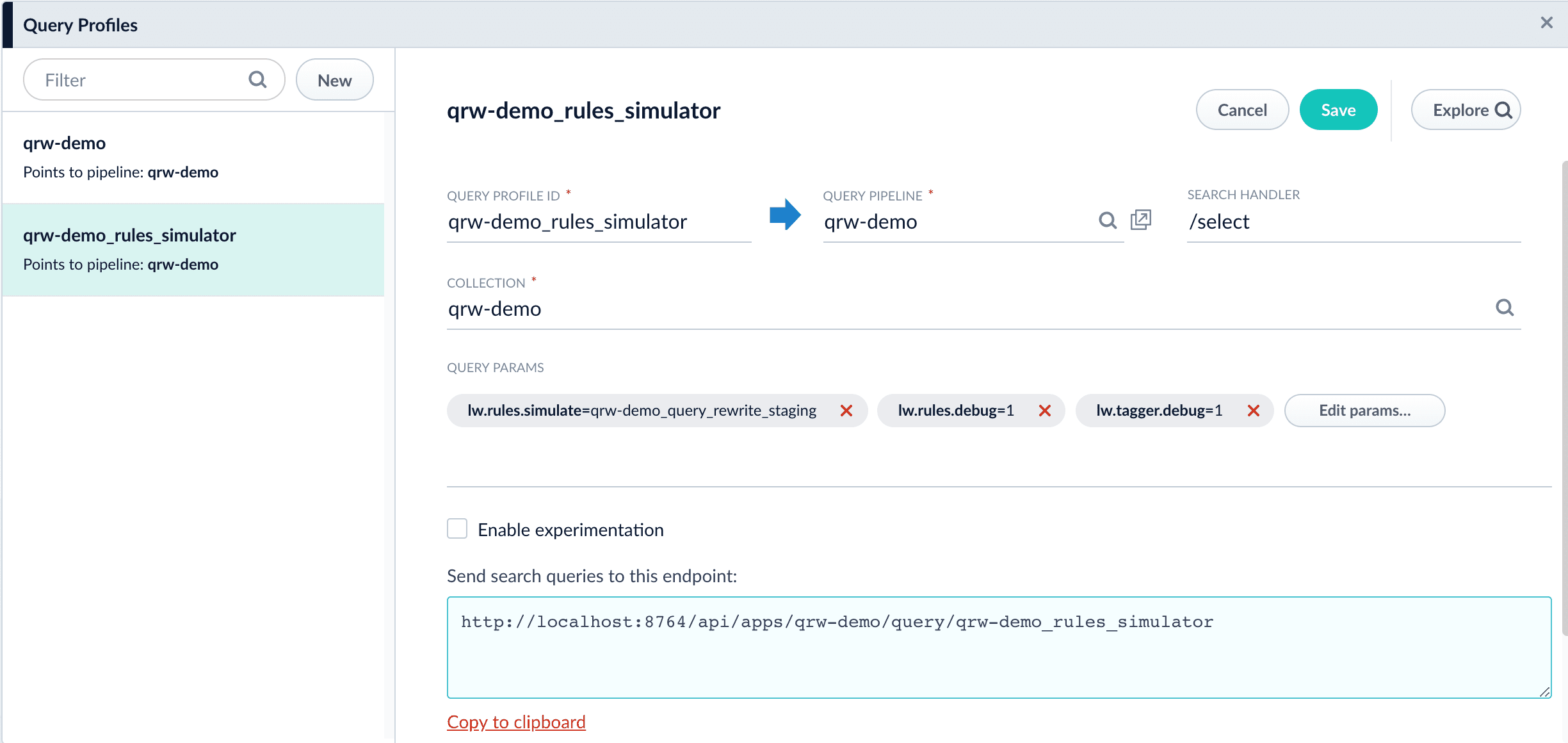
Each app has a `COLLECTION_NAME_rules_simulator` query profile, configured to use the `COLLECTION_NAME_query_rewrite_staging` collection for query rewrites instead of the `COLLECTION_NAME_query_rewrite` collection. This profile is created automatically whenever a new app is created.
See **Configure the Rules Simulator Query Profile** for more information about configuration.
Each app has a `_rules_simulator` query profile, configured to use the `_query_rewrite_staging` collection for [query rewrites](/docs/4/fusion-ai/concepts/query-rewriting/overview) instead of the `_query_rewrite` collection. This profile is created automatically whenever a new app is created.
By default, this query profile points to your default query pipeline and collection. You can configure it to point to any pipeline or collection, for example when testing a new pipeline before it has been deployed.
**How to change the query pipeline, collection, and query parameters used by the `_rules_simulator` query profile**
1. Open the Fusion UI.
2. Navigate to **Querying** > **Query Profiles**.
3. Select the `_rules_simulator` query profile for your app.
For example, if your app is called "Demo" then the name of the query profile is `Demo_rules_simulator`.
4. Modify the configuration as desired.
5. Click **Save**.
The course for **Index and Query Profiles** focuses on how index and query profiles operate, and how to configure and manage them.
## Query profiles in the REST API
* [Query Profiles CRUD API](/api-reference/query-profiles-crud-api/get-the-service-status) (`/query-profiles`)\
Create, read, update, and delete query profiles.
* [Query Profiles API](/api-reference/query-profiles-api/get-the-service-status) (`/query`)\
Run a query through a query profile by specifying the profile ID and appending the request with a [Solr query string](/docs/5/fusion/getting-data-out/query-basics/query-language-cheat-sheet), as in `/api/query/?`.
## Query profiles in the UI
To configure query profiles, click **Querying** > **Query Profiles**.
 4. Modify the configuration as desired.
5. Click **Save**.
4. Modify the configuration as desired.
5. Click **Save**.