> ## Documentation Index
> Fetch the complete documentation index at: https://doc.lucidworks.com/llms.txt
> Use this file to discover all available pages before exploring further.
# Query Pipeline Stages
export const LwTemplate = ({title = "Key questions to get you started", icon = "sparkles", cta = "Powered by Agent Studio", linkHref = "https://lucidworks.com/demo/?utm_source=docs&utm_medium=referral&utm_campaign=docs_cta_ai"}) => {
const [isLoaded, setIsLoaded] = useState(false);
useEffect(() => {
const timer = setTimeout(() => {
setIsLoaded(true);
}, 500);
return () => clearTimeout(timer);
}, []);
return
{isLoaded && `
}} />}
Powered by Lucidworks Agent Studio
;
};
export const InlineImage = ({src, alt = '', height = '2em'}) => {
return ;
};
[localhost link]: http://localhost:3000/docs/5/fusion/getting-data-out/query-basics/query-pipelines/query-pipeline-stages
[mintlify link]: https://doc.lucidworks.com/docs/5/fusion/getting-data-out/query-basics/query-pipelines/query-pipeline-stages
[old doc.lw link]: https://doc.lucidworks.com/fusion/5.9/169
A query pipeline is made up of a series of query stages that process incoming search queries.
A pipeline stage definition associates a unique ID with a set of properties.
These definitions are registered with the Fusion API service and stored in ZooKeeper for re-use across pipelines and search applications.
Fusion includes a number of specialized query stages as well as a JavaScript stage that allows advanced processing via a JavaScript program.
The [Query Pipeline Stages Reference](/docs/5/fusion/reference/config-ref/pipeline-stages/query-stages/overview) section contains articles that detail the configuration for each of the Fusion query pipeline stages. The configuration information includes field names and values, as well as examples and other key reference information.
## Configuring query pipeline stages
* In the Fusion UI, the [Query Workbench](/docs/5/fusion/intro/ui-tour/query-workbench) provides an environment for configuring the stages in a query pipeline.
* The [Query Stages API](/api-reference/query-stage-api/get-the-service-status) is used to create, list, update, or delete query stages using JSON. See also the [Query Pipelines API](/api-reference/query-pipelines-api/get-all-query-pipelines).
### Pipeline stage JSON editor
The pipeline stage JSON editor gives the ability to create and copy pipeline stages by pasting JSON objects in the Fusion UI. Only JSON is supported, and JSON validation is included to prevent the user from saving an invalid object.
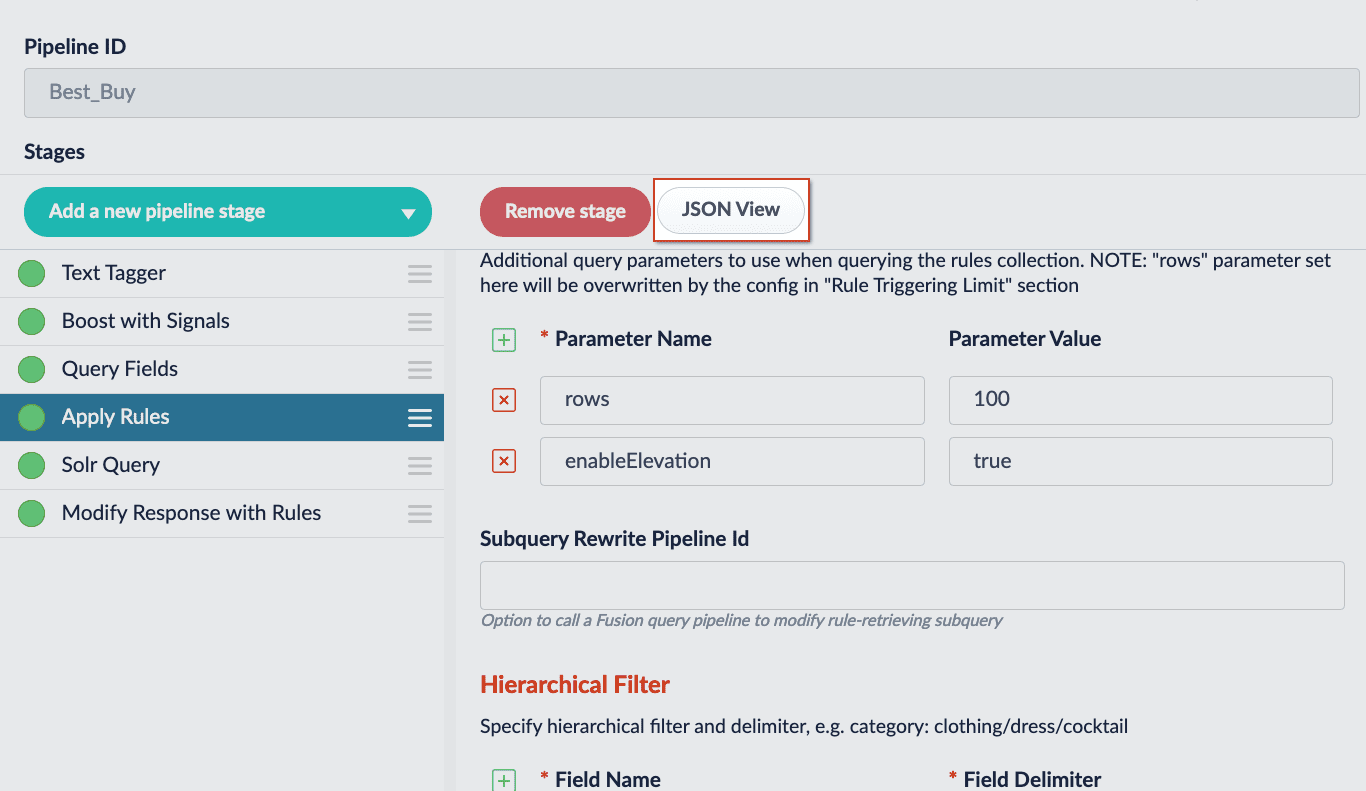
Navigate to your pipelines, select a pipeline stage, and click the **JSON View** button to open the editor:
Existing stages are considered **READ-ONLY**. They will have only a copy button which can be used to create stages. New stages will have the option to copy or paste valid JSON. Changes are applied to the stage with the **Apply** button.
Users will still need to **Save** the stage for the changes made in the editor to be saved.
The editor has several elements worth noting:
| Elements | Description |
| ----------------------------------------------------------------- | ------------------------------------------------------------------------------------------------------ |
| | Copies the JSON to the clipboard. |
| | Pastes the clipboard into the editor. Only valid JSON is accepted. |
| | Expands the editor to a fullscreen view. |
| | Condenses the editor to a compact view. |
| | Applies the JSON in the editor and updates the stage. The stage must be saved to preserve the changes. |
| | Resets changes made since the last time changes were applied. |
For instructions, see **Use the Pipeline Stage JSON Editor**.
This article will focus on copying the JSON configuration for an existing pipeline stage and creating a new stage with the JSON configuration.
The instructions in this article focus on query pipeline stages. However, the steps are the same for index pipeline stages, which are accessed at \*\*Indexing > Index Pipelines > ``.
1. Navigate to **Querying > Query Pipelines** and select a pipeline.
2. Select an existing pipeline stage to view in the editor.
3. Click the **JSON View** button. The editor will appear:
Existing stages are considered **READ-ONLY**. They will only have a copy button.
4. (optional) Click **Expand editor** to view the editor in fullscreen mode.
5. Click the **Copy** button. The JSON configuration for that stage is copied to your clipboard.
6. Click **Add a new pipeline stage** to create a new stage. Create the same stage type.
7. Click the **JSON View** button.
8. Use the **Paste** button to paste the JSON configuration from your clipboard into the editor. Alternatively, delete the existing JSON configuration and manually paste the new configuration.\
At this time, you can make changes to the JSON configuration inside the editor.
9. Click the **Apply** button to apply your changes to the stage. Although the changes are immediately shown in the UI, the stage is not saved until you click the **Save** button.
10. Save the stage.
## JavaScript selector
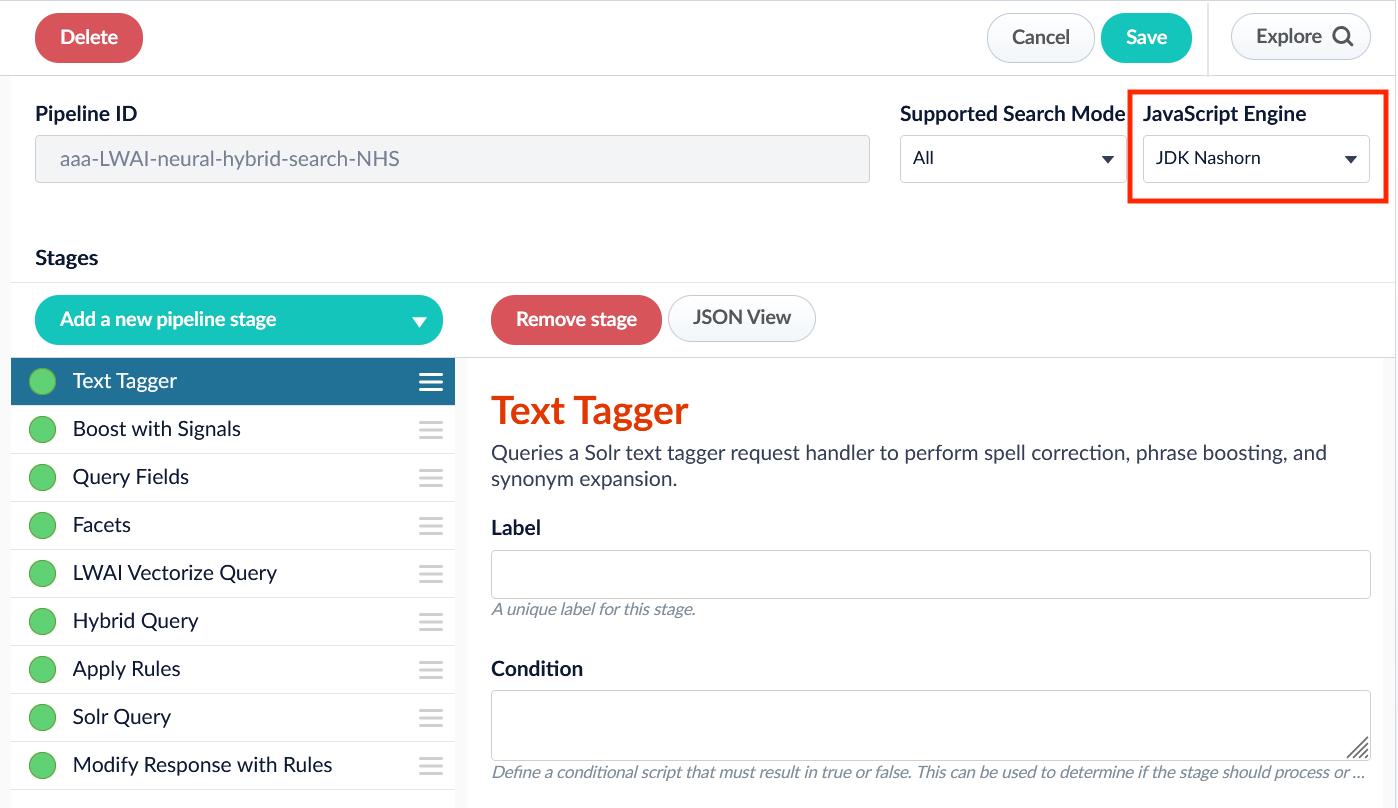
Now your pipeline definitions can include your choice of JavaScript engine, either Nashorn or OpenJDK Nashorn.
While Nashorn is the default option, it is in the process of being deprecated and will eventually be removed, so it is recommended to use OpenJDK Nashorn when possible.
You can select the JavaScript engine in the pipeline views or in the workbenches.
Your JavaScript pipeline stages are interpreted by the selected engine.
## Asynchronous query pipeline processing
Query pipeline processing performance can be improved by enabling asynchronous processing for certain stages that make requests to secondary collections, external databases, and so on. The following stages support asynchronous processing:
* [Active Directory Security Trimming](/docs/5/fusion/reference/config-ref/pipeline-stages/query-stages/active-directory-security-trimming-query-stage)
* [Apply Rules](/docs/5/fusion/reference/config-ref/pipeline-stages/query-stages/query-rules-query-stage)
* [Boost with Signals](/docs/5/fusion/reference/config-ref/pipeline-stages/query-stages/recommendation-boosting-query-stage)
* [JDBC Lookup](/docs/5/fusion/reference/config-ref/pipeline-stages/query-stages/jdbc-query-stage)
* [LWAI Prediction](/docs/5/fusion/reference/config-ref/pipeline-stages/query-stages/lucidworks-ai-prediction-query-stage)
* [LWAI Vectorize Query](/docs/5/fusion/reference/config-ref/pipeline-stages/query-stages/lwai-vectorize-query)
* [Security Trimming](/docs/5/fusion/reference/config-ref/pipeline-stages/query-stages/security-trimming-query-stage)
* [Solr Subquery](/docs/5/fusion/reference/config-ref/pipeline-stages/query-stages/subquery-query-stage)
This feature uses the fork-and-join model, where any of the stages above can create a fork on the pipeline. The parallel processes are joined again using the [Merge Async Results stage](/docs/5/fusion/reference/config-ref/pipeline-stages/query-stages/merge-async-results-query-stage) at a later point in the pipeline.
### Monitoring for asynchronous query pipeline stages
The monitoring feature provides a framework that integrates with tools such as Grafana for seamless observability, and supports complex AI-driven search and generative AI (Gen-AI) workloads.
Monitoring provides critical, real-time visibility into the performance and reliability of asynchronous query pipeline stages. The information includes tracking execution times, failures, and performance bottlenecks. In addition, monitoring information enables system optimization and the ability to more quickly and easily troubleshoot issues.
Use these execution metrics and failure analysis to reduce downtime and accelerate issue resolution, as well as optimize search and AI-driven applications for efficiency and scalability. This ensures better search relevance, improved operational stability, and readiness for next-generation AI search experiences.
## Conditional query processing
Query Pipeline stages are used to modify Request objects
and Response objects. Each stage can include a conditional JavaScript expression (the `condition` property in its configuration) that can access these objects.
For example, this condition first checks that the property `fusion-user-name` is specified in the Request object, then checks for a particular value:
```js wrap theme={"dark"}
request.hasParam("fusion-user-name") && request.getFirstParam("fusion-user-name").equals("SuperUser");
```
## Learn more
The quick learning for **Top 3 Query Pipeline Stages** focuses on useful querying stages.

 Existing stages are considered **READ-ONLY**. They will have only a copy button which can be used to create stages. New stages will have the option to copy or paste valid JSON. Changes are applied to the stage with the **Apply** button.
 ## Asynchronous query pipeline processing
Query pipeline processing performance can be improved by enabling asynchronous processing for certain stages that make requests to secondary collections, external databases, and so on. The following stages support asynchronous processing:
* [Active Directory Security Trimming](/docs/5/fusion/reference/config-ref/pipeline-stages/query-stages/active-directory-security-trimming-query-stage)
* [Apply Rules](/docs/5/fusion/reference/config-ref/pipeline-stages/query-stages/query-rules-query-stage)
* [Boost with Signals](/docs/5/fusion/reference/config-ref/pipeline-stages/query-stages/recommendation-boosting-query-stage)
* [JDBC Lookup](/docs/5/fusion/reference/config-ref/pipeline-stages/query-stages/jdbc-query-stage)
* [LWAI Prediction](/docs/5/fusion/reference/config-ref/pipeline-stages/query-stages/lucidworks-ai-prediction-query-stage)
* [LWAI Vectorize Query](/docs/5/fusion/reference/config-ref/pipeline-stages/query-stages/lwai-vectorize-query)
* [Security Trimming](/docs/5/fusion/reference/config-ref/pipeline-stages/query-stages/security-trimming-query-stage)
* [Solr Subquery](/docs/5/fusion/reference/config-ref/pipeline-stages/query-stages/subquery-query-stage)
This feature uses the fork-and-join model, where any of the stages above can create a fork on the pipeline. The parallel processes are joined again using the [Merge Async Results stage](/docs/5/fusion/reference/config-ref/pipeline-stages/query-stages/merge-async-results-query-stage) at a later point in the pipeline.
### Monitoring for asynchronous query pipeline stages
The monitoring feature provides a framework that integrates with tools such as Grafana for seamless observability, and supports complex AI-driven search and generative AI (Gen-AI) workloads.
Monitoring provides critical, real-time visibility into the performance and reliability of asynchronous query pipeline stages. The information includes tracking execution times, failures, and performance bottlenecks. In addition, monitoring information enables system optimization and the ability to more quickly and easily troubleshoot issues.
Use these execution metrics and failure analysis to reduce downtime and accelerate issue resolution, as well as optimize search and AI-driven applications for efficiency and scalability. This ensures better search relevance, improved operational stability, and readiness for next-generation AI search experiences.
## Conditional query processing
Query Pipeline stages are used to modify Request objects
and Response objects. Each stage can include a conditional JavaScript expression (the `condition` property in its configuration) that can access these objects.
For example, this condition first checks that the property `fusion-user-name` is specified in the Request object, then checks for a particular value:
```js wrap theme={"dark"}
request.hasParam("fusion-user-name") && request.getFirstParam("fusion-user-name").equals("SuperUser");
```
## Learn more
## Asynchronous query pipeline processing
Query pipeline processing performance can be improved by enabling asynchronous processing for certain stages that make requests to secondary collections, external databases, and so on. The following stages support asynchronous processing:
* [Active Directory Security Trimming](/docs/5/fusion/reference/config-ref/pipeline-stages/query-stages/active-directory-security-trimming-query-stage)
* [Apply Rules](/docs/5/fusion/reference/config-ref/pipeline-stages/query-stages/query-rules-query-stage)
* [Boost with Signals](/docs/5/fusion/reference/config-ref/pipeline-stages/query-stages/recommendation-boosting-query-stage)
* [JDBC Lookup](/docs/5/fusion/reference/config-ref/pipeline-stages/query-stages/jdbc-query-stage)
* [LWAI Prediction](/docs/5/fusion/reference/config-ref/pipeline-stages/query-stages/lucidworks-ai-prediction-query-stage)
* [LWAI Vectorize Query](/docs/5/fusion/reference/config-ref/pipeline-stages/query-stages/lwai-vectorize-query)
* [Security Trimming](/docs/5/fusion/reference/config-ref/pipeline-stages/query-stages/security-trimming-query-stage)
* [Solr Subquery](/docs/5/fusion/reference/config-ref/pipeline-stages/query-stages/subquery-query-stage)
This feature uses the fork-and-join model, where any of the stages above can create a fork on the pipeline. The parallel processes are joined again using the [Merge Async Results stage](/docs/5/fusion/reference/config-ref/pipeline-stages/query-stages/merge-async-results-query-stage) at a later point in the pipeline.
### Monitoring for asynchronous query pipeline stages
The monitoring feature provides a framework that integrates with tools such as Grafana for seamless observability, and supports complex AI-driven search and generative AI (Gen-AI) workloads.
Monitoring provides critical, real-time visibility into the performance and reliability of asynchronous query pipeline stages. The information includes tracking execution times, failures, and performance bottlenecks. In addition, monitoring information enables system optimization and the ability to more quickly and easily troubleshoot issues.
Use these execution metrics and failure analysis to reduce downtime and accelerate issue resolution, as well as optimize search and AI-driven applications for efficiency and scalability. This ensures better search relevance, improved operational stability, and readiness for next-generation AI search experiences.
## Conditional query processing
Query Pipeline stages are used to modify Request objects
and Response objects. Each stage can include a conditional JavaScript expression (the `condition` property in its configuration) that can access these objects.
For example, this condition first checks that the property `fusion-user-name` is specified in the Request object, then checks for a particular value:
```js wrap theme={"dark"}
request.hasParam("fusion-user-name") && request.getFirstParam("fusion-user-name").equals("SuperUser");
```
## Learn more