> ## Documentation Index
> Fetch the complete documentation index at: https://doc.lucidworks.com/llms.txt
> Use this file to discover all available pages before exploring further.
# Rule Conflict Resolution
> Predictive Merchandiser
export const LwTemplate = ({title = "Key questions to get you started", icon = "sparkles", cta = "Powered by Agent Studio", linkHref = "https://lucidworks.com/demo/?utm_source=docs&utm_medium=referral&utm_campaign=docs_cta_ai"}) => {
const [isLoaded, setIsLoaded] = useState(false);
useEffect(() => {
const timer = setTimeout(() => {
setIsLoaded(true);
}, 500);
return () => clearTimeout(timer);
}, []);
return
{isLoaded && `
}} />}
Powered by Lucidworks Agent Studio
;
};
export const InlineImage = ({src, alt = '', height = '2em'}) => {
return ;
};
[localhost link]: http://localhost:3000/docs/5/fusion/getting-data-out/curating-your-search-experience/predictive-merchandiser/rule-conflict-resolution
[mintlify link]: https://doc.lucidworks.com/docs/5/fusion/getting-data-out/curating-your-search-experience/predictive-merchandiser/rule-conflict-resolution
[old doc.lw link]: https://doc.lucidworks.com/fusion/5.9/598
Sometimes, rules created in the [Rules Editor](/docs/5/fusion/getting-data-out/query-enhancement/rules-editor) and Predictive Merchandiser conflict with each other. For example, if you have three rules to boost, bury, and block the same product, Predictive Merchandiser highlights these conflicting rules so you can address them.
To highlight conflicting rules, the **Rules Fired** section displays a red warning icon next to the dominant rule and a red flag on the conflicting rules.
Click the **Edit** button to view the details of the conflicting rules and resolve the conflict.
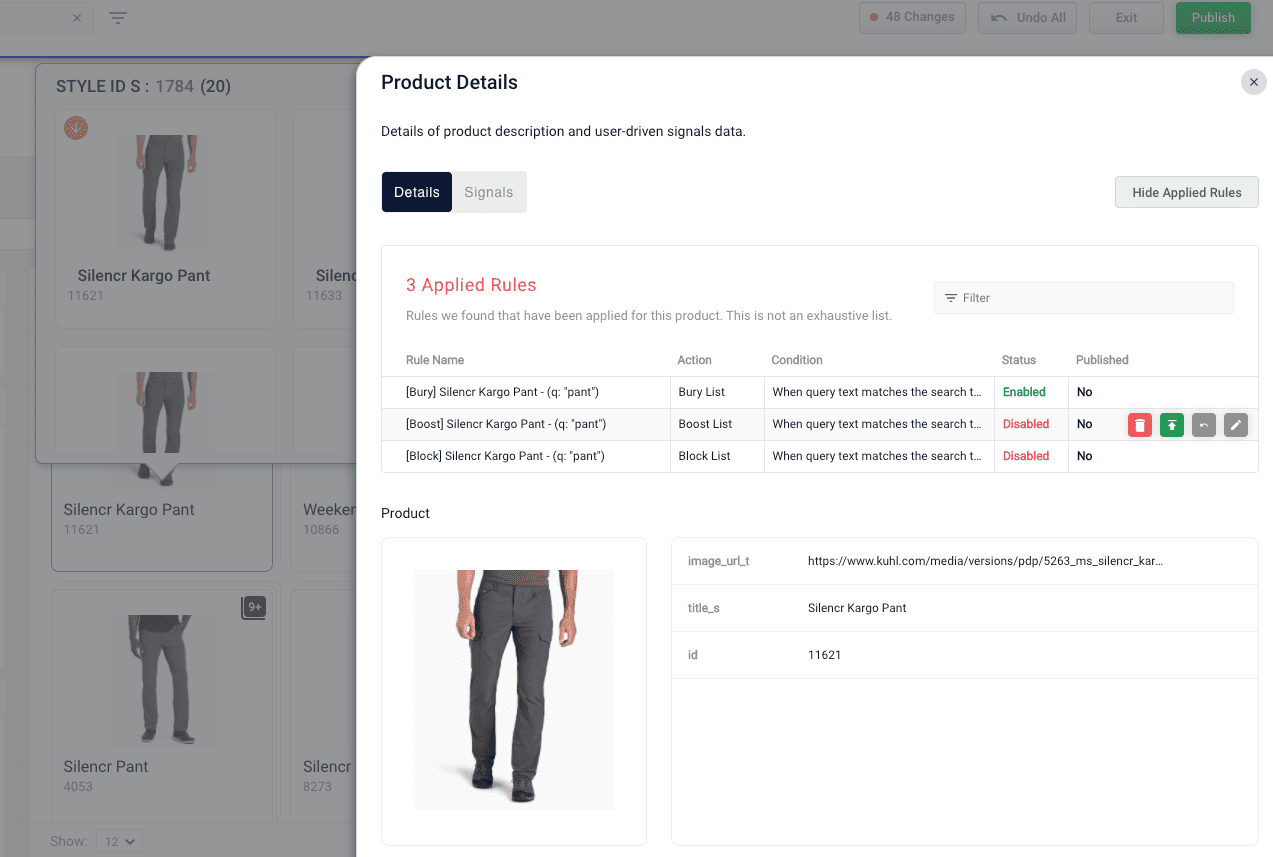
The details of the conflicting rules affecting specific products are found in the details panel. Click the **Start Task** button , hover over a product, and click the **Details** button .
The course for **Predictive Merchandiser: Rules Manager** focuses on how to create and utilize business rules to create more relevant search results for your users.
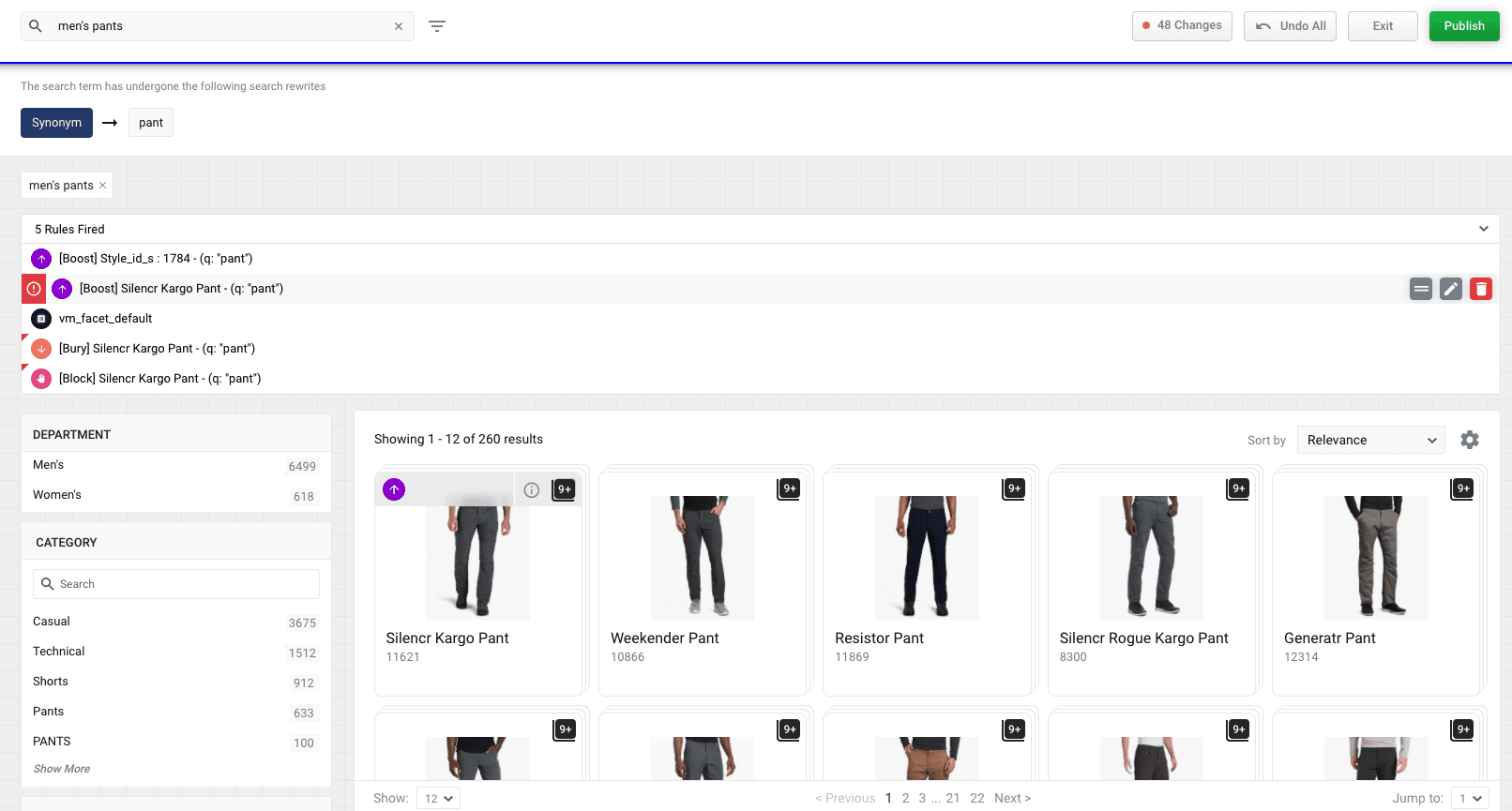 Click the **Edit** button to view the details of the conflicting rules and resolve the conflict.
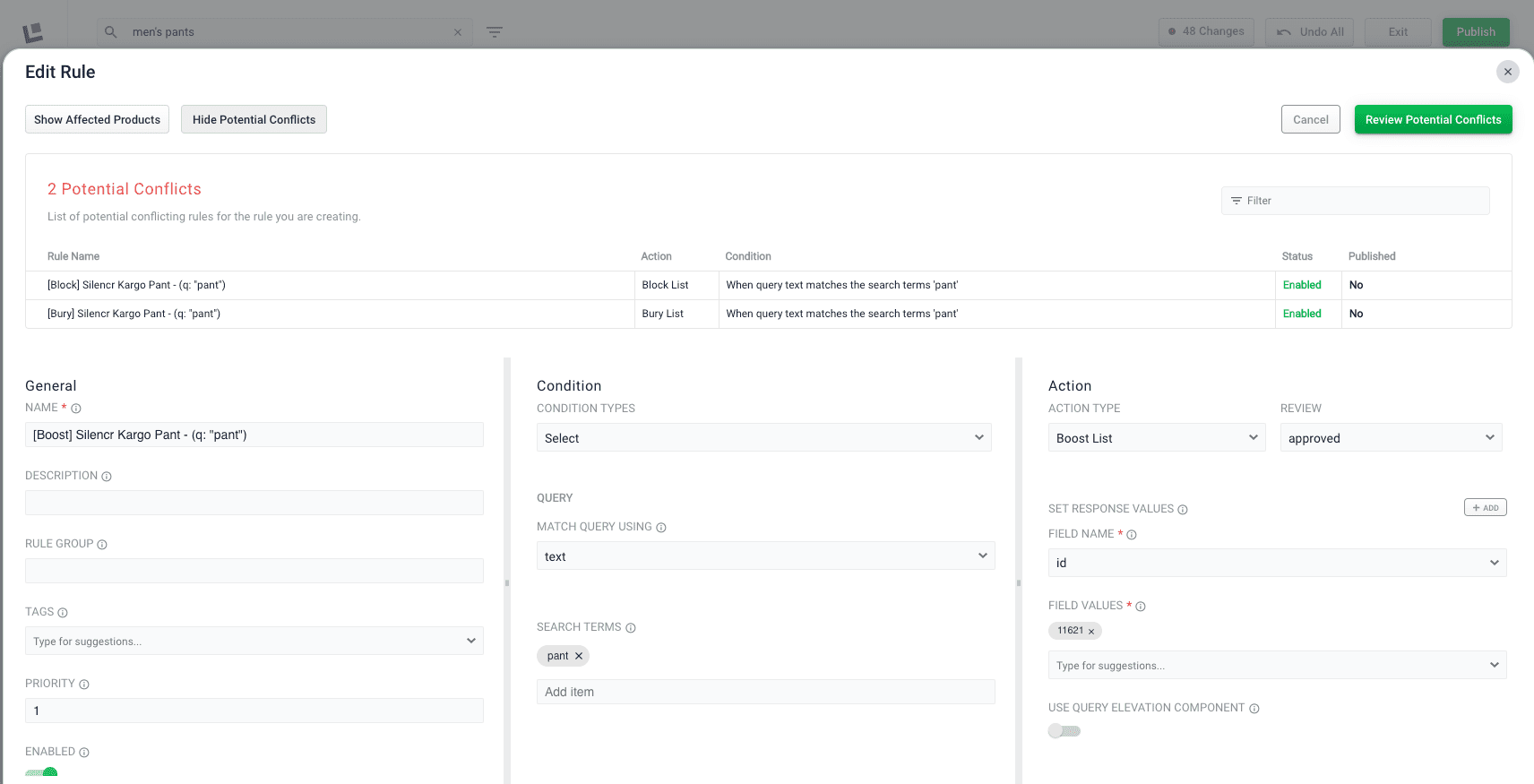 The details of the conflicting rules affecting specific products are found in the details panel. Click the **Start Task** button