> ## Documentation Index
> Fetch the complete documentation index at: https://doc.lucidworks.com/llms.txt
> Use this file to discover all available pages before exploring further.

# Optimizing Zero Results

export const LwTemplate = ({title = "Key questions to get you started", icon = "sparkles", cta = "Powered by Agent Studio", linkHref = "https://lucidworks.com/demo/?utm_source=docs&utm_medium=referral&utm_campaign=docs_cta_ai"}) => {
  const [isLoaded, setIsLoaded] = useState(false);
  useEffect(() => {
    const timer = setTimeout(() => {
      setIsLoaded(true);
    }, 500);
    return () => clearTimeout(timer);
  }, []);
  return <div className="lw-template-container">
      <Card title={title} icon={icon}>
        {isLoaded && <span dangerouslySetInnerHTML={{
    __html: `<lw-template id="a029c1a9-28be-427e-b0e1-5d918920246a"></lw-template
            >`
  }} />}
        <Link href={linkHref} className="agent-studio-link text-left text-gray-600 gap-2 dark:text-gray-400 text-sm font-medium flex flex-row items-center hover:text-primary dark:hover:text-primary-light group-hover:text-primary group-hover:dark:text-primary-light">Powered by Lucidworks Agent Studio</Link>
      </Card>
    </div>;
};

[localhost link]: http://localhost:3000/docs/5/fusion/getting-data-out/curating-your-search-experience/experience-optimizer/optimizing-zero-results

[mintlify link]: https://doc.lucidworks.com/docs/5/fusion/getting-data-out/curating-your-search-experience/experience-optimizer/optimizing-zero-results

[old doc.lw link]: https://doc.lucidworks.com/fusion/5.9/qxpasi

As a search manager, search queries that generate zero results can drive customers away from the site. Experience Optimizer allows you to ensure this does not happen. Instead of display zero results, you can choose to display certain documents when a customer reaches a zero results page.

<LwTemplate />

Learn how to use the **Optimizing Zero Results** feature.

<Accordion title="Optimizing Zero Results">
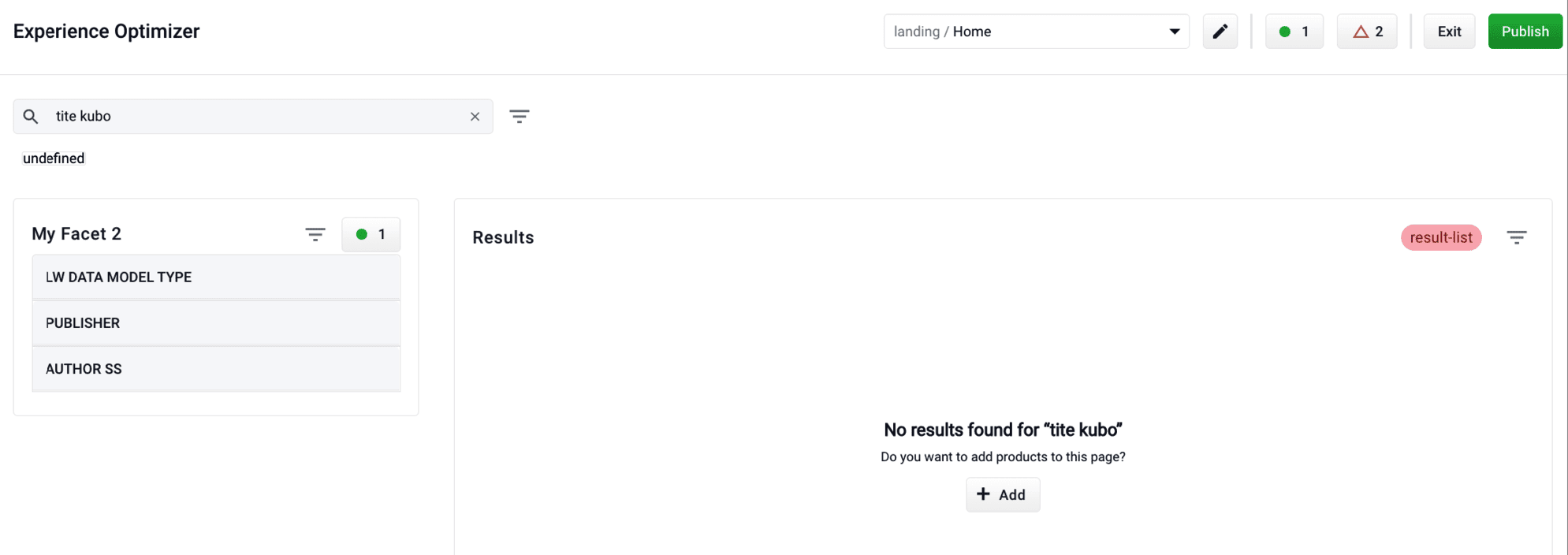
  1. Enter a search query the generates 0 results:

       <img src="https://mintcdn.com/lucidworks/aJg00sncwy9AQv3p/assets/images/experience-optimizer/eo-resolve-zero-results-1.png?fit=max&auto=format&n=aJg00sncwy9AQv3p&q=85&s=ebefd0e06ec341f31e54b0953d1a263d" alt="Optimizing Zero Results 01" width="1989" height="704" data-path="assets/images/experience-optimizer/eo-resolve-zero-results-1.png" />
  2. Click the **Add** button:  <img className="inline-image" alt="Add" src="https://mintcdn.com/lucidworks/xQr7Fxxc7lI5hKz-/assets/images/predictive-merchandiser/buttons/pm-facet-add-additional.png?fit=max&auto=format&n=xQr7Fxxc7lI5hKz-&q=85&s=0c90c652d92b93b5f21b2948385e293b" width="80" height="33" data-path="assets/images/predictive-merchandiser/buttons/pm-facet-add-additional.png" />
  3. Select documents or [document groups](/docs/5/fusion/getting-data-out/curating-your-search-experience/experience-optimizer/eo-document-grouping) that you want to associate with the 0 results query:
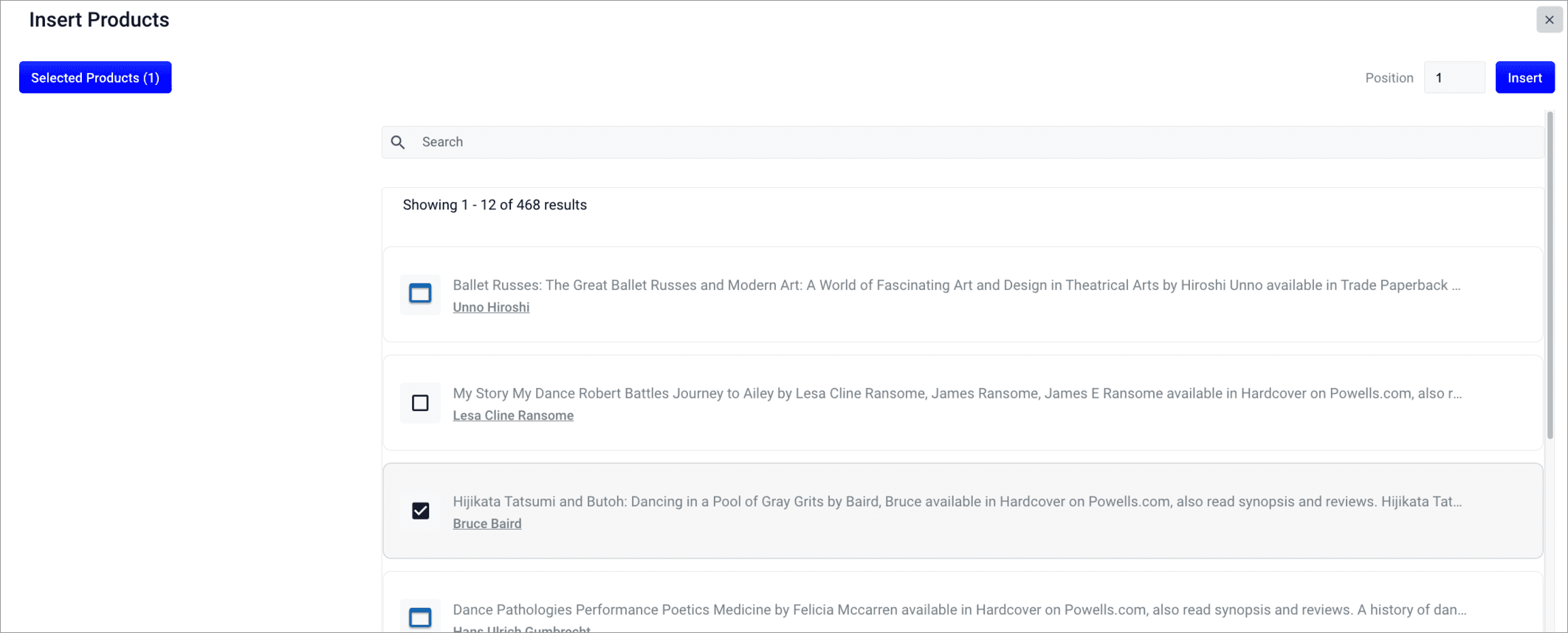
       <img src="https://mintcdn.com/lucidworks/aJg00sncwy9AQv3p/assets/images/experience-optimizer/eo-resolve-zero-results-2.png?fit=max&auto=format&n=aJg00sncwy9AQv3p&q=85&s=43754229a3d1414297fda8057d6f555e" alt="Optimizing Zero Results 02" width="2124" height="858" data-path="assets/images/experience-optimizer/eo-resolve-zero-results-2.png" />
  4. Click the **Insert** button. The selected products are now displayed when the search query is used, resolving the 0 results query:
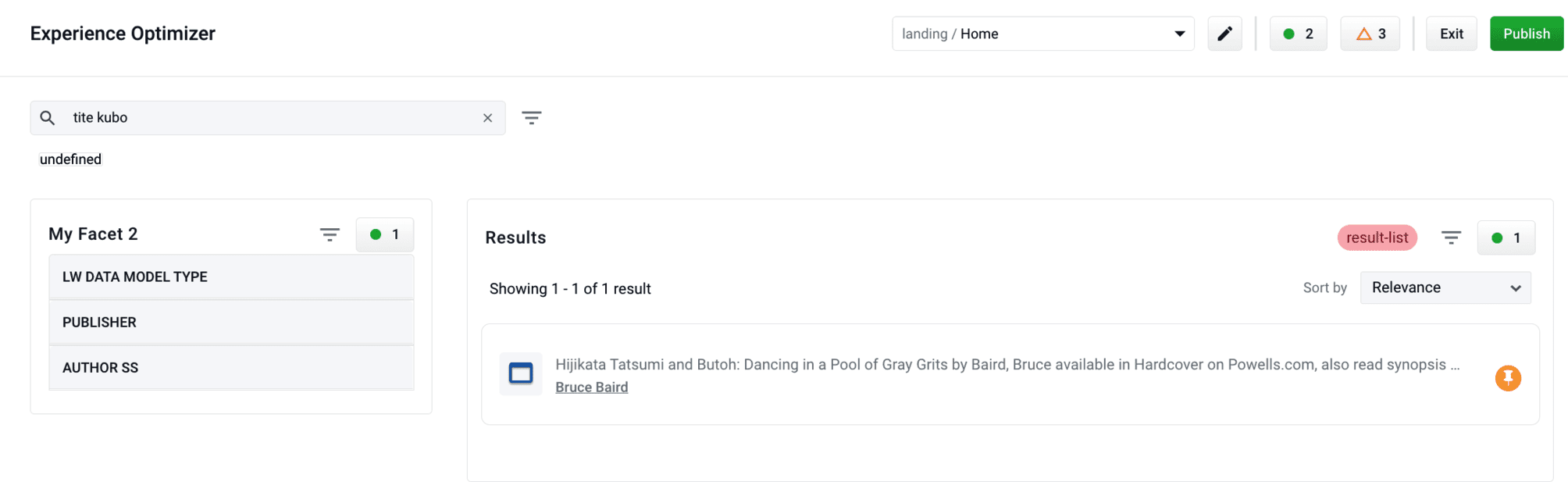
       <img src="https://mintcdn.com/lucidworks/aJg00sncwy9AQv3p/assets/images/experience-optimizer/eo-resolve-zero-results-3.png?fit=max&auto=format&n=aJg00sncwy9AQv3p&q=85&s=f0207c933ac010b8ea688dfd6d426ce5" alt="Optimizing Zero Results 03" width="2008" height="617" data-path="assets/images/experience-optimizer/eo-resolve-zero-results-3.png" />
</Accordion>
