> ## Documentation Index
> Fetch the complete documentation index at: https://doc.lucidworks.com/llms.txt
> Use this file to discover all available pages before exploring further.
# Smart Answers
export const LwTemplate = ({title = "Key questions to get you started", icon = "sparkles", cta = "Powered by Agent Studio", linkHref = "https://lucidworks.com/demo/?utm_source=docs&utm_medium=referral&utm_campaign=docs_cta_ai"}) => {
const [isLoaded, setIsLoaded] = useState(false);
useEffect(() => {
const timer = setTimeout(() => {
setIsLoaded(true);
}, 500);
return () => clearTimeout(timer);
}, []);
return
{isLoaded && `
}} />}
Powered by Lucidworks Agent Studio
;
};
[localhost link]: http://localhost:3000/docs/5/fusion/getting-data-out/advanced-query-enhancement/smart-answers/overview
[mintlify link]: https://doc.lucidworks.com/docs/5/fusion/getting-data-out/advanced-query-enhancement/smart-answers/overview
[old doc.lw link]: https://doc.lucidworks.com/fusion/5.9/461
Fusion Smart Answers brings the benefits of a versatile, scalable Semantic Search platform to provide cutting edge relevancy for your applications.
This system makes use of advanced Deep Learning techniques to provide the power of Neural dense vectors search.
Semantically rich models encode queries and documents into vectors in the same digital vector space in such way that query and the most relevant information are located near each other.
It pushes search boundaries beyond classical token-based matching mechanisms by leveraging the contextual information and query understanding.
Virtual assistants and Chatbots can incorporate Smart Answers to enable self-service for employees and customers and save cost on answering incoming queries.
E-commerce can utilize Smart Answers to handle zero-result search queries and improve the overall relevancy by recommending products that are most likely of users interest.
Training data can be explicitly provided as query/response pairs or constructed from the collected signals data.
Even if you do not have an existing set of recorded interactions, you can rely on Smart Answers cold start solution. It uses various pre-trained models to get out-of-the-box (OOTB) semantic capabilities as well as provides a possibility to train unsupervised models for specific domains.
These features bring traditional search relevancy development and Data Science together into an easy-to-use configuration framework that leverages Fusion’s indexing and querying pipelines.
The course for **Smart Answers** focuses on how to utilize Smart Answers to go beyond classical token-based matching mechanisms by leveraging contextual information and query understanding.
## Example business use cases
#### Call center or IT support
* Embed this system as a self-help feature on your Help page or Contact Us page to reduce the call center load.
* Make it available to your customer support team to find the answers to already-solved problems.
#### Zero-result search problem in E-commerce:
Queries that lead to zero-results is a huge problem for E-commerce that leads to income loss and decrease of the overall user experience. Semantic search does not have this problem as it does not operate on the exact token matches as classical search. Instead search is done in the vector space which can find relevant products even if there is no token overlapping.
#### Questions about products for E-commerce:
E-commerce websites can use this system to search "how to" content, product user manuals, or existing product questions. For example, amazon.com provides a search function on questions about each product.
#### Search in Slack, email conversations, or SharePoint FAQ docs
You can achieve fast knowledge extraction by applying this solution to these types of knowledge repositories.
#### Improve search for long queries
As the solution utilizes state of the art Deep Learning techniques, it is able to capture semantic and contextual information into query understanding. This makes it very suitable to work with long queries or natural language questions.
## Get started with Smart Answers
To get started, you need a trained machine learning model. There are two methods for building a model, depending on the kind of data you already have.
Each method requires a slightly different model training procedure, but the model deployment procedure is the same for both.
To implement Smart Answers, follow this workflow:
1. Train or install a machine learning model. This process differs depending on whether you use the Smart Answers supervised solution or the Smart Answers cold start solution.
* Use the supervised solution when you already have a collection of query/response pairs or if you can construct such a dataset from the signals data. The input is a dataset of query/response pairs. See **Train a Smart Answers Supervised Model**.
The [Supervised solution for Smart Answers](/docs/5/fusion/getting-data-out/advanced-query-enhancement/smart-answers/faq-solution) begins with training a model using your existing data and the [Smart Answers Supervised Training job](/docs/5/fusion/reference/config-ref/jobs/smart-answers-supervised-training), as explained in this topic. The job includes an auto-tune feature that you can use instead of manually tuning the configuration.
See also [Advanced Model Training Configuration for Smart Answers](/docs/5/fusion/getting-data-out/advanced-query-enhancement/smart-answers/smart-answers-advanced-model-config).
## Training job requirements
**Storage**
150GB plus 2.5 times the total input data size.
**Processor and memory**
The memory requirements depend on whether you choose GPU or CPU processing:
| GPU | CPU |
| -------------------------------------------- | -------------------------------------------- |
|
one core
11GB RAM
|
32 cores
32GB RAM
|
If your training data contains more than 1 million entries, use GPU.
## Prepare the input data
1. Format your input data as question/answer pairs, that is, a query and its corresponding response in each row.
You can do this in any format that Fusion supports.
If there are multiple possible answers for a unique question, then repeat the questions and put the pair into different rows to make sure each row has one question and one answer, as in the example JSON below:
```json wrap theme={"dark"}
[{"question":"How to transfer personal auto lease to business auto lease?","answer":"I would approach the lender that you are getting the lease from..."}
{"question":"How to transfer personal auto lease to business auto lease?","answer":"See what the contract says about transfers or subleases..."}]
```
2. Index the input data in Fusion.
If you wish to have the training data in Fusion, index it into a separate collection for training data such as `model_training_input`. Otherwise you can use it directly from the cloud storage.
## Configure the training job
1. In Fusion, navigate to **Collections** > **Jobs**.
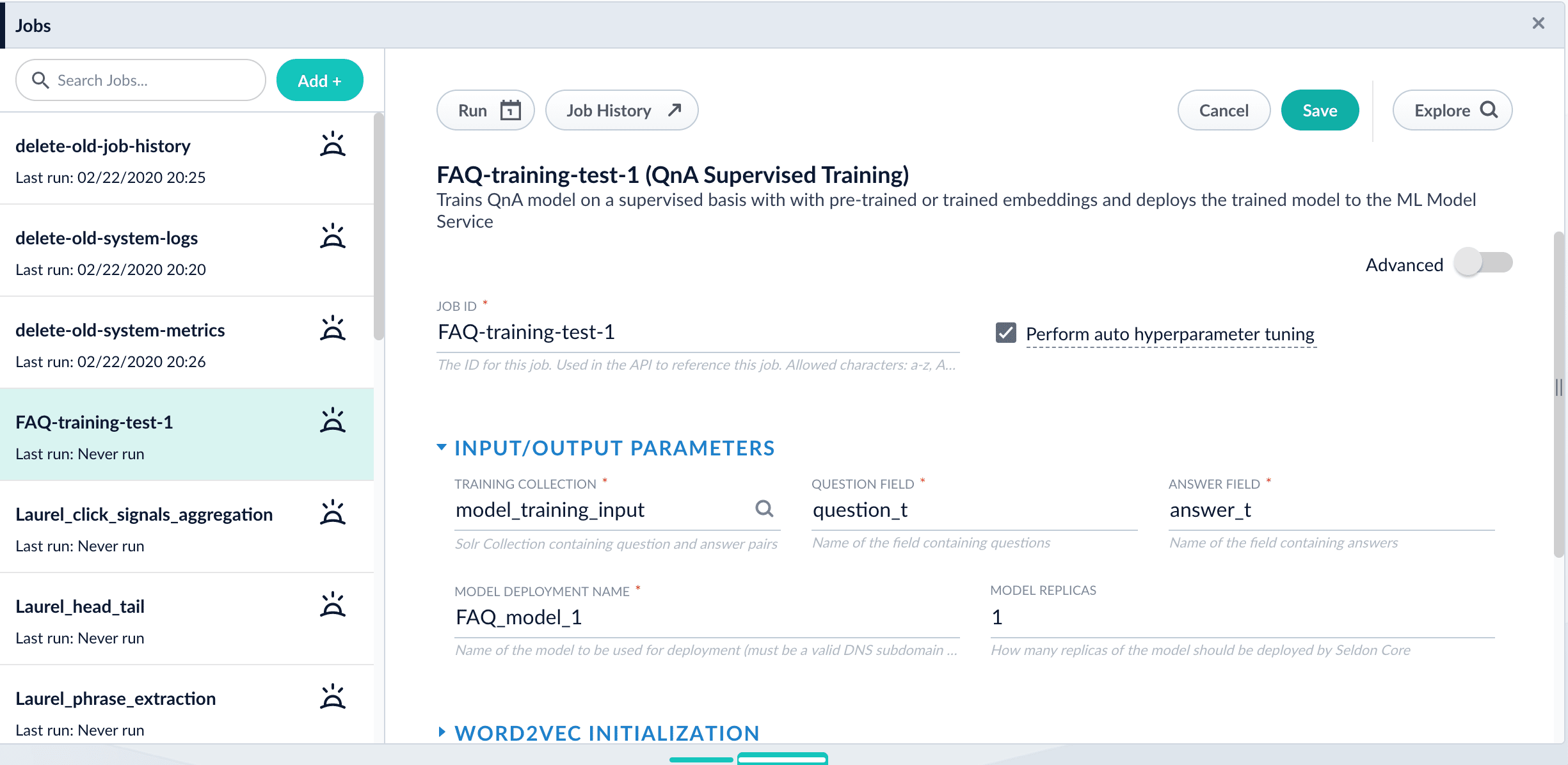
2. Select **Add** > **Smart Answers Supervised Training**:
3. In the **Training Collection** field, specify the input data collection that you created when you [prepared the input data](#prepare-the-input-data).
You can also configure this job to read from or write to cloud storage.
4. Enter the names of the **Question Field** and the **Answer Field** in the training collection.
5. Enter a **Model Deployment Name**.
The new machine learning model will be saved in the blob store with this name. You will reference it later when you configure your pipelines.
6. Configure the **Model base**.
There are several pre-trained word and [BPE](https://nlp.h-its.org/bpemb) embeddings for different languages, as well as a few pre-trained BERT models.
If you want to train custom embeddings, select `word_custom` or `bpe_custom`. This trains Word2vec on the provided data and specified fields. It might be useful in cases when your content includes unusual or domain-specific vocabulary.
If you have content in addition to the query/response pairs that can be used to train the model, then specify it in the **Texts Data Path**.
When you use the pre-trained embeddings, the log shows the percentage of processed vocabulary words. If this value is high, then try using custom embeddings.
The job trains a few (configurable) RNN layers on top of word embeddings or fine-tunes a BERT model on the provided training data. The result model uses an attention mechanism to average word embeddings to obtain the final single dense vector for the content.
Dimension size of vectors for Transformer-based models is 768. For RNN-based models it is 2 times the number units of the last layer. To find the dimension size: download the model, expand the zip, open the log and search for `Encoder output dim size:` line. You might need this information when creating collections in Milvus.
7. *Optional:* Check **Perform auto hyperparameter tuning** to use auto-tune.
Although training module tries to select the most optimal default parameters based on the training data statistics, auto-tune can extend it by automatically finding even better training configuration through hyper-parameter search.
Although this is a resource-intensive operation, it can be useful to identify the best possible RNN-based configuration. Transformer-based models like BERT are not used during auto hyperparameter tuning as they usually perform better yet they are much more expensive on both training and inference time.
8. Click **Save**.
If using solr as the training data source ensure that the source collection contains the `random_*` dynamic field defined in its `managed-schema.xml`. This field is required for sampling the data. If it is not present, add the following entry to the `managed-schema.xml` alongside other dynamic fields `` and \ alongside other field types.
9. Click **Run** > **Start**.
After training is finished the model is deployed into the cluster and can be used in index and query pipelines.
{/* // end::steps[] */}
## Next steps
1. See A Smart Answers Supervised Job’s Status and Output
2. Configure The Smart Answers Pipelines
3. Evaluate a Smart Answers Query Pipeline
* Use the cold start solution when you have no historical training data or fewer than 200 query/response pairs. Each method requires a slightly different model training procedure, but the model deployment procedure is the same for both.
* If you have a pre-trained cold start model, see **Set Up a Pre-Trained Cold Start Model for Smart Answers**, which deploys the existing model into Fusion.
* If you have a body of content that can be used for unsupervised training, see **Train a Smart Answers Cold Start Model**.
Lucidworks provides these pre-trained cold start models for [Smart Answers](/docs/5/fusion/getting-data-out/advanced-query-enhancement/smart-answers/overview):
* `qna-coldstart-large` - this is a large model trained on variety of corpuses and tasks.
* `qna-coldstart-multilingual` - covers 16 languages. List of supported languages: Arabic, Chinese-simplified, Chinese-traditional, English, French, German, Italian, Japanese, Korean, Dutch, Polish, Portuguese, Spanish, Thai, Turkish, Russian.
When you use these models, you do not need to run the model training job. Instead, you run a job that deploys the model into Fusion. The [Create Seldon Core Model Deployment job](/docs/5/fusion/reference/config-ref/jobs/create-seldon-core-model-deployment) deploys your model as a Docker image in Kubernetes, which you can scale up or down like other Fusion services.
These models are a good basis for a cold start solution if your data does not contain much domain-specific terminology. Otherwise, consider training a model using your existing content.
Dimension size of vectors for both models is **512**. You might need this information when creating collections in Milvus.
## Deploy a pre-trained cold-start model into Fusion
The pre-trained cold-start models are deployed using a Fusion job called [Create Seldon Core Model Deployment](/docs/5/fusion/reference/config-ref/jobs/create-seldon-core-model-deployment). This job downloads the selected pre-trained model and installs it in Fusion.
1. Navigate to **Collections** > **Jobs**.
2. Select **Add** > **Create Seldon Core Model Deployment**.
3. Enter a **Job ID**, such as `deploy-qna-coldstart-multilingual` or `deploy-qna-coldstart-large`.
4. Enter the **Model Name**, one of the following:
* `qna-coldstart-multilingual`
* `qna-coldstart-large`
5. In the **Docker Repository** field, enter `lucidworks`.
6. In the **Image Name** field, enter one of the following:
* `qna-coldstart-multilingual:v1.1`
* `qna-coldstart-large:v1.1`
7. Leave the **Kubernetes Secret Name for Model Repo** field empty.
8. In the **Output Column Names for Model** field, enter one of the following:
* `qna-coldstart-multilingual:[vector]`
* `qna-coldstart-large:[vector, compressed_vector]`
9. Click **Save**.
10. Click **Run** > **Start** to start the deployment job.
## Next steps
1. Configure The Smart Answers Pipelines
2. Evaluate a Smart Answers Query Pipeline
The Smart Answers Cold Start Training job is deprecated in Fusion 5.12.
The [cold start solution for Smart Answers](/docs/5/fusion/getting-data-out/advanced-query-enhancement/smart-answers/cold-start) begins with training a model using your existing content. To do this, you run the [Smart Answers Coldstart Training](/docs/5/fusion/reference/config-ref/jobs/smart-answers-coldstart-training) job. This job uses variety of word embeddings, including custom via Word2Vec training, to learn about the vocabulary that you want to search against.
Smart Answers comes with two pre-trained cold-start models. If your data does not have many domain-specific words, then consider using a pre-trained model.
During a cold start, we suggest capturing user feedback such as document clicks, likes, and downloads on the Web site [App Studio](/docs/4/app-studio/overview) can help you get started. After accumulating feedback data and at least 3,000 query/response pairs, the feedback can be used to train a model using the Supervised method.
{/* // tag::steps[] */}
## Configure the training job
1. In Fusion, navigate to **Collections** > **Jobs**.
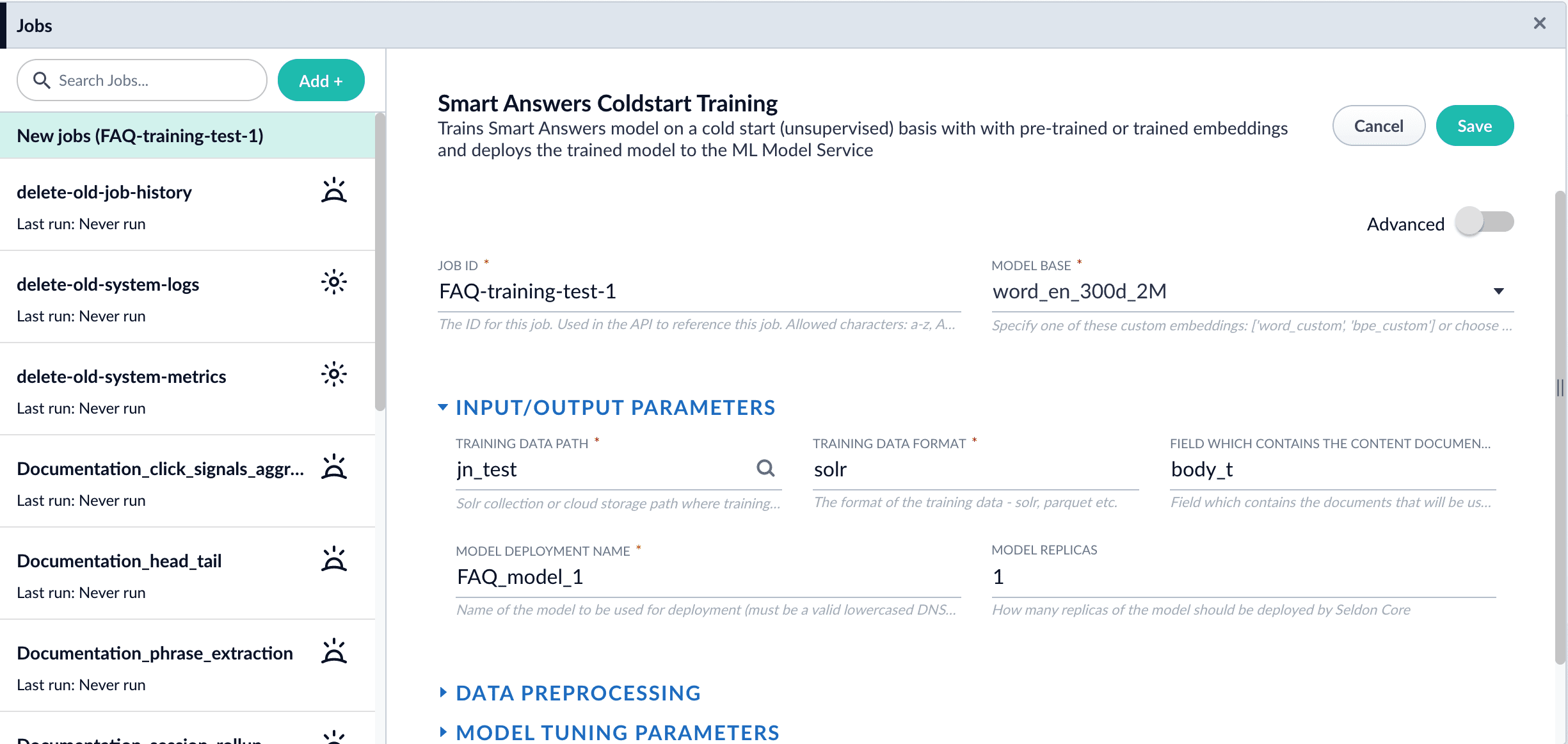
2. Select **Add** > **Smart Answer Coldstart Training**.
3. In the **Training Collection** field, specify the collection that contains the content that can be used to answer questions.
You can also configure this job to read from or write to cloud storage.
4. Enter the name of the **Field which contains the content documents**.
5. Enter a **Model Deployment Name**.
The new machine learning model will be saved in the blob store with this name. You will reference it later when you configure your pipelines.
6. Configure the **Model base**.
There are several pre-trained word and [BPE](https://nlp.h-its.org/bpemb) embeddings for different languages, as well as a few pre-trained BERT models.
If you want to train custom embeddings, please select `word_custom` or `bpe_custom`.
This trains Word2vec on the data and fields specified in **Training collection** and **Field which contains the content documents**. It might be useful in cases when your content includes unusual or domain-specific vocabulary.
When you use the pre-trained embeddings, the log shows the percentage of processed vocabulary words. If this value is high, then try using custom embeddings.
During the training job analyzes the content data to select weights for each of the words. The result model performs the weighted average of word embeddings to obtain final single dense vector for the content.
7. Click **Save**.
If using solr as the training data source ensure that the source collection contains the `random_*` dynamic field defined in its `managed-schema.xml`. This field is required for sampling the data. If it is not present, add the following entry to the `managed-schema.xml` alongside other dynamic fields `` and `` alongside other field types.
8. Click **Run** > **Start**.
After training is finished the model is deployed into the cluster and can be used in index and query pipelines.
{/* // end::steps[] */}
## Next steps
1. Configure The Smart Answers Pipelines
2. Evaluate a Smart Answers Query Pipeline
2. Configure the index and query pipelines.\
Fusion includes default pipelines to get you started. See **Configure the Smart Answers Pipelines**.
Before beginning this procedure, train a machine learning model using either the FAQ method or the cold start method.
Regardless of how you set up your model, the deployment procedure is the same:
1. Create the `Milvus` collection.
2. Configure the `smart-answers` index pipeline.
3. Configure the `smart-answers` query pipeline.
See also [Best Practices](/docs/5/fusion/getting-data-out/advanced-query-enhancement/smart-answers/best-practices) and [Advanced Model Training Configuration for Smart Answers](/docs/5/fusion/getting-data-out/advanced-query-enhancement/smart-answers/smart-answers-advanced-model-config).
## Create the Milvus collection
For complete details about job configuration options, see the [Create Collections in Milvus job](/docs/5/fusion/reference/config-ref/jobs/create-collections-in-milvus).
1. Navigate to **Collections** > **Jobs** > **Add +** and select **Create Collections in Milvus**.
2. Configure the job:
1. Enter an ID for this job.
2. Under **Collections**, click **Add**.
3. Enter a collection name.
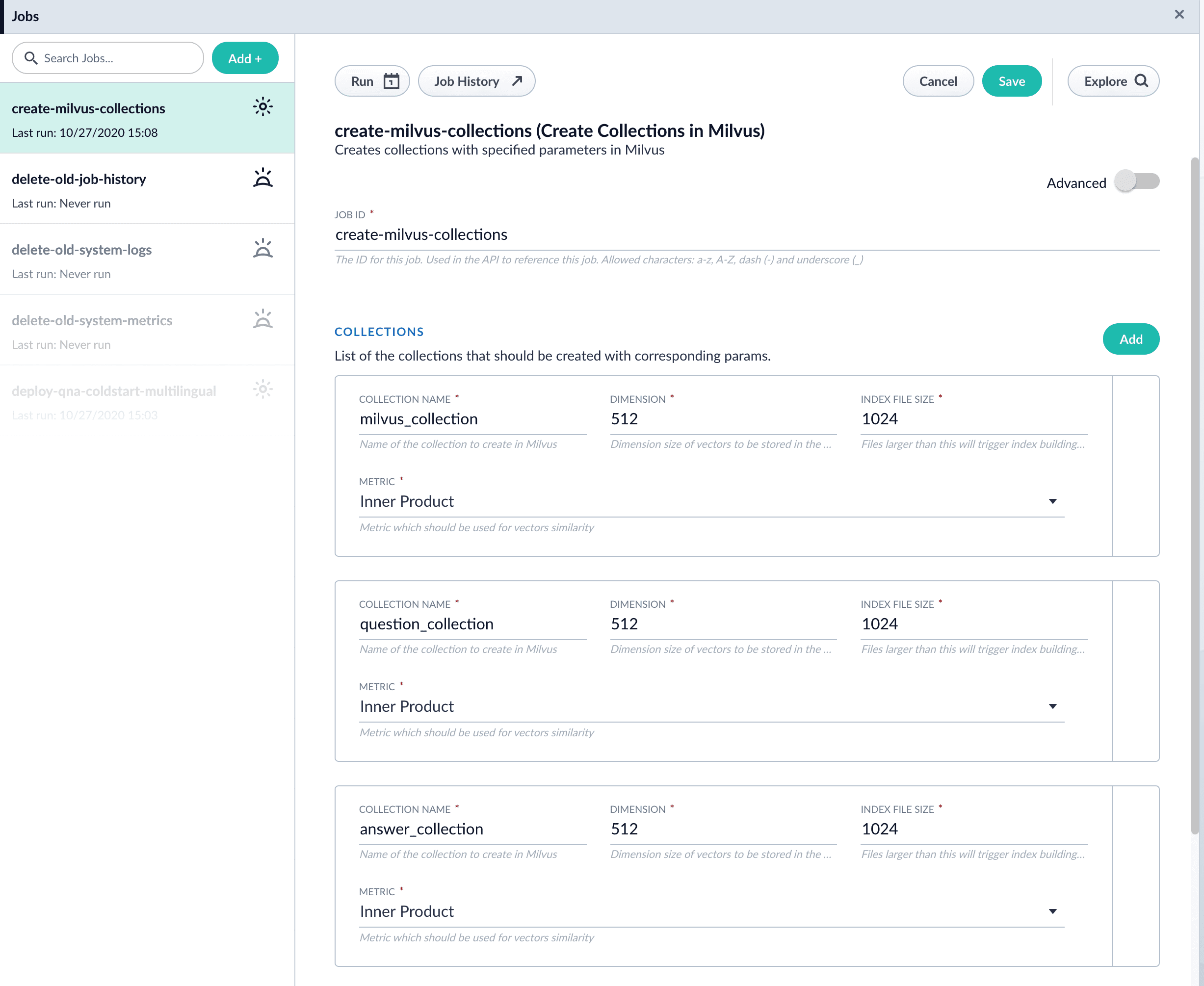
4. In the **Dimension** field, enter the dimension size of vectors to store in this Milvus collection. The Dimension should match the size of the vectors returned by the encoding model. For example, the `Smart Answers Pre-trained Coldstart` models outputs vectors of 512 dimension size. Dimensionality of encoders trained by `Smart Answers Supervised Training` job depends on the provided parameters and printed in the training job logs.
3. Click **Save**.
The `Create Collections in Milvus` job can be used to create multiple collections at once. In this image, the first collection is used in the [indexing](#configure-the-index-pipeline) and [query](#configure-the-query-pipeline) steps. The other two collections are used in the [example](#pipeline-setup-example).
4. Click **Run** > **Start** to run the job.
## Configure the index pipeline
1. Open the Index Workbench.
2. Load or create your datasource using the default smart-answers index pipeline.
3. Configure the
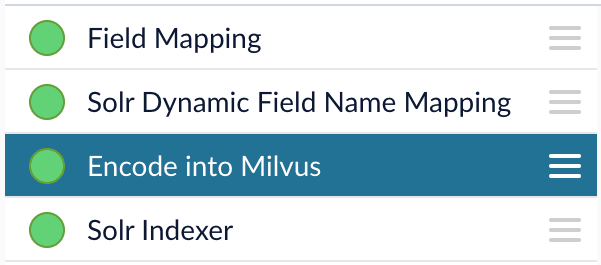
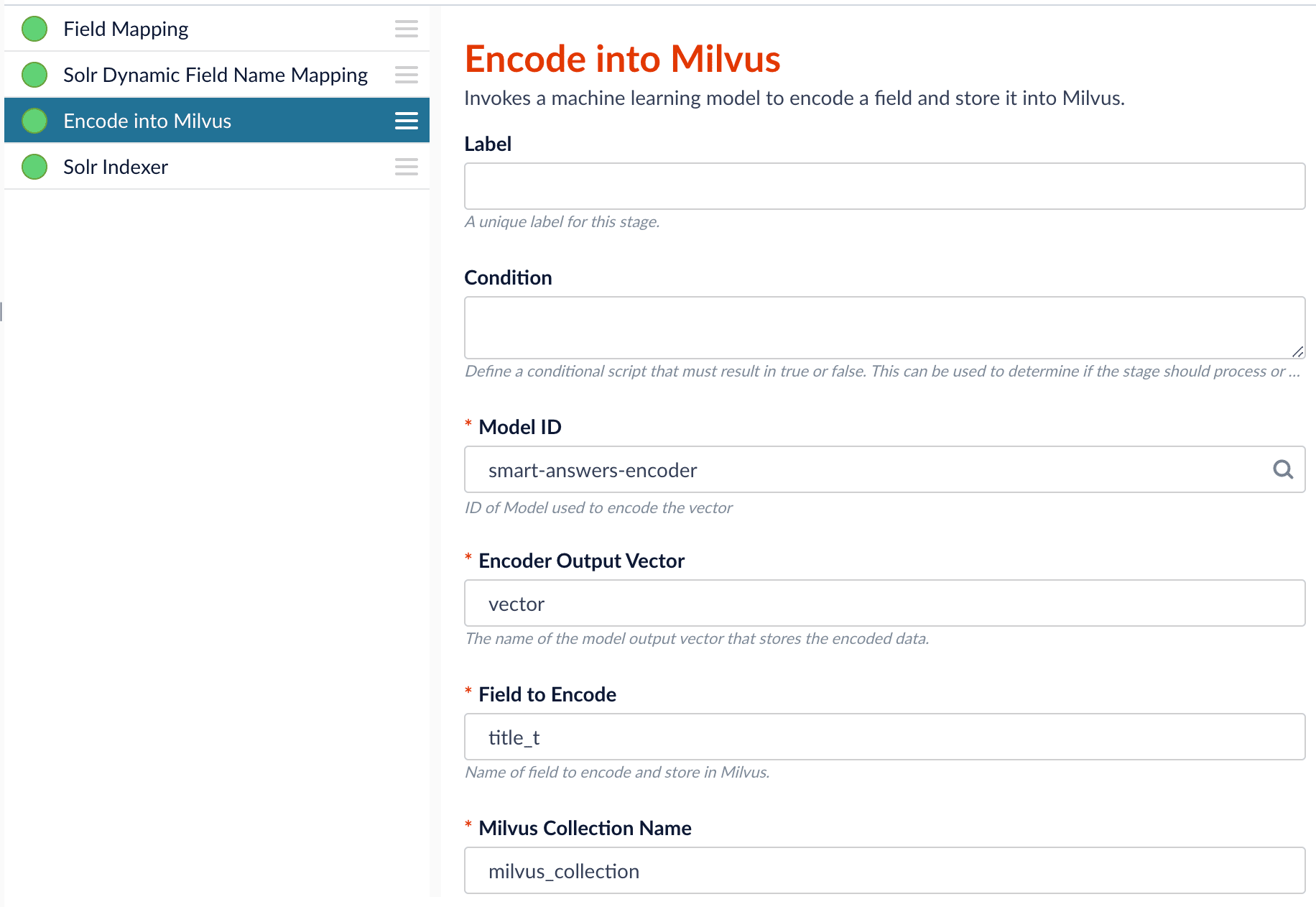
[Encode into Milvus stage](/docs/5/fusion/reference/config-ref/pipeline-stages/index-stages/encode-into-milvus-index-stage):
1. change the value of **Model ID** to match the model deployment name you chose when you configured the model training job.
2. Change `Field to Encode` to the document field name to be processed and encoded into dense vectors.
3. Ensure the `Encoder Output Vector` matches the output vector from the chosen model.
4. Ensure the `Milvus Collection Name` matches the collection name created via the `Create Milvus Collection` job.
To test out your settings, turn on `Fail on Error` in the `Encode into Milvus` stage and Apply the changes. This will cause an error message to display if any settings need to be changed.
4. Save the datasource.
5. Index your data.
## Configure the query pipeline
1. Open the Query Workbench.
2. Load the default smart-answers query pipeline.
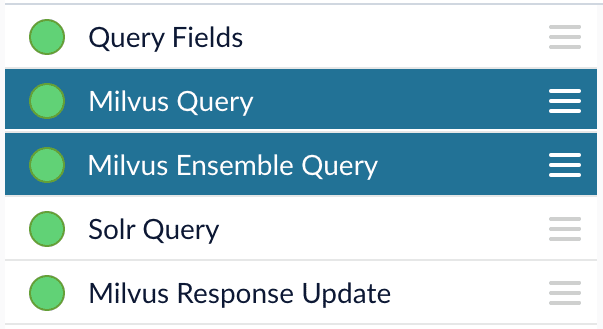
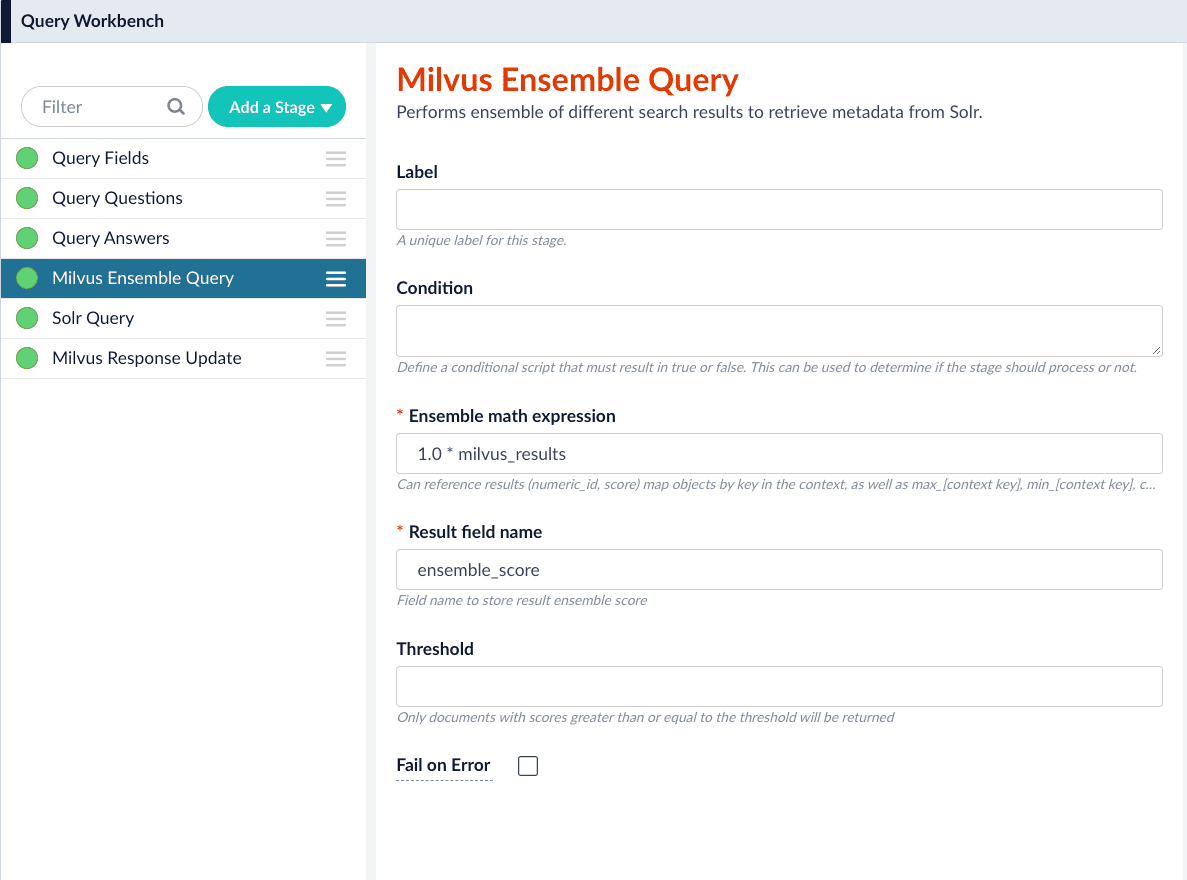
3. Configure the [Milvus Query stage](/docs/5/fusion/reference/config-ref/pipeline-stages/query-stages/milvus-query-stage):
1. Change the **Model ID** value to match the model deployment name you chose when you configured the model training job.
2. Ensure the `Encoder Output Vector` matches the output vector from the chosen model.
3. Ensure the `Milvus Collection Name` matches the collection name created via the `Create Milvus Collection` job.
4. `Milvus Results Context Key` can be changed as needed. It will be used in the Milvus Ensemble Query Stage to calculate the query score.
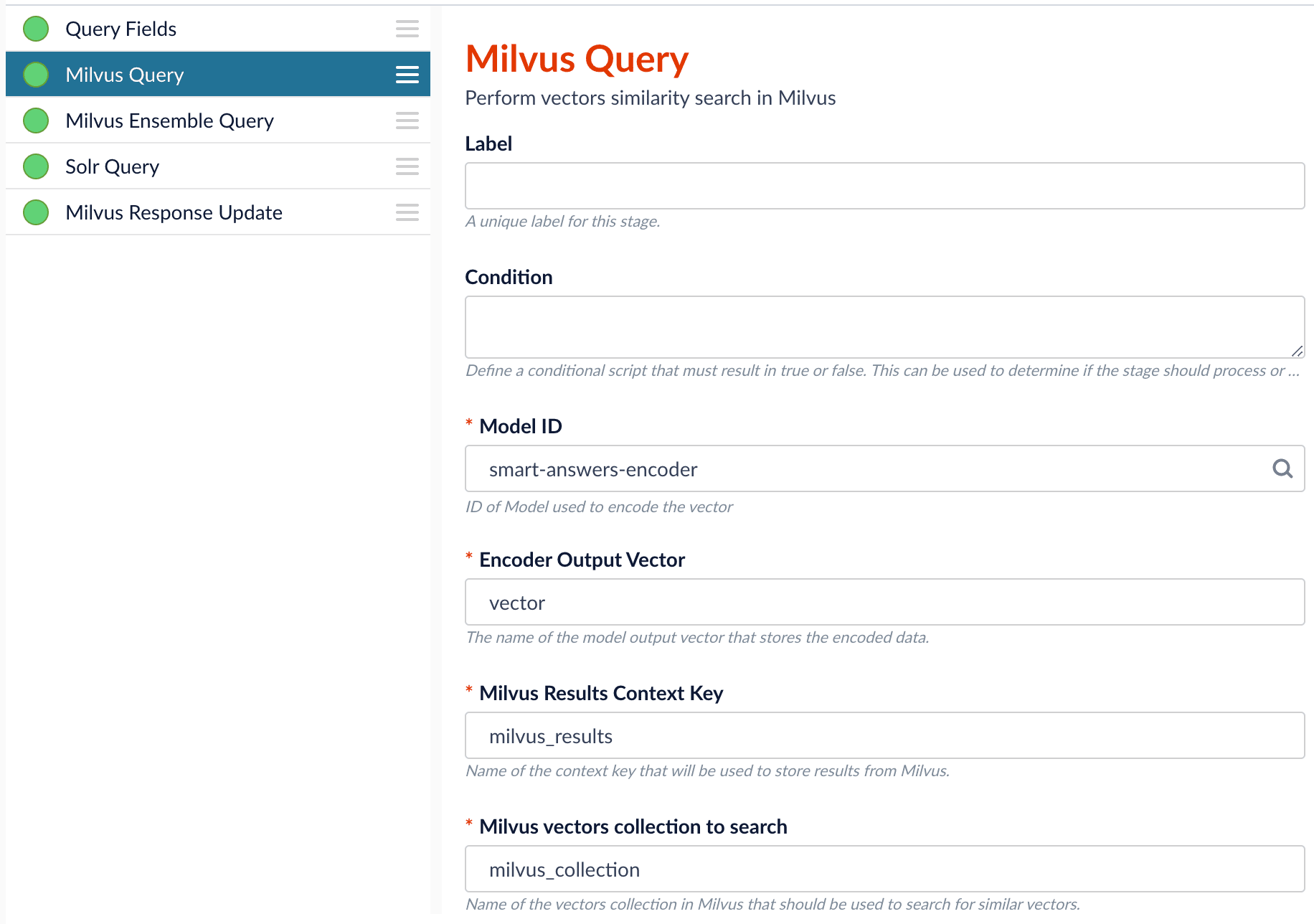
4. In the [Milvus Ensemble Query stage](/docs/5/fusion/reference/config-ref/pipeline-stages/query-stages/milvus-ensemble-query-stage), update the `Ensemble math expression` as needed based on your model and the name used in the prior stage for the storing the Milvus results.
In versions 5.4 and later, you can also set the `Threshold` so that the Milvus Ensemble Query Stage will only return items with a score **greater than** or **equal to** the configured value.
5. Save the query pipeline.
## Pipeline Setup Example
### Index and retrieve the question and answer together
To show question and answer together in one document (that is, treat the question as the title and the answer as the description), you can index them together in the same document. You can still use the default `smart-answers` index and query pipelines with a few additional changes.
Prior to configuring the Smart Answers pipelines, use the `Create Milvus Collection` job to create two collections, `question_collection` and `answer_collection`, to store the encoded "questions" and the encoded "answers", respectively.
#### Index Pipeline
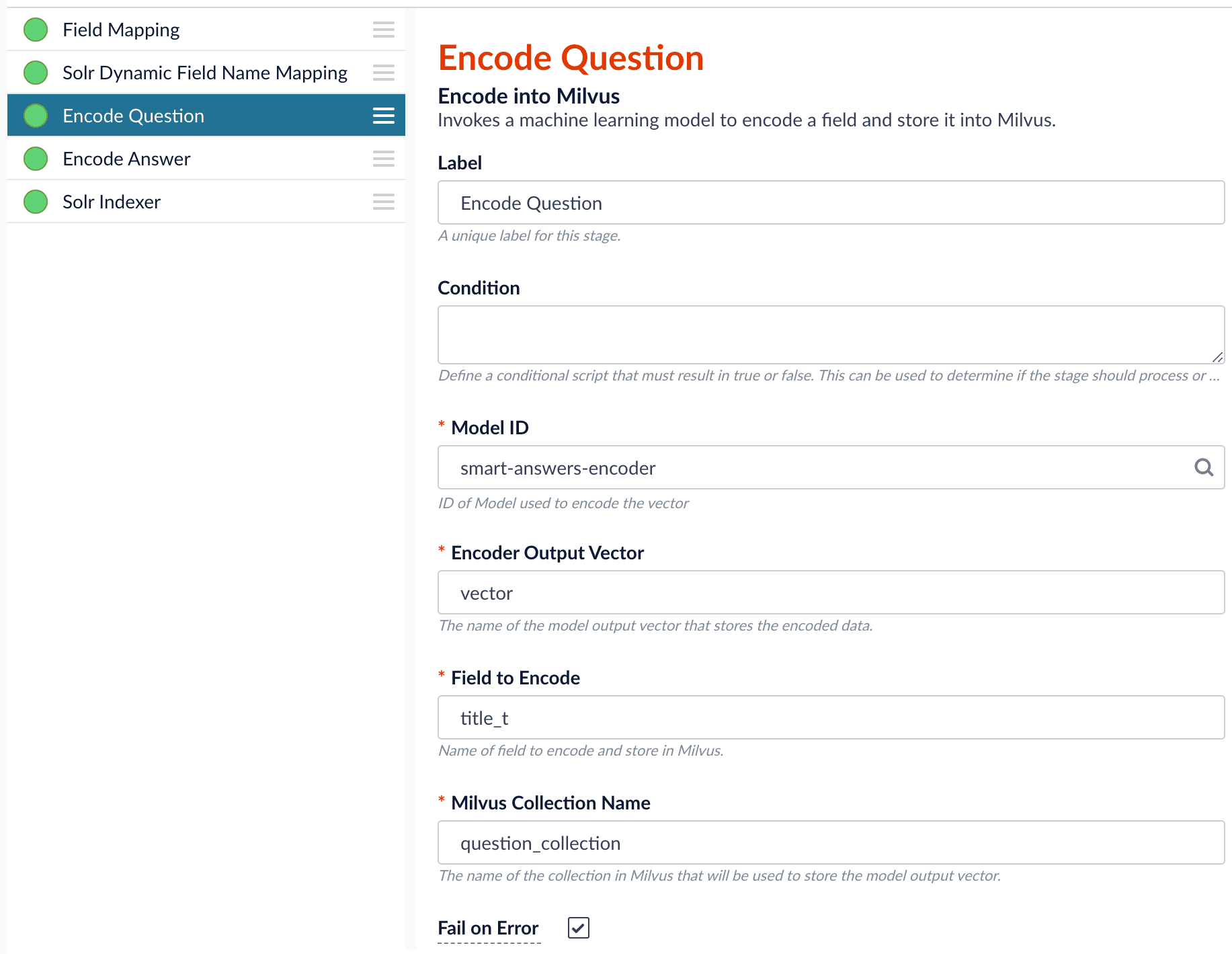
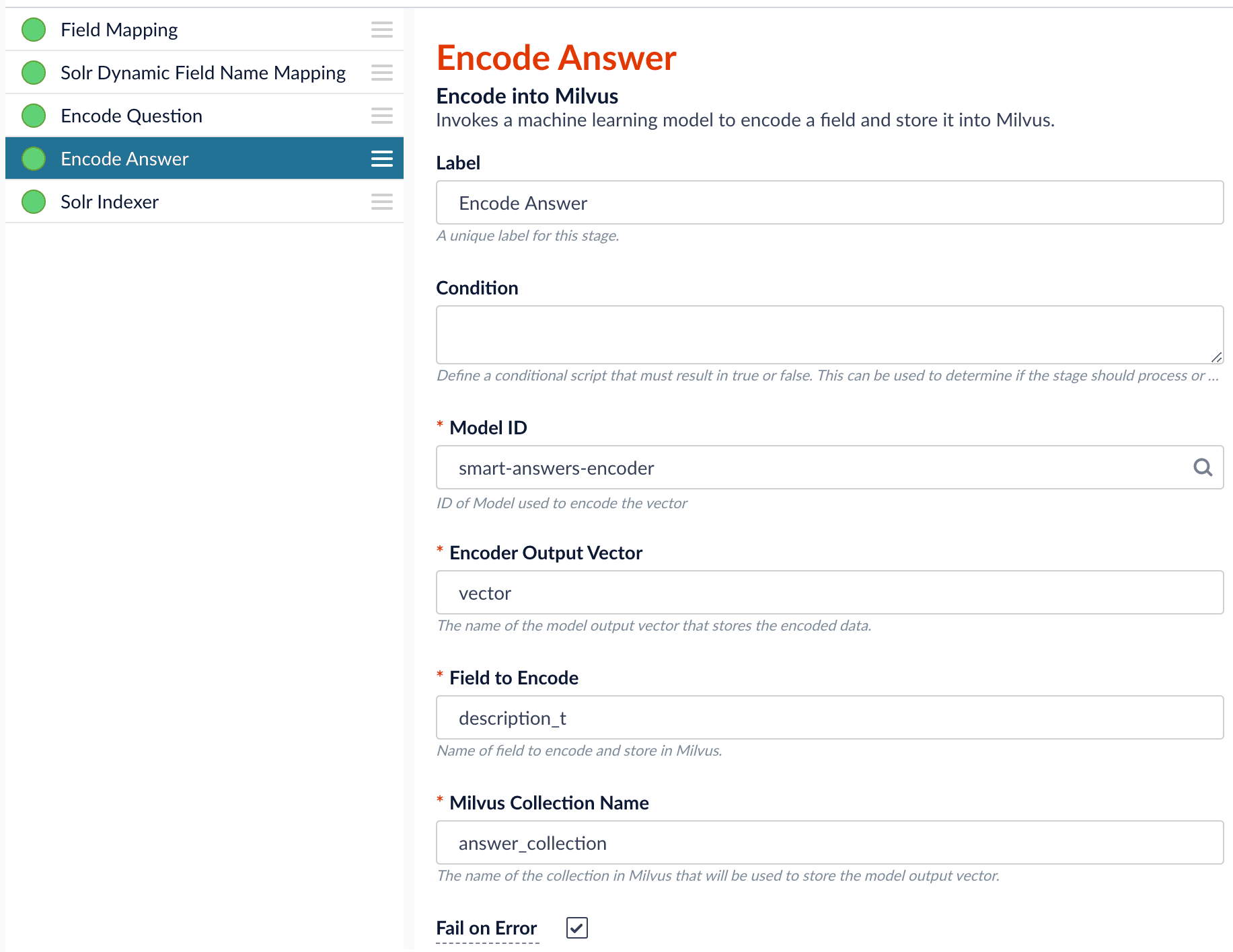
As shown in the pictures below, you will need two Encode into Milvus stages, named Encode Question and Encode Answer respectively.
**Encode Question (Encode Into Milvus) stage**
**Encode Answer (Encode Into Milvus) stage**
In the Encode Question stage, specify `Field to Encode` to be `title_t` and change the `Milvus Collection Name` to match the new Milvus collection, `question_collection`.
In the Encode Answer stage, specify `Field to Encode` to be `description_t` and change the `Milvus Collection Name` to match the new Milvus collection, `answer_collection`.
#### Query Pipeline
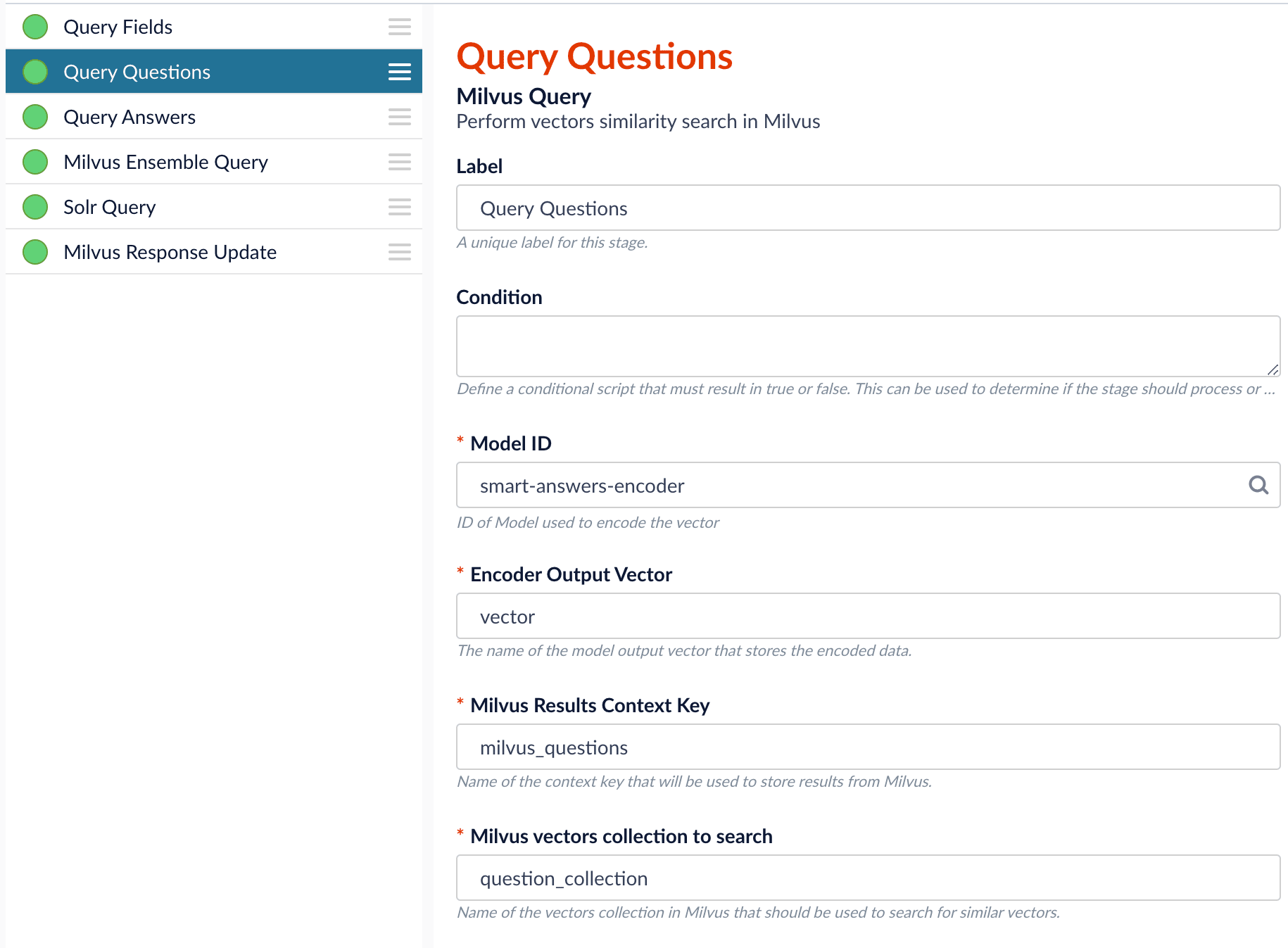
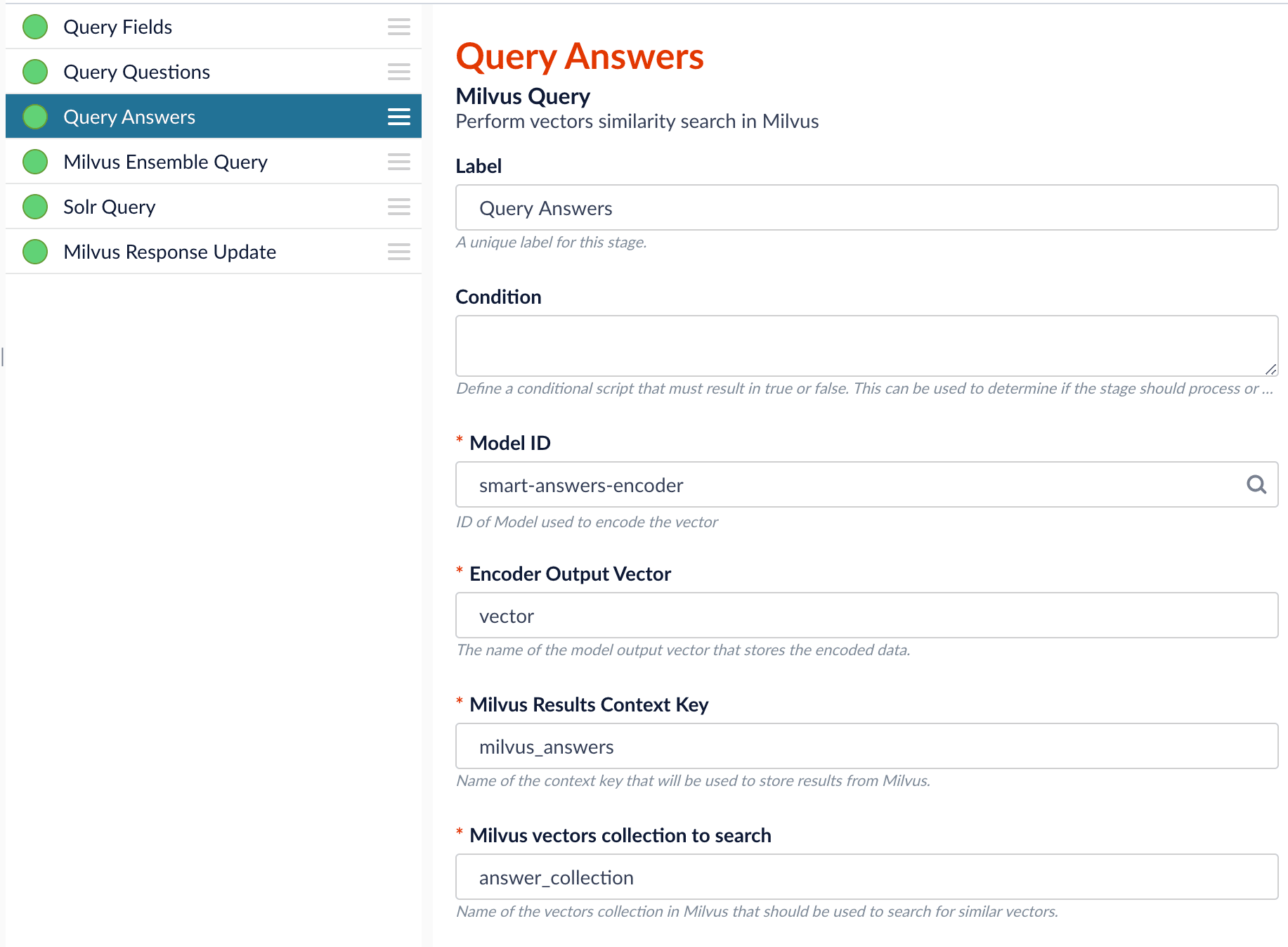
Since we have two dense vectors generated during indexing, at query time we need to compute both query to question distance and query to answer distance. This can be set up as the pictures shown below with two Milvus Query Stages, one for each of the two Milvus collections.
To store those two distances separately, the `Milvus Results Context Key` needs to be different in each of these two stages.
In the Query Questions stage, we set the `Milvus Results Context Key` to `milvus_questions` and the Milvus collection name to `question_collection`.
Query Questions (Milvus Query) stage:
In the Query Answers stage, we set the `Milvus Results Context Key` to `milvus_answers` and the Milvus collection name to `answer_collection`.
Query Answers (Milvus Query) stage:
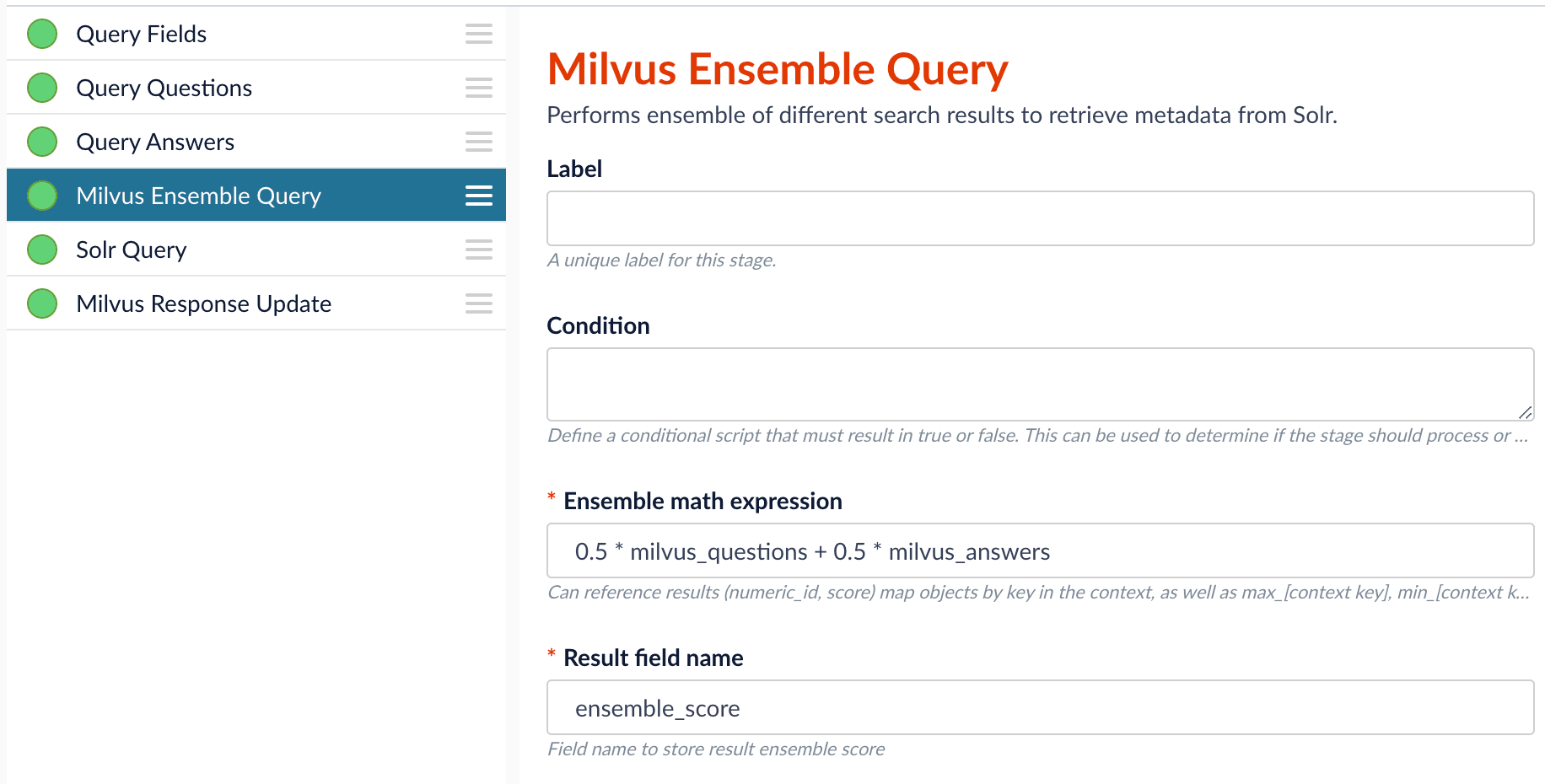
Now we can ensemble them together with the Milvus Ensemble Query Stage with the `Ensemble math expression` combining the results from the two query stages. If we want the question scores and answer scores weighted equally, we would use: `0.5 * milvus_questions + 0.5 * milvus_answers`.
This is recommended especially when you have limited FAQ dataset and want to utilize both question and answer information.
**Milvus Ensemble Query stage**
## Evaluate the query pipeline
The [Evaluate QnA Pipeline job](/docs/5/fusion/reference/config-ref/jobs/smart-answers-evaluate-pipeline) evaluates the rankings of results from any Smart Answers pipeline and finds the best set of weights in the ensemble score.
## Detailed pipeline setup
Typically, you can use the [default pipelines](/docs/5/fusion/getting-data-out/advanced-query-enhancement/smart-answers/overview) included with Fusion AI. These pipelines now utilize Milvus to store encoded vectors and to calculate vector similarity. This topic provides information you can use to customize the Smart Answers pipelines.
| | | |
| ---------------------------------- | ------------------------------------------------------------------------------------------------------------------------------------------------------------------------------------------------------------------------------------------------------------------------------------------------------------------------------------------------------------------------------------------------------------------------------------------------------------------------------------------------------------------------------------------------------------------------------------------------------------------------------------------------------------------------------------------------------------------------------------------------------------------------------------------------------------------------------------------------------------------------------------------------------------------------------------------------------------------------------------------------------------------------------------------------------------------------------------------------------------------------------------------------------------------------------------------------------------------------------------------------------------------------------------------------------------------------------------------------------------------------------------------------------------------------------------------------------------------------------------------------------------------------------------------------------------------------------------------------------------------------------------------ | ------------------------------------------------------------------------------------------------------------------------------------------------------------------------------------------------------------------------------------------------------------------ |
| **"smart-answers" index pipeline** | | [Encode into Milvus stage](#the-encode-into-milvus-index-stage) |
| **"smart-answers" query pipeline** | |
|
### Create the Milvus collection
Prior to indexing data, the [Create Collections in Milvus job](/docs/5/fusion/reference/config-ref/jobs/create-collections-in-milvus) can be used to create the Milvus collection(s) used by the Smart Answers pipelines (see [Milvus overview](/docs/5/fusion/intro/fusion-stack/milvus)).
* `Job ID`. A unique identifier for the job.
* `Collection Name`. A name for the Milvus collection you are creating. This name is used in both the Smart Answer Index and the Smart Answer Query pipelines.
* `Dimension`. The dimension size of the vectors to store in this Milvus collection. The Dimension should match the size of the vectors returned by the encryption model. For example, if the model was created with either the `Smart Answers Coldstart Training` job or the `Smart Answers Supervised Training` job with the Model Base `word_en_300d_2M`, then the dimension would be 300.
* `Index file size`. Files with more documents than this will cause Milvus to build an index on this collection.
* `Metric`. The type of metric used to calculate vector similarity scores. `Inner Product` is recommended. It produces values between 0 and 1, where a higher value means higher similarity.
### Index pipeline setup
**Stages in the default "smart-answers" index pipeline**
Only one custom index stage needs to be configured in your index pipeline, the [Encode into Milvus index stage](/docs/5/fusion/reference/config-ref/pipeline-stages/index-stages/encode-into-milvus-index-stage).
#### The Encode into Milvus Index Stage
If you are using a dynamic schema, make sure this stage is added *after* the [Solr Dynamic Field Name Mapping stage](/docs/5/fusion/reference/config-ref/pipeline-stages/index-stages/solr-dynamic-field-name-mapping-index-stage).
The [Encode into Milvus](/docs/5/fusion/reference/config-ref/pipeline-stages/index-stages/encode-into-milvus-index-stage) index stage uses the specified model to encode the `Field to Encode` and store it in Milvus in the given Milvus collection.
There are several required parameters:
* `Model ID`. The ID of the model.
* `Encoder Output Vector`. The name of the field that stores the compressed dense vectors output from the model. Default value: `vector`.
* `Field to Encode`. The text field to encode into a dense vector, such as `answer_t` or `body_t`.
* `Milvus Collection Name`. The name of the collection you created via the [Create Milvus Collection](/docs/5/fusion/reference/config-ref/jobs/create-collections-in-milvus) job, which will store the dense vectors. When creating the collection you specify the type of **Metric** to use to calculate vector similarity.
This stage can be used multiple times to encode additional fields, each into a different Milvus collection.
### Query pipeline setup
#### The Query Fields stage
The first stage is **Query Fields**. For more information see the [Query Fields stage](/docs/5/fusion/reference/config-ref/pipeline-stages/query-stages/search-fields-query-stage).
#### The Milvus Query stage
The [Milvus Query](/docs/5/fusion/reference/config-ref/pipeline-stages/query-stages/milvus-query-stage) stage encodes the query into a vector using the specified model. It then performs a vector similarity search against the specified Milvus collection and returns a list of the best document matches.
* `Model ID`. The ID of the model used when configuring the model training job.
* `Encoder Output Vector`. The name of the output vector from the specified model, which will contain the query encoded as a vector. Defaults to vector.
* `Milvus Collection Name`. The name of the collection that you used in the `Encode into Milvus` index stage to store the encoded vectors.
* `Milvus Results Context Key`. The name of the variable used to store the vector distances. It can be changed as needed. It will be used in the Milvus Ensemble Query Stage to calculate the query score for the document.
* `Number of Results`. The number of highest scoring results returned from Milvus.
This stage would typically be used the same number of times that the `Encode into Milvus` index stage is used, each with a different Milvus collection and a different `Milvus Results Context Key`.
#### The Milvus Ensemble Query stage
The [Milvus Ensemble Query](/docs/5/fusion/reference/config-ref/pipeline-stages/query-stages/milvus-ensemble-query-stage) takes the results of the Milvus Query stage(s) and calculates the `ensemble score`, which is used to return the best matches.
* `Ensemble math expression`. The mathematical expression used to calculate the `ensemble score`. It should reference the value(s) variable name specified in the `Milvus Results Context Key` parameter in the Milvus Query stage.
* `Result field name`. The name of the field used to store the `ensemble score`. It defaults to `ensemble_score`.
* `Threshold`- A parameter that filters the stage results to remove items that fall below the configured score. Items with a score at, or above, the threshold will be returned.
The **Threshold** feature is only available in Fusion 5.4 and later.
#### The Milvus Response Update Query stage
The [Milvus Response Update Query](/docs/5/fusion/reference/config-ref/pipeline-stages/query-stages/milvus-response-update-stage) stage does not need to be configured and can be skipped if desired. It inserts the Milvus values, including the `ensemble_score`, into each of the returned documents, which is particularly useful when there is more than one `Milvus Query Stage`. This stage needs to come after the `Solr Query` stage.
## Short answer extraction
By default, the question-answering query pipelines return complete documents that answer questions. Optionally, you can extract just a paragraph, a sentence, or a few words that answer the question.
{/* // end::body[] */}
3. Evaluate the query pipeline’s effectiveness.\
Fine tune your query pipeline configuration by running a job that analyzes its effectiveness. See **Evaluate a Smart Answers Query Pipeline**.
The [Smart Answers Evaluate Pipeline job](/docs/5/fusion/reference/config-ref/jobs/smart-answers-evaluate-pipeline) evaluates the rankings of results from any [Smart Answers](/docs/5/fusion/getting-data-out/advanced-query-enhancement/smart-answers/overview) pipeline and finds the best set of weights in the ensemble score. This topic explains how to set up the job.
Before beginning this procedure, prepare a machine learning model using either the Supervised method or the Cold start method, or by selecting one of the pre-trained cold start models, then Configure your pipelines.
The input for this job is a set of test queries and the text or ID of the correct responses. At least 100 entries are needed to obtain useful results. The job compares the test data with Fusion’s actual results and computes variety of the ranking metrics to provide insights of how well the pipeline works. It is also useful to use to compare with other setups or pipelines.
## Prepare test data
1. Format your test data as query/response pairs, that is, a query and its corresponding answer in each row.
You can do this in any format that Fusion support, but parquet file would be preferable to reduce the amount of possible encoding issues.
The response value can be either the document ID of the correct answer in your Fusion index (preferable), or the text of the correct answer.
If you use answer text instead of an ID, make sure that the answer text in the evaluation file is formatted identically to the answer text in Fusion.
If there are multiple possible answers for a unique question, then repeat the questions and put the pair into different rows to make sure each row has exactly one query and one response.
2. If you wish to index test data into Fusion, create a collection for your test data, such as `sa_test_input` and index the test data into that collection.
## Configure the evaluation job
1. If you wish to save the job output in Fusion, create a collection for your evaluation data such as `sa_test_output`.
2. Navigate to **Collections** > **Jobs**.
3. Select **New** > **Smart Answers Evaluate Pipeline** (**Evaluate QnA Pipeline** in Fusion 5.1 and 5.2).
4. Enter a **Job ID**, such as `sa-pipeline-evaluator`.
5. Enter the name of your test data collection (such as `sa_test_input`) in the **Input Evaluation Collection** field.
6. Enter the name of your output collection (such as `sa_test_output`) in the **Output Evaluation Collection** field.
In Fusion 5.3 and later, you can also configure this job to read from or write to cloud storage.
7. Enter the name of the **Test Question Field** in the input collection.
8. Enter the name of the answer field as the **Ground Truth Field**.
9. Enter the **App Name** of the Fusion app where the main Smart Answers content is indexed.
10. In the **Main Collection** field, enter the name of the Fusion collection that contains your Smart Answers content.
11. In the **Fusion Query Pipeline** field, enter the name of the Smart Answers query pipeline you want to evaluate.
12. In the **Answer Or ID Field In Fusion** field, enter the name of the field that Fusion will return containing the answer text or answer ID.
13. Optionally, you can configure the **Return Fields** to pass from Smart Answers collection into the evaluation output.
Check the Query Workbench to see which fields are available to be returned.
14. Configure the **Metrics** parameters:
* **Solr Scale Function**\
Specify the function used in the Compute Mathematical Expression stage of the query pipeline, one of the following:
* `max`
* `log10`
* `pow0.5`
* **List of Ranking Scores For Ensemble**\
To find the best weights for different ranking scores, list the names of the ranking score fields, separated by commas. Different ranking scores might include Solr score, query-to-question distance, or query-to-answer distance from the Compute Mathematical Expression pipeline stage.
* **Target Metric To Use For Weight Selection**\
The target ranking metric to optimize during weights selection. The default is `mrr@3`.
{/* //+ */}
{/* //Target metric to use for weight selection parameter allows to specify metric that should be optimized during weights selection, for example `recall@3`. Metric values at different positions for different weights combinations will be shown in the log, sorted descendingly based on metric specified above. NOTE: Weights selection can take a while to run for big evaluation datasets, thus if only interested in comparing pipelines, please turn this function off by uncheck Perform weights selection box. */}
15. Optionally, [read about the advanced parameters](/docs/5/fusion/reference/config-ref/jobs/smart-answers-evaluate-pipeline) and consider whether to configure them as well.
For example, **Sampling proportion** and **Sampling seed** provide a way to run the job only on a sample of the test data.
16\. Click **Save**.
17\. Click **Run** > **Start**.
## Examine the output
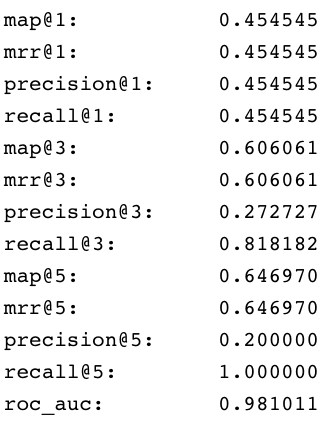
The job provides a variety of metrics (controlled by the **Metrics list** advanced parameter) at different positions (controlled by the **Metrics\@k list** advanced parameter) for the chosen final ranking score (specified in **Ranking score** parameter).
**Example: Pipeline evaluation metrics**
**Example: recall\@1,3,5 for different weights and distances**
In addition to metrics, a results evaluation file is indexed to the specified output evaluation collection. It provides the correct answer position for each test question as well as the top returned results for each field specified in **Return fields** parameter.
4. Check the job status and output.
When your job has completed, you can check the job's status through the ML Model service logs. See **View a Smart Answers (QnA) Job's Status and Output**.
This topic explains how you can track the running steps of the following jobs:
* Smart Answers Supervised Training
* Smart Answers Coldstart Training
* Smart Answers Evaluate Pipeline
The ML Model service logs provide information on data pre-processing, training steps, evaluations, and model generation for those jobs. Follow the instructions below to access the logs.
1. Find the name of the ML Model service pod:
```bash theme={"dark"}
kubectl get pods -n | grep ml-model-service-ui
```
The pod name looks like `-ml-model-service-ui--`, as in `f5-ml-model-service-ui-547dd78d6-p9d6q`.
2. Set up port forwarding:
```bash theme={"dark"}
kubectl port-forward -ml-model-service-ui-- 8001:8001 -n
```
3. In the Fusion UI, navigate to **Collections** > **Jobs**.
4. Select your Smart Answers (QnA) model training job.
5. Click **Job History**.
6. Find the ML Model workflow ID.
7. In the ML Model service UI, locate instances of the ID in the logs.
## Smart Answers jobs
These jobs provide the machine learning features that drive Smart Answers:
* Machine learning model training:
* [Smart Answers Supervised Training](/docs/5/fusion/reference/config-ref/jobs/smart-answers-supervised-training) job.
Fusion includes default pipelines to get you started. See **Configure the Smart Answers Pipelines**.
* [Smart Answers Coldstart Training](/docs/5/fusion/reference/config-ref/jobs/smart-answers-coldstart-training) job.
* Machine learning model deployment:
* [Create Seldon Core Model Deployment](/docs/5/fusion/reference/config-ref/jobs/create-seldon-core-model-deployment)
* [Delete Seldon Core Model Deployment](/docs/5/fusion/reference/config-ref/jobs/delete-seldon-core-model-deployment)
* [Smart Answers Evaluate Pipeline](/docs/5/fusion/reference/config-ref/jobs/smart-answers-evaluate-pipeline)
This job analyzes your configured Smart Answers query pipeline to provide insights about its effectiveness so that you can fine-tune your configuration for the best possible results.
## Smart Answers pipelines and stages
Once you have trained and deployed your model, you can use one of the default pipelines that are automatically created with your Fusion app. Both pipelines are called `APP_NAME-smart-answers`.
See **Configure the Smart Answers Pipelines** for more information.
| Pipeline | Stages |
| ----------------------------------- | ----------------------------------------------------------------------------------------------------------------------------------------------------------------------------------------------------------------------------------------------------------------------------------------------------------------------------------------------------------------------------------------------------------------------------------------------------------------------------------------------------------------------------------------------------------------------------------------------------------------------------------------------------------------------------------------------------------------------------------------------------------------------------------------------------------------------------------------------------------------------------------------------------------------------------------------------------------------------------------------------------------------------------------------------------------------------------------------------------------------------------------------------------------------------------------------------------------------------------------------------------------------------------------------------------------------------------------------------------------------------------------------------------------------------------------------------------------------------------------------------------------------------------------------------------------------------------------------------------------------------- |
| **"-smart-answers" index pipeline** | |
| **"-smart-answers" query pipeline** | |
## Short answer extraction
By default, the question-answering query pipelines return complete documents that answer questions. Optionally, you can extract just a paragraph, a sentence, or a few words that answer the question. See **Extract Short Answers from Longer Documents**.
This topic explains how to deploy and configure the transformer-based deep learning model for short answer extraction with [Smart Answers](/docs/5/fusion/getting-data-out/advanced-query-enhancement/smart-answers/overview). This model is useful for analyzing long documents and extracting just a paragraph, a sentence, or a few words that answer the question.
This model is trained on the [SQuAD2.0 dataset](https://rajpurkar.github.io/SQuAD-explorer) which consists of questions about Wikipedia articles and answers gleaned from those articles. Therefore, this model is most effective with Wikipedia-like content and may produce uneven results when applied to more informal content such as message boards.The out-of-the-box (OOTB) model only supports English content.
## Hardware recommendations
When creating a nodePool to perform short answer extraction, use a configuration that meets these guidelines in order to achieve the best performance:
* It is strongly recommended to use the latest possible Intel CPU architecture; Intel CascadeLake or higher architectures are recommended.
* Large core count is also recommended: 12-16 cores with 32G of RAM.
## Deploy the model in Fusion
1. Navigate to **Collections** > **Jobs**.
2. Select **New** > **Create Seldon Core Model Deployment**.
3. Configure the job as follows:
* **Job ID.** the ID for this job, such as `deploy-answer-extractor`.
* **Model Name.** model name of the Seldon Core deployment that will be referenced in the Machine Learning pipeline stage configurations, such as `answer-extractor`.
* **Docker Repository.** `lucidworks`
* **Image Name.** `answer-extractor:v1.1`
* **Kubernetes Secret Name for Model Repo.** (empty)
* **Output Column Names for Model.** `[answer,score,start,end]`
4. Click **Save**.
5. Click **Run** > **Start**.
## Configure the Machine Learning query stage
This model provides the best results when used with one of the [question-answering query pipelines](/docs/5/fusion/getting-data-out/advanced-query-enhancement/smart-answers/overview). The default query pipeline is called `APP_NAME-smart-answers`.
Starting with one of those pipelines, add a new Machine Learning stage to the end of the pipeline and configure it as described below.
**How to configure short answer extraction in the query pipeline**
1. Make sure you have performed the basic configuration of your query pipeline.
2. In the query pipeline, click **Add a Stage** > **Machine Learning**.
3. In the **Model ID** field, enter the model name you configured above, such as answer-extractor.
4. In the **Model input transformation script** field, enter the following:
```js expandable theme={"dark"}
var textFieldToExtract = "answer_t"
var numDocsToExtract = 3
responses = new java.util.ArrayList();
var docs = response.get().getInnerResponse().getDocuments();
for (var i=0; i Make sure that the question is provided as it was originally entered by user. If you have previous stages that augments question (like stopwords removing or synonyms expansion), it is better to copy original question and use it for the answer extraction without additional modifications.
* `context` (Required). A string or list of contexts; by default this is the first `num_docs_to_extract` documents in the output of the previous stage in the pipeline.
If only one question is present with multiple contexts, that question will be applied to every context and vice versa for 1 context and multiple questions. If a list of questions and contexts is passed, a 1:1 mapping of questions and contexts will be created in the order in which they’re passed.
* `topk`. The number of answers to return (will be chosen by order of likelihood). Default: 1
* `handle_impossible_answer`. Whether or not to deal with a question that has no answer in the context.
If true, an empty string is returned. If false, the most probable (`topk`) answer(s) are returned regardless of how low the probability score is. Default: True
Experiment with this parameter to see what value returns the most acceptable answers.
For advanced use cases, you can add the following parameters to the script to override their defaults:
* `batch_size`. How many samples to process at a time. Reducing this number will reduce memory usage but increase execution time, while increasing it will increase memory usage and decrease execution time to a certain extent. Default: 8
* `max_context_len`. If set to greater than 0, truncate contexts to this length in characters. Default: 5000
* `max_answer_len`. The maximum length of predicted answers (for example, only answers with a shorter length are considered). Default: 15
* `max_question_len`. The maximum length of the question after tokenization. It will be truncated if needed. Default: 64
* `doc_stride`. If the context is too long to fit with the question for the model, it will be split in several chunks with some overlap. This argument controls the size of that overlap. Default: 128
* `max_seq_len`. The maximum length of the total sentence (context + question) after tokenization. The context will be split in several chunks (using doc\_stride) if needed. Default: 384
5. In the **Model output transformation script** field, enter the following:
```js expandable theme={"dark"}
{/* // Parse raw output from model */}
var jsonOutput = JSON.parse(modelOutput.get("_rawJsonResponse"))
var parsedOutput = {};
for (var i=0; i
## Recreate a Milvus collection
If a Milvus collection is lost, you can recreate the collection. You can also use these steps to create a Milvus collection for a different field or a Milvus collection that uses a different encryption model.
These steps assume that:
* You used the Smart Answers pipeline to index data, which created the Milvus and Solr collections.
* The created Solr collection still exists, which is used as the Source Collection.
1. Create the Milvus collection. See [Create Collections in Milvus](/docs/5/fusion/reference/config-ref/jobs/create-collections-in-milvus) for more information.
If the Milvus collection still exists and you want to overwrite it, select the **Override Collections** checkbox. This option deletes the current collection, allowing you to create a new collection.
2. Edit the Smart Answers Index Pipeline as follows:
* Disable the Solr Indexer stage.
* If you are creating a Milvus collection for a different field, or one that uses a different encryption model, access the **Encode into Milvus** stage and:
* Specify the **model**, the **Encoder Output Vector**, and the **Field to Encode**.
* Verify the **Milvus Collection Name** refers to the new Milvus collection.
3. Navigate to the Datasources panel.
4. Select **Add a Solr connector** and enter the following information:
* **Pipeline ID.** Smart Answers pipeline
* **Solr Connection Type.** SolrCloud
* **SolrCloud Zookeeper Host String.** Execute the following curl command. The response displays the SolrCloud Zookeeper Host String value. In the following `RESPONSE` example, the value you would set for the SolrCloud Zookeeper Host String is `ns-zookeeper-0.ns-zookeeper-headless:2181`.
```bash wrap theme={"dark"}
curl -u USERNAME:PASSWORD https://FUSION_HOST:FUSION_PORT/api/searchCluster/default
```
**RESPONSE**
```json theme={"dark"}
{
"id": "default",
"connectString": "ns-zookeeper-0.ns-zookeeper-headless:2181",
"zkClientTimeout": 30000,
"zkConnectTimeout": 60000,
"cloud": true,
"bufferFlushInterval": 1000,
"bufferSize": 100,
"concurrency": 10,
"authConfig": {
"authType": "none"
},
"validateCluster": true
}
```
* **Source Collection.** Original collection from the initial Smart Answers pipeline indexing job
5. Navigate to Index Workbench and load the new solr-index datasource.
6. Select **Start Job** to run the Solr datasource through the updated Smart Answers pipeline.
7. When the data is reindexed, edit the Smart Answers pipeline and re-enable the Solr Indexer stage.
## Learn more
When you create a new Fusion app, Fusion also creates the default Smart Answers index and query pipelines for that app.
If you have an existing app and you want to add the latest Smart Answers default pipelines, follow the instructions below.
Next, you can configure the Smart Answers pipelines.
## Create the new Smart Answers Index Pipeline
To add the new Smart Answers index pipeline to an existing app, execute the following curl command, substituting for the `fusion_host` and the `app_name` in the url:
```bash wrap theme={"dark"}
curl -u USERNAME:PASSWORD -X POST -H 'content-type: application/json' -d '{"id":"smart-answers","stages":[{"type":"field-mapping"},{"type":"solr-dynamic-field-name-mapping"},{"type":"model-to-milvus","modelId":"smart-answers-encoder","modelOutputVector":"vector","milvusCollection":"milvus_collection","fieldToEncode":"change-me"},{"type":"solr-index"}]}' http://{fusion_host}/api/apps/{app_name}/index-pipelines
```
## Create the new Smart Answers Query Pipeline
To add the new Smart Answers query pipeline to an existing app, execute the following curl command, substituting for the `fusion_host` and the `app_name` in the url:
```bash wrap theme={"dark"}
curl -u USERNAME:PASSWORD -X POST -H 'content-type: application/json' -d '{"id":"smart-answers","stages":[{"type":"search-fields"},{"type":"milvus-query-stage","modelId":"smart-answers-encoder","modelOutputVector":"vector","milvusResultsContextKey":"milvus_results","milvusVectorsCollection":"milvus_collection","milvusNumResults":10},{"type":"milvus-ensemble-query-stage","ensembleExpression":"1.0*milvus_results","resultFieldName":"ensemble_score"},{"type":"solr-query"},{"type":"milvus-response-update-stage"}]}' http://{fusion_host}/api/apps/{app_name}/query-pipelines
```
This topic explains how you can track the running steps of the following jobs:
* Smart Answers Supervised Training
* Smart Answers Coldstart Training
* Smart Answers Evaluate Pipeline
The ML Model service logs provide information on data pre-processing, training steps, evaluations, and model generation for those jobs. Follow the instructions below to access the logs.
1. Find the name of the ML Model service pod:
```bash theme={"dark"}
kubectl get pods -n | grep ml-model-service-ui
```
The pod name looks like `-ml-model-service-ui--`, as in `f5-ml-model-service-ui-547dd78d6-p9d6q`.
2. Set up port forwarding:
```bash wrap theme={"dark"}
kubectl port-forward -ml-model-service-ui-- 8001:8001 -n
```
3. In the Fusion UI, navigate to **Collections** > **Jobs**.
4. Select your Smart Answers (QnA) model training job.
5. Click **Job History**.
6. Find the ML Model workflow ID.
7. In the ML Model service UI, locate instances of the ID in the logs.
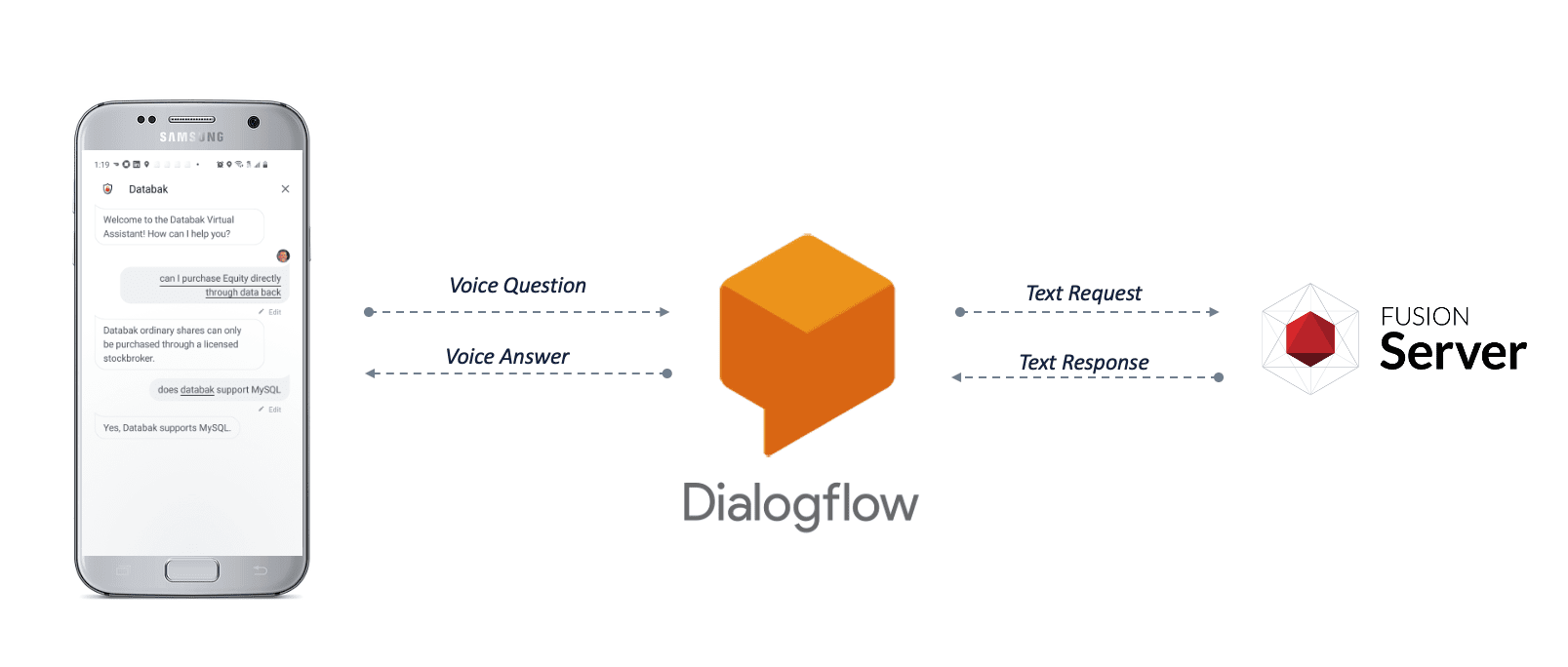
You can implement a voice chatbot using Smart Answers to integrate your search platform with a voice interface application. **This procedure uses [Google Dialogflow](https://cloud.google.com/dialogflow) as an example**, but you can use other voice interface platforms that support the following:
* Speech-to-text translation\
Translate the customer’s speech into a text-based query for Fusion.
* Workflow routing\
Route queries to your Smart Answers query profile.
* Text-to speech translation\
Translate Fusion’s text response into speech for the customer.
The high-level steps will be similar for any voice interface application:
1. Enable Smart Answers on your Fusion platform.
2. Configure your voice interface application to perform speech-to-text on voice queries.
3. Configure your voice interface application to route queries to the Fusion query profile associated with your Smart Answers query pipeline.
4. Configure your voice interface application to perform text-to-speech on Fusion’s responses.
In this example procedure, we provide Javascript code that you can copy and customize, which performs the routing to your Fusion cluster.
## Enable Smart Answers
To enable Smart Answers, you need a trained machine learning model, a question-and-answer body of content, and a query pipeline configured to apply the machine learning model to the content.
## Perform speech-to-text on voice queries
In the case of Google Dialogflow, this functionality is enabled by default whenever you create a Dialogflow agent. See your voice interface platform’s documentation to find out how to enable speech-to-text for your application.
## Route voice queries to Fusion
The procedure below shows you how to configure a Google Dialogflow agent as an example to demonstrate one possible configuration for routing voice queries to Fusion. For other voice interface platforms, check your documentation.
In this example, we will configure the agent so that all intents use a webhook, for which we provide a code sample.
1. Make sure you have created a [billing account](https://cloud.google.com/dialogflow/docs/support/billing-questions) for Google Dialogflow, in order to enable all the required features.
2. [Download the `voice.js.zip` file](/assets/attachments/voice.js.zip), unzip it, and update the variables below to match your Fusion environment:
```js theme={"dark"}
const FUSION_APP_NAME = 'YourAppName';
const FUSION_QUERY_PROFILE_NAME = 'QueryProfileName';
const FUSION_ADMIN_URL = 'http://FusionAdminUrl.com';
const FUSION_ADMIN_USERNAME = 'username';
const FUSION_ADMIN_PASSWORD = 'password';
const FUSION_CREDENTIALS = 'Basic xxxxxxxsssssssssssss';
```
The `FUSION_ADMIN_URL = 'http://FusionAdminUrl.com'` variable is also referred to as `FUSION_ADMIN_URL = 'http://FUSION_HOST:FUSION_PORT'`.\
If your Fusion response field is not called `answer_t`, then you also need to update the field name in this line of the `voice.js` file:
```js theme={"dark"}
agent.add(result.data.response.docs[0].answer_t);
```
3. In your Google Dialogflow agent interface, navigate to **Intents**.\
A newly-created Google Dialogflow agent contains two default intents:
* Default Fallback Intent
* Default Welcome Intent\
The `voice.js` code includes a handler for each of the default intents, plus "Try again" and "Yes" intents (which you will create below). If your application includes additional intents, you may need to add those to the code.
4. Navigate to **Intents** > **Default Fallback Intent** and configure it as follows:
1. Delete all of the items in the **Context**, **Events**, **Training Phrases**, **Actions**, and **Response** sections.
2. Under **Fulfillment**, select **Enable webhook call for this intent**.\\
3. Click **Save**.
5. Click **Default Welcome Intent** and configure it as follows:
1. Delete all of the items in the **Training Phrases** and **Responses** sections.
2. Under **Fulfillment**, select **Enable webhook call for this intent**.
3. Click **Save**.
6. Navigate to **Intents** > **Create Intent**, call the new intent "Try again" (case-sensitive), and configure it as follows:
1. Delete all of the items in the **Context**, **Events**, **Actions**, and **Response** sections.
2. Under **Training Phrases**, add "Try again" (case-sensitive).
3. Under **Fulfillment**, select **Enable webhook call for this intent**.
4. Click **Save**.
7. Navigate to **Intents** > **Create Intent**, call the new intent "Yes" (case-sensitive), and configure it as follows:
1. Delete all of the items in the **Context**, **Events**, **Actions**, and **Response** sections.
2. Under **Training Phrases**, add the following phrases (case-sensitive):
* "Try again"
* "Yep"
* "Perfect"
3. Under **Fulfillment**, select **Enable webhook call for this intent**.
4. Click **Save**.
8. Navigate to **fulfillment** and configure it as follows:
1. Select **Enable Inline Editor**.
2. Overwrite the default code with the `voice.js` code that you customized in step 2 above.\\
3. Click **Deploy**.
In order to enable external API calls to Fusion, you must upgrade your [Google Firebase](https://console.firebase.google.com/) billing account to the "Pay as you go" plan. Google Firebase is also where you can view the console logs for these API calls.
## Perform text-to-speech on Fusion's responses
1. In your Google Dialogflow agent interface, click the gear icon next to your agent’s name.
2. Under **Automatic Spell Correction**, enable **Allow ML to correct spelling of query during request processing**.
3. Under **Text to speech**, select **Enable Automatic Text to Speech**.
4. Click **Save**.
## Test your configuration
1. In your Google Dialogflow agent interface, click the **Google Assistant** link in the right-hand sidebar.\\
2. Click **Talk to ``**.
3. Click the microphone and ask a question.\
If you do not receive a response that makes sense, check the logs in [Google Firebase](https://console.firebase.google.com/) for information you can use to troubleshoot your configuration.
Once your voice chatbot is working, you can click **Integrations** to access a pre-built widget that you can paste into the code for your front-end application.
See the [Google Dialogflow documentation](https://cloud.google.com/dialogflow/docs/) for more details.
 3. In the **Training Collection** field, specify the input data collection that you created when you [prepared the input data](#prepare-the-input-data).
 4. Click **Run** > **Start** to run the job.
## Configure the index pipeline
1. Open the Index Workbench.
2. Load or create your datasource using the default smart-answers index pipeline.
4. Click **Run** > **Start** to run the job.
## Configure the index pipeline
1. Open the Index Workbench.
2. Load or create your datasource using the default smart-answers index pipeline.
 3. Configure the
[Encode into Milvus stage](/docs/5/fusion/reference/config-ref/pipeline-stages/index-stages/encode-into-milvus-index-stage):
1. change the value of **Model ID** to match the model deployment name you chose when you configured the model training job.
2. Change `Field to Encode` to the document field name to be processed and encoded into dense vectors.
3. Ensure the `Encoder Output Vector` matches the output vector from the chosen model.
4. Ensure the `Milvus Collection Name` matches the collection name created via the `Create Milvus Collection` job.
3. Configure the
[Encode into Milvus stage](/docs/5/fusion/reference/config-ref/pipeline-stages/index-stages/encode-into-milvus-index-stage):
1. change the value of **Model ID** to match the model deployment name you chose when you configured the model training job.
2. Change `Field to Encode` to the document field name to be processed and encoded into dense vectors.
3. Ensure the `Encoder Output Vector` matches the output vector from the chosen model.
4. Ensure the `Milvus Collection Name` matches the collection name created via the `Create Milvus Collection` job.
 4. Save the datasource.
5. Index your data.
## Configure the query pipeline
1. Open the Query Workbench.
2. Load the default smart-answers query pipeline.
4. Save the datasource.
5. Index your data.
## Configure the query pipeline
1. Open the Query Workbench.
2. Load the default smart-answers query pipeline.
 3. Configure the [Milvus Query stage](/docs/5/fusion/reference/config-ref/pipeline-stages/query-stages/milvus-query-stage):
1. Change the **Model ID** value to match the model deployment name you chose when you configured the model training job.
2. Ensure the `Encoder Output Vector` matches the output vector from the chosen model.
3. Ensure the `Milvus Collection Name` matches the collection name created via the `Create Milvus Collection` job.
4. `Milvus Results Context Key` can be changed as needed. It will be used in the Milvus Ensemble Query Stage to calculate the query score.
3. Configure the [Milvus Query stage](/docs/5/fusion/reference/config-ref/pipeline-stages/query-stages/milvus-query-stage):
1. Change the **Model ID** value to match the model deployment name you chose when you configured the model training job.
2. Ensure the `Encoder Output Vector` matches the output vector from the chosen model.
3. Ensure the `Milvus Collection Name` matches the collection name created via the `Create Milvus Collection` job.
4. `Milvus Results Context Key` can be changed as needed. It will be used in the Milvus Ensemble Query Stage to calculate the query score.
 4. In the [Milvus Ensemble Query stage](/docs/5/fusion/reference/config-ref/pipeline-stages/query-stages/milvus-ensemble-query-stage), update the `Ensemble math expression` as needed based on your model and the name used in the prior stage for the storing the Milvus results.
In versions 5.4 and later, you can also set the `Threshold` so that the Milvus Ensemble Query Stage will only return items with a score **greater than** or **equal to** the configured value.
4. In the [Milvus Ensemble Query stage](/docs/5/fusion/reference/config-ref/pipeline-stages/query-stages/milvus-ensemble-query-stage), update the `Ensemble math expression` as needed based on your model and the name used in the prior stage for the storing the Milvus results.
In versions 5.4 and later, you can also set the `Threshold` so that the Milvus Ensemble Query Stage will only return items with a score **greater than** or **equal to** the configured value.
 5. Save the query pipeline.
## Pipeline Setup Example
### Index and retrieve the question and answer together
To show question and answer together in one document (that is, treat the question as the title and the answer as the description), you can index them together in the same document. You can still use the default `smart-answers` index and query pipelines with a few additional changes.
Prior to configuring the Smart Answers pipelines, use the `Create Milvus Collection` job to create two collections, `question_collection` and `answer_collection`, to store the encoded "questions" and the encoded "answers", respectively.
#### Index Pipeline
As shown in the pictures below, you will need two Encode into Milvus stages, named Encode Question and Encode Answer respectively.
**Encode Question (Encode Into Milvus) stage**
5. Save the query pipeline.
## Pipeline Setup Example
### Index and retrieve the question and answer together
To show question and answer together in one document (that is, treat the question as the title and the answer as the description), you can index them together in the same document. You can still use the default `smart-answers` index and query pipelines with a few additional changes.
Prior to configuring the Smart Answers pipelines, use the `Create Milvus Collection` job to create two collections, `question_collection` and `answer_collection`, to store the encoded "questions" and the encoded "answers", respectively.
#### Index Pipeline
As shown in the pictures below, you will need two Encode into Milvus stages, named Encode Question and Encode Answer respectively.
**Encode Question (Encode Into Milvus) stage**
 **Encode Answer (Encode Into Milvus) stage**
 In the Encode Question stage, specify `Field to Encode` to be `title_t` and change the `Milvus Collection Name` to match the new Milvus collection, `question_collection`.
In the Encode Answer stage, specify `Field to Encode` to be `description_t` and change the `Milvus Collection Name` to match the new Milvus collection, `answer_collection`.
#### Query Pipeline
Since we have two dense vectors generated during indexing, at query time we need to compute both query to question distance and query to answer distance. This can be set up as the pictures shown below with two Milvus Query Stages, one for each of the two Milvus collections.
To store those two distances separately, the `Milvus Results Context Key` needs to be different in each of these two stages.
In the Query Questions stage, we set the `Milvus Results Context Key` to `milvus_questions` and the Milvus collection name to `question_collection`.
Query Questions (Milvus Query) stage:
In the Encode Question stage, specify `Field to Encode` to be `title_t` and change the `Milvus Collection Name` to match the new Milvus collection, `question_collection`.
In the Encode Answer stage, specify `Field to Encode` to be `description_t` and change the `Milvus Collection Name` to match the new Milvus collection, `answer_collection`.
#### Query Pipeline
Since we have two dense vectors generated during indexing, at query time we need to compute both query to question distance and query to answer distance. This can be set up as the pictures shown below with two Milvus Query Stages, one for each of the two Milvus collections.
To store those two distances separately, the `Milvus Results Context Key` needs to be different in each of these two stages.
In the Query Questions stage, we set the `Milvus Results Context Key` to `milvus_questions` and the Milvus collection name to `question_collection`.
Query Questions (Milvus Query) stage:
 In the Query Answers stage, we set the `Milvus Results Context Key` to `milvus_answers` and the Milvus collection name to `answer_collection`.
Query Answers (Milvus Query) stage:
In the Query Answers stage, we set the `Milvus Results Context Key` to `milvus_answers` and the Milvus collection name to `answer_collection`.
Query Answers (Milvus Query) stage:
 Now we can ensemble them together with the Milvus Ensemble Query Stage with the `Ensemble math expression` combining the results from the two query stages. If we want the question scores and answer scores weighted equally, we would use: `0.5 * milvus_questions + 0.5 * milvus_answers`.
This is recommended especially when you have limited FAQ dataset and want to utilize both question and answer information.
**Milvus Ensemble Query stage**
Now we can ensemble them together with the Milvus Ensemble Query Stage with the `Ensemble math expression` combining the results from the two query stages. If we want the question scores and answer scores weighted equally, we would use: `0.5 * milvus_questions + 0.5 * milvus_answers`.
This is recommended especially when you have limited FAQ dataset and want to utilize both question and answer information.
**Milvus Ensemble Query stage**
 ## Evaluate the query pipeline
The [Evaluate QnA Pipeline job](/docs/5/fusion/reference/config-ref/jobs/smart-answers-evaluate-pipeline) evaluates the rankings of results from any Smart Answers pipeline and finds the best set of weights in the ensemble score.
## Detailed pipeline setup
Typically, you can use the [default pipelines](/docs/5/fusion/getting-data-out/advanced-query-enhancement/smart-answers/overview) included with Fusion AI. These pipelines now utilize Milvus to store encoded vectors and to calculate vector similarity. This topic provides information you can use to customize the Smart Answers pipelines.
| | | |
| ---------------------------------- | ------------------------------------------------------------------------------------------------------------------------------------------------------------------------------------------------------------------------------------------------------------------------------------------------------------------------------------------------------------------------------------------------------------------------------------------------------------------------------------------------------------------------------------------------------------------------------------------------------------------------------------------------------------------------------------------------------------------------------------------------------------------------------------------------------------------------------------------------------------------------------------------------------------------------------------------------------------------------------------------------------------------------------------------------------------------------------------------------------------------------------------------------------------------------------------------------------------------------------------------------------------------------------------------------------------------------------------------------------------------------------------------------------------------------------------------------------------------------------------------------------------------------------------------------------------------------------------------------------------------------------------------ | ------------------------------------------------------------------------------------------------------------------------------------------------------------------------------------------------------------------------------------------------------------------ |
| **"smart-answers" index pipeline** |
## Evaluate the query pipeline
The [Evaluate QnA Pipeline job](/docs/5/fusion/reference/config-ref/jobs/smart-answers-evaluate-pipeline) evaluates the rankings of results from any Smart Answers pipeline and finds the best set of weights in the ensemble score.
## Detailed pipeline setup
Typically, you can use the [default pipelines](/docs/5/fusion/getting-data-out/advanced-query-enhancement/smart-answers/overview) included with Fusion AI. These pipelines now utilize Milvus to store encoded vectors and to calculate vector similarity. This topic provides information you can use to customize the Smart Answers pipelines.
| | | |
| ---------------------------------- | ------------------------------------------------------------------------------------------------------------------------------------------------------------------------------------------------------------------------------------------------------------------------------------------------------------------------------------------------------------------------------------------------------------------------------------------------------------------------------------------------------------------------------------------------------------------------------------------------------------------------------------------------------------------------------------------------------------------------------------------------------------------------------------------------------------------------------------------------------------------------------------------------------------------------------------------------------------------------------------------------------------------------------------------------------------------------------------------------------------------------------------------------------------------------------------------------------------------------------------------------------------------------------------------------------------------------------------------------------------------------------------------------------------------------------------------------------------------------------------------------------------------------------------------------------------------------------------------------------------------------------------------ | ------------------------------------------------------------------------------------------------------------------------------------------------------------------------------------------------------------------------------------------------------------------ |
| **"smart-answers" index pipeline** | 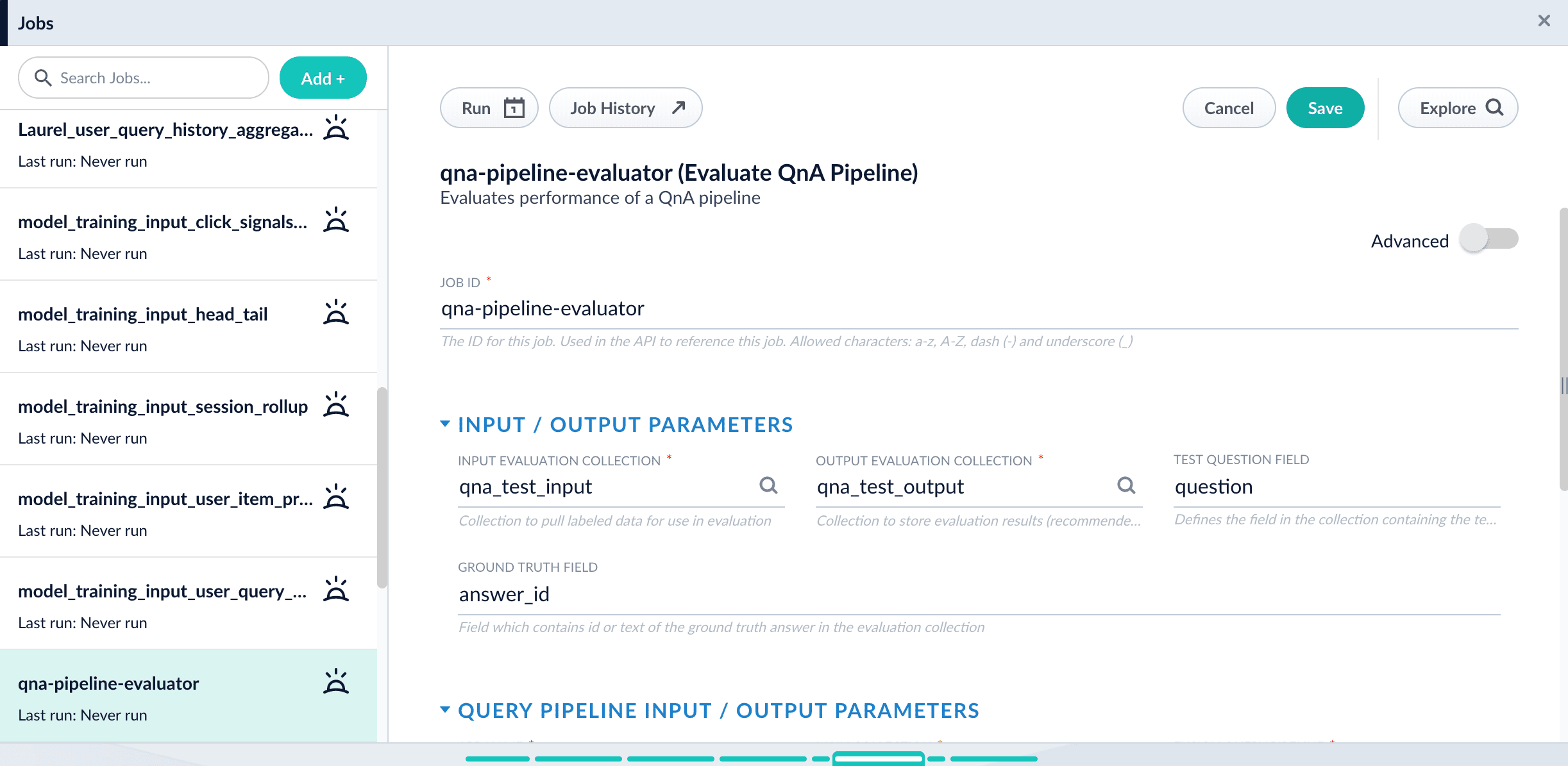 17\. Click **Run** > **Start**.
## Examine the output
The job provides a variety of metrics (controlled by the **Metrics list** advanced parameter) at different positions (controlled by the **Metrics\@k list** advanced parameter) for the chosen final ranking score (specified in **Ranking score** parameter).
**Example: Pipeline evaluation metrics**
17\. Click **Run** > **Start**.
## Examine the output
The job provides a variety of metrics (controlled by the **Metrics list** advanced parameter) at different positions (controlled by the **Metrics\@k list** advanced parameter) for the chosen final ranking score (specified in **Ranking score** parameter).
**Example: Pipeline evaluation metrics**
 **Example: recall\@1,3,5 for different weights and distances**
 The high-level steps will be similar for any voice interface application:
1. Enable Smart Answers on your Fusion platform.
2. Configure your voice interface application to perform speech-to-text on voice queries.
3. Configure your voice interface application to route queries to the Fusion query profile associated with your Smart Answers query pipeline.
4. Configure your voice interface application to perform text-to-speech on Fusion’s responses.
In this example procedure, we provide Javascript code that you can copy and customize, which performs the routing to your Fusion cluster.
## Enable Smart Answers
To enable Smart Answers, you need a trained machine learning model, a question-and-answer body of content, and a query pipeline configured to apply the machine learning model to the content.
## Perform speech-to-text on voice queries
In the case of Google Dialogflow, this functionality is enabled by default whenever you create a Dialogflow agent. See your voice interface platform’s documentation to find out how to enable speech-to-text for your application.
## Route voice queries to Fusion
The procedure below shows you how to configure a Google Dialogflow agent as an example to demonstrate one possible configuration for routing voice queries to Fusion. For other voice interface platforms, check your documentation.
In this example, we will configure the agent so that all intents use a webhook, for which we provide a code sample.
1. Make sure you have created a [billing account](https://cloud.google.com/dialogflow/docs/support/billing-questions) for Google Dialogflow, in order to enable all the required features.
2. [Download the `voice.js.zip` file](/assets/attachments/voice.js.zip), unzip it, and update the variables below to match your Fusion environment:
```js theme={"dark"}
const FUSION_APP_NAME = 'YourAppName';
const FUSION_QUERY_PROFILE_NAME = 'QueryProfileName';
const FUSION_ADMIN_URL = 'http://FusionAdminUrl.com';
const FUSION_ADMIN_USERNAME = 'username';
const FUSION_ADMIN_PASSWORD = 'password';
const FUSION_CREDENTIALS = 'Basic xxxxxxxsssssssssssss';
```
The high-level steps will be similar for any voice interface application:
1. Enable Smart Answers on your Fusion platform.
2. Configure your voice interface application to perform speech-to-text on voice queries.
3. Configure your voice interface application to route queries to the Fusion query profile associated with your Smart Answers query pipeline.
4. Configure your voice interface application to perform text-to-speech on Fusion’s responses.
In this example procedure, we provide Javascript code that you can copy and customize, which performs the routing to your Fusion cluster.
## Enable Smart Answers
To enable Smart Answers, you need a trained machine learning model, a question-and-answer body of content, and a query pipeline configured to apply the machine learning model to the content.
## Perform speech-to-text on voice queries
In the case of Google Dialogflow, this functionality is enabled by default whenever you create a Dialogflow agent. See your voice interface platform’s documentation to find out how to enable speech-to-text for your application.
## Route voice queries to Fusion
The procedure below shows you how to configure a Google Dialogflow agent as an example to demonstrate one possible configuration for routing voice queries to Fusion. For other voice interface platforms, check your documentation.
In this example, we will configure the agent so that all intents use a webhook, for which we provide a code sample.
1. Make sure you have created a [billing account](https://cloud.google.com/dialogflow/docs/support/billing-questions) for Google Dialogflow, in order to enable all the required features.
2. [Download the `voice.js.zip` file](/assets/attachments/voice.js.zip), unzip it, and update the variables below to match your Fusion environment:
```js theme={"dark"}
const FUSION_APP_NAME = 'YourAppName';
const FUSION_QUERY_PROFILE_NAME = 'QueryProfileName';
const FUSION_ADMIN_URL = 'http://FusionAdminUrl.com';
const FUSION_ADMIN_USERNAME = 'username';
const FUSION_ADMIN_PASSWORD = 'password';
const FUSION_CREDENTIALS = 'Basic xxxxxxxsssssssssssss';
```
 3. Click **Save**.
5. Click **Default Welcome Intent** and configure it as follows:
1. Delete all of the items in the **Training Phrases** and **Responses** sections.
2. Under **Fulfillment**, select **Enable webhook call for this intent**.
3. Click **Save**.
6. Navigate to **Intents** > **Create Intent**, call the new intent "Try again" (case-sensitive), and configure it as follows:
1. Delete all of the items in the **Context**, **Events**, **Actions**, and **Response** sections.
2. Under **Training Phrases**, add "Try again" (case-sensitive).
3. Under **Fulfillment**, select **Enable webhook call for this intent**.
4. Click **Save**.
7. Navigate to **Intents** > **Create Intent**, call the new intent "Yes" (case-sensitive), and configure it as follows:
1. Delete all of the items in the **Context**, **Events**, **Actions**, and **Response** sections.
2. Under **Training Phrases**, add the following phrases (case-sensitive):
* "Try again"
* "Yep"
* "Perfect"
3. Under **Fulfillment**, select **Enable webhook call for this intent**.
4. Click **Save**.
8. Navigate to **fulfillment** and configure it as follows:
1. Select **Enable Inline Editor**.
2. Overwrite the default code with the `voice.js` code that you customized in step 2 above.\\
3. Click **Save**.
5. Click **Default Welcome Intent** and configure it as follows:
1. Delete all of the items in the **Training Phrases** and **Responses** sections.
2. Under **Fulfillment**, select **Enable webhook call for this intent**.
3. Click **Save**.
6. Navigate to **Intents** > **Create Intent**, call the new intent "Try again" (case-sensitive), and configure it as follows:
1. Delete all of the items in the **Context**, **Events**, **Actions**, and **Response** sections.
2. Under **Training Phrases**, add "Try again" (case-sensitive).
3. Under **Fulfillment**, select **Enable webhook call for this intent**.
4. Click **Save**.
7. Navigate to **Intents** > **Create Intent**, call the new intent "Yes" (case-sensitive), and configure it as follows:
1. Delete all of the items in the **Context**, **Events**, **Actions**, and **Response** sections.
2. Under **Training Phrases**, add the following phrases (case-sensitive):
* "Try again"
* "Yep"
* "Perfect"
3. Under **Fulfillment**, select **Enable webhook call for this intent**.
4. Click **Save**.
8. Navigate to **fulfillment** and configure it as follows:
1. Select **Enable Inline Editor**.
2. Overwrite the default code with the `voice.js` code that you customized in step 2 above.\\
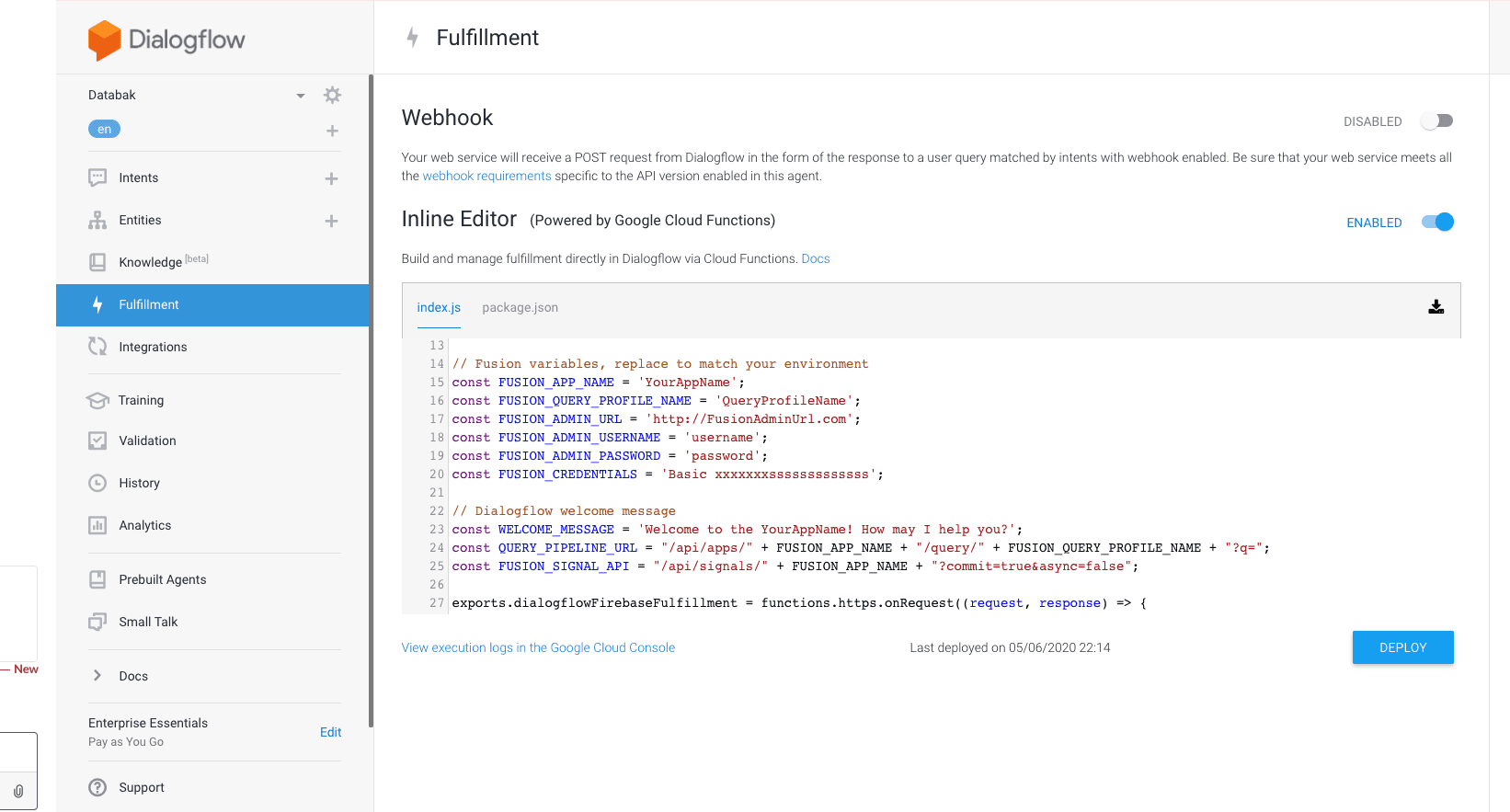 3. Click **Deploy**.
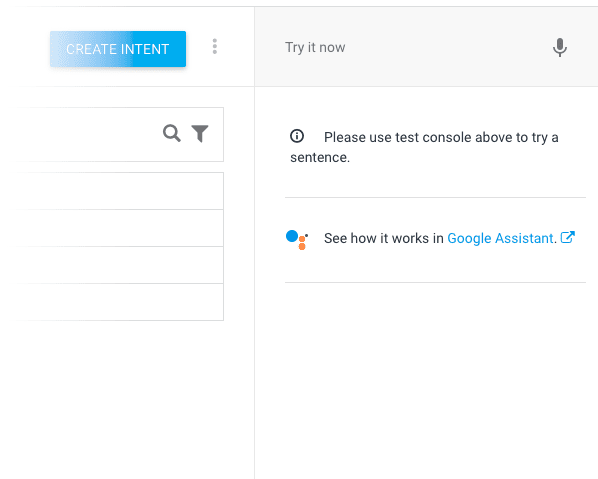 2. Click **Talk to `