> ## Documentation Index
> Fetch the complete documentation index at: https://doc.lucidworks.com/llms.txt
> Use this file to discover all available pages before exploring further.
# Indexing Your Data
export const LwTemplate = ({title = "Key questions to get you started", icon = "sparkles", cta = "Powered by Agent Studio", linkHref = "https://lucidworks.com/demo/?utm_source=docs&utm_medium=referral&utm_campaign=docs_cta_ai"}) => {
const [isLoaded, setIsLoaded] = useState(false);
useEffect(() => {
const timer = setTimeout(() => {
setIsLoaded(true);
}, 500);
return () => clearTimeout(timer);
}, []);
return
{isLoaded && `
}} />}
Powered by Lucidworks Agent Studio
;
};
[localhost link]: http://localhost:3000/docs/5/fusion/getting-data-in/indexing/overview
[mintlify link]: https://doc.lucidworks.com/docs/5/fusion/getting-data-in/indexing/overview
[old doc.lw link]: https://doc.lucidworks.com/fusion/5.9/155
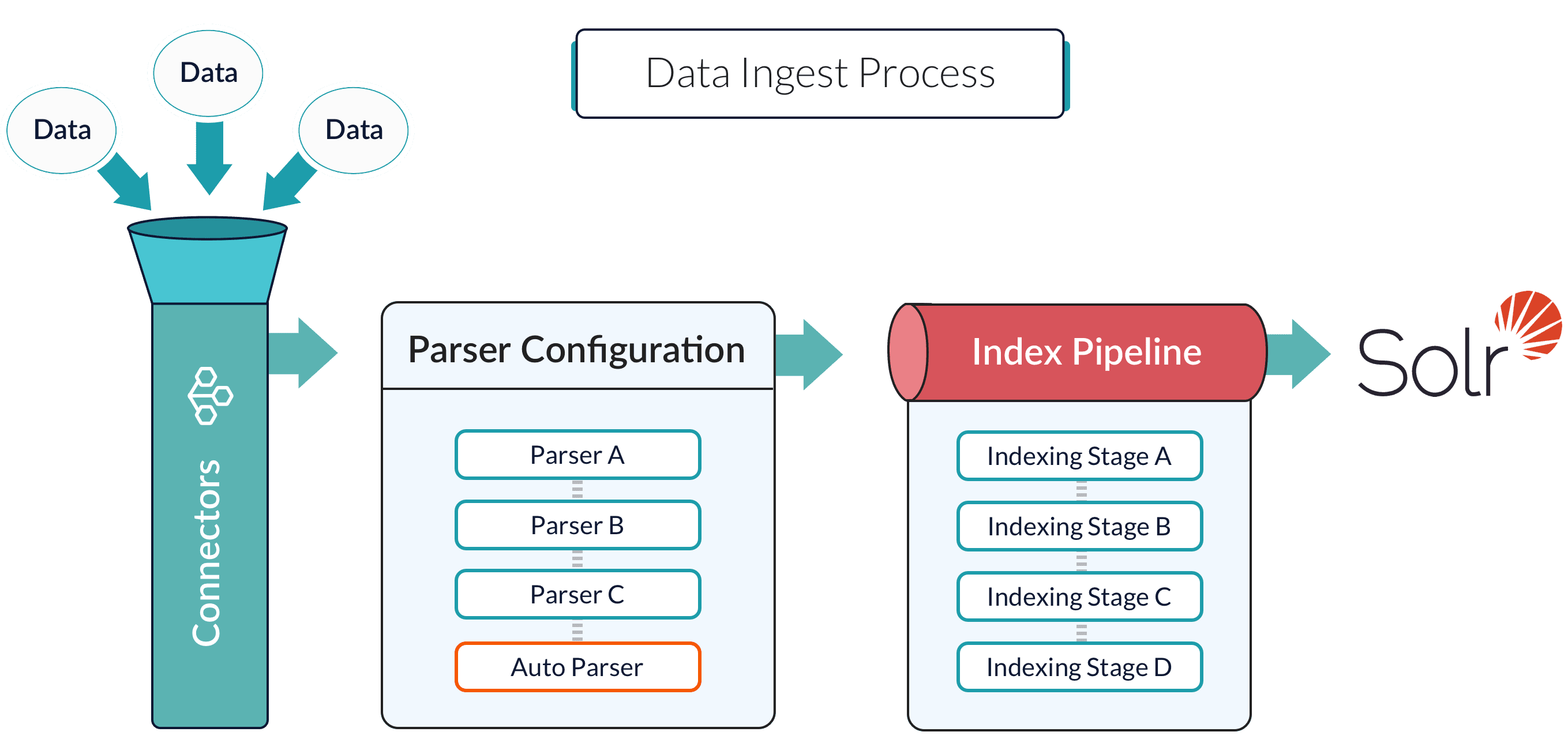
Indexing stores your data in a format that is optimized for searching. How you index your data is critical for ensuring that your data is stored in a format that is ideal for your search application.
* [Index pipelines](/docs/5/fusion/getting-data-in/indexing/index-pipelines/overview) determine the details of the conversion.
* [Index pipeline stages](/docs/5/fusion/getting-data-in/indexing/index-pipelines/index-pipeline-stages) are the building blocks of index pipelines.
* The [Index Workbench](/docs/5/fusion/intro/ui-tour/index-workbench) is Fusion’s index pipeline development tool.
### Collections
Collections are a way of grouping data sets so that related data sets can be managed together. Every data set that you ingest belongs to a collection. Any app can contain one or more collections. See [Collection Management](/docs/5/fusion/getting-data-in/indexing/collections/overview).
### Datasources
Datasources are configurations that determine how your data is handled during ingest by Fusion’s connectors, parsers, and index pipelines. When you run a fully-configured datasource, the result is an indexed data set that is optimized for search, depending on the shape of your data and how you want to search it. See **Configure a New Datasource**.
{/* // tag::body[] */}
1. In your Fusion app, navigate to **Indexing** > **Datasources**.
2. Click **Add**.
3. Select your connector.
The connector configuration panel appears. The specific configuration options vary depending on the connector.
If you do not see your connector in the list, you may need to install it.
1. Configure your connector’s options:
1. Enter a useful name for your datasource in the **Datasource ID** field.
2. You can leave the **Pipeline ID** and **Parser** fields as-is to start with the defaults, or select different ones if you have them.
3. Configure the connector-specific options.
Select your specific release and connector detail from the [configuration reference topic](/docs/fusion-connectors/connectors/overview).
2. Click **Save**.
3. Test your datasource configuration:
1. Navigate to the [Index Workbench](/docs/5/fusion/intro/ui-tour/index-workbench) at **Indexing** > **Index Workbench**.
2. Click **Load...**.
3. Select the datasource ID you specified when you created the datasource.\
Now you can see your datasource configuration and a simulation of the results you can expect when you run this datasource job to index your data.
4. Adjust the configurations of your datasource, parsers, and index pipeline until the simulated results are satisfactory.
5. Click **Save**.
4. Index your data:
1. In the Index Workbench, click **Start Job**.
2. When the job status is **Finished**, navigate to the [Query Workbench](/docs/5/fusion/getting-data-out/query-basics/query-workbench) at **Querying** > **Query Workbench** to view the indexed documents and configure your query pipeline.
{/* // end::body[] */}
### Connectors
Connectors are Fusion components that ingest and parse specific kinds of data. There is a Fusion [connector](/docs/fusion-connectors/concepts/datasources) for just about any data type.
## Learn more
The quick learning for **Indexing Menu Tour** focuses on the Indexing Menu features and functionality along with a brief description of each screen available in the menu.
The quick learning for **Anatomy of Indexing** focuses on the Fusion objects that work together to index your data.
The course for **Indexing Data** focuses on how to ingest and store your data in a format that’s optimized for search.