> ## Documentation Index
> Fetch the complete documentation index at: https://doc.lucidworks.com/llms.txt
> Use this file to discover all available pages before exploring further.
# Fusion Advanced Linguistics Package
export const LwTemplate = ({title = "Key questions to get you started", icon = "sparkles", cta = "Powered by Agent Studio", linkHref = "https://lucidworks.com/demo/?utm_source=docs&utm_medium=referral&utm_campaign=docs_cta_ai"}) => {
const [isLoaded, setIsLoaded] = useState(false);
useEffect(() => {
const timer = setTimeout(() => {
setIsLoaded(true);
}, 500);
return () => clearTimeout(timer);
}, []);
return
{isLoaded && `
}} />}
Powered by Lucidworks Agent Studio
;
};
The Fusion Advanced Linguistics Package provides Lucidworks language packs for multilingual text analysis. To improve search recall, Base Linguistics handles the unique linguistic phenomena of more than 30 Asian and European languages. Entity Extractor identifies named entities such as people, locations, and organizations, allowing you to quickly refine your search, remove noise, and increase search relevance.
## Using Named Entities
Entity Extractor (REX) extracts named entities in multiple languages, including English, Chinese (traditional and simplified), and German. In English, it extracts multiple entity types and subtypes. This includes the following entity types (along with their associated subtypes):
* `PERSON`
* `LOCATION`
* `ORGANIZATION`
* `PRODUCT`
* `TITLE`
* `NATIONALITY`
* `RELIGION`
In this tutorial, you will extract named entities from English news articles.
For more information, see [Entity Extractor](https://docs.babelstreet.com/r/Entity-Extractor-Overview-and-Technical-Specifications/Key-features) and [Entity Types](https://docs.babelstreet.com/r/Entity-Extractor-Overview-and-Technical-Specifications/Entity-types).
### Create an application
To begin, create a new application called "entities".
### Configurate the application
#### Edit the Solr configuration
You will begin by adding the required library elements to the `solrconfig.xml` file. You will also add a new update processor to perform the entity extraction.
1. Navigate to **System > Solr Config** to edit the `solrconfig.xml` file.
2. Fusion 5.8 and earlier: In the `` directive section, add the lines below. Fusion 5.9 and later already contain these lines.
```xml theme={"dark"}
```
For Fusion 4.x users, the `dir` paths are the local REX installation path.
3. In the `` section, add the following lines after the existing processor chains:
```xml theme={"dark"}
/opt/basistech/rex-jetext_eng
```
Note the reference to a field called `text_eng`. You will create this field through the Fusion UI in the next step.
4. Save your changes to `solrconfig.xml`.
#### Define fields
The data file you will use, [eng\_docs.csv](/assets/attachments/basistech/eng_docs.csv), contains two fields:
* `title`: an article headline.
* `article_text`: the text content of the article.
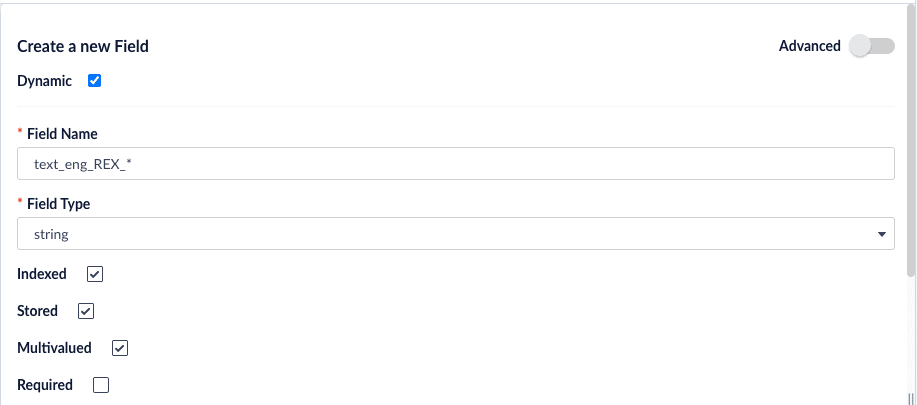
You will index these two static fields and also define a set of dynamic fields to hold the extracted entities. To create new fields, navigate to **Collections > Fields** and click **Add a Field**. Create the following fields:
| Field name | Field type | Other options |
| ---------------- | ---------- | ----------------------------------------------------------------------------------------------------------------------------------------------- |
| `title` | `string` | Use default options. |
| `text_eng` | `text_en` | Use default options. |
| `text_eng_REX_*` | `string` | Create this field as a dynamic field by clicking the **Dynamic** checkbox. Click the **Multivalued** checkbox. Leave other options as defaults. |
Save each field after creating it.
### Index data
#### Create an index pipeline
1. Navigate to **Indexing > Index Pipelines**.
2. Click **Add** and create a new pipeline called `test-entities`.
3. Select the **Field Mapping** stage.
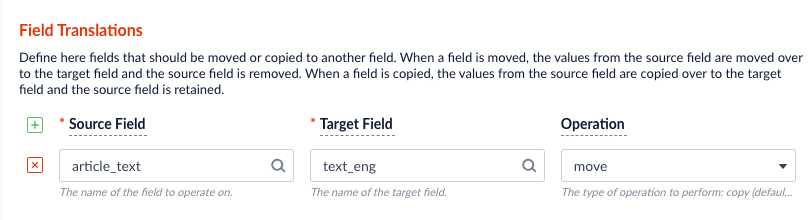
4. In the **Field Translations** section, add a new row with source `article_text` and target `text_eng`. Set the **Operation** to `move`.
The CSV file you will upload contains a field title, but since this matches the title field that you created earlier, there is no need to map it. Leave the **Unmapped Fields** section with its default option, `keep`.
5. Select the **Solr Indexer** stage.
6. In the **Additional Update Request Parameters** section, add a new row with parameter name `update.chain` and value `rex`.
7. Save the new pipeline.
#### Create a datasource
In this step, you will upload and index our documents from the data file.
1. Navigate to **Indexing > Datasources**.
2. Click **Add** and select **File Upload V2** from the dropdown menu.
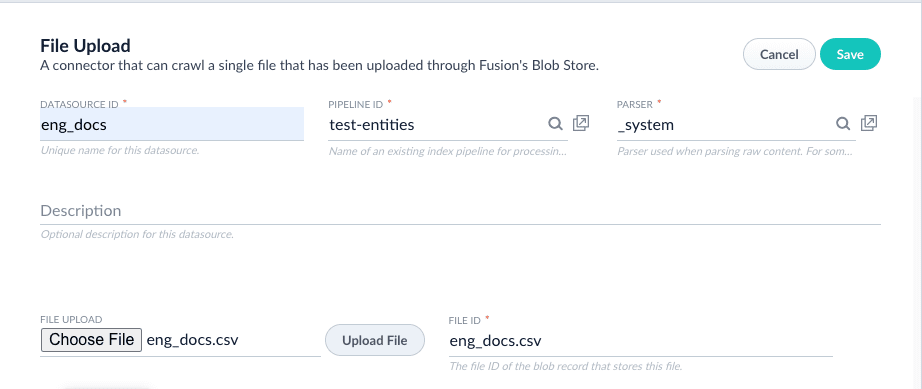
3. Enter `eng_docs` for the **Datasource ID**. Alternatively, use a name you prefer.
4. Select `test-entities` for the **Pipeline ID**.
5. In the **File Upload** field, choose the sample file `eng_docs.csv` and click **Upload File**.
The File ID field will be automatically populated. Leave all other values as their defaults.
6. Save the new datasource. The form will refresh, adding a set of buttons at the top.
7. Click **Run** and then **Start**. When the job is finished, you will see "Success" in the popup form.
### Query data
1. Navigate to **Querying > Query Workbench**. The default query is `*:*`, which should bring up three documents.
2. For the document with title "SpaceX Successfully Launches its First Crewed Spaceflight", select **Show fields**. You will see a number of entities listed under the `text_eng_REX_*` fieldnames.
3. Search on these multivalued fields. For example, set your query to `text_eng_REX_LOCATION:"New York"` to return the article that contains a mention of New York.
### Customize (advanced)
When setting up the Solr configuration, you specified the rootDirectory and fields options in your processor chain. REX provides a number of [other configuration options](https://docs.babelstreet.com/r/Base-Linguistics-RBL/Introduction) you can set to control how entities are extracted. For example, if you are finding false positives, you can set parameters instructing REX to return only entities above a [confidence threshold](https://www.babelstreet.com/blog/fine-tune-your-match-threshold-and-parameters). The confidence threshold is a value between `0` and `1` and applies to entities extracted by the statistical model. Lucidworks recommends starting with a low value, around `0.2`. In your `solrconfig.xml` file, add the options `calculateConfidence` and `confidenceThreshold` to your processor chain definition:
```xml theme={"dark"}
/opt/basistech/rex-jetext_engTrue0.2
```
Save the changes, re-index your data, and perform the same query on `*:*`. Note that for the SpaceX article, "Falcon", is now correctly omitted from the list of LOCATIONs.
If there is a particular entity you want to make sure is extracted or rejected, or if you wish to create a custom entity type, REX also supports [gazetteers and regular expressions](https://docs.babelstreet.com/r/Model-Training-Suite-System-Administrator-Guide/Install-the-training-environment).
#### Gazetteers
A gazetteer is a UTF-8 text file in which the first line is the entity type. It is followed by the names of entities you wish to extract, separated by newlines, in the language of your documents. Comments can be prefixed by the `#` symbol. Create a file `spacecraft_gaz.txt` with the following lines:
```
SPACECRAFT
ISS
International Space Station
Vostok
Soyuz
Dragon
Crew Dragon
Cargo Dragon
Voyager
Apollo
```
#### Regular expressions
REX uses the Tcl regular expression engine. Create a file, `zulu_time_regex.xml`, file with the following lines:
```xml theme={"dark"}
(?i)\m(?:[01]?\d|2[0-4])(?:[0-5]\d) (?:UTC|GMT)
```
This regular expression will extract as entity type `ZULU_TIME` all spans that consist of a 4-digit military time unit followed by the time zone designator UTC or GMT.
#### Example
To instruct REX to use the gazetteer and RegEx file, edit your `solrconfig.xml` file.
##### addGazetteers
The language code for the gazetteer, such as `eng` for English.
The file path to the gazetteer file.
Whether to accept or reject the entities in the gazetteer.
Whether the matching should be case-sensitive.
For example:
```xml theme={"dark"}
eng,/path/to/spacecraft_gaz.txt,True,True
```
##### addRegularExpressions
The file path to the regular expressions XML file.
Whether to accept or reject the entities matched by the regular expressions.
For example:
```xml theme={"dark"}
/path/to/zulu_time_regex.xml,True
```
The result in the `solrconfig.xml` file:
```xml theme={"dark"}
/opt/basistech/rex-jetext_engTrue0.2eng,/path/to/spacecraft_gaz.txt,True,True/path/to/zulu_time_regex.xml,True
```
Now, when you re-index your data and search `*:*`, the SpaceX document will have new entities listed in the `text_eng_REX_SPACECRAFT` and `text_eng_REX_ZULU_TIME` dynamic fields.
Additional Fusion deployment configurations are needed to use the REX gazetteer and RegEx options.
## Use multilingual search
The Lucidworks language packs provide a set of linguistic tools to prepare your data for analysis. Language-specific models provide base forms (lemmas) of words, parts-of-speech tagging, compound components, normalized tokens, stems, and roots.
In this tutorial, you will index and query headlines in English, Chinese, and German to demonstrate the linguistics capabilities of RBL: lemmatization, tokenization, and decompounding.
### Create an application
To begin, create a new application called "multilingual".
### Configure the application
#### Edit the Solr configuration
You will begin by adding the required library elements to the `solrconfig.xml` file.
1. Navigate to **System > Solr Config** to edit the `solrconfig.xml` file.
2. In the `` directive section, add the following lines:
```xml theme={"dark"}
```
For Fusion 4.x users, the `dir` path is the local REX installation path.
3. Save your changes to `solrconfig.xml`.
#### Edit the schema
Add a `fieldType` element for each language to be processed by the application. The `fieldType` element includes two analyzers: one for indexing documents and one for querying documents. Each analyzer contains a tokenizer and a token filter. The `language` attribute is set to the [language code](https://docs.babelstreet.com/r/Match-Overview-and-Technical-Specifications/Languages), equal to the ISO 639-3 code in most cases. The `rootDirectory` points to the RBL directory.
1. Navigate to **System > Solr Config** to edit the `managed-schema.xml` file.
2. In the **fieldType** section, add the following new field types: `basis_english`, `basis_chinese`, and `basis_german`.
```xml theme={"dark"}
```
You can incorporate any additional Solr filters you need, such as the Solr lowercase filter. However, filters should be added into the chain *after* the Base Linguistics token filter. If you modify the token stream too significantly before RBL, you degrade its ability to analyze the text.
3. Save your changes to `managed-schema.xml`.
#### Define fields
The data file you will use, [multilingual\_headlines.csv](/assets/attachments/basistech/multilingual_headlines.csv), contains fields for headlines in three languages: `eng_headline`, `zho_headline`, and `deu_headline`. The analysis chain requires a field definition with a `type` attribute that maps to the `fieldType` you defined in the schema.
To create new fields, navigate to **Collections > Fields** and click **Add a Field**. Create the following fields:
| Field name | Field type | Other options |
| ---------- | --------------- | -------------------- |
| `text_eng` | `basis_english` | Use default options. |
| `text_zho` | `basis_chinese` | Use default options. |
| `text_deu` | `basis_german` | Use default options. |
Save each field after creating it.
### Index data
#### Create an index pipeline
1. Navigate to **Indexing > Index Pipelines**.
2. Click **Add** and create a new pipeline called `test-multilingual`.
3. Select the **Field Mapping** stage.
4. In the **Field Translations** section, add three new rows:
| Field name | Field name | Operation |
| -------------- | ---------- | --------- |
| `eng_headline` | `text_eng` | `move` |
| `zho_headline` | `text_zho` | `move` |
| `deu_headline` | `text_deu` | `move` |
5. Save the new pipeline.
#### Create a datasource
In this step, you will upload and index our documents from the data file.
1. Navigate to **Indexing > Datasources**.
2. Click **Add** and select **File Upload** from the dropdown menu.
3. Enter `multilingual_headlines` for the **Datasource ID**. Alternatively, use a name you prefer.
4. Select `test-multilingual` for the **Pipeline ID**.
5. In the **File Upload** field, choose the sample file `multilingual_headlines.csv` and click **Upload File**.
The File ID field will be automatically populated. Leave all other values as their defaults.
6. Save the new datasource. The form will refresh, adding a set of buttons at the top.
7. Click **Run** and then **Start**. When the job is finished, you will see "Success" in the popup form.
### Query data
1. Navigate to **Querying > Query Workbench**. The default query is `*:*`, which should bring up ten documents.
2. Follow the examples in the subsections below to see how Fusion's Advanced Linguistics capabilities can improve your search results.
#### Lemmatization
A "lemma" is the canonical form of a word, or the version of a word that you find in the dictionary. For example, the lemma of "mice" is "mouse". The words "speaks", "speaking", "spoke", and "spoken" all share the same lemma: "speak".
With RBL, you can perform searches by lemma, thus increasing your search results. This example demonstrates this practice with the words "knife" and "knives" below.
1. For ease of viewing results, select the **Display Fields** dropdown and enter `text_eng` in the **Description** field.
2. Enter the query `text_eng:knife` in the search box.
Two documents are returned. One of the headlines, "Iowa City Man Arrested After Alleged Altercation with a Knife", is an exact match on the query term `knife`. With a standard Solr text field type, this would be the only result returned. However, the special type `basis_english` you configured allows the search engine to recognize "knives" as a form of "knife". Therefore, the article "The Best Ways to Sharpen Kitchen Knives at Home" is also returned.
RBL can significantly reduce your dependence on creating, maintaining, and using large synonym lists.
#### Tokenization
Tokenization is the process of separating a piece of text into smaller units called "tokens". Tokens can be words, characters, or subwords, depending on how they are defined and analyzed. The RBL tokenizer first determines sentence boundaries, then segments each sentence into individual tokens. The most useful tokens are often words, though they may also be numbers or other characters.
In some languages like Chinese and Japanese, word tokens are not separated by whitespace, and words can consist of one, two, or more characters. For example, the tokens in 我喜歡貓 (I like cats) are 我 (I), 喜歡 (like), and 貓 (cats). RBL uses statistical models to identify token boundaries, allowing for more accurate search results.
1. For ease of viewing results, select the **Display Fields** dropdown and enter `text_zho` in the **Description** field.
2. Enter the query `text_zho:美國` (United States) in the search box.
The document "美國男子染疫無呼吸道症狀但難以說話行走" ("U.S. Man has no Respiratory Symptoms but has Difficulty Talking and Walking") is returned, as 美國 (United States) is a token in the headline.
With a standard Solr text field type, this headline would be naively tokenized with one character per token. Therefore, a search for `美` (beautiful) would trigger a false positive match, even though it is not a word in this context. However, with the advanced analytics you have configured here, the query `text_zho:美` will correctly return zero results.
#### Compounds
RBL can [decompose](https://docs.babelstreet.com/r/Base-Linguistics-Elasticsearch-Plugin/Analyzers/Compounds) Chinese, Danish, Dutch, German, Hungarian, Japanese, Korean, Norwegian, and Swedish compounds, returning the lemmas of each of the components. The lemmas may differ from their surface form in the compound, such that the concatenation of the components is not the same as the original compound (or its lemma). Components are often connected by elements that are present only in the compound form. RBL allows Solr to index and query on these components, increasing recall of search results.
1. For ease of viewing results, select the **Display Fields** dropdown and enter `text_deu` in the **Description** field.
2. Enter the query `text_deu:Land` in the search box.
The result "Mitarbeiter sitzen in ihren Heimatländern fest" ("Employees are Stuck in Their Home Countries") returned.
This headline contains the compound "Heimatländern" (home countries). A search on `Land` (country) with a standard Solr text field type would not trigger a match. However, because RBL performs decompounding with lemmatization, searching on `Heimat` or `Land` will return a result.
### Customize (advanced)
When setting up the Solr configuration, you specified the language and rootDirectory options in your field type definition. This is sufficient for most use cases. However, RBL does provide [more options](https://docs.babelstreet.com/r/Base-Linguistics-Elasticsearch-Plugin/Options/General-Options) to control the behavior of the tokenizer and analyzer. For example, the default tokenization does not consider URLs. As a result, `https://lucidworks.com` is tokenized as `https`, `lucidworks`, and `com`.
If you wish to recognize URLs, you can add the option `urls="true"` to the tokenizer in your field type definition:
```xml wrap theme={"dark"}
```
This will instruct RBL to consider URLs as a single token, for example: `https://lucidworks.com`.
To see a list of all options, consult the full [RBL documentation](https://docs.babelstreet.com/r/Base-Linguistics-Elasticsearch-Plugin/Introduction).
 The CSV file you will upload contains a field title, but since this matches the title field that you created earlier, there is no need to map it. Leave the **Unmapped Fields** section with its default option, `keep`.
5. Select the **Solr Indexer** stage.
6. In the **Additional Update Request Parameters** section, add a new row with parameter name `update.chain` and value `rex`.
The CSV file you will upload contains a field title, but since this matches the title field that you created earlier, there is no need to map it. Leave the **Unmapped Fields** section with its default option, `keep`.
5. Select the **Solr Indexer** stage.
6. In the **Additional Update Request Parameters** section, add a new row with parameter name `update.chain` and value `rex`.
 7. Save the new pipeline.
#### Create a datasource
In this step, you will upload and index our documents from the data file.
1. Navigate to **Indexing > Datasources**.
2. Click **Add** and select **File Upload V2** from the dropdown menu.
3. Enter `eng_docs` for the **Datasource ID**. Alternatively, use a name you prefer.
4. Select `test-entities` for the **Pipeline ID**.
5. In the **File Upload** field, choose the sample file `eng_docs.csv` and click **Upload File**.
The File ID field will be automatically populated. Leave all other values as their defaults.
7. Save the new pipeline.
#### Create a datasource
In this step, you will upload and index our documents from the data file.
1. Navigate to **Indexing > Datasources**.
2. Click **Add** and select **File Upload V2** from the dropdown menu.
3. Enter `eng_docs` for the **Datasource ID**. Alternatively, use a name you prefer.
4. Select `test-entities` for the **Pipeline ID**.
5. In the **File Upload** field, choose the sample file `eng_docs.csv` and click **Upload File**.
The File ID field will be automatically populated. Leave all other values as their defaults.
 6. Save the new datasource. The form will refresh, adding a set of buttons at the top.
7. Click **Run** and then **Start**. When the job is finished, you will see "Success" in the popup form.
### Query data
1. Navigate to **Querying > Query Workbench**. The default query is `*:*`, which should bring up three documents.
2. For the document with title "SpaceX Successfully Launches its First Crewed Spaceflight", select **Show fields**. You will see a number of entities listed under the `text_eng_REX_*` fieldnames.
6. Save the new datasource. The form will refresh, adding a set of buttons at the top.
7. Click **Run** and then **Start**. When the job is finished, you will see "Success" in the popup form.
### Query data
1. Navigate to **Querying > Query Workbench**. The default query is `*:*`, which should bring up three documents.
2. For the document with title "SpaceX Successfully Launches its First Crewed Spaceflight", select **Show fields**. You will see a number of entities listed under the `text_eng_REX_*` fieldnames.
 3. Search on these multivalued fields. For example, set your query to `text_eng_REX_LOCATION:"New York"` to return the article that contains a mention of New York.
### Customize (advanced)
When setting up the Solr configuration, you specified the rootDirectory and fields options in your processor chain. REX provides a number of [other configuration options](https://docs.babelstreet.com/r/Base-Linguistics-RBL/Introduction) you can set to control how entities are extracted. For example, if you are finding false positives, you can set parameters instructing REX to return only entities above a [confidence threshold](https://www.babelstreet.com/blog/fine-tune-your-match-threshold-and-parameters). The confidence threshold is a value between `0` and `1` and applies to entities extracted by the statistical model. Lucidworks recommends starting with a low value, around `0.2`. In your `solrconfig.xml` file, add the options `calculateConfidence` and `confidenceThreshold` to your processor chain definition:
```xml theme={"dark"}
3. Search on these multivalued fields. For example, set your query to `text_eng_REX_LOCATION:"New York"` to return the article that contains a mention of New York.
### Customize (advanced)
When setting up the Solr configuration, you specified the rootDirectory and fields options in your processor chain. REX provides a number of [other configuration options](https://docs.babelstreet.com/r/Base-Linguistics-RBL/Introduction) you can set to control how entities are extracted. For example, if you are finding false positives, you can set parameters instructing REX to return only entities above a [confidence threshold](https://www.babelstreet.com/blog/fine-tune-your-match-threshold-and-parameters). The confidence threshold is a value between `0` and `1` and applies to entities extracted by the statistical model. Lucidworks recommends starting with a low value, around `0.2`. In your `solrconfig.xml` file, add the options `calculateConfidence` and `confidenceThreshold` to your processor chain definition:
```xml theme={"dark"}
 If there is a particular entity you want to make sure is extracted or rejected, or if you wish to create a custom entity type, REX also supports [gazetteers and regular expressions](https://docs.babelstreet.com/r/Model-Training-Suite-System-Administrator-Guide/Install-the-training-environment).
#### Gazetteers
A gazetteer is a UTF-8 text file in which the first line is the entity type. It is followed by the names of entities you wish to extract, separated by newlines, in the language of your documents. Comments can be prefixed by the `#` symbol. Create a file `spacecraft_gaz.txt` with the following lines:
```
SPACECRAFT
ISS
International Space Station
Vostok
Soyuz
Dragon
Crew Dragon
Cargo Dragon
Voyager
Apollo
```
#### Regular expressions
REX uses the Tcl regular expression engine. Create a file, `zulu_time_regex.xml`, file with the following lines:
```xml theme={"dark"}
If there is a particular entity you want to make sure is extracted or rejected, or if you wish to create a custom entity type, REX also supports [gazetteers and regular expressions](https://docs.babelstreet.com/r/Model-Training-Suite-System-Administrator-Guide/Install-the-training-environment).
#### Gazetteers
A gazetteer is a UTF-8 text file in which the first line is the entity type. It is followed by the names of entities you wish to extract, separated by newlines, in the language of your documents. Comments can be prefixed by the `#` symbol. Create a file `spacecraft_gaz.txt` with the following lines:
```
SPACECRAFT
ISS
International Space Station
Vostok
Soyuz
Dragon
Crew Dragon
Cargo Dragon
Voyager
Apollo
```
#### Regular expressions
REX uses the Tcl regular expression engine. Create a file, `zulu_time_regex.xml`, file with the following lines:
```xml theme={"dark"}