> ## Documentation Index
> Fetch the complete documentation index at: https://doc.lucidworks.com/llms.txt
> Use this file to discover all available pages before exploring further.
# Connectors SDK
export const LwTemplate = ({title = "Key questions to get you started", icon = "sparkles", cta = "Powered by Agent Studio", linkHref = "https://lucidworks.com/demo/?utm_source=docs&utm_medium=referral&utm_campaign=docs_cta_ai"}) => {
const [isLoaded, setIsLoaded] = useState(false);
useEffect(() => {
const timer = setTimeout(() => {
setIsLoaded(true);
}, 500);
return () => clearTimeout(timer);
}, []);
return
{isLoaded && `
}} />}
Powered by Lucidworks Agent Studio
;
};
[localhost link]: http://localhost:3000/docs/5/fusion/dev-portal/connectors-sdk/overview
[mintlify link]: https://doc.lucidworks.com/docs/5/fusion/dev-portal/connectors-sdk/overview
[old doc.lw link]: https://doc.lucidworks.com/fusion/5.9/15
Fusion comes with a wide variety of connectors, but you can also develop custom Fusion connectors using the Connectors SDK.
To get started, clone the public repository at [`https://github.com/lucidworks/connectors-sdk-resources/`](https://github.com/lucidworks/connectors-sdk-resources/).
* See [Java Connector Development](/docs/5/fusion/dev-portal/connectors-sdk/java-sdk) to learn about developing a Java-based connector.
* See **Develop a Custom Connector** for step-by-step instructions.
## Java SDK configuration
To build a valid connector configuration, you must:
* Define an interface.
* Extend `ConnectorConfig`.
* Apply a few annotations.
* Define connector methods and annotations.
All methods that are annotated with `@Property` are considered to be configuration properties.
For example, `@Property() String name();` results in a String property called `name`.
This property would then be present in the generated schema.
Here is an example of the most basic configuration, along with required annotations:
```java theme={"dark"}
@RootSchema(
title = "My Connector",
description = "My Connector description",
category = "My Category"
)
public interface MyConfig extends ConnectorConfig {
@Property(
title = "Properties",
required = true
)
public Properties properties();
/**
* Connector specific settings
*/
interface Properties extends FetcherProperties {
@Property(
title = "My custom property",
description = "My custom property description"
)
public Integer myCustomProperty();
}
}
```
The metadata defined by `@RootSchema` is used by Fusion when showing the list of available connectors.
The `ConnectorConfig` base interface represents common, top-level settings required by all connectors.
The `type` parameter of the `ConnectorConfig` class indicates the interface to use for custom properties.
Once a connector configuration has been defined, it can be associated with the `ConnectorPlugin` class.
From that point, the framework takes care of providing the configuration instances to your connector.
It also generates the schema, and sends it along to Fusion when it connects to Fusion.
Schema metadata can be applied to properties using additional annotations. For example, applying limits to the min/max length of a string, or describing the types of items in an array.
Nested schema metadata can also be applied to a single field by using "stacked" schema based annotations:
```java theme={"dark"}
interface MySetConfig extends Model {
@SchemaAnnotations.Property(title = "My Set")
@SchemaAnnotations.ArraySchema(defaultValue = "[\"a\"]")
@SchemaAnnotations.StringSchema(defaultValue = "some-set-value", minLength = 1, maxLength = 1)
Set mySet();
}
```
## Plugin client
The Fusion connector plugin client provides a wrapper for the Fusion Java plugin-sdk so that plugins do not need to directly talk with gRPC code.
Instead, they can use high-level interfaces and base classes, like Connector and Fetcher.
The plugin client also provides a standalone "runner" that can host a plugin that was built from the Fusion Java Connector SDK.
It does this by loading the plugin zip file, then calling on the wrapper to provide the framework interactions.
### Standalone Connector Plugin Application
The second goal of the plugin-client is to allow Java SDK plugins to run remotely.
The instructions for deploying a connector using this method are provided below.
#### Locating the UberJar
The uberjar is located in this location in the Fusion file system:
```bash wrap theme={"dark"}
$FUSION_HOME/apps/connectors/connectors-rpc/client/connector-plugin-client--uberjar.jar
```
where `$FUSION_HOME` is your Fusion installation directory and `` is your Fusion version number.
#### Starting the Host
To start the host app, you need a Fusion SDK-based connector, built into the standard packaging format as a `.zip` file. This `zip` must contain only one connector plugin.
Here is an example of how to start up using the web connector:
```bash wrap theme={"dark"}
java -jar $FUSION_HOME/apps/connectors/connectors-rpc/client/connector-plugin-client--uberjar.jar fusion-connectors/build/plugins/connector-web-4.0.0-SNAPSHOT.zip
```
To run the client with remote debugging enabled:
```bash wrap theme={"dark"}
java -agentlib:jdwp=transport=dt_socket,server=y,suspend=n,address=5010 -jar $FUSION_HOME/apps/connectors/connectors-rpc/client/connector-plugin-client--uberjar.jar fusion-connectors/build/plugins/connector-web-4.0.0-SNAPSHOT.zip
```
## Java SDK security
### Fusion Connector Plugin Client
The Fusion connector plugin client provides a wrapper for the Fusion Java plugin-sdk so that plugins do not need to directly talk with gRPC code.
Instead, they can use high-level interfaces and base classes, like Connector and Fetcher.
The plugin client also provides a standalone "runner" that can host a plugin that was built from the Fusion Java Connector SDK.
It does this by loading the plugin zip file, then calling on the wrapper to provide the framework interactions.
### Standalone Connector Plugin Application
The second goal of the plugin-client is to allow Java SDK plugins to run remotely.
The instructions for deploying a connector using this method are provided below.
#### Locating the UberJar
The uberjar is located in this location in the Fusion file system:
```bash wrap theme={"dark"}
$FUSION_HOME/apps/connectors/connectors-rpc/client/connector-plugin-client--uberjar.jar
```
where `$FUSION_HOME` is your Fusion installation directory and `` is your Fusion version number.
#### Starting the Host
To start the host app, you need a Fusion SDK-based connector, built into the standard packaging format as a `.zip` file. This `zip` must contain only one connector plugin.
Here is an example of how to start up using the web connector:
```bash wrap theme={"dark"}
java -jar $FUSION_HOME/apps/connectors/connectors-rpc/client/connector-plugin-client--uberjar.jar fusion-connectors/build/plugins/connector-web-4.0.0-SNAPSHOT.zip
```
To run the client with remote debugging enabled:
```bash wrap theme={"dark"}
java -agentlib:jdwp=transport=dt_socket,server=y,suspend=n,address=5010 -jar $FUSION_HOME/apps/connectors/connectors-rpc/client/connector-plugin-client--uberjar.jar fusion-connectors/build/plugins/connector-web-4.0.0-SNAPSHOT.zip
```
## Simple Connector
### Fusion Connector Plugin Client
The Fusion connector plugin client provides a wrapper for the Fusion Java plugin-sdk so that plugins do not need to directly talk with gRPC code.
Instead, they can use high-level interfaces and base classes, like Connector and Fetcher.
The plugin client also provides a standalone "runner" that can host a plugin that was built from the Fusion Java Connector SDK.
It does this by loading the plugin zip file, then calling on the wrapper to provide the framework interactions.
### Standalone Connector Plugin Application
The second goal of the plugin-client is to allow Java SDK plugins to run remotely.
The instructions for deploying a connector using this method are provided below.
#### Locating the UberJar
The uberjar is located in this location in the Fusion file system:
```bash wrap theme={"dark"}
$FUSION_HOME/apps/connectors/connectors-rpc/client/connector-plugin-client--uberjar.jar
```
where `$FUSION_HOME` is your Fusion installation directory and `` is your Fusion version number.
#### Starting the Host
To start the host app, you need a Fusion SDK-based connector, built into the standard packaging format as a `.zip` file. This `zip` must contain only one connector plugin.
Here is an example of how to start up using the web connector:
```bash wrap theme={"dark"}
java -jar $FUSION_HOME/apps/connectors/connectors-rpc/client/connector-plugin-client--uberjar.jar fusion-connectors/build/plugins/connector-web-4.0.0-SNAPSHOT.zip
```
To run the client with remote debugging enabled:
```bash wrap theme={"dark"}
java -agentlib:jdwp=transport=dt_socket,server=y,suspend=n,address=5010 -jar $FUSION_HOME/apps/connectors/connectors-rpc/client/connector-plugin-client--uberjar.jar fusion-connectors/build/plugins/connector-web-4.0.0-SNAPSHOT.zip
```
**Important**
If you are using Fusion 5.9 or later, the Connectors SDK was upgraded to use Java 11. New connectors built for Fusion 5.9 or later should be compiled on Java 11. Existing connectors built on older versions of the Connectors SDK may still be compiled on Java 8.
# Public Connectors SDK Resources
The [connectors SDK public GitHub repository](https://github.com/lucidworks/connectors-sdk-resources) provides resources to help developers build their own
[Fusion](https://lucidworks.com/products/fusion-server/) SDK connectors.
Some of the resources include documentation and getting started guides, as well as example connectors.
The repository includes [a Gradle project](https://github.com/lucidworks/connectors-sdk-resources/tree/master/java-sdk/connectors),
which wraps each [known plugin](https://github.com/lucidworks/connectors-sdk-resources/blob/master/java-sdk/connectors/settings.gradle) with a common set of tasks and dependencies.
See the [Simple Connector](/docs/5/fusion/dev-portal/connectors-sdk/simple-demo-connector) example for instructions on how to build, deploy and run.
## Fusion SDK Connectors Overview
The connectors architecture in Fusion 4 and later is designed to be scalable. Depending on the connector, jobs can be scaled by adding instances of just the connector.
The fetching process for these types also supports distributed fetching, so that many instances can contribute to the same job.
Connectors can be hosted within Fusion, or can run remotely. In the hosted case, these connectors are cluster aware.
This means that when a new instance of Fusion starts up, the connectors on other Fusion nodes become aware of the new connectors, and vice versa.
This simplifies scaling connectors jobs.
In the remote case, connectors become clients of Fusion. These clients run a lightweight process and communicate to Fusion using an efficient messaging format.
This option makes it possible to put the connector wherever the data lives. In some cases, this might be required for performance or security and access reasons.
The communication of messages between Fusion and a remote connector or hosted connector are identical; Fusion sees them as the same kind of connector.
This means you can implement a connector locally, connect to a remote Fusion for initial testing, and when done,
upload the exact same artifact (a zip file) into Fusion, so Fusion can host it for you. The ability to run the connector remotely makes the development process much quicker.
## Connectors SDK support matrix
| Fusion release | SDK version |
| ----------------- | --------------------------------------------------------------------------- |
| 5.17.0 | [4.2.3](https://github.com/lucidworks/connectors-sdk-resources/tree/v4.2.3) |
| 5.11.x - 5.12.x | [4.2.1](https://github.com/lucidworks/connectors-sdk-resources/tree/v4.2.1) |
| 5.10.x | [4.2.0](https://github.com/lucidworks/connectors-sdk-resources/tree/v4.2.0) |
| 5.9.16 | [4.2.2](https://github.com/lucidworks/connectors-sdk-resources/tree/v4.2.2) |
| 5.9.11 - 5.9.15 | [4.2.1](https://github.com/lucidworks/connectors-sdk-resources/tree/v4.2.1) |
| 5.9.0 - 5.9.10 | [4.2.0](https://github.com/lucidworks/connectors-sdk-resources/tree/v4.2.0) |
| 5.8.0 - 5.8.x | [4.1.4](https://github.com/lucidworks/connectors-sdk-resources/tree/v4.1.4) |
| 5.6.x - 5.7.x | [4.1.3](https://github.com/lucidworks/connectors-sdk-resources/tree/v4.1.3) |
| 5.5.1-1 - 5.5.1-x | [4.1.2](https://github.com/lucidworks/connectors-sdk-resources/tree/v4.1.2) |
| 5.5.1 - 5.5.x | [4.1.2](https://github.com/lucidworks/connectors-sdk-resources/tree/v4.1.2) |
| 5.5.0 | [4.1.1](https://github.com/lucidworks/connectors-sdk-resources/tree/v4.1.1) |
| 5.4.4 - 5.4.x | [4.1.0](https://github.com/lucidworks/connectors-sdk-resources/tree/v4.1.0) |
| 5.4.0 - 5.4.3 | [4.0.0](https://github.com/lucidworks/connectors-sdk-resources/tree/v4.0.0) |
| 5.3.0 - 5.3.x | [3.0.0](https://github.com/lucidworks/connectors-sdk-resources/tree/v3.0.0) |
| 5.2.1 - 5.2.x | [2.0.3](https://github.com/lucidworks/connectors-sdk-resources/tree/v2.0.3) |
| 5.2.0 | [2.0.2](https://github.com/lucidworks/connectors-sdk-resources/tree/v2.0.2) |
| 5.1.2 - 5.1.x | [2.0.1](https://github.com/lucidworks/connectors-sdk-resources/tree/v2.0.1) |
| 5.1.0 - 5.1.1 | [2.0.0](https://github.com/lucidworks/connectors-sdk-resources/tree/v2.0.0) |
| 5.0.2 | 2.0.0-pre-release |
| 4.2.6 | [1.5.0](https://github.com/lucidworks/connectors-sdk-resources/tree/v1.5.0) |
| 4.2.4 - 4.2.5 | [1.4.0](https://github.com/lucidworks/connectors-sdk-resources/tree/v1.4.0) |
| 4.2.2 - 4.2.3 | [1.3.0](https://github.com/lucidworks/connectors-sdk-resources/tree/v1.3.0) |
| 4.2.1 | [1.2.0](https://github.com/lucidworks/connectors-sdk-resources/tree/v1.2.0) |
| 4.2.0 | [1.1.0](https://github.com/lucidworks/connectors-sdk-resources/tree/v1.1.0) |
## Java SDK
The Java SDK provides components for making it simple to build a connector in Java. Whether the plugin is a true crawler or a simple iterative fetcher,
the SDK supports both.
The [Java SDK](https://github.com/lucidworks/connectors-sdk-resources/tree/main/java-sdk) includes a set of base classes and interfaces. It also provides the Gradle build utilities for packaging up a connector,
and a connector client application that can run your connector remotely.
Many of the base features needed for a connector are provided by Fusion itself. When a connector first connects to Fusion, it sends along its name, type, schema,
and other metadata. This connection then stays open, and the two systems can communicate bi-directionally as needed.
This makes it possible for Fusion to manage configuration data, the job state, scheduling, and encryption for example.
The Fusion Admin UI also takes care of the view or presentation, by making use of the connector’s schema.
This client-based approach decouples connectors from Fusion, which allows hot deployment of connectors through a simple connect call.
## Distributed Data Store
The data persisted by the connectors framework is distributed across the Fusion cluster. Each node holds its primary partition of the data, as well as backups of other partitions.
If a node goes down during a crawl, the data store remains intact and usable. Connector implementations do not need to be concerned with this layer, because it is all handled by Fusion.
## Server Side Processing
An important point to consider when building a connector is that the server does not guarantee ordering of emitted items such as Candidates, Documents, Deletes, etc., when processing. Therefore,
any connector logic that depends on precise ordering of processing (including index-pipeline and Solr commits) may produce incorrect results.
For example, when a document replace is immediately followed by a delete-by-query, and the delete-by-query depends on the document replace to be fully processed and committed. If the document commit has not yet occurred, then the delete-by-query may result in the wrong items being deleted.
## CrawlDB fields
* Core fields required for any connector include: id and state\_s.
* Connector specific values include the "fields" and "metadata" properties, which result in Solr document prefixed fields: field\_ and meta\_, respectively.
| Field Name | Field Description | Example value |
| ----------------- | ------------------------------------------------------------------------------------------------------------------------------------------------------------------------------------------------------------------------------------------------------------------------------------------------------------------------------------------------------------------------------------------------------------------------------------------------ | ------------------------ |
| id | Unique candidate indentifier | content:/app |
| jobId\_s | Unique job identifier. All items processed in the new job will have a different jobId. | KTPbmHYTqm |
| blockId\_s | A BlockId identifies a series of 1 or more Jobs, and the lifetime of a BlockId spans from the start of a crawl to the crawls completion.When a Job starts and the previous Job did not complete (failed or stopped), the previous Job’s BlockId is reused. The same BlockId will be reused until the crawl successfully completes.BlockIds are used to quickly identify items in the CrawlDb which may not have been fully processed (complete). | KwhuWW7wya |
| state\_s | State transition. Possible values (FetchInput, Document, Skip, Error, Checkpoint, ACI(AccessControItem), Delete, FetchResult). | Document |
| targetPhase\_s | Name of the phase this item is emitted to. | content |
| sourcePhase\_s | Name of the phase an item was emitted from. | content |
| isTransient\_b | Flag to indicate that the item should be removed from CrawDB after it has been processed. | false |
| isLeafNode\_b | This flag is used to prioritize the processing leaf node instead of nested nodes to avoid emitting of too many Candidates. | false |
| createdAt\_l | Item created timestamp. | 1566508663611 |
| createdAt\_tdt | Item created ISO date. | 2019-08-22T21:17:43.611Z |
| modifiedAt\_l | Timestamp value which is updated when item changes its state. Also, if purge stray items feature is enabled in the connector plugin, this field is used to determine whether the item is stray or not, then the item is deleted if it’s a stray item. | 1566508665709 |
| modifiedAt\_tdt | ISO date value which is updated when item changes its state. It serves same purpose as modifiedAt\_l. | 2019-08-22T21:17:45.709Z |
| fetchInput\_id\_s | FetchInput Id. | /app |
For information about Fusion 4.2.x, see [Fusion 4.2.x Connectors SDK](/docs/fusion-connectors/developers/connectors-sdk-4x).
# Checkpoints in the Connectors SDK
## Use Cases
### Incremental Re-crawl
Incremental re-crawl can be supported when a Changes API is available (e.g., Jive, Salesforce, OneDrive). When a Changes API is available, it’s necessary to provide an input parameter to be tracked, such as a date, link, page token, or other. The input parameter is generated (retrieved) while running the first job. During the next job, that parameter will be used to query the Changes API and retrieve new, modified, and deleted objects.
The SDK provides a way to store the input parameters, establishing **checkpoints**, and use them in the subsequent jobs.
#### Checkpoint Design
Fetcher implementations can emit checkpoint messages by calling:
```java theme={"dark"}
fetchContext.emitCheckpoint(CHECKPOINT)_ID, checkpointMetadata);
```
After the checkpoint is emitted, Fusion will handle this message as follows:
* The checkpoint will be stored in the CrawlDB with the appropriate status.
* The checkpoint will not be used in the current job.
In subsequent job runs, Fusion will check the CrawlDB for any previously stored checkpoints. If any are available, only those checkpoints will be sent to the fetchers; no other input types will be sent. If checkpoints are not available, all other items in the CrawlDB (Documents, FetchInputs, Errors, etc.) will be sent to the fetchers instead.
**Important**
In order to update a checkpoint, it must be emitted using its original ID. The ID is the only way the SDK controller can identify and update a checkpoint.
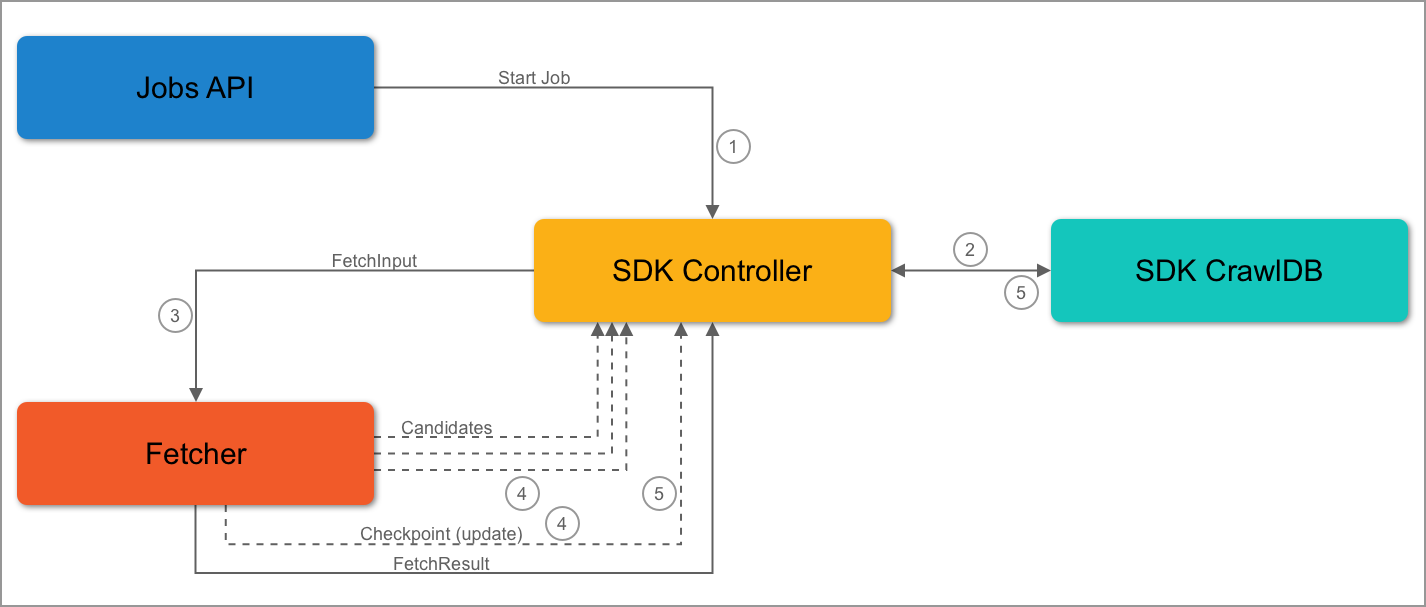
##### First Job Flow
2\. The SDK controller queries the SDK CrawlDB to check for items.
3\. It’s the first job, so the SDK CrawlDB is empty. The controller will send the initial FetchInput to the fetcher.
1. During the job, the fetcher receives a FetchInput.
2. The fetcher can then emit candidates and/or checkpoints.
3. When the SDK controller receives a checkpoint message, the checkpoint is stored or updated in CrawlDB. It will also process the other items it has received.
1. The SDK controller will not send the checkpoint to the fetcher in the same job.
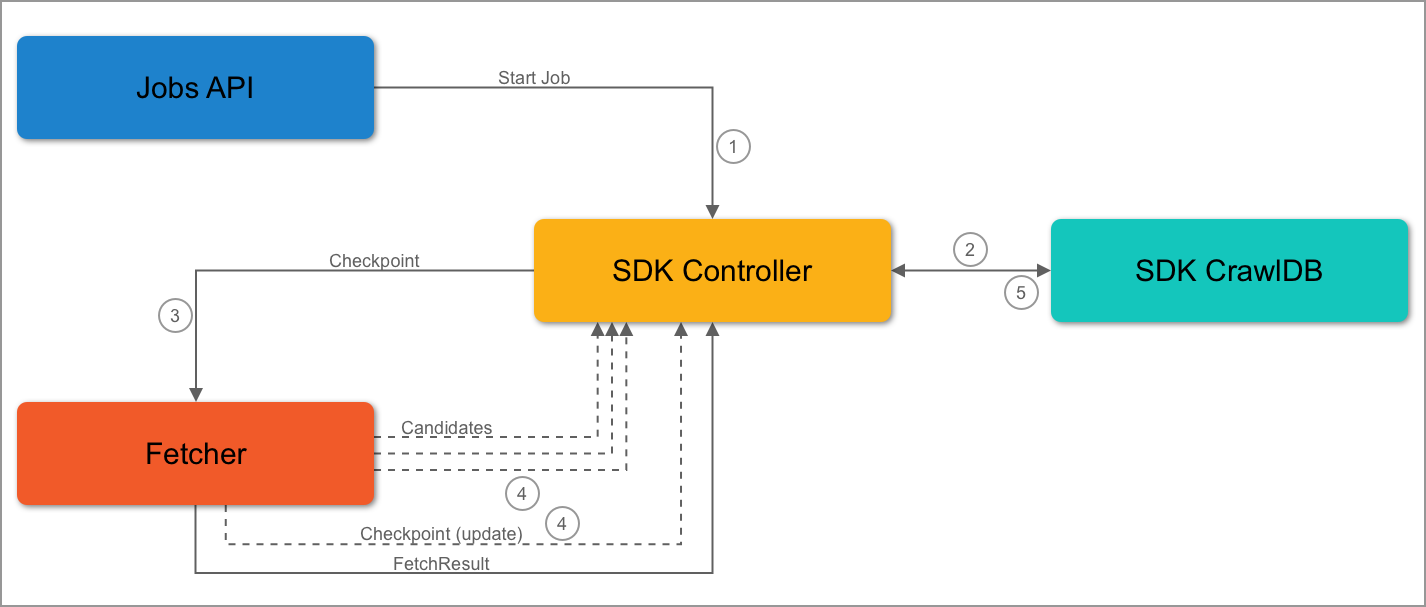
##### Second Job Flow
2\. The SDK controller queries the SDK CrawlDB to check for items.
3\. It’s the second job, so checkpoints are stored in the SDK CrawlDB. The controller will send the checkpoints to the fetcher.
4\. The fetcher receives and detects the checkpoints. Then, the fetcher emits candidates and updates the checkpoint. The update may take place at a later point, but the checkout *must* be updated.
1. If the checkpoint data matches current data, the fetcher will emit the same checkpoint.
2. The SDK controller will process the candidates and update the checkpoint data in the SDK CrawlDB.
### Stopping a Running Job
When a job is stopped, the current state of the job is stored so that it can be completed when the job is resumed.
#### Stop Handling Design
The SDK controller will keep track of the incomplete/complete items during a job. An incomplete item is an item that was emitted as a candidate but has not been sent to the fetcher to be processed. Alternatively, the fetch implementation may not have emitted the FetchResult message for that item. The incomplete item is stored in the SDK CrawlDB and marked as incomplete.
A completed item is one that was emitted first as a candidate and also sent to the fetcher to be processed. The fetcher completes the process by sending back a FetchResult. This item is then marked as complete by the SDK controller by setting the `blockID` field in the item metadata to match the `blockID` of the current job.
A `blockId` is used to quickly identify items in the CrawlDB which may not have been fully processed, or completed. A completed job is one that naturally stops due to source data being fully processed, as opposed to jobs that are manually stopped or fail.
`blockId’s identify a series of one or more jobs. The lifetime of a `blockId`spans from either the start of the initial crawl (or immediately after a completed one), all the way to completion. The SDK controller will generate and use a new`blockId\` when:
* The current job is the first job.
* The previous job’s state is `FINISHED`.
When a job starts and the previous job did not complete, the previous job’s state is `STOPPED`. In this case, the previous job’s blockId is reused. The same blockId will be reused until the crawl successfully completes. The SDK controller will continue checking the CrawlDB for incomplete items, which are identified by having a blockID that doesn’t match the previous job blockID. This approach ensures all items within the job are completed before the next job beings, even if the job was stopped multiple times before completion.
When an item is considered a new candidate, the item’s blockId does not change. Later, when the item is fully processed by the fetcher, the blockId is added to the item metadata and stored in the SDK CrawlDB. The item is then considered complete but will only be sent to fetchers when a new blockId is generated.
When all items are complete, the SDK will check for checkpoints, as detailed in [Checkpoint Design](#checkpoint-design).
**Important**
If there are incomplete items from the previous job stored in the SDK CrawlDB, ***only those items*** will be processed during the next job.
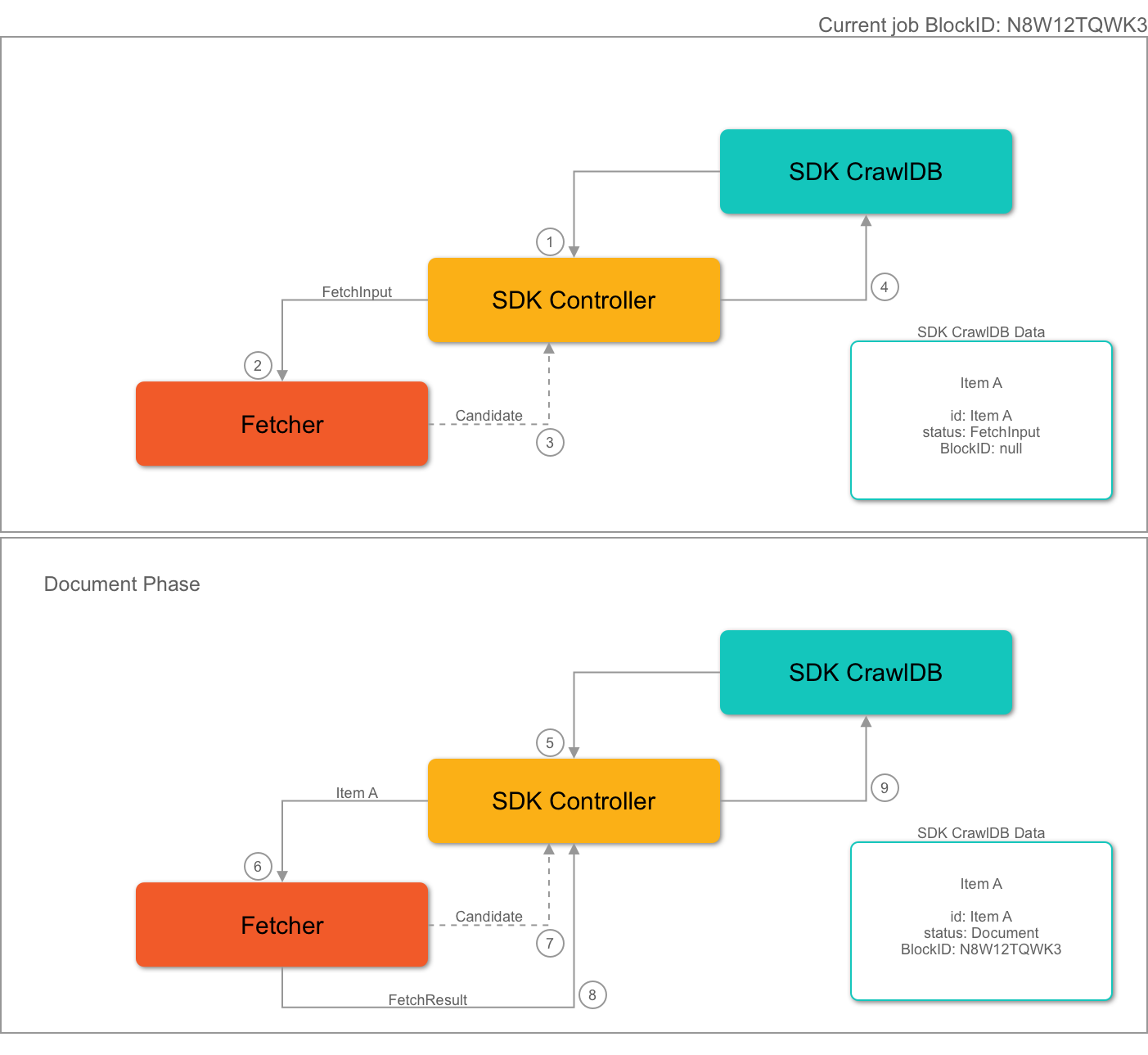
##### Item Completion Flow
he fetcher.
2\. The fetcher receives the FetchInput.
3\. The fetcher emits a candidate: `Item A`.
4\. The controller receives the candidate and stores it in the SDK CrawlDB. Mandatory fields are set to the item metadata, but the `blockId` field is not set.
5\. Later, in the same job, the candidate Item A is selected by the SDK controller, which sends it to a fetcher.
6\. The fetcher receives the candidate and processes it.
7\. The fetcher emits a `Document` from the candidate.
8\. The fetcher emits a `FetchResult` to the SDK controller.
9\. The SDK controller receives both the Document and the FetchResult.
1. If processing the Document, the item status is updated to Document in SDK CrawlDB.
2. If processing the FetchResult, the item’s blockId is set to the current job’s blockId.
### Transient candidates
Some connector plugins require that a new job start from the latest checkpoints *and* *not* attempt to reprocess incomplete candidates. For that purpose, emit those candidates with `Transient=true`. The `IncrementalContentFetcher` is an example.
## Learn more
The [Connectors SDK](https://github.com/lucidworks/connectors-sdk-resources/) comes with a sample connector to help you.
## Random Content Connector
The Random Content connector generates a configurable number of documents with random titles and body fields.
## Simple Connector
### Connector Description
This connector generates a configurable number of documents, all with random titles and body fields.
### Quick start
1. Clone the repo:
```bash wrap theme={"dark"}
git clone https://github.com/lucidworks/connectors-sdk-resources.git
cd connectors-sdk-resources/java-sdk/connectors/
./gradlew assemblePlugins
```
2. This produces one zip file, named `simple-connector.zip`, located in the `build/plugins` directory.
This artifact is now ready to be uploaded directly to Fusion as a connector plugin.
### Connector properties
#### Random content generator properties
| | |
| --------------------------- | ----------------------------------------------------------------------------------------------------------------------------------------------------------- |
| Property Name | Property description |
| Total | The total number of documents to generate |
| Minimum number of sentences | The minimum number of sentences to generate per document, the random generator will use this value as lower bound to calculate a random number of sentences |
| maximum number of sentences | The maximum number of sentences to generate per document, the random generator will use this value as upper bound to calculate a random number of sentences |
### How to use the connector
* Create a configuration with the properties listed above.
* After the first job is completed, the connector will index the same number of documents as defined in the `Random content generator properties.Total` property.