> ## Documentation Index
> Fetch the complete documentation index at: https://doc.lucidworks.com/llms.txt
> Use this file to discover all available pages before exploring further.

# JDBC Index Stage

export const schema = {
  "type": "object",
  "title": "JDBC Lookup",
  "description": "Connect to a database and lookup one or more values and inject them into the context",
  "required": ["driver", "connection", "username", "password", "preparedStatement"],
  "properties": {
    "skip": {
      "type": "boolean",
      "title": "Skip This Stage",
      "description": "Set to true to skip this stage.",
      "default": false,
      "hints": ["advanced"]
    },
    "label": {
      "type": "string",
      "title": "Label",
      "description": "A unique label for this stage.",
      "hints": ["advanced"],
      "maxLength": 255
    },
    "condition": {
      "type": "string",
      "title": "Condition",
      "description": "Define a conditional script that must result in true or false. This can be used to determine if the stage should process or not.",
      "hints": ["code", "code/javascript", "advanced"]
    },
    "driver": {
      "type": "string",
      "title": "JDBC Driver",
      "description": "The fully qualified class name of the JDBC Driver to use."
    },
    "connection": {
      "type": "string",
      "title": "Connection URI",
      "description": "The connection string for the database."
    },
    "username": {
      "type": "string",
      "title": "Username",
      "description": "The username to connect to the database."
    },
    "password": {
      "type": "string",
      "title": "Password",
      "description": "The password to connect to the database.",
      "hints": ["secret"]
    },
    "preparedStatement": {
      "type": "string",
      "title": "SQL Prepared Statement",
      "description": "The SQL Prepared Statement to execute when bound with values.",
      "hints": ["lengthy"]
    },
    "rows": {
      "type": "integer",
      "title": "Rows",
      "description": "The number of rows to return.  -1 for all rows (be wary of memory usage for this).",
      "default": -1,
      "hints": ["advanced"]
    },
    "fetchSize": {
      "type": "integer",
      "title": "Fetch Size",
      "description": "The JDBC Fetch Size to use.  If -1, use the driver default.",
      "default": -1,
      "hints": ["advanced"]
    },
    "join": {
      "type": "boolean",
      "title": "Join With Document",
      "description": "If true, the results will be added on to the document using the prefix key and the row id, else the results will be put in the pipeline context using",
      "default": true,
      "hints": ["advanced"]
    },
    "preparedStatementKeys": {
      "type": "array",
      "title": "Prepared Statement Keys",
      "description": "The keys in the Pipeline Context to use to map request attributes into the prepared statement.  These must map to the '?'s in your prepared statement.  They must also be able to be resolved as the first parameter of that name in a request.",
      "hints": ["advanced"],
      "items": {
        "type": "string"
      }
    },
    "prefix": {
      "type": "string",
      "title": "Result Prefix Key",
      "description": "The string to use as a prefix for all values.",
      "hints": ["advanced"]
    },
    "validationQueryTimeout": {
      "type": "integer",
      "title": "Validation Query Timeout",
      "description": "The validation query timeout, the amount of time, in seconds, that connection validation will wait for a response from the database when executing a validation query.  Use a value less than or equal to 0 for no timeout.",
      "default": -1,
      "hints": ["advanced"]
    }
  },
  "category": "Document Filtering and Enrichment",
  "categoryPriority": 7,
  "unsafe": false
};

export const SchemaParamFields = ({schema}) => {
  const sanitize = str => {
    if (typeof str !== "string") return str;
    return str.replace(/^"(.*)"$/s, "$1").replace(/\\/g, "").replace(/"/g, "'");
  };
  const formatDescription = str => {
    const s = sanitize(str);
    return (/[.!?]\)*$/).test(s) ? s : `${s}.`;
  };
  const {description, properties = {}, required: requiredProps = []} = schema;
  const visibleProps = useMemo(() => Object.entries(properties).filter(([, prop]) => !prop.hints?.includes("hidden")), [properties]);
  return <div>
      {description && <p>{formatDescription(description)}</p>}

      {visibleProps.map(([name, prop]) => {
    const isRequired = requiredProps.includes(name);
    const hasDefault = prop.default !== undefined;
    const rawDefault = prop.default;
    const isComplexDefault = hasDefault && (typeof rawDefault === "object" || typeof rawDefault === "string" && (rawDefault.length > 20 || rawDefault.includes('"')));
    const fieldProps = {
      key: name,
      body: prop.title || name,
      type: prop.type,
      ...prop.title && ({
        post: [<><span className="text-stone-400 dark:text-stone-500">API property: </span>{name}</>]
      }),
      ...isRequired && ({
        required: true
      }),
      ...!isComplexDefault && hasDefault ? {
        default: sanitize(String(rawDefault))
      } : {}
    };
    const isObject = prop.type === "object" && prop.properties;
    const isArrayOfObjects = prop.type === "array" && prop.items?.type === "object" && prop.items.properties;
    return <ParamField {...fieldProps}>
            {prop.description && <p>{formatDescription(prop.description)}</p>}

            {isComplexDefault && <div className="flex">
                <p>
                  <strong>Default:</strong>
                </p>
                <pre className="!my-0">
                  <code>
                    {JSON.stringify(rawDefault, null, 2)}
                  </code>
                </pre>
              </div>}

            {isArrayOfObjects && <div className="flex">
              <p>
                <strong>Object attributes:</strong>
              </p>
              <pre className="!my-0">
                <code>
                  {'{\n'}
                  {Object.entries(prop.items.properties).map(([iname, iprop]) => <>
                      {`  ${iname}`}
                      {prop.items?.required?.includes(iname) && <span style={{
      color: 'red'
    }}> required</span>}
                      {`: {\n    display name: ${sanitize(iprop.title || '')}\n    type: ${iprop.type}\n  }\n`}
                    </>)}
                  {'}'}
                </code>
              </pre>
              </div>}

            {isObject && <Expandable title="properties">
                <SchemaParamFields schema={{
      properties: prop.properties,
      required: prop.required
    }} />
              </Expandable>}
          </ParamField>;
  })}
    </div>;
};

export const LwTemplate = ({title = "Key questions to get you started", icon = "sparkles", cta = "Powered by Agent Studio", linkHref = "https://lucidworks.com/demo/?utm_source=docs&utm_medium=referral&utm_campaign=docs_cta_ai"}) => {
  const [isLoaded, setIsLoaded] = useState(false);
  useEffect(() => {
    const timer = setTimeout(() => {
      setIsLoaded(true);
    }, 500);
    return () => clearTimeout(timer);
  }, []);
  return <div className="lw-template-container">
      <Card title={title} icon={icon}>
        {isLoaded && <span dangerouslySetInnerHTML={{
    __html: `<lw-template id="a029c1a9-28be-427e-b0e1-5d918920246a"></lw-template
            >`
  }} />}
        <Link href={linkHref} className="agent-studio-link text-left text-gray-600 gap-2 dark:text-gray-400 text-sm font-medium flex flex-row items-center hover:text-primary dark:hover:text-primary-light group-hover:text-primary group-hover:dark:text-primary-light">Powered by Lucidworks Agent Studio</Link>
      </Card>
    </div>;
};

[localhost link]: http://localhost:3000/docs/4/fusion-server/reference/pipeline-stages/indexing/jdbc-index-stage

[mintlify link]: https://doc.lucidworks.com/docs/4/fusion-server/reference/pipeline-stages/indexing/jdbc-index-stage

[old doc.lw link]: https://doc.lucidworks.com/fusion/5.9/215

The JDBC Index Stage is used to connect to a database, lookup one or more values, and then inject them into the context.
The properties for setting stage are identical to the [JDBC Query Stage](/docs/4/fusion-server/reference/pipeline-stages/query/jdbc-query-stage), except for the "rows" property, which defaults to **-1** for the index stage (which returns all rows in the database), and defaults to **10** returned rows for the query stage.

<Note>
  You must first **Upload a JDBC Driver to Fusion Server**.

  <Accordion title="Upload a JDBC Driver to Fusion Server">
    The JDBC V1 connector is supported, and fetches documents from a relational database via SQL queries. Under the hood, this connector implements the Solr [DataImportHandler (DIH)](https://wiki.apache.org/solr/DataImportHandler) plugin.

    Fusion stores JDBC drivers in the blob store. You can upload a driver using the Fusion UI or the Blob Store API.

    <LwTemplate />

    ## How to upload a JDBC driver using the Fusion UI

    {/* // tag::upload[] */}

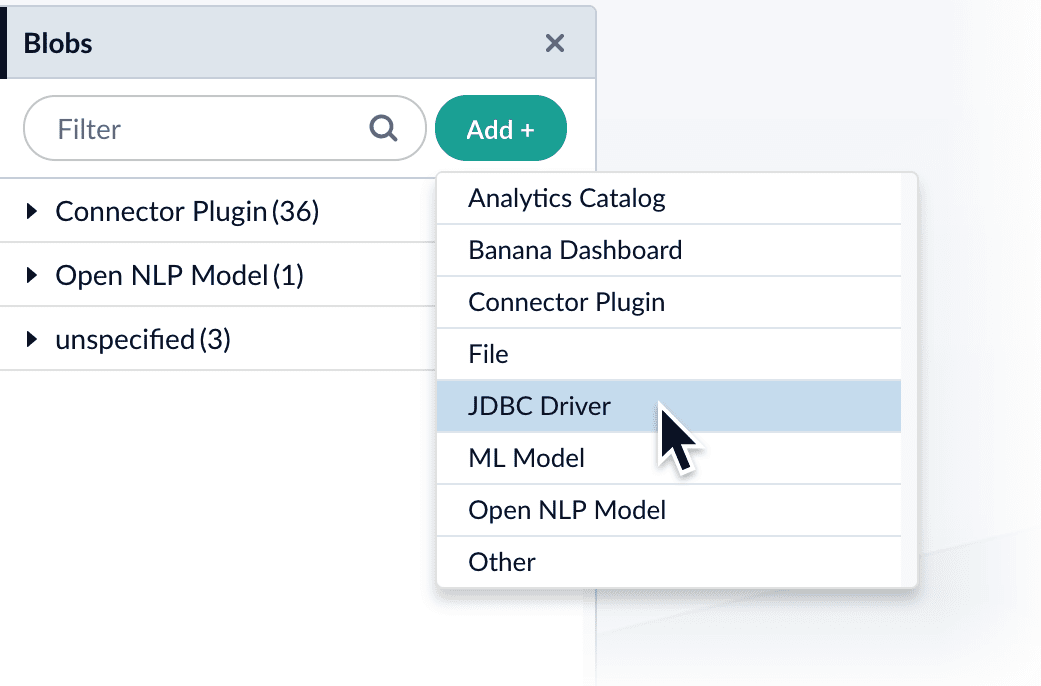
    1. In the Fusion UI, navigate to **System** > **Blobs**.

    2. Click **Add**.

    3. Select **JDBC Driver**.\
       The "New 'JDBC Driver' Upload" panel appears.
           <img src="https://mintcdn.com/lucidworks/5yWZ-KtZuBe4Y_Fg/assets/images/4.0/blobstore_add_jdbcdriver1.png?fit=max&auto=format&n=5yWZ-KtZuBe4Y_Fg&q=85&s=b7d0a7b57734a2219cb107db40b0f210" alt="Uploading a connector" style={{ width: "450px" }} width="1041" height="686" data-path="assets/images/4.0/blobstore_add_jdbcdriver1.png" />

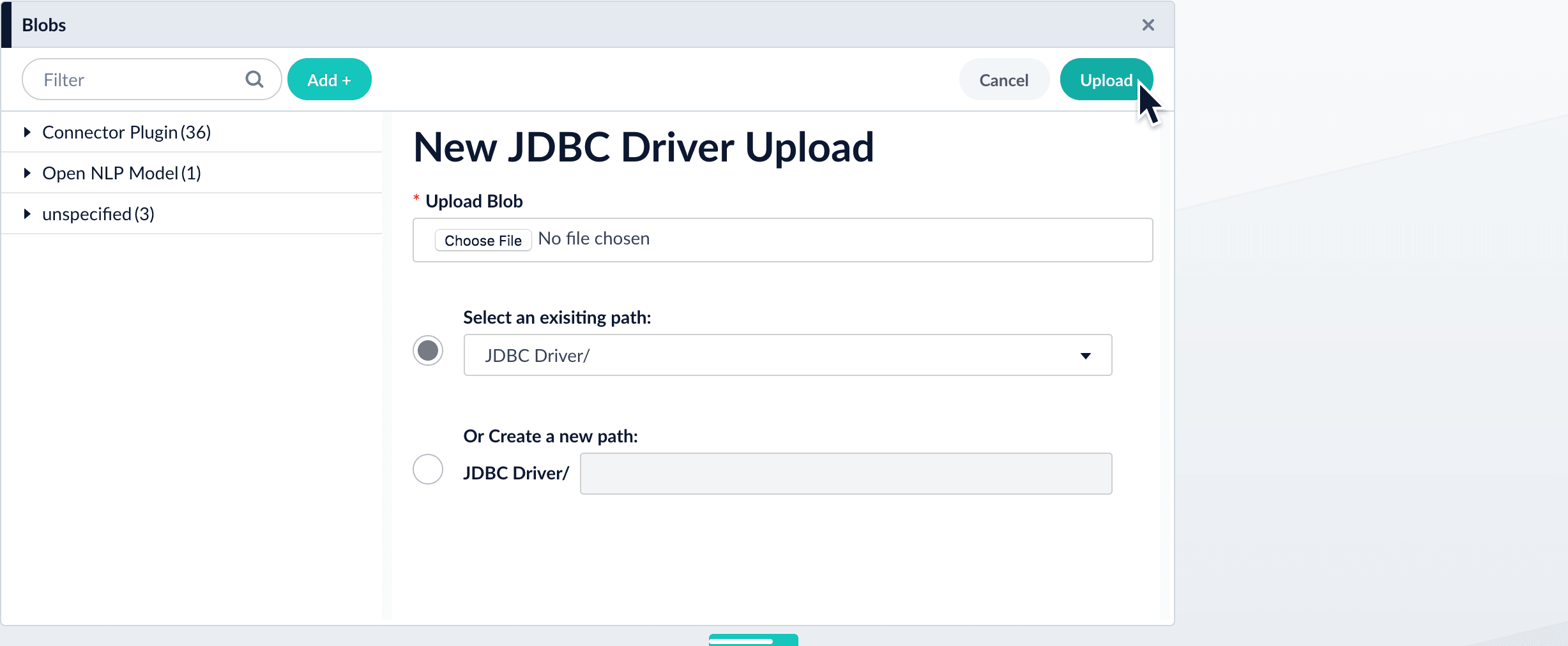
    4. Click **Choose File** and select the .jar file from your file system.
           <img src="https://mintcdn.com/lucidworks/5yWZ-KtZuBe4Y_Fg/assets/images/4.0/blobstore_add_jdbcdriver2.png?fit=max&auto=format&n=5yWZ-KtZuBe4Y_Fg&q=85&s=e722ae92551c19068ce783d6e71798b4" alt="Uploading connector" width="2455" height="1012" data-path="assets/images/4.0/blobstore_add_jdbcdriver2.png" />

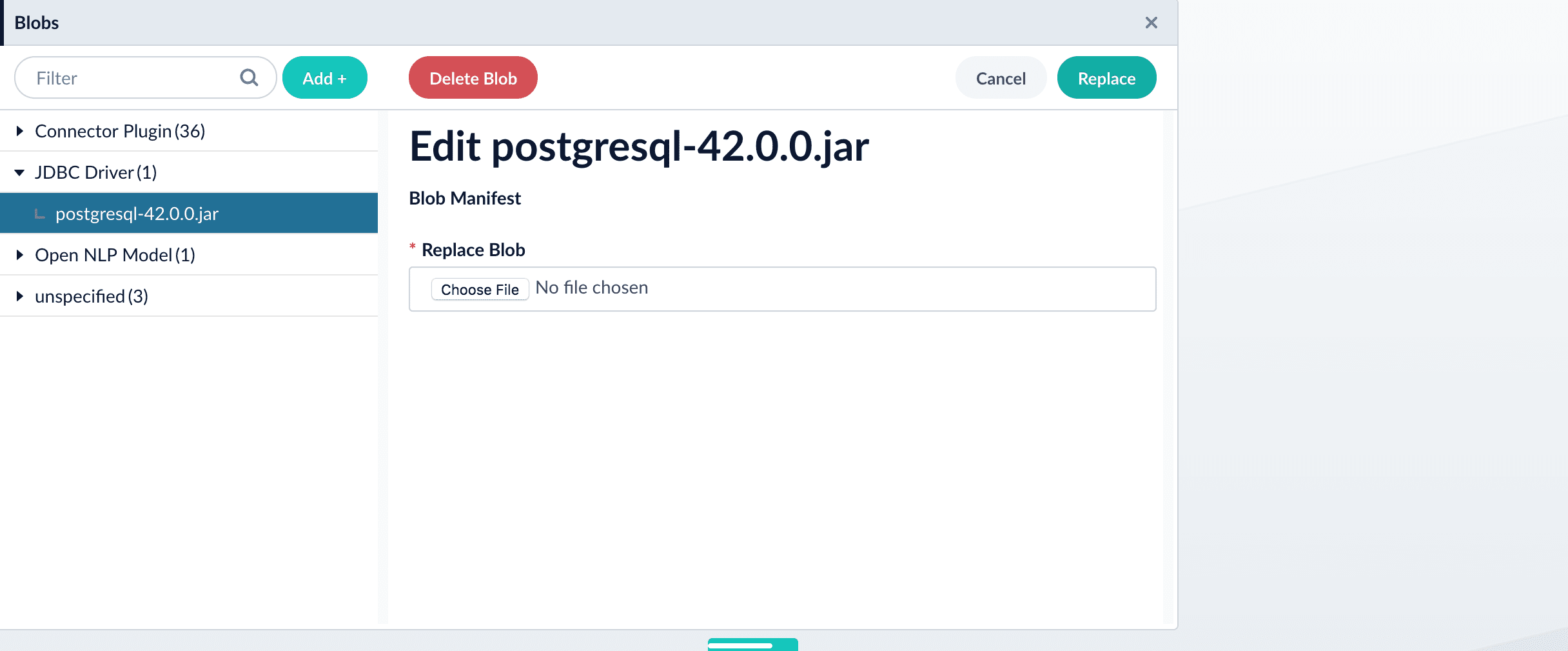
    5. Click **Upload**.\
       The new driver’s blob manifest appears.
           <img src="https://mintcdn.com/lucidworks/5yWZ-KtZuBe4Y_Fg/assets/images/4.0/blobstore_add_jdbcdriver3.png?fit=max&auto=format&n=5yWZ-KtZuBe4Y_Fg&q=85&s=f3c48edcb769b7df7cd300dc449e249f" alt="Uploaded connector" width="2432" height="1009" data-path="assets/images/4.0/blobstore_add_jdbcdriver3.png" />

    From this screen you can also delete or replace the driver.

    {/* // end::upload[] */}

    ## How to install a JDBC driver using the API

    1. Upload the JAR file to Fusion’s blob store using the [`/blobs/{id}` endpoint](/api-reference/blobs/upload-a-blob).

       Specify an arbitrary blob ID, and a `resourceType` value of `plugin:connector`, as in this example:

       ```bash theme={"dark"}
       curl -u USERNAME:PASSWORD -H "content-type:application/java-archive" -H "content-length:707261" -X PUT --data-binary @postgresql-42.0.0.jar http://localhost:8764/api/blobs/mydriver?resourceType=driver:jdbc
       ```

       Success response:

       ```json theme={"dark"}
       {
         "name" : "mydriver",
         "contentType" : "application/java-archive",
         "size" : 707261,
         "modifiedTime" : "2017-06-09T19:00:48.919Z",
         "version" : 0,
         "md5" : "c67163ca764bfe632f28229c142131b5",
         "metadata" : {
           "subtype" : "driver:jdbc",
           "drivers" : "org.postgresql.Driver",
           "resourceType" : "driver:jdbc"
         }
       }
       ```

       Fusion automatically publishes the event to the cluster, and the listeners perform the driver installation process on each node.

       <Tip>   If the blob ID is identical to an existing one, the old driver will be uninstalled and the new driver will installed in its place. To get the list of existing blob IDs, run: `curl -u USERNAME:PASSWORD https://FUSION_HOST:FUSION_PORT/api/blobs`</Tip>
    2. To verify the uploaded driver, run:

       ```bash theme={"dark"}
       curl -u USERNAME:PASSWORD https://FUSION_HOST:FUSION_PORT/api/blobs/BLOB_ID/manifest
       ```

       Where the `BLOB_ID` is the name specified during upload, such as "mydriver" above. A success response looks like this:

       ```json theme={"dark"}
       {
         "name" : "mydriver",
         "contentType" : "application/java-archive",
         "size" : 707261,
         "modifiedTime" : "2017-06-09T19:05:17.897Z",
         "version" : 1569755095787110400,
         "md5" : "c67163ca764bfe632f28229c142131b5",
         "metadata" : {
           "subtype" : "driver:jdbc",
           "drivers" : "org.postgresql.Driver",
           "resourceType" : "driver:jdbc"
         }
       }
       ```

    ## How to manually upload a JDBC V1 driver for Fusion 4.x.x releases

    For Fusion 4.x.x release levels, it is recommended that you upload the JDBC driver jar files manually. This prevents some issues with dynamically loading the driver causing errors, particularly with Oracle and Microsoft SQL drivers.

    The following steps specify how to upload a JDBC driver JAR file to Fusion manually. The example uses the Microsoft SQL Server JDBC driver `mssql-jdbc-6.6.2-jre8.jar` file.

    1. Delete the JDBC V1 driver uploaded using the Blob store upload window.
    2. Save the JDBC V1 driver JAR file to the `apps/lib` folder. For example:

       `apps\libs\mssql-jdbc-6.2.2.jre8.jar`
    3. Open the `apps/jetty/connectors-classic/webapps/connectors-extra-classpath.txt` file and add the following line:

       `apps/libs/mssql-jdbc-6.2.2.jre8.jar`
    4. Restart connectors-classic.
    5. Specify the JDBC driver class name in the **Manually uploaded JDBC Driver Name** field.
    6. Enter **com.microsoft.sqlserver.jdbc.SQLServerDriver** in the **JDBC Driver Name** field.
  </Accordion>
</Note>

## Example

An example of a JDBC Index Stage setup

*Upload stage config via POST to Fusion REST API endpoint `api/index-stages/instances`*

```bash wrap  theme={"dark"}
curl -u USERNAME:PASSWORD -X POST -H "Content-Type: application/json" -d '{"id": "jdbc-index-test","type":"jdbc-index-lookup","driver":"postgresql-9.3-1101-jdbc4.jar","connection":"jdbc:postgresql:database","username":"user","password":"password1","preparedStatement":"select ID as id from DATABASE;"}' http://localhost:8764/api/index-stages/instances
```

*Response*

```json wrap  theme={"dark"}
{
  "type" : "jdbc-index-lookup",
  "id" : "jdbc-index-test",
  "driver" : "postgresql-9.3-1101-jdbc4.jar",
  "connection" : "jdbc:postgresql:database",
  "username" : "user",
  "password" : "password1",
  "preparedStatement" : "select ID as id from DATABASE;",
  "fetchSize" : -1,
  "join" : true,
  "rows" : -1,
  "skip" : false,
  "label" : "jdbc-index-lookup",
  "type" : "jdbc-index-lookup"
}
```

## Configuration

<Tip>
  When entering configuration values in the UI, use *unescaped* characters, such as `\t` for the tab character. When entering configuration values in the API, use *escaped* characters, such as `\\t` for the tab character.
</Tip>

<SchemaParamFields schema={schema} />