> ## Documentation Index
> Fetch the complete documentation index at: https://doc.lucidworks.com/llms.txt
> Use this file to discover all available pages before exploring further.
# Objects API
export const LwTemplate = ({title = "Key questions to get you started", icon = "sparkles", cta = "Powered by Agent Studio", linkHref = "https://lucidworks.com/demo/?utm_source=docs&utm_medium=referral&utm_campaign=docs_cta_ai"}) => {
const [isLoaded, setIsLoaded] = useState(false);
useEffect(() => {
const timer = setTimeout(() => {
setIsLoaded(true);
}, 500);
return () => clearTimeout(timer);
}, []);
return
{isLoaded && `
}} />}
Powered by Lucidworks Agent Studio
;
};
[localhost link]: http://localhost:3000/docs/4/fusion-server/reference/api/objects-api
[mintlify link]: https://doc.lucidworks.com/docs/4/fusion-server/reference/api/objects-api
[old doc.lw link]: https://doc.lucidworks.com/fusion/5.9/326
The Objects API lets you migrate objects between Fusion instances by exporting and importing. Fusion objects include all your searchable data, plus pipelines, aggregations, and other configurations on which your collections depend.
As an alternative in some cases, you can **Migrate Fusion Objects**.
You can use the Fusion UI and the [Objects API](/docs/4/fusion-server/reference/api/objects-api) to migrate collections and related objects, including your searchable data, configuration data, pipelines, aggregations, and other objects on which your collections depend. You can also migrate entire apps.
When upgrading from one Fusion version to a later one, you must use the migrator to migrate objects. The migrator automates the process of translating relevant objects to the new version. Exporting an object from one Fusion version and importing it into a different Fusion version *isn’t* supported.
You might need to migrate objects in the following circumstances:
* When migrating data from development environments into testing and production environments
* To back up data, so you can restore it after an incident of data loss
* When the migrator script was not able to migrate an object automatically
When you export and import objects to migrate them, make sure you that any data gets to where it is going before deleting the sources.
## Migration approaches
Several approaches are available for migrating Fusion objects. This table summarizes the approaches.
| | Export an app | Import an app | Export an object | Import an object | Add an object to an app |
| --------------------------------- | -------------------------- | ------------------------------------------------------------------ | -------------------------- | ------------------------- | ----------------------- |
| **Fusion UI** | App configuration | Launcher (entire app) App configuration (combine apps) | - | - | Object Explorer |
| **Objects API** (endpoints) | GET from `export` endpoint | POST to `import` endpoint | GET from `export` endpoint | POST to `import` endpoint | - |
For more information about using the Objects API to export and import objects, see [Objects API](/docs/4/fusion-server/reference/api/objects-api).
The remainder of this topic describes approaches in the Fusion UI.
Use the parts of the Fusion UI indicated in the table to export and import apps and specific objects. Exporting creates a zip file. To import, you select a data file and possibly a variable file.
The approach with Object Explorer differs. With Object Explorer, you can add objects from other apps (or that are not linked to any apps) to the currently open app.
## Export an app with the Fusion UI
**How to export an app with the Fusion UI**
1. Navigate to the launcher.
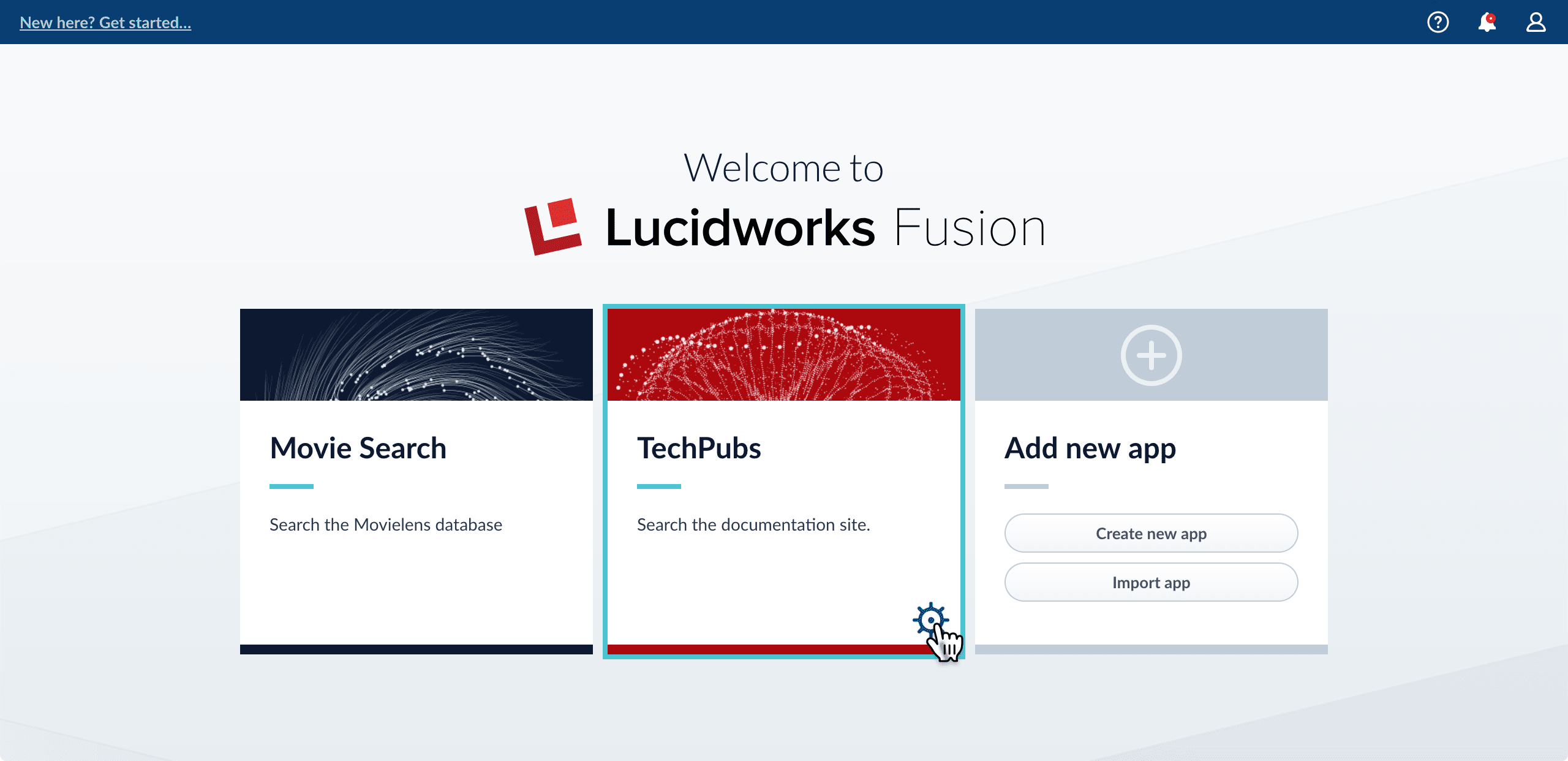
2. Hover over the app you want to export and click the Configure icon:
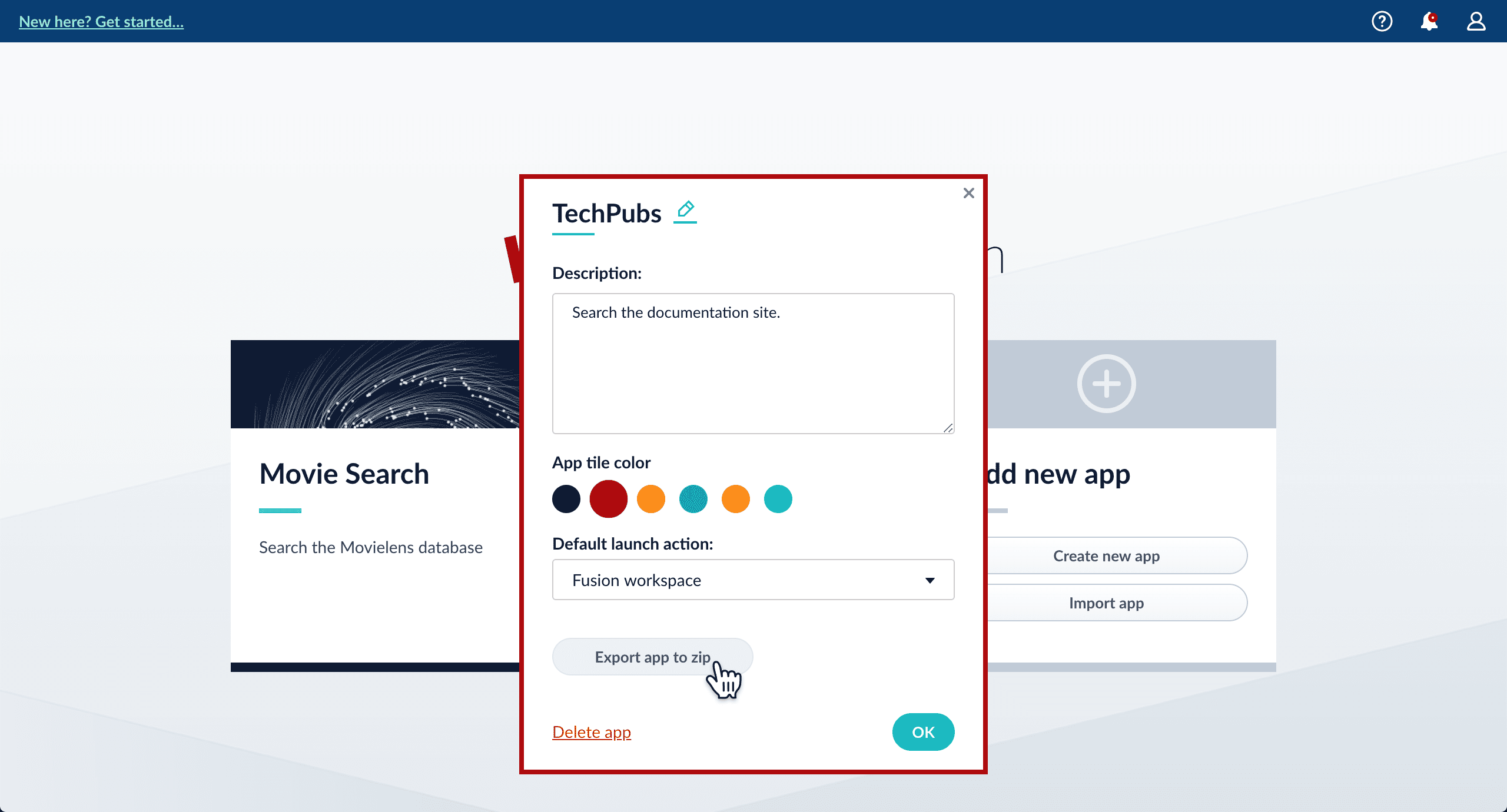
3. In the app config window, click **Export app to zip**:
See import for information to import the downloaded zip file into other instances of Fusion 4.x Server.
## Import an app with the Fusion UI
**How to import an app with the Fusion UI**
1. Navigate to the launcher.
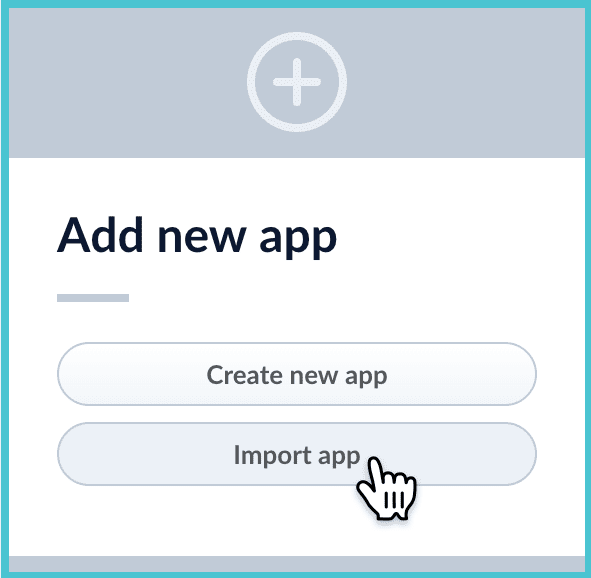
2. Click **Import app**.
3. Under **Data File**, click **Choose File** and select the zip file containing the app you want to import.
4. If your app has [usernames and passwords](/docs/4/fusion-server/reference/api/objects-api) in a separate file, select it under **Variables File**.\
If the Variables File is needed, it *must* be a separate file that is not in a .zip file. It is a .json map of variables to values. The following is an example:
```json theme={"dark"}
{
"secret.dataSources.Inventory_BR_S3_DS.password":"SOMETHING",
"secret.dataSources.LLM_A_BR_S3_DS.password":"FmJSaDE9Tj5REDACTED",
"secret.dataSources.LLM_BR_Inventory_S3_DS.password":"FmJSaDE9Tj5GzIVvethAC4Huh",
"secret.dataSources.LLM_BR_Load_S3_DS.password":"FmJSaDE9Tj5GzIVvethAC4"
}
```
1. In Fusion 4.1 and later, you can sometimes edit parameter values to use the new values in the imported app. If this is the case, Fusion displays a dialog box that lets you edit the parameter values.
Make desired changes, and then click **Import**.
## Copy an app
To copy an app from one deployment to a different one, [export the app](#export-an-app-with-the-fusion-ui) on the source deployment, and then [import the app](#import-an-app-with-the-fusion-ui) on the target deployment.
## Import objects into an app
You can import objects into the currently open app.
**How to import objects into an open app**
1. In the Fusion launcher, click the app into which you want to import objects.\
The Fusion workspace appears.
2. In the upper left, click **System** > **Import Fusion Objects**.
The Import Fusion Objects window opens.
3. Select the data file from your local filesystem.\
If you are importing [usernames and passwords](/docs/4/fusion-server/reference/api/objects-api) in a separate file, select it under **Variables File**.
4. Click **Import**.\
If there are conflicts, Fusion prompts you to specify an import policy:
* Click **Overwrite** to overwrite the objects on the target system with the ones in the import file.
* Click **Merge** to skip all conflicting objects and import only the non-conflicting objects.
* Click **Start Over** to abort the import.\
Fusion confirms that the import was successful:
5. Click **Close** to close the Import Fusion Objects window.
## Add an object to an app
You can add objects present in other apps (or in no apps) to the open app. Some objects are linked to other apps. You can also add those directly to an app.
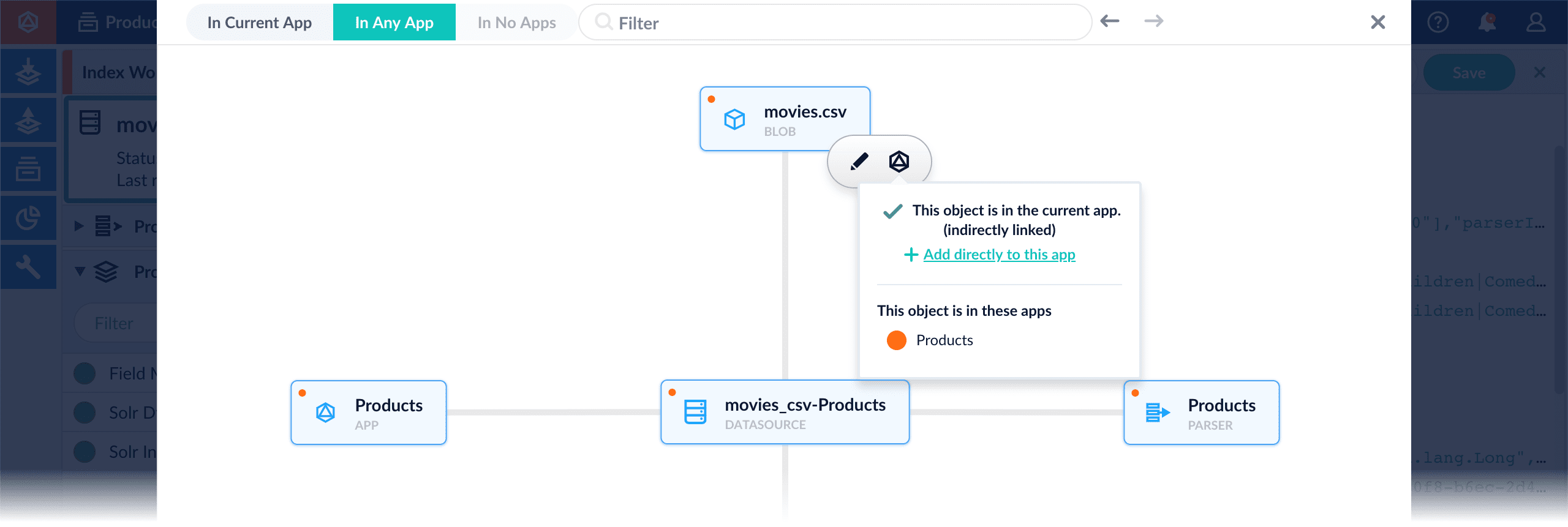
* **Add an object to an app** – While in the Fusion workspace for the app to which you want to add an object, open Object Explorer and click **In Any App**. Search for or browse to the object you want to add. Hover over the object, click the App icon, and then click **Add to this app**.
* **Add an object to an app directly** – In cases when an object is linked to an app, but is not linked directly to the app (it is linked via some dependency), you can add the object to an app directly.
While in the Fusion workspace for the app to which you want to add an object directly, open Object Explorer and click **In Any App**. Search for or browse to the object you want to add. Hover over the object, click the App icon, and then click **Add to this app directly**.
**Important**
For both the API and UI, migrating objects is intended for use *within a specific Fusion version*. Upgrading is available for migrating objects from one Fusion version to a different one.
When you have a Fusion-based search application running, at some point it might be necessary to upgrade to a later version of Fusion. We provide a migrator tool to simplify the upgrade process.
See the [release history](/docs/4/fusion-server/release-notes/4.2.0-release-notes) to find out what is new, including which versions of Solr, Spark, and ZooKeeper are bundled with each Fusion release.
The migrator transfers over *most* of the objects that make up your search application, all configurations and customizations for your application, and all data in collections in the application.
In some cases, manual steps are required for objects that the migrator cannot handle automatically. We give you instructions and guidance about what might be required. You should also review the log of the upgrade in `/opt/fusion/x.y.z/var/upgrade/tmp/migrator.log` (on Unix) or `C:\lucidworks\var\fusion\x.y.z\upgrade\tmp\migrator.log` (on Windows). The x.y.z directory is for the Fusion version that you are migrating *from*.
## Key points
Following are some key points about upgrading Fusion:
* **Migration involves down time.** The upgrade process involves multiple starts and stops of Fusion services. Please plan accordingly, especially in terms of disabling external load balancers or monitors that might react adversely to the starts and stops.
* **Current deployment is preserved.** Upgrades preserve the current Fusion deployment, copying information over from the current deployment to the new one. This provides a rapid roll-back option if you encounter problems during the upgrade process.
* **If the upgrade fails.** If an upgrade fails, there is a procedure for dealing with that.
## Supported upgrade sequences
Only specific version-to-version upgrade sequences are supported. Some upgrades require multiple steps.
These upgrade sequences are supported.
### Upgrades to the current version
* **3.1.x to 4.2.y.** From any 3.1.x version to 4.2.6 SP1 (one step, using the migrator)
* **4.0.x to 4.2.y.** From any 4.0.x version to 4.2.6 SP1 (one step, using the migrator)
* **4.1.x to 4.2.y.** From any 4.1.x version to 4.2.6 SP1 (one step, using the migrator)
For links to these procedures, see [Per-version instruction sets](#per-version-instruction-sets).
### Upgrades to prior versions
Using the migrator:
* **3.1.x to 4.0.y.** From 3.1.5 directly to 4.0.2 (one step)
For more information, see Upgrade Fusion 3.1.x to 4.0.y.
* **4.0.x to 4.0.y.** From 4.0.0 or 4.0.1 to 4.0.2 (one step)
For more information, see Upgrade Fusion Server 4.0.x to 4.0.y.
* **3.1.x to 4.1.y.** From any 3.1.x version to 4.1.3 (one step, using the migrator)
For more information, see Upgrade Fusion Server 3.1.x to 4.1.y.
* **4.0.x to 4.1.y.** From 4.0.2 to 4.1.3 (one step, using the migrator)
For more information, see Upgrade Fusion Server 4.0.x to 4.1.y.
* **4.1.x to 4.1.y.** From 4.1.0 to 4.1.3 (one step, using the migrator)
For more information, see Upgrade Fusion Server 4.1.x to 4.1.y.
### Example
For example, to upgrade from Fusion 3.0.1 to Fusion Server 4.2.5, you would perform the following upgrades (both of them using the migrator):
1. Upgrade from Fusion 3.0.1 to Fusion 3.1.5
2. Upgrade from Fusion 3.1.5 to Fusion Server 4.2.5
## Per-version instruction sets
To upgrade to a later version of Fusion from an existing installation requires
transferring over all configurations and data from your existing Fusion installation to the
new version.
**How to upgrade from Fusion 3.1.x to Fusion Server 4.2.y**
Perform the steps in this article:
**Upgrade from Fusion Server 3.1.x to 4.2.y** - Run a migrator to upgrade from Fusion Server 3.1.x to 4.2.y.
**How to upgrade from Fusion 4.0.x to Fusion Server 4.2.y**
Perform the steps in this article:
**Upgrade from Fusion Server 4.0.x to 4.2.y** - Run a migrator to upgrade from Fusion Server 4.0.x to 4.2.y.
**How to upgrade from Fusion 4.1.x to Fusion Server 4.2.y**
Perform the steps in this article:
**Upgrade from Fusion Server 4.1.x to 4.2.y** - Run a migrator to upgrade from Fusion Server 4.1.x to 4.2.y.
**How to upgrade from Fusion 4.2.x to Fusion Server 4.2.y**
Perform the steps in this article:
**Upgrade from Fusion Server 4.2.x to 4.2.y** - Run a migrator to upgrade from Fusion Server 4.2.x to 4.2.y.
You can select all objects, or limit the operation to specific object types or IDs. In addition to export/import endpoints, a validation endpoint is provided for troubleshooting.
By default, system-created collections are not exported. See below for details.
## Object export and import
[Collections](#exporting-and-importing-collections) and [encrypted values](#encrypted-passwords) are treated specially; details are provided below. During import, conflicts are resolved according to the specified [import policy](#import-policies).
For objects other than collections, no implicit filtering is performed; all objects are included by default. However, on export you can [filter by type and ID](#filtering-on-export).
### Supported objects
Fusion lets you export and import the object types below. To filter by type, use the values below with the `type` query string parameter; see the examples below.
| Object type | Value | Output |
| -------------------------------------------------------------------------------------- | -------------------------------------------------------------------------------------------------------------------------------------------- | --------- |
| apps | `app` The `deep` parameter is not needed for this object type. In the case of apps, all linked objects are included by default. | .zip file |
| Appkit apps | `appkit` | .zip file |
| collections (with their dependent objects) See below for collection-specific details. | `collection` | .zip file |
| index pipelines | `index-pipeline` | .zip file |
| index profiles | `index-profile` | .zip file |
| query pipelines | `query-pipeline` | .zip file |
| query profiles | `query-profile` | .zip file |
| search cluster configurations | `search-cluster` | .zip file |
| schedules | `task`, `job`, or `spark` | .zip file |
| datasources | `datasource` | .zip file |
| parsing configurations | `parser` | .zip file |
| object group | `group` | .zip file |
| link | `link` | .zip file |
| blob | `blob` | .zip file |
### Exporting and importing collections
Collections are processed with these dependent objects:
* features
* index profiles
* query profiles
Datasources, parser configurations, and pipeline configurations are not included when collections are exported or imported. These must be exported and imported explicitly.
Only user-created collections are included by default. Certain types of collections are excluded:
* the "default" collection
* collections whose type is not DATA
* collections whose names start with "system\_"
* "Secondary" collections, that is, collections created by features\
Instead, create the same features on the target system; this automatically creates the corresponding secondary collections.
You can override these exclusions by specifying a collection, like this:
```bash wrap theme={"dark"}
curl -u USERNAME:PASSWORD https://FUSION_HOST:8764/api/objects/export?collection.ids=default > collection.zip
```
### Encrypted passwords
Some objects, such as datasources and query pipelines, include encrypted passwords for accessing secure data.
* On *export*, these encrypted values are replaced with one of the following:
* `secret.dataSources.datasourceID.password`
* `secret.queryPipelines.pipelineID.stages.active-directory-security-trimming.stageID.bindPassword`
* On *import*, the original, plaintext passwords must be provided in a separate JSON map as multipart form data:
```json theme={"dark"}
{
"secret.dataSources.datasourceID.password":"MyDatasourcePassword",
"secret.queryPipelines.pipelineID.stages.active-directory-security-trimming.stageID.bindPassword":"MyADPassword"
}
```
Passwords can also be used when importing an app.
Variables that do not start with `secret.` are ignored.
### Import policies
On import, the `importPolicy` parameter is required. It specifies what to do if any object in the import list already exists on the target system:
| | |
| ----------- | ----------------------------------------------------------------------------------------------------- |
| `abort` | If there are conflicts, then import nothing. |
| `merge` | If there are conflicts, then skip the conflicting objects. |
| `overwrite` | If there are conflicts, then overwrite or delete/create the conflicting objects on the target system. |
### Filtering on export
On export, there are two ways to specify the objects to include:
* by type\
To export only specific types of objects, you can specify one or more object types using the `type` query string parameter. See [Supported objects](#supported-objects) for a list of valid values.
* by type and ID
The `type.ids` parameter lets you list the IDs to match for the specified object type.
The `type` and `type.ids` parameters can be combined as needed.
### Exporting linked objects
Related Fusion objects are linked. You can view linked objects using the [Links API](/docs/4/fusion-server/reference/api/links-api) or the [Object Explorer](/docs/4/fusion-server/concepts/object-explorer).
When exporting a specific Fusion object, you can also export its linked objects without specifying each one individually. To export all objects linked to the specified object, include the `deep="true"` query parameter in your request. See the [example](#examples) below.
## Validation
Objects are validated before import. If any objects fail validation, the whole import request is rejected. A separate endpoint is available for validating objects without importing them.
Validation includes checking whether an object already exists on the target system and whether the user is authorized to create or modify the object.
For collection objects, the following special validation is performed:
* We check the `searchClusterId` of each collection and verify that a cluster with this ID exists on the target system or in the import file (error).
* We check that features, index profiles, and query profiles belong only to the collections specified in the import file (error).
* We check that a feature exists on the target system for each feature in the import file (error).
* We check for index profiles or query profiles that do not exist on the target system or in the import file (warning).
## Status messages
| | |
| ---------------------------------------------------------- | ------------------------------------------------------------------------------------------------------------------------------------------------------ |
| `Validation completed with no errors` | The validation method was called and no errors found, though there may be warnings. |
| `Validation found errors` | The validation was called and errors found. Validation does not stop on the first error, so the complete list of errors is reported. |
| `Validation was not completed because of system error` | The validation was interrupted by system error. |
| `Import was not performed because validation errors exist` | The import method was called, but import didn’t start because of validation errors. |
| `Import was not performed because of input data error` | The import method was called, but import didn’t start, because Fusion could not find a substitution for one of the secret values in objects in import. |
| `Import was not completed because of system error` | The validation found no errors and import started, but it was interrupted by system error. |
| `Import was completed` | Validation found no errors and import finished successfully. |
## Examples
**Export all objects**
```bash wrap theme={"dark"}
curl -u USERNAME:PASSWORD https://FUSION_HOST:8764/api/objects/export > all-objects.zip
```
**Export all datasources**
```bash wrap theme={"dark"}
curl -u USERNAME:PASSWORD https://FUSION_HOST:8764/api/objects/export?type=datasource > datasources.zip
```
**Export a specific datasource and all its linked objects**
```bash wrap theme={"dark"}
curl -u USERNAME:PASSWORD https://FUSION_HOST:8764/api/objects/export?datasource.ids=movies_csv-movies > movies.zip
```
**Export all apps**
```bash wrap theme={"dark"}
curl -u USERNAME:PASSWORD https://FUSION_HOST:8764/api/objects/export?type=app > all-apps.zip
```
**Get all app IDs, then export one app by ID**
```sh wrap expandable theme={"dark"}
curl -u USERNAME:PASSWORD https://FUSION_HOST:8764/api/apps
[ {
"id" : "movies",
"name" : "Movies",
"description" : "Search the movielens database.",
"dataUri" : "/App-Tile-01-460x160.png",
"properties" : {
"headerImageName" : "headerImage1",
"tileColor" : "apps-darkblue",
"previousCollectionId" : "movies"
}
}, {
"id" : "tech-pubs",
"name" : "TechPubs",
"description" : "Search the documentation.",
"dataUri" : "/App-Tile-02-460x160.png",
"properties" : {
"headerImageName" : "headerImage2",
"tileColor" : "apps-darkblue",
"previousCollectionId" : "tech-pubs"
}
} ]
> curl -u USERNAME:PASSWORD https://FUSION_HOST:8764/api/objects/export?app.ids=tech-pubs > techpubs.zip
```
When you export an app that includes objects that are shared with other apps, then all apps linked to that object are also exported.
**Export two apps by ID**
```bash wrap theme={"dark"}
curl -u USERNAME:PASSWORD https://FUSION_HOST:8764/api/objects/export?app.ids=tech-pubs,movies > two-apps.zip
```
**Export all datasources and pipelines, plus two specific parsing configurations**
```bash wrap theme={"dark"}
curl -u USERNAME:PASSWORD 'https://FUSION_HOST:8764/api/objects/export?type=datasource,index-pipeline,query-pipeline&parser.ids=movies,tech-pubs' > export.zip
```
**Import objects from a file and stop if there are conflicts**
```bash wrap theme={"dark"}
curl -u USERNAME:PASSWORD -H "Content-Type:multipart/form-data" -X POST -F 'importData=@/Users/admin/Fusion/export.zip' https://FUSION_HOST:8764/api/objects/import?importPolicy=abort
```
**Import objects, substitute the password variables, and merge any conflicts**
```bash wrap theme={"dark"}
curl -u USERNAME:PASSWORD -H "Content-Type:multipart/form-data" -X POST -F 'importData=@/Users/admin/Fusion/export.zip' -F 'variableValues=@password_file.json' https://FUSION_HOST:8764/api/objects/import?importPolicy=merge
```
`password_file.json` must contain plaintext passwords.
**Import a zip file of Fusion objects and merge any conflicts**
```bash wrap theme={"dark"}
curl -u USERNAME:PASSWORD -H "Content-Type:multipart/form-data" -X POST -F 'importData=@/Users/admin/Fusion/techpubs.zip' https://FUSION_HOST:8764/api/objects/import?importPolicy=merge
```
**Import objects into the context of an app**
```bash wrap theme={"dark"}
curl -v -H 'Content-Type:multipart/form-data' -X POST -F 'importData=@app_part.zip' 'https://FUSION_HOST:8765/api/v1/objects/import?importPolicy=overwrite&context=MyApp'
```
 3. In the app config window, click **Export app to zip**:
 See import for information to import the downloaded zip file into other instances of Fusion 4.x Server.
## Import an app with the Fusion UI
**How to import an app with the Fusion UI**
1. Navigate to the launcher.
2. Click **Import app**.
See import for information to import the downloaded zip file into other instances of Fusion 4.x Server.
## Import an app with the Fusion UI
**How to import an app with the Fusion UI**
1. Navigate to the launcher.
2. Click **Import app**.
 3. Under **Data File**, click **Choose File** and select the zip file containing the app you want to import.
4. If your app has [usernames and passwords](/docs/4/fusion-server/reference/api/objects-api) in a separate file, select it under **Variables File**.\
If the Variables File is needed, it *must* be a separate file that is not in a .zip file. It is a .json map of variables to values. The following is an example:
```json theme={"dark"}
{
"secret.dataSources.Inventory_BR_S3_DS.password":"SOMETHING",
"secret.dataSources.LLM_A_BR_S3_DS.password":"FmJSaDE9Tj5REDACTED",
"secret.dataSources.LLM_BR_Inventory_S3_DS.password":"FmJSaDE9Tj5GzIVvethAC4Huh",
"secret.dataSources.LLM_BR_Load_S3_DS.password":"FmJSaDE9Tj5GzIVvethAC4"
}
```
1. In Fusion 4.1 and later, you can sometimes edit parameter values to use the new values in the imported app. If this is the case, Fusion displays a dialog box that lets you edit the parameter values.
3. Under **Data File**, click **Choose File** and select the zip file containing the app you want to import.
4. If your app has [usernames and passwords](/docs/4/fusion-server/reference/api/objects-api) in a separate file, select it under **Variables File**.\
If the Variables File is needed, it *must* be a separate file that is not in a .zip file. It is a .json map of variables to values. The following is an example:
```json theme={"dark"}
{
"secret.dataSources.Inventory_BR_S3_DS.password":"SOMETHING",
"secret.dataSources.LLM_A_BR_S3_DS.password":"FmJSaDE9Tj5REDACTED",
"secret.dataSources.LLM_BR_Inventory_S3_DS.password":"FmJSaDE9Tj5GzIVvethAC4Huh",
"secret.dataSources.LLM_BR_Load_S3_DS.password":"FmJSaDE9Tj5GzIVvethAC4"
}
```
1. In Fusion 4.1 and later, you can sometimes edit parameter values to use the new values in the imported app. If this is the case, Fusion displays a dialog box that lets you edit the parameter values.
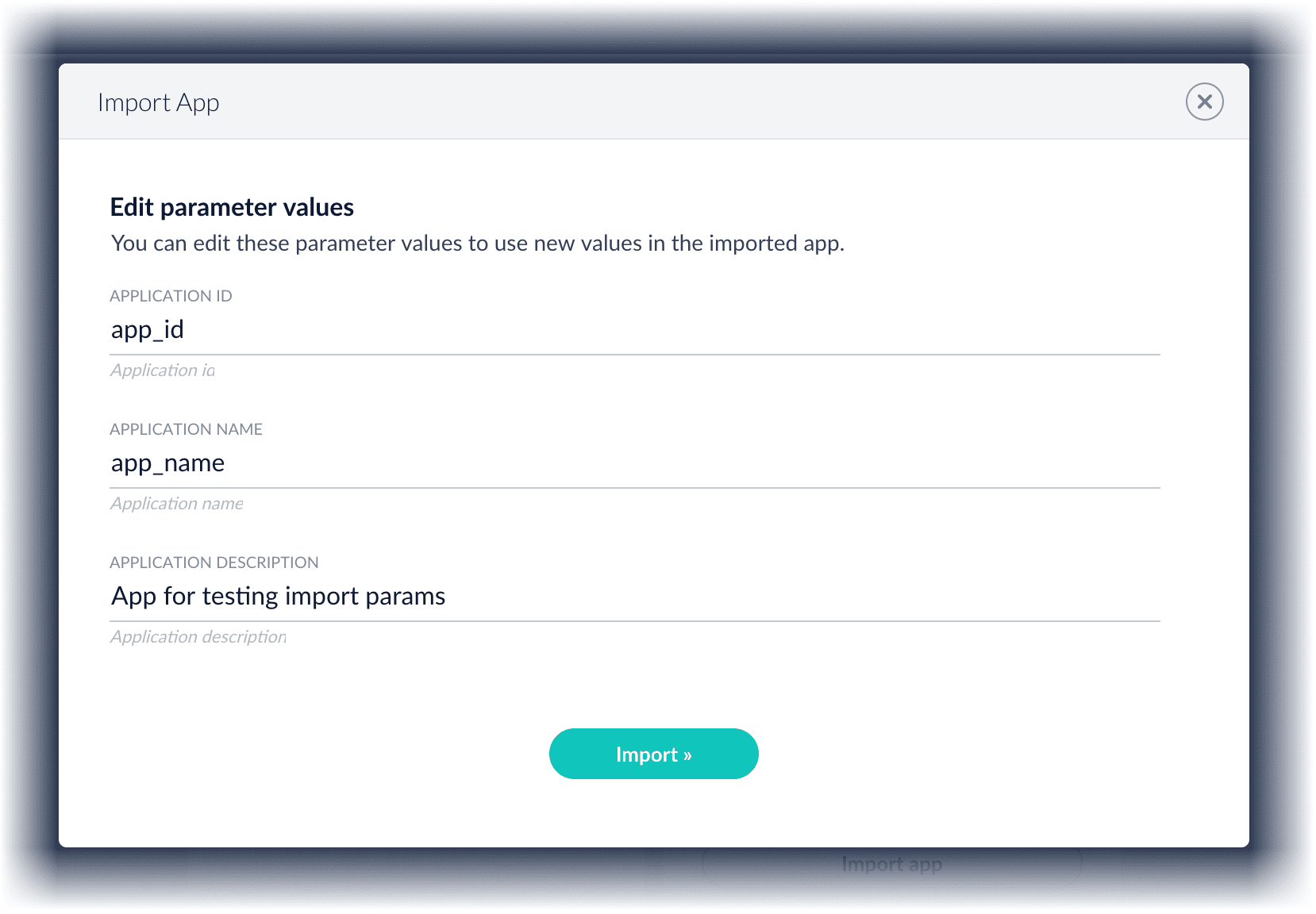 Make desired changes, and then click **Import**.
## Copy an app
To copy an app from one deployment to a different one, [export the app](#export-an-app-with-the-fusion-ui) on the source deployment, and then [import the app](#import-an-app-with-the-fusion-ui) on the target deployment.
## Import objects into an app
You can import objects into the currently open app.
**How to import objects into an open app**
1. In the Fusion launcher, click the app into which you want to import objects.\
The Fusion workspace appears.
2. In the upper left, click **System**
Make desired changes, and then click **Import**.
## Copy an app
To copy an app from one deployment to a different one, [export the app](#export-an-app-with-the-fusion-ui) on the source deployment, and then [import the app](#import-an-app-with-the-fusion-ui) on the target deployment.
## Import objects into an app
You can import objects into the currently open app.
**How to import objects into an open app**
1. In the Fusion launcher, click the app into which you want to import objects.\
The Fusion workspace appears.
2. In the upper left, click **System**  > **Import Fusion Objects**.
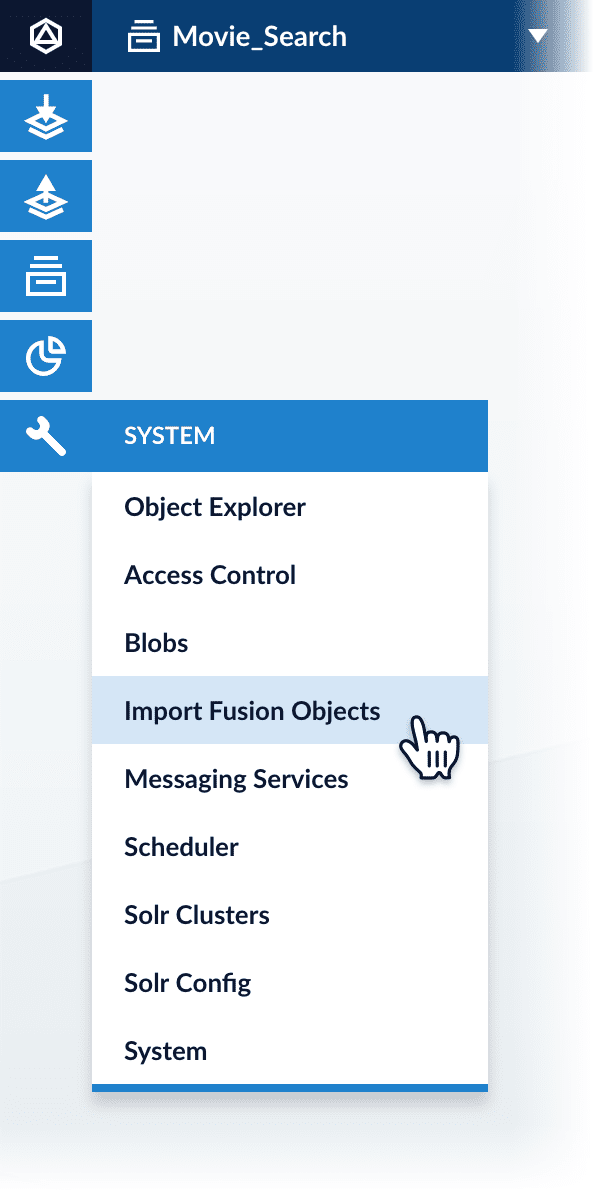 The Import Fusion Objects window opens.
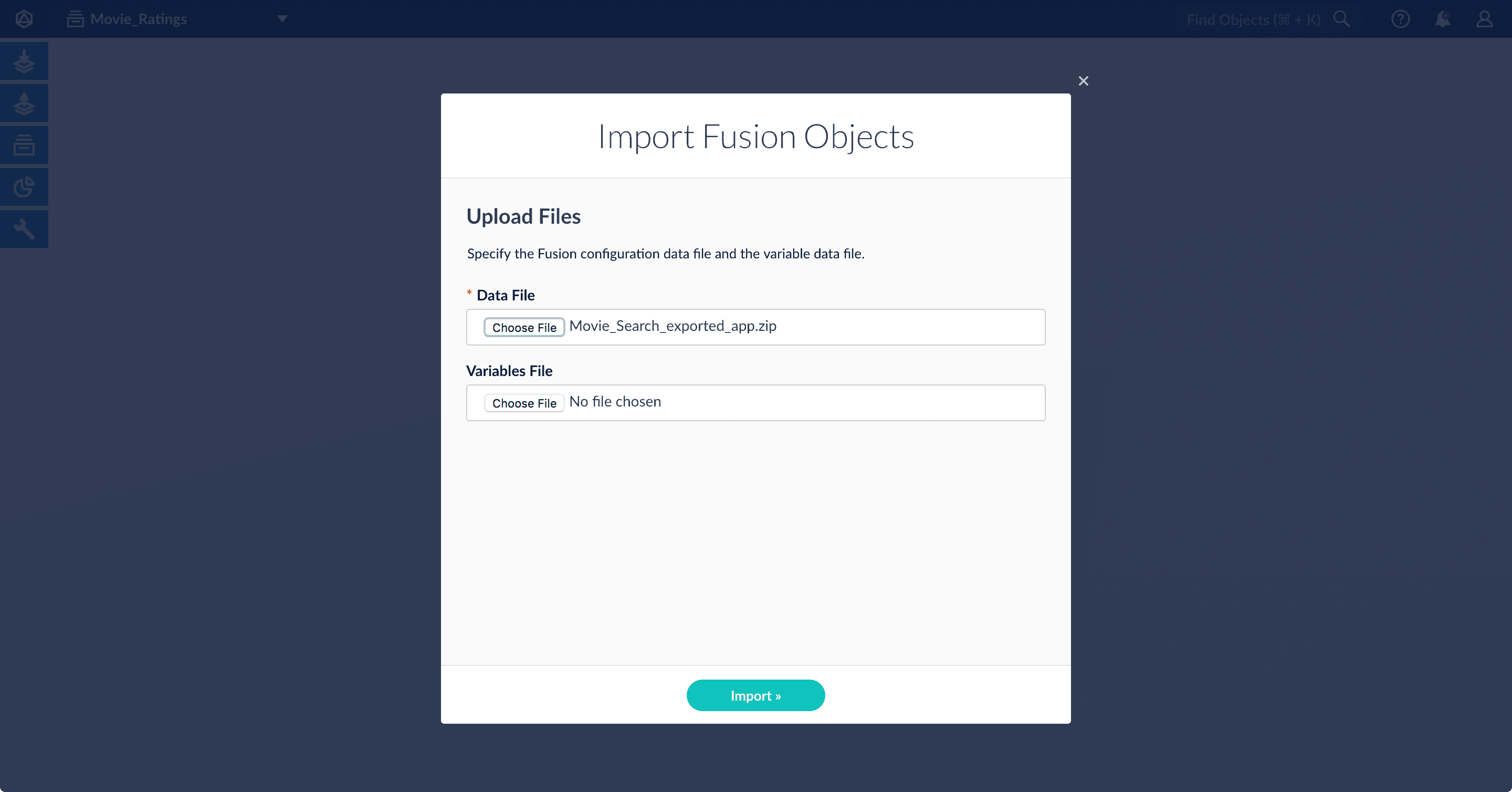 3. Select the data file from your local filesystem.\
If you are importing [usernames and passwords](/docs/4/fusion-server/reference/api/objects-api) in a separate file, select it under **Variables File**.
4. Click **Import**.\
If there are conflicts, Fusion prompts you to specify an import policy:
3. Select the data file from your local filesystem.\
If you are importing [usernames and passwords](/docs/4/fusion-server/reference/api/objects-api) in a separate file, select it under **Variables File**.
4. Click **Import**.\
If there are conflicts, Fusion prompts you to specify an import policy:
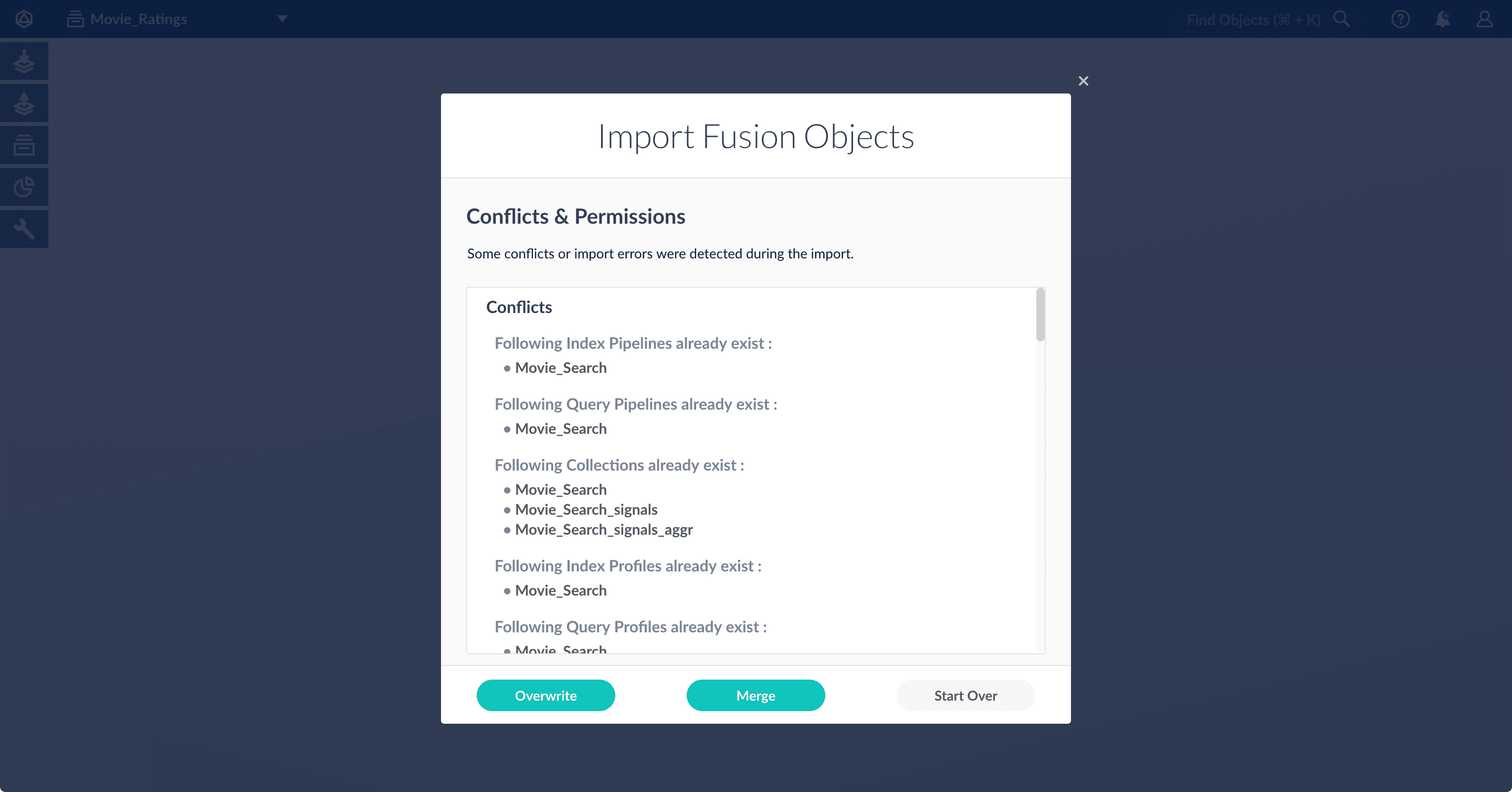 * Click **Overwrite** to overwrite the objects on the target system with the ones in the import file.
* Click **Merge** to skip all conflicting objects and import only the non-conflicting objects.
* Click **Start Over** to abort the import.\
Fusion confirms that the import was successful:
* Click **Overwrite** to overwrite the objects on the target system with the ones in the import file.
* Click **Merge** to skip all conflicting objects and import only the non-conflicting objects.
* Click **Start Over** to abort the import.\
Fusion confirms that the import was successful:
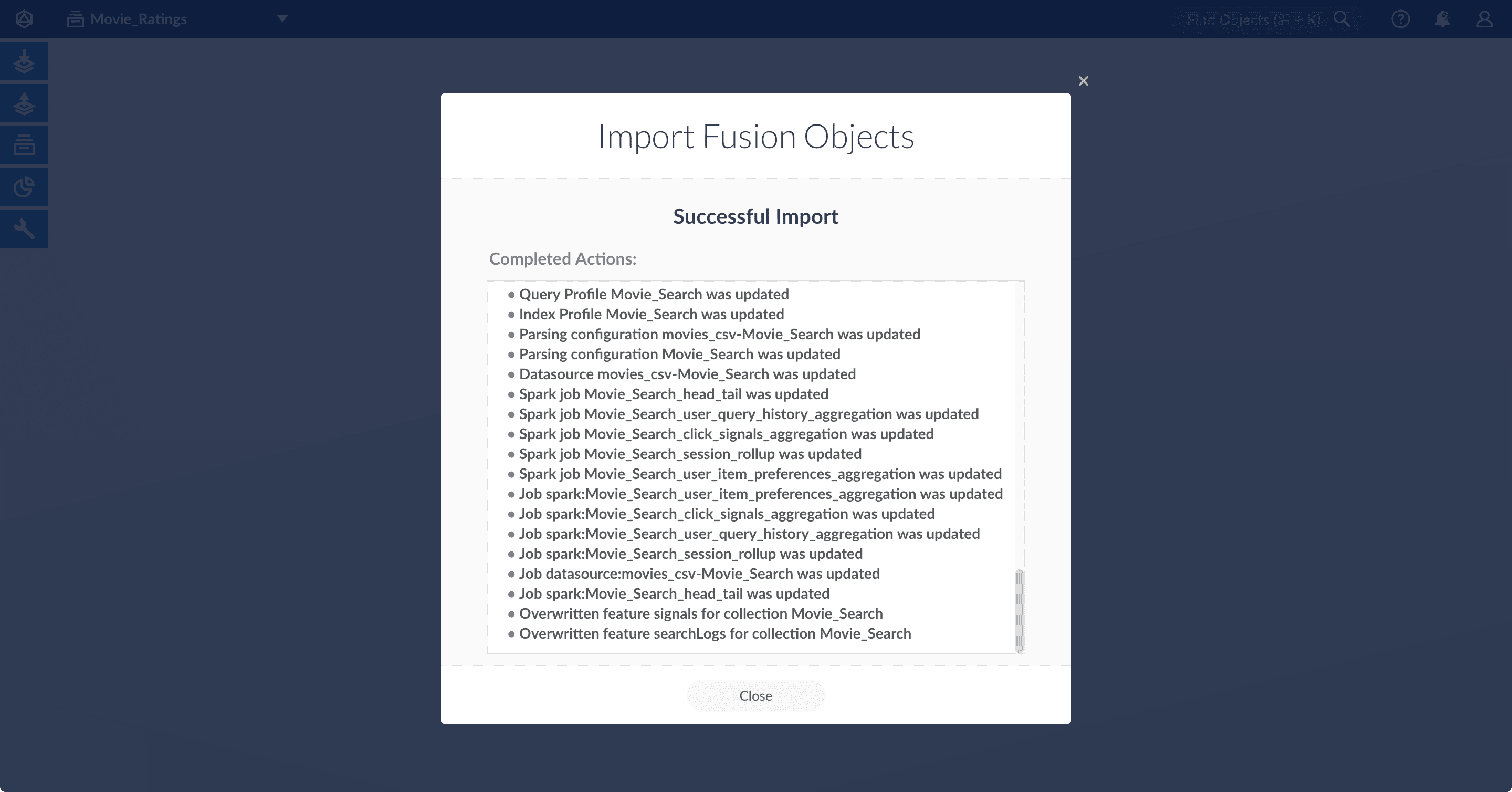 5. Click **Close** to close the Import Fusion Objects window.
## Add an object to an app
You can add objects present in other apps (or in no apps) to the open app. Some objects are linked to other apps. You can also add those directly to an app.
* **Add an object to an app** – While in the Fusion workspace for the app to which you want to add an object, open Object Explorer and click **In Any App**. Search for or browse to the object you want to add. Hover over the object, click the App
5. Click **Close** to close the Import Fusion Objects window.
## Add an object to an app
You can add objects present in other apps (or in no apps) to the open app. Some objects are linked to other apps. You can also add those directly to an app.
* **Add an object to an app** – While in the Fusion workspace for the app to which you want to add an object, open Object Explorer and click **In Any App**. Search for or browse to the object you want to add. Hover over the object, click the App  icon, and then click **Add to this app**.
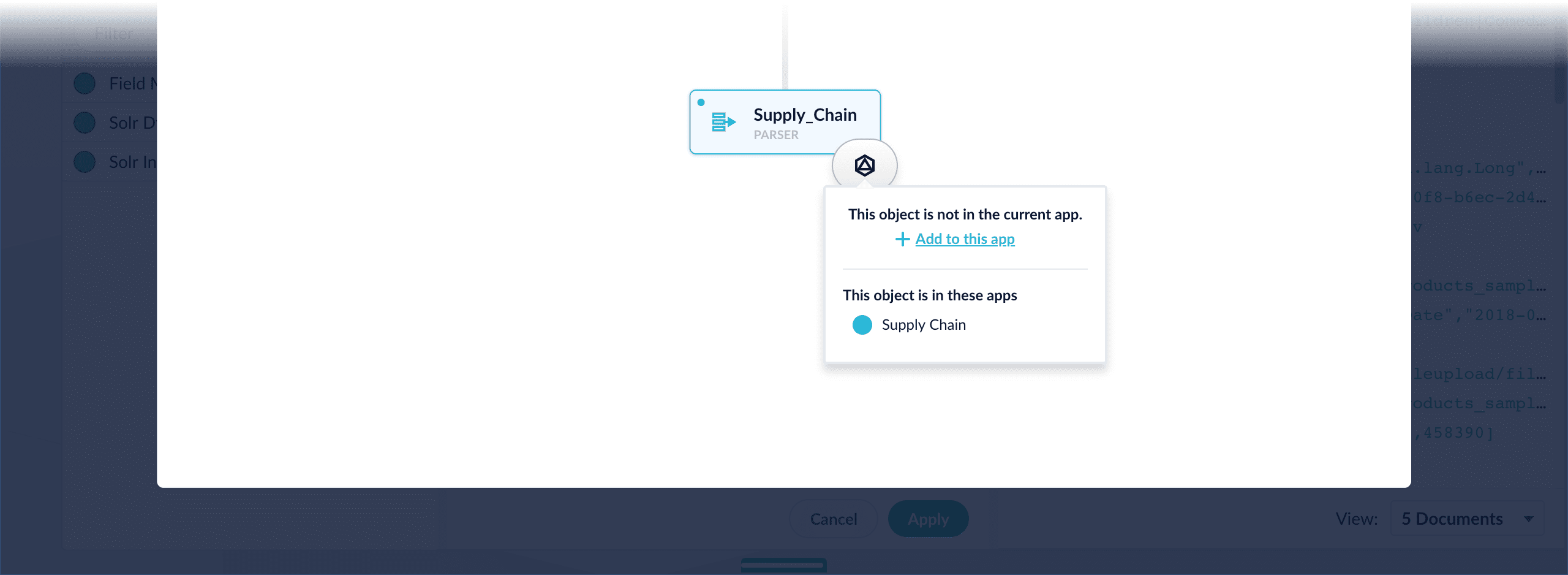 * **Add an object to an app directly** – In cases when an object is linked to an app, but is not linked directly to the app (it is linked via some dependency), you can add the object to an app directly.
While in the Fusion workspace for the app to which you want to add an object directly, open Object Explorer and click **In Any App**. Search for or browse to the object you want to add. Hover over the object, click the App
* **Add an object to an app directly** – In cases when an object is linked to an app, but is not linked directly to the app (it is linked via some dependency), you can add the object to an app directly.
While in the Fusion workspace for the app to which you want to add an object directly, open Object Explorer and click **In Any App**. Search for or browse to the object you want to add. Hover over the object, click the App