> ## Documentation Index
> Fetch the complete documentation index at: https://doc.lucidworks.com/llms.txt
> Use this file to discover all available pages before exploring further.
# Apps API
export const LwTemplate = ({title = "Key questions to get you started", icon = "sparkles", cta = "Powered by Agent Studio", linkHref = "https://lucidworks.com/demo/?utm_source=docs&utm_medium=referral&utm_campaign=docs_cta_ai"}) => {
const [isLoaded, setIsLoaded] = useState(false);
useEffect(() => {
const timer = setTimeout(() => {
setIsLoaded(true);
}, 500);
return () => clearTimeout(timer);
}, []);
return
{isLoaded && `
}} />}
Powered by Lucidworks Agent Studio
;
};
[localhost link]: http://localhost:3000/docs/4/fusion-server/reference/api/apps-api
[mintlify link]: https://doc.lucidworks.com/docs/4/fusion-server/reference/api/apps-api
[old doc.lw link]: https://doc.lucidworks.com/fusion/5.9/325
The Apps API manages your Fusion apps. To export or import an app, see the [Objects API](/docs/4/fusion-server/reference/api/objects-api). You can also **Import a Fusion App**.
To import an app, you can use either the Fusion UI or the [Objects API](/docs/4/fusion-server/reference/api/objects-api).
## Import an app with the Fusion UI
1. How to import an app with the Fusion UI
2. Navigate to the launcher.
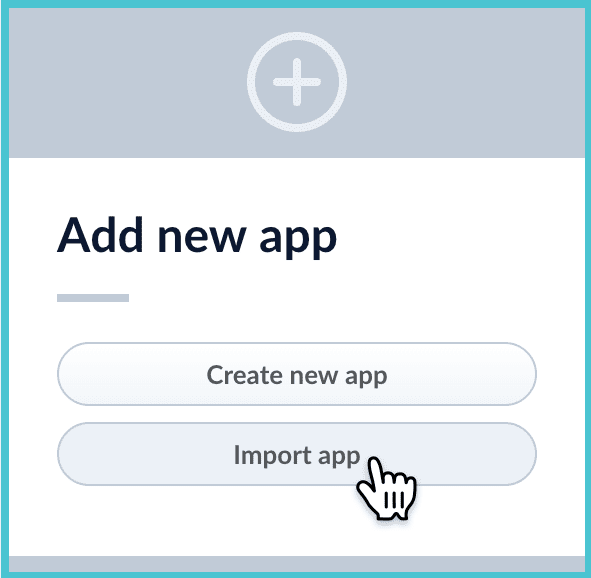
3. Click **Import app**.
4. Under **Data File**, click **Choose File** and select the zip file containing the app you want to import.
5. If your app has [usernames and passwords](/docs/4/fusion-server/reference/api/objects-api) in a separate file, select it under **Variables File**.
If the Variables File is needed, it *must* be a separate file that is not in a .zip file. It is a .json map of variables to values. The following is an example:
```json theme={"dark"}
{
"secret.dataSources.Inventory_BR_S3_DS.password":"SOMETHING",
"secret.dataSources.LLM_A_BR_S3_DS.password":"FmJSaDE9Tj5REDACTED",
"secret.dataSources.LLM_BR_Inventory_S3_DS.password":"FmJSaDE9Tj5GzIVvethAC4Huh",
"secret.dataSources.LLM_BR_Load_S3_DS.password":"FmJSaDE9Tj5GzIVvethAC4"
}
```
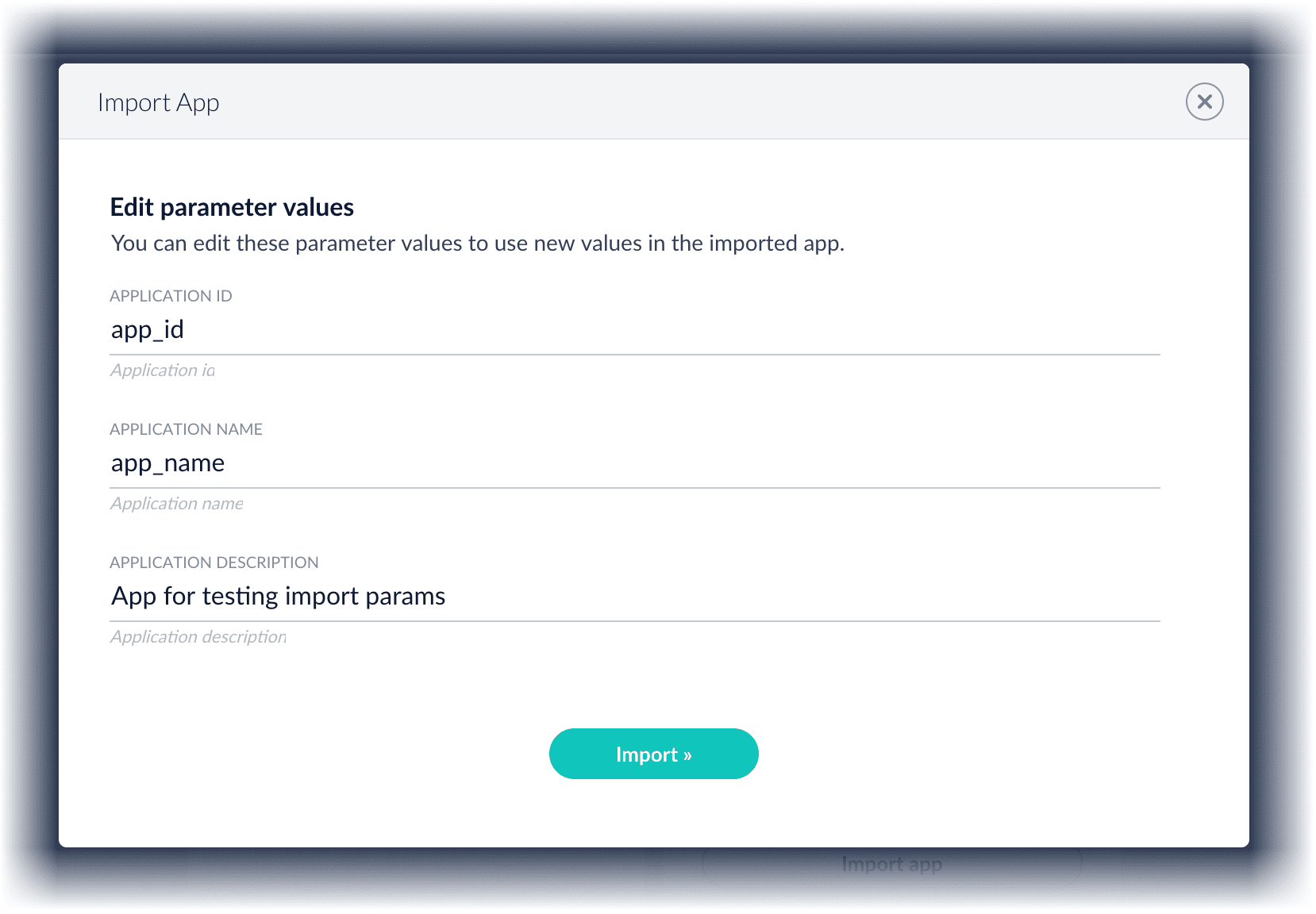
6. In Fusion 4.1 and later, you can sometimes edit parameter values to use the new values in the imported app. If this is the case, Fusion displays a dialog box that lets you edit the parameter values.
Make desired changes, and then click **Import**.
## Import an app with the Objects API
Like any other Fusion object, an exported app is contained in a zip file which Fusion can consume upon import. The zip file does not need to be expanded first.
**Import objects from a file and stop if there are conflicts**
```bash wrap theme={"dark"}
curl -u USERNAME:PASSWORD -H "Content-Type:multipart/form-data" -X POST -F 'importData=@/Users/admin/Fusion/export.zip' http://localhost:8764/api/objects/import?importPolicy=abort
```
**Import objects, substitute the password variables, and merge any conflicts**
```bash wrap theme={"dark"}
curl -u USERNAME:PASSWORD -H "Content-Type:multipart/form-data" -X POST -F 'importData=@/Users/admin/Fusion/export.zip' -F 'variableValues=@password_file.json' http://localhost:8764/api/objects/import?importPolicy=merge
```
`password_file.json` must contain plaintext passwords.
**Import a zip file of Fusion objects and merge any conflicts**
```bash wrap theme={"dark"}
curl -u USERNAME:PASSWORD -H "Content-Type:multipart/form-data" -X POST -F 'importData=@/Users/admin/Fusion/techpubs.zip' http://localhost:8764/api/objects/import?importPolicy=merge
```
## Change an app's default launch action
This is only available in Fusion 4.1 and Fusion 4.2.
The default launch action is the action that Fusion takes when you click an app’s tile or name in the Fusion Launcher:
* After you create an app, the default launch action is to open the app in the Fusion workspace.
* If you create and publish a UI for the app, then you can change the default launch action to open the app in the browser.
To change an app’s default launch action in the Fusion UI:
1. From the Launcher, hover over an app tile, and then click the Configure icon.
2. Under **Default launch action**, use the drop-down list to select a launch action:
* Select **Fusion workspace** to open the app in the Fusion workspace.
* Select an app name to open that app in the browser.
3. Click **OK**.
## Examples
### List all configured apps
**Input**
```bash wrap theme={"dark"}
curl -u USERNAME:PASSWORD https://FUSION_HOST:8764/api/apps
```
**Output**
```json wrap theme={"dark"}
[ {
"id" : "1032724d-848a-4588-9503-c20702aa3a7b",
"name" : "Test App",
"properties" : {
"headerImageName" : "headerImage2",
"tileColor" : "apps-red"
}
}, {
"id" : "7fc4d4e5-d3bd-4b21-b85e-9aa29c47b281",
"name" : "Movie Search",
"properties" : {
"headerImageName" : "headerImage3",
"tileColor" : "apps-dark"
}
} ]
```
### Get the configuration for a specific app
**Input**
```bash wrap theme={"dark"}
curl -u USERNAME:PASSWORD https://FUSION_HOST:8764/api/apps/8fc4d4e5-d3bd-4b21-b85e-9aa29c47b281
```
**Output**
```json wrap theme={"dark"}
{
"id" : "7fc4d4e5-d3bd-4b21-b85e-9aa29c47b281",
"name" : "Movie Search",
"properties" : {
"headerImageName" : "headerImage3",
"tileColor" : "apps-dark"
}
}
```
**Input**
```bash wrap theme={"dark"}
curl -u USERNAME:PASSWORD -X POST -H 'Content-type: application/json' -d '{"id": "MyNewApp", "name":"My new app", "description":"A really great new app"}' https://FUSION_HOST:8764/api/apps
```
**Output**
```json wrap theme={"dark"}
{
"id" : "MyNewApp",
"name" : "My new app",
"description" : "A really great new app"
}
```
 4. Under **Data File**, click **Choose File** and select the zip file containing the app you want to import.
5. If your app has [usernames and passwords](/docs/4/fusion-server/reference/api/objects-api) in a separate file, select it under **Variables File**.
If the Variables File is needed, it *must* be a separate file that is not in a .zip file. It is a .json map of variables to values. The following is an example:
```json theme={"dark"}
{
"secret.dataSources.Inventory_BR_S3_DS.password":"SOMETHING",
"secret.dataSources.LLM_A_BR_S3_DS.password":"FmJSaDE9Tj5REDACTED",
"secret.dataSources.LLM_BR_Inventory_S3_DS.password":"FmJSaDE9Tj5GzIVvethAC4Huh",
"secret.dataSources.LLM_BR_Load_S3_DS.password":"FmJSaDE9Tj5GzIVvethAC4"
}
```
6. In Fusion 4.1 and later, you can sometimes edit parameter values to use the new values in the imported app. If this is the case, Fusion displays a dialog box that lets you edit the parameter values.
4. Under **Data File**, click **Choose File** and select the zip file containing the app you want to import.
5. If your app has [usernames and passwords](/docs/4/fusion-server/reference/api/objects-api) in a separate file, select it under **Variables File**.
If the Variables File is needed, it *must* be a separate file that is not in a .zip file. It is a .json map of variables to values. The following is an example:
```json theme={"dark"}
{
"secret.dataSources.Inventory_BR_S3_DS.password":"SOMETHING",
"secret.dataSources.LLM_A_BR_S3_DS.password":"FmJSaDE9Tj5REDACTED",
"secret.dataSources.LLM_BR_Inventory_S3_DS.password":"FmJSaDE9Tj5GzIVvethAC4Huh",
"secret.dataSources.LLM_BR_Load_S3_DS.password":"FmJSaDE9Tj5GzIVvethAC4"
}
```
6. In Fusion 4.1 and later, you can sometimes edit parameter values to use the new values in the imported app. If this is the case, Fusion displays a dialog box that lets you edit the parameter values.
 Make desired changes, and then click **Import**.
## Import an app with the Objects API
Like any other Fusion object, an exported app is contained in a zip file which Fusion can consume upon import. The zip file does not need to be expanded first.
**Import objects from a file and stop if there are conflicts**
```bash wrap theme={"dark"}
curl -u USERNAME:PASSWORD -H "Content-Type:multipart/form-data" -X POST -F 'importData=@/Users/admin/Fusion/export.zip' http://localhost:8764/api/objects/import?importPolicy=abort
```
**Import objects, substitute the password variables, and merge any conflicts**
```bash wrap theme={"dark"}
curl -u USERNAME:PASSWORD -H "Content-Type:multipart/form-data" -X POST -F 'importData=@/Users/admin/Fusion/export.zip' -F 'variableValues=@password_file.json' http://localhost:8764/api/objects/import?importPolicy=merge
```
Make desired changes, and then click **Import**.
## Import an app with the Objects API
Like any other Fusion object, an exported app is contained in a zip file which Fusion can consume upon import. The zip file does not need to be expanded first.
**Import objects from a file and stop if there are conflicts**
```bash wrap theme={"dark"}
curl -u USERNAME:PASSWORD -H "Content-Type:multipart/form-data" -X POST -F 'importData=@/Users/admin/Fusion/export.zip' http://localhost:8764/api/objects/import?importPolicy=abort
```
**Import objects, substitute the password variables, and merge any conflicts**
```bash wrap theme={"dark"}
curl -u USERNAME:PASSWORD -H "Content-Type:multipart/form-data" -X POST -F 'importData=@/Users/admin/Fusion/export.zip' -F 'variableValues=@password_file.json' http://localhost:8764/api/objects/import?importPolicy=merge
```
 icon.
2. Under **Default launch action**, use the drop-down list to select a launch action:
* Select **Fusion workspace** to open the app in the Fusion workspace.
* Select an app name to open that app in the browser.
3. Click **OK**.
icon.
2. Under **Default launch action**, use the drop-down list to select a launch action:
* Select **Fusion workspace** to open the app in the Fusion workspace.
* Select an app name to open that app in the browser.
3. Click **OK**.