> ## Documentation Index
> Fetch the complete documentation index at: https://doc.lucidworks.com/llms.txt
> Use this file to discover all available pages before exploring further.
# Fusion SQL Administration
export const LwTemplate = ({title = "Key questions to get you started", icon = "sparkles", cta = "Powered by Agent Studio", linkHref = "https://lucidworks.com/demo/?utm_source=docs&utm_medium=referral&utm_campaign=docs_cta_ai"}) => {
const [isLoaded, setIsLoaded] = useState(false);
useEffect(() => {
const timer = setTimeout(() => {
setIsLoaded(true);
}, 500);
return () => clearTimeout(timer);
}, []);
return
{isLoaded && `
}} />}
Powered by Lucidworks Agent Studio
;
};
[localhost link]: http://localhost:3000/docs/4/fusion-server/concepts/sql/admin
[mintlify link]: https://doc.lucidworks.com/docs/4/fusion-server/concepts/sql/admin
[old doc.lw link]: https://doc.lucidworks.com/fusion-server/4.2/3248
Most organizations that deploy Fusion also have SQL-compliant business intelligence (BI) or dashboarding tools to facilitate self-service analytics.
The Fusion SQL service:
* Lets organizations leverage their investments in BI tools by using JDBC and SQL to analyze data managed by Fusion. For example, Tableau is popular data analytics tool that connects to Fusion SQL using JDBC to enable self-service analytics.
* Helps business users access important data sets in Fusion without having to know how to query Solr.
**Important**
In addition to the specified [System Requirements](/docs/4/fusion-server/reference/system-requirements), Fusion on Windows requires [Visual C++ Redistributable for Visual Studio 2015](https://www.microsoft.com/en-us/download/details.aspx?id=48145) to start the SQL service successfully.
## Fusion SQL architecture
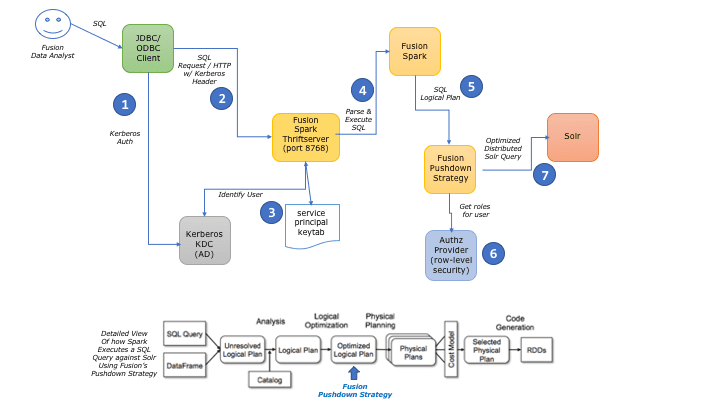
The following diagram depicts a common Fusion SQL service deployment scenario using the Kerberos network authentication protocol for single sign-on. Integration with Kerberos is optional. By default, the Fusion SQL service uses Fusion security for authentication and authorization.
The numbered steps in the diagram are:
1. The JDBC/ODBC client application (for example, TIBCO Spotfire or Tableau) uses Kerberos to authenticate a Fusion data analyst.
2. After authentication, the JDBC/ODBC client application sends the user’s SQL query to the Fusion SQL Thrift Server over HTTP.
3. The SQL Thrift Server uses the keytab of the Kerberos service principal to validate the incoming user identity.\
The Fusion SQL Thrift Server is a Spark application with a specific number of CPU cores and memory allocated from the pool of Spark resources. You can scale out the number of Spark worker nodes to increase available memory and CPU resources to the Fusion SQL service.
4. The Thrift Server sends the query to Spark to be parsed into a logical plan.
5. During the query planning stage, Spark sends the logical plan to [Fusion’s pushdown strategy](#fusion-pushdown-strategy) component.
6. During pushdown analysis, Fusion calls out to the registered AuthZ FilterProvider implementation to get a filter query to perform row-level filtering for the Kerberos-authenticated user.\
By default, there is no row-level security provider but users can install their own implementation using the Fusion SQL service API.
7. Spark executes a distributed Solr query to return documents that satisfy the SQL query criteria and row-level security filter. To leverage the distributed nature of Spark and Solr, Fusion SQL sends a query to all replicas for each shard in a Solr collection. Consequently, you can scale out SQL query performance by adding more Spark and/or Solr resources to your cluster.
## Fusion pushdown strategy
The pushdown strategy analyzes the query plan to determine if there is an optimal Solr query or streaming expression that can push down aggregations into Solr to improve performance and scalability. For example, the following SQL query can be translated into a Solr facet query by the Fusion pushdown strategy:
```sql wrap theme={"dark"}
select count(1) as the_count, movie_id from ratings group by movie_id
```
The basic idea behind Fusion’s pushdown strategy is it is much faster to let Solr facets perform basic aggregations than it is to export raw documents from Solr and have Spark perform the aggregation. If an optimal pushdown query is not possible, then Spark pulls raw documents from Solr, and then performs any joins or aggregations needed in Spark. Put simply, the Fusion SQL service tries to translate SQL queries into optimized Solr queries. But failing that, the service simply reads all matching documents for a query into Spark, and then performs the SQL execution logic across the Spark cluster.
## Which collections are registered
By default, all Fusion collections except system collections are registered in the Fusion SQL service so you can query them without any additional setup. However, empty collections cannot be queried, or even described from SQL, so empty collections will not show up in the Fusion SQL service until they have data. In addition, any fields with a dot in the name are ignored when tables are auto-registered. You can use the Catalog API to alias fields with dots in the names to include these fields.
If you add data to a previously empty collection, then you can execute either of the following SQL commands to ensure that the data gets added as a table:
```sql wrap theme={"dark"}
show tables
show tables in `default`
```
The Fusion SQL service checks previously empty collections every minute and automatically registers recently populated collections as a table.
You can describe any table using:
```sql wrap theme={"dark"}
describe table-name
```
See the `movielens` lab in the [Fusion Spark Bootcamp](https://github.com/lucidworks/fusion-spark-bootcamp) for a complete example of working with the Fusion Catalog API and Fusion SQL service. Also read about the [Catalog API](/docs/4/fusion-server/reference/api/catalog-api).
## Hive configuration
Behind the scenes, the Fusion SQL service is based on Hive. Use the `hive-site.xml` file in `/opt/fusion/4.2.x/conf/` (on Unix) or `C:\lucidworks\fusion\4.2.x\conf\` (on Windows) to configure Hive settings.
If you change `hive-site.xml`, you must restart the Fusion SQL service with `./sql restart` (on Unix) or `sql.cmd restart` (on Windows).
## Learn more
The default JDBC properties for connecting to the Fusion SQL service are:
**Driver**:
`org.apache.hive.jdbc.HiveDriver`
**Driver JAR**:
Unix:
`/opt/fusion/latest.x/apps/libs/hive-jdbc-shaded-2.1.1.jar`
Windows:
`C:\lucidworks\fusion\latest.x\apps\libs\hive-jdbc-shaded-2.1.1.jar`
**JDBC URL**:
`jdbc:hive2://localhost:8768/default;transportMode=http;httpPath=fusion`
The username and password are the same as the ones you use to authenticate to Fusion.
So as to not conflict with the CPU and memory settings used for Fusion driver applications (default & script), the Fusion SQL service uses a unique set of configuration properties for granting CPU and memory for executing SQL queries.
You can use the Configurations API to override the default values shown here.
| Configuration Property and Default | Description |
| --------------------------------------------------- | ------------------------------------------------------------------------------------------------------------------------------------------------------------------------------------------------------------------------------------------------------- |
| `fusion.sql.cores` 1 | Sets the max number of cores to use across the entire cluster to execute SQL queries. Give as many as possible while still leaving CPU available for other Fusion jobs. |
| `fusion.sql.executor.cores` 1 | Number of cores to use per executor |
| `fusion.sql.memory` 1g | Memory per executor to use for executing SQL queries |
| `fusion.sql.default.shuffle.partitions` 20 | Default number of partitions when performing a distributed group-by-type operation, such as a JOIN |
| `fusion.sql.bucket_size_limit.threshold` 30,000,000 | Threshold that determines when to use Solr streaming rollup instead of facet when computing aggregations; rollup can handle high cardinality dimensions but is much slower than using facets to compute aggregate measures. |
| `fusion.sql.max.no.limit.threshold` 10,000 | Sets a limit for SQL queries that select all fields and all rows, that is, `select * from table-name`. |
| `fusion.sql.max.cache.rows` 5,000,000 | Do not cache tables bigger than this threshold. If a user sends the cache-table command for large collections with row counts that exceed this value, then the cache operations will fail. |
| `fusion.sql.max_scan_rows` 2,000,000 | Safeguard mechanism to prevent queries that request too many rows from large tables. Queries that read more than this many rows from Solr will fail; increase this threshold for larger Solr clusters that can handle streaming more rows concurrently. |
The Fusion SQL service is designed for executing analytics-style queries over large data sets. You need to provide ample CPU and memory so that queries execute efficiently and can leverage Spark’s in-memory caching for joins and aggregations.
Here is an example of increasing the resources for the Fusion SQL service:
```bash theme={"dark"}
curl -H 'Content-type:application/json' -X PUT -d '8' "http:///api/configurations/fusion.sql.cores"
curl -H 'Content-type:application/json' -X PUT -d '8' "http:///api/configurations/fusion.sql.executor.cores"
curl -H 'Content-type:application/json' -X PUT -d '2g' "http:///api/configurations/fusion.sql.memory"
curl -H 'Content-type:application/json' -X PUT -d '8' "http:///api/configurations/fusion.sql.default.shuffle.partitions"
```
If you change any of these settings, you must restart the Fusion SQL service with `./sql restart` (on Unix) or `sql.cmd restart` (on Windows).
The Fusion SQL service is a long-running Spark application and, as such, it holds on to the resources (CPU and memory) allocated to it using the aforementioned settings. Consequently, you might need to reconfigure the CPU and memory allocation for other Fusion Spark jobs to account for the resources given to the Fusion SQL service. In other words, any resources you give to the Fusion SQL service are no longer available for running other Fusion Spark jobs. For more information on adjusting the CPU and memory settings for Fusion Spark jobs, see the Spark configuration settings.
Use the following steps to configure the Fusion SQL service to use Kerberos for authentication.
1. Create a service principal and keytab; your Active Directory or Kerberos administrator will know how to do this. At a minimum, enable the AES 128-bit encryption. You can use 256, but you will have to install the JCE extensions.\
This is an example command to create a keytab file for the service account:
```bash wrap theme={"dark"}
ktpass /out c:\fusion.service.keytab /princ fusion/sawsserver@FUSIONSQL.LOCAL /rndpass /ptype KRB5_NT_PRINCIPAL /mapUser fusion@FUSIONSQL.LOCAL -mapOp set -crypto AES128-SHA1
```
2. Copy the keytab file to the Fusion `conf` directory.
3. Update the file `conf/hive-site.xml` (on Unix) or `conf\hive-site.xml` (on Windows) to use Kerberos authentication and the correct principal and keytab file installed in step 2.\
On Unix:
```xml theme={"dark"}
hive.server2.authenticationKerberoshive.server2.authentication.Kerberos.principalfusion/sawsserver@FUSIONSQL.LOCALhive.server2.authentication.Kerberos.keytab./conf/fusion.service.keytab
```
On Windows:
```xml theme={"dark"}
hive.server2.authenticationKerberoshive.server2.authentication.Kerberos.principalfusion/sawsserver@FUSIONSQL.LOCALhive.server2.authentication.Kerberos.keytabconf\fusion.service.keytab
```
4. Install the file that contains information about your Kerberos realm on the Fusion server.\
On Unix:
Place the file `krb5.conf` in the `etc` directory.\
On Windows:
Place the file `krb5.ini` in the `C:\Windows` directory.
5. Update the file `conf/fusion.cors` (`fusion.properties` in Fusion 4.x) (on Unix) or `conf\fusion.cors` (`fusion.properties` in Fusion 4.x) (on Windows) to point to the file `krb5.conf` (on Windows) or `krb5.ini` (on Windows) installed in step 4.\
On Unix:
```bash theme={"dark"}
sql.jvmOptions = -Xmx1g -Djava.security.krb5.conf=/etc/krb5.conf
```
On Windows:
```bash wrap theme={"dark"}
sql.jvmOptions = -Xmx1g -Djava.security.krb5.conf=C:\Windows\krb5.ini
```
With Solr, you can index different document types into the same shard using the composite ID router based on a common route key field. For example, a customer 360 application can index different customer-related document types (contacts, apps, support requests, and so forth) into the same collection, each with a common `customer_id` field. This lets Solr perform optimized joins between the document types using the route key field. This configuration uses Solr’s composite ID routing, which ensures that all documents with the same join key field end up in the same shard. See [Document Routing](https://solr.apache.org/guide/8_6/shards-and-indexing-data-in-solrcloud.html#document-routing).
## Providing a compositeIdSpec for the Fusion collection
Before indexing, you need to provide a `compositeIdSpec` for the Fusion collection. For example:
```json wrap theme={"dark"}
curl -u USERNAME:PASSWORD -X POST -H "Content-type:application/json" \
-d '{"id":"customer","solrParams":{"replicationFactor":1,"numShards":1,"maxShardsPerNode":10},"type":"DATA","compositeIdSpec":{"routeKey1Field":"customer_id_s"}}' \
"https://FUSION_HOST:6764/apps/APP_NAME/collections?defaultFeatures=false"
```
In the example request above, we create a collection named `customer` with the route key field set to `customer_id_s`. When documents are indexed through Fusion, the Solr Index pipeline stage uses the `compositeIdSpec` to create a composite document ID, so documents get routed to the correct shard.
## Exposing document types as virtual tables
If you configure your Fusion collection to use a route key field to route different document types to the same shard, then the Fusion SQL service can expose each document type as a virtual table and perform optimized joins between these virtual tables using the route key. To create virtual tables, you simply need to use the Fusion Catalog API on the data asset for the main collection to set the name of the field that determines the document type. For example, if you have a collection named customer that contains different document types (contacts, support tickets, sales contracts, and so forth), then you would set up virtual tables using the following Catalog API update request:
```json wrap theme={"dark"}
curl -XPUT -H "Content-type:application/json" http:///api/catalog/fusion/assets/customer -d '{
"projectId" : "fusion",
"name" : "customer",
"assetType" : "table",
"description" : "Fusion collection customer",
"format" : "solr",
"options" : [ "collection -> customer", "exclude_fields -> _lw_*,*_\\d_coordinate,_raw_content_", "solr.params -> sort=id asc" ],
"cacheOnLoad" : false,
"id" : "fusion.customer",
"additionalSettings": {
"virtualTableField":"doc_type_s"
}
}'
```
In the example above, we set the `virtualTableField` to `doc_type_s`. Fusion sends a facet request to the customer collection to get the unique values of the `doc_type_s` field and creates a data asset for each unique value. Each virtual table is registered in the Fusion SQL service as a table.
## Performing optimized joins in SQL
After you have virtual tables configured and documents routed to the same shard using a `compositeIdSpec`, you can perform optimized joins in SQL that take advantage of Solr’s domain-join facet feature. For example, the following SQL statement results in a JSON facet request to Solr to perform the aggregation:
```sql theme={"dark"}
select count(1) num_support_requests,
c.industry as industry,
a.app_id as app_id,
a.feature_id as feature_id
from customer c
join support s on c.customer_id = s.customer_id
join apps a on s.customer_id = a.customer_id
where c.region='US-East' AND s.support_type='Enhancement' AND a.app_type='Search'
group by industry, app_id, feature_id
```
In the example above, we compute the number of feature enhancement requests for Search applications from customers in the US-East region by performing a 3-way join between the `customer`, `support`, and `apps` virtual tables using the `customer_id` join key. Behind the scenes, Fusion SQL performs a JSON facet query that exploits all documents with the same `customer_id` value being in the same shard. This lets Solr compute the `count` for the `industry`, `app_id`, `feature_id` group by key more efficiently than is possible using table scans in Spark.
## Starting the Fusion SQL service
The Fusion SQL service is an optional service that must be started manually.
Give these commands from the `bin` directory below the Fusion home directory, for example, `/opt/fusion/latest.x*` (on Unix) or `C:\lucidworks\fusion\latest.*x` (on Windows).
**On Unix:**
When starting the Fusion SQL service, the best practice is to also start the Spark master and Spark worker services:
```bash theme={"dark"}
./fusion start spark-master spark-worker sql
```
**On Windows:**
When starting the Fusion SQL service, the best practice is to also start the Spark master and Spark worker services:
```bash theme={"dark"}
spark-master.cmd start
spark-worker.cmd start
sql.cmd start
```
## Stopping the Fusion SQL service
The Fusion SQL service is an optional service that must be stopped manually.
Give these commands from the `bin` directory below the Fusion home directory, for example, `/opt/fusion/latest.x*` (on Unix) or `C:\lucidworks\fusion\latest.*x` (on Windows).
**On Unix:**
When stopping the Fusion SQL service, the best practice is to also stop the Spark master and Spark worker services:
```bash theme={"dark"}
./fusion stop sql spark-worker spark-master
```
**On Windows:**
When starting the Fusion SQL service, the best practice is to also start the Spark master and Spark worker services:
```bash theme={"dark"}
sql.cmd stop
spark-worker.cmd stop
spark-master.cmd stop
```
## Updating the group.default definition
If you plan to run the Fusion SQL service for production, we recommend updating the `group.default` definition in the file `conf/fusion.cors` (`fusion.properties` in Fusion 4.x) (on Unix) or `conf\fusion.cors` (`fusion.properties` in Fusion 4.x) (on Windows) to include the `spark-master`, `spark-worker`, and `sql` services:
```bash wrap theme={"dark"}
group.default = zookeeper, solr, api, connectors-classic, connectors-rpc, proxy, webapps, admin-ui, log-shipper, spark-master, spark-worker, sql
```
## Verifying that the Fusion SQL service started
Verify the Fusion SQL service application started. Give these commands from the `bin` directory below the Fusion home directory.
On Unix:
```bash theme={"dark"}
./sql status
```
On Windows:
```bash theme={"dark"}
sql.cmd status
```
Alternatively, check the Spark UI, for example:
If you encounter an issue with a SQL query, the first place to look for more information about the issue is the `var/log/sql/sql.log` file. If you need more verbose log information, change the level to DEBUG for the following loggers in the file `conf/sql-log4j2.xml` (on Unix) or `conf\sql-log4j2.xml` (on Windows):
```xml theme={"dark"}
```
After making changes, you must restart the Fusion SQL service. Give these commands from the `bin` directory below the Fusion home directory, for example, `/opt/fusion/latest.x*` (on Unix) or `C:\lucidworks\fusion\latest.*x` (on Windows).
On Unix:
```bash theme={"dark"}
./sql restart
```
On Windows:
```bash theme={"dark"}
sql.cmd restart
```
In this article, we provide guidance to help you make the most of the Fusion SQL aggregation engine.
## Project fields into the signals\_aggr collection
For legacy reasons, the `COLLECTION_NAME_signals_aggr` collection relies on dynamic field names, such as `doc_id_s` and `query_s` instead of `doc_id` and `query`. Consequently, when you project fields to be written to the `COLLECTION_NAME_signals_aggr` collection, you should use dynamic field suffixes as shown in the SQL snippet below:
```sql theme={"dark"}
SELECT SUM(typed_aggr_count_i) AS aggr_count_i,
query AS query_s,
query AS query_t,
doc_id AS doc_id_s,
filters AS filters_s,
SPLIT(filters, ' \\$ ') AS filters_ss,
weighted_sum(...) AS weight_d
FROM signal_type_groups
GROUP BY query, doc_id, filters
```
You are not required to use this approach, but if you do not use dynamic field suffixes as shown above, you will need to change the boosting stages in Fusion to work with different field names.
## Use WITH to organize complex queries
A common pattern in SQL aggregation queries is the use of subqueries to break up the logic into comprehensible units. For more information about the WITH clause, see [https://modern-sql.com/feature/with](https://modern-sql.com/feature/with). Let us work through an example to illustrate the key points:
```sql theme={"dark"}
1: WITH signal_type_groups AS (
2: SELECT SUM(count_i) AS typed_aggr_count_i,
3: doc_id,
4: user_id,
5: type,
6: time_decay(count_i, timestamp_tdt) AS typed_weight_d
7: FROM product_signals
8: WHERE type IN ('click','cart','purchase')
9: GROUP BY user_id, doc_id, type
10: ) SELECT SUM(typed_aggr_count_i) AS aggr_count_i,
11: doc_id AS doc_id_s,
12: user_id AS user_id_s,
13: weighted_sum(...) AS weight_d
14: FROM signal_type_groups
15: GROUP BY doc_id, user_id
```
* At line 1, we declare a statement scoped view named `signal_type_groups` using the WITH keyword.
* Lines 2-9 define the subquery for the `signal_type_groups` view.
* At line 7, we read from the `product_signals` collection in Fusion.
* Line 8 filters the input to only include `click`, `cart`, and `purchase` signals. Behind the scenes, Fusion translates this WHERE IN clause to a Solr filter query, e.g. `fq=type:(click OR cart OR purchase)`. The `signal_type_groups` view produces rows grouped by `user_id`, `doc_id`, and `type` (line 9).
* Starting at line 10, we define a subquery that performs a rollup over the rows in the `signal_type_groups` view by grouping on `doc_id` and `user_id` (line 15). Notice how the WITH statement helps break this complex query up into two units that help make aggregation queries easier to comprehend. You are encouraged to adopt this pattern in your own SQL aggregation queries.

 The numbered steps in the diagram are:
1. The JDBC/ODBC client application (for example, TIBCO Spotfire or Tableau) uses Kerberos to authenticate a Fusion data analyst.
2. After authentication, the JDBC/ODBC client application sends the user’s SQL query to the Fusion SQL Thrift Server over HTTP.
3. The SQL Thrift Server uses the keytab of the Kerberos service principal to validate the incoming user identity.\
The Fusion SQL Thrift Server is a Spark application with a specific number of CPU cores and memory allocated from the pool of Spark resources. You can scale out the number of Spark worker nodes to increase available memory and CPU resources to the Fusion SQL service.
4. The Thrift Server sends the query to Spark to be parsed into a logical plan.
5. During the query planning stage, Spark sends the logical plan to [Fusion’s pushdown strategy](#fusion-pushdown-strategy) component.
6. During pushdown analysis, Fusion calls out to the registered AuthZ FilterProvider implementation to get a filter query to perform row-level filtering for the Kerberos-authenticated user.\
By default, there is no row-level security provider but users can install their own implementation using the Fusion SQL service API.
7. Spark executes a distributed Solr query to return documents that satisfy the SQL query criteria and row-level security filter. To leverage the distributed nature of Spark and Solr, Fusion SQL sends a query to all replicas for each shard in a Solr collection. Consequently, you can scale out SQL query performance by adding more Spark and/or Solr resources to your cluster.
## Fusion pushdown strategy
The pushdown strategy analyzes the query plan to determine if there is an optimal Solr query or streaming expression that can push down aggregations into Solr to improve performance and scalability. For example, the following SQL query can be translated into a Solr facet query by the Fusion pushdown strategy:
```sql wrap theme={"dark"}
select count(1) as the_count, movie_id from ratings group by movie_id
```
The basic idea behind Fusion’s pushdown strategy is it is much faster to let Solr facets perform basic aggregations than it is to export raw documents from Solr and have Spark perform the aggregation. If an optimal pushdown query is not possible, then Spark pulls raw documents from Solr, and then performs any joins or aggregations needed in Spark. Put simply, the Fusion SQL service tries to translate SQL queries into optimized Solr queries. But failing that, the service simply reads all matching documents for a query into Spark, and then performs the SQL execution logic across the Spark cluster.
## Which collections are registered
By default, all Fusion collections except system collections are registered in the Fusion SQL service so you can query them without any additional setup. However, empty collections cannot be queried, or even described from SQL, so empty collections will not show up in the Fusion SQL service until they have data. In addition, any fields with a dot in the name are ignored when tables are auto-registered. You can use the Catalog API to alias fields with dots in the names to include these fields.
If you add data to a previously empty collection, then you can execute either of the following SQL commands to ensure that the data gets added as a table:
```sql wrap theme={"dark"}
show tables
show tables in `default`
```
The Fusion SQL service checks previously empty collections every minute and automatically registers recently populated collections as a table.
You can describe any table using:
```sql wrap theme={"dark"}
describe table-name
```
See the `movielens` lab in the [Fusion Spark Bootcamp](https://github.com/lucidworks/fusion-spark-bootcamp) for a complete example of working with the Fusion Catalog API and Fusion SQL service. Also read about the [Catalog API](/docs/4/fusion-server/reference/api/catalog-api).
## Hive configuration
Behind the scenes, the Fusion SQL service is based on Hive. Use the `hive-site.xml` file in `/opt/fusion/4.2.x/conf/` (on Unix) or `C:\lucidworks\fusion\4.2.x\conf\` (on Windows) to configure Hive settings.
If you change `hive-site.xml`, you must restart the Fusion SQL service with `./sql restart` (on Unix) or `sql.cmd restart` (on Windows).
## Learn more
The numbered steps in the diagram are:
1. The JDBC/ODBC client application (for example, TIBCO Spotfire or Tableau) uses Kerberos to authenticate a Fusion data analyst.
2. After authentication, the JDBC/ODBC client application sends the user’s SQL query to the Fusion SQL Thrift Server over HTTP.
3. The SQL Thrift Server uses the keytab of the Kerberos service principal to validate the incoming user identity.\
The Fusion SQL Thrift Server is a Spark application with a specific number of CPU cores and memory allocated from the pool of Spark resources. You can scale out the number of Spark worker nodes to increase available memory and CPU resources to the Fusion SQL service.
4. The Thrift Server sends the query to Spark to be parsed into a logical plan.
5. During the query planning stage, Spark sends the logical plan to [Fusion’s pushdown strategy](#fusion-pushdown-strategy) component.
6. During pushdown analysis, Fusion calls out to the registered AuthZ FilterProvider implementation to get a filter query to perform row-level filtering for the Kerberos-authenticated user.\
By default, there is no row-level security provider but users can install their own implementation using the Fusion SQL service API.
7. Spark executes a distributed Solr query to return documents that satisfy the SQL query criteria and row-level security filter. To leverage the distributed nature of Spark and Solr, Fusion SQL sends a query to all replicas for each shard in a Solr collection. Consequently, you can scale out SQL query performance by adding more Spark and/or Solr resources to your cluster.
## Fusion pushdown strategy
The pushdown strategy analyzes the query plan to determine if there is an optimal Solr query or streaming expression that can push down aggregations into Solr to improve performance and scalability. For example, the following SQL query can be translated into a Solr facet query by the Fusion pushdown strategy:
```sql wrap theme={"dark"}
select count(1) as the_count, movie_id from ratings group by movie_id
```
The basic idea behind Fusion’s pushdown strategy is it is much faster to let Solr facets perform basic aggregations than it is to export raw documents from Solr and have Spark perform the aggregation. If an optimal pushdown query is not possible, then Spark pulls raw documents from Solr, and then performs any joins or aggregations needed in Spark. Put simply, the Fusion SQL service tries to translate SQL queries into optimized Solr queries. But failing that, the service simply reads all matching documents for a query into Spark, and then performs the SQL execution logic across the Spark cluster.
## Which collections are registered
By default, all Fusion collections except system collections are registered in the Fusion SQL service so you can query them without any additional setup. However, empty collections cannot be queried, or even described from SQL, so empty collections will not show up in the Fusion SQL service until they have data. In addition, any fields with a dot in the name are ignored when tables are auto-registered. You can use the Catalog API to alias fields with dots in the names to include these fields.
If you add data to a previously empty collection, then you can execute either of the following SQL commands to ensure that the data gets added as a table:
```sql wrap theme={"dark"}
show tables
show tables in `default`
```
The Fusion SQL service checks previously empty collections every minute and automatically registers recently populated collections as a table.
You can describe any table using:
```sql wrap theme={"dark"}
describe table-name
```
See the `movielens` lab in the [Fusion Spark Bootcamp](https://github.com/lucidworks/fusion-spark-bootcamp) for a complete example of working with the Fusion Catalog API and Fusion SQL service. Also read about the [Catalog API](/docs/4/fusion-server/reference/api/catalog-api).
## Hive configuration
Behind the scenes, the Fusion SQL service is based on Hive. Use the `hive-site.xml` file in `/opt/fusion/4.2.x/conf/` (on Unix) or `C:\lucidworks\fusion\4.2.x\conf\` (on Windows) to configure Hive settings.
If you change `hive-site.xml`, you must restart the Fusion SQL service with `./sql restart` (on Unix) or `sql.cmd restart` (on Windows).
## Learn more