> ## Documentation Index
> Fetch the complete documentation index at: https://doc.lucidworks.com/llms.txt
> Use this file to discover all available pages before exploring further.
# Synonyms Files
export const InlineImage = ({src, alt = '', height = '2em'}) => {
return ;
};
export const LwTemplate = ({title = "Key questions to get you started", icon = "sparkles", cta = "Powered by Agent Studio", linkHref = "https://lucidworks.com/demo/?utm_source=docs&utm_medium=referral&utm_campaign=docs_cta_ai"}) => {
const [isLoaded, setIsLoaded] = useState(false);
useEffect(() => {
const timer = setTimeout(() => {
setIsLoaded(true);
}, 500);
return () => clearTimeout(timer);
}, []);
return
{isLoaded && `
}} />}
Powered by Lucidworks Agent Studio
;
};
[localhost link]: http://localhost:3000/docs/4/fusion-server/concepts/querying/apps/synonyms-files
[mintlify link]: https://doc.lucidworks.com/docs/4/fusion-server/concepts/querying/apps/synonyms-files
[old doc.lw link]: https://doc.lucidworks.com/fusion-server/4.2/176
## Synonyms
Synonyms are:
* Words that mean the same thing, within the context where they are used.
* Used in searches. And synonym expansion allows Fusion to return results that match the meaning of the query terms, but not the words themselves.
* Important for mapping query terms such as:
* Acronyms to their names
* Jargon to public terms
* Misspellings to correct spellings
* Old to new personal or corporate names
* Bridging the gap between the user vocabulary and terms in the original text
Fusion uses the Solr `synonyms.txt` and Solr collections, which are managed by Fusion.
Solr itself manages a set of [resources](https://cwiki.apache.org/confluence/display/solr/Managed+Resources) to apply synonym expansion, with configuration through the Fusion API and the Fusion UI.
However, Fusion synonyms are not interchangeable with Solr synonyms files.
If you have a Fusion AI license, see also the [Synonym and Similar Queries Detection job](/docs/4/fusion-ai/reference/jobs/synonym-and-similar-queries-detection) which automatically detects synonyms to use in [query rewriting](/docs/4/fusion-ai/concepts/query-rewriting/overview).
The course for **Query Analytics** focuses on how Fusion provides query analytics to detect and improve underperforming queries.
## Reviewing auto-generated synonym pairs
Synonyms that are automatically generated by the [Synonym and Similar Queries Detection job](/docs/4/fusion-ai/reference/jobs/synonym-and-similar-queries-detection) are assigned the following status value:
* **Pending**
The confidence level is ambiguous, and the result must be reviewed by a user before it can be deployed. It will only be moved from the `_query_rewrite_staging` collection to the `_query_rewrite` collection when its status has changed to "Approved" *and* it has been published.
By default, all results from a synonym job are set to "Pending", since there are usually a limited number of synonyms, and synonym expansion can have high impact on relevancy.
### How to review a pending synonym pair result
1. Navigate to **Relevance** > **Rules**. The application displays the **Query Rewriting** screen.
2. Select **Synonym Detection**. The application displays the **Synonym Detection** screen.
Notice the **Status** facet on the left. Click **Pending** to view only the items that need review.
{/* // Currently this facet does not work (in the qrw-demo app). */}
1. Click the icon next to the synonym pair.
2. In the **Status** column, select either "Approved" or "Denied".
Optionally, you can also edit the synonym pair itself.
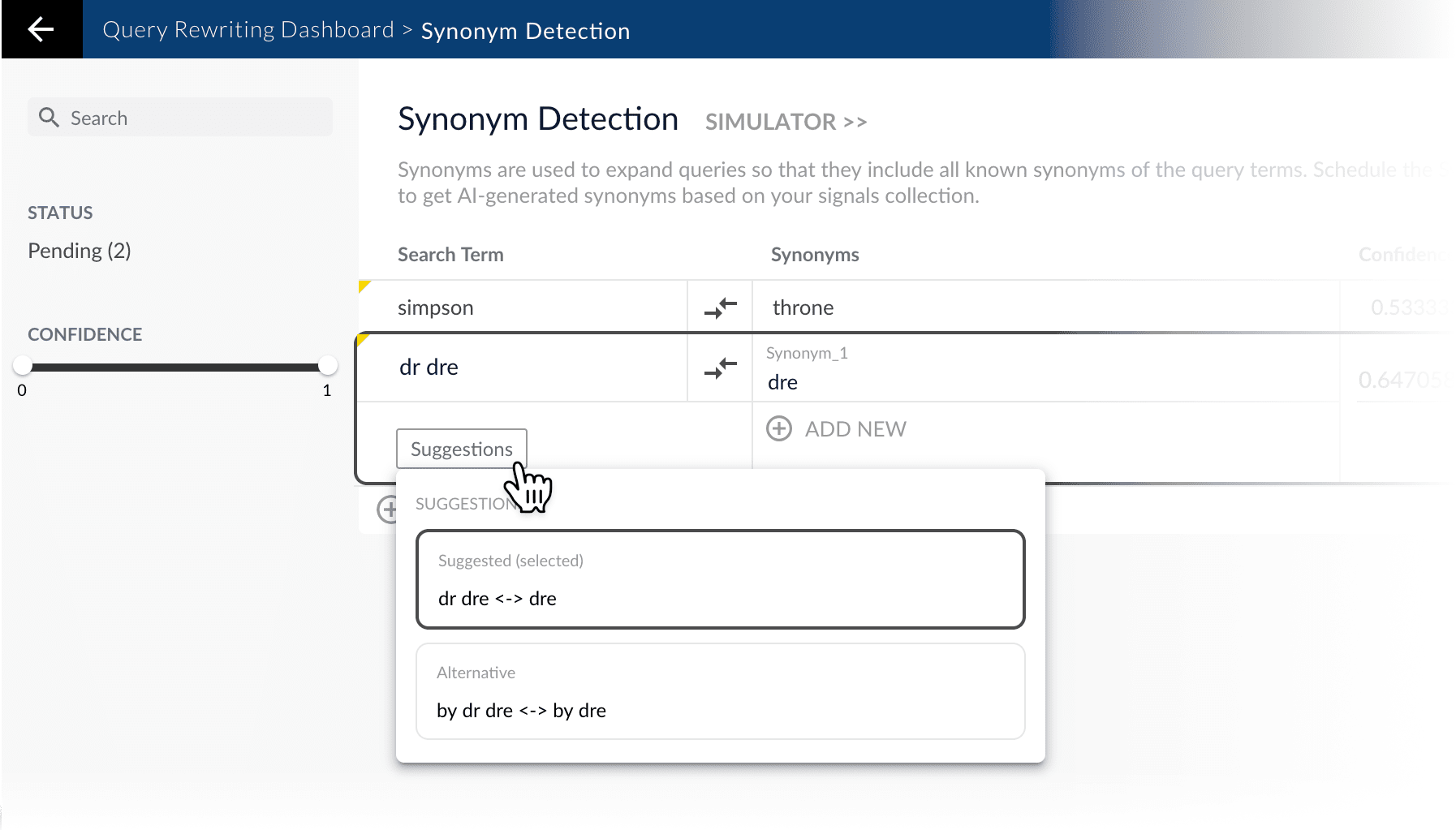
Where alternative synonyms were detected, you can click **Suggestions** to view and select them as replacements for the displayed synonym pair:
Although the Confidence field is also editable, changing its value makes no difference.
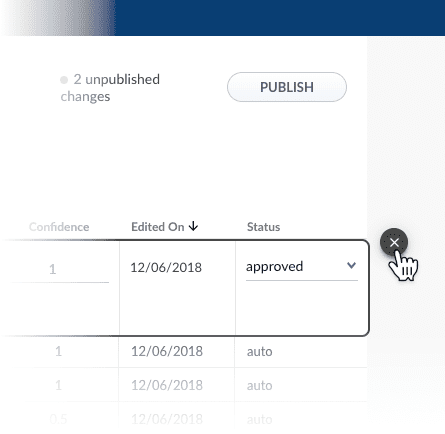
3. Click the **Close** icon next to the updated synonym pair:
Approving a synonym pair does not automatically deploy it to the `_query_rewrite` collection. When you have finished your review, you must click **Publish** to deploy your changes.
{/* // end::review[] */}
{/* // tag::add-new[] */}
## Adding new synonym pairs
You can manually add synonym pairs in addition to any generated by the [Synonym and Similar Queries Detection job](/docs/4/fusion-ai/reference/jobs/synonym-and-similar-queries-detection).
### How to add a synonym pair
1. Navigate to **Relevance** > **Rules**. The application displays the **Query Rewriting** screen.
2. Select **Synonym Detection**. The application displays the **Synonym Detection** screen.
3. At the bottom of the rules list, click the icon.
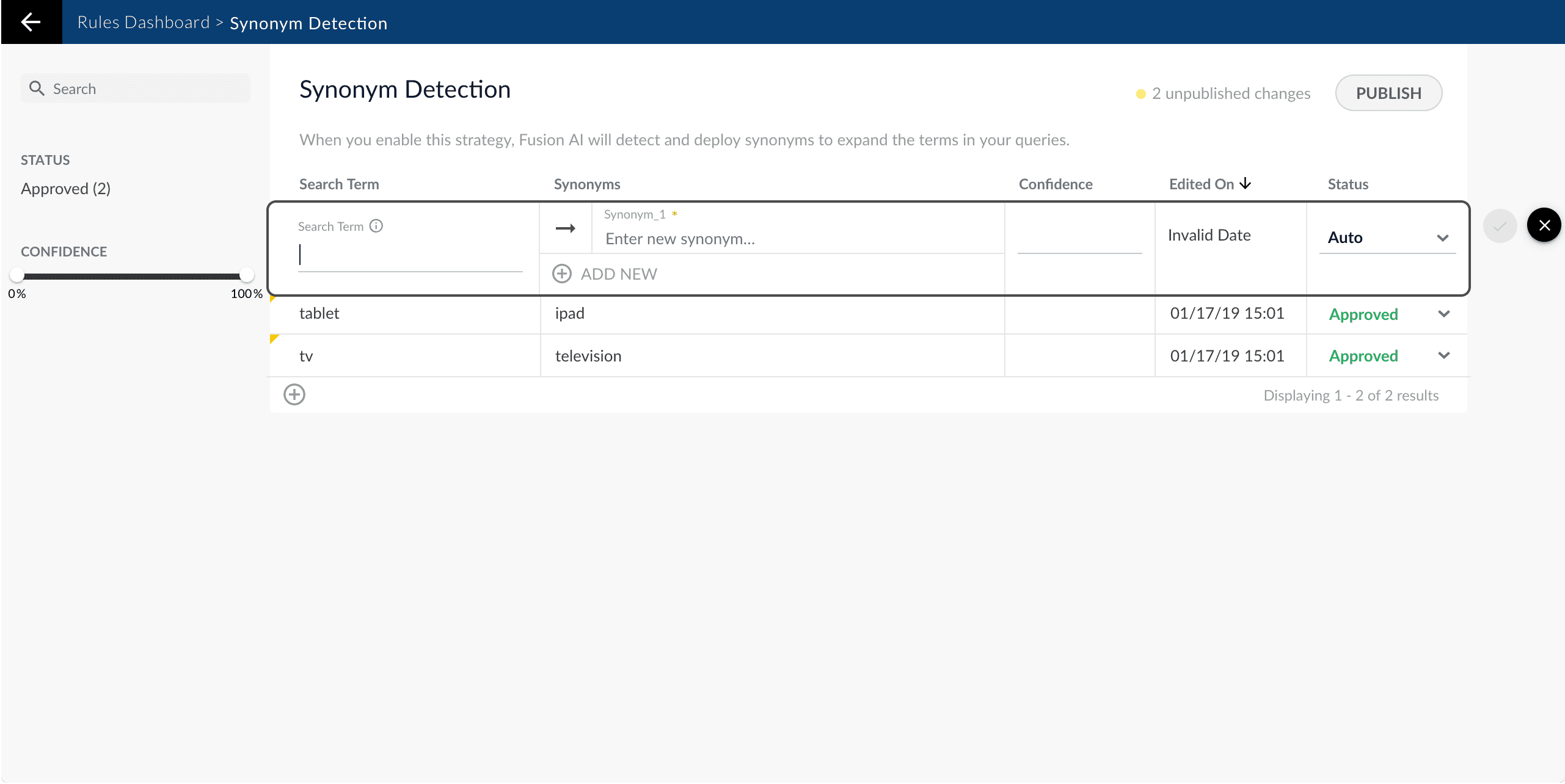
A new synonym pair appears at the top of the list:
4. Enter the query term.
5. Enter one or more synonym pairs.
It is not necessary to set a confidence value.
6. Select the synonym pair’s status, depending on whether you want to deploy it the next time you publish your changes ("Approved") or save it for further review ("Pending").
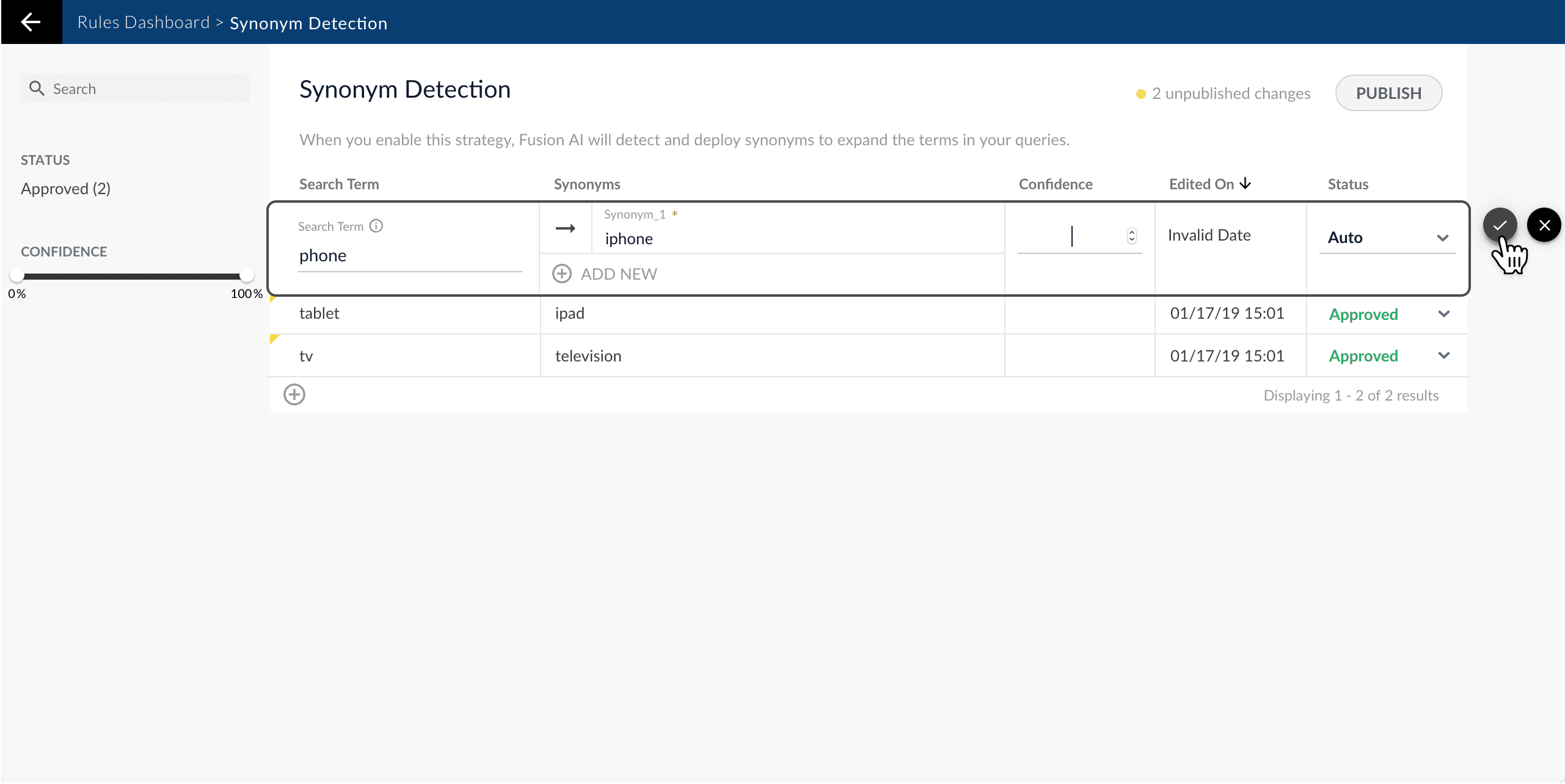
7. Click the check mark to save the new synonym pair:
{/* // end::add-new[] */}
{/* // tag::publish[] */}
## Publishing your changes
### How to publish updated synonym pairs
1. In the **Synonym Detection** screen, click the **PUBLISH** button.
Fusion prompts you to confirm that you want to publish your changes.
2. Click **PUBLISH**.
{/* // Currently this does not update the count of unpublished changes. */}
You can un-publish a query rewrite by changing its status to "denied", then clicking **PUBLISH**.
{/* // I am assuming this is the case. */}
{/* // end::publish[] */}
## Synonym types
There are three kinds of search synonyms, depending on the requirements of the search for each specific term.
### Replacement synonyms
Replacements are used to change the query, to replace it with a more standard term or terms. For example:
```bash theme={"dark"}
lucid => lucidworks
```
In this case, "lucid" by itself not an approved term, so there should be no instances where the company name is a partial word.
### One-way expansion synonyms
One-way expansions expand original terms with more standard terms while retaining the original term; they do not do the opposite, expand standard terms to the original non-standard terms
```bash theme={"dark"}
monitor => monitor, display
```
In this case, "display" is the standard term, but "monitor" is used in some older user-generated content.
### Multi-way expansion synonyms
Where each term is considered equally standard, multiway synonyms expand the query so any items with any of the terms is retrieved.
```bash theme={"dark"}
login,logon,signin,signon
```
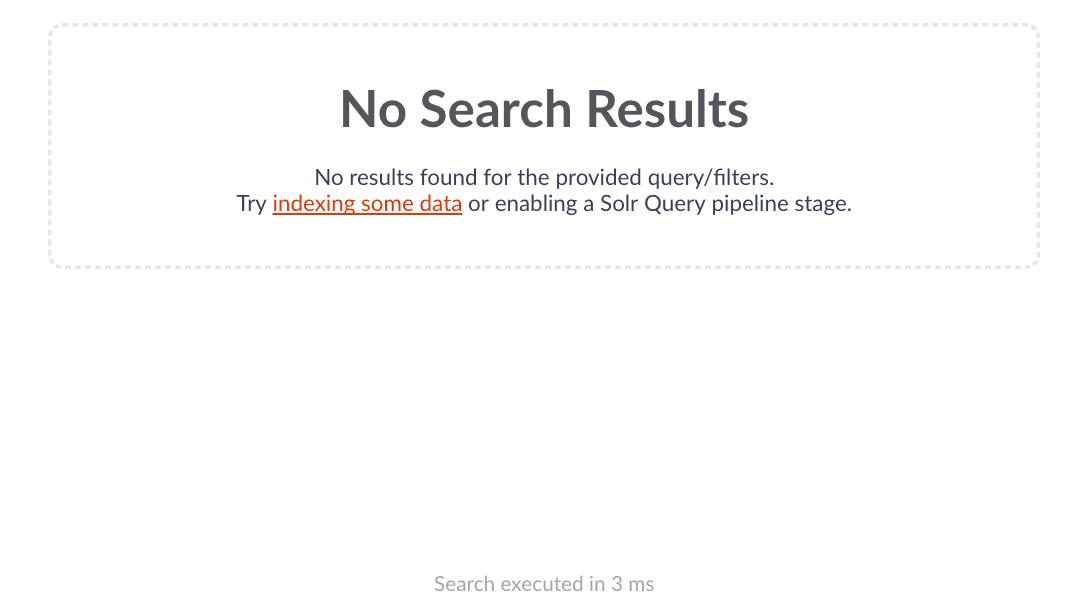
This example shows terms that are used interchangeably by authors. For this search engine, there is no need to distinguish among them, and considerable value in increasing recall to find all items discussing this topic. However, other content stores may use them differently.
Note that "logging" and "signing" have specific meanings in many contexts, so they might not be candidates for synonyms.
**Example of synonym expansion:**
Results before synonyms:
Results after synonyms:
Viewing the query using the debug=true parameter shows how it is expanded:
```json theme={"dark"}
"querystring": "logon",
"parsedquery": "(+DisjunctionMaxQuery((Synonym(_text_:login _text_:logon _text_:signin _text_:signon))))/no_coord",
"parsedquery_toString": "+(Synonym(_text_:login _text_:logon _text_:signin _text_:signon))",
```
## Multiword synonyms
Lucene/Solr supports multiword synonyms in version 6.6 and later, and Fusion in version 3.1 and later. There are significant technical complexities in performing graphed phrased expansion that had to be overcome.
**To enable multiword synonyms in Fusion, create an Additional Parameter stage for disabling the split on whitespace tokenization process (which applies to synonyms only):**
```bash theme={"dark"}
sow=false
```
Using EDismax, this allows the new Solr SynonymGraphFilter to create the graph representations of token streams containing overlapping synonyms of varying word counts, and expand the queries with additional terms. If using a less-than sign (\<) with EDismax, it must be escaped using a backslash.
**Examples:**
```bash theme={"dark"}
appstudio => app studio
signup =>signup,sign up
login,log in,logon,log on,signin,sign in,signon,sign on
```
Multiword synonyms work just like single-word synonyms, expanding the parsed query with additional query terms. For Solr details, see: [Multi-Word Synonyms: Solr Adds Query-Time Support](https://lucidworks.com/post/multi-word-synonyms-solr-adds-query-time-support//).
## Synonyms Editor API
The [Synonyms Editor API](/docs/4/fusion-server/reference/api/synonyms-editor-api) provides complete REST access to all aspects of the synonyms.
 4. Enter the query term.
5. Enter one or more synonym pairs.
4. Enter the query term.
5. Enter one or more synonym pairs.
 {/* // end::add-new[] */}
{/* // tag::publish[] */}
## Publishing your changes
### How to publish updated synonym pairs
1. In the **Synonym Detection** screen, click the **PUBLISH** button.
Fusion prompts you to confirm that you want to publish your changes.
2. Click **PUBLISH**.
{/* // Currently this does not update the count of unpublished changes. */}
{/* // end::add-new[] */}
{/* // tag::publish[] */}
## Publishing your changes
### How to publish updated synonym pairs
1. In the **Synonym Detection** screen, click the **PUBLISH** button.
Fusion prompts you to confirm that you want to publish your changes.
2. Click **PUBLISH**.
{/* // Currently this does not update the count of unpublished changes. */}
 Results after synonyms:
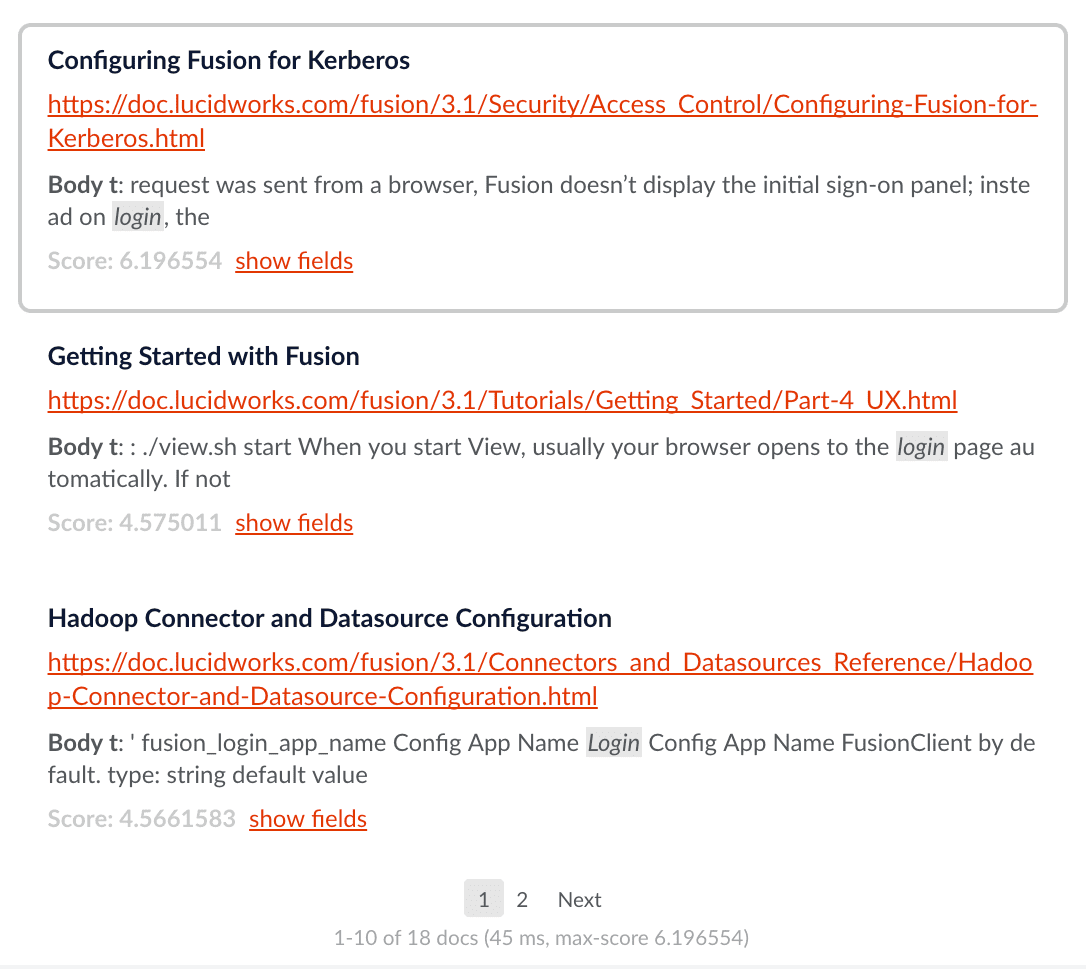 Viewing the query using the debug=true parameter shows how it is expanded:
```json theme={"dark"}
"querystring": "logon",
"parsedquery": "(+DisjunctionMaxQuery((Synonym(_text_:login _text_:logon _text_:signin _text_:signon))))/no_coord",
"parsedquery_toString": "+(Synonym(_text_:login _text_:logon _text_:signin _text_:signon))",
```
## Multiword synonyms
Lucene/Solr supports multiword synonyms in version 6.6 and later, and Fusion in version 3.1 and later. There are significant technical complexities in performing graphed phrased expansion that had to be overcome.
**To enable multiword synonyms in Fusion, create an Additional Parameter stage for disabling the split on whitespace tokenization process (which applies to synonyms only):**
```bash theme={"dark"}
sow=false
```
Using EDismax, this allows the new Solr SynonymGraphFilter to create the graph representations of token streams containing overlapping synonyms of varying word counts, and expand the queries with additional terms. If using a less-than sign (\<) with EDismax, it must be escaped using a backslash.
**Examples:**
```bash theme={"dark"}
appstudio => app studio
signup =>signup,sign up
login,log in,logon,log on,signin,sign in,signon,sign on
```
Multiword synonyms work just like single-word synonyms, expanding the parsed query with additional query terms. For Solr details, see: [Multi-Word Synonyms: Solr Adds Query-Time Support](https://lucidworks.com/post/multi-word-synonyms-solr-adds-query-time-support//).
## Synonyms Editor API
The [Synonyms Editor API](/docs/4/fusion-server/reference/api/synonyms-editor-api) provides complete REST access to all aspects of the synonyms.
Viewing the query using the debug=true parameter shows how it is expanded:
```json theme={"dark"}
"querystring": "logon",
"parsedquery": "(+DisjunctionMaxQuery((Synonym(_text_:login _text_:logon _text_:signin _text_:signon))))/no_coord",
"parsedquery_toString": "+(Synonym(_text_:login _text_:logon _text_:signin _text_:signon))",
```
## Multiword synonyms
Lucene/Solr supports multiword synonyms in version 6.6 and later, and Fusion in version 3.1 and later. There are significant technical complexities in performing graphed phrased expansion that had to be overcome.
**To enable multiword synonyms in Fusion, create an Additional Parameter stage for disabling the split on whitespace tokenization process (which applies to synonyms only):**
```bash theme={"dark"}
sow=false
```
Using EDismax, this allows the new Solr SynonymGraphFilter to create the graph representations of token streams containing overlapping synonyms of varying word counts, and expand the queries with additional terms. If using a less-than sign (\<) with EDismax, it must be escaped using a backslash.
**Examples:**
```bash theme={"dark"}
appstudio => app studio
signup =>signup,sign up
login,log in,logon,log on,signin,sign in,signon,sign on
```
Multiword synonyms work just like single-word synonyms, expanding the parsed query with additional query terms. For Solr details, see: [Multi-Word Synonyms: Solr Adds Query-Time Support](https://lucidworks.com/post/multi-word-synonyms-solr-adds-query-time-support//).
## Synonyms Editor API
The [Synonyms Editor API](/docs/4/fusion-server/reference/api/synonyms-editor-api) provides complete REST access to all aspects of the synonyms.