> ## Documentation Index
> Fetch the complete documentation index at: https://doc.lucidworks.com/llms.txt
> Use this file to discover all available pages before exploring further.
# Index Pipelines
export const LwTemplate = ({title = "Key questions to get you started", icon = "sparkles", cta = "Powered by Agent Studio", linkHref = "https://lucidworks.com/demo/?utm_source=docs&utm_medium=referral&utm_campaign=docs_cta_ai"}) => {
const [isLoaded, setIsLoaded] = useState(false);
useEffect(() => {
const timer = setTimeout(() => {
setIsLoaded(true);
}, 500);
return () => clearTimeout(timer);
}, []);
return
{isLoaded && `
}} />}
Powered by Lucidworks Agent Studio
;
};
[localhost link]: http://localhost:3000/docs/4/fusion-server/concepts/indexing/datasources/index-pipelines
[mintlify link]: https://doc.lucidworks.com/docs/4/fusion-server/concepts/indexing/datasources/index-pipelines
[old doc.lw link]: https://doc.lucidworks.com/fusion/5.9/162
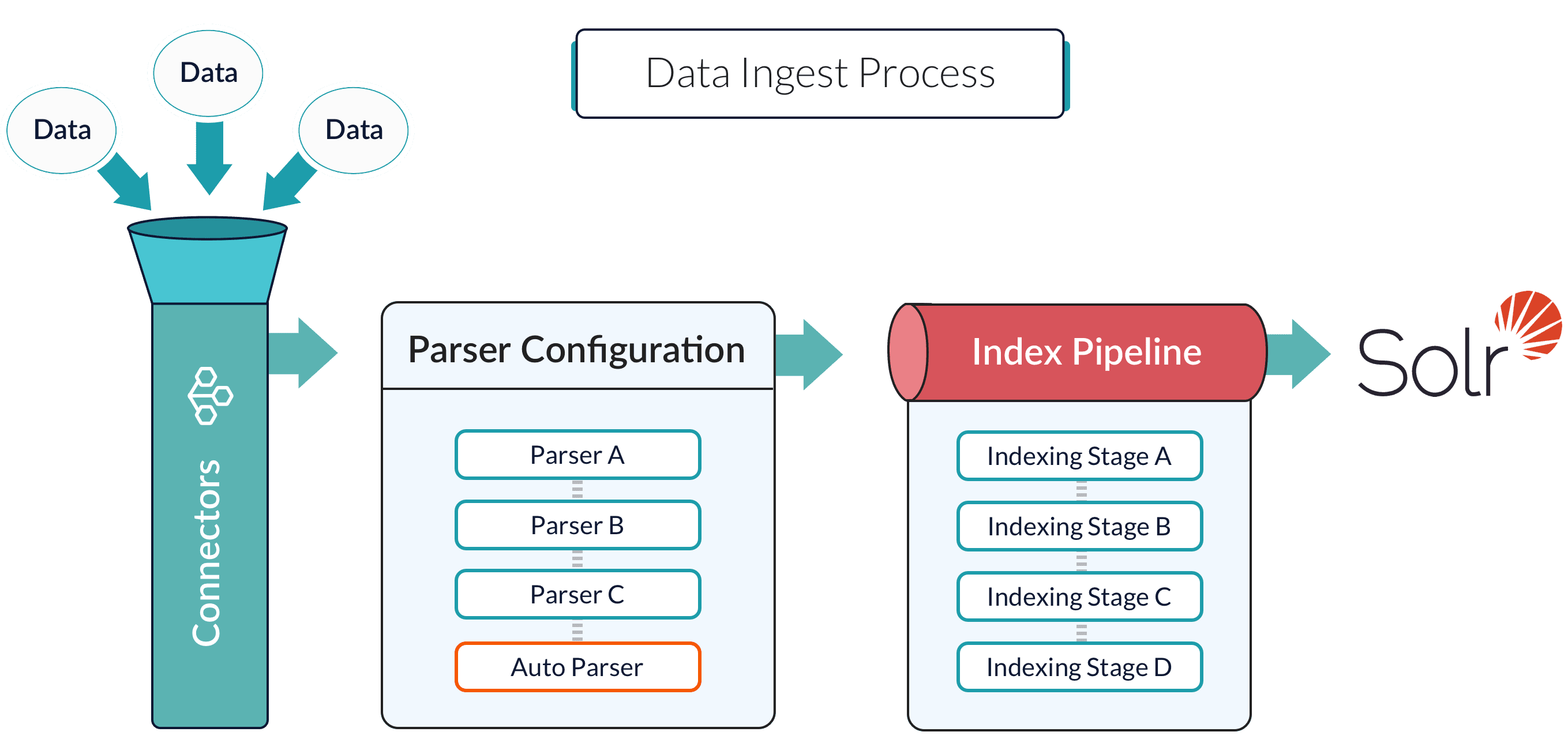
Index pipelines transform incoming data into `PipelineDocument` objects for indexing by Fusion-managed Solr service.
An index pipeline consists of a series of configurable
[index pipeline stages](/docs/4/fusion-server/concepts/indexing/datasources/index-pipeline-stages),
each performing a different transformation on the data before passing the result to the next stage in the pipeline.
The final stage is the
[Solr Indexer stage](/docs/4/fusion-server/reference/pipeline-stages/indexing/solr-indexer-stage),
which transforms the PipelineDocument into a Solr document and submits it to Solr for indexing in a specific
[Collection](/docs/4/fusion-server/concepts/indexing/collections/overview).
Each configured datasource has an associated index pipeline and uses a
[connector](/docs/fusion-connectors/connectors/overview)
to fetch data to parse and then input into the index pipeline.
Alternatively, documents can be submitted directly to an index pipeline or profile with the REST API.
It is often possible to get documents into Fusion Server by configuring a datasource with the appropriate connector.
* [Fusion 4.x Connectors](/docs/4/fusion-server/concepts/indexing/connectors/overview)
* [Fusion 5.x Connectors](/docs/5/fusion/getting-data-in/indexing/connectors)
But if there are obstacles to using connectors, it can be simpler to index documents with a REST API call to an index profile or pipeline.
## Push documents to Fusion using index profiles
Index profiles allow you to send documents to a consistent endpoint (the profile alias) and change the backend index pipeline as needed. The profile is also a simple way to use one pipeline for multiple collections without any one collection "owning" the pipeline.
* [Fusion 4.x Index Profiles](/docs/4/fusion-server/concepts/indexing/datasources/index-profiles)
* [Fusion 5.x Index Profiles](/docs/5/fusion/getting-data-in/indexing/index-pipelines/index-profiles)
### Send data to an index profile that is part of an app
Accessing an index profile through an app lets a Fusion admin secure and manage all objects on a per-app basis. Security is then determined by whether a user can access an app. This is the recommended way to manage permissions in Fusion.
The syntax for sending documents to an index profile that is part of an app is as follows:
```bash wrap theme={"dark"}
curl -u USERNAME:PASSWORD -X POST -H 'content-type: application/json' https://FUSION_HOST:FUSION_PORT/api/apps/APP_NAME/index/INDEX_PROFILE --data-binary @my-json-data.json
```
Spaces in an app name become underscores. Spaces in an index profile name become hyphens.
To prevent the terminal from displaying all the data and metadata it indexes--useful if you are indexing a large file--you can optionally append `?echo=false` to the URL.
Be sure to set the content type header properly for the content being sent. Some frequently used content types are:
* Text: `application/json`, `application/xml`
* PDF documents: `application/pdf`
* MS Office:
* DOCX: `application/vnd.openxmlformats-officedocument.wordprocessingml.document`
* XLSX: `application/vnd.openxmlformats-officedocument.spreadsheetml.sheet`
* PPTX: `application/vnd.vnd.openxmlformats-officedocument.presentationml.presentation`
* More types: [http://filext.com/faq/office\_mime\_types.php](http://filext.com/faq/office_mime_types.php)
### Example: Send JSON data to an index profile under an app
In `$FUSION_HOME/apps/solr-dist/example/exampledocs` you can find a few sample documents. This example uses one of these, `books.json`.
To push JSON data to an index profile under an app:
1. Create an index profile. In the Fusion UI, click **Indexing > Index Profiles** and follow the prompts.
2. From the directory containing `books.json`, enter the following, substituting your values for username, password, and index profile name:
```bash wrap theme={"dark"}
curl -u USERNAME:PASSWORD -X POST -H 'content-type: application/json' https://FUSION_HOST:FUSION_PORT/api/apps/APP_NAME/index/INDEX_PROFILE?echo=false --data-binary @books.json
```
3. Test that your data has made it into Fusion:
1. Log into the Fusion UI.
2. Navigate to the app where you sent your data.
3. Navigate to the Query Workbench.
4. Search for `\*:*`.
5. Select relevant Display Fields, for example `author` and `name`.
### Example: Send JSON data without defining an app
In most cases it is best to delegate permissions on a per-app basis. But if your use case requires it, you can push data to Fusion without defining an app.
To send JSON data without app security, issue the following curl command:
```bash wrap theme={"dark"}
curl -u USERNAME:PASSWORD -X POST -H 'content-type: application/json' https://FUSION_HOST:FUSION_PORT/api/index/INDEX_PROFILE --data-binary @my-json-data.json
```
### Example: Send XML data to an index profile with an app
To send XML data to an app, use the following:
```bash wrap theme={"dark"}
curl -u USERNAME:PASSWORD -X POST -H 'content-type: application/xml' https://FUSION_HOST:FUSION_PORT/api/apps/APP_NAME/index/INDEX_PROFILE --data-binary @my-xml-file.xml
```
In Fusion 5, documents can be created on the fly using the [PipelineDocument](https://javadoc.lucidworks.com/fusion-pipeline-javadocs/5.3/com/lucidworks/apollo/common/pipeline/PipelineDocument.html) JSON notation.
## Remove documents
### Example 1
The following example removes content:
```bash wrap theme={"dark"}
curl -u USERNAME:PASSWORD -X POST -H 'content-type: application/vnd.lucidworks-document' https://FUSION_HOST:FUSION_PORT/api/apps/APP_NAME/index/INDEX_PROFILE --data-binary @del-json-data.json
```
### Example 2
A more specific example removes data from `books.json`. To delete "The Lightning Thief" and "The Sea of Monsters" from the index, use their id values in the JSON file.
The `del-json-data.json` file to delete the two books:
```json wrap theme={"dark"}
[{ "id": "978-0641723445","commands": [{"name": "delete","params": {}}]},{ "id": "978-1423103349","commands": [{"name": "delete","params": {}}, {"name": "commit","params": {}}]}]
```
The `?echo=false` can be used to turn off the response to the terminal.
### Example 3
Another example to delete items using the Push API is:
```bash wrap theme={"dark"}
curl -u admin:XXX -X POST 'http://FUSION_HOST:FUSION_PORT/api/apps/APP/index/INDEX' -H 'Content-Type: application/vnd.lucidworks-document' -d '[
{
"id": "1663838589-44",
"commands":
[
{
"name": "delete",
"params":
{}
},
{
"name": "commit",
"params":
{}
}
]
}, ...
]'
```
## Send documents to an index pipeline
Although sending documents to an index profile is recommended, if your use case requires it, you can send documents directly to an index pipeline.
For more information about index pipeline REST API reference documentation, select the link for your Fusion release:
* [Fusion 4.x Index Pipelines API](/docs/4/fusion-server/reference/api/indexing/index-pipelines-api)
* [Fusion 5.x Index Pipelines API](/api-reference/index-pipelines-api/get-the-service-status)
### Specify a parser
When you push data to a pipeline, you can specify the name of the parser by adding a parserId querystring parameter to the URL.
For example: `https://FUSION_HOST:FUSION_PORT/api/index-pipelines/INDEX_PIPELINE/collections/COLLECTION_NAME/index?parserId=PARSER`.
If you do not specify a parser, and you are indexing outside of an app (`https://FUSION_HOST:FUSION_PORT/api/index-pipelines/...`), then the `_system` parser is used.
If you do not specify a parser, and you are indexing in an app context (`https://FUSION_HOST:FUSION_PORT/api/apps/APP_NAME/index-pipelines/...`), then the parser with the same name as the app is used.
## Indexing CSV Files
In the usual case, to index a CSV or TSV file, the file is split into records, one per row, and each row is indexed as a separate document.
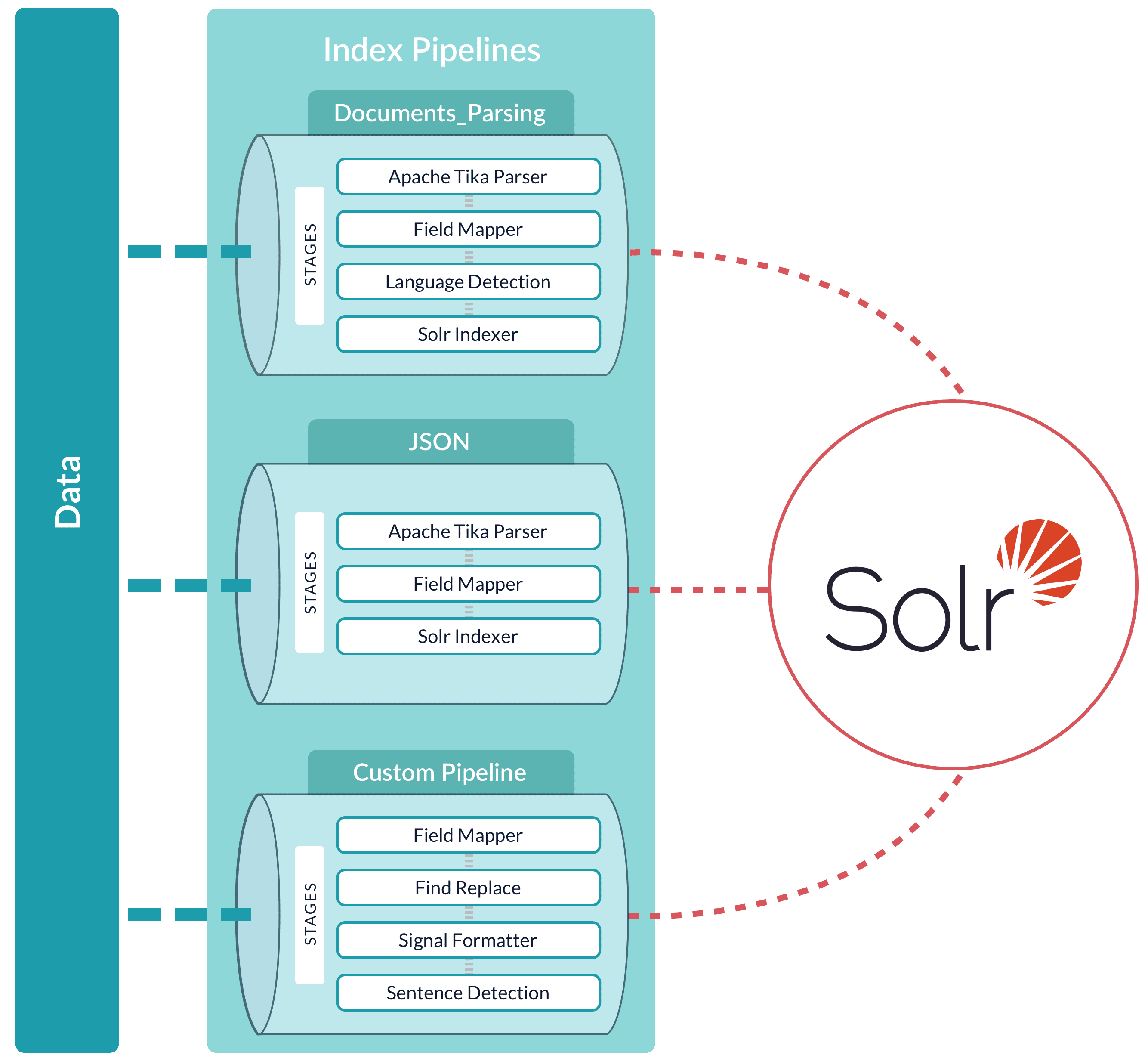
A pipeline can be reused across multiple collections. Fusion provides a set of built-in pipelines. You can use the Index Workbench or the
[Index Pipelines API](/docs/4/fusion-server/reference/api/indexing/index-pipelines-api)
to develop custom index pipelines to suit any datasource or application.
When a Fusion collection is created using the Fusion UI, a pair of index and query pipelines are created to that pipeline, where the pipeline name is the collection name with the suffix "-default". This pipeline consists of a
[Field Mapping index stage](/docs/4/fusion-server/reference/pipeline-stages/indexing/field-mapper-index-stage).
Although default pipelines are created when a Fusion collection is created, they are not deleted when the collection is deleted.
This is because pipelines can be used across collections, so a named pipeline, although originally associated with a collection, can be used by several collections.
 Alternatively, documents can be submitted directly to an index pipeline or profile with the REST API.
 When a Fusion collection is created using the Fusion UI, a pair of index and query pipelines are created to that pipeline, where the pipeline name is the collection name with the suffix "-default". This pipeline consists of a
[Field Mapping index stage](/docs/4/fusion-server/reference/pipeline-stages/indexing/field-mapper-index-stage).
Although default pipelines are created when a Fusion collection is created, they are not deleted when the collection is deleted.
This is because pipelines can be used across collections, so a named pipeline, although originally associated with a collection, can be used by several collections.
When a Fusion collection is created using the Fusion UI, a pair of index and query pipelines are created to that pipeline, where the pipeline name is the collection name with the suffix "-default". This pipeline consists of a
[Field Mapping index stage](/docs/4/fusion-server/reference/pipeline-stages/indexing/field-mapper-index-stage).
Although default pipelines are created when a Fusion collection is created, they are not deleted when the collection is deleted.
This is because pipelines can be used across collections, so a named pipeline, although originally associated with a collection, can be used by several collections.