> ## Documentation Index
> Fetch the complete documentation index at: https://doc.lucidworks.com/llms.txt
> Use this file to discover all available pages before exploring further.
# Time-Based Partitioning
export const LwTemplate = ({title = "Key questions to get you started", icon = "sparkles", cta = "Powered by Agent Studio", linkHref = "https://lucidworks.com/demo/?utm_source=docs&utm_medium=referral&utm_campaign=docs_cta_ai"}) => {
const [isLoaded, setIsLoaded] = useState(false);
useEffect(() => {
const timer = setTimeout(() => {
setIsLoaded(true);
}, 500);
return () => clearTimeout(timer);
}, []);
return
{isLoaded && `
}} />}
Powered by Lucidworks Agent Studio
;
};
[localhost link]: http://localhost:3000/docs/4/fusion-server/concepts/indexing/collections/time-based-partitioning
[mintlify link]: https://doc.lucidworks.com/docs/4/fusion-server/concepts/indexing/collections/time-based-partitioning
[old doc.lw link]: https://doc.lucidworks.com/fusion-server/4.2/165
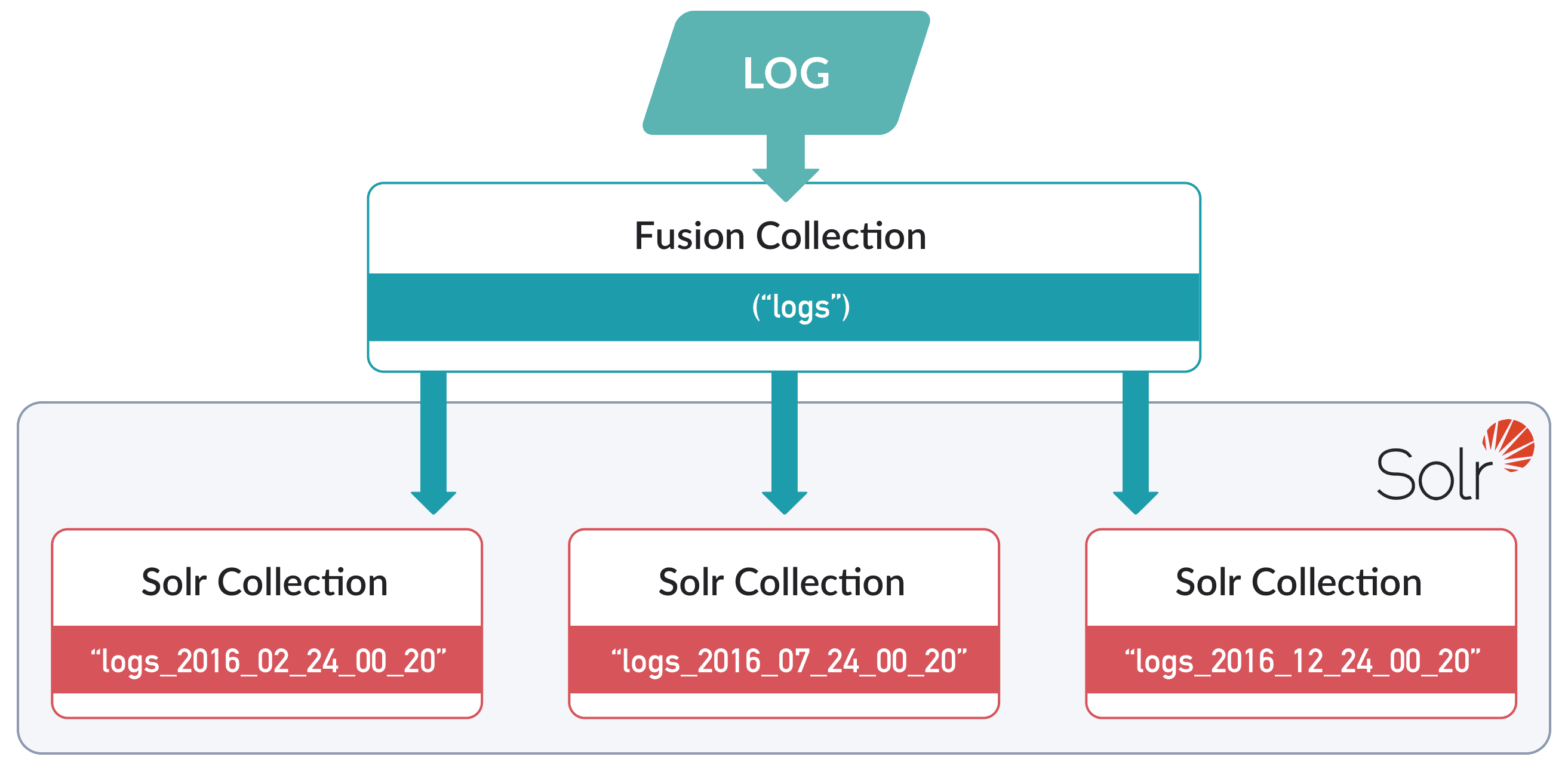
A Fusion collection can be configured to map to multiple Solr collections, known as partitions in this context, where each partition contains data from a specific time range. An example is time-based partitioning for logs:
Once a collection is configured for time-base partitioning, Fusion automatically ages out old partitions and creates new ones, using the configured partition sizes, expiration intervals, and so on. No manual maintenance is needed.
This feature is not enabled by default. Enable it for each collection using the
[Collection Features API](/docs/4/fusion-server/reference/api/collection-features-api).
Fusion cannot retroactively partition data that has already been indexed. It can only perform time-based partitioning on incoming data.
## Learn more
A Fusion collection can be configured to map to multiple Solr collections, known as partitions in this context, where each partition contains data from a specific time range. An example is time-based partitioning for logs:
* In the UI, you can only enable time-based partitioning for *new* collections.
* In the API, you can only enable time-based partitioning for *existing* collections.
## Enablement using the Fusion UI
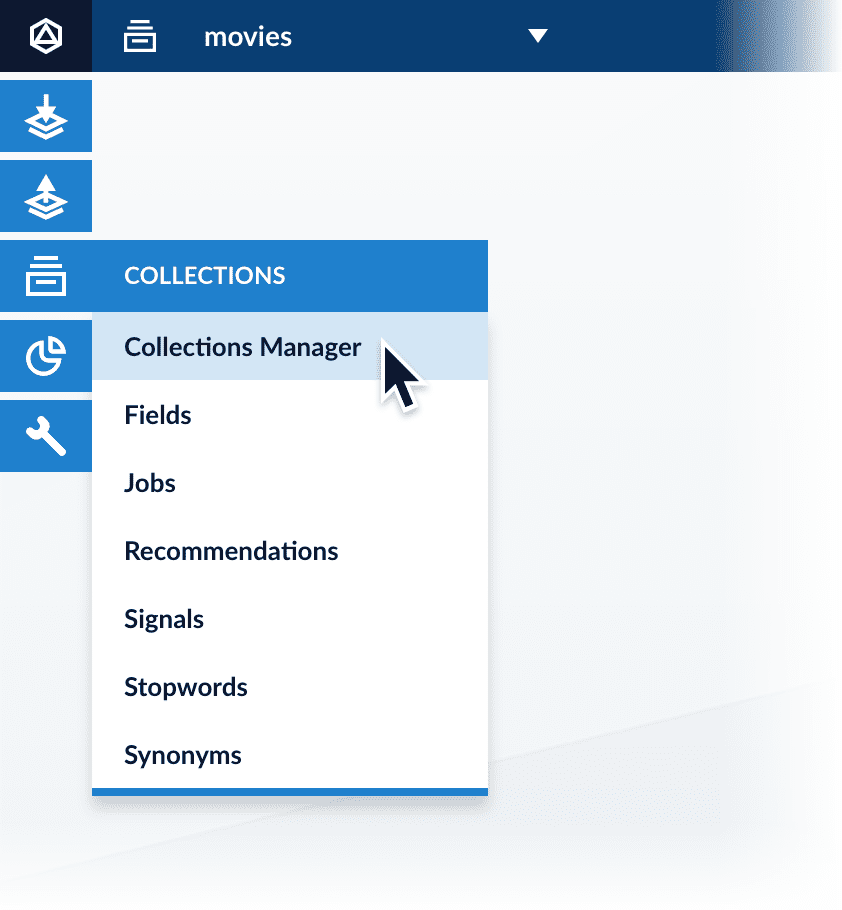
1. Open the Collections Manager:
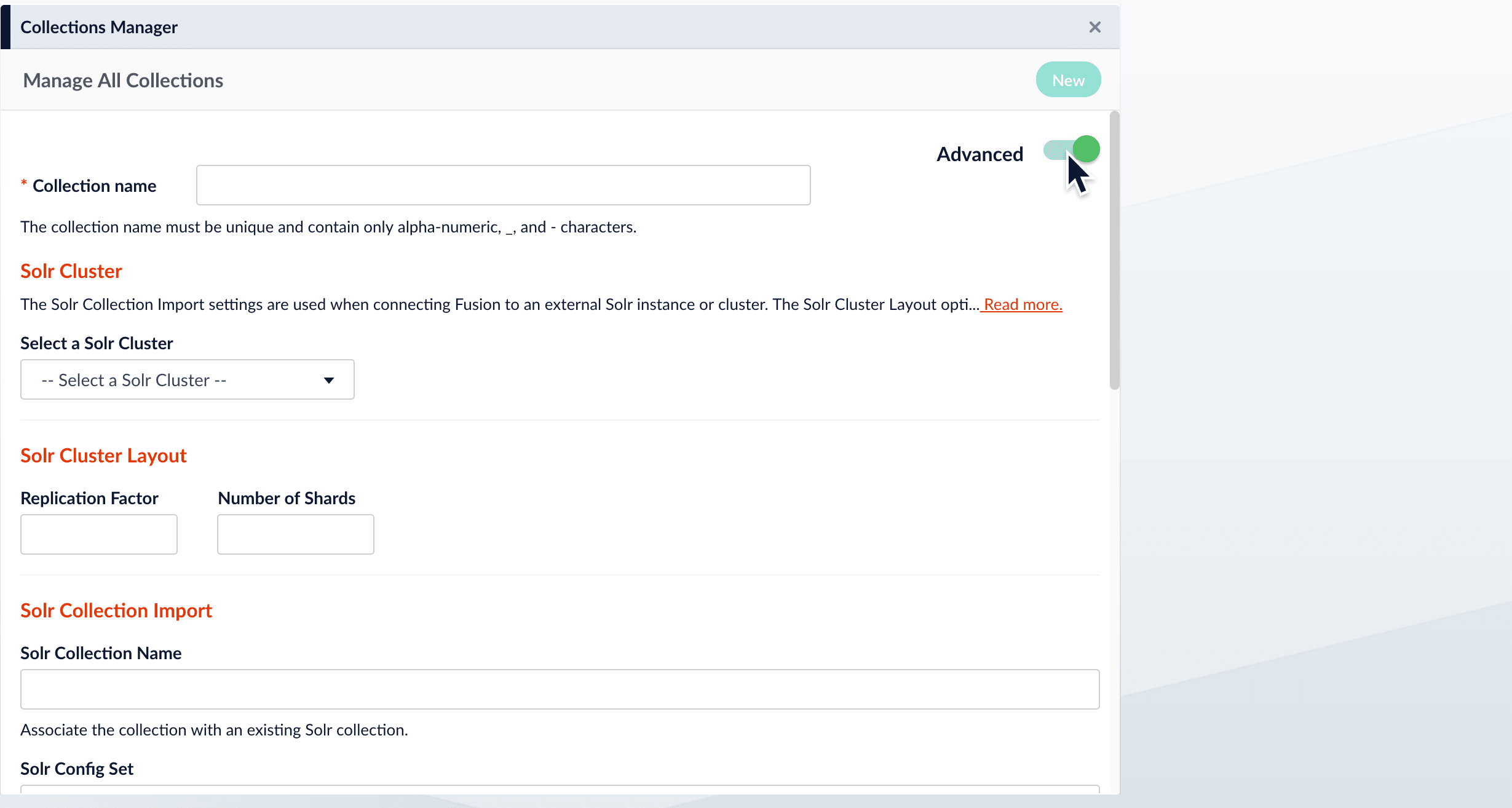
2. Click **New**.\
In the UI, you can only enable time-based partitioning for *new* collections. To enable it for an existing collection, [use the API](#enablement-using-the-api).
3. Click **Advanced**.
4. Scroll down to "Time Series Partitioning".
5. Click **Enable**.\\
When you enable this option, Fusion displays the time series partitioning configuration options.
6. Save the collection.
## Enablement using the API
Use the Collection Features API] to enable time-based partitioning for an existing collection.
**Enable time-based partitioning using the default configuration:**
```bash wrap theme={"dark"}
curl -X PUT -H 'Content-type: application/json' -d '{"enabled": true}' http://localhost:8764/api/collections/COLLECTION_NAME/features/partitionByTime
```
No response is returned.
Submit an empty request to the same endpoint to verify that time-based partitioning is enabled:
```bash wrap theme={"dark"}
curl -X GET http://localhost:8764/api/collections/COLLECTION_NAME/features/partitionByTime
```
Response:
```json theme={"dark"}
{
"name" : "partitionByTime",
"collectionId" : "COLLECTION_NAME",
"params" : { },
"enabled" : true
}
```
 * In the UI, you can only enable time-based partitioning for *new* collections.
* In the API, you can only enable time-based partitioning for *existing* collections.
## Enablement using the Fusion UI
1. Open the Collections Manager:
* In the UI, you can only enable time-based partitioning for *new* collections.
* In the API, you can only enable time-based partitioning for *existing* collections.
## Enablement using the Fusion UI
1. Open the Collections Manager:
 2. Click **New**.\
 4. Scroll down to "Time Series Partitioning".
5. Click **Enable**.\\
4. Scroll down to "Time Series Partitioning".
5. Click **Enable**.\\
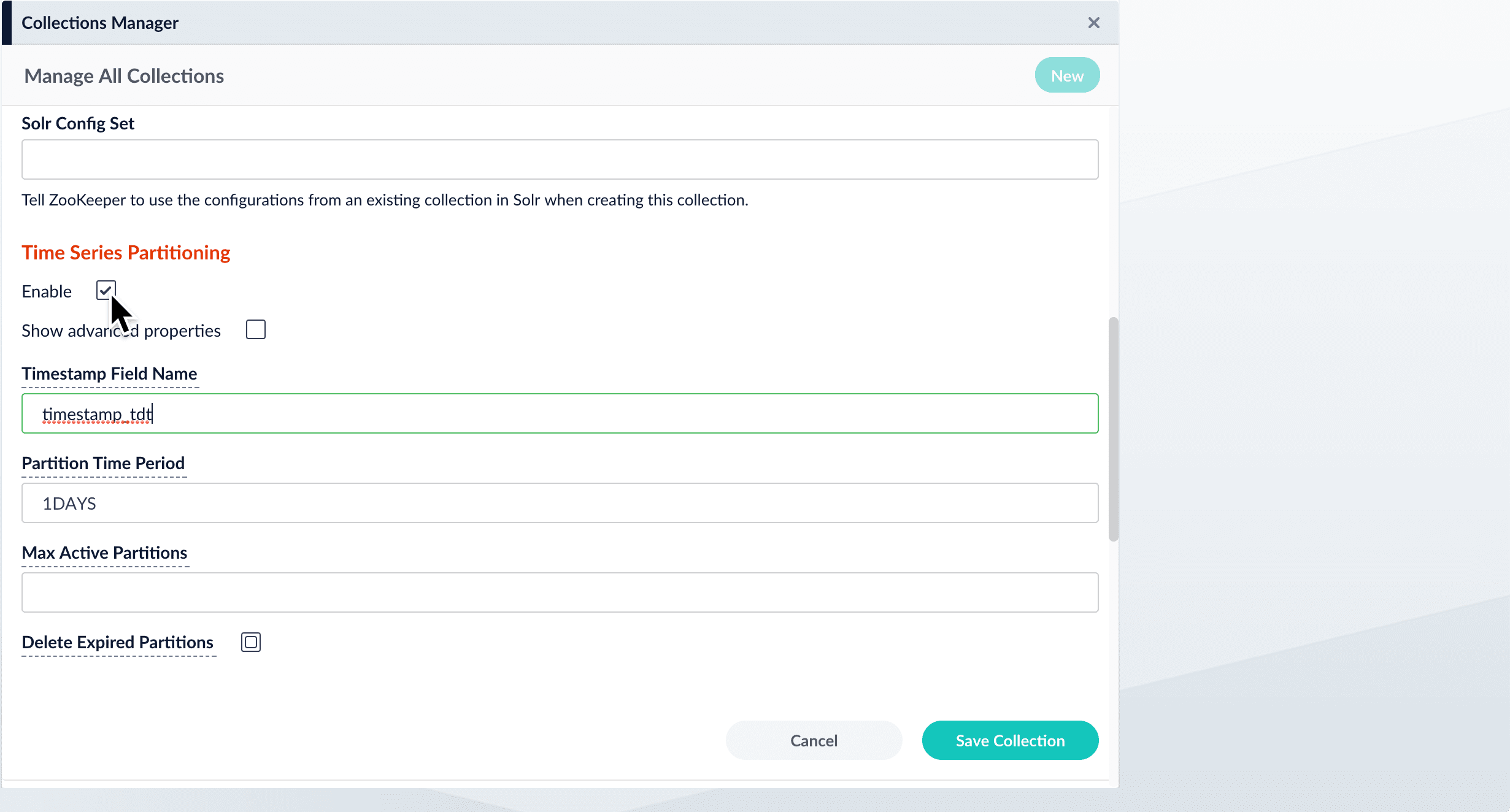 When you enable this option, Fusion displays the time series partitioning configuration options.
6. Save the collection.
## Enablement using the API
Use the Collection Features API] to enable time-based partitioning for an existing collection.
**Enable time-based partitioning using the default configuration:**
```bash wrap theme={"dark"}
curl -X PUT -H 'Content-type: application/json' -d '{"enabled": true}' http://localhost:8764/api/collections/COLLECTION_NAME/features/partitionByTime
```
No response is returned.
Submit an empty request to the same endpoint to verify that time-based partitioning is enabled:
```bash wrap theme={"dark"}
curl -X GET http://localhost:8764/api/collections/COLLECTION_NAME/features/partitionByTime
```
Response:
```json theme={"dark"}
{
"name" : "partitionByTime",
"collectionId" : "COLLECTION_NAME",
"params" : { },
"enabled" : true
}
```
When you enable this option, Fusion displays the time series partitioning configuration options.
6. Save the collection.
## Enablement using the API
Use the Collection Features API] to enable time-based partitioning for an existing collection.
**Enable time-based partitioning using the default configuration:**
```bash wrap theme={"dark"}
curl -X PUT -H 'Content-type: application/json' -d '{"enabled": true}' http://localhost:8764/api/collections/COLLECTION_NAME/features/partitionByTime
```
No response is returned.
Submit an empty request to the same endpoint to verify that time-based partitioning is enabled:
```bash wrap theme={"dark"}
curl -X GET http://localhost:8764/api/collections/COLLECTION_NAME/features/partitionByTime
```
Response:
```json theme={"dark"}
{
"name" : "partitionByTime",
"collectionId" : "COLLECTION_NAME",
"params" : { },
"enabled" : true
}
```