> ## Documentation Index
> Fetch the complete documentation index at: https://doc.lucidworks.com/llms.txt
> Use this file to discover all available pages before exploring further.
# Deployment Types
export const LwTemplate = ({title = "Key questions to get you started", icon = "sparkles", cta = "Powered by Agent Studio", linkHref = "https://lucidworks.com/demo/?utm_source=docs&utm_medium=referral&utm_campaign=docs_cta_ai"}) => {
const [isLoaded, setIsLoaded] = useState(false);
useEffect(() => {
const timer = setTimeout(() => {
setIsLoaded(true);
}, 500);
return () => clearTimeout(timer);
}, []);
return
{isLoaded && `
}} />}
Powered by Lucidworks Agent Studio
;
};
[localhost link]: http://localhost:3000/docs/4/fusion-server/concepts/deployment/deployment-types
[mintlify link]: https://doc.lucidworks.com/docs/4/fusion-server/concepts/deployment/deployment-types
[old doc.lw link]: https://doc.lucidworks.com/fusion-server/4.2/141
The Fusion platform is designed to support enterprise search applications at any scale. You can deploy Fusion across multiple nodes in order to store large amounts of data or to achieve high processing throughput or both.
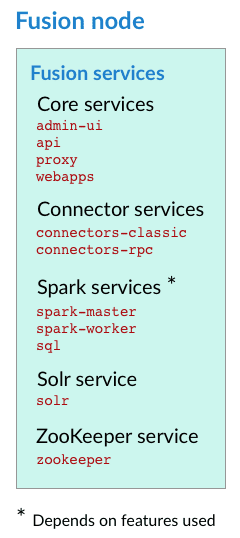
Fusion consists of a number of Java processes that run in JVMs, including the `api`, `connectors-classic`, `connectors-rpc`, and `admin-ui` processes, and possibly others such as `spark-master` and `spark-worker`. When you start Fusion, the processes that start are listed. You might also see `zookeeper` and `solr` processes, depending on the [cluster arrangement](#cluster-arrangements).
For more information about Fusion components, see [Fusion Components](/docs/4/fusion-server/concepts/overview).
A complete list of Fusion services:
{/* // tag::body[] */}
This topic explains how to start and stop Fusion Server and its services using the scripts in the `bin` directory below the Fusion home directory:
* `/opt/fusion/latest.***__x__***/bin` (Unix)
* `C:\lucidworks\fusion{backslash}latest.***__x__***{backslash}bin` (Windows)
## Command summary
{/* // 4.2 list: zookeeper, solr, api, connectors-classic, connectors-rpc, proxy, webapps, admin-ui, sql, log-shipper */}
{/* // 4.1 list: zookeeper, solr, api, connectors-classic, connectors-rpc, proxy, webapps, admin-ui, log-shipper, spark-master, spark-worker, sql */}
{/* // 4.0 list: zookeeper, solr, api, connectors-rpc, connectors-classic, admin-ui, proxy, webapps, spark-master, spark-worker, sql */}
{/* // tag::servicecommands[] */}
You can control all Fusion services at once under the management of the Fusion agent, or you can control services individually.
**How to control all services using the Fusion agent:**
* **Unix.** `/opt/fusion/latest.***__x__***/bin/fusion `
* **Windows.** `C:\lucidworks\fusion{backslash}latest.***__x__***{backslash}bin{backslash}fusion.cmd `
**How to control individual services:**
* **Unix.** `/opt/fusion/latest.***__x__***/bin/`
For example: `/opt/fusion/latest.***__x__***/bin/proxy restart`
* **Windows.** `C:\lucidworks\fusion{backslash}latest.***__x__***{backslash}bin{backslash}.cmd `
For example: `C:\lucidworks\fusion{backslash}latest.***__x__***{backslash}bin{backslash}proxy.cmd restart`
When starting services individually, start Zookeeper first.
The commands below can be issued to the `fusion`/`fusion.cmd` script to issue the command to all services in the correct sequence, or they can be issued to an individual service.
{/* // tag::table[] */}
| | |
| ------------------------------------------------ | --------------------------------------------------------------------------------------------------------------------------------------------------------------------------------------- |
| `start` | Start one or all Fusion services. |
| `status` | Display the status of one or all Fusion services. |
| `restart` | Restart one or all Fusion services. |
| `stop` | Stop one or all Fusion services. |
| `run` | Start one or all Fusion services in the foreground. |
| `run-in-shell` (Unix only) *(Fusion 4.2+ only.)* | Start an individual service using Bash’s `exec` function, which allows the service to assume the shell process’s PID. See [Run Fusion in shell mode](#run-fusion-in-shell-mode) below. |
{/* // end::servicecommands[] */}
{/* // end::table[] */}
## Define groups of services
The `fusion.cors` (`fusion.properties` in Fusion 4.x) file includes the property definition `group.default`. This property defines the Fusion services to start and stop by default (if no property is named in the start or stop command).
The default list of services out-of-the-box is also the *minimum* set of services, with the exception of the `log-shipper` service, which you can remove if you do not use it.
Here is the `group.default` definition in `fusion.cors` (`fusion.properties` in Fusion 4.x):
**In Fusion 4.1+.**
```bash theme={"dark"}
group.default = zookeeper, solr, api, connectors-classic, connectors-rpc, proxy, webapps, admin-ui, log-shipper
```
With the exception of the `log-shipper` service, these are all required services. Even if only using RPC connectors, the `connectors-classic` service is required. The `log-shipper` service is required to use the Log Shipper.
**In Fusion 4.0.x.**
```bash theme={"dark"}
group.default = zookeeper, solr, api, connectors-rpc, connectors-classic, admin-ui, proxy, webapps
```
Even if only using RPC connectors, the `connectors-classic` service is required.
### How to modify the default list of services
**In Fusion 4.1+.**
Edit the `group.default` property, for example, to include Spark and SQL related services:
```bash theme={"dark"}
group.default = zookeeper, solr, api, connectors-classic, connectors-rpc, proxy, webapps, admin-ui, log-shipper, spark-master, spark-worker, sql
```
**In Fusion 4.0.x.**
Edit the `group.default` property, for example, to include Spark related services:
```bash theme={"dark"}
group.default = zookeeper, solr, api, connectors-classic, connectors-rpc, proxy, webapps, admin-ui, spark-master, spark-worker
```
### How to define other lists of services (Unix)
You can define other lists of services by defining other `group` properties.
**In Fusion 4.1+.**
For example, define this group property to start and stop services for Spark and SQL together:
```bash theme={"dark"}
group.spark-only = spark-master, spark-worker, sql
```
**In Fusion 4.0.x.**
For example, define this group property to start and stop services for Spark together:
```bash theme={"dark"}
group.spark-only = spark-master, spark-worker
```
Define this group property to start and stop services for classic and RPC connectors together:
```bash theme={"dark"}
group.connectors = connectors-classic, connectors-rpc
```
## Unix
Start and stop Fusion on Unix.
### Start Fusion
{/* // tag::starting-fusion-intro-unix[] */}
All Fusion start scripts must be executed by a user who has permissions to read and write to the directories where Fusion is installed. These scripts do not need to be run as root (or sudo), nor should they be. Use a suitable user, or create a new one, and then ensure that it owns the directory where Fusion resides, (for example, `C:\lucidworks`).
Give the commands that follow from the directory `fusion/latest.***__x__***/bin`.
{/* // end::starting-fusion-intro-unix[] */}
#### Start required services
{/* // tag::starting-fusion-command-unix[] */}
Start the required services that are defined in the `group.default` property.
**How to start all required services**
`./fusion start`
This is equivalent to `./fusion start default`. You can omit the group name `default`.
{/* // end::starting-fusion-command-unix[] */}
#### Start a group of services
You can start a group of services together. Reference the property in `fusion.cors` (`fusion.properties` in Fusion 4.x) that [defines the group](#define-groups-of-services).
Examples of when this is useful are:
* **Spark and SQL.** The `spark-master`, `spark-worker`, and `sql` services are interdependent and should be started and stopped together.
```bash theme={"dark"}
./fusion start spark-master spark-worker sql
```
* **Classic and RPC connectors.** RPC connectors require both the `connectors-classic` and `connectors-rpc` services to be running.
```bash theme={"dark"}
./fusion start connectors-classic connectors-rpc
```
#### Start services individually
You can start services individually.
{/* // 4.1 list: zookeeper, solr, api, connectors-classic, connectors-rpc, proxy, webapps, admin-ui, log-shipper, spark-master, spark-worker, sql */}
{/* // 4.0 list: zookeeper, solr, api, connectors-rpc, connectors-classic, admin-ui, proxy, webapps, spark-master, spark-worker, sql */}
**How to start services individually**
* Fusion UI service:
`./admin-ui start`
* API services:
`./api start`
* Classic Connectors services:
`./connectors-classic start`
* RPC Connectors services:
`./connectors-rpc start`
* Log shipper service (Fusion 4.1+ only):
`./log-shipper start`
* Proxy:
`./proxy start`
* Solr:
`./solr start`
* Spark Master:
`./spark-master start`
* Spark Worker:
`./spark-worker start`
* SQL service:
`./sql start`
* Web Apps:
`./webapps start`
* ZooKeeper:
`./zookeeper start`
For information about default ports, see [Default Ports](/docs/4/fusion-server/reference/directories-files-ports).
#### Run Fusion in the foreground
To run Fusion or any of its services in the foreground, use the `run` command-line argument in place of `start`.
#### Run Fusion in shell mode
This section applies to Fusion 4.2+ only.
To start any of Fusion’s services using Bash’s `exec` function, which allows the service to assume the shell process’s PID, use the `run-in-shell` command-line argument in place of `start` or `run`. The `run-in-shell` argument can only be used to start one service at a time.
**Examples**
```bash theme={"dark"}
./fusion run-in-shell zookeeper
```
or
```bash theme={"dark"}
./zookeeper run-in-shell
```
Shell mode is particularly useful in containerized environments, which generally assume that only one process runs per container and that process is "process 0", that is, the initial process invoked within the container, not a separate spawned process.
### Stop Fusion
**How to stop Fusion services**
To stop Fusion or any of its services, use the command above with the `stop` command-line argument in place of `start`, for example:
`./solr stop`
### Using systemd to manage processes
{/* // tag::systemd-intro[] */}
On Red Hat Enterprise Linux, CentOS 7 and newer, and Ubuntu 15.04 LTS and newer, we support using the operating system-provided `systemd` for process management.
{/* // end::systemd-intro[] */}
#### Launching Fusion at system start
You can configure `systemd` to launch Fusion when your system starts.
**How to launch Fusion at system start:**
1. Change your working directory to Fusion’s `systemd` directory, for example:
```bash theme={"dark"}
cd /opt/fusion/latest.**__x__**/init/systemd
```
2. Edit `fusion.service` to provide correct values for the `FUSION_HOME` and `JAVA_HOME` environment variables.
3. Stop Fusion if it is already running:
```bash theme={"dark"}
/opt/fusion/latest.**__x__**/bin/fusion stop
```
4. Create the `systemd` management file, which launches Fusion under `systemd` management:
```bash theme={"dark"}
sudo bash install.sh
```
#### Starting and stopping Fusion
You can use the `systemctl` command to start and stop Fusion:
```bash theme={"dark"}
sudo systemctl start fusion
sudo systemctl stop fusion
```
Log files for Fusion services are found in directories under `https://FUSION_HOST:FUSION_PORT/var/log`.
### Using Ubuntu Upstart to manage processes
{/* // tag::upstart-intro[] */}
Under Ubuntu 12.04 LTS through Ubuntu 14.10, we support using Upstart for process management. This requires Fusion to be installed in the `/opt/lucidworks/` directory.
{/* // end::upstart-intro[] */}
To configure upstart, run the following commands:
```bash theme={"dark"}
$ cd /opt/lucidworks/fusion/latest/init/upstart
$ sudo bash install.sh
```
If this complains with `no JAVA_HOME set`, replace `sudo` with `sudo -E`. Then you can use the `service` command to control the server:
```bash theme={"dark"}
$ sudo service fusion-solr start
$ sudo service fusion-api start
$ sudo service fusion-connectors start
$ sudo service fusion-ui start
```
and similarly use `stop` and `status`.
Log files for Fusion services are found in directories under `https://FUSION_HOST:FUSION_PORT/var/log`.
## Windows
Start and stop Fusion on Windows.
### Start Fusion
{/* // tag::starting-fusion-intro-windows[] */}
All Fusion start scripts must be executed by a user who has permissions to read and write to the directories where Fusion is installed. Ensure that the user owns the directory where Fusion resides (for example, `C:\lucidworks`).
Give the commands that follow from the directory `fusion\latest.***__x__***\bin`.
{/* // end::starting-fusion-intro-windows[] */}
#### Start required services
{/* // tag::starting-fusion-command-windows[] */}
**How to start all required Fusion services as Java processes**
```bash theme={"dark"}
fusion.cmd start
```
**How to start all required Fusion services as Windows services**
```bash theme={"dark"}
start-services.cmd
```
{/* // end::starting-fusion-command-windows[] */}
#### Start services individually
**How to start specific services as Java processes**
* UI service:
`admin-ui.cmd start`
* API services:
`api.cmd start`
* Classic Connectors services:
`connectors-classic.cmd start`
* RPC Connectors services:
`connectors-rpc.cmd start`
* Log shipper service (Fusion 4.1+ only):
`log-shipper.cmd start`
* Proxy:
`proxy.cmd start`
* Solr:
`solr.cmd start`
* Spark Master:
`spark-master.cmd start`
* Spark Worker:
`spark-worker.cmd start`
* SQL service:
`sql.cmd start`
* Web Apps:
`webapps.cmd start`
* ZooKeeper:
`zookeeper.cmd start`
For information about default ports, see [Default Ports](/docs/4/fusion-server/reference/directories-files-ports).
### Run Fusion in the foreground
To run Fusion or any of its services in the foreground, use the `run` command-line argument in place of `start`, for example:
`connectors.cmd run`
### Stop Fusion
**How to stop all Fusion services**
* `fusion.cmd stop` (Stop all Fusion services, if they are running as Java processes)
* `stop-services.cmd` (Stop all Fusion services, if they are running as Windows services)
To stop a specific Fusion service that is running as a Java process, use the command above with the `stop` command-line argument in place of `start`, for example:
`connectors.cmd stop`
### Run Fusion with a service account
This example assumes the following:
| Field | Value |
| ---------------------- | ---------------------- |
| Account | FUSION\_SVC |
| Domain | qe |
| Installation directory | C:\fusion\<version> |
| Server | EC2AMAZ-79FD9JL |
1. As an administrator, create the service account, and install it to the server you want to use for Fusion:
```bash theme={"dark"}
C:\Users\Administrator>New-ADServiceAccount -Name "FUSION_SVC" -RestrictToSingleComputer
C:\Users\Administrator>Add-ADComputerServiceAccount -Identity EC2AMAZ-79FD9JL -ServiceAccount "FUSION_SVC"
C:\Users\Administrator>Install-ADServiceAccount -Identity "FUSION_SVC"
C:\Users\Administrator>Test-ADServiceAccount "FUSION_SVC"
C:\Users\Administrator>Get-ADServiceAccount "FUSION_SVC"
```
2. Run `install-services.cmd` as a local administrator:
```bash theme={"dark"}
C:\Users\Administrator> C:\fusion\4.2.2\bin\install-services.cmd
ECHO is off.
Thank you for choosing
====================================================
" _ _ _ _ "
" | | (_) | | | | "
" | |_ _ ___ _ __| |_ _____ _ __| | _____ "
" | | | | |/ __| |/ _` \ \ /\ / / _ \| '__| |/ / __| "
" | | |_| | (__| | (_| |\ V V / (_) | | | <\__ \ "
" |_|\__._|\___|_|\__._| \_/\_/ \___/|_| |_|\_\___/ "
====================================================
You will now be prompted for the username and password of the Windows account that will launch Fusion.
IMPORTANT NOTE 1: When prompted 'Set Account rights to allow log on as a service', enter 'Y'
IMPORTANT NOTE 2: You must enter the username in domain\username format.
.... Starting winsw (https://github.com/kohsuke/winsw) service wrapper utility ...
2019-06-12 17:37:21,737 INFO - Starting ServiceWrapper in the CLI mode
Username: EC2AMAZ-79FD9JL\Administrator
Password: ************
Set Account rights to allow log on as a service (y/n)?: n
2019-06-12 17:38:02,970 INFO - Completed. Exit code is 0
```
3. Grant the service account full access to Fusion:
```bash theme={"dark"}
C:\Users\Administrator>$path = "C:\fusion"
$Acl = Get-Acl "$path"
$permission = "qe\FUSION_SVC$", "FullControl", "ContainerInherit,ObjectInherit", "None", "Allow"
$accessRule = New-Object System.Security.AccessControl.FileSystemAccessRule $permission
$Acl.SetAccessRule($accessRule)
Set-Acl "$path" $Acl
Get-Acl "$path" | fl
```
4. Modify the **Lucidworks Fusion** service to use the service account.
1. Open **Administrative Tools > Services** on your Windows server.
2. Select the **Lucidworks Fusion** service.
3. Open the **Properties > Log On** dialog.
4. Change the service user account to the `FUSION_SVC` user account.
Only the account name is required. The password is managed by Windows.
## Access Fusion after startup
After Fusion services have started, you can open the Fusion UI in a web browser at `http://localhost:8764/` (replace `localhost` with your server name or IP address if necessary).
The first time you access Fusion, you must set the password for the user `admin` and agree to the Fusion Licensing Agreement (which contains terms of service). This is followed by an optional registration step. After this, Fusion displays the Fusion launcher (the page from which you can open apps).
{/* // end::body[] */}
## Deployment goals
* **Demo, trial, and development deployments.** The simplest possible architecture is the one you get out of the box, by unpacking the tar/zip file and running `https://FUSION_HOST:FUSION_PORT/bin/fusion start`, so that all components (including the bundled Solr and ZooKeeper instances) run on a single host in their default configurations.\
You can quickly install and run Fusion on a computer (even on your laptop) to explore its features and work with sample data. See **Quickstart** for instructions. This diagram illustrates a single-node Fusion deployment:
The Quickstart is a wizard that lets you explore some of Fusion’s core capabilities:
* Creating or selecting an app
* Selecting a collection (where data is stored)
* Indexing data
* Searching
The course for **Using The Quickstart Wizard** focuses on using the wizard to practice using the key functions of Fusion.
## Step through the Quickstart wizard
If it is not already open, open the Quickstart wizard. In the Fusion launcher, click **New here? Get started...**.
1. Click **Continue**.
On the **Select an App** screen, you can select or create an [app](/docs/4/fusion-server/concepts/overview) for your quickstart data.
If you click **Create new app**, Fusion prompts you to enter an app name (and optionally a description), then click **Create App** to return to the Quickstart. Your new app is selected by default.
2. After selecting an app, click **Continue**.
On the **Select a Collection** screen, you can select or create a [collection](/docs/4/fusion-server/concepts/overview) for your quickstart data. A collection with the same name as your app is created automatically:
3. Click **Continue**.\
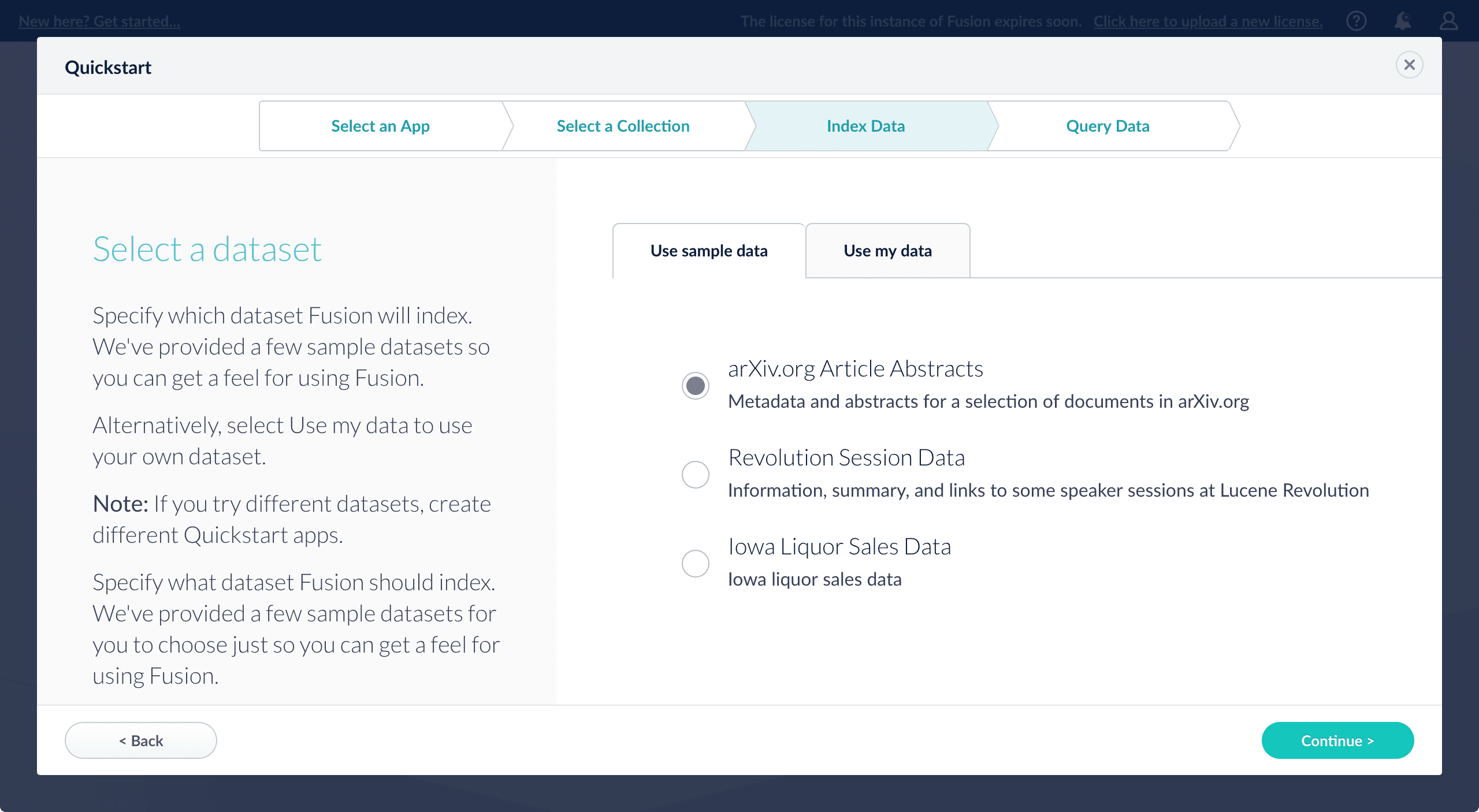
On the **Index Data** screen, you can either select one of the built-in sample datasets or click **Use my data** to upload your own:
4. Click **Continue**.\
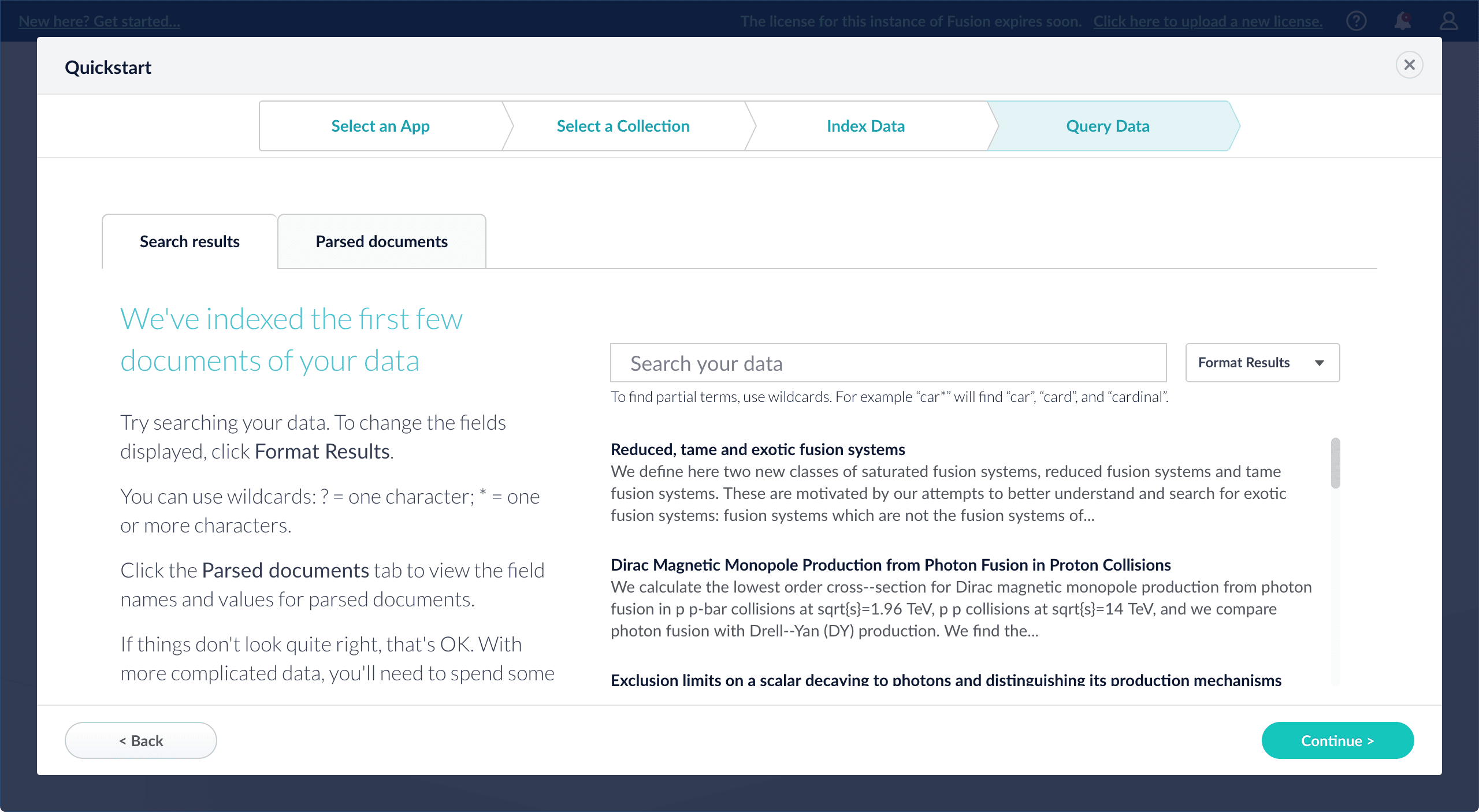
On the **Query Data** screen, you can see all search results and enter your own search queries to test the indexed dataset. You can also select the display fields or view the parsed documents:
5. Click **Continue**.
From here, you can do the following:
* Open the Index Workbench to change the index pipeline.
* [Fusion 4.x Index Workbench](/docs/4/fusion-server/concepts/indexing/datasources/index-workbench)
* [Fusion 5.x Index Workbench](/docs/5/fusion/intro/ui-tour/index-workbench)
* Open the Query Workbench to change the query pipeline.
* [Fusion 4.x Query Workbench](/docs/4/fusion-server/concepts/querying/query-workbench)
* [Fusion 5.x Query Workbench](/docs/5/fusion/getting-data-out/query-basics/query-workbench)
The workbenches are essentials tools in the Fusion workflow.
* Open [App Studio](/docs/4/app-studio/overview) to create a user interface for searching this collection.
App Studio is only available in Fusion 4.1 and 4.2.
* **Onsite late-stage development and test deployments.** Ideally, an onsite deployment for late-stage development and testing should have the same architecture as the production deployment, though it does not need to be scaled to provide the same level of service.
* **Production deployments.** Fusion is designed for flexible, distributed deployment. Any of its components can be distributed across your network, and some can be clustered. A production deployment requires multiple Fusion nodes, each of which runs some or all Fusion services (including Solr and ZooKeeper).
## Cluster Arrangements
You can deploy Fusion across multiple nodes in a *Fusion cluster* and use a ZooKeeper cluster as the centralized, synchronized store for both application configurations and user data.
Regarding Solr, if you already have SolrCloud clusters managing your data, you can
**Integrate Fusion 4.x with an Existing Solr Deployment**.
If you have already implemented Solr as a standalone instance or as a SolrCloud cluster, you can add Fusion to your existing Solr deployment (if the [Solr version is supported](/docs/4/fusion-server/reference/system-requirements)) and import your Solr collections into Fusion. Each Fusion collection can import one Solr collection.
* *If your existing Solr instance is running in SolrCloud mode*, you can use Fusion’s UI to modify configuration files (such as schema.xml or solrconfig.xml) and create Solr collections.
* *If your existing Solr instance is running in standalone mode*, you can still connect it to Fusion. Fusion can send documents to a standalone Solr instance and query the instance. But you will not be able to use Fusion’s UI to create Solr collections (Solr cores) or to modify Solr configuration files.
## Prerequisites
Failures in the Fusion install or startup may occur if the Fusion installation directory contains a space.
* You have already [installed Fusion](/docs/4/fusion-server/concepts/deployment/overview).
* You have already installed Solr, which must meet these [Solr requirements](/docs/4/fusion-server/reference/system-requirements).
* You have already installed ZooKeeper, which must meet these [ZooKeeper requirements](/docs/4/fusion-server/reference/system-requirements).
We recommend that you create an *external* ZooKeeper cluster (external to both Fusion and SolrCloud).
* Your Solr deployment must contain one or more collections (cores).
* In SolrCloud mode, Solr must be configured to use ZooKeeper.
## Configure Fusion to use an existing Solr deployment
Use the [Fusion UI](#use-the-fusion-ui) to integrate Fusion with an existing Solr deployment.
### Use the Fusion UI
1. Create a Fusion search cluster:
1. In the Fusion UI, navigate to **System > Solr Clusters** and click **New Solr Cluster**.
2. Enter this information:
* A cluster ID of your choice
* Whether SolrCloud is enabled
* The connect string (to tell Fusion how to connect to the SolrCloud cluster or Solr instance)
* For SolrCloud, this is the ZooKeeper connect string.
* For a standalone Solr instance, this is the URL of the Solr instance.
3. Verify that the connection is working by clicking **Cores** in the new cluster and inspecting the contents.
2. Create a Fusion [collection](/docs/4/fusion-server/concepts/indexing/collections/overview) that points to your Solr cluster and collection:
1. In the UI, navigate to **Collections** and click **Add a Collection**.
2. Enter a name for the new collection.
3. Click **Advanced**.
4. Select your SolrCloud cluster or Solr instance from the dropdown.
5. Enter the name of the Solr collection to import.
## Sending Documents to Solr through Fusion
You can use the Fusion [connectors](/docs/fusion-connectors/connectors/overview) to crawl documents and index them to your existing Solr deployment.
1. Follow the steps above to create and configure a search cluster and a collection that points to Solr.
2. Define an index pipeline that ends with a [Solr Indexer stage](/docs/4/fusion-server/reference/pipeline-stages/indexing/solr-indexer-stage) that sends the documents to Solr.
3. Use one of these methods to ingest your data:
* In the collection that points to your Solr collection, define a
[datasource](/docs/4/fusion-server/concepts/overview) using the
[connector](/docs/4/fusion-server/concepts/overview) of choice.
* Send prepared documents directly to the index pipeline for processing. See
Importing Data with the REST API.
* It is also possible to use a different indexing process besides a connector, such as a script that sends documents through the index pipeline.
When documents are sent to Solr, a buffering SolrServer is used.
Buffering the updates reduces the number of HTTP requests made from Fusion to Solr, which can significantly affect processing time.
For example, when processing simple documents, you should always try to buffer as many documents as possible to increase throughput.
When processing complex documents, you should use small batch sizes.
You should only turn buffering off if you are using an older version of Solr and you want Fusion to catch and document indexing errors.
## Querying Solr via Fusion requests
Indexed documents are stored in Solr indexes. You can query for these documents by using query pipelines. The query pipelines let you define your query parameters - such as how many records to return, the fields you would like, how to structure facets, and so on. You also have the ability to add JavaScript to the response processing, and define landing pages or specific boost levels depending on the user’s query. See
[Query Pipelines](/docs/4/fusion-server/concepts/querying/pipelines/query-pipelines).
If you prefer, you can also use the [Solr API](/docs/4/fusion-server/reference/api/solr-api) and [SolrAdmin API](/docs/4/fusion-server/reference/api/solradmin-api) to query Solr directly.
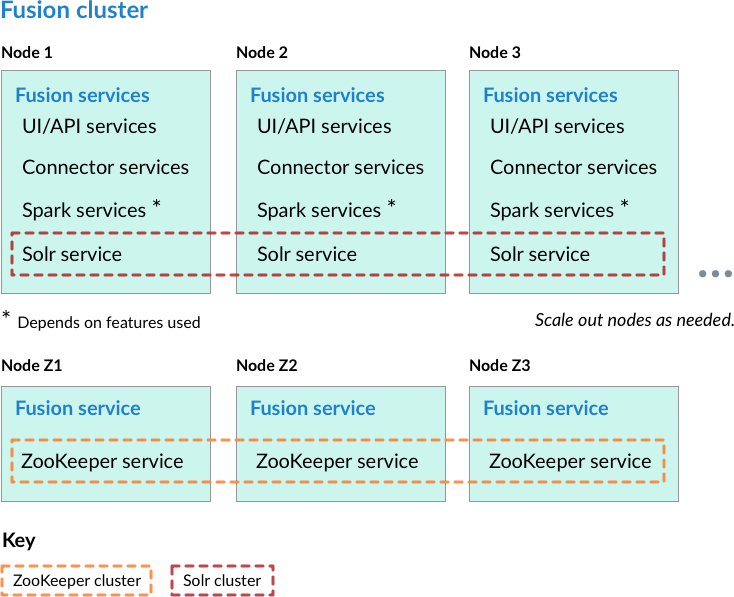
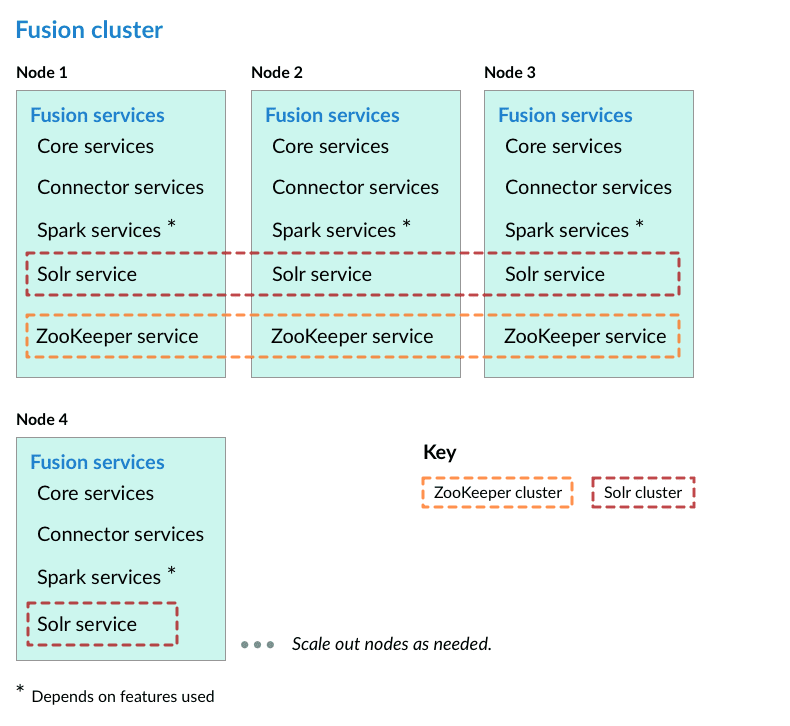
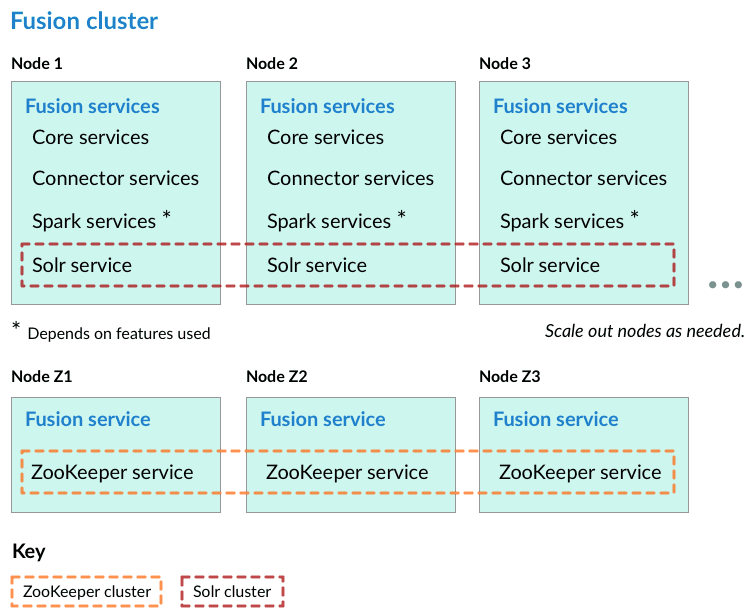
To satisfy processing requirements, install Fusion, ZooKeeper, and Solr on specific nodes. These are the possibilities:
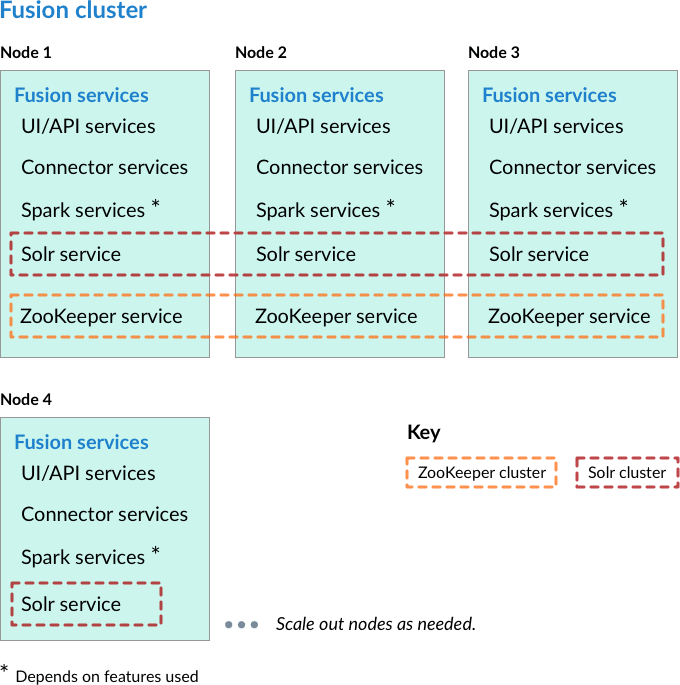
* Nodes running core Fusion services and Solr also run ZooKeeper.\
In this cluster arrangement, a ZooKeeper cluster runs on the same nodes that run core Fusion services and Solr. This arrangement works well for a small cluster with low usage and can reduce cost when compared with placing ZooKeeper on separate nodes.
* Nodes running ZooKeeper are not running core Fusion services or Solr.\
In this cluster arrangement, the ZooKeeper cluster runs on nodes in the Fusion cluster on which core Fusion services and Solr are not running. This arrangement is good for larger or more active clusters and can help reduce write latency. This also lets Fusion nodes scale horizontally without impacting the ZooKeeper nodes.
## Learn more
This article describes how to install a Fusion cluster on multiple Unix nodes. Instructions are given for each of the cluster arrangements described in [Deployment Types](/docs/4/fusion-server/concepts/deployment/deployment-types).
## Preliminary steps
Before proceeding to one of the sections that follow, perform these steps:
**How to prepare for setting up a Fusion cluster**
1. Prepare your firewall so that the Fusion nodes can communicate with each other. [The default ports list](/docs/4/fusion-server/reference/directories-files-ports) contains a list of all ports used by Fusion. From this list, it is important that the ZooKeeper ports, Apache Ignite ports, and the Spark ports (if you are using Spark) are open between the different nodes for cross-cluster communication.
2. Fusion for Unix is distributed as a compressed archive file (`.tar.gz`). Move this file to each node that will run Fusion.
To leverage the copies of Solr and/or ZooKeeper that are distributed with Fusion on nodes that will *not* run Fusion (as a simple means of obtaining compatible versions of the other software), also download the Fusion compressed archive file to each of those nodes. Below, you will edit configuration files so that Fusion does not run on those nodes.
3. On each node, change your working directory to the directory in which you placed the Fusion tar/zip file and unpack the archive, for example:
```bash theme={"dark"}
$ cd /opt/lucidworks
$ tar -xf fusion-version.x.tar.gz
```
Failures in the Fusion install or startup may occur if the Fusion installation directory name contains a space.\
The resulting directory is named `https://FUSION_HOST:FUSION_PORT`. You can rename this if you wish. This directory is considered your Fusion home directory. See [Directories, files, and ports](/docs/4/fusion-server/reference/directories-files-ports) for the contents of the `https://FUSION_HOST:FUSION_PORT` directory.
In the sections that follow, for every step on multiple nodes, complete the step *on all nodes* before going to the next step. It is especially important that you *do not* start Fusion on any node until the instructions say to do so.
In the steps below, the port numbers reflect [default port numbers](/docs/4/fusion-server/reference/directories-files-ports) and one common choice (port 2181 for nodes in an external ZooKeeper cluster). Port numbers for your nodes might differ.
## Nodes running core Fusion services and Solr also run ZooKeeper
In this cluster arrangement, a ZooKeeper cluster runs on the same nodes that run core Fusion services and Solr.
Perform the steps in the section [Preliminary steps](#preliminary-steps), and then perform these steps:
1. Assign a number to each Fusion node, starting at 1. We refer to the number we assign to each node as the *ZooKeeper myid*.
2. On each Fusion node, create a `https://FUSION_HOST:FUSION_PORT/data/zookeeper` directory, and a file called `myid` in that directory. Edit the file and save the *ZooKeeper myid* assigned for this node as the only contents.
3. On each Fusion node, open the `https://FUSION_HOST:FUSION_PORT/conf/zookeeper/zoo.cfg` file in a text editor and add the following after the `clientPort` line (change the hostnames or IP addresses to the correct ones for your servers):
```bash theme={"dark"}
server.1=[Hostname or IP for ZooKeeper with myid 1]:2888:3888
server.2=[Hostname or IP for ZooKeeper with myid 2]:2888:3888
server.3=[Hostname or IP for ZooKeeper with myid 3]:2888:3888
```
For example:
```bash theme={"dark"}
server.1=10.10.31.130:2888:3888
server.2=10.10.31.178:2888:3888
server.3=10.10.31.166:2888:3888
```
Do not use `localhost` or `127.0.0.1` as the hostname/IP. Specify the hostname/IP that other nodes will use when communicating with the current node.
4. On each Fusion node, edit
`default.zk.connect` in `https://FUSION_HOST:FUSION_PORT/conf/fusion.cors` (`fusion.properties` in Fusion 4.x) to point to the ZooKeeper hosts:
```bash wrap theme={"dark"}
default.zk.connect=[ZK host 1]:9983,[ZK host 2]:9983,[ZK host 3]:9983
```
5. On each node, start ZooKeeper with `bin/zookeeper start`. Zookeeper should start without errors. If a ZooKeeper instance fails to start, check the log at `https://FUSION_HOST:FUSION_PORT/var/log/zookeeper/zookeeper.log`.
6. On each node, start the rest of Fusion using `bin/fusion start`.
7. Create an admin password and log in to Fusion at `http://FIRST_NODE_IP:8764`, where `FIRST_NODE_IP` is the IP address of your first Fusion node.
8. Verify the Solr cluster is healthy by looking at `http://ANY_NODE_IP:8983/solr/#/~cloud`, where `ANY_NODE_IP` is the IP address of a Solr node. All of the nodes should appear green.
9. If necessary, prepare high availability by setting up a load balancer in front of Fusion so that it load balances between the Fusion UI URL’s at `http://NODE_IP:8764`.\
Consult your load balancer’s documentation for instructions.
## Nodes running ZooKeeper are not running core Fusion services or Solr
In this cluster arrangement, the ZooKeeper cluster runs on nodes in the Fusion cluster on which core Fusion services and Solr are not running.
Each node in the Fusion cluster has Fusion and Solr installed. ZooKeeper runs on Fusion cluster nodes on which neither Fusion nor Solr is running.
**How to set up a Fusion cluster**
Perform the steps in the section [Preliminary steps](#preliminary-steps), and then perform these steps:
1. Assign a number to each Fusion node, starting at 1. We refer to the number we assign to each node as the *ZooKeeper myid*.
2. On each Fusion node, create a `fusion\latest.x\data\zookeeper` directory, and a file called `myid` in that directory. Edit the file and save the *ZooKeeper myid* assigned for this node as the only contents.
3. On each Fusion node, open the `fusion\latest.x\conf\zookeeper\zoo.cfg` file in a text editor and add the following after the `clientPort` line (change the hostnames or IP addresses to the correct ones for your servers):
```bash theme={"dark"}
server.1=[Hostname or IP for ZooKeeper with myid 1]:2888:3888
server.2=[Hostname or IP for ZooKeeper with myid 2]:2888:3888
server.3=[Hostname or IP for ZooKeeper with myid 3]:2888:3888
```
For example:
```bash theme={"dark"}
server.1=10.10.31.130:2888:3888
server.2=10.10.31.178:2888:3888
server.3=10.10.31.166:2888:3888
```
4. Edit `conf/fusion.cors` (`fusion.properties` in Fusion 4.x) and remove `zookeeper` from the `group.default` list. This will make it so that ZooKeeper does not start when you start Fusion.
5. On each Fusion node, edit
`default.zk.connect` in `https://FUSION_HOST:FUSION_PORT/conf/fusion.cors` (`fusion.properties` in Fusion 4.x) to point to the ZooKeeper hosts:
```bash theme={"dark"}
default.zk.connect=[ZK host 1]:2181,[ZK host 2]:2181,[ZK host 3]:2181
```
6. On each node, start ZooKeeper with `bin/zookeeper start`. Zookeeper should start without errors. If a ZooKeeper instance fails to start, check the log at `https://FUSION_HOST:FUSION_PORT/var/log/zookeeper/zookeeper.log`.
7. On each node, start the rest of Fusion using `bin/fusion start`.
8. Create an admin password and log in to Fusion at `http://FIRST_NODE_IP:8764`, where `FIRST_NODE_IP` is the IP address of your first Fusion node.
9. Verify the Solr cluster is healthy by looking at `http://ANY_NODE_IP:8983/solr/#/~cloud`, where `ANY_NODE_IP` is the IP address of a Solr node. All of the nodes should appear green.
10. If necessary, prepare high availability by setting up a load balancer in front of Fusion so that it load balances between the Fusion UI URL’s at `http://NODE_IP:8764`.
Consult your load balancer’s documentation for instructions.
## Known issues
### Metrics collection failure
When the Java virtual machine (JVM) is started, the `/tmp/.java_pid` file is created and is the socket used:
* To attach a debugger
* By the agent to connect to the service that collects Java Management Extension (JMX) metrics
A known issue in Java 8 is that the timestamp is not updated, which causes the file to be deleted in standard Linux distribution systems. For example, the `/tmp/.java_pid` is deleted after ten days on a standard Amazon Linux in EC2.
When the JVM code the agent uses cannot locate the file, then it:
* Sends a `-QUIT` message to the JVM
* Triggers a thread dump to be printed to standard out
The standard out:
* Is logged to the agent log
* Generates the "No metrics can be gathered" exception
* Prints a complete thread dump
* Sends the thread dump to system logs
Choose one of the two workarounds:
* Exclude the `agent.log` from the logstash configuration. The logshipping is turned off for the file. *The disadvantage to this option is that the metrics are missing*.
* Change the cron job in the Linux distribution that deletes the `/tmp` files older than "x" days to exclude deleting the `/tmp/.java_pid` files. If your system is running the Linux Systemd software suite on EC2, the setting is typically located in the `usr/lib/tmpfiles.d/tmp.conf` file. For Dial On Demand (DOD), remove the call that configures the JMX Metrics requirement for the debugger attachment to the Java service.
This article describes how to install a Fusion cluster on multiple Windows nodes. Instructions are given for each of the cluster arrangements described in [Deployment Types](/docs/4/fusion-server/concepts/deployment/deployment-types).
## Preliminary steps
Failures in the Fusion install or startup may occur if the Fusion installation directory contains a space.
Before proceeding to one of the sections that follow, perform these steps:
**How to prepare for setting up a Fusion cluster**
1. Prepare your firewall so that the Fusion nodes can communicate with each other. [The default ports list](/docs/4/fusion-server/reference/directories-files-ports) contains a list of all ports used by Fusion. From this list, it is important that the ZooKeeper ports, Apache Ignite ports, and the Spark ports (if you are using Spark) are open between the different nodes for cross-cluster communication.
2. Fusion for Windows is distributed as a compressed archive file (`.zip`). Download the Fusion zip file for the latest version of Fusion to each node that will run Fusion, and move the file to where you would like Fusion to reside in your filesystem. It will appear as a compressed folder.
To leverage the copies of Solr and/or ZooKeeper that are distributed with Fusion on nodes that will *not* run Fusion (as a simple means of obtaining compatible versions of the other software), also download the Fusion zip file to each of those nodes. Below, you will edit configuration files so that Fusion does not run on those nodes.
3. Unpack the archive. In most cases, you need only right-click and choose "Extract all...". If you do not see this option, check that you have permissions to extract folders on your system.\
The resulting directory is named `fusion\latest.x`. This directory is considered your Fusion home directory. You can rename it if you wish. See [Directories, Files, and Ports](/docs/4/fusion-server/reference/directories-files-ports) for the contents of the Fusion home directory.
In the sections that follow, for every step on multiple nodes, complete the step *on all nodes* before going to the next step. It is especially important that you *do not* start Fusion on any node until the instructions say to do so.
In the steps below, the port numbers reflect [default port numbers](/docs/4/fusion-server/reference/directories-files-ports) and one common choice (port 2181 for nodes in an external ZooKeeper cluster). Port numbers for your nodes might differ.
## Nodes running core Fusion services and Solr also run ZooKeeper
In this cluster arrangement, a ZooKeeper cluster runs on the same nodes that run core Fusion services and Solr.
**How to set up a Fusion cluster**
Perform the steps in the section [Preliminary steps](#preliminary-steps), and then perform these steps:
1. Assign a number to each Fusion node, starting at 1. We refer to the number we assign to each node as the *ZooKeeper myid*.
2. On each Fusion node, create a `fusion\latest.x\data\zookeeper` directory, and a file called `myid` in that directory. Edit the file and save the *ZooKeeper myid* assigned for this node as the only contents.
3. On each Fusion node, open the `fusion\latest.x\conf\zookeeper\zoo.cfg` file in a text editor and add the following after the `clientPort` line (change the hostnames or IP addresses to the correct ones for your servers):
```bash theme={"dark"}
server.1=[Hostname or IP for ZooKeeper with myid 1]:2888:3888
server.2=[Hostname or IP for ZooKeeper with myid 2]:2888:3888
server.3=[Hostname or IP for ZooKeeper with myid 3]:2888:3888
```
For example:
```bash theme={"dark"}
server.1=10.10.31.130:2888:3888
server.2=10.10.31.178:2888:3888
server.3=10.10.31.166:2888:3888
```
do not use `localhost` or `127.0.0.1` as the hostname/IP. Specify the hostname/IP that other nodes will use when communicating with the current node.
4\. On each Fusion node, edit
`default.zk.connect` in `fusion\latest.x\conf\fusion.cors` (`fusion.properties` in Fusion 4.x) to point to the ZooKeeper hosts:
```bash wrap theme={"dark"}
default.zk.connect=[ZK host 1]:9983,[ZK host 2]:9983,[ZK host 3]:9983
```
5. On each node, start ZooKeeper with `bin\zookeeper start`. Zookeeper should start without errors. If a ZooKeeper instance fails to start, check the log at `fusion\latest.x\var\log\zookeeper\zookeeper.log`.
6. On each node, start the rest of Fusion using `bin\fusion start`.
7. Create an admin password and log in to Fusion at `http://FIRST_NODE_IP:8764`, where `FIRST_NODE_IP` is the IP address of your first Fusion node.
8. Verify the Solr cluster is healthy by looking at `http://ANY_NODE_IP:8983/solr/#/~cloud`, where `ANY_NODE_IP` is the IP address of a Solr node. All of the nodes should appear green.
9. If necessary, prepare high availability by setting up a load balancer in front of Fusion so that it load balances between the Fusion UI URL’s at `http://NODE_IP:8764`.\
Consult your load balancer’s documentation for instructions.
## Nodes running ZooKeeper are not running core Fusion services or Solr
In this cluster arrangement, the ZooKeeper cluster runs on nodes in the Fusion cluster on which core Fusion services and Solr are not running.
Each node in the Fusion cluster has Fusion and Solr installed. ZooKeeper runs on Fusion cluster nodes on which neither Fusion nor Solr is running.
**How to set up a Fusion cluster**
Perform the steps in the section [Preliminary steps](#preliminary-steps), and then perform these steps:
1. Assign a number to each Fusion node, starting at 1. We refer to the number we assign to each node as the *ZooKeeper myid*.
2. On each Fusion node, create a `fusion\latest.x\data\zookeeper` directory, and a file called `myid` in that directory. Edit the file and save the *ZooKeeper myid* assigned for this node as the only contents.
3. On each Fusion node, open the `fusion\latest.x\conf\zookeeper\zoo.cfg` file in a text editor and add the following after the `clientPort` line (change the hostnames or IP addresses to the correct ones for your servers):
```bash theme={"dark"}
server.1=[Hostname or IP for ZooKeeper with myid 1]:2888:3888
server.2=[Hostname or IP for ZooKeeper with myid 2]:2888:3888
server.3=[Hostname or IP for ZooKeeper with myid 3]:2888:3888
```
For example:
```bash theme={"dark"}
server.1=10.10.31.130:2888:3888
server.2=10.10.31.178:2888:3888
server.3=10.10.31.166:2888:3888
```
4. Edit `conf\fusion.cors` (`fusion.properties` in Fusion 4.x) and remove `zookeeper` from the `group.default` list. This will make it so that ZooKeeper does not start when you start Fusion.
5. On each Fusion node, edit
`default.zk.connect` in `fusion\latest.x\conf\fusion.cors` (`fusion.properties` in Fusion 4.x) to point to the ZooKeeper hosts:
```bash theme={"dark"}
default.zk.connect=[ZK host 1]:2181,[ZK host 2]:2181,[ZK host 3]:2181
```
6. On each node, start ZooKeeper with `bin\zookeeper start`. Zookeeper should start without errors. If a ZooKeeper instance fails to start, check the log at `fusion\latest.x\var\log\zookeeper\zookeeper.log`.
7. On each node, start the rest of Fusion using `bin\fusion start`.
8. Create an admin password and log in to Fusion at `http://FIRST_NODE_IP:8764`, where `FIRST_NODE_IP` is the IP address of your first Fusion node.
9. Verify the Solr cluster is healthy by looking at `http://ANY_NODE_IP:8983/solr/#/~cloud`, where `ANY_NODE_IP` is the IP address of a Solr node. All of the nodes should appear green.
10. If necessary, prepare high availability by setting up a load balancer in front of Fusion so that it load balances between the Fusion UI URL’s at `http://NODE_IP:8764`.
Consult your load balancer’s documentation for instructions.
You can configure Fusion and an external SolrCloud cluster so that communication between Fusion and the SolrCloud cluster is secured. Use either Kerberos or basic authentication. You can secure communication for both the default search cluster and for other SolrCloud clusters.
**Note**: Securing communication between Fusion and a *bundled* default search cluster is not supported.
The required steps differ. These are the high-level steps. Detailed steps follow.
* **Default search cluster.** Define configuration parameters for bootstrapping Fusion, and then bootstrap Fusion.
* **Other SolrCloud clusters.** In the Fusion UI, add the external SolrCloud cluster.
## Default Search Cluster
If your default search cluster is in an *external* SolrCloud cluster, then you can secure the cluster with Kerberos or basic authentication, and then configure Fusion to communicate securely with the cluster.
### Prerequisite
Prerequisite: Secure the default search cluster. Use either Solr’s [Basic Authentication Plugin](https://solr.apache.org/guide/7_7/basic-authentication-plugin.html) or [Kerberos Authentication Plugin](https://solr.apache.org/guide/7_7/kerberos-authentication-plugin.html).
Don’t start Fusion yet. Below, you will define bootstrap properties, and then bootstrap Fusion.
### Configure and Bootstrap Fusion
1. Create a `.properties` file for the initial bootstrap of Fusion. Place the file outside of the Fusion installation, for example, in `/tmp`. You will delete the file at the end of this procedure:
```java theme={"dark"}
touch /tmp/fusion-bootstrap.properties
```
2. Edit the `fusion-bootstrap.properties` file to define Fusion initial-bootstrap configuration properties. Example strings are in bold italics. Replace those with your own values.\
Consult with your Kerberos administrator about the correct configuration properties.
* **Kerberos authentication** – Specify the authentication type (`kerberos`), the Kerberos principal, and the Kerberos keytab file:
```java theme={"dark"}
default-search-cluster.auth-type=kerberos
default-search-cluster.auth-principal=*_fusion@MYORG.ORG_*
default-search-cluster.auth-keytab=/*_path-to-file_*/keytab.kt
```
* Basic authentication: – Specify the authentication type (`basic`), the username of the Solr user to use for authentication, and the password of that user:
```java theme={"dark"}
default-search-cluster.auth-type=basic
default-search-cluster.auth-user=*_admin_*
default-search-cluster.auth-password=*_admin-password_*
```
The Solr user must be the admin user or a different user with full administrative privileges. +\
Fusion doesn’t support Solr authorization plugins.
3. Edit the fusion.cors file:
1. Uncomment and change the value of this property to point to an external ZooKeeper:
```java theme={"dark"}
# default.zk.connect = *_localhost:9983_*
```
2. Uncomment and change the value of this property to use an external SolrCloud cluster:
```java theme={"dark"}
# default.solrZk.connect = *_localhost:2181/solr-zk-namespace_*
```
3. Remove `zookeeper` and `solr` from the `group.default` property:
```java theme={"dark"}
group.default = api, connectors, ui
```
4. Add a configuration property for the path to the initial-bootstrap properties file:
```java theme={"dark"}
initial-bootstrap-properties-path = *_/tmp/fusion-bootstrap.properties_*
```
4. Change your working directory to the directory that contains the Fusion binaries:
```bash theme={"dark"}
$ cd ~/{path_to}https://FUSION_HOST:FUSION_PORT/bin
```
5. Bootstrap Fusion:
```bash theme={"dark"}
./fusion start
```
6. After Fusion starts:
1. Delete the initial-bootstrap properties file:
```bash theme={"dark"}
$ rm *_/tmp/fusion-bootstrap.properties_*
```
2. Edit the `fusion.cors` (`fusion.properties` in Fusion 4.x) file to remove the entry for the initial-bootstrap properties file:
```java theme={"dark"}
initial-bootstrap-properties-path = *_/tmp/fusion-bootstrap.properties_*
```
## Other SolrCloud Cluster
You can secure an *external* SolrCloud cluster with Kerberos or basic authentication, and then configure Fusion to communicate securely with the cluster.
### Prerequisite
Prerequisite: Secure the default search cluster. Use either Solr’s Basic Authentication Plugin or Kerberos Authentication Plugin.
### Add the secure SolrCloud cluster in the Fusion UI (Basic Auth)
1. log in to the Fusion UI as the user `admin`.
2. Click **System > Home > System > Solr Clusters > New Solr Cluster**.
3. Click **Advanced**.
4. Specify the required values ID and Connect String. Under Solr Cluster Authentication, check **include**. Choose Authentication Type **basic**, and specify a username and password for authentication.
5. Click **Save new**.
### Add the secure SolrCloud cluster in the Fusion UI (Kerberos)
1. log in to the Fusion UI as the user `admin`.
2. Click **System > Home > System > Solr Clusters > New Solr Cluster**.
3. Click **Advanced**.
4. Specify the required values ID and Connect String. Under Solr Cluster Authentication, check **include**. Choose Authentication Type **kerberos**, and specify a Kerberos keytab file and Kerberos principal for authentication.
5. Click **Save new**.
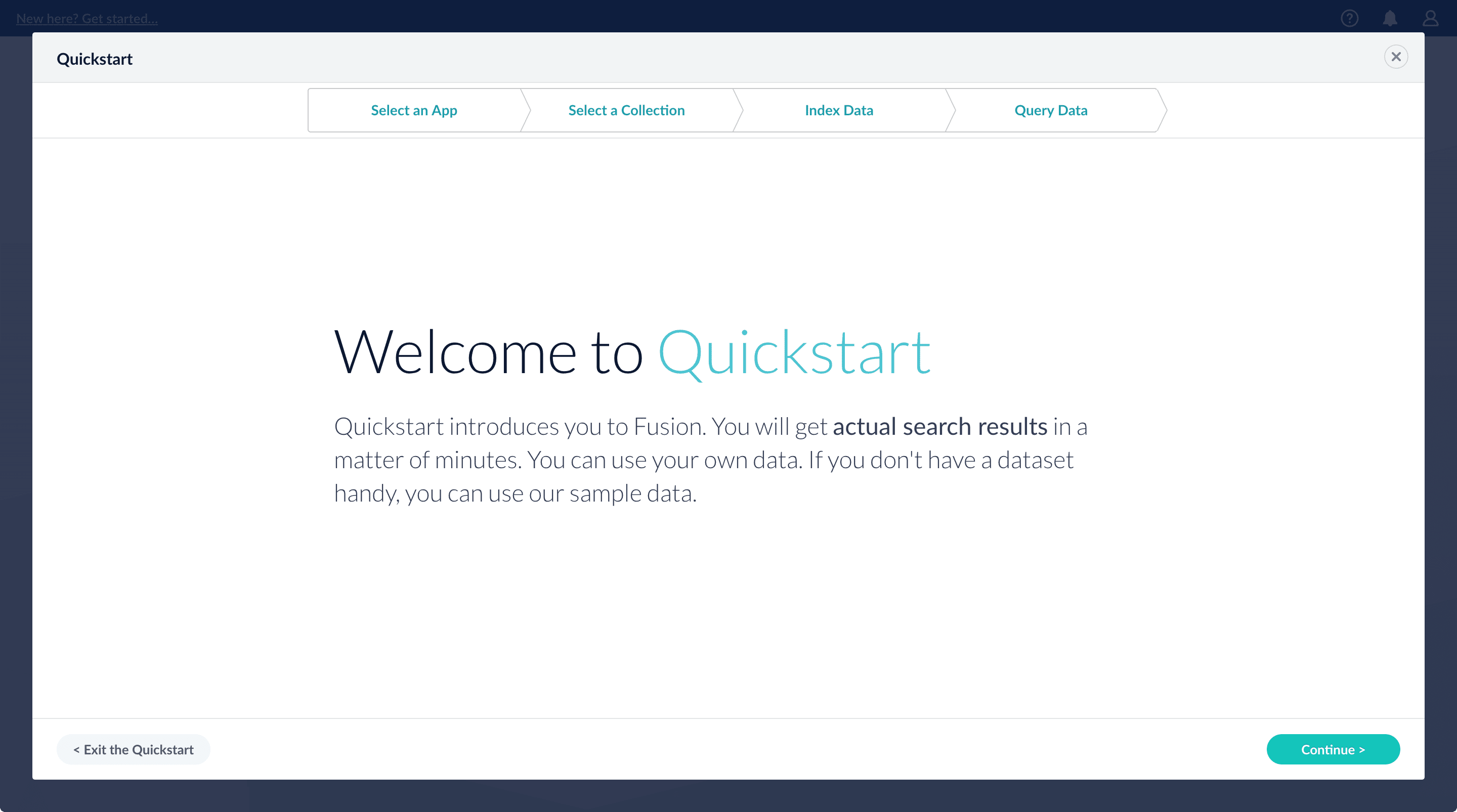 1. Click **Continue**.
On the **Select an App** screen, you can select or create an [app](/docs/4/fusion-server/concepts/overview) for your quickstart data.
1. Click **Continue**.
On the **Select an App** screen, you can select or create an [app](/docs/4/fusion-server/concepts/overview) for your quickstart data.
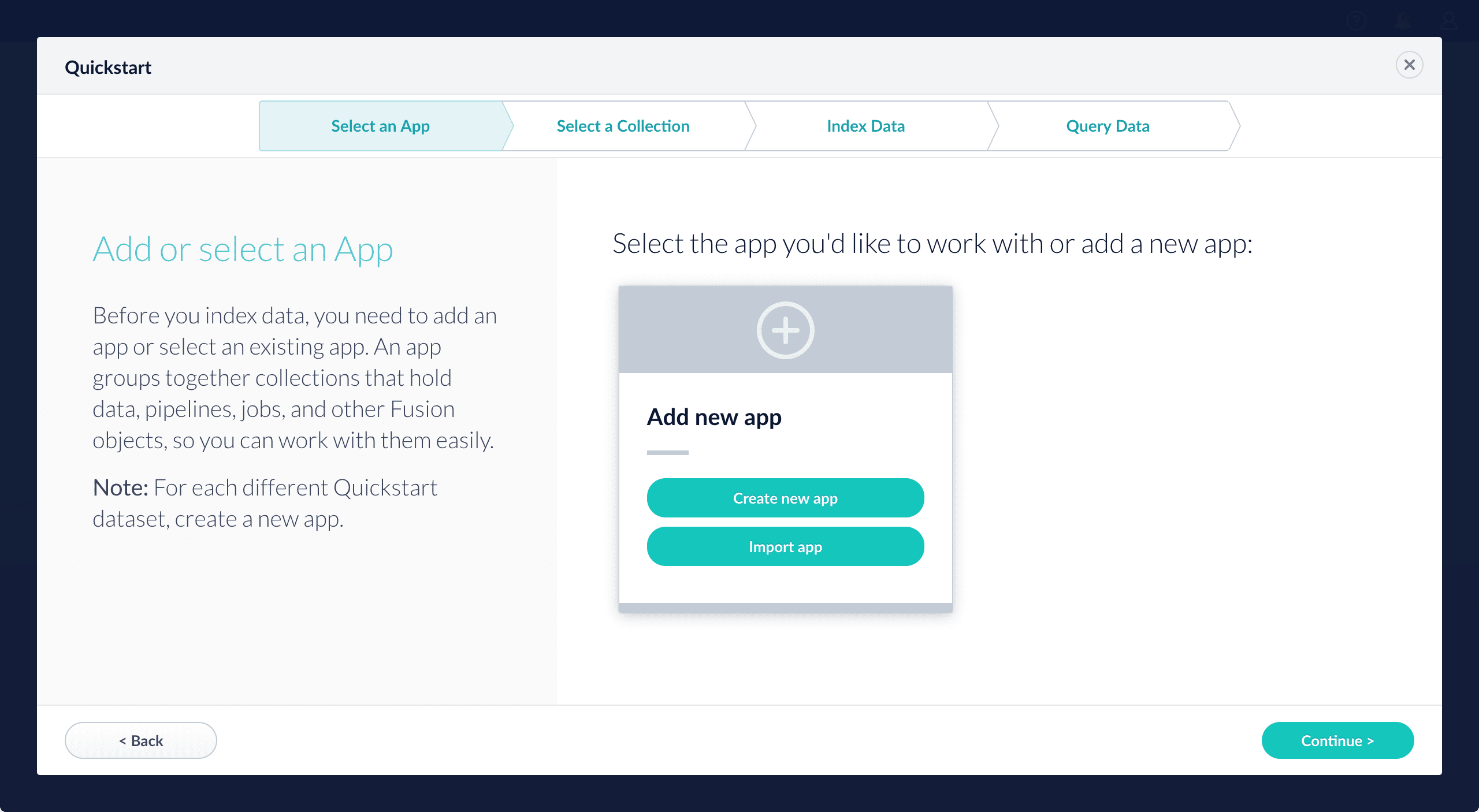 If you click **Create new app**, Fusion prompts you to enter an app name (and optionally a description), then click **Create App** to return to the Quickstart. Your new app is selected by default.
2. After selecting an app, click **Continue**.
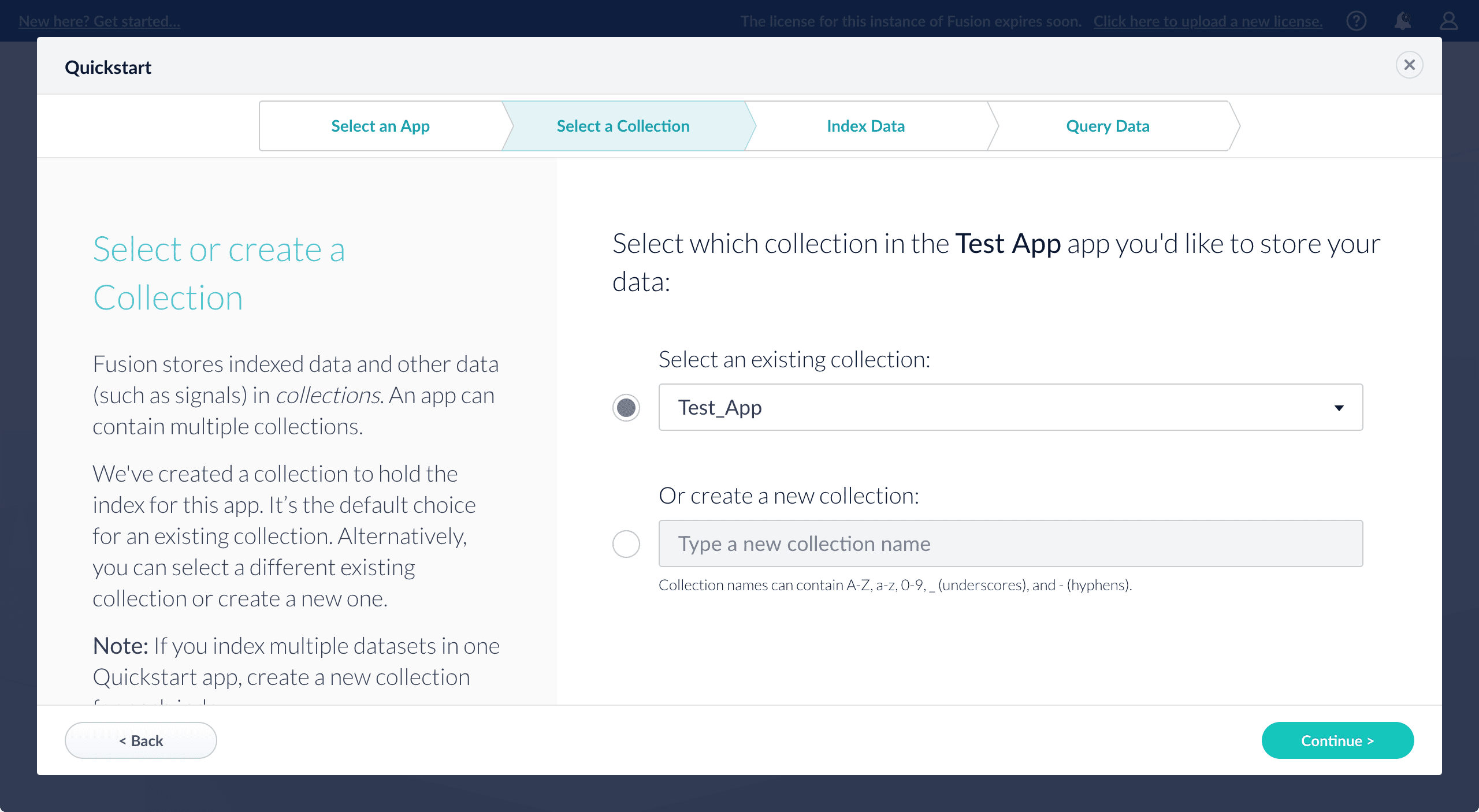
On the **Select a Collection** screen, you can select or create a [collection](/docs/4/fusion-server/concepts/overview) for your quickstart data. A collection with the same name as your app is created automatically:
If you click **Create new app**, Fusion prompts you to enter an app name (and optionally a description), then click **Create App** to return to the Quickstart. Your new app is selected by default.
2. After selecting an app, click **Continue**.
On the **Select a Collection** screen, you can select or create a [collection](/docs/4/fusion-server/concepts/overview) for your quickstart data. A collection with the same name as your app is created automatically:
 3. Click **Continue**.\
On the **Index Data** screen, you can either select one of the built-in sample datasets or click **Use my data** to upload your own:
3. Click **Continue**.\
On the **Index Data** screen, you can either select one of the built-in sample datasets or click **Use my data** to upload your own:
 4. Click **Continue**.\
On the **Query Data** screen, you can see all search results and enter your own search queries to test the indexed dataset. You can also select the display fields or view the parsed documents:
4. Click **Continue**.\
On the **Query Data** screen, you can see all search results and enter your own search queries to test the indexed dataset. You can also select the display fields or view the parsed documents:
 5. Click **Continue**.
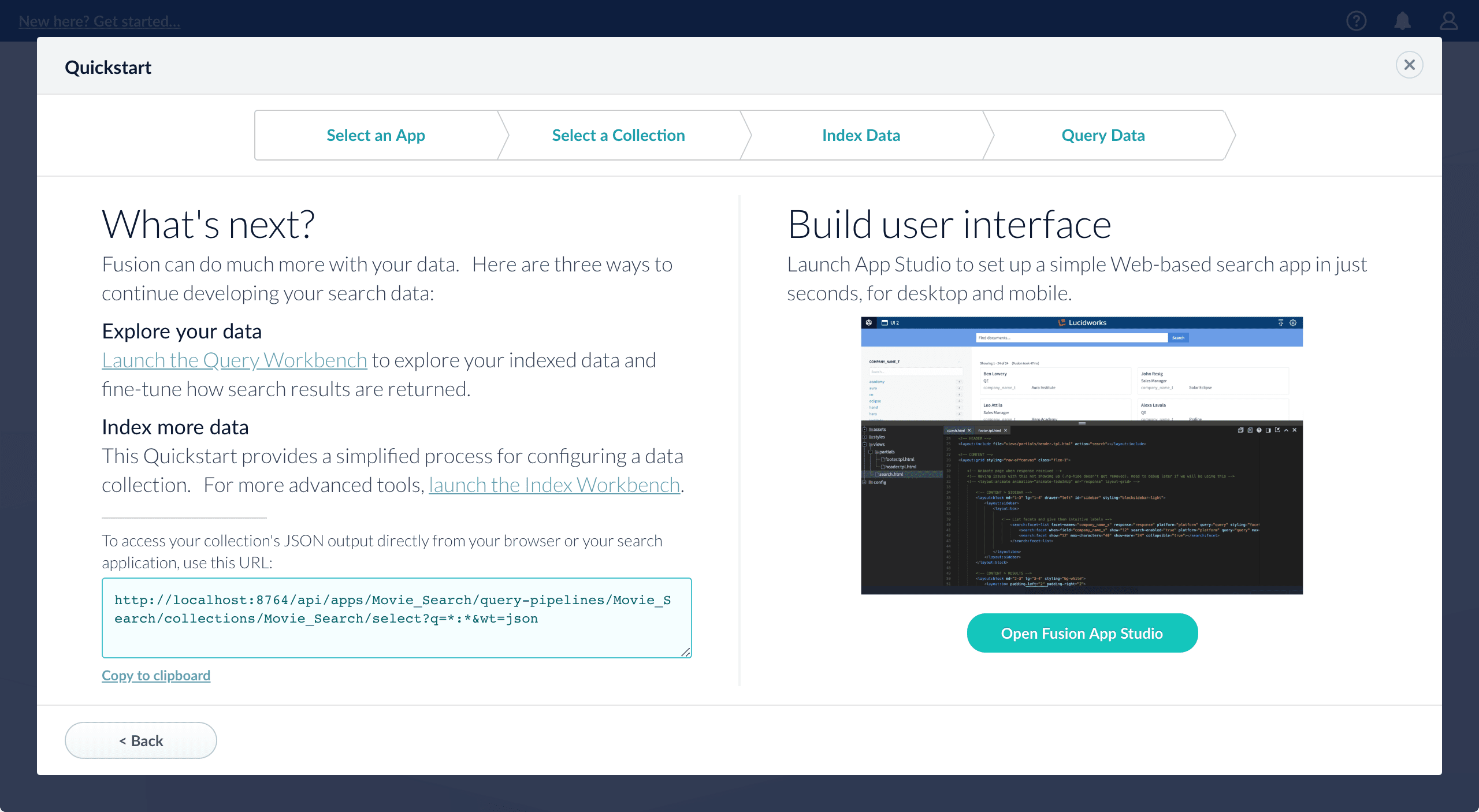 From here, you can do the following:
* Open the Index Workbench to change the index pipeline.
* [Fusion 4.x Index Workbench](/docs/4/fusion-server/concepts/indexing/datasources/index-workbench)
* [Fusion 5.x Index Workbench](/docs/5/fusion/intro/ui-tour/index-workbench)
* Open the Query Workbench to change the query pipeline.
* [Fusion 4.x Query Workbench](/docs/4/fusion-server/concepts/querying/query-workbench)
* [Fusion 5.x Query Workbench](/docs/5/fusion/getting-data-out/query-basics/query-workbench)
The workbenches are essentials tools in the Fusion workflow.
* Open [App Studio](/docs/4/app-studio/overview) to create a user interface for searching this collection.
From here, you can do the following:
* Open the Index Workbench to change the index pipeline.
* [Fusion 4.x Index Workbench](/docs/4/fusion-server/concepts/indexing/datasources/index-workbench)
* [Fusion 5.x Index Workbench](/docs/5/fusion/intro/ui-tour/index-workbench)
* Open the Query Workbench to change the query pipeline.
* [Fusion 4.x Query Workbench](/docs/4/fusion-server/concepts/querying/query-workbench)
* [Fusion 5.x Query Workbench](/docs/5/fusion/getting-data-out/query-basics/query-workbench)
The workbenches are essentials tools in the Fusion workflow.
* Open [App Studio](/docs/4/app-studio/overview) to create a user interface for searching this collection.
 * Nodes running ZooKeeper are not running core Fusion services or Solr.\
In this cluster arrangement, the ZooKeeper cluster runs on nodes in the Fusion cluster on which core Fusion services and Solr are not running. This arrangement is good for larger or more active clusters and can help reduce write latency. This also lets Fusion nodes scale horizontally without impacting the ZooKeeper nodes.
* Nodes running ZooKeeper are not running core Fusion services or Solr.\
In this cluster arrangement, the ZooKeeper cluster runs on nodes in the Fusion cluster on which core Fusion services and Solr are not running. This arrangement is good for larger or more active clusters and can help reduce write latency. This also lets Fusion nodes scale horizontally without impacting the ZooKeeper nodes.
 ## Learn more
 Perform the steps in the section [Preliminary steps](#preliminary-steps), and then perform these steps:
1. Assign a number to each Fusion node, starting at 1. We refer to the number we assign to each node as the *ZooKeeper myid*.
2. On each Fusion node, create a `https://FUSION_HOST:FUSION_PORT/data/zookeeper` directory, and a file called `myid` in that directory. Edit the file and save the *ZooKeeper myid* assigned for this node as the only contents.
3. On each Fusion node, open the `https://FUSION_HOST:FUSION_PORT/conf/zookeeper/zoo.cfg` file in a text editor and add the following after the `clientPort` line (change the hostnames or IP addresses to the correct ones for your servers):
```bash theme={"dark"}
server.1=[Hostname or IP for ZooKeeper with myid 1]:2888:3888
server.2=[Hostname or IP for ZooKeeper with myid 2]:2888:3888
server.3=[Hostname or IP for ZooKeeper with myid 3]:2888:3888
```
For example:
```bash theme={"dark"}
server.1=10.10.31.130:2888:3888
server.2=10.10.31.178:2888:3888
server.3=10.10.31.166:2888:3888
```
Perform the steps in the section [Preliminary steps](#preliminary-steps), and then perform these steps:
1. Assign a number to each Fusion node, starting at 1. We refer to the number we assign to each node as the *ZooKeeper myid*.
2. On each Fusion node, create a `https://FUSION_HOST:FUSION_PORT/data/zookeeper` directory, and a file called `myid` in that directory. Edit the file and save the *ZooKeeper myid* assigned for this node as the only contents.
3. On each Fusion node, open the `https://FUSION_HOST:FUSION_PORT/conf/zookeeper/zoo.cfg` file in a text editor and add the following after the `clientPort` line (change the hostnames or IP addresses to the correct ones for your servers):
```bash theme={"dark"}
server.1=[Hostname or IP for ZooKeeper with myid 1]:2888:3888
server.2=[Hostname or IP for ZooKeeper with myid 2]:2888:3888
server.3=[Hostname or IP for ZooKeeper with myid 3]:2888:3888
```
For example:
```bash theme={"dark"}
server.1=10.10.31.130:2888:3888
server.2=10.10.31.178:2888:3888
server.3=10.10.31.166:2888:3888
```
 **How to set up a Fusion cluster**
Perform the steps in the section [Preliminary steps](#preliminary-steps), and then perform these steps:
1. Assign a number to each Fusion node, starting at 1. We refer to the number we assign to each node as the *ZooKeeper myid*.
2. On each Fusion node, create a `fusion\latest.x\data\zookeeper` directory, and a file called `myid` in that directory. Edit the file and save the *ZooKeeper myid* assigned for this node as the only contents.
3. On each Fusion node, open the `fusion\latest.x\conf\zookeeper\zoo.cfg` file in a text editor and add the following after the `clientPort` line (change the hostnames or IP addresses to the correct ones for your servers):
```bash theme={"dark"}
server.1=[Hostname or IP for ZooKeeper with myid 1]:2888:3888
server.2=[Hostname or IP for ZooKeeper with myid 2]:2888:3888
server.3=[Hostname or IP for ZooKeeper with myid 3]:2888:3888
```
For example:
```bash theme={"dark"}
server.1=10.10.31.130:2888:3888
server.2=10.10.31.178:2888:3888
server.3=10.10.31.166:2888:3888
```
4. Edit `conf/fusion.cors` (`fusion.properties` in Fusion 4.x) and remove `zookeeper` from the `group.default` list. This will make it so that ZooKeeper does not start when you start Fusion.
5. On each Fusion node, edit
`default.zk.connect` in `https://FUSION_HOST:FUSION_PORT/conf/fusion.cors` (`fusion.properties` in Fusion 4.x) to point to the ZooKeeper hosts:
```bash theme={"dark"}
default.zk.connect=[ZK host 1]:2181,[ZK host 2]:2181,[ZK host 3]:2181
```
6. On each node, start ZooKeeper with `bin/zookeeper start`. Zookeeper should start without errors. If a ZooKeeper instance fails to start, check the log at `https://FUSION_HOST:FUSION_PORT/var/log/zookeeper/zookeeper.log`.
7. On each node, start the rest of Fusion using `bin/fusion start`.
8. Create an admin password and log in to Fusion at `http://FIRST_NODE_IP:8764`, where `FIRST_NODE_IP` is the IP address of your first Fusion node.
9. Verify the Solr cluster is healthy by looking at `http://ANY_NODE_IP:8983/solr/#/~cloud`, where `ANY_NODE_IP` is the IP address of a Solr node. All of the nodes should appear green.
10. If necessary, prepare high availability by setting up a load balancer in front of Fusion so that it load balances between the Fusion UI URL’s at `http://NODE_IP:8764`.
Consult your load balancer’s documentation for instructions.
## Known issues
### Metrics collection failure
When the Java virtual machine (JVM) is started, the `/tmp/.java_pid
**How to set up a Fusion cluster**
Perform the steps in the section [Preliminary steps](#preliminary-steps), and then perform these steps:
1. Assign a number to each Fusion node, starting at 1. We refer to the number we assign to each node as the *ZooKeeper myid*.
2. On each Fusion node, create a `fusion\latest.x\data\zookeeper` directory, and a file called `myid` in that directory. Edit the file and save the *ZooKeeper myid* assigned for this node as the only contents.
3. On each Fusion node, open the `fusion\latest.x\conf\zookeeper\zoo.cfg` file in a text editor and add the following after the `clientPort` line (change the hostnames or IP addresses to the correct ones for your servers):
```bash theme={"dark"}
server.1=[Hostname or IP for ZooKeeper with myid 1]:2888:3888
server.2=[Hostname or IP for ZooKeeper with myid 2]:2888:3888
server.3=[Hostname or IP for ZooKeeper with myid 3]:2888:3888
```
For example:
```bash theme={"dark"}
server.1=10.10.31.130:2888:3888
server.2=10.10.31.178:2888:3888
server.3=10.10.31.166:2888:3888
```
4. Edit `conf/fusion.cors` (`fusion.properties` in Fusion 4.x) and remove `zookeeper` from the `group.default` list. This will make it so that ZooKeeper does not start when you start Fusion.
5. On each Fusion node, edit
`default.zk.connect` in `https://FUSION_HOST:FUSION_PORT/conf/fusion.cors` (`fusion.properties` in Fusion 4.x) to point to the ZooKeeper hosts:
```bash theme={"dark"}
default.zk.connect=[ZK host 1]:2181,[ZK host 2]:2181,[ZK host 3]:2181
```
6. On each node, start ZooKeeper with `bin/zookeeper start`. Zookeeper should start without errors. If a ZooKeeper instance fails to start, check the log at `https://FUSION_HOST:FUSION_PORT/var/log/zookeeper/zookeeper.log`.
7. On each node, start the rest of Fusion using `bin/fusion start`.
8. Create an admin password and log in to Fusion at `http://FIRST_NODE_IP:8764`, where `FIRST_NODE_IP` is the IP address of your first Fusion node.
9. Verify the Solr cluster is healthy by looking at `http://ANY_NODE_IP:8983/solr/#/~cloud`, where `ANY_NODE_IP` is the IP address of a Solr node. All of the nodes should appear green.
10. If necessary, prepare high availability by setting up a load balancer in front of Fusion so that it load balances between the Fusion UI URL’s at `http://NODE_IP:8764`.
Consult your load balancer’s documentation for instructions.
## Known issues
### Metrics collection failure
When the Java virtual machine (JVM) is started, the `/tmp/.java_pid