> ## Documentation Index
> Fetch the complete documentation index at: https://doc.lucidworks.com/llms.txt
> Use this file to discover all available pages before exploring further.

# TensorFlow Deep Encoding Query Stage

export const schema = {
  "type": "object",
  "title": "TensorFlow Deep Encoding",
  "description": "Use a deep learning model to encode and clusterize queries into fixed dense vector space",
  "required": ["modelId", "queryFeatureField", "vectorContextKey", "clustersContextKey", "distancesContextKey", "numClusters", "documentsClustersField", "storeInContext"],
  "properties": {
    "skip": {
      "type": "boolean",
      "title": "Skip This Stage",
      "description": "Set to true to skip this stage.",
      "default": false,
      "hints": ["advanced"]
    },
    "label": {
      "type": "string",
      "title": "Label",
      "description": "A unique label for this stage.",
      "hints": ["advanced"],
      "maxLength": 255
    },
    "condition": {
      "type": "string",
      "title": "Condition",
      "description": "Define a conditional script that must result in true or false. This can be used to determine if the stage should process or not.",
      "hints": ["code", "code/javascript", "advanced"]
    },
    "modelId": {
      "type": "string",
      "title": "TensorFlow Deep Learning Encoder Model ID",
      "description": "The ID of the DL encoder model bundled to the MLeap format and stored in the Fusion blob store.",
      "minLength": 1,
      "reference": "blob",
      "blobType": "model:ml-model"
    },
    "queryFeatureField": {
      "type": "string",
      "title": "Query Feature Field",
      "description": "Name of the query field to feed into the encoder.",
      "default": "q",
      "minLength": 1
    },
    "vectorContextKey": {
      "type": "string",
      "title": "Vector Context Key",
      "description": "Context key used to store query encoded vector.",
      "default": "query_vector",
      "minLength": 1
    },
    "clustersContextKey": {
      "type": "string",
      "title": "Clusters Context Key",
      "description": "Context key used to store query clusters.",
      "default": "query_clusters",
      "minLength": 1
    },
    "distancesContextKey": {
      "type": "string",
      "title": "Distances Context Key",
      "description": "Context key used to store distances to the clusters.",
      "default": "query_distances",
      "minLength": 1
    },
    "numClusters": {
      "type": "integer",
      "title": "Number of clusters",
      "description": "Number of query clusters to be used for additional Filter Query. Can be overwritten by `num_clusters` query parameter. Should be less or equal to the amount of clusters from the encoder model. Set to 0 to disable clusters.",
      "default": 0
    },
    "documentsClustersField": {
      "type": "string",
      "title": "Document Clusters Field",
      "description": "Document clusters Solr field name. Filter Query with query cluster(s) are constructed against this field.",
      "default": "document_clusters_ss",
      "minLength": 1
    },
    "failOnError": {
      "type": "boolean",
      "title": "Fail on Error",
      "description": "Flag to indicate if this stage should throw an exception if an error occurs.",
      "default": false
    },
    "storeInContext": {
      "type": "boolean",
      "title": "Store predictions in the context",
      "description": "Flag to indicate that the encoded query vector and clusters should be stored in the context for later use by downstream query pipeline stages",
      "default": true
    }
  },
  "category": "Advanced",
  "categoryPriority": 2,
  "unsafe": false
};

export const SchemaParamFields = ({schema}) => {
  const sanitize = str => {
    if (typeof str !== "string") return str;
    return str.replace(/^"(.*)"$/s, "$1").replace(/\\/g, "").replace(/"/g, "'");
  };
  const formatDescription = str => {
    const s = sanitize(str);
    return (/[.!?]\)*$/).test(s) ? s : `${s}.`;
  };
  const {description, properties = {}, required: requiredProps = []} = schema;
  const visibleProps = useMemo(() => Object.entries(properties).filter(([, prop]) => !prop.hints?.includes("hidden")), [properties]);
  return <div>
      {description && <p>{formatDescription(description)}</p>}

      {visibleProps.map(([name, prop]) => {
    const isRequired = requiredProps.includes(name);
    const hasDefault = prop.default !== undefined;
    const rawDefault = prop.default;
    const isComplexDefault = hasDefault && (typeof rawDefault === "object" || typeof rawDefault === "string" && (rawDefault.length > 20 || rawDefault.includes('"')));
    const fieldProps = {
      key: name,
      body: prop.title || name,
      type: prop.type,
      ...prop.title && ({
        post: [<><span className="text-stone-400 dark:text-stone-500">API property: </span>{name}</>]
      }),
      ...isRequired && ({
        required: true
      }),
      ...!isComplexDefault && hasDefault ? {
        default: sanitize(String(rawDefault))
      } : {}
    };
    const isObject = prop.type === "object" && prop.properties;
    const isArrayOfObjects = prop.type === "array" && prop.items?.type === "object" && prop.items.properties;
    return <ParamField {...fieldProps}>
            {prop.description && <p>{formatDescription(prop.description)}</p>}

            {isComplexDefault && <div className="flex">
                <p>
                  <strong>Default:</strong>
                </p>
                <pre className="!my-0">
                  <code>
                    {JSON.stringify(rawDefault, null, 2)}
                  </code>
                </pre>
              </div>}

            {isArrayOfObjects && <div className="flex">
              <p>
                <strong>Object attributes:</strong>
              </p>
              <pre className="!my-0">
                <code>
                  {'{\n'}
                  {Object.entries(prop.items.properties).map(([iname, iprop]) => <>
                      {`  ${iname}`}
                      {prop.items?.required?.includes(iname) && <span style={{
      color: 'red'
    }}> required</span>}
                      {`: {\n    display name: ${sanitize(iprop.title || '')}\n    type: ${iprop.type}\n  }\n`}
                    </>)}
                  {'}'}
                </code>
              </pre>
              </div>}

            {isObject && <Expandable title="properties">
                <SchemaParamFields schema={{
      properties: prop.properties,
      required: prop.required
    }} />
              </Expandable>}
          </ParamField>;
  })}
    </div>;
};

export const LwTemplate = ({title = "Key questions to get you started", icon = "sparkles", cta = "Powered by Agent Studio", linkHref = "https://lucidworks.com/demo/?utm_source=docs&utm_medium=referral&utm_campaign=docs_cta_ai"}) => {
  const [isLoaded, setIsLoaded] = useState(false);
  useEffect(() => {
    const timer = setTimeout(() => {
      setIsLoaded(true);
    }, 500);
    return () => clearTimeout(timer);
  }, []);
  return <div className="lw-template-container">
      <Card title={title} icon={icon}>
        {isLoaded && <span dangerouslySetInnerHTML={{
    __html: `<lw-template id="a029c1a9-28be-427e-b0e1-5d918920246a"></lw-template
            >`
  }} />}
        <Link href={linkHref} className="agent-studio-link text-left text-gray-600 gap-2 dark:text-gray-400 text-sm font-medium flex flex-row items-center hover:text-primary dark:hover:text-primary-light group-hover:text-primary group-hover:dark:text-primary-light">Powered by Lucidworks Agent Studio</Link>
      </Card>
    </div>;
};

[localhost link]: http://localhost:3000/docs/4/fusion-ai/reference/query-pipeline-stages/tensorflow-deep-encoding-query-stage

[mintlify link]: https://doc.lucidworks.com/docs/4/fusion-ai/reference/query-pipeline-stages/tensorflow-deep-encoding-query-stage

[old doc.lw link]: https://doc.lucidworks.com/fusion-ai/4.2/534

Use a [TensorFlow](https://www.tensorflow.org/) deep learning model to encode and clusterize queries into a fixed dense vector space.

This stage is used in the [default query pipeline](/docs/4/fusion-ai/concepts/smart-answers/overview) that enables **FAQ Solution Part 2**. See [Detailed Pipeline Setup](/docs/4/fusion-ai/reference/pipeline-setup) for configuration guidelines.

<Accordion title="FAQ Solution Part 2">
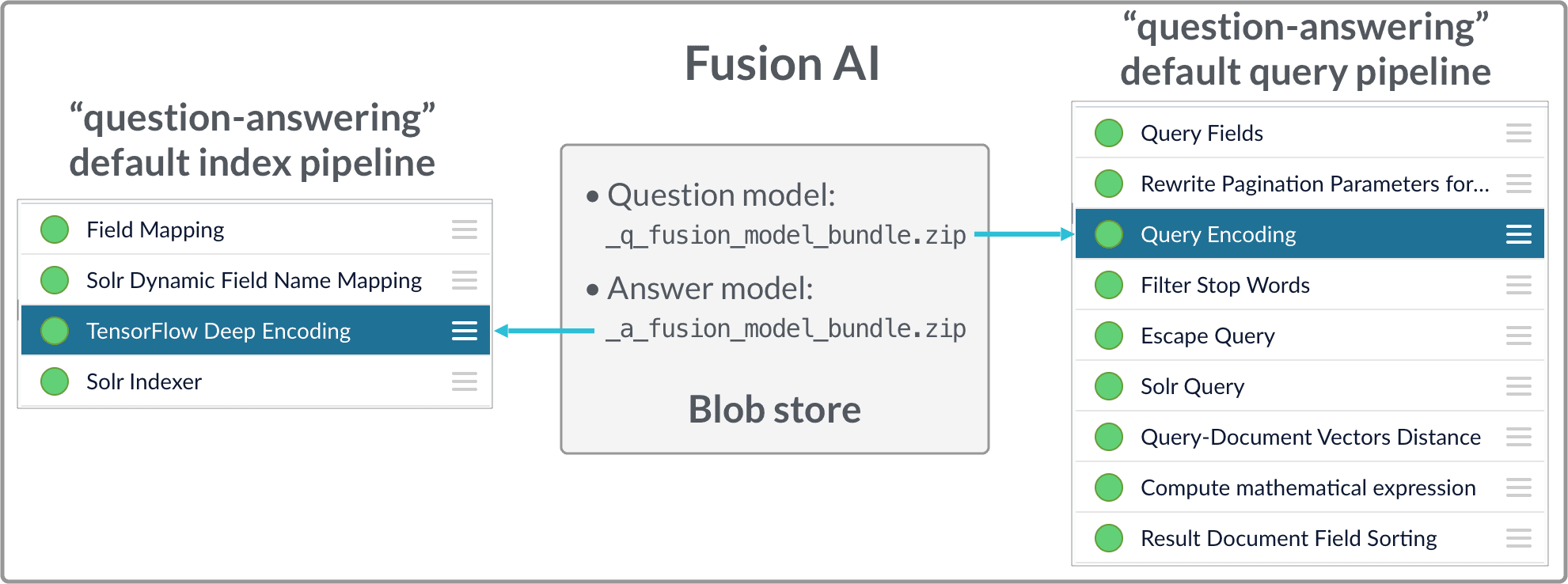
  The Smart Answers deployment procedure for the FAQ solution and the cold start solution is the same:

  1. [Upload the question and answer models](#how-to-upload-the-models-to-the-blob-store) to the blob store.
  2. [Configure the `question-answering` index pipeline](#configure-the-index-pipeline) so that it uses the answer model.
  3. [Configure the `question-answering` query pipeline](#configure-the-query-pipeline) so that it uses the question model.

  <img src="https://mintcdn.com/lucidworks/1R8QVvJzt46cZDT6/assets/images/4.2/diagrams/QnA-FAQ-model-deployment.png?fit=max&auto=format&n=1R8QVvJzt46cZDT6&q=85&s=1716ffd1ffae0a2e846075ef0334ddfa" alt="FAQ model deployment" width="1981" height="738" data-path="assets/images/4.2/diagrams/QnA-FAQ-model-deployment.png" />

  See also [Best Practices](/docs/4/fusion-ai/concepts/smart-answers/best-practices).
  <LwTemplate />

  ## How to upload the models to the blob store

  Two model files are generated by the model training Docker job:

  * `x_a_fusion_model_bundle.zip` - The answer model.
  * `x_q_fusion_model_bundle.zip` - The question model.

  Both files must be deployed to the Fusion [blob store](/docs/4/fusion-server/concepts/indexing/blob-storage).

  **How to upload the deep-learning models to the blob store**

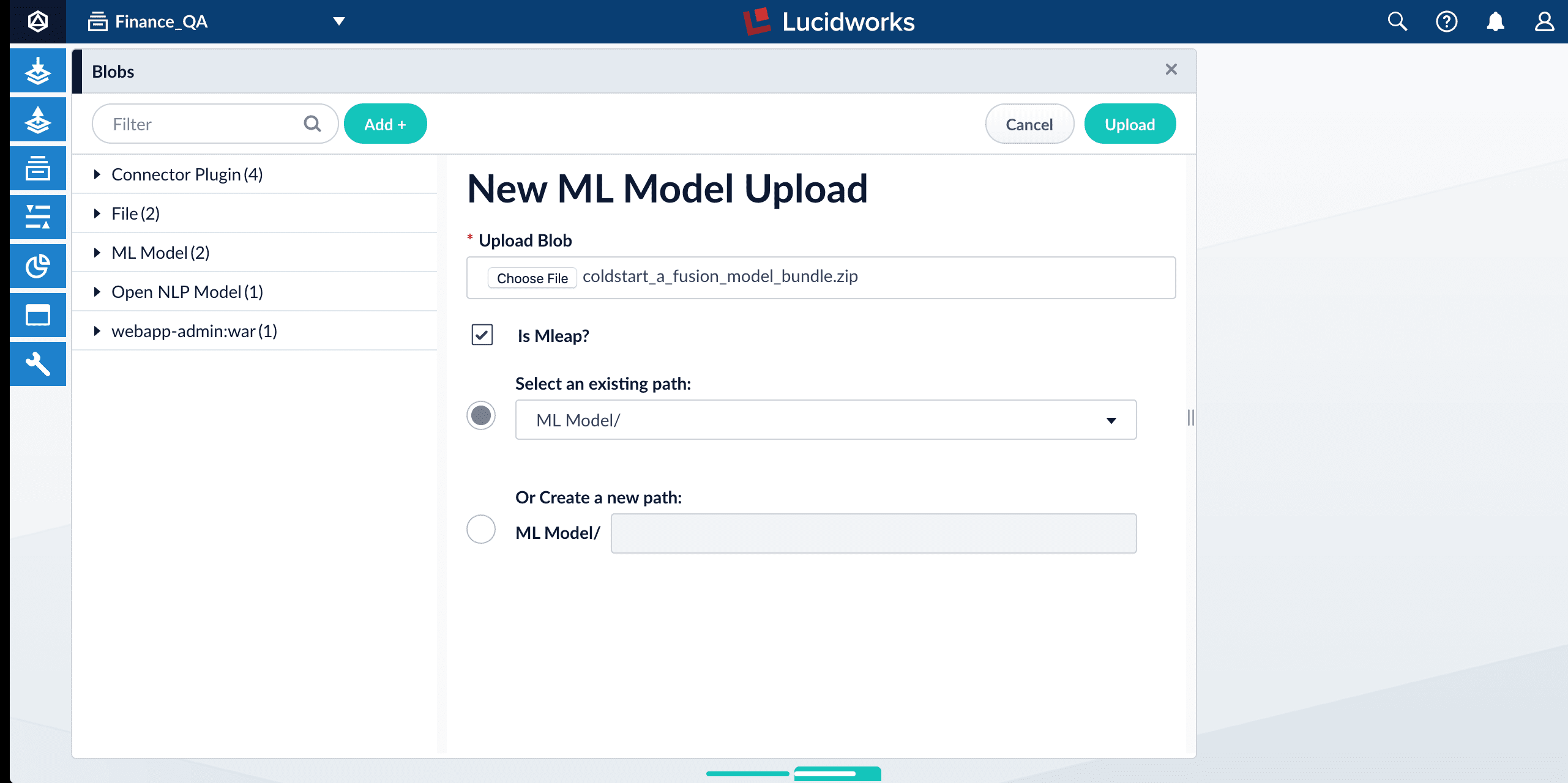
  1. In the Fusion UI, navigate to **System** > **Blobs**.
  2. Click **Add** > **ML Model**.
  3. Click **Choose File** and select one of the model files.
  4. Make sure the **Is Mleap?** checkbox is selected.

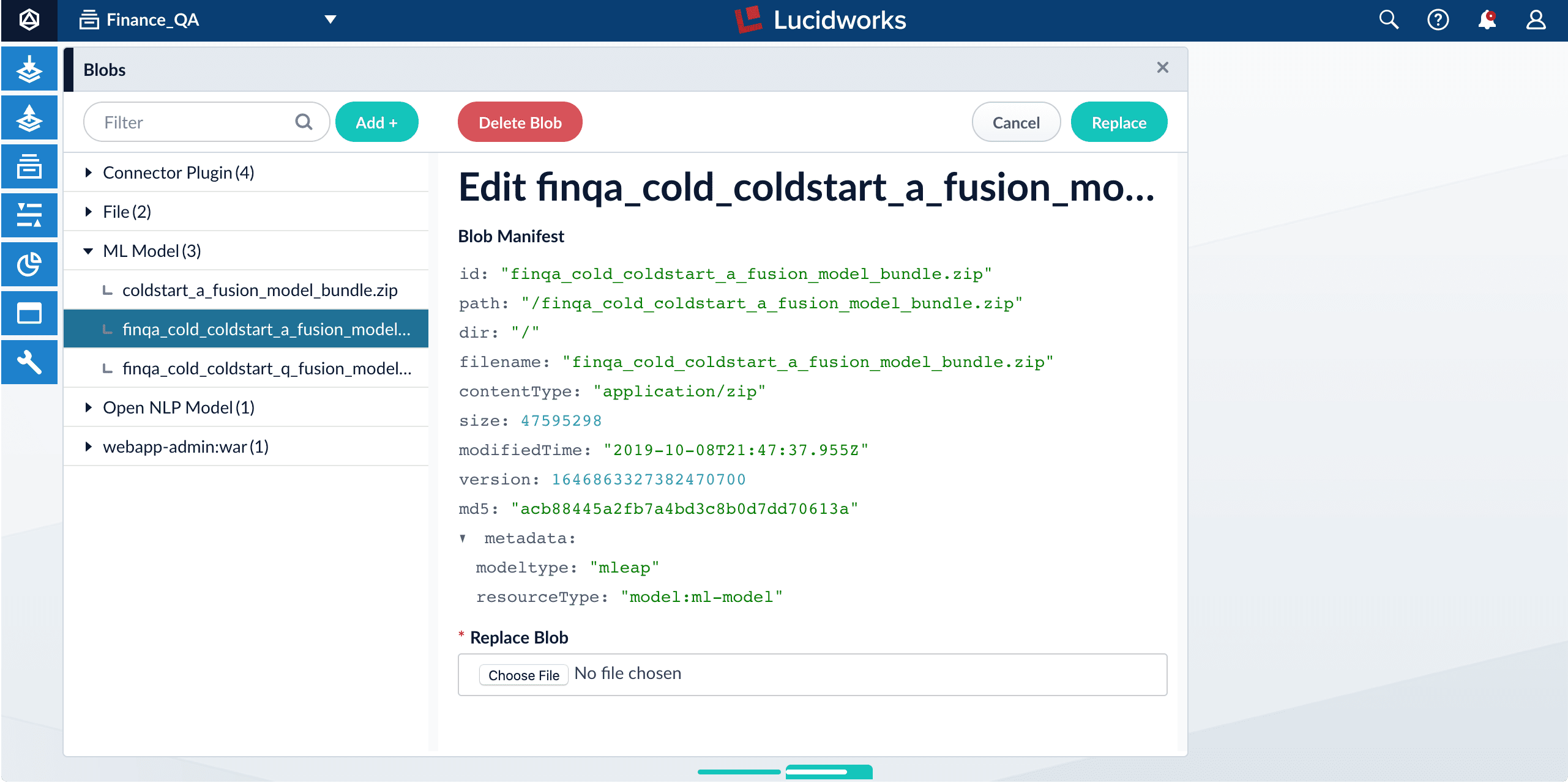
       <img src="https://mintcdn.com/lucidworks/1R8QVvJzt46cZDT6/assets/images/4.2/qna-model-upload1.png?fit=max&auto=format&n=1R8QVvJzt46cZDT6&q=85&s=bf6de4fc890857570669512d4e4add1a" alt="Add a blob" width="2562" height="1280" data-path="assets/images/4.2/qna-model-upload1.png" />
  5. Click **Upload**.

       <img src="https://mintcdn.com/lucidworks/1R8QVvJzt46cZDT6/assets/images/4.2/qna-model-upload2.png?fit=max&auto=format&n=1R8QVvJzt46cZDT6&q=85&s=b7f0baecc658db47c9cbbb0770276d03" alt="Uploaded blob" width="2562" height="1280" data-path="assets/images/4.2/qna-model-upload2.png" />
  6. Repeat steps 2-5 for the other model file.

  ## Fusion configuration overview

  * Fusion index pipeline

    The index pipeline uses the trained model in `x_a_fusion_model_bundle.zip` to generate dense vectors for the documents to be indexed.
  * Fusion query pipeline

    The query pipeline uses the trained model in `x_q_fusion_model_bundle.zip` to generate dense vectors for incoming questions on the fly, then compare those with the indexed dense vectors for answers to find answers, or with the indexed dense vectors for historical questions to find similar questions.

  Another option is to have two separate index stages, one for questions and another for answers. Then, at query time, two query stages compute query-to-question distance and query-to-answer distance. Both scores are ensembled into a final similarity score. The two options are illustrated in [Pipeline setup examples](#pipeline-setup-examples).

  ## How to configure the default pipelines

  If you have an AI license, then the following default index and query pipelines are included in any newly-created Fusion app:

  | Default index pipelines                                                                                                                                                      | Default query pipelines                                                                                                                                                                                                                                                                                              |
  | ---------------------------------------------------------------------------------------------------------------------------------------------------------------------------- | -------------------------------------------------------------------------------------------------------------------------------------------------------------------------------------------------------------------------------------------------------------------------------------------------------------------- |
  | `question-answering`: For encoding one field.                                                                                                                                | `question-answering`: Calculates vectors distances between an encoded query and one document vector field. Should be used together with `question-answering` index pipeline.                                                                                                                                         |
  | `question-answering-dual-fields`: For encoding two fields (question and answer pairs, for example). See [Configure the index pipeline](#configure-the-index-pipeline) below. | `question-answering-dual-fields`: Calculates vectors distances between an encoded query and two document vector fields. After that, scores are ensembled. Should be used together with the `question-answering-dual-fields` index pipeline. See [Configure the query pipeline](#configure-the-query-pipeline) below. |

  ### Configure the index pipeline
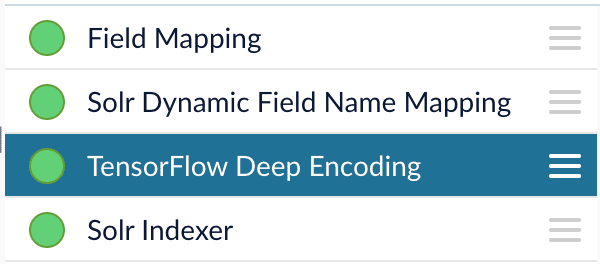
  <img src="https://mintcdn.com/lucidworks/NR6PWuMFSzL-y-FO/assets/images/4.2/QnA-index-pipeline.png?fit=max&auto=format&n=NR6PWuMFSzL-y-FO&q=85&s=06a8a73cd59ab80fb404bf7db981e6c1" alt="question-answering default index pipeline" width="600" height="264" data-path="assets/images/4.2/QnA-index-pipeline.png" />

  1. Open the Index Workbench.
  2. Load or create your datasource using the default question-answering index pipeline.
  3. In the [TensorFlow Deep Encoding stage](/docs/4/fusion-ai/reference/index-pipeline-stages/tensorflow-deep-encoding-index-stage), change the value of **TensorFlow Deep Learning Encoder Model ID** to the model ID of the `x_a_fusion_model_bundle.zip` model that was uploaded to the blob store.
     <Tip>   The `_a_` (answer) model allows you to encode longer text.</Tip>
  4. Change **Document Feature Field** to the document field name to be processed and encoded into dense vectors.
  5. Save the datasource.
  6. Index your data.

  ### Configure the query pipeline

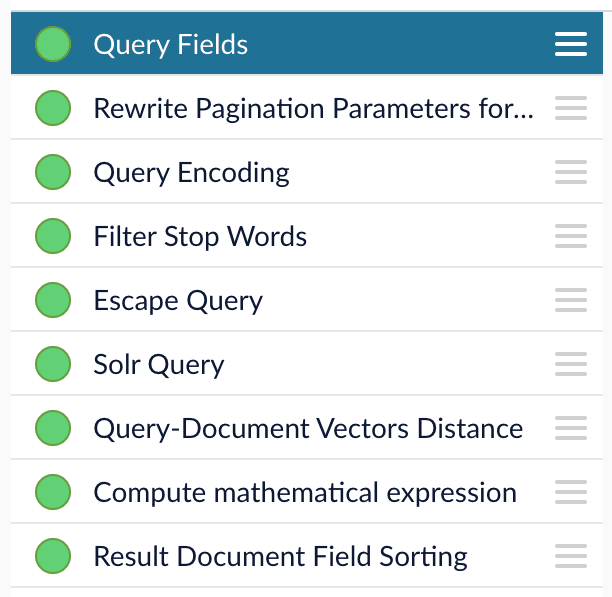
  <img src="https://mintcdn.com/lucidworks/NR6PWuMFSzL-y-FO/assets/images/4.2/QnA-query-pipeline.png?fit=max&auto=format&n=NR6PWuMFSzL-y-FO&q=85&s=f7d264e163592dc5bdb5ba5875301dc4" alt="question-answering default query pipeline" width="612" height="597" data-path="assets/images/4.2/QnA-query-pipeline.png" />

  1. Open the Query Workbench.
  2. Load or create your datasource using one of the default question-answering query pipelines.
  3. In the [Query Fields stage](/docs/4/fusion-server/reference/pipeline-stages/query/search-fields-query-stage), update **Return Fields** to return additional fields that should be displayed with each answer, such as fields corresponding to title, text, or ID.\
     It is recommended that you remove the asterisk (`*`) field and specify each individual field you want to return, as returning too many fields will affect runtime performance.\
     Do not remove `compressed_document_vector_s`, `document_clusters_ss`, and `score` as these fields are necessary for later stages
  4. In the [TensorFlow Deep Encoding stage](/docs/4/fusion-ai/reference/query-pipeline-stages/tensorflow-deep-encoding-query-stage), change **TensorFlow Deep Learning Encoder Model ID** value to the model ID of the `x_q_fusion_model_bundle.zip` model that was uploaded to the blob store.

     <Tip>   The (`_q_`) (question) model is slightly more efficient for short natural-language questions.</Tip>
  5. Save the query pipeline.

  ## Pipeline Setup Examples

  ### Example 1: Index and retrieve question and answer separately

  Based on your search Web page design, you can put best-matched questions and answers in separate sections, or if you only want to retrieve answers and serve to chatbot app, please index them separately in different documents.

  For example, in the picture below, we construct the input file for the index pipeline such that the text part of the question/answer is stored in `text_t`, and we add an additional field `type_s` whose value is "question" or "answer" to separate the two types.

  In the TensorFlow Deep Encoding stage, we specify **Document Feature Field** as `text_t` so that `compressed_document_vector_s` is generated based on this field.

  At search time, we can apply a filter query on the `type_s` field to return either a question or an answer.

  You can achieve a similar result by using the default `question-answering` index and query pipelines.

  ### Example 2: Index and retrieve question and answer together.

  If you prefer to show question and answer together in one document (that is, treat the question as the title and the answer as the description), you can index them together in the same document. It’s similar to the `question-answering-dual-fields` index and query pipelines default setup.

  For example, in the picture below, we added two TensorFlow Deep Encoding stages and named them Answers Encoding and Questions Encoding respectively. In the Questions Encoding stage, we specify **Document Feature Field** to be question\_t, and changed the default values for **Vector Field**, **Clusters Field** and **Distances Field** to question\_vector\_ds, question\_clusters\_ss and question\_distances\_ds respectively. In the Answers Encoding stage, we specify **Document Feature Field** to be answer\_t, and changed the default values for **Vector Field**, **Clusters Field** and **Distances Field** to answer\_vector\_ds, answer\_clusters\_ss and answer\_distances\_ds respectively. (Detailed information of the above field setup please refer to the “Appendix C: Detailed Pipeline Setup” section.)

  Since we have two dense vectors generated in the index (compressed\_question\_vector\_s and compressed\_answer\_vector\_s), at query time, we need to compute query to question distance and query to answer distance. This can be setup as the picture shown below. We added two **Vectors distance per Query/Document** stages and named them QQ Distance and QA Distance respectively. In the QQ Distance stage, we changed the default values for **Document Vector Field** and **Document Vectors** **Distance Field** to compressed\_question\_vector\_s and qq\_distance respectively. In the QA Distance stage, we changed the default values for **Document Vector Field** and **Document Vectors** **Distance Field** to compressed\_answer\_vector\_s and qa\_distance respectively. (Detailed information of the above field setup please refer to the “Appendix C: Detailed Pipeline Setup” section.)

  Now we have two distances (query to question distance and query to answer distance), we can ensemble them together with Solr score to get a final ranking score. This is recommended especially when you have limited FAQ dataset and want to utilize both question and answer information. This ensemble can be done in the **Compute mathematical expression** stage as shown below.

  ## Query pipeline evaluation

  Stages and configurations of the query pipeline will impact ranking results. For example, we may need to make decisions about whether to use clustering option in the [TensorFlow Deep Encoding stage](/docs/4/fusion-ai/reference/query-pipeline-stages/tensorflow-deep-encoding-query-stage), what should be the weights of each ranking score in the **Compute mathematical expression** stage, whether adding other Fusion stages (such as text tagger, ML stage) would help. Comparing two different query pipelines with different models and setups may be needed as well.

  The **Query Pipeline evaluation** job in the training docker image can help evaluate the rankings of Fusion returned results from different pipeline setups, additionally help search for the best set of weights in the ensemble score.

  In order to evaluate the rankings, we need to know the ground truth answers for some testing questions. For example, user can provide around 200 testing questions, and for each question, we need to know which indexed answers are the correct answers in Fusion, so that we can compute positions of correct answers in the current ranking. User needs to provide a file in CSV format which contains the testing questions (**Testing query field** parameter in the job) and correct answer text or id (**Ground truth field** parameter in the job), put this file in the mapped input folder where we put other training data files, then specify the file name in the **Evaluation file name** parameter. NOTE: if there are multiple matching answers for a question, please put question and answer pairs in different rows. In Fusion, there should be a returned field which contains values that match the answer text or id, please specify this field in the **Answer or id field in Fusion** parameter. NOTE: if use answer text, please make sure the formatting of answer text in the evaluation file is the same as the answer text in Fusion so that we can find matches. Several Fusion access parameters are also needed in order to grab results from Fusion in batch, such as login username, password, host ip, app name, collection and pipeline name.

  The job will provide a variety of metrics (controlled by \*\*Metrics list *parameter) at different positions (controlled by *Metrics\@k list** parameter) in the logs for the chosen final ranking score (specified in **Ranking score** parameter). For example, if choose **Ranking score** as “ensemble\_score”, the program will rank results by the ensemble score returned in **Compute mathematical expression** stage. If choose **Ranking score** as “score” (default field name for Solr score in Fusion), then the ranking evaluation will be based only on Solr score. In addition to the metrics in logs, a CSV results evaluation file will be generated. It will provide correct answer positions for each testing question as well as top returned results for each field specified in **Return fields** parameter. User can specify the file name for this results file in the **Ranking results file name** parameter, then download the file from `http://<external hostname>:5550/evaluation`.

  Another function of this job is to help choose weights for different ranking scores such as Solr score, query to question distance, query to answer distance in **Compute mathematical expression** stage. If interested in performing this weights selection, please choose \*\*Whether perform weights selection *parameter to true, list the set of score names in *List of ranking scores for ensemble** parameter. Since we can use different scaling methods for Solr score in the stage, please choose which Solr scale function you used in the stage in **Solr scale function** parameter. **Target metric to use for weight selection** parameter allows to specify metric that should be optimized during weights selection, for example `recall@3`. Metric values at different positions for different weights combinations will be shown in the log, sorted descendingly based on metric specified above. NOTE: Weights selection can take a while to run for big evaluation datasets, thus if only interested in comparing pipelines, please turn this function off by specifying **Whether perform weights selection** parameter to false.

  There are a few additional advanced parameters that might be useful but not required to provide. **Additional query parameters** allows to provide extra query parameters like `rowsFromSolrToRerank` in a dictionary format. **Sampling proportion** and **Sampling seed** provides a possibility to run evaluation job only on a sample of data.

  <Tip>
    Please make sure the Ranking score, answer text or id, and list of ranking scores for ensemble (if perform weights selection) are returned by Fusion by checking the fields returned in the Query Workbench. User can setup the returned fields in Return Fields section of Query Fields stage.
  </Tip>
</Accordion>

<Note>
  If you are using a dynamic schema, make sure this stage is added *after* the [Solr Dynamic Field Name Mapping stage](/docs/4/fusion-server/reference/pipeline-stages/indexing/solr-dynamic-field-name-mapping-index-stage).
</Note>

## Configuration

<SchemaParamFields schema={schema} />