> ## Documentation Index
> Fetch the complete documentation index at: https://doc.lucidworks.com/llms.txt
> Use this file to discover all available pages before exploring further.
# Smart Answers Detailed Pipeline Setup
export const LwTemplate = ({title = "Key questions to get you started", icon = "sparkles", cta = "Powered by Agent Studio", linkHref = "https://lucidworks.com/demo/?utm_source=docs&utm_medium=referral&utm_campaign=docs_cta_ai"}) => {
const [isLoaded, setIsLoaded] = useState(false);
useEffect(() => {
const timer = setTimeout(() => {
setIsLoaded(true);
}, 500);
return () => clearTimeout(timer);
}, []);
return
{isLoaded && `
}} />}
Powered by Lucidworks Agent Studio
;
};
[localhost link]: http://localhost:3000/docs/4/fusion-ai/reference/pipeline-setup
[mintlify link]: https://doc.lucidworks.com/docs/4/fusion-ai/reference/pipeline-setup
[old doc.lw link]: https://doc.lucidworks.com/fusion-ai/4.2/509
Typically, you can use the [default pipelines](/docs/4/fusion-ai/concepts/smart-answers/overview) included with Fusion AI. This topic provides information you can use to customize these pipelines.
| | | |
| --------------------------------------- | -------------------------------------------------------------------------------------------------------------------------------------------------------------------------------------------------------------------------------------------------------------------------------------------------------------------------------------------------------------------------------------------------------------------------------------------------------------------------------------------------------------------------------------------------------------------------------------------------------------------------------------------------------------------------------------------------------------------------------------------------------------------------------------------------------------------------------------------------------------------------------------------------------------------------------------------------------------------------------------------------------------------------------------------------------------------------------------------------------------------------------------------------------------------------------------------------------------------------------------------------------------------------------------------------------------------------------------------------------------------------------------------------------------------------------------------------------------------------------------------------------------------------------------------------------- | -------------------------------------------------------------------------------------------------------------------------------------------------------------------------------------------------------------------------------------------------------------------------------------------------------------------------------------------------------------------------------------------------------------------------------------------------------------------------------------------------------------------------------------------------------------------------------------------------------------------------------------------------------------------------------------------------------------- |
| **"question-answering" index pipeline** | | • [TensorFlow Deep Encoding](/docs/4/fusion-ai/reference/index-pipeline-stages/tensorflow-deep-encoding-index-stage) |
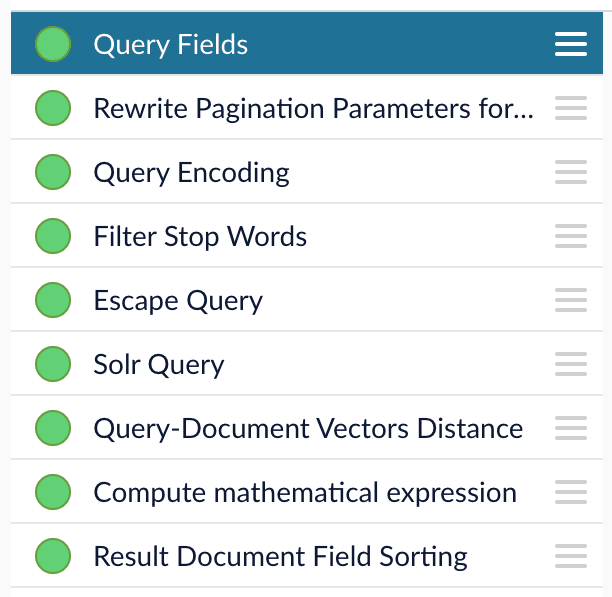
| **"question-answering" query pipeline** | | • [Query Fields](/docs/4/fusion-ai/reference/pipeline-setup) • [Rewrite Pagination Parameters for Reranking](/docs/4/fusion-ai/reference/pipeline-setup) • [TensorFlow Deep Encoding](/docs/4/fusion-ai/reference/pipeline-setup) ("Query Encoding") • [Filter Stop Words](/docs/4/fusion-ai/reference/pipeline-setup) • [Escape Query](/docs/4/fusion-ai/reference/pipeline-setup) • [Query-Document Vectors Distance](/docs/4/fusion-ai/reference/pipeline-setup#the-query-document-vectors-distance-stage) • [Compute Mathematical Expression](/docs/4/fusion-ai/reference/pipeline-setup) • [Result Document Field Sorting](/docs/4/fusion-ai/reference/pipeline-setup) |
## Index pipeline setup
**Stages in the default "question-answering" index pipeline**
Typically, only one custom index stage needs to be configured in your index pipeline:
the [TensorFlow Deep Encoding index stage](/docs/4/fusion-ai/reference/index-pipeline-stages/tensorflow-deep-encoding-index-stage).
The TensorFlow Deep Encoding stage encodes your documents to dense vectors by using a [TensorFlow](https://www.tensorflow.org/) model.
If you are using a dynamic schema, make sure this stage is added *after* the [Solr Dynamic Field Name Mapping stage](/docs/4/fusion-server/reference/pipeline-stages/indexing/solr-dynamic-field-name-mapping-index-stage).
There are several required parameters:
* **TensorFlow Deep Learning Encoder Model ID.** The ID of the model for answers encoding which is uploaded to the blob store, with a name that ends with `_a_fusion_model_bundle.zip`.
* **Document Feature Field.** The text field to encode to the dense vectors, such as `answer_t` or `body_t` (the default value).
* **Vector Field.** The field that stores dense vectors. Default value: `document_vector_ds`.
Fusion also compresses dense vectors to strings and stores then in a field with the prefix `compressed_`, such as `compressed_document_vector_s`. The compressed version is used as the default to get better query runtime performance.
* **Clusters Field.** The field that stores answer clusters IDs. Default value: `document_clusters_ss`.
* **Distances Field.** The field that stores distances between a document vector and its closest cluster centers. This can be used for eDiscovery purposes. For example, we can explore the clusters by sorting documents in ascending order based on this distance to clusters centers. Default value: `document_distances_ds`.
* **Number of clusters.** This value denotes how many clusters each document can belong to. In most cases it’s better to use just one cluster, since we already provide a query pipeline stage to find multiple clusters at query time. Note: this value should be less than or equal to the number of clusters specified in the model training. Default value: 1.
## Query pipeline setup
**Stages in the default "question-answering" query pipeline**
In the "question-answering" query pipeline, all stages (except the Solr Query stage) can be tuned for better Smart Answers:
1. [Query Fields](#the-query-fields-stage)
2. [Rewrite Pagination Parameters for Ranking](#the-rewrite-pagination-parameters-for-reranking-stage)
3. [Filter Stop Words](#the-filter-stop-words-stage)
4. [TensorFlow Deep Encoding](#the-tensorflow-deep-encoding-stage)
5. [Escape Query](#the-escape-query-stage)
6. [Query-Document Vectors Distance](#the-query-document-vectors-distance-stage)
7. [Computer Mathematical Expression](#the-compute-mathematical-expression-stage)
8. [Result Document Field Sorting](#the-result-document-field-sorting-stage)
You can also [configure the number of clusters](#configuring-the-number-of-clusters) used in deep encoding.
### The Query Fields stage
The first stage is **Query Fields** which should have one main parameter specified:
* **Return Fields.** Since documents should be retrieved with vectors and clusters, make sure to include the documents’ Vector Field and Clusters Field, which are `compressed_document_vector_s` and `document_clusters_ss` by default.
### The Rewrite Pagination Parameters for Reranking stage
The [Rewrite Pagination Parameters for Reranking query stage](/docs/4/fusion-ai/reference/query-pipeline-stages/rewrite-pagination-parameters-for-reranking-query-stage) is used to specify how many results from Solr should be used to create a pool of candidates for further re-ranking via model. It’s done under the hood, so users would still see the number of results controlled by "start" and "rows" query parameters.
* **Number of Results.** Number of results to request from Solr, to be re-ranked by downstream stages. Default value: `500`.\
This parameter affects both results accuracy and query time performance. Increasing the number can lead to better accuracy but worse query time performance and vice versa.
This parameter can be dynamically overwritten by `rowsFromSolrToRerank` raw query parameter in the request.
### The Filter Stop Words stage
When limited data is provided to train FAQ or coldstart models, the model may not be able to learn the weights of stop words accurately. Especially when using Solr to retrieve the top x results (if **Number of Clusters** is set to 0 in the
TensorFlow Deep Encoding stage),
stop words may have high impact on Solr. User can use this stage to provide customized stop words list by providing them in **Words to filter** part of the stage.
See [Filter Stop Words](/docs/4/fusion-ai/reference/query-pipeline-stages/filter-stop-words-query-stage) for reference information. See also [Best Practices](/docs/4/fusion-ai/concepts/smart-answers/best-practices).
### The TensorFlow Deep Encoding stage
The
[TensorFlow Deep Encoding query stage](/docs/4/fusion-ai/reference/query-pipeline-stages/tensorflow-deep-encoding-query-stage) is very similar to the [index stage](#index-pipeline-setup).
If you are using the cluster retrieval configuration in **FAQ Solution Part 2**, then this stage should be located *before* the [Solr Query stage](/docs/4/fusion-server/reference/pipeline-stages/query/solr-query-stage).
The Smart Answers deployment procedure for the FAQ solution and the cold start solution is the same:
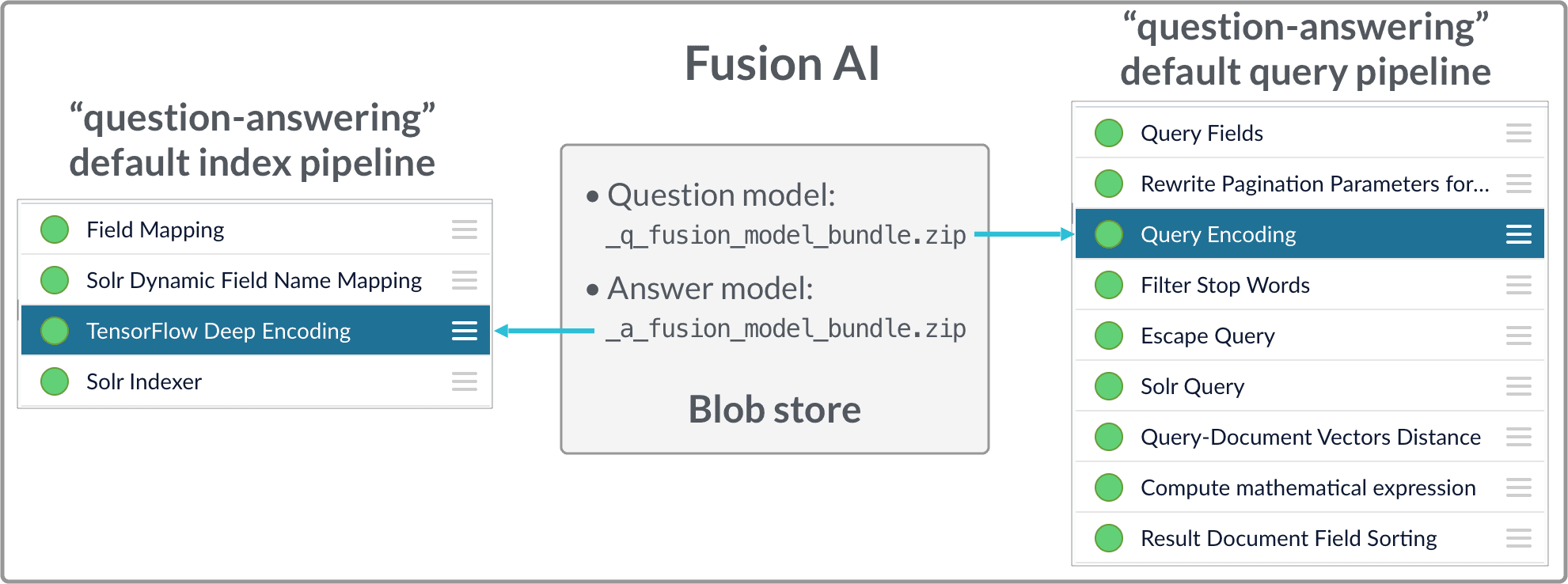
1. [Upload the question and answer models](#how-to-upload-the-models-to-the-blob-store) to the blob store.
2. [Configure the `question-answering` index pipeline](#configure-the-index-pipeline) so that it uses the answer model.
3. [Configure the `question-answering` query pipeline](#configure-the-query-pipeline) so that it uses the question model.
See also [Best Practices](/docs/4/fusion-ai/concepts/smart-answers/best-practices).
## How to upload the models to the blob store
Two model files are generated by the model training Docker job:
* `x_a_fusion_model_bundle.zip` - The answer model.
* `x_q_fusion_model_bundle.zip` - The question model.
Both files must be deployed to the Fusion [blob store](/docs/4/fusion-server/concepts/indexing/blob-storage).
**How to upload the deep-learning models to the blob store**
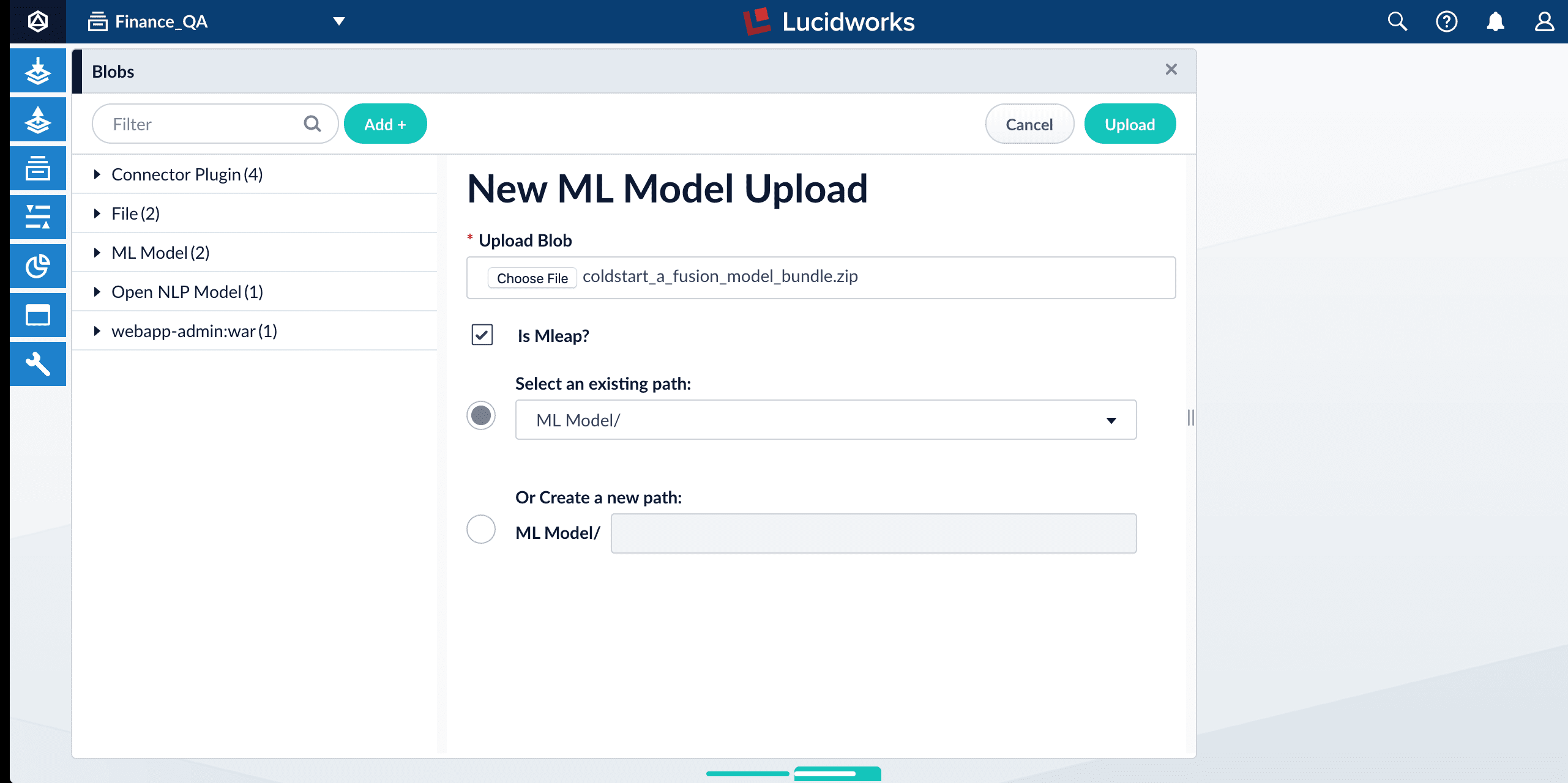
1. In the Fusion UI, navigate to **System** > **Blobs**.
2. Click **Add** > **ML Model**.
3. Click **Choose File** and select one of the model files.
4. Make sure the **Is Mleap?** checkbox is selected.
5. Click **Upload**.
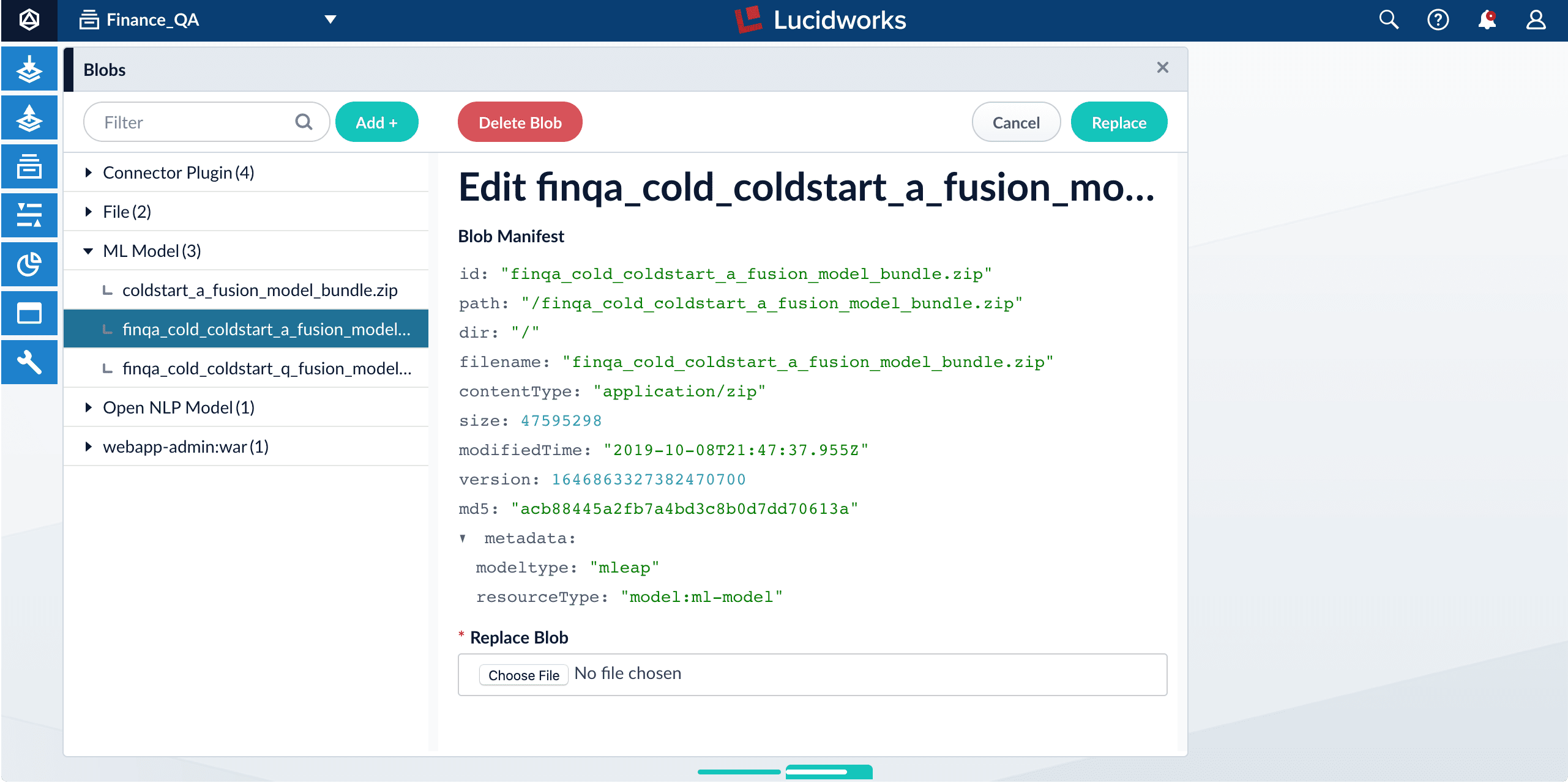
6. Repeat steps 2-5 for the other model file.
## Fusion configuration overview
* Fusion index pipeline
The index pipeline uses the trained model in `x_a_fusion_model_bundle.zip` to generate dense vectors for the documents to be indexed.
* Fusion query pipeline
The query pipeline uses the trained model in `x_q_fusion_model_bundle.zip` to generate dense vectors for incoming questions on the fly, then compare those with the indexed dense vectors for answers to find answers, or with the indexed dense vectors for historical questions to find similar questions.
Another option is to have two separate index stages, one for questions and another for answers. Then, at query time, two query stages compute query-to-question distance and query-to-answer distance. Both scores are ensembled into a final similarity score. The two options are illustrated in [Pipeline setup examples](#pipeline-setup-examples).
## How to configure the default pipelines
If you have an AI license, then the following default index and query pipelines are included in any newly-created Fusion app:
| Default index pipelines | Default query pipelines |
| ---------------------------------------------------------------------------------------------------------------------------------------------------------------------------- | -------------------------------------------------------------------------------------------------------------------------------------------------------------------------------------------------------------------------------------------------------------------------------------------------------------------- |
| `question-answering`: For encoding one field. | `question-answering`: Calculates vectors distances between an encoded query and one document vector field. Should be used together with `question-answering` index pipeline. |
| `question-answering-dual-fields`: For encoding two fields (question and answer pairs, for example). See [Configure the index pipeline](#configure-the-index-pipeline) below. | `question-answering-dual-fields`: Calculates vectors distances between an encoded query and two document vector fields. After that, scores are ensembled. Should be used together with the `question-answering-dual-fields` index pipeline. See [Configure the query pipeline](#configure-the-query-pipeline) below. |
### Configure the index pipeline
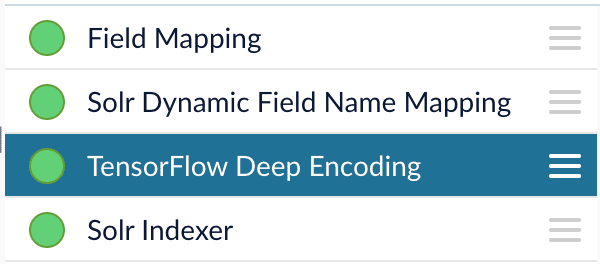
1. Open the Index Workbench.
2. Load or create your datasource using the default question-answering index pipeline.
3. In the [TensorFlow Deep Encoding stage](/docs/4/fusion-ai/reference/index-pipeline-stages/tensorflow-deep-encoding-index-stage), change the value of **TensorFlow Deep Learning Encoder Model ID** to the model ID of the `x_a_fusion_model_bundle.zip` model that was uploaded to the blob store.
The `_a_` (answer) model allows you to encode longer text.
4. Change **Document Feature Field** to the document field name to be processed and encoded into dense vectors.
5. Save the datasource.
6. Index your data.
### Configure the query pipeline
1. Open the Query Workbench.
2. Load or create your datasource using one of the default question-answering query pipelines.
3. In the [Query Fields stage](/docs/4/fusion-server/reference/pipeline-stages/query/search-fields-query-stage), update **Return Fields** to return additional fields that should be displayed with each answer, such as fields corresponding to title, text, or ID.\
It is recommended that you remove the asterisk (`*`) field and specify each individual field you want to return, as returning too many fields will affect runtime performance.\
Do not remove `compressed_document_vector_s`, `document_clusters_ss`, and `score` as these fields are necessary for later stages
4. In the [TensorFlow Deep Encoding stage](/docs/4/fusion-ai/reference/query-pipeline-stages/tensorflow-deep-encoding-query-stage), change **TensorFlow Deep Learning Encoder Model ID** value to the model ID of the `x_q_fusion_model_bundle.zip` model that was uploaded to the blob store.
The (`_q_`) (question) model is slightly more efficient for short natural-language questions.
5. Save the query pipeline.
## Pipeline Setup Examples
### Example 1: Index and retrieve question and answer separately
Based on your search Web page design, you can put best-matched questions and answers in separate sections, or if you only want to retrieve answers and serve to chatbot app, please index them separately in different documents.
For example, in the picture below, we construct the input file for the index pipeline such that the text part of the question/answer is stored in `text_t`, and we add an additional field `type_s` whose value is "question" or "answer" to separate the two types.
In the TensorFlow Deep Encoding stage, we specify **Document Feature Field** as `text_t` so that `compressed_document_vector_s` is generated based on this field.
At search time, we can apply a filter query on the `type_s` field to return either a question or an answer.
You can achieve a similar result by using the default `question-answering` index and query pipelines.
### Example 2: Index and retrieve question and answer together.
If you prefer to show question and answer together in one document (that is, treat the question as the title and the answer as the description), you can index them together in the same document. It’s similar to the `question-answering-dual-fields` index and query pipelines default setup.
For example, in the picture below, we added two TensorFlow Deep Encoding stages and named them Answers Encoding and Questions Encoding respectively. In the Questions Encoding stage, we specify **Document Feature Field** to be question\_t, and changed the default values for **Vector Field**, **Clusters Field** and **Distances Field** to question\_vector\_ds, question\_clusters\_ss and question\_distances\_ds respectively. In the Answers Encoding stage, we specify **Document Feature Field** to be answer\_t, and changed the default values for **Vector Field**, **Clusters Field** and **Distances Field** to answer\_vector\_ds, answer\_clusters\_ss and answer\_distances\_ds respectively. (Detailed information of the above field setup please refer to the “Appendix C: Detailed Pipeline Setup” section.)
Since we have two dense vectors generated in the index (compressed\_question\_vector\_s and compressed\_answer\_vector\_s), at query time, we need to compute query to question distance and query to answer distance. This can be setup as the picture shown below. We added two **Vectors distance per Query/Document** stages and named them QQ Distance and QA Distance respectively. In the QQ Distance stage, we changed the default values for **Document Vector Field** and **Document Vectors** **Distance Field** to compressed\_question\_vector\_s and qq\_distance respectively. In the QA Distance stage, we changed the default values for **Document Vector Field** and **Document Vectors** **Distance Field** to compressed\_answer\_vector\_s and qa\_distance respectively. (Detailed information of the above field setup please refer to the “Appendix C: Detailed Pipeline Setup” section.)
Now we have two distances (query to question distance and query to answer distance), we can ensemble them together with Solr score to get a final ranking score. This is recommended especially when you have limited FAQ dataset and want to utilize both question and answer information. This ensemble can be done in the **Compute mathematical expression** stage as shown below.
## Query pipeline evaluation
Stages and configurations of the query pipeline will impact ranking results. For example, we may need to make decisions about whether to use clustering option in the [TensorFlow Deep Encoding stage](/docs/4/fusion-ai/reference/query-pipeline-stages/tensorflow-deep-encoding-query-stage), what should be the weights of each ranking score in the **Compute mathematical expression** stage, whether adding other Fusion stages (such as text tagger, ML stage) would help. Comparing two different query pipelines with different models and setups may be needed as well.
The **Query Pipeline evaluation** job in the training docker image can help evaluate the rankings of Fusion returned results from different pipeline setups, additionally help search for the best set of weights in the ensemble score.
In order to evaluate the rankings, we need to know the ground truth answers for some testing questions. For example, user can provide around 200 testing questions, and for each question, we need to know which indexed answers are the correct answers in Fusion, so that we can compute positions of correct answers in the current ranking. User needs to provide a file in CSV format which contains the testing questions (**Testing query field** parameter in the job) and correct answer text or id (**Ground truth field** parameter in the job), put this file in the mapped input folder where we put other training data files, then specify the file name in the **Evaluation file name** parameter. NOTE: if there are multiple matching answers for a question, please put question and answer pairs in different rows. In Fusion, there should be a returned field which contains values that match the answer text or id, please specify this field in the **Answer or id field in Fusion** parameter. NOTE: if use answer text, please make sure the formatting of answer text in the evaluation file is the same as the answer text in Fusion so that we can find matches. Several Fusion access parameters are also needed in order to grab results from Fusion in batch, such as login username, password, host ip, app name, collection and pipeline name.
The job will provide a variety of metrics (controlled by \*\*Metrics list *parameter) at different positions (controlled by *Metrics\@k list** parameter) in the logs for the chosen final ranking score (specified in **Ranking score** parameter). For example, if choose **Ranking score** as “ensemble\_score”, the program will rank results by the ensemble score returned in **Compute mathematical expression** stage. If choose **Ranking score** as “score” (default field name for Solr score in Fusion), then the ranking evaluation will be based only on Solr score. In addition to the metrics in logs, a CSV results evaluation file will be generated. It will provide correct answer positions for each testing question as well as top returned results for each field specified in **Return fields** parameter. User can specify the file name for this results file in the **Ranking results file name** parameter, then download the file from `http://:5550/evaluation`.
Another function of this job is to help choose weights for different ranking scores such as Solr score, query to question distance, query to answer distance in **Compute mathematical expression** stage. If interested in performing this weights selection, please choose \*\*Whether perform weights selection *parameter to true, list the set of score names in *List of ranking scores for ensemble** parameter. Since we can use different scaling methods for Solr score in the stage, please choose which Solr scale function you used in the stage in **Solr scale function** parameter. **Target metric to use for weight selection** parameter allows to specify metric that should be optimized during weights selection, for example `recall@3`. Metric values at different positions for different weights combinations will be shown in the log, sorted descendingly based on metric specified above. NOTE: Weights selection can take a while to run for big evaluation datasets, thus if only interested in comparing pipelines, please turn this function off by specifying **Whether perform weights selection** parameter to false.
There are a few additional advanced parameters that might be useful but not required to provide. **Additional query parameters** allows to provide extra query parameters like `rowsFromSolrToRerank` in a dictionary format. **Sampling proportion** and **Sampling seed** provides a possibility to run evaluation job only on a sample of data.
Please make sure the Ranking score, answer text or id, and list of ranking scores for ensemble (if perform weights selection) are returned by Fusion by checking the fields returned in the Query Workbench. User can setup the returned fields in Return Fields section of Query Fields stage.
The important configuration keys are as follows:
* **TensorFlow Deep Learning Encoder Model ID.** The ID of the model for query encoding which is uploaded to the blob store with a name that ends with `_q_fusion_model_bundle.zip`.
* **Query Feature Field.** `q` (default value).
* **Vector Context Key.** The context key that stores query dense vectors. Default value: `query_vector`.
* **Clusters Context Key.** The context key that stores query clusters. Default value: `query_clusters`.
* **Distances Context Key.** The context key that store distances between query vectors and cluster centers. Default value: `query_distances`.
* **Number of clusters.** The number of clusters that should be used for each query. This value should be less than or equal to the number of clusters specified in the model training. Default value: 0
When this is set to 0 (the default), Fusion uses Solr to return the top x results, then re-ranks them using vector cosine similarity, or combines the Solr score with the vector score using the Compute mathematical expression stage. If you choose this option, adjust the **Number of Results** parameter (Default value 500) in the Rewrite Pagination Parameters for Reranking stage in the query pipeline. This parameter controls how many documents are returned from Solr to Fusion and re-ranked under the hood. You can adjust this parameter to find a good balance between relevancy and query speed.\
If you set **Number of clusters** to a value x greater than 0, then when a query comes in, we transfer the query into a dense vector and find the closest x clusters to which the query belongs. The pipeline then obtains documents from the same clusters as a query and re-ranks them based on the vector cosine similarity between the query and the indexed answers/questions. Although this option provides faster query run time (clusters usually have less than 500 docs), results sometime might be worse than in the first option. Comprehensive evaluation should be done to decide which is best for you.\
Documents from the clusters might be obtained in the following ways:
* By using Solr search. Then search space is narrowed by both clusters and Solr. And Solr score might be used in the ensemble in the same way as in the first option described above.
* By using only clusters. Then all documents from certain clusters are retrieved for re-ranking. To do that you need to add Additional Query Parameters stage to the query pipeline right before Solr Query stage and configure it in the following way:
Parameter Name: `q`, Parameter Value: `*:*`, Update Policy: `replace`
In such way after query is encoded we ask Solr to return all documents from certain clusters (they are already added as facets)
When set to 0, Fusion returns a pool of candidates based solely on the Solr score, then performs re-ranking. Moreover, we support overriding this configuration parameter by using the `num_clusters` raw query parameter. For example, if you expose this parameter on your website and allow your customer to change it, then different customers can view different levels of granularity in the results (that is, a higher `num_clusters` value provides more results).
If the number of clusters is greater than 0 and the search term is `*:*`, then there a limited number of documents are shown in the result rather than showing the whole collection. This is because `*:*` is assigned to certain clusters.
### The Escape Query stage
The [Escape Query query stage](/docs/4/fusion-ai/reference/query-pipeline-stages/escape-query-query-stage) escapes Lucene/Solr reserved characters in a query. In the Smart Answers use case, queries are natural-language questions. They tend to be longer than regular queries and with punctuation which we do not want to interpret as Lucene/Solr query operators.
### The Query-Document Vectors Distance stage
The [Query-Document Vectors Distance query stage](/docs/4/fusion-ai/reference/query-pipeline-stages/query-documents-vectors-distance-query-stage) computes the distance between a query vector and each candidate document vector. It should be added after the [Solr Query stage](/docs/4/fusion-server/reference/pipeline-stages/query/solr-query-stage).
* **Query Vector Context Key.** The context key which stores dense vectors. It should be set to the same value as \_Vector Context Key \_in the
**TensorFlow Deep Encoding Query** stage\
Default value: `query_vector`.
* **Document Vector Field.** The field which stores dense vectors or their compressed representations. It should be the same as \_Vector Field \_in
**TensorFlow Deep Encoding Query** stage\
Default: `compressed_document_vector_s`.
* **Keep document vector field.** This option allows you to keep or drop returned document vectors. In most cases it makes sense to drop document vectors after computing vector distances, to improve run time performance. Default: `False (unchecked)`.
* **Distance Type.** Choose one of the supported distance types. For a FAQ solution, `cosine_similarity` is recommended, which produces values with a maximum value of 1. Higher value means higher similarity. Default: `cosine_similarity`.
* **Document Vectors Distance Field.** The result document field that contains the distance between its vector and the query vector. Default: `vectors_distance`.
### The Compute Mathematical Expression stage
We can use the [Compute Mathematical Expression query stage](/docs/4/fusion-server/reference/pipeline-stages/query/compute-mathematical-expression-query-stage) to combine the Solr score with the vectors similarity score to borrow Solr’s keywords matching capabilities. This stage should be set before the **Result Document Field Sorting** stage. **Result field name** in this stage and **Sort field** in the **Result Document Field Sorting** stage should be set to the same value.
* **Math expression.** Specify a mathematical formula for combining the Solr score and the vector similarity score. Note that Solr scores do not have an upper bound, so it is best to rescale it by using the `max_score` value, which is the max Solr score from all returned docs. `vectors_distance` is the cosine similarity in our case and it already has an upper bound of 1.0. The complete list of supported mathematical expressions is listed in the [Oracle documentation](https://docs.oracle.com/javase/8/docs/api/java/lang/Math.html).\
Default: `0.3 * score / max_score + 0.7 * vectors_distance`
We recommend adjusting the ratios 0.3 and 0.7 to other values based on query-time evaluation results (mentioned in the section above). Feel free to try other math expressions (such as log10) to scale the Solr score as well.
* **Result field name.** The document field name that contains the combined score. The same value should be set in the **Result Document Field Sorting** stage, in the *Sort Field* parameter. Default: `ensemble_score`
### The Result Document Field Sorting stage
Finally, the [Result Document Field Sorting stage](/docs/4/fusion-ai/reference/query-pipeline-stages/result-document-field-sorting-query-stage) sorts results based on vector distances obtained from the previous **Vectors distance per Query/Document** stage or ensemble score from **Compute mathematical expression** stage.
* **Sort Field.** The field to use for document sorting. Default value: `ensemble_score`
* **Sort order.** The sorting order: (asc)ending or (desc)ending. If `cosine_similarity` is used with higher values meaning higher similarity, then this should be set to `desc`. Default: `desc`.
### Configuring the number of clusters
Another important parameter to choose is the **Number of clusters** parameter in the
TensorFlow Deep Encoding stage
in the query pipeline. There are two options for utilizing the dense vectors from a query pipeline:
* If set **Number of clusters** parameter to 0 (default option), then we use Solr to return the top x results, then re-rank using vector cosine similarity, or combine the Solr score with the vector score using our **Compute mathematical expression** stage. If you choose this option, then adjust **Number of Results** parameter (Default value 500) in the **Rewrite Pagination Parameters for Reranking** stage in the query pipeline. This parameter controls how many documents to be returned from Solr to Fusion and re-ranked under the hood. You can adjust this parameter to find a good balance between relevancy and query speed.
* If you set the **Number of clusters** parameter to a value x greater than 0, when a query comes in, Fusion transfers the query into a dense vector and find the closest x clusters to which the query belongs. The pipeline then obtains documents from the same clusters as query and re-ranks them based on the vector cosine similarity between the query and the indexed answers/questions. The good default values can be 1 cluster per document and 10 clusters per query.
Documents from the clusters might be obtained in the following ways:
* **By using Solr search.** Then search space is narrowed by both clusters and Solr. And Solr score might be used in the ensemble in the same way as in the first option described above.
* **By using only clusters.** Then all documents from certain clusters are retrieved for re-ranking. Solr doesn’t narrow the search space, but it’s also not used for ensemble.
 See also [Best Practices](/docs/4/fusion-ai/concepts/smart-answers/best-practices).
## How to upload the models to the blob store
Two model files are generated by the model training Docker job:
* `x_a_fusion_model_bundle.zip` - The answer model.
* `x_q_fusion_model_bundle.zip` - The question model.
Both files must be deployed to the Fusion [blob store](/docs/4/fusion-server/concepts/indexing/blob-storage).
**How to upload the deep-learning models to the blob store**
1. In the Fusion UI, navigate to **System** > **Blobs**.
2. Click **Add** > **ML Model**.
3. Click **Choose File** and select one of the model files.
4. Make sure the **Is Mleap?** checkbox is selected.
See also [Best Practices](/docs/4/fusion-ai/concepts/smart-answers/best-practices).
## How to upload the models to the blob store
Two model files are generated by the model training Docker job:
* `x_a_fusion_model_bundle.zip` - The answer model.
* `x_q_fusion_model_bundle.zip` - The question model.
Both files must be deployed to the Fusion [blob store](/docs/4/fusion-server/concepts/indexing/blob-storage).
**How to upload the deep-learning models to the blob store**
1. In the Fusion UI, navigate to **System** > **Blobs**.
2. Click **Add** > **ML Model**.
3. Click **Choose File** and select one of the model files.
4. Make sure the **Is Mleap?** checkbox is selected.
 5. Click **Upload**.
 6. Repeat steps 2-5 for the other model file.
## Fusion configuration overview
* Fusion index pipeline
The index pipeline uses the trained model in `x_a_fusion_model_bundle.zip` to generate dense vectors for the documents to be indexed.
* Fusion query pipeline
The query pipeline uses the trained model in `x_q_fusion_model_bundle.zip` to generate dense vectors for incoming questions on the fly, then compare those with the indexed dense vectors for answers to find answers, or with the indexed dense vectors for historical questions to find similar questions.
Another option is to have two separate index stages, one for questions and another for answers. Then, at query time, two query stages compute query-to-question distance and query-to-answer distance. Both scores are ensembled into a final similarity score. The two options are illustrated in [Pipeline setup examples](#pipeline-setup-examples).
## How to configure the default pipelines
If you have an AI license, then the following default index and query pipelines are included in any newly-created Fusion app:
| Default index pipelines | Default query pipelines |
| ---------------------------------------------------------------------------------------------------------------------------------------------------------------------------- | -------------------------------------------------------------------------------------------------------------------------------------------------------------------------------------------------------------------------------------------------------------------------------------------------------------------- |
| `question-answering`: For encoding one field. | `question-answering`: Calculates vectors distances between an encoded query and one document vector field. Should be used together with `question-answering` index pipeline. |
| `question-answering-dual-fields`: For encoding two fields (question and answer pairs, for example). See [Configure the index pipeline](#configure-the-index-pipeline) below. | `question-answering-dual-fields`: Calculates vectors distances between an encoded query and two document vector fields. After that, scores are ensembled. Should be used together with the `question-answering-dual-fields` index pipeline. See [Configure the query pipeline](#configure-the-query-pipeline) below. |
### Configure the index pipeline
6. Repeat steps 2-5 for the other model file.
## Fusion configuration overview
* Fusion index pipeline
The index pipeline uses the trained model in `x_a_fusion_model_bundle.zip` to generate dense vectors for the documents to be indexed.
* Fusion query pipeline
The query pipeline uses the trained model in `x_q_fusion_model_bundle.zip` to generate dense vectors for incoming questions on the fly, then compare those with the indexed dense vectors for answers to find answers, or with the indexed dense vectors for historical questions to find similar questions.
Another option is to have two separate index stages, one for questions and another for answers. Then, at query time, two query stages compute query-to-question distance and query-to-answer distance. Both scores are ensembled into a final similarity score. The two options are illustrated in [Pipeline setup examples](#pipeline-setup-examples).
## How to configure the default pipelines
If you have an AI license, then the following default index and query pipelines are included in any newly-created Fusion app:
| Default index pipelines | Default query pipelines |
| ---------------------------------------------------------------------------------------------------------------------------------------------------------------------------- | -------------------------------------------------------------------------------------------------------------------------------------------------------------------------------------------------------------------------------------------------------------------------------------------------------------------- |
| `question-answering`: For encoding one field. | `question-answering`: Calculates vectors distances between an encoded query and one document vector field. Should be used together with `question-answering` index pipeline. |
| `question-answering-dual-fields`: For encoding two fields (question and answer pairs, for example). See [Configure the index pipeline](#configure-the-index-pipeline) below. | `question-answering-dual-fields`: Calculates vectors distances between an encoded query and two document vector fields. After that, scores are ensembled. Should be used together with the `question-answering-dual-fields` index pipeline. See [Configure the query pipeline](#configure-the-query-pipeline) below. |
### Configure the index pipeline
 1. Open the Index Workbench.
2. Load or create your datasource using the default question-answering index pipeline.
3. In the [TensorFlow Deep Encoding stage](/docs/4/fusion-ai/reference/index-pipeline-stages/tensorflow-deep-encoding-index-stage), change the value of **TensorFlow Deep Learning Encoder Model ID** to the model ID of the `x_a_fusion_model_bundle.zip` model that was uploaded to the blob store.
1. Open the Index Workbench.
2. Load or create your datasource using the default question-answering index pipeline.
3. In the [TensorFlow Deep Encoding stage](/docs/4/fusion-ai/reference/index-pipeline-stages/tensorflow-deep-encoding-index-stage), change the value of **TensorFlow Deep Learning Encoder Model ID** to the model ID of the `x_a_fusion_model_bundle.zip` model that was uploaded to the blob store.
 1. Open the Query Workbench.
2. Load or create your datasource using one of the default question-answering query pipelines.
3. In the [Query Fields stage](/docs/4/fusion-server/reference/pipeline-stages/query/search-fields-query-stage), update **Return Fields** to return additional fields that should be displayed with each answer, such as fields corresponding to title, text, or ID.\
It is recommended that you remove the asterisk (`*`) field and specify each individual field you want to return, as returning too many fields will affect runtime performance.\
Do not remove `compressed_document_vector_s`, `document_clusters_ss`, and `score` as these fields are necessary for later stages
4. In the [TensorFlow Deep Encoding stage](/docs/4/fusion-ai/reference/query-pipeline-stages/tensorflow-deep-encoding-query-stage), change **TensorFlow Deep Learning Encoder Model ID** value to the model ID of the `x_q_fusion_model_bundle.zip` model that was uploaded to the blob store.
1. Open the Query Workbench.
2. Load or create your datasource using one of the default question-answering query pipelines.
3. In the [Query Fields stage](/docs/4/fusion-server/reference/pipeline-stages/query/search-fields-query-stage), update **Return Fields** to return additional fields that should be displayed with each answer, such as fields corresponding to title, text, or ID.\
It is recommended that you remove the asterisk (`*`) field and specify each individual field you want to return, as returning too many fields will affect runtime performance.\
Do not remove `compressed_document_vector_s`, `document_clusters_ss`, and `score` as these fields are necessary for later stages
4. In the [TensorFlow Deep Encoding stage](/docs/4/fusion-ai/reference/query-pipeline-stages/tensorflow-deep-encoding-query-stage), change **TensorFlow Deep Learning Encoder Model ID** value to the model ID of the `x_q_fusion_model_bundle.zip` model that was uploaded to the blob store.