> ## Documentation Index
> Fetch the complete documentation index at: https://doc.lucidworks.com/llms.txt
> Use this file to discover all available pages before exploring further.
# Signals and Aggregations
export const LwTemplate = ({title = "Key questions to get you started", icon = "sparkles", cta = "Powered by Agent Studio", linkHref = "https://lucidworks.com/demo/?utm_source=docs&utm_medium=referral&utm_campaign=docs_cta_ai"}) => {
const [isLoaded, setIsLoaded] = useState(false);
useEffect(() => {
const timer = setTimeout(() => {
setIsLoaded(true);
}, 500);
return () => clearTimeout(timer);
}, []);
return
{isLoaded && `
}} />}
Powered by Lucidworks Agent Studio
;
};
[localhost link]: http://localhost:3000/docs/4/fusion-ai/concepts/signals-and-aggregations/overview
[mintlify link]: https://doc.lucidworks.com/docs/4/fusion-ai/concepts/signals-and-aggregations/overview
[old doc.lw link]: https://doc.lucidworks.com/fusion-ai/4.2/465
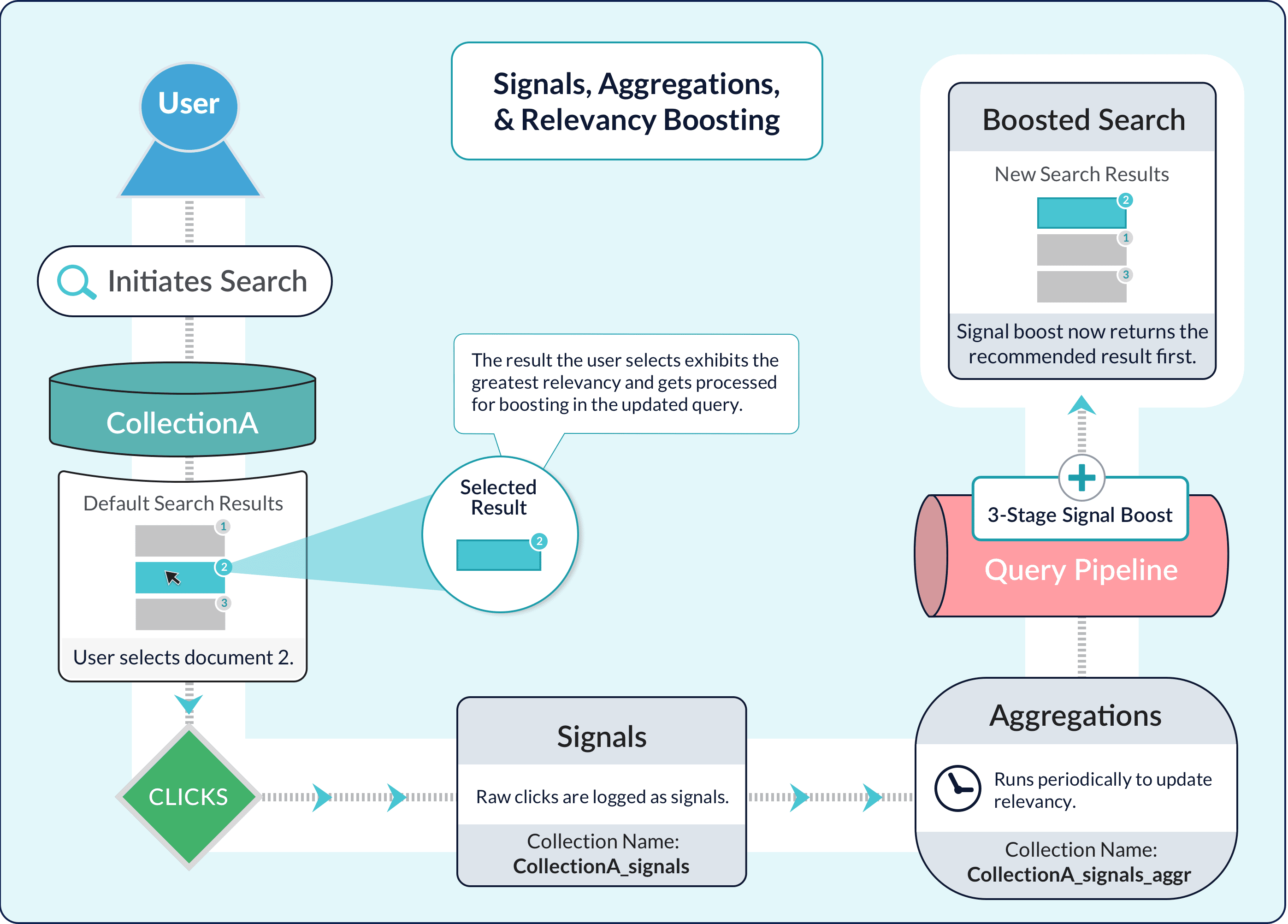
In addition to the basic search experience enabled through query pipelines, Fusion provides ways to develop an enhanced search experience for your end users and provide useful data for your analytics team. The primary mechanisms for doing this are signals and aggregations.
By collecting signals and aggregating them, you compile a body of data that allows you to develop a sophisticated search experience, with rich search results for your end users, based on past user behavior.
Signals and aggregated signals are stored each in their own collection. These collections are associated with a primary collection, so that a collection named "products" will have two related collections: "products\_signals" and "products\_signals\_aggr". By default, when using the UI to create a collection, a "signals" and "aggregated signals" collection are also created.
See also these subtopics:
* [Aggregations](/docs/4/fusion-ai/concepts/signals-and-aggregations/aggregations/overview)
* [SQL Aggregations](/docs/4/fusion-ai/concepts/signals-and-aggregations/aggregations/sql-aggregations)
* [Signals](/docs/4/fusion-ai/concepts/signals-and-aggregations/signals/overview)
* [Signals Data Flow](/docs/4/fusion-ai/concepts/signals-and-aggregations/signals/data-flow)
* [Default Signals Index Pipeline](/docs/4/fusion-ai/concepts/signals-and-aggregations/signals/default-index-pipeline)
* [Deleting Old Signals](/docs/4/fusion-ai/concepts/signals-and-aggregations/signals/deleting-old-signals)
* [Signals Types and Structures](/docs/4/fusion-ai/concepts/signals-and-aggregations/signals/types-and-structures)
## Signals
[*Signals*](/docs/4/fusion-ai/concepts/signals-and-aggregations/signals/overview) are events that are collected for analysis or to enhance the search experience for end users. Common types of signal events include clicks, purchases, downloads, ratings, and so on.
You can use [App Insights](/docs/4/fusion-ai/concepts/insights/overview) to get visualizations and reports with which to analyze your signals data. App Insights mainly uses raw signals, but also uses some aggregated signals.
## Aggregations
[*Aggregations*](/docs/4/fusion-ai/concepts/signals-and-aggregations/aggregations/overview) are processed signals. An *aggregator* reads the raw signals and returns interesting summaries, ranging from simple sums to sophisticated statistical functions.
Crucially, it must be possible to relate the documents in an aggregated signals collection to documents in the primary collection, in order to use the aggregated signals for [recommendations](/docs/4/fusion-ai/concepts/boosting/overview) and/or boosting of searches over the primary collection.
## The cold start problem
The "cold start" problem means it is hard to personalize the search experience when insufficient signals have been aggregated. For example, it is hard to offer recommendations to users who have never visited before, or for queries that have never been issued before, or for items that have been recently introduced into the system.
Fusion provides solutions for this problem using its query pipelines. A query pipeline that includes stages for blocking, boosting, or recommending based on signals can also include stages that provide fallbacks. In the case where there is not enough data to provide specialized blocking, boosting, or recommendations, the pipeline can return a simpler set of search results using Solr’s normal relevancy calculation.
A common solution to the cold start problem is to sort or boost on a certain field to provide pseudo-recommendations when more specific recommendations are not available. For example, you can sort on the `sales_rank` field to recommend the most popular products, or boost on the `date_added` field to recommend the newest items.
## Learn more
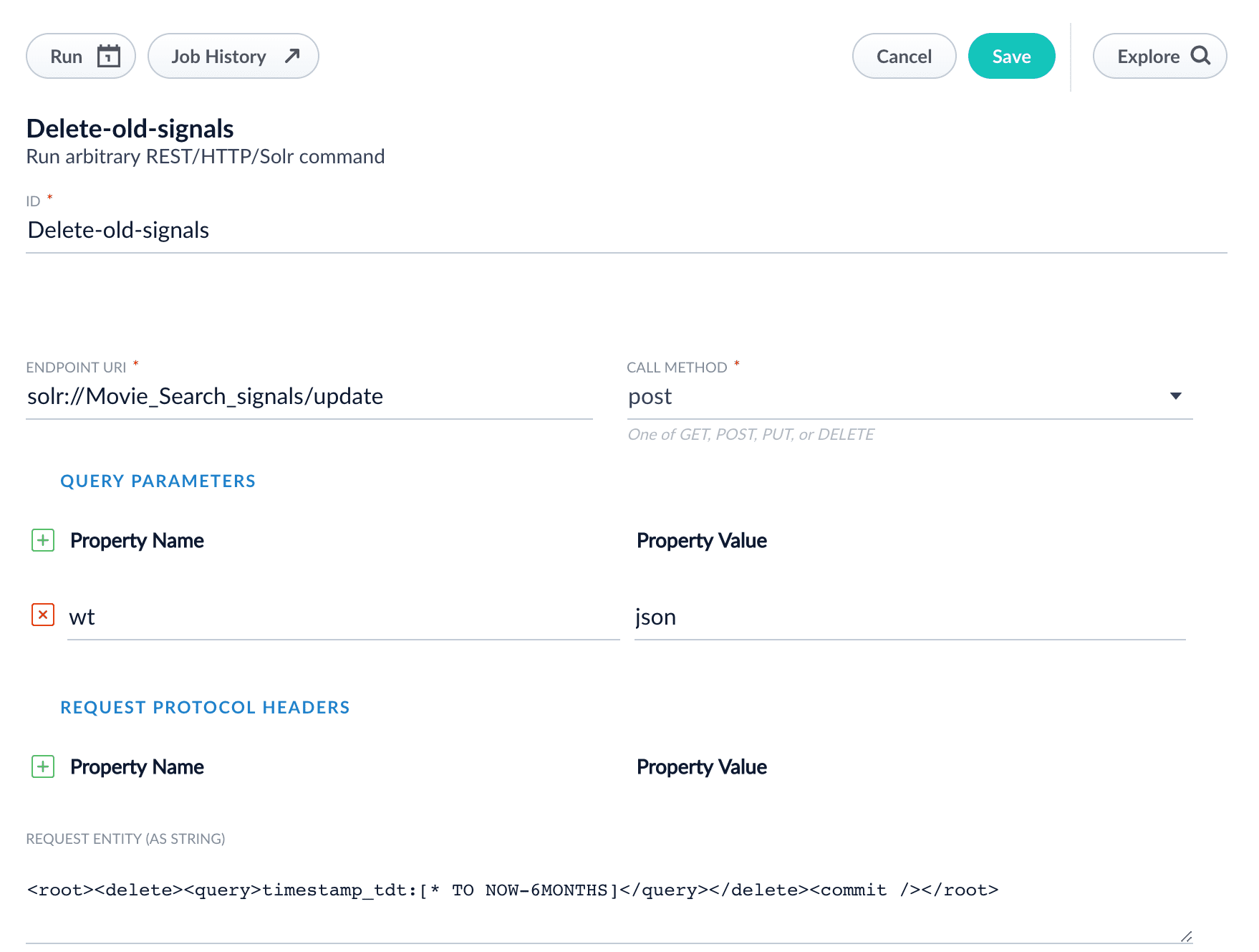
1. Navigate to **Collections** > **Jobs**.
2. Click **Add** and select **REST Call**.\
The REST Call job configuration panel appears.
3. Enter an arbitrary ID for this job, such as "Delete-old-signals".
4. Enter the following endpoint URI, substituting the name of your signals collection for `signalsCollectionName`:
```bash theme={"dark"}
solr://signalsCollectionName/update
```
5. In the **Call Method** field, select "post".
6. Under **Query Parameters**, enter the property name "wt" with the property value "json".
7. In the **Request entity (as string)** field, enter the following:
```html wrap theme={"dark"}
timestamp_tdt:[* TO NOW-2WEEKS]
```
See [Working with Dates](https://solr.apache.org/guide/8_6/working-with-dates.html) for details about date formatting.
Your job configuration should look similar to this:
You can configure a schedule for this job at **System** > **Scheduler**.
Fusion’s basic aggregation jobs aggregate using the document ID. You can also aggregate at a more coarse-grained level using other fields available for documents (item metadata), such as manufacturer or brand for products. Aggregating with item metadata is useful for building personalization boosts into your search application.
The following PUT request creates additional aggregation jobs that join signals with the primary `products` collection to compute an aggregated weight for a `manufacturer` field:
```bash wrap theme={"dark"}
curl -X PUT -H "Content-type:application/json" -d '{"enabled":true, "metadata_column":"manufacturer"}' "http://localhost:{api-port}/api/collections/products/features/signals"
```
After performing the PUT request shown above, you will have two additional aggregation jobs in Fusion.
### COLLECTION\_NAME\_user\_METADATA\_preferences\_aggregation
This job computes an aggregated weight for each user/item metadata combination, e.g. user/manufacturer, found in the signals collection. Fusion computes the weight for each group using an exponential time-decay on signal count (30 day half-life) and a weighted sum based on the signal type. Use the `signalTypeWeights` parameter to set the correct signal types and weights for your dataset. Use the `primaryCollectionMetadataField` parameter to set the name of a field from the primary collection to join into the results, e.g. `manufacturer`. You can use the results of this job to boost queries based on user preferences regarding item-specific metadata such as manufacturer (e.g. Ford vs. BMW) or brand (e.g. Ralph Lauren vs. Abercrombie & Fitch).
### COLLECTION\_NAME\_query\_METADATA\_preferences\_aggregation
This job computes an aggregated weight for each query/item metadata combination, e.g. query/manufacturer, found in the signals collection. Fusion computes the weight for each group using an exponential time-decay on signal count (30 day half-life) and a weighted sum based on the signal type. Use the `signalTypeWeights` parameter to set the correct signal types and weights for your dataset. Use the `primaryCollectionMetadataField` parameter to set the name of a field from the primary collection to join into the results.
These additional item/metadata aggregation jobs also serve as examples of how to join between the signals and primary collections to perform aggregations on fields other than the document ID. You can re-execute the same PUT request shown above using a different metadata field name in the `metadata_column` parameter.
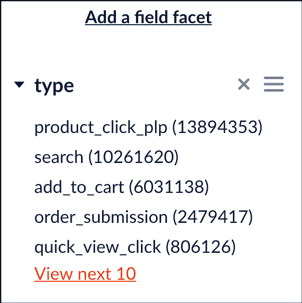
1. In the Fusion UI, select your signals collection.
2. Open the Query Workbench by navigating to **Query** > **Query Workbench**.
3. Click **Add a field facet**.
4. Select the `type` field.\
The list of signal types appears in the facet panel:
 Signals and aggregated signals are stored each in their own collection. These collections are associated with a primary collection, so that a collection named "products" will have two related collections: "products\_signals" and "products\_signals\_aggr". By default, when using the UI to create a collection, a "signals" and "aggregated signals" collection are also created.
See also these subtopics:
* [Aggregations](/docs/4/fusion-ai/concepts/signals-and-aggregations/aggregations/overview)
* [SQL Aggregations](/docs/4/fusion-ai/concepts/signals-and-aggregations/aggregations/sql-aggregations)
* [Signals](/docs/4/fusion-ai/concepts/signals-and-aggregations/signals/overview)
* [Signals Data Flow](/docs/4/fusion-ai/concepts/signals-and-aggregations/signals/data-flow)
* [Default Signals Index Pipeline](/docs/4/fusion-ai/concepts/signals-and-aggregations/signals/default-index-pipeline)
* [Deleting Old Signals](/docs/4/fusion-ai/concepts/signals-and-aggregations/signals/deleting-old-signals)
* [Signals Types and Structures](/docs/4/fusion-ai/concepts/signals-and-aggregations/signals/types-and-structures)
Signals and aggregated signals are stored each in their own collection. These collections are associated with a primary collection, so that a collection named "products" will have two related collections: "products\_signals" and "products\_signals\_aggr". By default, when using the UI to create a collection, a "signals" and "aggregated signals" collection are also created.
See also these subtopics:
* [Aggregations](/docs/4/fusion-ai/concepts/signals-and-aggregations/aggregations/overview)
* [SQL Aggregations](/docs/4/fusion-ai/concepts/signals-and-aggregations/aggregations/sql-aggregations)
* [Signals](/docs/4/fusion-ai/concepts/signals-and-aggregations/signals/overview)
* [Signals Data Flow](/docs/4/fusion-ai/concepts/signals-and-aggregations/signals/data-flow)
* [Default Signals Index Pipeline](/docs/4/fusion-ai/concepts/signals-and-aggregations/signals/default-index-pipeline)
* [Deleting Old Signals](/docs/4/fusion-ai/concepts/signals-and-aggregations/signals/deleting-old-signals)
* [Signals Types and Structures](/docs/4/fusion-ai/concepts/signals-and-aggregations/signals/types-and-structures)