> ## Documentation Index
> Fetch the complete documentation index at: https://doc.lucidworks.com/llms.txt
> Use this file to discover all available pages before exploring further.
# Underperforming Queries
export const LwTemplate = ({title = "Key questions to get you started", icon = "sparkles", cta = "Powered by Agent Studio", linkHref = "https://lucidworks.com/demo/?utm_source=docs&utm_medium=referral&utm_campaign=docs_cta_ai"}) => {
const [isLoaded, setIsLoaded] = useState(false);
useEffect(() => {
const timer = setTimeout(() => {
setIsLoaded(true);
}, 500);
return () => clearTimeout(timer);
}, []);
return
{isLoaded && `
}} />}
Powered by Lucidworks Agent Studio
;
};
export const InlineImage = ({src, alt = '', height = '2em'}) => {
return ;
};
[localhost link]: http://localhost:3000/docs/4/fusion-ai/concepts/query-rewriting/underperforming-queries
[mintlify link]: https://doc.lucidworks.com/docs/4/fusion-ai/concepts/query-rewriting/underperforming-queries
[old doc.lw link]: https://doc.lucidworks.com/fusion/5.9/486
The Underperforming Query Rewriting feature:
* Uses signals data to identify underperforming queries
* Suggests improved queries that could produce better conversion rates
When underperforming query rewriting is enabled and an incoming query contains a matching underperforming query term, the original query term is replaced by the improved query term.
Query improvements are applied in the [Text Tagger stage](/docs/4/fusion-server/reference/pipeline-stages/query/text-tagger-query-stage) of the query pipeline.
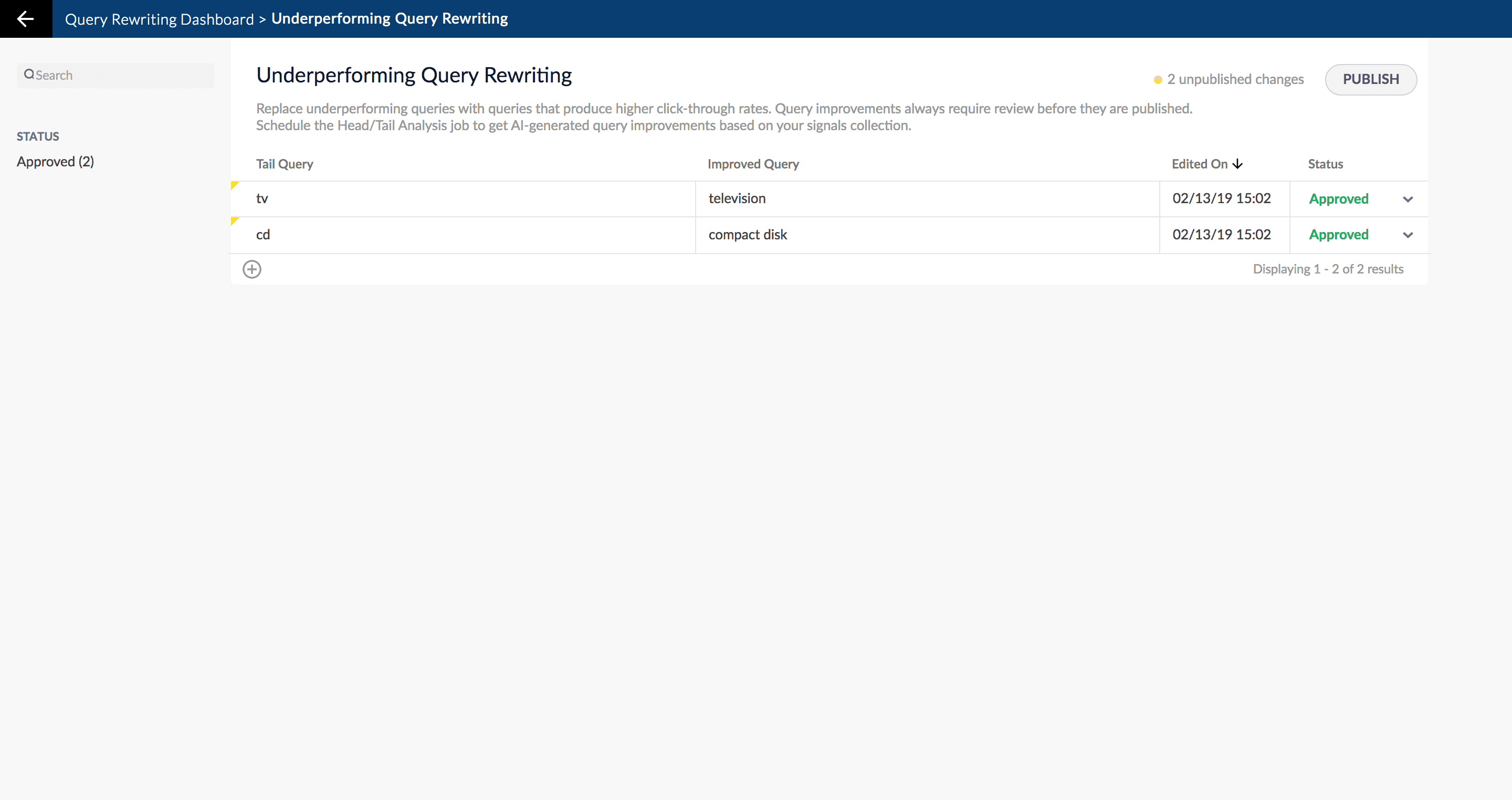
The [Head/Tail Analysis job](/docs/4/fusion-ai/reference/jobs/head-tail-analysis) automatically creates query improvements based on your AI-generated data. When you navigate to **Relevance** > **Rules**, the application displays the **Query Rewriting** screen. Select **Underperforming Query Rewriting**. The application displays the **Underperforming Query Rewriting** screen.
When you manually add new query improvements, subsequent job runs use those documents as input for machine learning to improve the job’s output. Unlike job-generated documents, manually-added query rewriting documents are never overwritten by new job output.
Job-generated query improvements are always assigned an initial status of "Pending", never "Auto". Query improvements must be explicitly approved and published in order to be copied to the `_query_rewrite` collection.
## Reviewing auto-generated query improvements
Query improvements that are automatically generated by the [Head/Tail Analysis job](/docs/4/fusion-ai/reference/jobs/head-tail-analysis) are assigned the following status value:
* **Auto**\
All results will be automatically deployed to the `_query_rewrite` collection.\
No action is required on these results, but you can edit them if you wish.
## Adding new query improvements
You can manually add query improvements in addition to any generated by the [Head/Tail Analysis job](/docs/4/fusion-ai/reference/jobs/head-tail-analysis).
### How to add a query improvement
1. Navigate to **Relevance** > **Rules**. The application displays the **Query Rewriting** screen.
2. Select **Underperforming Query Rewriting**. The application displays the **Underperforming Query Rewriting** screen.
3. At the bottom of the rules list, click the icon.\
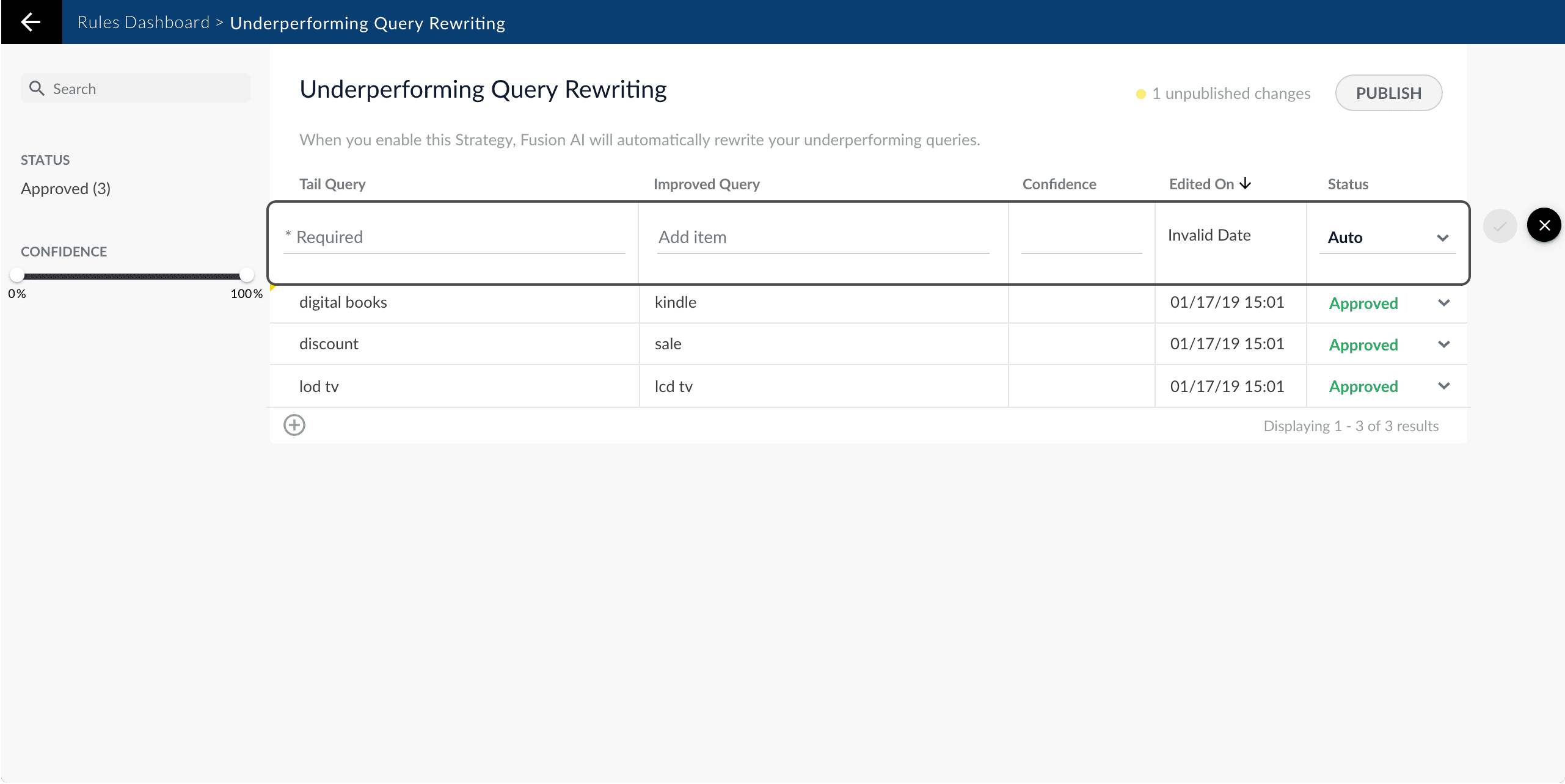
A new query improvement appears at the top of the list:
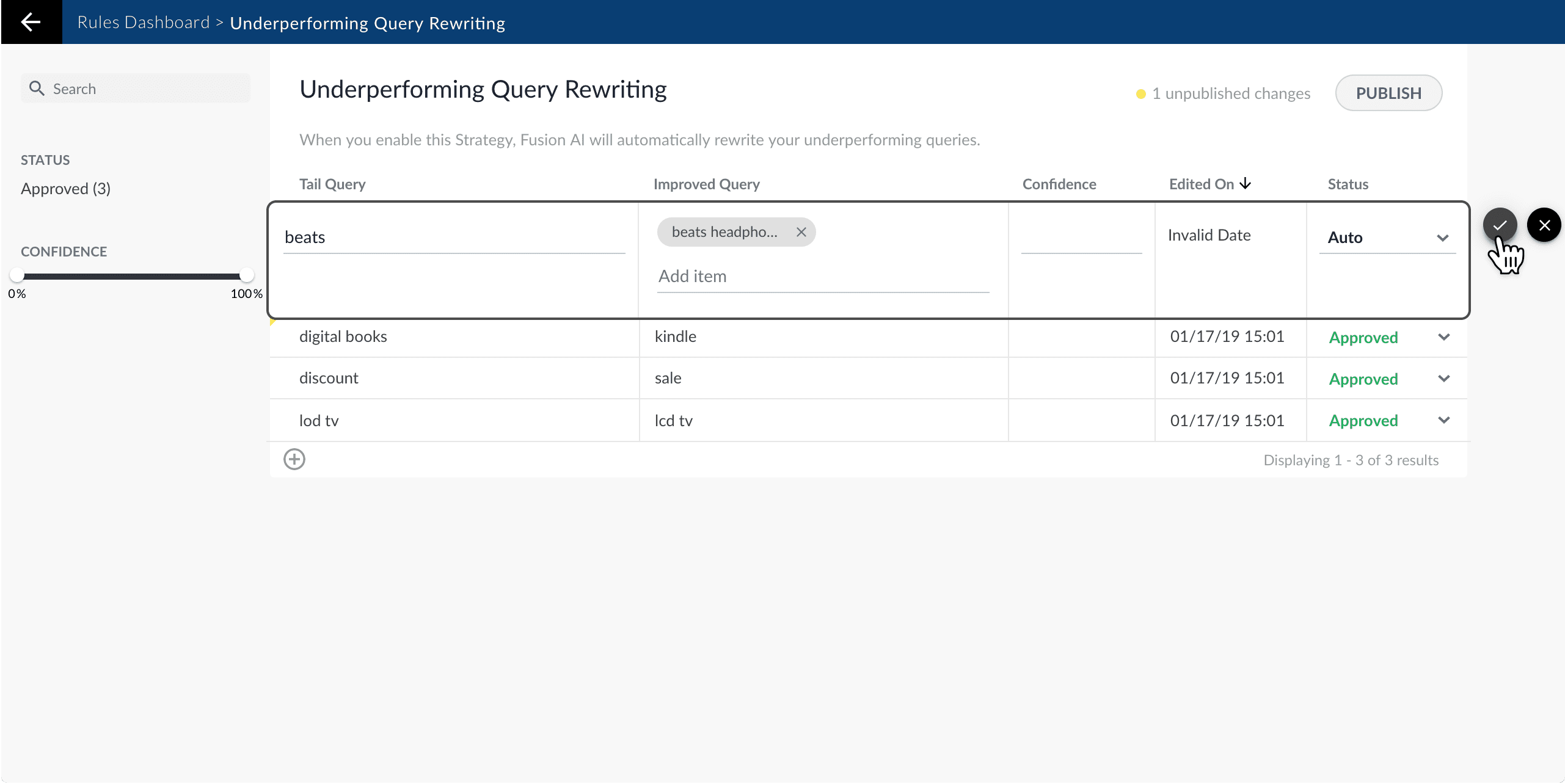
4. Enter the underperforming query.
5. Enter one or more query improvements.
It is not necessary to set a confidence value.
6. Select the query improvement’s status, depending on whether you want to deploy it the next time you publish your changes ("Approved") or save it for further review ("Pending").
7. Click the check mark to save the new query improvement:
## Publishing your changes
### How to publish updated query improvements
1. In the **Underperforming Query Rewriting** screen, click the **PUBLISH** button.\
Fusion prompts you to confirm that you want to publish your changes.
2. Click **PUBLISH**.
You can un-publish a query rewrite by changing its status to "denied", then clicking **PUBLISH**.
## Query rewrite jobs post-processing cleanup
To perform more extensive cleanup of query rewrites, complete the procedures in **Query Rewrite Jobs Post-processing Cleanup**.
The Synonym Detection job uses the output of the Misspelling Detection job and Phrase Extraction job. Therefore, post processing *must* occur in the order specified in this topic for the [Synonym detection job cleanup](#synonym-detection-job-cleanup), [Phrase extraction job cleanup](#phrase-extraction-job-cleanup), and [Misspelling detection job cleanup](#misspelling-detection-job-cleanup) procedures. The [Head-Tail Analysis job cleanup](#head-tail-analysis-job-cleanup) can occur in any order.
## Synonym detection job cleanup
Use this job to remove low confidence synonyms.
### Prerequisites
Complete this:
* **AFTER** the Misspelling Detection and Phrase Extraction jobs have successfully completed.
* **BEFORE** removing low confidence synonym suggestions generated in the *post processing* phrase extraction cleanup and misspelling detection cleanup procedures detailed later in this topic.
### Remove low confidence synonym suggestions
Use either a [Synonym cleanup method 1 - API call](#synonym-cleanup-method-1-api-call) or the [Synonym cleanup method 2 - Fusion Admin UI](#synonym-cleanup-method-2-fusion-admin-ui) to remove low confidence synonym suggestions.
#### Synonym cleanup method 1 - API call
1. Open the `delete_lowConf_synonyms.json` file.
```json theme={"dark"}
{
"type" : "rest-call",
"id" : "DC_Large_QR_DELETE_LOW_CONFIDENCE_SYNONYMS",
"callParams" : {
"uri" : "solr://DC_Large_query_rewrite_staging/update",
"method" : "post",
"queryParams" : {
"wt" : "json"
},
"headers" : { },
"entity" : "type:synonym AND confidence:[0 TO 0.0005]"
},
"type" : "rest-call",
"type" : "rest-call"
}
```
**REQUEST ENTITY** specifies the threshold for low confidence synonyms. Edit the upper range from 0.0005 to increase or decrease the threshold based on your data.
2. Enter `` in the **uri** field. An example URI value for an app called `DC_Large` would be `DC_Large_query_rewrite_staging/update`.
3. Change the `id` field if applicable.
4. Specify the **upper confidence level** in the **entity** field.
The **entity** field specifies the threshold for low confidence synonyms. Edit the upper range to increase or decrease the threshold based on your data.
#### Synonym cleanup method 2 - Fusion Admin UI
1. Log in to Fusion and select **Collections > Jobs**.
2. Select **Add+ > Custom and Other Jobs > REST Call**.
3. Enter **delete-low-confidence-synonyms** in the **ID** field.
4. Enter `` in the **ENDPOINT URI** field. An example URI value for an app called `DC_Large` would be `DC_Large_query_rewrite_staging/update`.
5. Enter **POST** in the **CALL METHOD** field.
6. In the **QUERY PARAMETERS** section, select **+** to add a property.
7. Enter **wt** in the **Property Name** field.
8. Enter **json** in the **Property Value** field.
9. In the **REQUEST PROTOCOL HEADERS** section, select **+** to add a property.
10. Enter the following as a **REQUEST ENTITY (AS STRING)**
`type:synonym AND confidence: [0 TO 0.0005]`
**REQUEST ENTITY** specifies the threshold for low confidence synonyms. Edit the upper range from 0.0005 to increase or decrease the threshold based on your data.
### Delete all synonym suggestions
To delete *all* of the synonym suggestions, enter the following in the **REQUEST ENTITY** section:
`type:synonym`
This entry may be helpful when tuning the synonym detection job and testing different configuration parameters.
## Phrase extraction job cleanup
Use this job to remove low confidence phrase suggestions.
### Prerequisites
Complete this:
* **AFTER** you complete [Synonym detection job cleanup](#synonym-detection-job-cleanup)
### Remove low confidence phrase suggestions
Use either a [Phrase cleanup method 1 - API call](#phrase-cleanup-method-1-api-call) or the [Phrase cleanup method 2 - Fusion Admin UI](#phrase-cleanup-method-2-fusion-admin-ui) to remove low confidence phrase suggestions.
#### Phrase cleanup method 1 - API call
1. Open the `delete_lowConf_phrases.json` file.
```json theme={"dark"}
{
"type" : "rest-call",
"id" : "DC_Large_QR_DELETE_LOW_CONFIDENCE_PHRASES",
"callParams" : {
"uri" : "solr://DC_Large_query_rewrite_staging/update",
"method" : "post",
"queryParams" : {
"wt" : "json"
},
"headers" : { },
"entity" : " type:phrase AND confidence:[0 TO ]"
},
"type" : "rest-call",
"type" : "rest-call"
}
```
2. Enter `` in the **uri** field. An example URI value for an app called `DC_Large` would be `DC_Large_query_rewrite_staging/update`.
3. Change the **id** field if applicable.
4. Specify the **upper confidence level** in the **entity** field.
The **entity** field specifies the threshold for low confidence phrases. Edit the upper range to increase or decrease the threshold based on your data.
#### Phrase cleanup method 2 - Fusion Admin UI
1. Log in to Fusion and select **Collections > Jobs**.
2. Select **Add+ > Custom and Other Jobs > REST Call**.
3. Enter **remove-low-confidence-phrases** in the **ID** field.
4. Enter `` in the **ENDPOINT URI** field. An example URI value for an app called `DC_Large` would be `DC_Large_query_rewrite_staging/update`.
5. Enter **POST** in the **CALL METHOD** field.
6. In the **QUERY PARAMETERS** section, select **+** to add a property.
7. Enter **wt** in the **Property Name** field.
8. Enter **json** in the **Property Value** field.
9. In the **REQUEST PROTOCOL HEADERS** section, select **+** to add a property.
10. Enter the following as a **REQUEST ENTITY (AS STRING)**
`type:phrase AND confidence: [0 TO ]`
**REQUEST ENTITY** specifies the threshold for low confidence phrases. Edit the upper range to increase or decrease the threshold based on your data.
### Delete all phrase suggestions
To delete *all* of the phrase suggestions, enter the following in the **REQUEST ENTITY** section:
`type:phrase`
This entry may be helpful when tuning the phrase extraction job and testing different configuration parameters.
## Misspelling detection job cleanup
Use this job to remove low confidence spellings (also referred to as misspellings).
### Prerequisites
Complete this:
* **AFTER** you complete [Synonym detection job cleanup](#synonym-detection-job-cleanup) and [Phrase extraction job cleanup](#phrase-extraction-job-cleanup)
### Remove misspelling suggestions
Use either a [Misspelling cleanup method 1 - API call](#misspelling-cleanup-method-1-api-call) or the [Misspelling cleanup method 2 - Fusion Admin UI](#misspelling-cleanup-method-2-fusion-admin-ui) to remove misspelling suggestions.
#### Misspelling cleanup method 1 - API call
1. Open the `delete_lowConf_misspellings.json` file.
```json theme={"dark"}
{
"type" : "rest-call",
"id" : "DC_Large_QR_DELETE_LOW_CONFIDENCE_MISSPELLINGS",
"callParams" : {
"uri" : "solr://DC_Large_query_rewrite_staging",
"method" : "post",
"queryParams" : {
"wt" : "json"
},
"headers" : { },
"entity" : "type:spell AND confidence:[0 TO 0.5]"
},
"type" : "rest-call",
"type" : "rest-call"
}
```
2. Enter `` in the **uri** field. An example URI value for an app called `DC_Large` would be `DC_Large_query_rewrite_staging/update`.
3. Change the **id** field if applicable.
4. Specify the **upper confidence level** in the **entity** field.
The **entity** field specifies the threshold for low confidence spellings. Edit the upper range to increase or decrease the threshold based on your data.
#### Misspelling cleanup method 2 - Fusion Admin UI
1. Log in to Fusion and select **Collections > Jobs**.
2. Select **Add+ > Custom and Other Jobs > REST Call**.
3. Enter **remove-low-confidence-spellings** in the **ID** field.
4. Enter `` in the **ENDPOINT URI** field. An example URI value for an app called `DC_Large` would be `DC_Large_query_rewrite_staging/update`.
5. Enter **POST** in the **CALL METHOD** field.
6. In the **QUERY PARAMETERS** section, select **+** to add a property.
7. Enter **wt** in the **Property Name** field.
8. Enter **json** in the **Property Value** field.
9. In the **REQUEST PROTOCOL HEADERS** section, select **+** to add a property.
10. Enter the following as a **REQUEST ENTITY (AS STRING)**
`type:spell AND confidence: [0 TO 0.5]`
**REQUEST ENTITY** specifies the threshold for low confidence spellings. Edit the upper range from 0.5 to increase or decrease the threshold based on your data.
### Delete all misspelling suggestions
To delete *all* of the misspelling suggestions, enter the following in the **REQUEST ENTITY** section:
`type:spell`
This entry may be helpful when tuning the misspelling detection job and testing different configuration parameters.
## Head-tail analysis job cleanup
The head-tail analysis job puts tail queries into one of multiple reason categories. For example, a tail query that includes a number might be assigned to the 'numbers' reason category. If the output in a particular category is not useful, you can remove it from the results. The examples in this section remove the numbers category.
### Prerequisites
The head-tail analysis job cleanup does *not* have to occur in a specific order.
### Remove head-tail analysis query suggestions
Use either a [Head-tail analysis cleanup method 1 - API call](#head-tail-analysis-cleanup-method-1-api-call) or the [Head-tail analysis cleanup method 2 - Fusion Admin UI](#head-tail-analysis-cleanup-method-2-fusion-admin-ui) to remove query category suggestions.
#### Head-tail analysis cleanup method 1 - API call
1. Open the `delete_lowConf_headTail.json` file.
```json theme={"dark"}
{
"type" : "rest-call",
"id" : "DC_Large_QR_HEAD_TAIL_CLEANUP",
"callParams" : {
"uri" : "solr://DC_Large_query_rewrite_staging/update",
"method" : "post",
"queryParams" : {
"wt" : "json"
},
"headers" : { },
"entity" : "reason_code_s:(\"number\" \"number spelling\" \"number rare-term\" \"question number other-specific\" \"number others\" \"number other-specific\" \"number other-extra\" \"product number other-specific\" \"product number other-extra\" \"product number spelling\" \"product number others\" \"product number rare-term\" \"product question number\" \"product number re-wording\" \"question number other-extra\" \"number re-wording\")"
},
"type" : "rest-call",
"type" : "rest-call"
}
```
2. Enter `` in the **uri** field. An example URI value for an app called `DC_Large` would be `DC_Large_query_rewrite_staging/update`.
3. Change the **id** field if applicable.
#### Head-tail analysis cleanup method 2 - Fusion Admin UI
1. Log in to Fusion and select **Collections > Jobs**.
2. Select **Add+ > Custom and Other Jobs > REST Call**.
3. Enter **remove-low-confidence-head-tail** in the **ID** field.
4. Enter `` in the **ENDPOINT URI** field. An example URI value for an app called `DC_Large` would be `DC_Large_query_rewrite_staging/update`.
5. Enter **POST** in the **CALL METHOD** field.
6. In the **QUERY PARAMETERS** section, select **+** to add a property.
7. Enter **wt** in the **Property Name** field.
8. Enter **json** in the **Property Value** field.
9. In the **REQUEST PROTOCOL HEADERS** section, select **+** to add a property.
10. Enter the following as a **REQUEST ENTITY (AS STRING)**
```
reason_code_s:("number" "number spelling" "number rare-term" "question number other-specific" "number others" "number other-specific" "number other-extra" "product number other-specific" "product number other-extra" "product number spelling" "product number others" "product number rare-term" "product question number" "product number re-wording" "question number other-extra" "number re-wording")
```
### Delete all head-tail suggestions
To delete *all* of the head-tail suggestions, enter the following in the **REQUEST ENTITY** section:
`type:tail`
This entry may be helpful when tuning the head-tail job and testing different configuration parameters.
 4. Enter the underperforming query.
5. Enter one or more query improvements.
4. Enter the underperforming query.
5. Enter one or more query improvements.
 ## Publishing your changes
### How to publish updated query improvements
1. In the **Underperforming Query Rewriting** screen, click the **PUBLISH** button.\
Fusion prompts you to confirm that you want to publish your changes.
2. Click **PUBLISH**.
## Publishing your changes
### How to publish updated query improvements
1. In the **Underperforming Query Rewriting** screen, click the **PUBLISH** button.\
Fusion prompts you to confirm that you want to publish your changes.
2. Click **PUBLISH**.