> ## Documentation Index
> Fetch the complete documentation index at: https://doc.lucidworks.com/llms.txt
> Use this file to discover all available pages before exploring further.
# Items-For-Item Recommendations
export const LwTemplate = ({title = "Key questions to get you started", icon = "sparkles", cta = "Powered by Agent Studio", linkHref = "https://lucidworks.com/demo/?utm_source=docs&utm_medium=referral&utm_campaign=docs_cta_ai"}) => {
const [isLoaded, setIsLoaded] = useState(false);
useEffect(() => {
const timer = setTimeout(() => {
setIsLoaded(true);
}, 500);
return () => clearTimeout(timer);
}, []);
return
{isLoaded && `
}} />}
Powered by Lucidworks Agent Studio
;
};
[localhost link]: http://localhost:3000/docs/4/fusion-ai/concepts/boosting/items-for-item
[mintlify link]: https://doc.lucidworks.com/docs/4/fusion-ai/concepts/boosting/items-for-item
[old doc.lw link]: https://doc.lucidworks.com/fusion/5.9/476
Items-for-item recommendations present items that are similar to a specified item. For example, when the user is viewing a BMX bicycle, Fusion can recommend other BMX bicycles. Similarity can be based on different criteria, such as click patterns, people who bought this also bought that, percentage match of document tags, and so on.
## Collaborative items-for-item recommendations
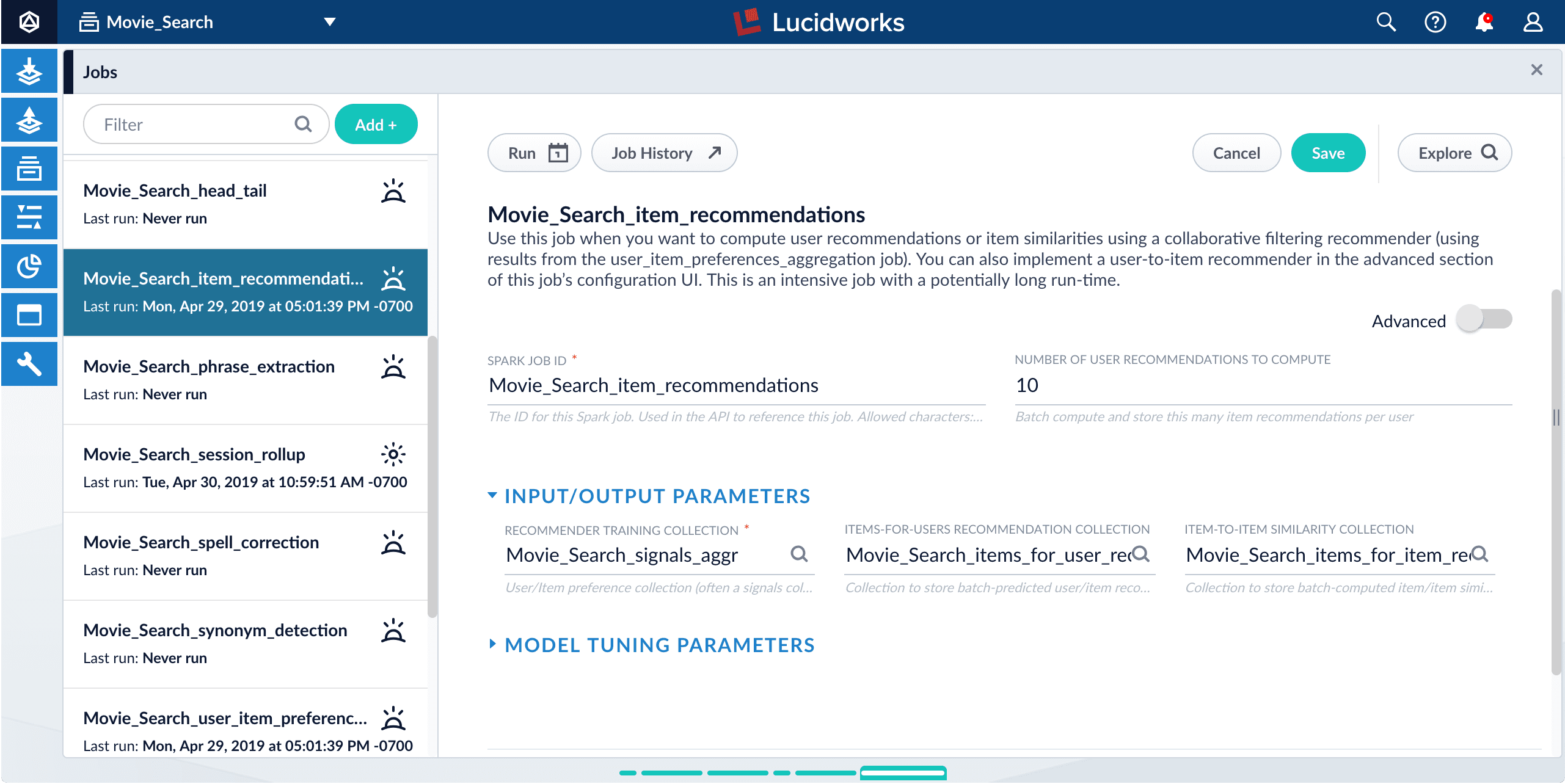
If you have enabled signals and recommendations for a collection, then the default `COLLECTION_NAME_item_recommendations` job is already created and configured to produce items-for-item recommendations (as well as [items-for-user recommendations](/docs/4/fusion-ai/concepts/boosting/items-for-user)):
This is an [ALS Recommender](/docs/4/fusion-ai/reference/jobs/als-recommender) job.
If you want to use different parameters for items-for-item recommendations and [items-for-user recommendations](/docs/4/fusion-ai/concepts/boosting/items-for-user), simply create separate jobs for each, where one job configuration includes an output collection for items-for-item recommendations only and the other includes an output collection for items-for-user recommendations only.
## Learn more
The BPR method is recommended and the ALS method is deprecated.
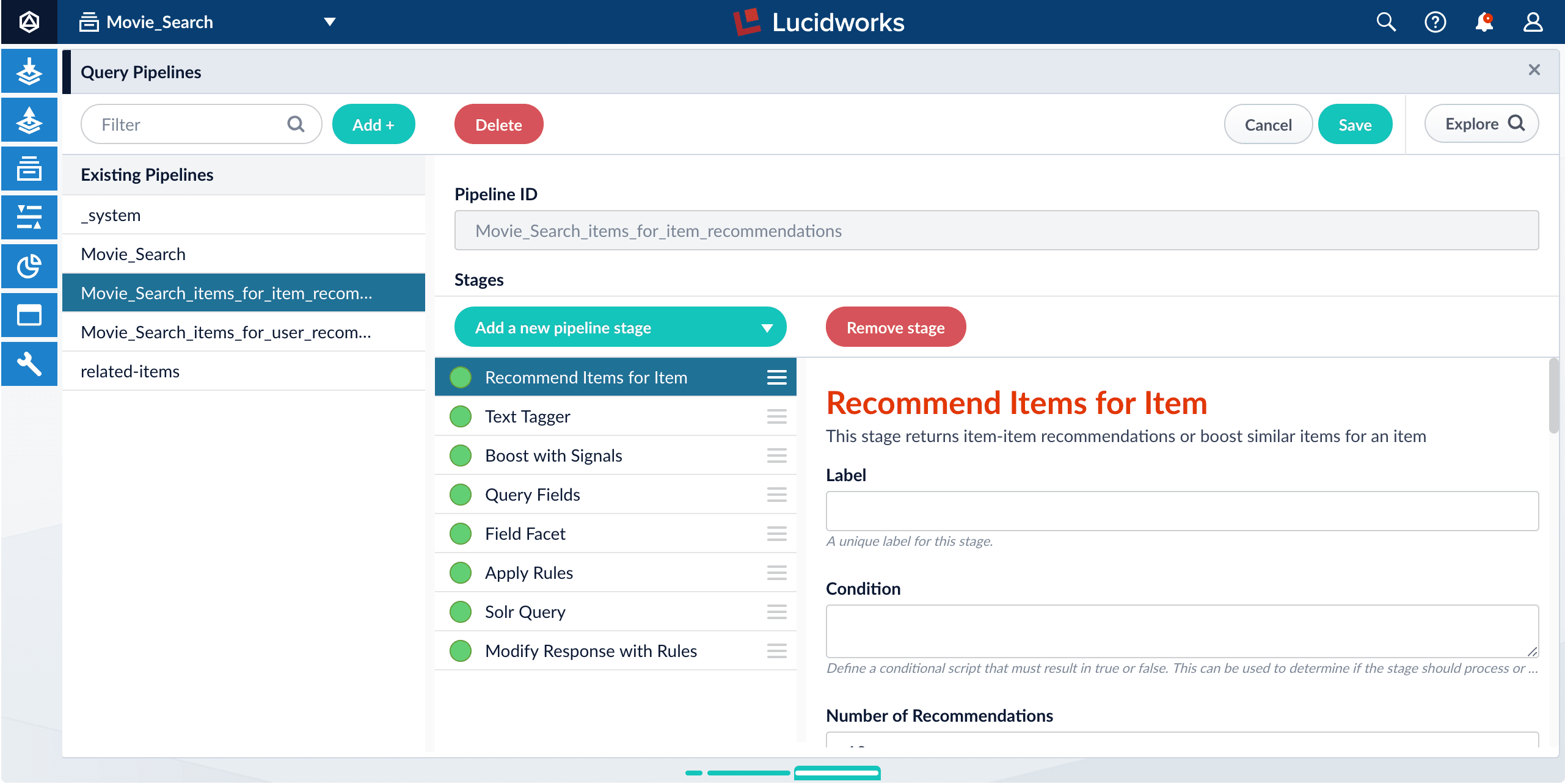
If you have enabled signals and recommendations for a collection, then the `_items_for_item_recommendations` query pipeline is created by default and configured to fetch items-for-item recommendations using the output from the ALS Recommender job. It is similar to the default query pipeline that fetches content from your main collection, but it has an additional Recommend Items for Item stage:
This pipeline is a template that you can use two different ways:
* [Use *only* the Recommend Items for Item stage](#fetching-with-the-recommend-items-for-item-stage)\
This method returns only the document IDs of the recommended items. Your search application must perform additional queries to retrieve the desired fields for those items, such as their names, images, categories, and so on.
* [Query Solr directly](#querying-solr-directly)\
This method returns complete documents about the recommended items from the `_items_for_item_recommendations` collection. The fields that are included in these recommender documents are configured in the recommender job’s `itemMetadataJoinField` **Item Metadata Join Field** and `itemMetadataFields` **Item Metadata Fields** fields.
## Fetching recommendations from App Studio
App Studio can only access user-created collections; it cannot access system collections such as the default collections that Fusion creates for recommendations. If you are using App Studio to create your front-end search application, you must:
* Create a new collection for item-for-item recommendations
* Configure the recommender job to send output to the user-created collection instead of the system collection
* Direct your queries to the user-created collection
Once this is done, you can fetch recommendations as usual, using either of the methods explained below.
## Fetching with the Recommend Items for Item stage
With this method, we use only one query pipeline stage: the Recommend Items for Item query stage. This stage works with the output from the ALS Recommender job.
This method returns only the document IDs of the recommended items. Your search application must perform additional queries to retrieve the desired fields for those items, such as their names, images, categories, and so on.
**How to fetch recommendations using the Recommend Items for Item stage**
1. From your `_items_for_item_recommendations` collection, navigate to **Querying** > **Query Workbench**.
If this collection is empty, you must run one of the items-for-item recommender jobs.
2. Click **Load...** and open the `_items_for_item_recommendations` query pipeline, if it is not open already.
3. Disable all of the pipeline stages *except* Recommend Items for Item.
4. Verify that the following fields are correctly configured in the Recommend Items for Item query stage:
* `numRecommendations`/**Number of Recommendations**\
This is the number of recommendations to return. It should be less than or equal to the value of the `numSims`/**Number of Item Similarities to Compute** parameter in the model tuning parameters of the `COLLECTION_NAME_item_recommendations` job configuration.
* `modelID`/**Model ID**\
This must match the `modelId`/**Recommender Model ID** value in the recommender job’s model settings.
* `collection`/**Recommendation Collection**\
This should be the collection specified in the `outputItemSimCollection`/**Item-to-item Similarity Collection** parameter of the recommender job’s Input/output settings.
* `resultsLocation`/**Results Location**\
Select the **As Response** value for this field.
* There are several fields that specify the names of fields that should be present in the documents in the `_items_for_item_recommendations` collection. Verify that these values match the field names in that collection.
* To use live signals in addition to historical signals, enable **Estimate Recent Results**.\
Be sure to click **Apply** after changing any of the stage configuration parameters.\
At this point, the results panel should display "No Search Results". This is normal; we will see results at a later step.
5. Click **Save**.
Save the modified pipeline as a new pipeline with a different name, to distinguish it from the default pipeline.
6. Test the pipeline configuration:
1. Select an item from your main collection to use for testing.
1. Navigate to your main collection and open the Query Workbench.
2. Search for an item and copy the value of its `id` field.
3. Return to the `_items_for_item_recommendations` collection and the Query Workbench.
2. Click **Parameters**.
3. Click **Edit Parameters**.\
The **Parameters and Values** window appears.
4. Click the Add icon.
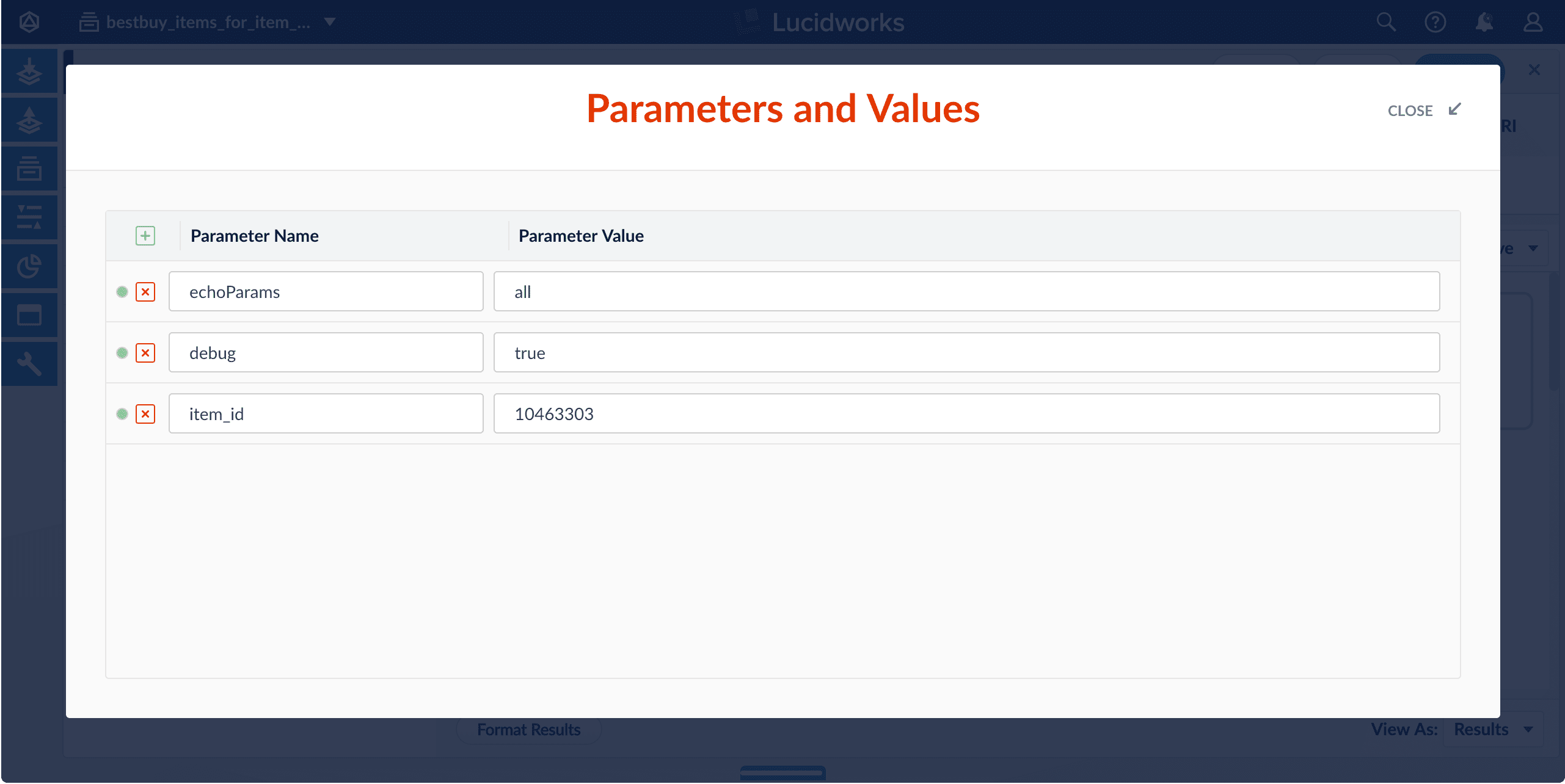
5. Enter the parameter name `item_id` and the value that you copied from the `id` field of the item in your main collection.\\
6. Click **Close** to close the **Parameters and Values** window.
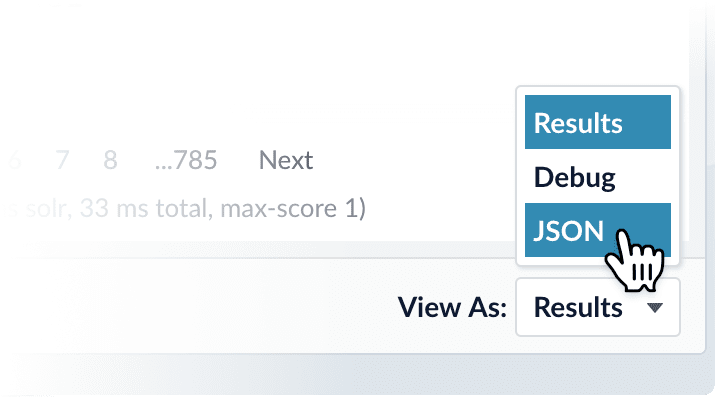
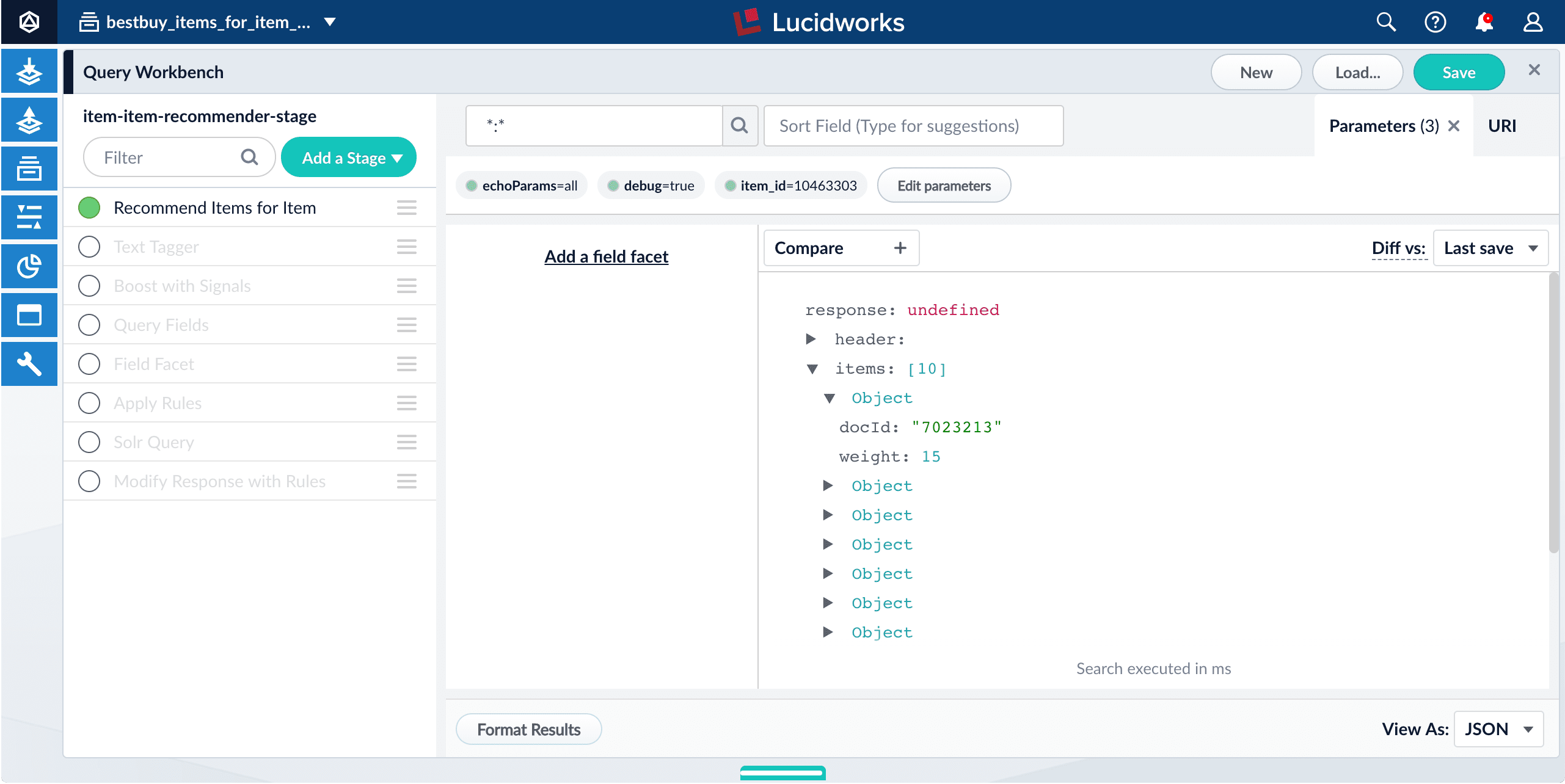
7. In the lower right, select **View As: JSON**:
Notice that the search results contain only a document ID and a weight, as you can see when you expand the `items` field and any of its `Object` fields:
If the `items` field is empty, choose another item from your main collection and update the `item_id` query parameter to match it. Some items in your main collection may have no recommendations.
7. Get the query URI that your search application can use to retrieve recommendations from your modified pipeline:
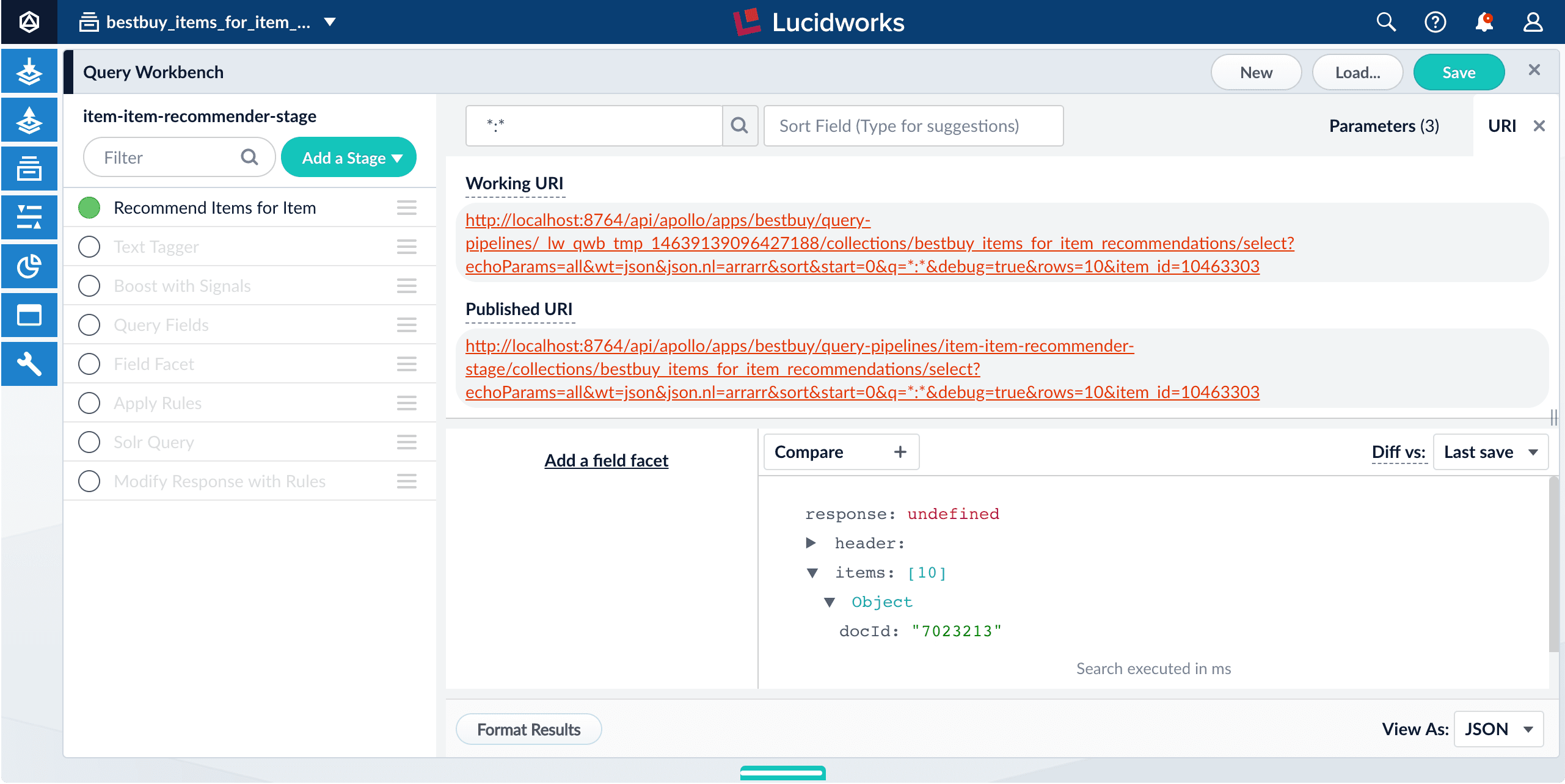
1. Click **URI**.\
The Query Workbench displays a **Working URI** and a **Published URI**.\\
2. Click the **Published URI** to copy it to your clipboard.\
This is the URI and parameters that your search application should use to query for additional recommendations.
**Tips:**
* Each time you query for recommendations, replace the `item_id` parameter value with the ID of the item for which you want recommendations.
* Replace the Fusion hostname as needed, depending on your production environment.
* As shown above, Fusion returns an array of document IDs and weights. Your search application must then query the main collection to retrieve the details about each of the recommended documents.
That is, for each `docId` value returned from the recommendations collection, query for the corresponding `id` value in the main collection, and order the set of results according to the `weight` value from the recommendations collection.
## Querying Solr directly
With this method, we use only the Solr Query pipeline stage.
This method returns only the document IDs of the recommended items. Your search application must perform additional queries to retrieve the desired fields for those items, such as their names, images, categories, and so on.
**How to fetch recommendations using the Solr Query stage**
1. From your `_items_for_item_recommendations` collection, navigate to **Querying** > **Query Workbench**.
2. Click **Load**.
3. Select the `_items_for_item_recommendations` query pipeline.
4. Disable all stages in the pipeline *except* the Solr Query stage.
5. Click **Save**.
Save the modified pipeline as a new pipeline with a different name, to distinguish it from the default pipeline.
6. Test the pipeline configuration:
1. Select an item from your main collection to use for testing.
1. Navigate to your main collection and open the Query Workbench.
2. Search for an item and copy the value of its `id` field.
3. Return to the `_items_for_item_recommendations` collection and the Query Workbench.
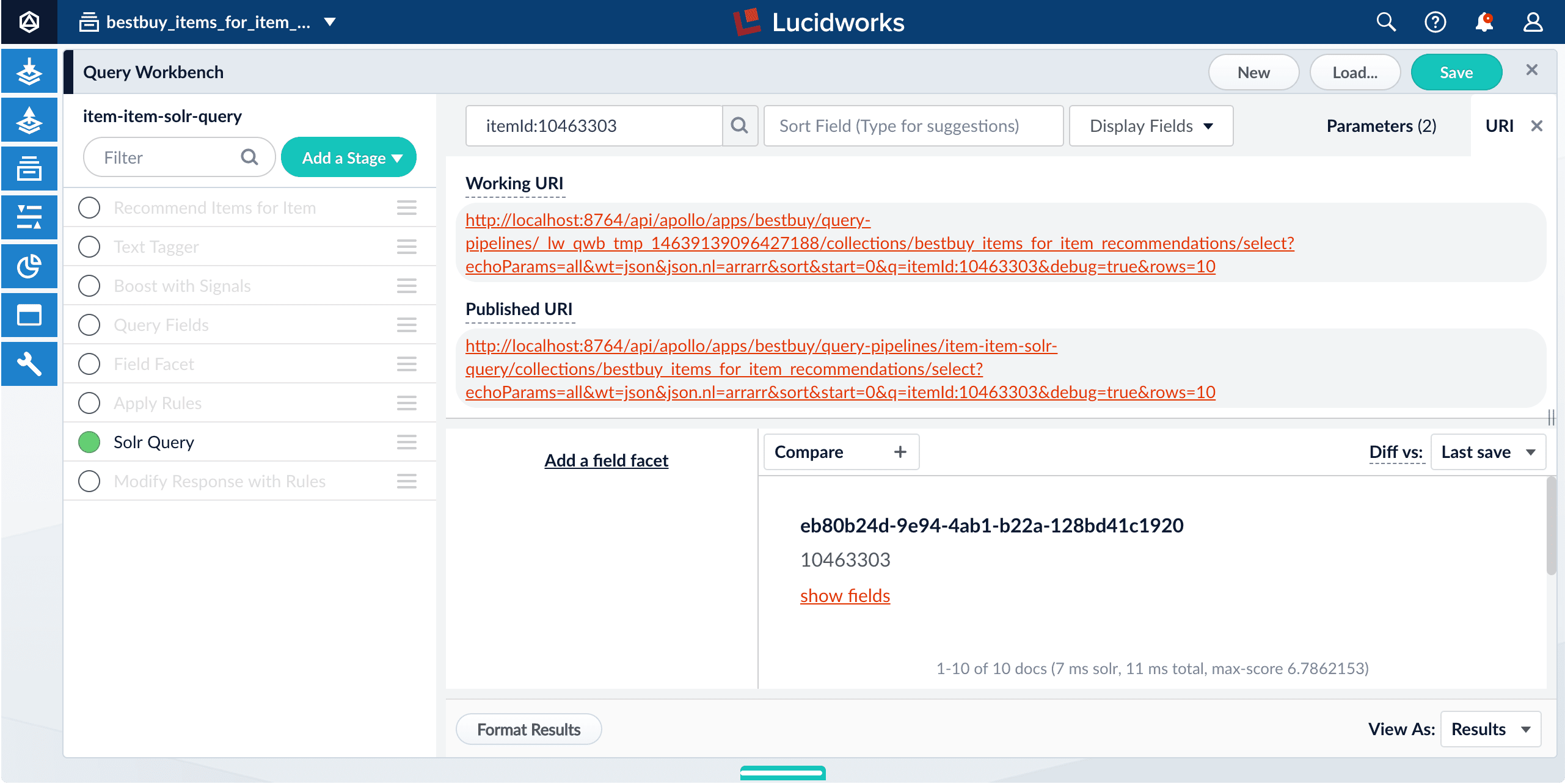
2. In the search field, enter the parameter name `itemId` and the value that you copied from the `id` field of the item in your main collection.\
For example, enter `itemId:10463303` (substituting the value from your main collection) and click the Search button.\
The number of results should be the same as the `numRecs`/**Number of User Recommendations to Compute** value in the `_item_recommendations` job (the default is 10).
If the results panel displays "No Search Results", choose another item from your main collection and update the `item_id` query parameter to match it. Some items in your main collection may have no recommendations.
3. In any of the search results, click **show fields**.\
Notice these important fields:
* `itemId` is the original item to which the recommendation pertains.
* `otherItemId` is the recommended item.
* `sim` is the similarity score, or the estimated likelihood that the recommended item is related to the original item.
7. Get the query URI that your search application can use to retrieve recommendations from your modified pipeline:
1. Click **URI**.\
The Query Workbench displays a **Working URI** and a **Published URI**.\\
2. Click the **Published URI** to copy it to your clipboard.\
This is the URI and parameters that your search application should use to query for additional recommendations.
**Tips:**
* Each time you query for recommendations, replace the `itemId` parameter value with the ID of the item for which you want recommendations.
* Replace the Fusion hostname as needed, depending on your production environment.
* As shown above, Fusion returns a set of results that each include an `otherItemId` and a `sim` score. Your search application must then query the main collection to retrieve the details about each of the recommended documents.
That is, for each `otherItemId` value returned from the recommendations collection, query for the corresponding `id` value in the main collection, and order the set of results according to the `sim` value from the recommendations collection.
You can eliminate these additional queries by configuring the join field and item metadata fields in the `_item_recommendations` job’s Item metadata settings. This copies the specified metadata fields from the main collection into the recommendations collection so that they can be retrieved in a single query. For example, if you specify `name`, `url`, `category`, `image`, or similar fields in the job configuration, then those are returned in the recommender results without the need for additional queries.
 This is an [ALS Recommender](/docs/4/fusion-ai/reference/jobs/als-recommender) job.
 This pipeline is a template that you can use two different ways:
* [Use *only* the Recommend Items for Item stage](#fetching-with-the-recommend-items-for-item-stage)\
This method returns only the document IDs of the recommended items. Your search application must perform additional queries to retrieve the desired fields for those items, such as their names, images, categories, and so on.
* [Query Solr directly](#querying-solr-directly)\
This method returns complete documents about the recommended items from the `_items_for_item_recommendations` collection. The fields that are included in these recommender documents are configured in the recommender job’s `itemMetadataJoinField` **Item Metadata Join Field** and `itemMetadataFields` **Item Metadata Fields** fields.
## Fetching recommendations from App Studio
App Studio can only access user-created collections; it cannot access system collections such as the default collections that Fusion creates for recommendations. If you are using App Studio to create your front-end search application, you must:
* Create a new collection for item-for-item recommendations
* Configure the recommender job to send output to the user-created collection instead of the system collection
* Direct your queries to the user-created collection
Once this is done, you can fetch recommendations as usual, using either of the methods explained below.
## Fetching with the Recommend Items for Item stage
With this method, we use only one query pipeline stage: the Recommend Items for Item query stage. This stage works with the output from the ALS Recommender job.
This method returns only the document IDs of the recommended items. Your search application must perform additional queries to retrieve the desired fields for those items, such as their names, images, categories, and so on.
**How to fetch recommendations using the Recommend Items for Item stage**
1. From your `_items_for_item_recommendations` collection, navigate to **Querying** > **Query Workbench**.
This pipeline is a template that you can use two different ways:
* [Use *only* the Recommend Items for Item stage](#fetching-with-the-recommend-items-for-item-stage)\
This method returns only the document IDs of the recommended items. Your search application must perform additional queries to retrieve the desired fields for those items, such as their names, images, categories, and so on.
* [Query Solr directly](#querying-solr-directly)\
This method returns complete documents about the recommended items from the `_items_for_item_recommendations` collection. The fields that are included in these recommender documents are configured in the recommender job’s `itemMetadataJoinField` **Item Metadata Join Field** and `itemMetadataFields` **Item Metadata Fields** fields.
## Fetching recommendations from App Studio
App Studio can only access user-created collections; it cannot access system collections such as the default collections that Fusion creates for recommendations. If you are using App Studio to create your front-end search application, you must:
* Create a new collection for item-for-item recommendations
* Configure the recommender job to send output to the user-created collection instead of the system collection
* Direct your queries to the user-created collection
Once this is done, you can fetch recommendations as usual, using either of the methods explained below.
## Fetching with the Recommend Items for Item stage
With this method, we use only one query pipeline stage: the Recommend Items for Item query stage. This stage works with the output from the ALS Recommender job.
This method returns only the document IDs of the recommended items. Your search application must perform additional queries to retrieve the desired fields for those items, such as their names, images, categories, and so on.
**How to fetch recommendations using the Recommend Items for Item stage**
1. From your `_items_for_item_recommendations` collection, navigate to **Querying** > **Query Workbench**.
 icon.
5. Enter the parameter name `item_id` and the value that you copied from the `id` field of the item in your main collection.\\
icon.
5. Enter the parameter name `item_id` and the value that you copied from the `id` field of the item in your main collection.\\
 6. Click **Close** to close the **Parameters and Values** window.
7. In the lower right, select **View As: JSON**:
6. Click **Close** to close the **Parameters and Values** window.
7. In the lower right, select **View As: JSON**:
 Notice that the search results contain only a document ID and a weight, as you can see when you expand the `items` field and any of its `Object` fields:
 2. Click the **Published URI** to copy it to your clipboard.\
This is the URI and parameters that your search application should use to query for additional recommendations.
**Tips:**
* Each time you query for recommendations, replace the `item_id` parameter value with the ID of the item for which you want recommendations.
* Replace the Fusion hostname as needed, depending on your production environment.
* As shown above, Fusion returns an array of document IDs and weights. Your search application must then query the main collection to retrieve the details about each of the recommended documents.
That is, for each `docId` value returned from the recommendations collection, query for the corresponding `id` value in the main collection, and order the set of results according to the `weight` value from the recommendations collection.
## Querying Solr directly
With this method, we use only the Solr Query pipeline stage.
This method returns only the document IDs of the recommended items. Your search application must perform additional queries to retrieve the desired fields for those items, such as their names, images, categories, and so on.
**How to fetch recommendations using the Solr Query stage**
1. From your `_items_for_item_recommendations` collection, navigate to **Querying** > **Query Workbench**.
2. Click **Load**.
3. Select the `_items_for_item_recommendations` query pipeline.
4. Disable all stages in the pipeline *except* the Solr Query stage.
5. Click **Save**.
2. Click the **Published URI** to copy it to your clipboard.\
This is the URI and parameters that your search application should use to query for additional recommendations.
**Tips:**
* Each time you query for recommendations, replace the `item_id` parameter value with the ID of the item for which you want recommendations.
* Replace the Fusion hostname as needed, depending on your production environment.
* As shown above, Fusion returns an array of document IDs and weights. Your search application must then query the main collection to retrieve the details about each of the recommended documents.
That is, for each `docId` value returned from the recommendations collection, query for the corresponding `id` value in the main collection, and order the set of results according to the `weight` value from the recommendations collection.
## Querying Solr directly
With this method, we use only the Solr Query pipeline stage.
This method returns only the document IDs of the recommended items. Your search application must perform additional queries to retrieve the desired fields for those items, such as their names, images, categories, and so on.
**How to fetch recommendations using the Solr Query stage**
1. From your `_items_for_item_recommendations` collection, navigate to **Querying** > **Query Workbench**.
2. Click **Load**.
3. Select the `_items_for_item_recommendations` query pipeline.
4. Disable all stages in the pipeline *except* the Solr Query stage.
5. Click **Save**.
 2. Click the **Published URI** to copy it to your clipboard.\
This is the URI and parameters that your search application should use to query for additional recommendations.
**Tips:**
* Each time you query for recommendations, replace the `itemId` parameter value with the ID of the item for which you want recommendations.
* Replace the Fusion hostname as needed, depending on your production environment.
* As shown above, Fusion returns a set of results that each include an `otherItemId` and a `sim` score. Your search application must then query the main collection to retrieve the details about each of the recommended documents.
That is, for each `otherItemId` value returned from the recommendations collection, query for the corresponding `id` value in the main collection, and order the set of results according to the `sim` value from the recommendations collection.
2. Click the **Published URI** to copy it to your clipboard.\
This is the URI and parameters that your search application should use to query for additional recommendations.
**Tips:**
* Each time you query for recommendations, replace the `itemId` parameter value with the ID of the item for which you want recommendations.
* Replace the Fusion hostname as needed, depending on your production environment.
* As shown above, Fusion returns a set of results that each include an `otherItemId` and a `sim` score. Your search application must then query the main collection to retrieve the details about each of the recommended documents.
That is, for each `otherItemId` value returned from the recommendations collection, query for the corresponding `id` value in the main collection, and order the set of results according to the `sim` value from the recommendations collection.