> ## Documentation Index
> Fetch the complete documentation index at: https://doc.lucidworks.com/llms.txt
> Use this file to discover all available pages before exploring further.
# App Studio 4.1.0 Release Notes
[localhost link]: http://localhost:3000/docs/4/app-studio/release-notes/4.1.0-release-notes
[mintlify link]: https://doc.lucidworks.com/docs/4/app-studio/release-notes/4.1.0-release-notes
[old doc.lw link]: https://doc.lucidworks.com/app-studio/4.2/967
**Release date:** 17 July 2018
* The App Studio interface is now integrated with the Fusion Server interface. From the Fusion workspace, navigate to **App Studio** > **Build new UI**:\\
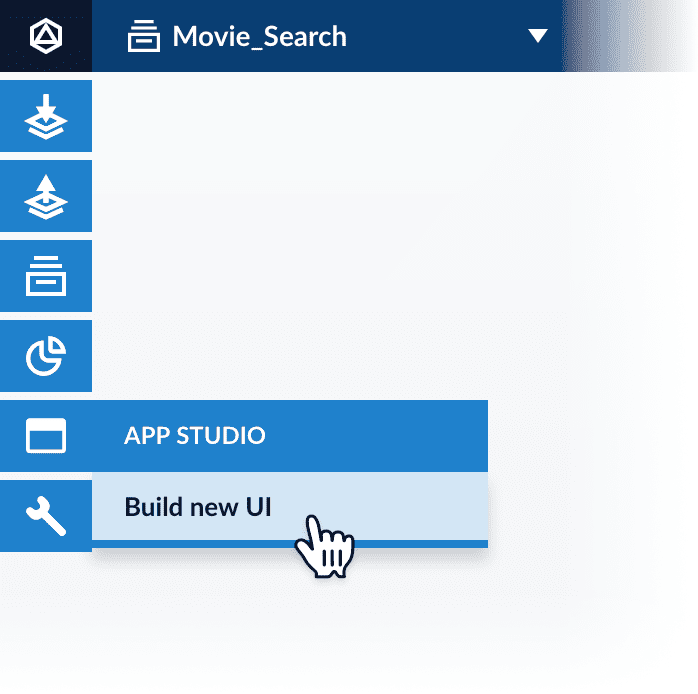 You will find a handy setup wizard, plus the embedded code editor, just as in App Studio 4.0.\
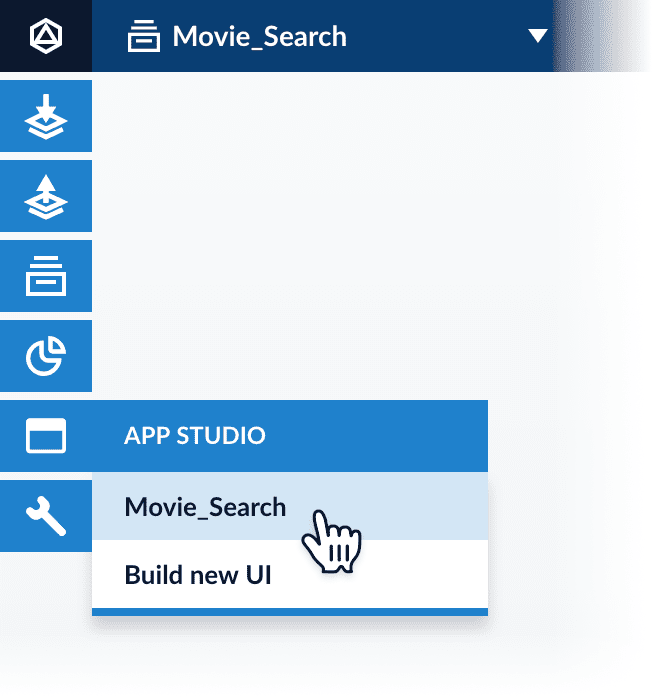
After you have built one or more search interfaces with App Studio, you can access them from the same menu:
You will find a handy setup wizard, plus the embedded code editor, just as in App Studio 4.0.\
After you have built one or more search interfaces with App Studio, you can access them from the same menu:
 * An App Studio project can be downloaded for standalone development using your own tools.
* A search interface can now be deployed as a standalone app in addition to deployment as a Fusion Web app.
If you prefer to develop your search interface using your own tools, you can download it as a `.zip` file.
The project directory includes tools for running a demo deployment or compiling an application for a [production deployment](/docs/4/app-studio/reference/app-deployment/overview).
## Downloading a project from Fusion
You can download your App Studio project as a `.zip` file from its configuration panel in App Studio.
This option is unavailable after you have uploaded a WAR file for the project.
1. From the App Studio menu, select your project:
* An App Studio project can be downloaded for standalone development using your own tools.
* A search interface can now be deployed as a standalone app in addition to deployment as a Fusion Web app.
If you prefer to develop your search interface using your own tools, you can download it as a `.zip` file.
The project directory includes tools for running a demo deployment or compiling an application for a [production deployment](/docs/4/app-studio/reference/app-deployment/overview).
## Downloading a project from Fusion
You can download your App Studio project as a `.zip` file from its configuration panel in App Studio.
This option is unavailable after you have uploaded a WAR file for the project.
1. From the App Studio menu, select your project:
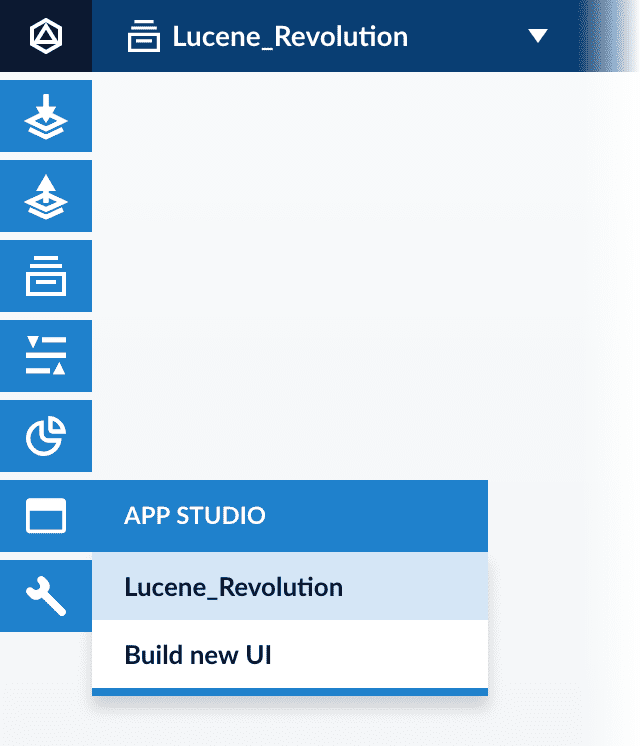 The project configuration panel appears.
2. Click **Download project**:
The project configuration panel appears.
2. Click **Download project**:
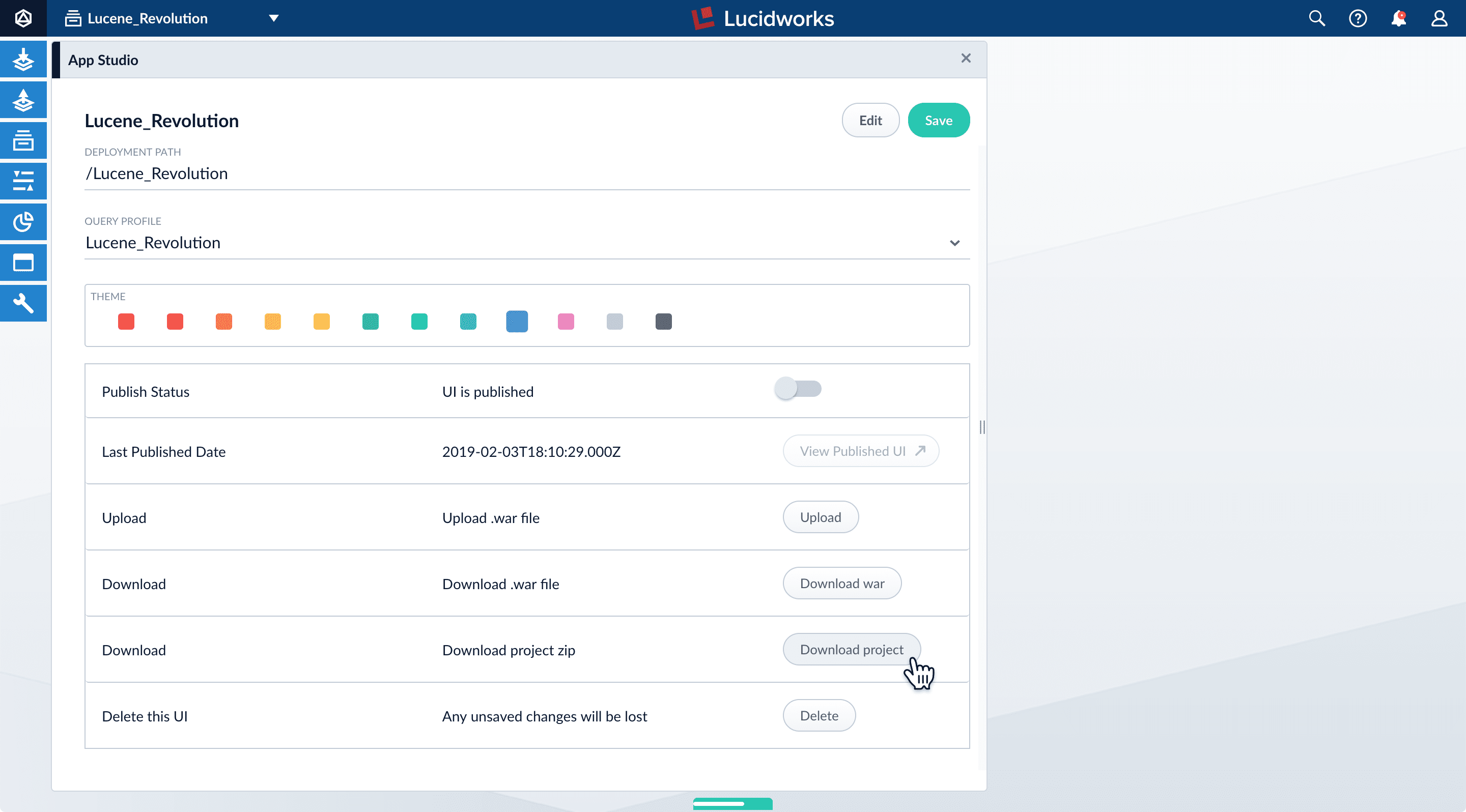 Your browser downloads the project as a `.zip` file.
## Deploying a project
There are several ways to deploy a project. For information, see [Deployment Overview](/docs/4/app-studio/reference/app-deployment/overview).
There are two ways to deploy a standalone App Studio search interface:
* [Create an app with an embedded Tomcat web server](#embedded-tomcat-web-server)\
This deployment type has an embedded Tomcat web server and is ready to deploy in a production environment. Previously, this was referred to as a "self-contained deployment."
* [Create an executable Java JAR file](#executable-java-jar-file)
This is a JAR package. Previously, this was referred to as a "self-executing deployment."
## Embedded Tomcat web server
Package your app as a standalone app for deployment to a production server. The standalone app embeds an Apache Tomcat servlet container.
**Unix or MacOS:**
```bash theme={"dark"}
./app-studio dist
```
**Windows:**
```bash theme={"dark"}
app-studio.bat dist
```
### Standalone app directory
**Unix or MacOS:**
The standalone app for deployment is in the `_app-name_/search-app-standalone` directory.
```bash theme={"dark"}
search-app-standalone/
README.md
app/
build/
config/
keystore.jks
lib
search-app-start.bat
search-app-stop.bat
search-app-stop.ps1
search-app.sh
```
**Windows:**
The standalone app for deployment is in the `_app-name_\search-app-standalone` directory.
```bash theme={"dark"}
search-app-standalone\
README.md
app\
build\
config\
keystore.jks
lib
search-app-start.bat
search-app-stop.bat
search-app-stop.ps1
search-app.sh
```
The `search-app-project.zip` is a snapshot of your project at the time you compiled the application.
## Executable Java JAR file
In this deployment type, your search interface runs within the Java runtime environment (JRE).
A downloaded project comes with an `app-studio` script that creates a JAR file.
**How to create the JAR file**
1. In a shell window, switch to your project directory:
```bash theme={"dark"}
cd /path/to/project-directory
```
2. Create the JAR file:
**Unix and MacOS:**
```bash theme={"dark"}
./app-studio package
```
**Windows:**
```bash theme={"dark"}
app-studio.bat package
```
The script creates the executable JAR file in the `dist` directory of your project:
```bash theme={"dark"}
search-app-latest.x.jar
```
## Running an executable JAR file
```bash theme={"dark"}
java -jar search-app-latest.x.jar
```
Your browser downloads the project as a `.zip` file.
## Deploying a project
There are several ways to deploy a project. For information, see [Deployment Overview](/docs/4/app-studio/reference/app-deployment/overview).
There are two ways to deploy a standalone App Studio search interface:
* [Create an app with an embedded Tomcat web server](#embedded-tomcat-web-server)\
This deployment type has an embedded Tomcat web server and is ready to deploy in a production environment. Previously, this was referred to as a "self-contained deployment."
* [Create an executable Java JAR file](#executable-java-jar-file)
This is a JAR package. Previously, this was referred to as a "self-executing deployment."
## Embedded Tomcat web server
Package your app as a standalone app for deployment to a production server. The standalone app embeds an Apache Tomcat servlet container.
**Unix or MacOS:**
```bash theme={"dark"}
./app-studio dist
```
**Windows:**
```bash theme={"dark"}
app-studio.bat dist
```
### Standalone app directory
**Unix or MacOS:**
The standalone app for deployment is in the `_app-name_/search-app-standalone` directory.
```bash theme={"dark"}
search-app-standalone/
README.md
app/
build/
config/
keystore.jks
lib
search-app-start.bat
search-app-stop.bat
search-app-stop.ps1
search-app.sh
```
**Windows:**
The standalone app for deployment is in the `_app-name_\search-app-standalone` directory.
```bash theme={"dark"}
search-app-standalone\
README.md
app\
build\
config\
keystore.jks
lib
search-app-start.bat
search-app-stop.bat
search-app-stop.ps1
search-app.sh
```
The `search-app-project.zip` is a snapshot of your project at the time you compiled the application.
## Executable Java JAR file
In this deployment type, your search interface runs within the Java runtime environment (JRE).
A downloaded project comes with an `app-studio` script that creates a JAR file.
**How to create the JAR file**
1. In a shell window, switch to your project directory:
```bash theme={"dark"}
cd /path/to/project-directory
```
2. Create the JAR file:
**Unix and MacOS:**
```bash theme={"dark"}
./app-studio package
```
**Windows:**
```bash theme={"dark"}
app-studio.bat package
```
The script creates the executable JAR file in the `dist` directory of your project:
```bash theme={"dark"}
search-app-latest.x.jar
```
## Running an executable JAR file
```bash theme={"dark"}
java -jar search-app-latest.x.jar
```